Target Audience Controls - Article
Summary
Target Audience Controls allow administrators to personalize a single Storefront experience for different users based on profile data, organizations, language, roles, or subscriptions—ensuring each audience sees relevant training without managing multiple separate Storefronts.
In this article you will learn:
- How target audience rules personalize Storefront sections for different users
- How profile attributes such as role, organization, and language control visibility
- How to combine targeting criteria to deliver relevant learning experiences
- How a single Storefront can dynamically adapt to multiple audiences
Target Audience and Hyper-Personalization
Target Audience is a core capability that enables administrators to design Storefront experiences with clear business outcomes in mind. Instead of creating and maintaining multiple Storefronts, you design a single, flexible Storefront that adapts dynamically based on who is viewing it—without duplication, rework, or parallel structures.
Using Target Audience rules, administrators can precisely control which sections appear for which users, combining multiple criteria such as role, organization, country, language, skills, interests, or subscription status. This makes it possible to align learning visibility directly with business context, responsibilities, and commercial intent—while keeping administration centralized and scalable.
In practice, this allows you to (examples for context):
- Guide clinicians or healthcare professionals toward only the product training, certifications, and clinical updates relevant to the devices, therapies, or product lines they are responsible for
- Direct engineers and technical specialists to sustainability, energy, software, or product-specific learning paths that evolve over time, without restructuring the Storefront
- Serve customers, partners, and resellers regionally, with localized content, region-relevant offerings and regulatory training—all from the same underlying configuration
The result is a Storefront that feels purpose-built for every audience, while administrators retain full control from a single design surface. Content is managed once, audience logic is applied consistently, and the learning experience scales naturally as your portfolio, markets, and user base grow.
Profile information is essential for effective personalization—the richer the data, the more relevant the experience. Some of this data typically comes from external systems such as provisioning solutions, CRM platforms feeding into identity management, or HRIS systems for internal audiences. However, not all information is available from these sources, and even when it is, data quality or structure may be inconsistent.
Eurekos extends personalization beyond external systems by allowing you to collect and enrich user profiles through questionnaires. This enables you to capture meaningful data directly from users, filling gaps that master data systems cannot address and giving you greater control over relevance and segmentation.
User profile enrichment can happen at multiple points in the user journey:
- During account creation
- At defined intervals or milestones
- Upon completion of training activities
- Through manual updates by users or administrators
This flexibility ensures that profiles evolve over time, reflecting changes in role, responsibilities, or learning needs.
As a practical starting point, we recommend defining how you want to categorize your learning portfolio—both now and in the future—using a simple reference model such as:
(Organization + Region) × (Role + Product relevance + Skill level)
Depending on the size and complexity of your training catalog, this model helps establish a clear structure for segmentation and personalization. Start simple, iterate gradually, and align your profile strategy with real business needs. A thoughtful upfront exercise here will significantly improve both the learner experience and long-term maintainability of your Storefront configuration.
We recommend establishing a reference model as early as possible that reflects your business structure and learning strategy. This model becomes the foundation for system-wide categorization, tagging, audience targeting, and content presentation. Try to define audience groups if you can.
By aligning your reference model with how your organization, products, roles, and regions are structured, you create consistency across the platform from day one. As user profiles evolve and the system begins to aggregate behavior, engagement, and learning patterns, this foundation enables increasingly precise and scalable personalization—ultimately supporting true hyper-personalized learning experiences over time.
Design once, think like your audience
A key strength of Eurekos is that administrators can work directly within a target audience context. You design the Storefront while seeing exactly what that audience sees, without having to create multiple Storefront versions or manage parallel structures. This approach offers virtually unlimited flexibility while keeping administration simple: you already know your audience, so you design with that audience in mind.
Importantly, section-level targeting works together with any logic defined at the training activity level. Profile-based criteria such as organization or language not only determine whether a section is visible, but also influence which training activities appear within that section—ensuring relevance at every level of the experience.
In the following sections, we’ll walk through how to define Target Audiences using multiple criteria and AND/OR logic to precisely control who sees what—and why.
Configure Target Audience on All Content Elements
When configuring the Storefront for registered or unregistered users (Settings → Storefront), you can define a Target Audience for any section by hovering over it and clicking the [Shield] icon.
This option is available on all content elements—rows, banners, text, carousels, and more—enabling personalization at the individual element level. Select the [Shield] icon on the element you want to control to define who should see it.

Each row can dynamically adapt based on the audience criteria you define, drawing on both your own categorization (vocabularies and profile tags) and system-level attributes such as language, country, or organization. While the exact options depend on how your platform is configured, they generally fall into two clear groups:
Audience targeting can be based on rich profile data, including for registered users:
- Language – Derived from the user’s profile and limited to languages enabled on the platform
- Country – Available if enabled under Settings → Forms → Profile
- Organization / sub-organization – Based on the organizational structure defined on the platform
- Vocabularies and tags – Profile-based tags enabled under Settings → Tags (Interests refers to the Category vocabulary)
- Subscription status – One or more active subscriptions on the platform
Targeting options are more limited but still effective for unregistered users:
- Language – Determined by the visitor’s browser language settings
- Organization – Inferred when the visitor enters via an organization-specific link (configured under Organization → Custom URL). This information is stored in cookies and retained until the user logs in.
Together, these options allow each row to respond intelligently to who is viewing the Storefront—supporting anything from simple language-based filtering to highly structured, profile-driven personalization.
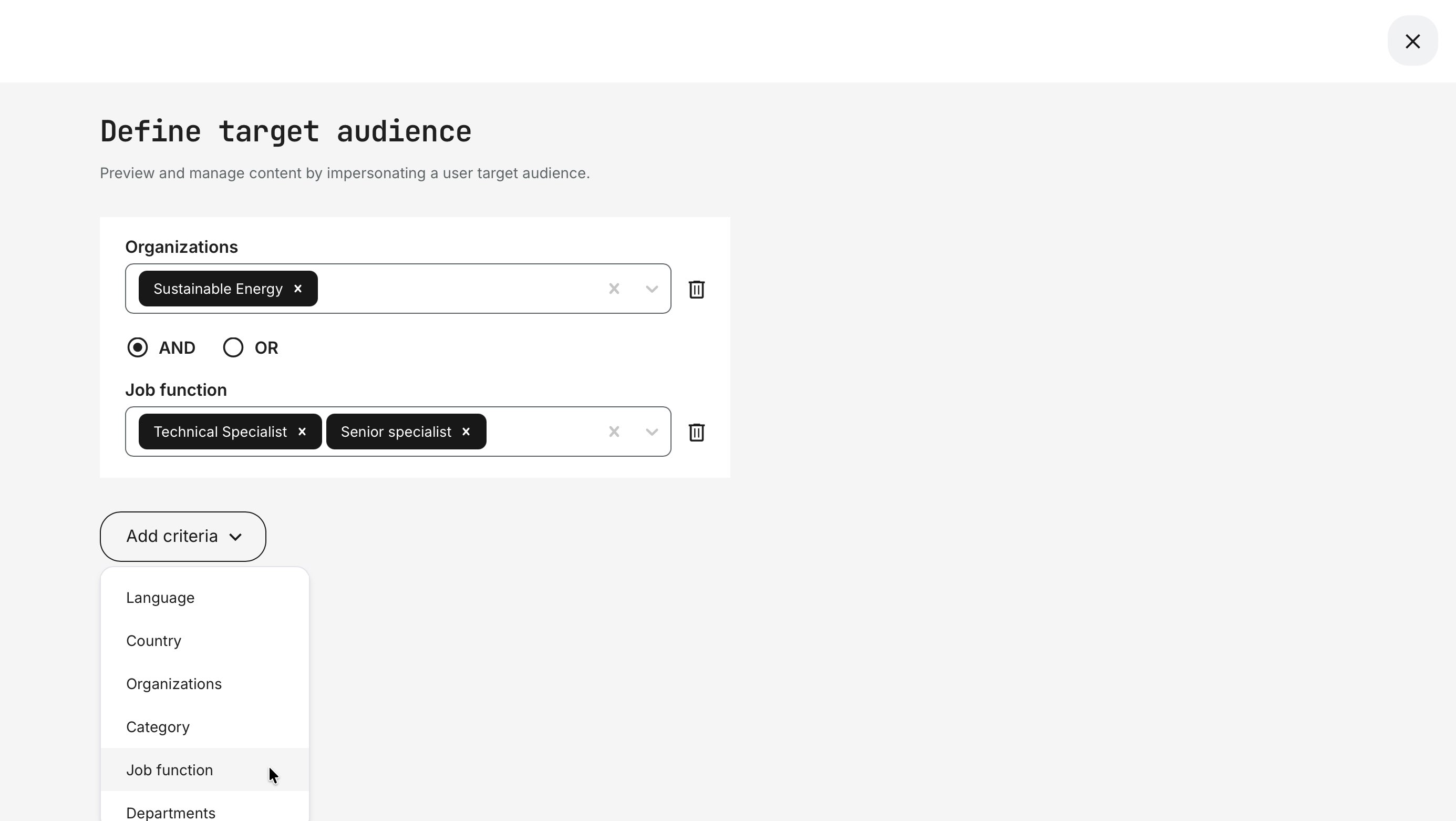
Logic rules use AND / OR conditions to give you fine-grained control over when content appears. This makes it possible to dynamically show or hide Storefront elements based on precise audience combinations.
- No audience rules defined: If no restrictions are set, the content element is visible to everyone
- Within the same field: AND logic: Multiple values selected within a single field must all apply—e.g., if two organizations are selected, the user must belong to both to see the section
- Across different fields: AND / OR logic: You can decide how fields relate to each other—e.g., users with the role Technical Specialist OR Senior Specialist may see the same section
- Additional criteria increase precision: You can continue adding fields to create more granular targeting, enabling highly personalized Storefront experiences
Some criteria are content-specific. For example, Subscribed is only available for subscription-related sections and rows, ensuring rules remain relevant to the content being targeted.
Once you click [Save], the element clearly indicates that an audience restriction is in place. You can revisit this at any time by clicking the indicator to review or adjust the criteria. Remember to save the overall Storefront once you have completed your incremental changes, otherwise they will not be applied.

Below is a table that outlines which targeting criteria support single or multiple selections, helping you understand how logic rules are applied for each option.
| Field type | Selection type |
|---|---|
| Country | Single choice |
| Language | Single choice |
| Title tag | Single choice |
| Tags | Multi-selection |
| Organizations | Multi-selection but Single choice for unregistered* |
| Subscribed | Multi-selection |
Preview or Work with a Target Audience in Mind
Eurekos allows administrators to work as a defined target audience. This means you can:
- Design the Storefront while seeing exactly what a specific audience sees
- Avoid creating and managing multiple Storefront versions
- Apply infinite variations through audience logic instead of structure duplication
If you already know your audiences, you can design the Storefront directly around them—making configuration faster, cleaner, and significantly more flexible. This reinforces the importance of establishing a strong initial audience reference model, while still enabling rich, multi-dimensional segmentation rather than relying on simplistic or coarse groupings.
To do this, use the [Target Audience] option at the top of the page. It allows you to select specific audience criteria and preview exactly which content that audience will see.

Once you’ve applied all personalization settings and finalized your Storefront for Registered Users, you may want to preview how it appears for specific user segments before making it live.
To support this, we’ve included a convenient [Target Audience] button located in the top-right corner of the Storefront’s front page. This feature allows administrators to masquerade as users filtered by various tags, enabling accurate previews based on different audience profiles.
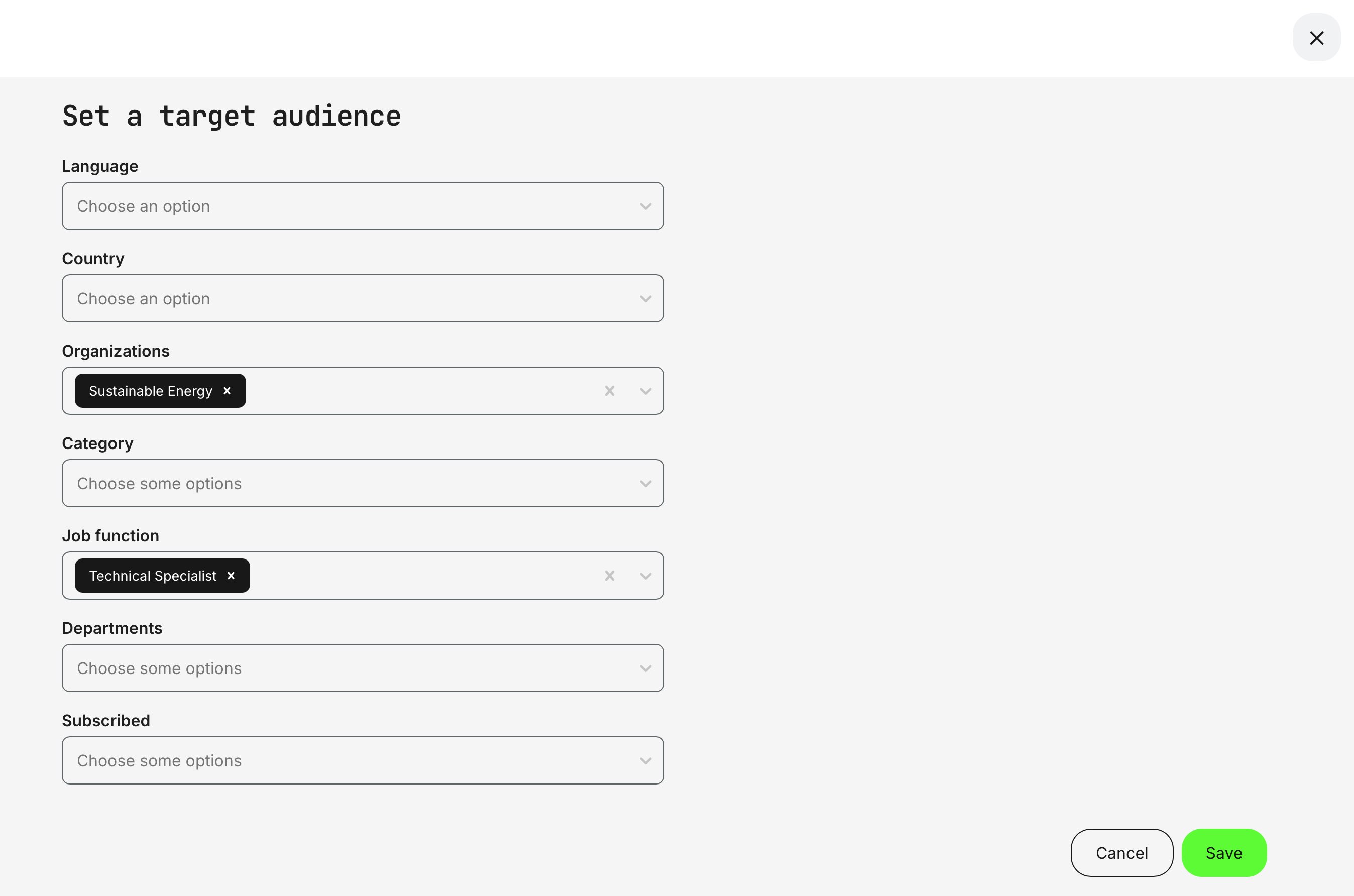
Once filters are applied, the Storefront clearly indicates that an audience is active. This is shown by a dot on the [Target Audience] button and the appearance of a [Reset] option next to it. From this point on, any new sections you add will automatically inherit the active audience definition, making it easier to design content specifically for that group.
To help manage this workflow, a few safeguards are built into the Target Audience feature:
- You can freely adjust the selected audience until you start making changes to the Storefront.
- Once new elements are added or edited, the [Target Audience] button is temporarily disabled to prevent switching audiences before saving your changes.
- After saving the page, you can activate a new audience simulation.
- While an audience simulation is active, you can add and edit sections directly and save them with the audience restrictions applied—without switching modes.
This ensures accurate previews, prevents accidental misconfiguration, and supports efficient, audience-driven Storefront design.

Because organization targeting for unregistered (anonymous) users is based on a single organization alias—and each alias maps to only one organization—the Organization field is limited to a single selection in both the Target Audience (section restrictions) and Preview dialogs on the Storefront for unregistered users.
Testing Storefront Audience Configurations
Thorough testing is essential when working with audience-based Storefront configurations. Because sections adapt dynamically based on profile data, language, organization, and other criteria, small configuration changes can have a large impact on what different users see.
A recommended best practice is to create a set of test users that represent your key audience segments—such as different roles, regions, organizations, subscription states, and languages. Using the Masquerade feature, administrators can then log in as these users to experience the Storefront exactly as they would. This provides an additional layer of validation beyond preview mode and helps confirm that the full end-to-end journey behaves as expected.
Testing with real user profiles is especially valuable for:
- Verifying language behavior (profile language vs. browser language)
- Validating audience rules across multiple criteria
- Confirming content visibility, ordering, and messaging
- Ensuring subscriptions, pricing, and calls to action appear correctly
By combining Target Audience preview mode with masquerading as test users, you gain confidence that your Storefront delivers a consistent, relevant, and high-quality experience for every audience—before it goes live.