Promotion and Management - Article
Summary
Promotions allow administrators to delegate training outreach to designated contact managers while maintaining central governance. The promotion workflow enables structured invitations, automated reminders, and visibility across regions and activities to ensure training programs reach the right audiences.
In this article you will learn:
- How to create and configure promotions for specific training activities
- How contact managers invite audiences and manage outreach
- How administrators monitor invitations and enrollment progress
- How reminders and governance ensure efficient promotion workflows
Within Course Administration → Promotions, administrators can create and manage promotions that define who is delegated the responsibility for inviting customers, partners, or other audiences. This is the entry point to the Invitations and Promotions workflow.
Administrators retain full oversight—setting the framework, controlling access, and monitoring progress—while execution is decentralized to designated Contact Managers. This ensures governance and consistency without central bottlenecks.
Create a New Promotion
Contact Managers are responsible for inviting leads, customers, and partners to specific courses, events, or programs. Through the workflow, invitees are directed straight to the activity’s landing page, where clear descriptions and compelling value propositions are essential for converting interest into self enrollment.
Before starting, ensure the following prerequisites:
- The training activity is available for self enrollment
- Selected registered users are assigned the Contact Manager role (a configuration on their profile)
To begin, click [Promote Activity] to create a new promotion and launch the invitation workflow.
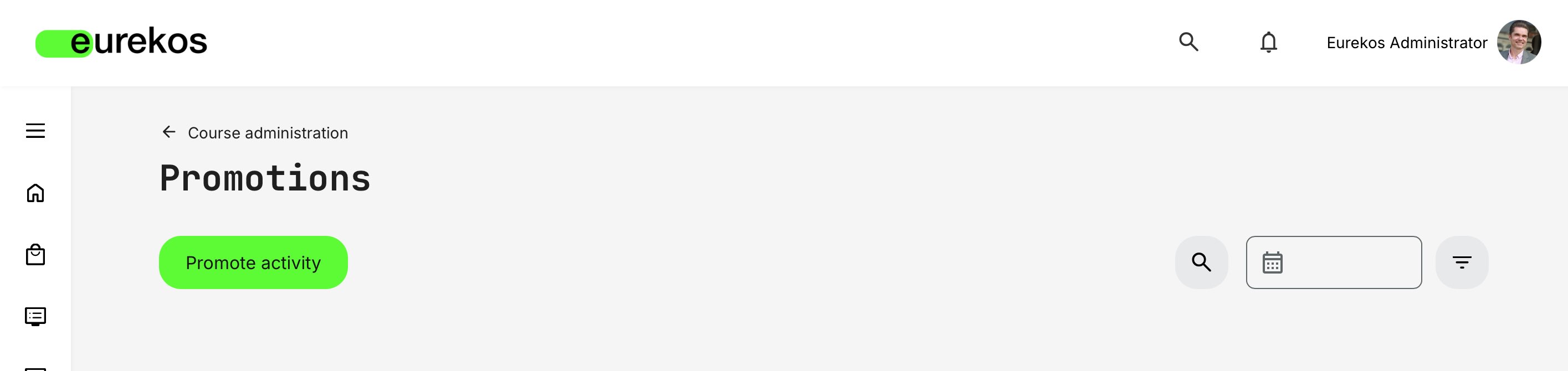
Administrators can also initiate a promotion directly from the Activities list (Course Administration → Activities) by using the [More] menu on an activity—providing a quick and convenient way to start the promotion workflow without navigating away.
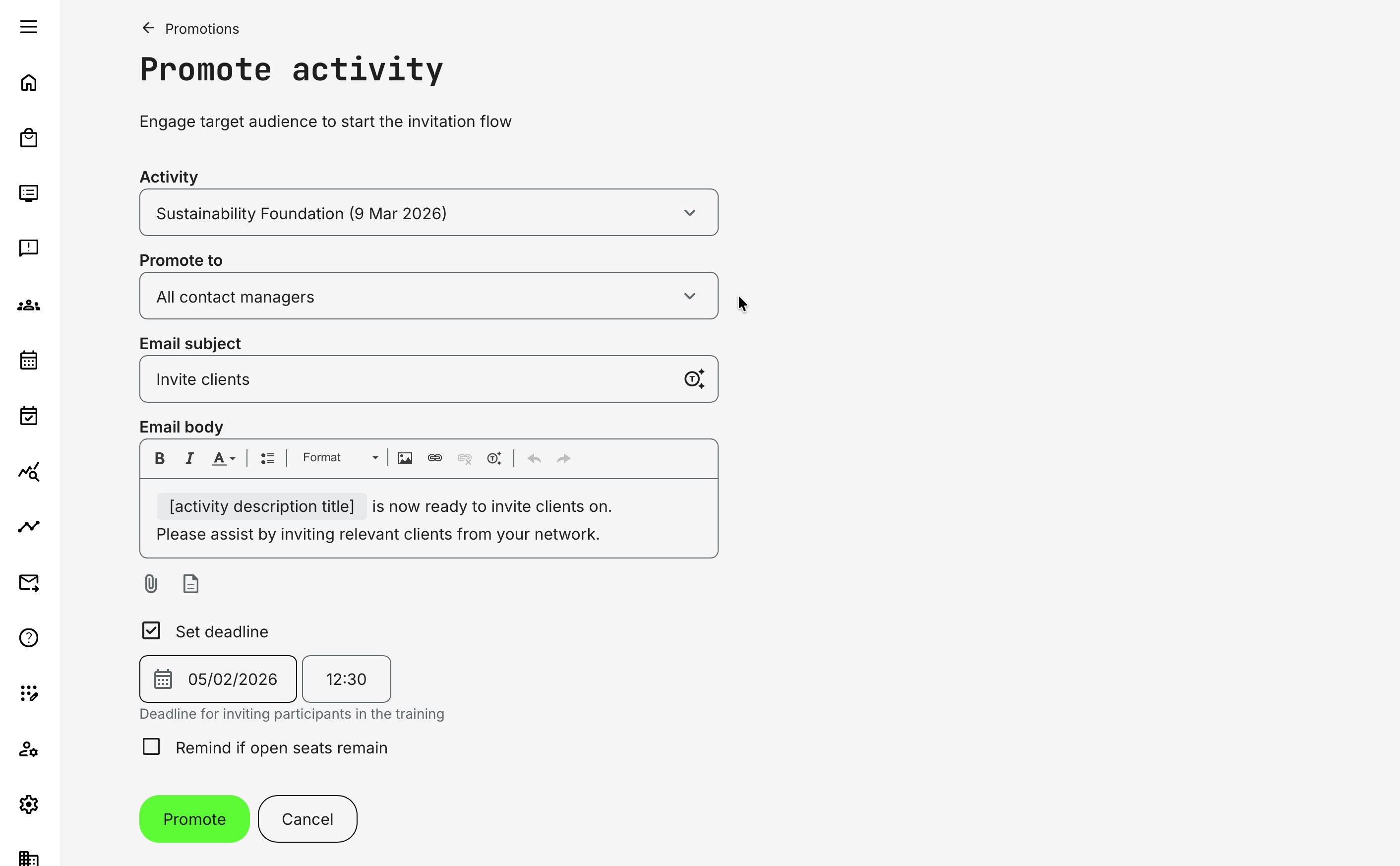
The promotion form allows you to select one training activity to promote, searchable across all activities available for self enrollment. Each promotion is tied to a single activity, ensuring clarity and focus. While you cannot promote multiple activities in the same promotion, you can choose to notify all Contact Managers for broad initiatives, or target specific individuals—for example those responsible for a particular region, product area, specialization, or VIP accounts.
This makes it easy to align promotions with real business ownership and accountability. Promotion form fields:
- What to promote—Select the training activity you want Contact Managers to promote. Only activities enabled for self enrollment are available.
- Who to promote to—Choose whether the promotion should be sent to all designated Contact Managers, or selected Contact Managers responsible for specific regions, topics, or accounts
- Email subject—Define a clear and actionable subject line for Contact Managers. You can use dynamic tokens (variables) to personalize the subject using activity details or user information.
- Email body—Provide additional guidance or context on how Contact Managers should act on this promotion. The rich-text editor allows you to format text and create ordered lists, insert links, images and attachments. Also, you can use dynamic tokens to personalize the message with user- or activity-specific information
- Deadline—Set a deadline for Contact Managers to complete their invitations. This is especially valuable for capacity-limited or instructor-led programs, helping administrators ensure sufficient attendance and giving time to adjust if needed
While a Deadline does not block enrollments in general after the date, it does make the promotion inactive, preventing Contact Managers from initiating additional invites. This creates a clear expectation and enables structured follow-up. Together, these options provide a structured yet flexible way to activate Contact Managers, align promotions with business priorities, and drive timely enrollment into your programs.
You can always create a new promotion if a second round is needed—allowing you to update deadlines, conditions, messaging, or target Contact Managers without affecting the original promotion.
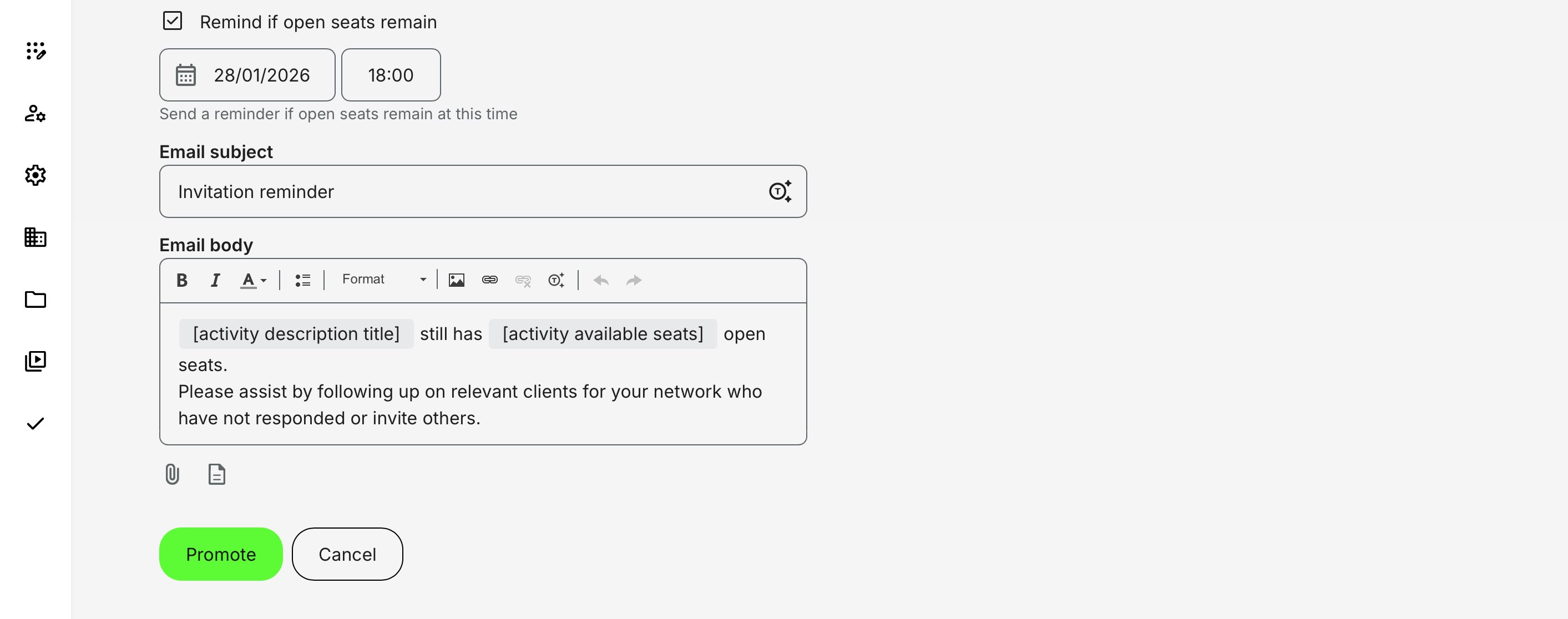
A final promotion option allows you to automate reminder emails based on your schedules and experience with filling instructor-led courses, events, or conferences. This helps ensure you leave enough time for follow-up actions—such as a second outreach round—if seats are not filled as expected.
When seat limits are in place and availability remains as a defined deadline approaches, the system automatically sends a reminder to the assigned Contact Managers, prompting them to follow up and secure the remaining registrations. To avoid unnecessary noise, reminders are only triggered if seats are still available; if the class is already full, no reminder is sent.
Be sure to schedule reminder emails ahead of the promotion deadline (if applied) and account for them in your overall planning. This ensures there is time for automated follow-up to take effect without manual intervention, giving Contact Managers an opportunity to act before additional, more hands-on sales efforts are required.
The reminder email uses the same rich-text editor as the initial promotion, allowing you to customize the message, formatting, links, and dynamic tokens. The content is simply tied to a separate reminder date, giving you precise control over timing and follow-up without adding manual overhead.
Email notifications are pre-populated with standard messaging for convenience, but you can easily customize these templates to match your organization’s tone and communication style under “Settings → System emails → Activity promote”.
For the Invitations and Promotions workflow, two email templates are particularly relevant:
- Request to promote activity – contact manager (The initial request sent to Contact Managers, asking them to invite their audience to a specific activity)
- Request to promote activity – follow-up – contact manager (A reminder email sent if available seats remain, prompting Contact Managers to follow up and complete their invitations)
Once you have finalized the messaging, click [Promote] to start the workflow. The selected Contact Managers will receive the request shortly and can begin inviting the right customers, partners, or prospects to the relevant training activities.
The Promotions overview provides a structured, supervisory view of all promoted activities, making it easy to track and follow up where needed. For each promotion, you can see key details such as:
- Who created the promotion
- Who the promotion is directed to
- Creation date and invitation deadline
- Current status (Active or Inactive)
To help you quickly narrow down the list, the overview provides several filtering tools:
- Search field – Search promotions by activity title
- “Created from” date picker – Filter promotions based on when they were created
- Filters by author and status – Narrow results by who created the promotion and whether it is active or inactive
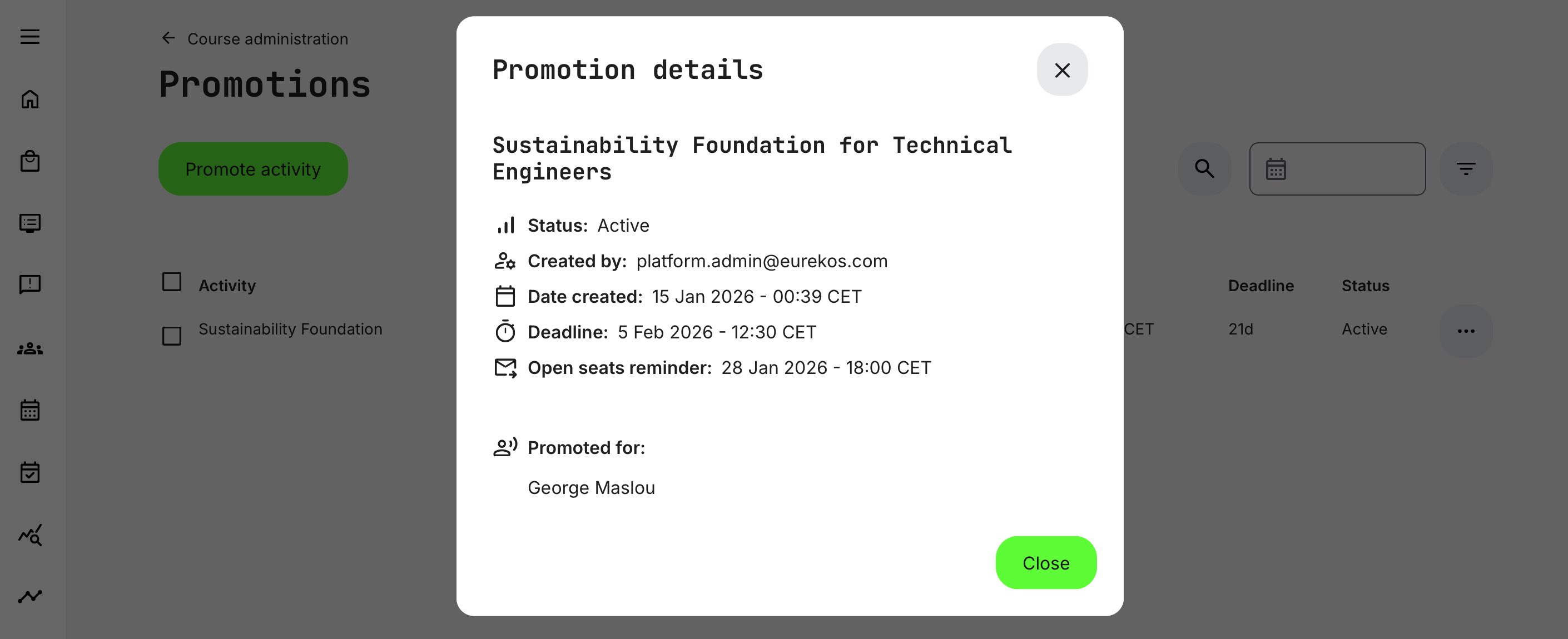
Each promotion also includes a [More] menu (ellipsis icon) with two actions—[Open details] to review the promotion and [Delete] to remove the promotion.
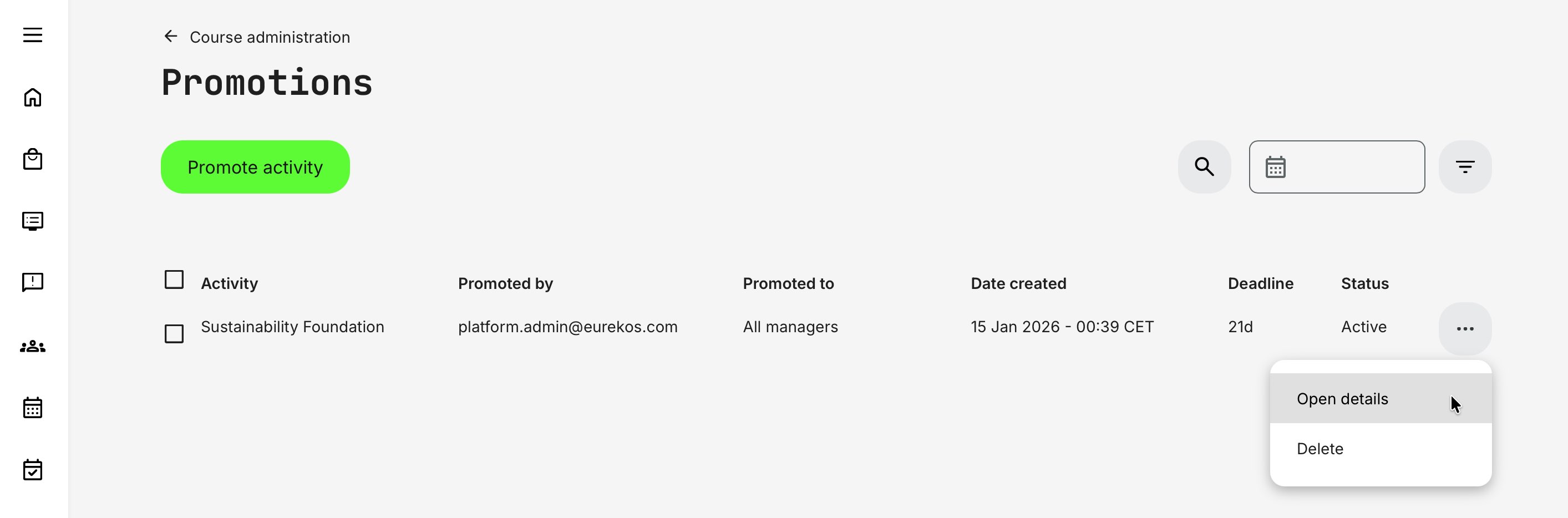
Click [More] to access the promotion details. While promotions cannot be edited once created, you can review key information such as who the promotion was sent to. This is especially important when the group of Contact Managers is large and you need to verify that the correct people were included.
A common scenario is that a promotion was created some time ago, and new Contact Managers have since been added—perhaps due to new hires, expanded responsibilities, or an increased scope of outreach. Promotions are time-bound: email notifications are sent only to the Contact Managers selected (or available) at the moment the promotion is created.
If you want to involve additional Contact Managers at a later stage, or give them a different timeframe to act, the recommended approach is to create a new promotion, even if it targets the same activity. This ensures clear expectations, proper timing, and accurate tracking for each group involved.
When promoting activities across different regions, it is recommended to create separate promotions per region. This is especially important for instructor-led programs, where time zones, calendars, language, and even regional variants of the same training can differ—often resulting in separate activities and landing pages per region or language.
Because promotions are tightly integrated with Eurekos capabilities such as time zone awareness, multi-currency pricing, and multilingual support, regional promotions allow Contact Managers to engage their audiences with the most relevant version of the training. While self-paced courses are generally more forgiving in this regard, instructor-led sessions benefit significantly from localized promotion to ensure clarity, attendance, and a smooth enrollment experience.
Organizational restrictions and promotions
When an activity is promoted, the promotion temporarily overrides organizational access restrictions for the invited users. This ensures that invitees can enroll smoothly—even if the activity would normally be limited by organization-based rules.
This design avoids unnecessary complexity and administrative overhead. Rather than duplicating activities or managing intricate exception rules, administrators can confidently promote any activity they have access to. As long as the promotion is valid, invited users can enroll without friction or access issues.
In short: promotions simplify controlled access, ensuring invitations work as intended—without introducing barriers for the invitee or extra configuration for administrators.
Delete a Promotion
There are several reasons you may need to delete a promotion—for example, if the promoted activity is no longer available, the program content has changed, or the promotion was created in error. In all cases, the goal is the same: to prevent any further invitations or sign-ups from occurring.
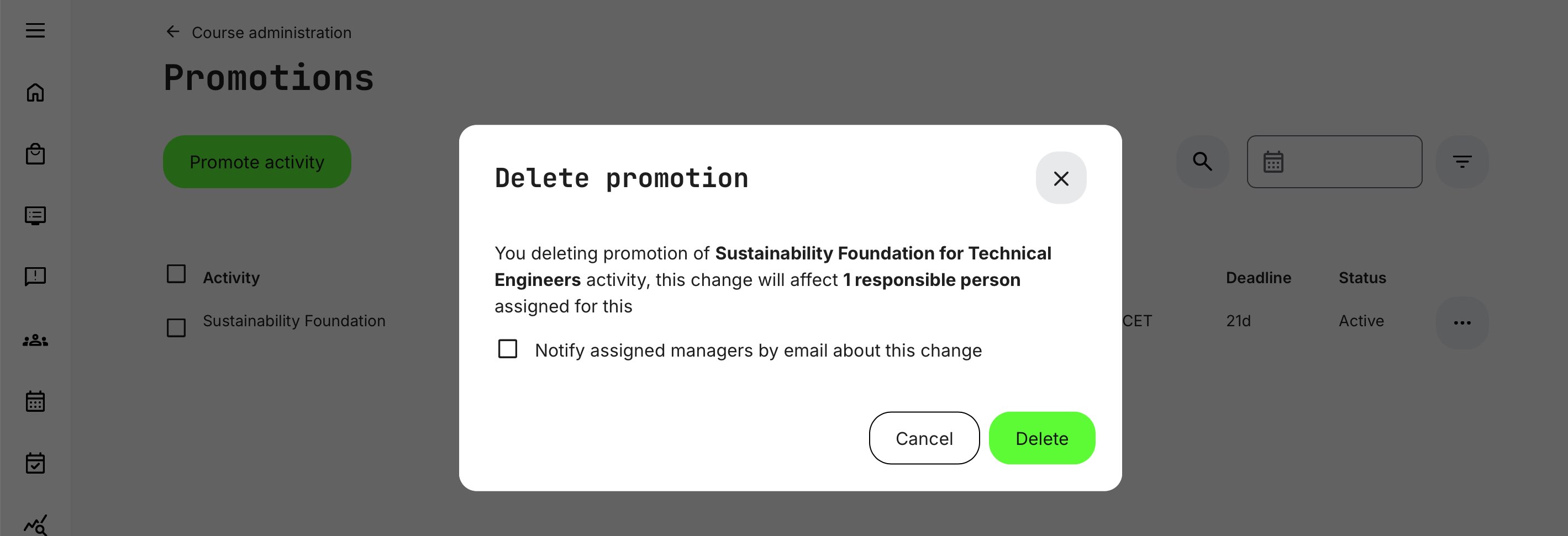
Deleting a promotion is done via the [More] option and requires explicit confirmation, as the action cannot be undone. The confirmation dialog clearly shows how many Contact Managers will be affected, allowing you to either proceed with the deletion or cancel the action.
An important consideration during this step is whether to notify assigned Contact Managers by email:
- Notify by email – A standard notification is sent to affected Contact Managers, explaining that the promotion is no longer active. This helps avoid confusion and unnecessary follow-ups. Customization of this email is found in “Settings → System emails → Activity promote → Promotion deleted - contact manager”
- Do not notify – In some situations, such as late-stage changes or sensitive adjustments, you may prefer to handle communication manually. This allows for more controlled, personalized follow-up where needed
Choosing whether or not to notify ensures you can balance transparency with practical control, depending on the business context and timing of the change.
Deleting a promotion does not remove users who have already enrolled, nor does it affect the training activity itself in any way. If the reason for deleting the promotion impacts the delivery, schedule, or execution of the training, you are still responsible for communicating directly with the affected participants, as you would in any other operational scenario.
Deleting a promotion simply stops the invitation and promotion workflow for that specific instance—it does not alter existing enrollments or learning records.
Smart Scheduling Guidelines
Smart scheduling isn’t about sending more messages—it’s about sending the right messages at the right time, to the right people. When combined with invitation workflows and real capacity data inside the LMS, it becomes a powerful lever for attendance, engagement, and business outcomes.
The best recommendation is to start earlier than you think. A common mistake is opening invitations too late.
While timing and behavior vary by industry and audience, there are proven guidelines and practical thumb rules that work well across most webinar and capacity-based training scenarios. Below is a concise, experience-based framework you can adapt to your context.
| Area | Best Practice | Practical Guidance / Rule of Thumb |
|---|---|---|
| Invitation timing | Open invitations early |
|
| Initial invitation | Focus on relevance, not urgency |
|
| Reminder cadence | Use staged reminders |
|
| Reminder logic | Trigger reminders conditionally | Only send reminders if seats are still available. Avoid reminder fatigue by suppressing messages once capacity is full |
| Capacity planning | Account for drop-off |
|
| Deadlines | Use deadlines as coordination tools | Set internal deadlines earlier than enrollment close to allow time for second outreach or reallocation of seats |
| Webinar scheduling | Consider global participation | Choose overlapping time zones (e.g., CET afternoon / US morning) or offer multiple sessions for global audiences |
| Registration behavior | Expect late sign-ups | Many users register 24–72 hours before start—monitor trends before escalating outreach if it is a webinar |
| Contact Manager enablement | Make action simple and focused |
|
| Automation usage | Support human follow-up | Use automation for reminders and status tracking, not as a replacement for personal outreach when needed |
| Common pitfalls | Avoid reactive scheduling | Don’t open invitations too late, send reminders blindly, or treat webinars and certifications the same |
| Overall principle | Be intentional, not noisy | Fewer, well-timed messages tied to real capacity and relevance outperform frequent generic reminders |