Invite Audience as Contact Manager - Article
Summary
Contact managers play a key role in the Invitations and Promotions workflow by inviting relevant audiences to training activities. This process enables decentralized outreach while ensuring that invitations, enrollment rules, and participation remain governed by the platform.
In this article you will learn:
- How contact managers invite customers, partners, or prospects to training
- How invitations guide users directly to relevant learning opportunities
- How invitation status and responses are tracked within the platform
- How decentralized invitations support scalable training promotion
The invitation process always starts with the Contact Manager. When an activity has been promoted to them, it appears in their Invitations area, giving them full visibility into what they are responsible for promoting and enrolling audiences into.
From here, Contact Managers can:
- Review promoted activities they are assigned to
- Invite customers, partners, or prospects manually or via bulk upload
- Adjust pricing or seat reservation options where applicable
- Track invitation status and follow up as needed
- Rely on automated reminders to improve participation and seat utilization
All of this happens within a governed workflow, where enrollment rules, deadlines, capacity limits, and reporting are enforced by the platform.
Invitations Overview
All promoted activities are available from the Invitations page ("Main menu → Invitations"). This page acts as the operational hub for Contact Managers, showing exactly which activities they can invite audiences to.
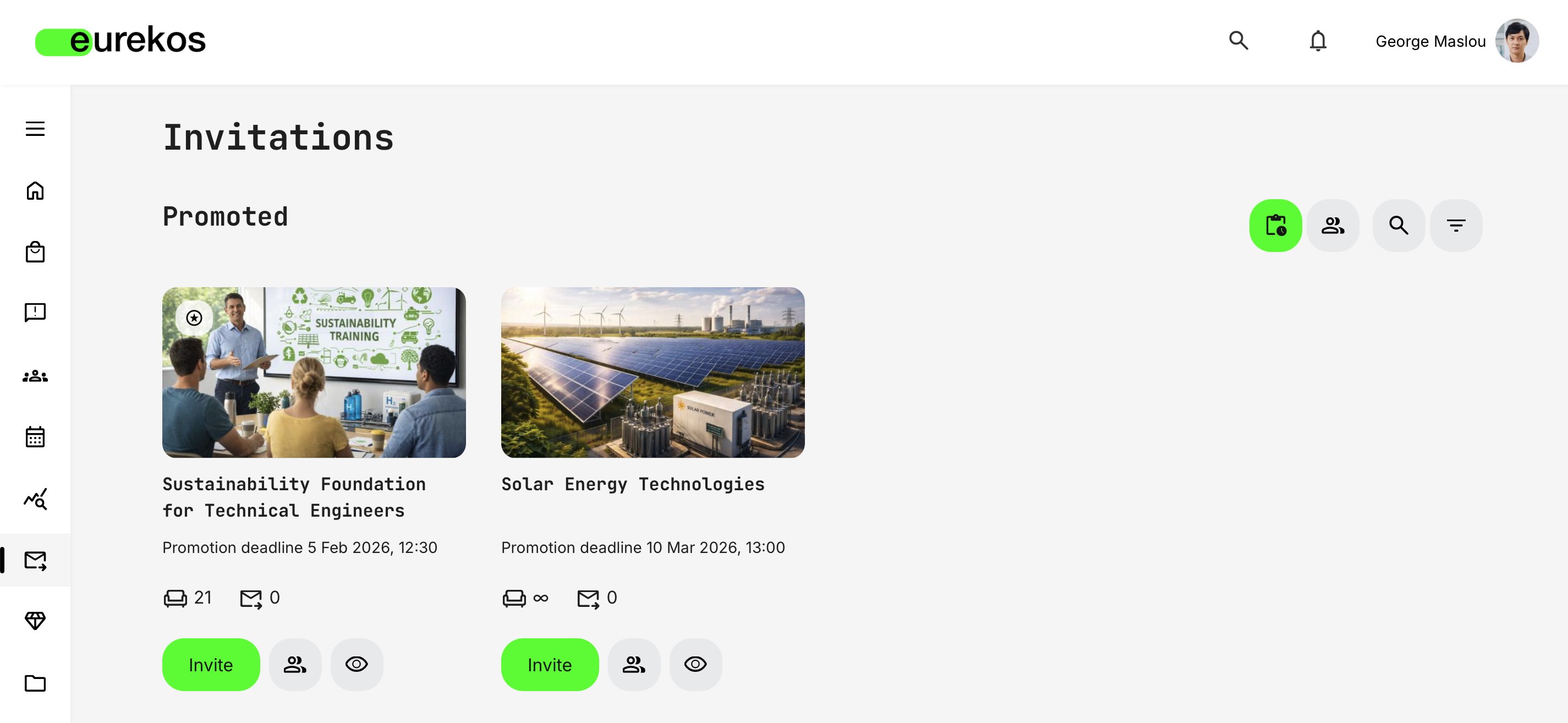
Each promoted activity appears as a tile that summarizes the key information Contact Managers need to act quickly and confidently.
- Activity name: Identifies the training, course, or program being promoted, making it easy to recognize the offer at a glance
- Promotion deadline (if configured): Highlights time-sensitive promotions and helps prioritize outreach
- Available seats indicator (sofa icon): Displays how many seats remain available for the activity—critical for instructor-led or capacity-restricted programs
- Invited users counter (mail icon): Indicates how many users have already been invited, helping track outreach progress and identify any needed follow-up
- Invite button: Starts the invitation workflow, allowing Contact Managers to add invitees manually or in bulk and send invitations directly from the platform
- See invited (people icon): Opens the invitee list, showing the current status of each invitation, enabling quick supervision and follow-up
- Preview training (eye icon): Opens the activity description page to review the content, value proposition, and logistics of the offer—ensuring they invite the right audience with confidence
Contact Managers only see activities promoted to them personally or promoted to all Contact Managers.
In the top-right corner, Contact Managers have access to overview options that become especially valuable when managing multiple promotions and large volumes of invitees. Instead of opening each promoted activity individually to review invitations, these options allow Contact Managers to monitor everything in a consolidated way:
- Tiles view (board icon) – Displays promoted activities as tiles, providing a quick overview of each promotion
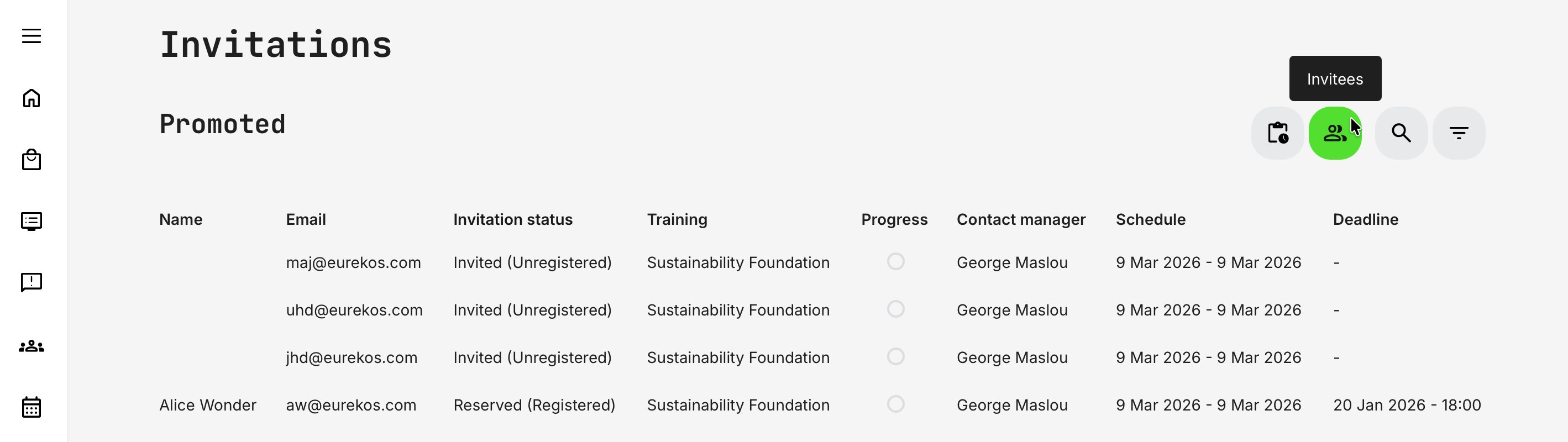
- People view (people icon) – Shows a panoramic list of all invitees across promotions, making it easy to track individuals, their status, and follow-up needs
The active view is clearly indicated by the highlighted icon. [Search] and [Filter] behavior adapts dynamically to the selected view:
- In Tiles view, search targets promotion and activity titles
- In People view, search applies to invitee names and email addresses
- Filters adjust accordingly, using profile information and activity-related criteria to refine results
Both views support multi-selection and flexible filter combinations, allowing Contact Managers to quickly narrow down what matters most—whether that’s specific programs, audiences, or individual invitees—without unnecessary navigation.
Administrators (Platform, Global, or Course Admins) can access the same view, but with a broader scope. They see all promotions across the platform—not just those assigned to an individual Contact Manager—giving them full visibility into promoted activities, invitees, and invitation statuses across all Contact Managers.
Contact Managers, by contrast, only see the promotions they are responsible for, and their access to personally identifiable information (PII) is intentionally limited. This separation ensures appropriate data privacy while still providing administrators with the oversight needed to monitor activity, engagement, and progress at a global level.
Activity Prioritization and Ordering
To help Contact Managers focus on what matters most, promoted activities are automatically ordered and highlighted:
- Activities directly promoted to you – Pinned to the top and marked with a star icon
- Activities promoted to all Contact Managers
Within these groups, ordering follows a clear logic:
- Active promotions
- Promotions with deadlines before those without
- Earliest deadlines
- Earlier activity start dates
- Most recently updated promotions
This ensures that time-sensitive, capacity-limited, and high-priority programs are always surfaced first.
Promotion Status and Availability
Each promotion has a clear status:
- Active – Invitations can still be sent
- Not active – Invitations are no longer possible
A promotion becomes inactive if:
- All seats are filled
- The promotion deadline has passed
- The activity is no longer available for self-enrollment
- The promotion has been suspended
This ensures Contact Managers always work with accurate, up-to-date opportunities and never invite users to unavailable programs.
Inviting an Audience
When a Contact Manager selects [Invite], they take ownership of the next step: inviting the right prospects. The invitation flow is designed to be flexible, precise, and business-driven—allowing Contact Managers to engage customers, partners, or prospects directly, while staying fully aligned with the rules and governance defined by administrators.
The invitation experience is intentionally similar to the promotion workflow, but with additional execution-level options. This ensures Contact Managers can act efficiently and responsibly without needing administrative access or external tools.
Contact Managers can invite participants using several methods—depending on platform configuration and business context—including Existing Users, File Upload, and Email invitations.
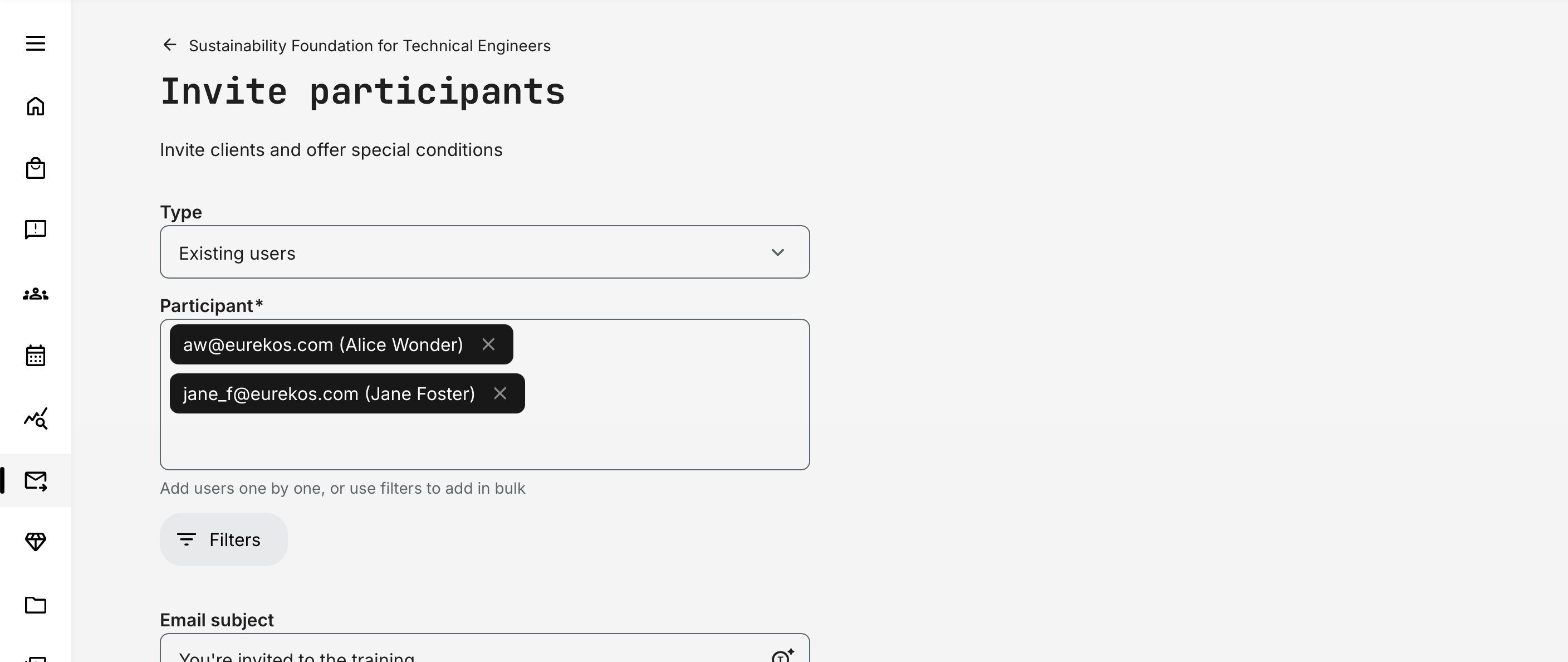
Existing Users
Invite users who are already registered on the platform. Contact Managers can start typing a name or email address, and matching users will appear automatically, allowing quick and accurate selection.
- Users who are already invited or enrolled are automatically excluded, preventing duplicate invitations to the same user
- Participants can be added individually or in bulk using filters
File Upload
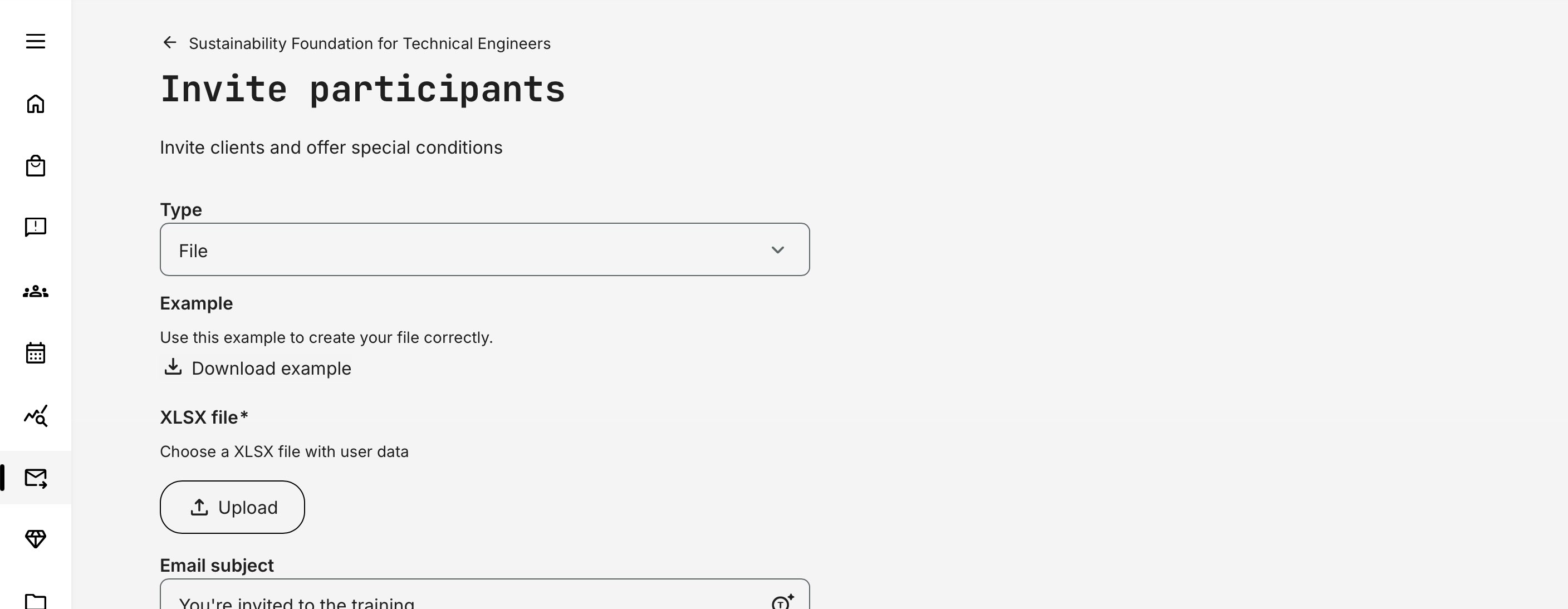
Invite users in bulk by uploading an XLSX file. This option is ideal when working with large recipient lists—such as tens or hundreds of users—especially when the list originates from external systems and the Contact Manager may not know which individuals already have active accounts on the platform.
To ensure a smooth import, a template file can be downloaded in advance. Populate this template with the required data before uploading to guarantee the correct structure and formatting.
Supported fields (required):
- First name
- Last name
- Email address
These fields are sufficient to ensure accurate identification and proper communication during the invitation process.
When the file is submitted, the structure and contents are automatically validated. If any issues are detected, clear feedback is provided so the Contact Manager can correct and resubmit the file.
Duplicate email addresses are handled automatically—users will not be invited more than once, and individuals who are already invited or enrolled will be excluded. This prevents duplicate invitations and ensures a clean, controlled invitation flow.
If a user already has an account associated with the invited email address, they can simply log in—no re-registration is required. If not, they will be guided through a simple account creation step as part of the invitation process.
While compliance with marketing legislation and data-privacy rules is always essential, extra care is recommended when inviting users via email from external lists. Such lists may not have been properly qualified or correlated with individual consent, preferences, or regional regulations.
Email Invitations
Invite participants by typing or pasting one or more email addresses directly into the invitation form. This option works similarly to file upload but is faster and simpler, as it does not require preparing or uploading a file. It is particularly useful when inviting a small number of people, or individuals who benefit from a more personal message—and are not already registered users.
Duplicate email addresses are handled automatically. Users will not receive multiple invitations, and anyone who is already invited or enrolled in the activity is excluded. This ensures a clean, controlled invitation flow without redundant outreach.
If the invited email address is already associated with an existing account, the user can simply log in—no re-registration is required. If the email address is new to the platform, the user is guided through a straightforward account creation step as part of accepting the invitation.
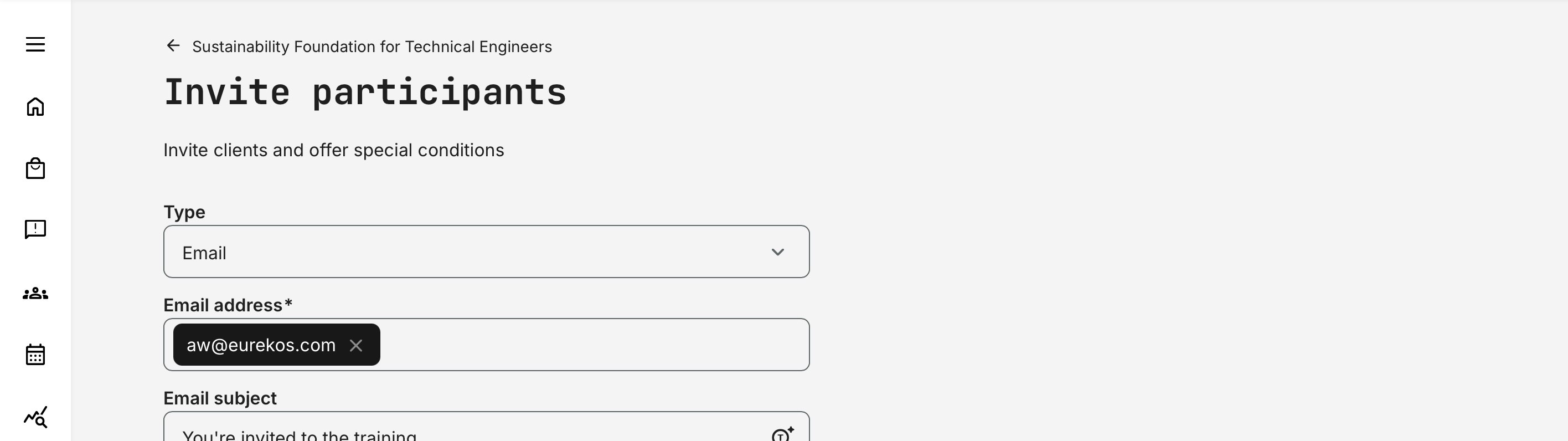
While compliance with marketing legislation and data-privacy rules is always essential, extra care is recommended when inviting users via email from external lists. Such lists may not have been properly qualified or correlated with individual consent, preferences, or regional regulations.
Tailored Communication and Commercial Conditions
The invitation form gives Contact Managers full flexibility to tailor messages to their audience—whether inviting groups or individual contacts. This enables targeted communication based on region, product area, role, or VIP status, ensuring each invitation feels relevant, intentional, and aligned with existing relationships.
By allowing Contact Managers to add personal context and commercial nuance, invitations become direct and meaningful—far more effective than generic outreach. The invitation form includes the following fields:
- Email subject—Define a clear, actionable subject line that immediately communicates relevance and urgency. Contact Managers can use dynamic tokens (variables) to personalize the subject with activity details, user information, pricing, or seat-reservation deadlines—making the message timely and specific
- Email CC (carbon copy)—Optionally add one or more email addresses to receive copies of invitation and reminder emails. This is particularly useful for staying informed without being overwhelmed—Contact Managers can monitor outreach and follow up directly through the invitation list rather than receiving every individual response
- Email body—Provide context on why the training is relevant, the value it delivers, and why the recipient should act now. The rich-text editor supports formatting, ordered lists, links, images, attachments, and dynamic tokens—making it easy to craft persuasive, personalized messages that reflect special offers or pricing conditions
- Price override—Apply special commercial conditions per invitation, such as original price, free access, or a specific price. Any price override is enforced automatically during enrollment and can also be referenced dynamically in the invitation message—ensuring consistency between communication and purchase experience
- Reserve a seat—Reserve a seat for the invitee until a defined deadline. This is especially powerful for capacity-limited or instructor-led programs and works exceptionally well when combined with special pricing or complimentary access. Reserved seats are held until the deadline and integrate seamlessly with waitlists if capacity is reached
Important: Price overrides offered by a Contact Manager are strictly personal and tied to the specific invitee, using the email address as the unique identifier. This means that even if an invitation link is shared or forwarded, the special price or discount will not apply to anyone else.
- Whether the invitee is a new user who creates an account during enrollment or an existing user who logs in, the offer remains bound to that individual only. It cannot be reused, transferred, or exploited by others.
- If the invitee wants to extend the offer to someone else, they must ask the Contact Manager to issue a separate invitation. This preserves the intended business context, maintains commercial control, and ensures that special conditions are applied deliberately and transparently.
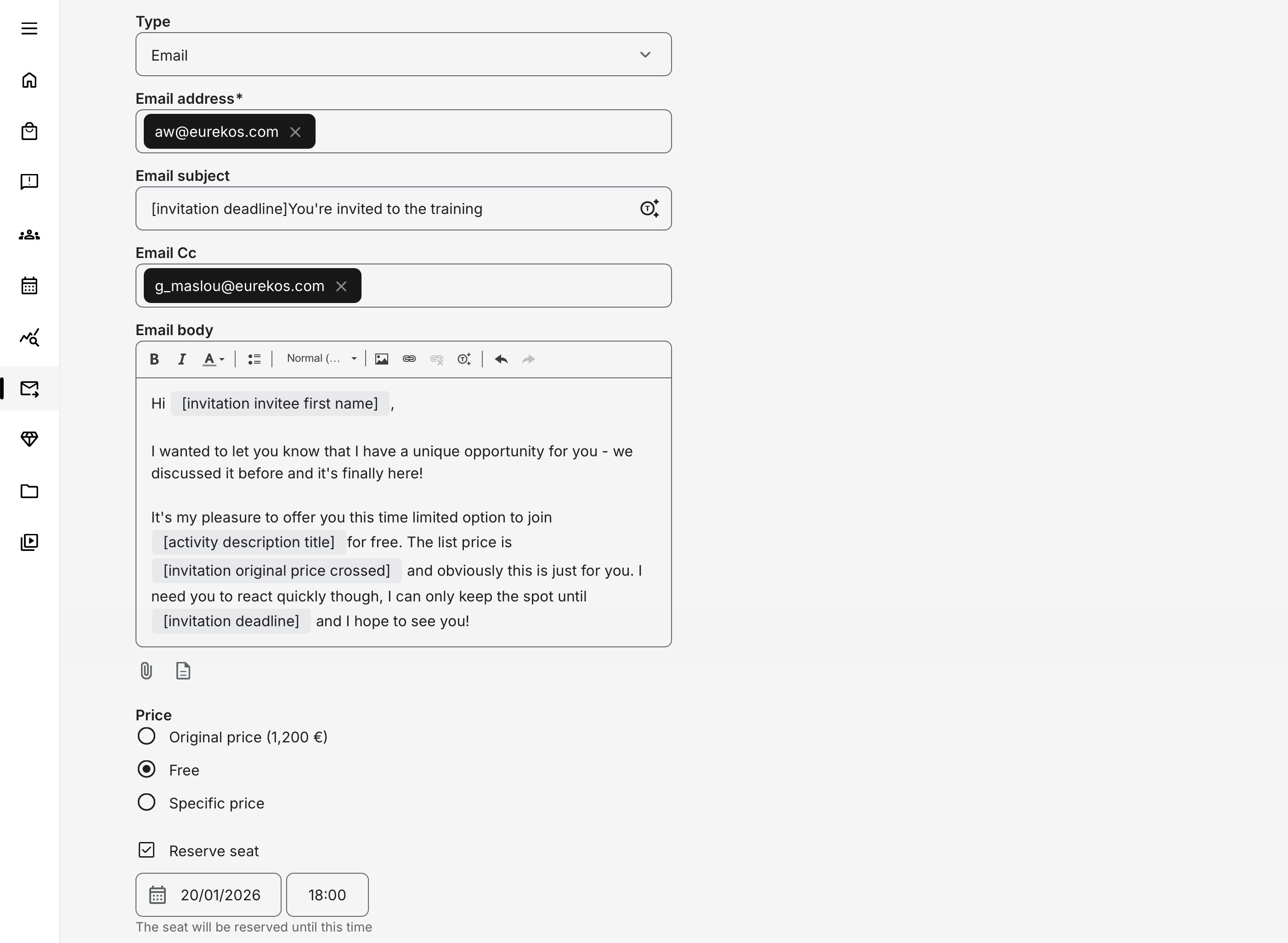
If you don't want to allow contact managers to offer special prices and overrule this for your use cases, this section can be disabled - just reach out to the Eurekos support team for limiting this configuration which is on platform level, so it would be the same limitations for all contact managers.
Remind participants allows Contact Managers to schedule a reminder email for invitees who have not yet enrolled. The reminder is only sent if seats are still available and is automatically suppressed for users who have already enrolled. It uses the same rich-text editor as the initial invitation, making it easy to customize messaging, formatting, links, and dynamic tokens.
As a best practice, limit outreach to the initial invitation plus one reminder. Any further follow-up is typically more effective when handled manually and personally, helping avoid message fatigue and over-communication. Both Contact Managers and administrators can monitor invitation statuses and the full invitation lifecycle at any time, ensuring timely action, clear accountability, and alignment with business priorities while driving higher enrollment.
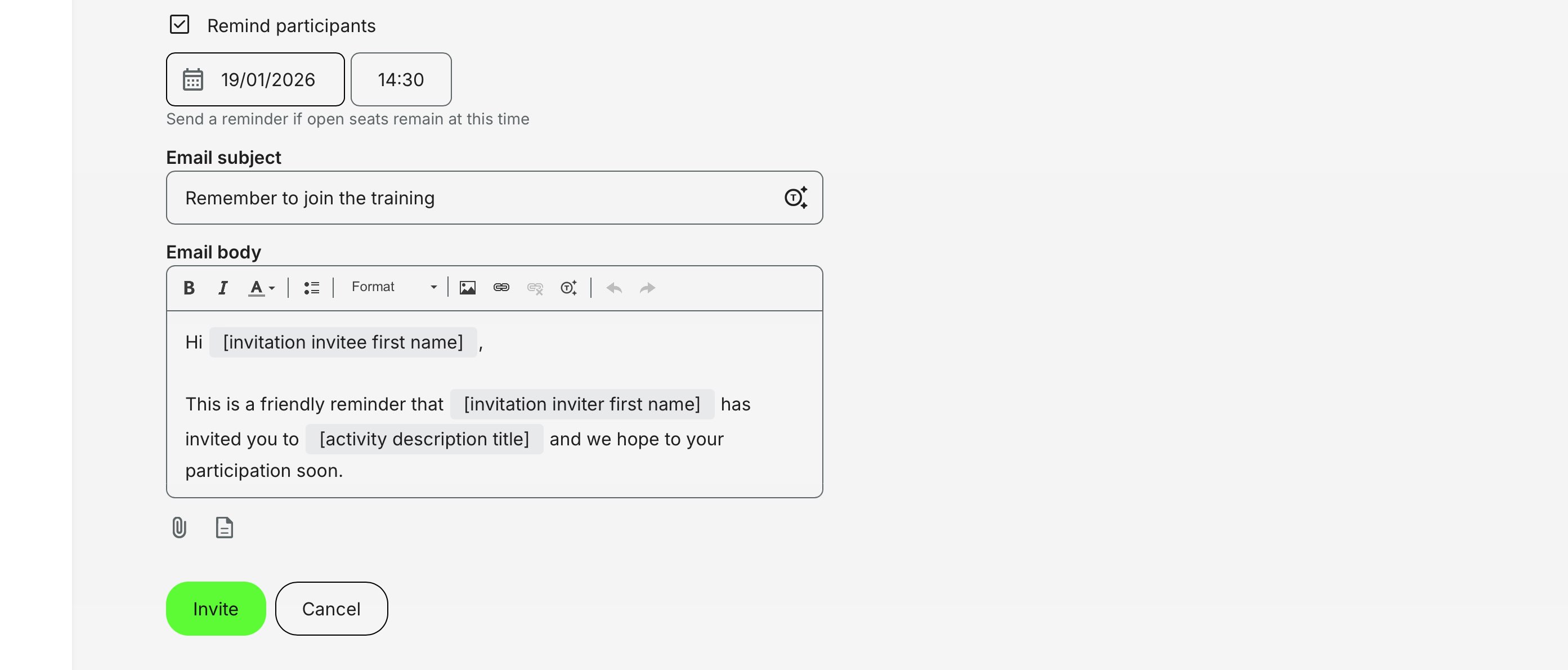
Invitees list
Contact Managers can access the invitee list either by clicking on a promoted activity tile or by selecting the [People] icon associated with that promotion. This view shows only the invitees initiated by the Contact Manager and only for the selected promotion, ensuring clarity and focus.

At the top of the page, Contact Managers get a quick snapshot of the promotion, including:
- Training start date and schedule
- The invitation deadline they are working toward
- Remaining available seats
- The total number of invitees they have sent invitations to
From here, they can also:
- Click [Invite] to add more participants
- Use [Preview training] to quickly revisit the activity description and refresh context before further outreach
Below the promotion summary, a detailed invitee list. This view is designed to support day-to-day follow-up, helping Contact Managers quickly understand who has responded, who may need a reminder, and how the invitation lifecycle is progressing.
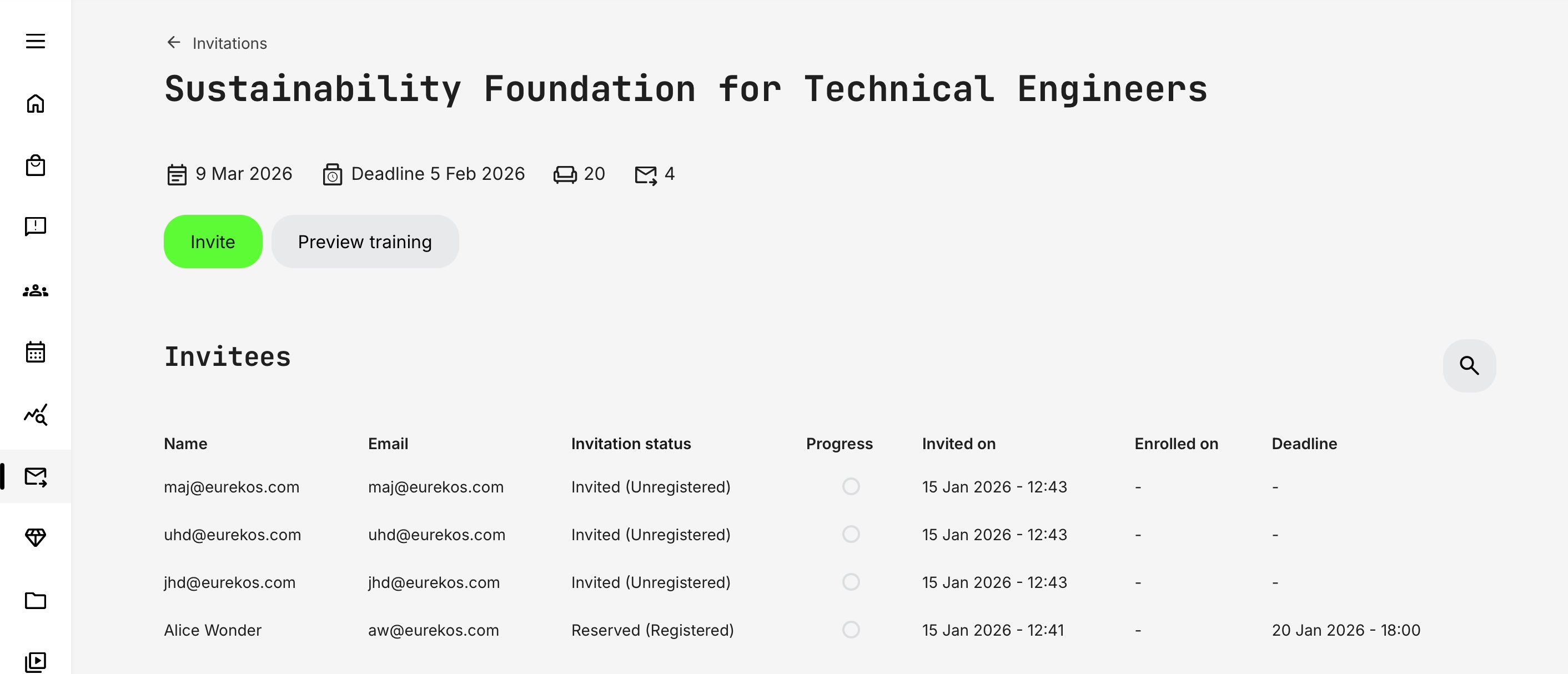
Each row represents a single invitee and includes the following information:
- Name – The invitee’s full name, allowing quick identification and personal follow-up
- Email – The email address used for the invitation and the unique identifier tying the invite, pricing, and seat reservation to the individual
- Invitation status – The current state of the invitation (e.g. Invited, Reserved, Enrolled, Expired), combining both user and enrollment status for a complete picture
- Progress – Indicates whether the invitee has started, is in progress, or has completed the training after enrolling
- Invited on – The date the invitation was sent, useful for timing follow-ups and reminders
- Enrolled on – The date the invitee enrolled, if applicable, confirming conversion from invitation to participation
- Deadline – The invitation deadline, helping Contact Managers prioritize outreach before opportunities expire
The Invitation status column combines both the invitation state and the user type. The user type—Registered or Unregistered—is shown in parentheses. The column can be sorted by clicking the header. Possible statuses include:
- Invited (Registered) – Existing platform user invited
- Invited (Unregistered) – Unregistered user invited via file upload or email only
- Reserved (Registered) – Existing user invited with a seat reservation
- Reserved (Unregistered) – Unregistered user invited with a seat reservation
- Enrolled (Registered) – User has enrolled or converted from invitation
- Cancelled – Invitation cancelled manually
- Expired – Seat reservation deadline has passed
- Blocked – User access blocked
The Progress column reflects the learner’s activity status:
- Not started – Empty circle
- In progress – Partially filled circle (no percentage shown)
- Completed – Filled circle with completion icon
Together, these indicators give Contact Managers a clear, real-time view of invitation outcomes and learning progress—making it easier to decide when to follow up, escalate, or move on to the next opportunity.
Invitees list - Panoramic People View
Should the Contact Manager want to access a list of invitees across the promotions, in a combined view the top right [People] icon can be clicked, to show everyone invited by this contact manager by by default.
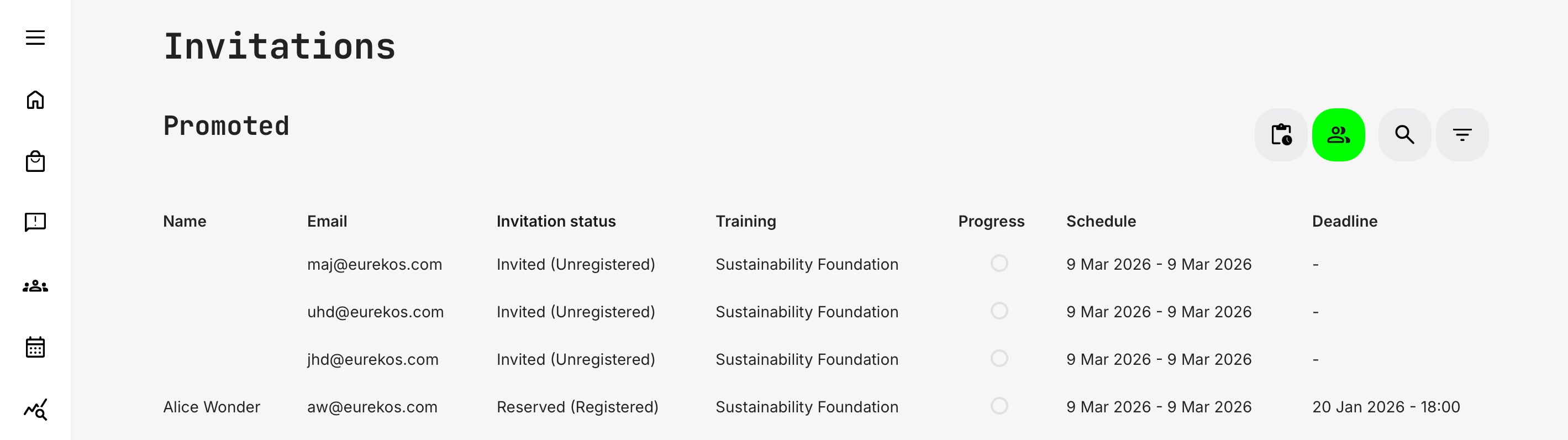
While much of the information matches the promotion-specific list, the panoramic overview is organized differently. Here, each row represents an individual invitee, providing a consolidated view across all promotions, including the following details:
- Name – The invitee’s full name, allowing quick identification and personal follow-up
- Email – The email address used for the invitation and the unique identifier tying the invite, pricing, and seat reservation to the individual
- Invitation status – The current state of the invitation (e.g. Invited, Reserved, Enrolled, Expired), combining both user and enrollment status for a complete picture
- Training – The title of the training activity this invitation relates to
- Progress – Indicates whether the invitee has started, is in progress, or has completed the training after enrolling
- Schedule – The start date and schedule to help identify the training when managing multiple promotions
- Deadline – The invitation deadline, helping Contact Managers prioritize outreach before opportunities expire
The Invitation status column combines both the current invitation state and the user type. The user type—Registered or Unregistered—is shown in parentheses for quick reference. In the [People] view, search applies to both names and email addresses, making it easy to locate specific invitees quickly.
Dynamic Filters in any View
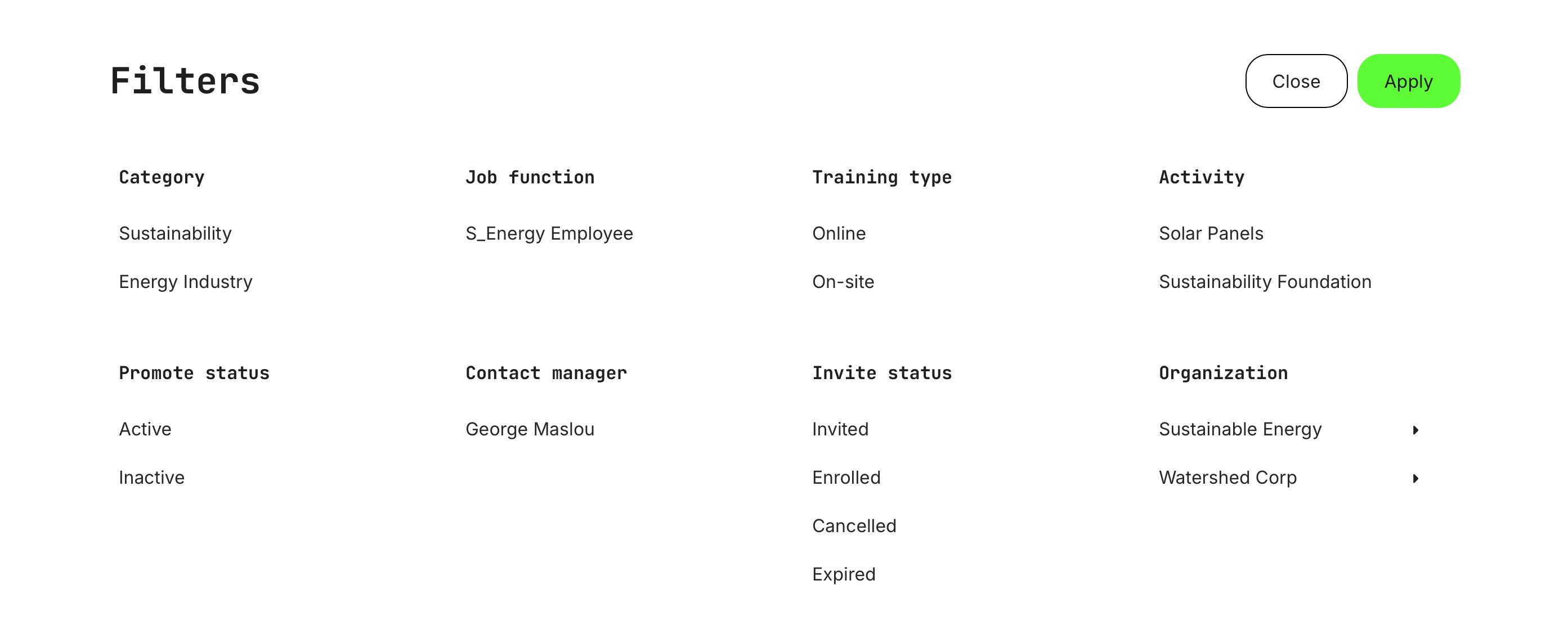
Filters adapt dynamically based on available profile information and activity-related criteria, allowing Contact Managers to refine large invitee lists with ease. Using multi-selection options, they can quickly narrow results to what matters most—specific programs, audience segments, or individual invitees.
As the number of promotions and invitees grows, the filtering options expand accordingly, responding to the underlying data and providing increasingly precise control as complexity increases.
Additional Administrator Controls
In addition to the Contact Manager invitation workflow, administrators have access to extended controls that provide global visibility and oversight. They can monitor invitations across all programs, cancel invites, and convert invitations into enrollments when needed—ensuring compliance, operational flexibility, and a consistent learner experience, while preserving decentralized execution.
Invitees list
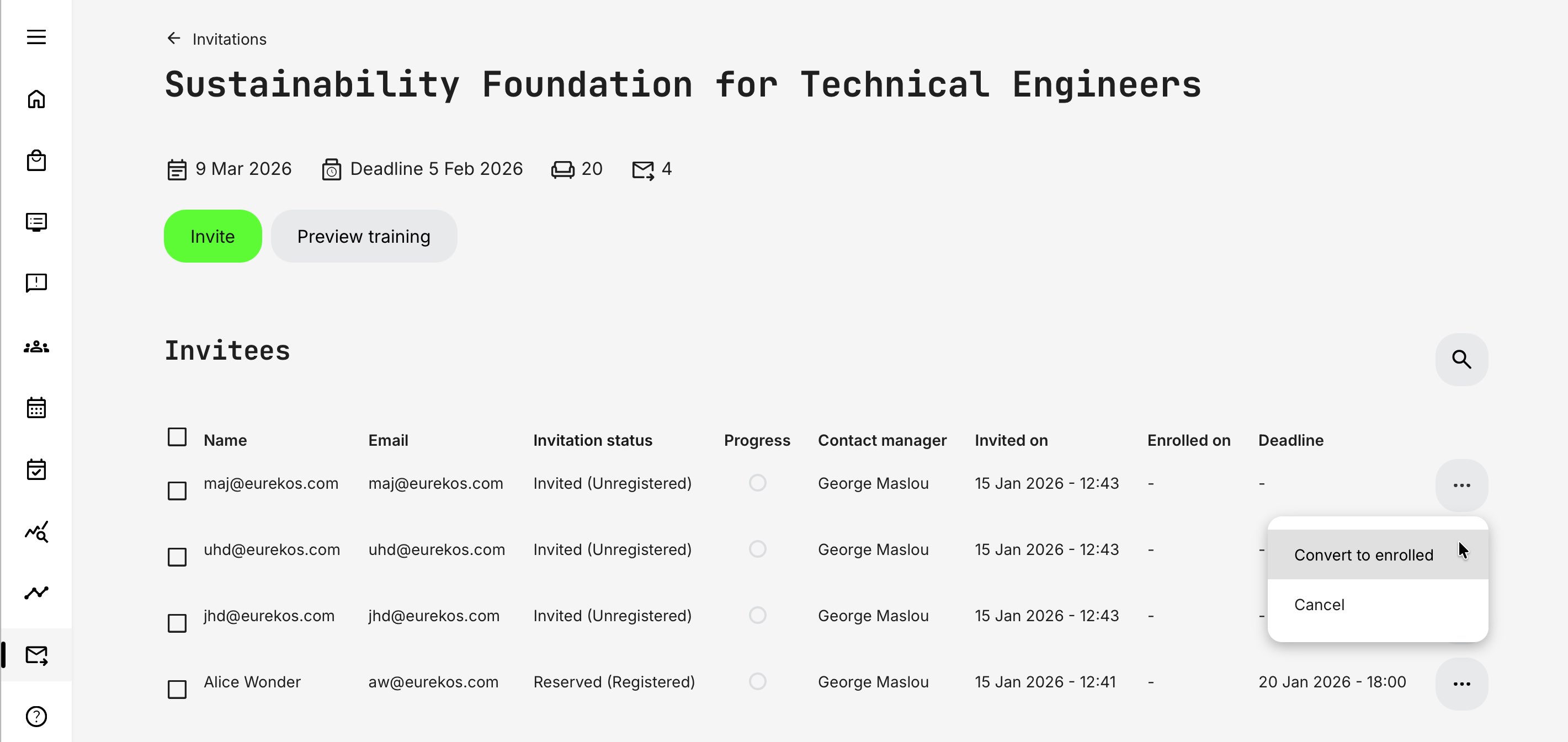
Administrators have access to additional actions via the [More] menu on each invitation row, including the ability to convert an invitation into an enrollment and create a user if needed. This is typically used when bilateral communication has already taken place and enrollment has been agreed as a service or exception.
How the conversion works:
- Registered users—If the invitee already has an account, the process is straightforward—the user is enrolled directly into the activity
- Unregistered users—If the invitee does not yet have an account, the system initiates user creation. An email is sent to the invited address prompting the user to set a password and complete the required registration fields (such as first name, last name, and any additional profile data configured in the signup form)
In both scenarios, the conversion is treated as a manual administrative enrollment, regardless of whether the activity is normally configured for credit card payment through a payment gateway. The standard self-service payment flow is bypassed, and the enrollment is created directly by the administrator. After logging in, users will find the training readily accessible on their Home screen.
A transaction record is still created as part of the enrollment, accurately reflecting the commercial configuration of the invitation—including any special pricing applied. However, actual invoicing and financial settlement are handled outside of Eurekos, as this workflow assumes that special agreements, exceptions, or service-based arrangements have already been made between the parties.
This flexibility allows organizations to support real-world business arrangements while keeping enrollment data and learning records consistent inside the LMS.
When using this option, the administrator is presented with a confirmation dialog that includes the choice to receive an enrollment confirmation email for record-keeping purposes.
Click [Yes] to proceed with the conversion. Regardless of this choice, a transaction record is created and can always be accessed later under “Course Administration → Transactions”, where confirmations can be re-sent. Financial reports exported as needed (Analytics → Transactions).
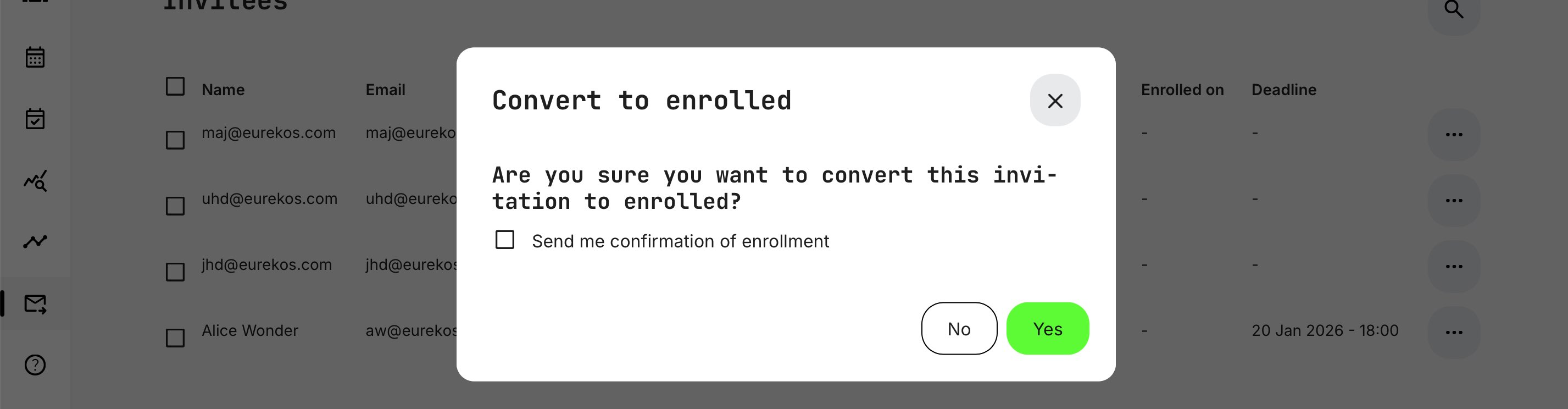
This operation does not trigger any commercial confirmation emails to the enrolled participant. However, any automated email workflows configured for the training activity will still be sent—immediately upon enrollment for registered users, and for new users once they have completed account creation.
People panoramic view
If an administrator wants to review invitees across multiple promotions in a single, combined view, they can click the [People] icon in the top-right corner. This opens a consolidated list showing all invitees associated with the selected Contact Manager by default.
The key difference from the Contact Manager view is the addition of a Contact Manager column, which clearly indicates who issued each invitation.
This panoramic view enables administrators to quickly understand outreach effectiveness across a large number of invitations and programs. It becomes easy to identify patterns—such as which regions, accounts, or Contact Managers are most successful—supporting better coordination, targeted follow-up, and continuous improvement of outreach strategies. In practice, this often leads to better messaging, shared best practices, and stronger team performance over time.
To further refine the view, administrators can use Filters, including a multi-select filter for Contact Managers. This makes it simple to compare performance, isolate specific cohorts, or focus on particular regions or initiatives without navigating through individual promotions.