Tax rules and Seller registration details - Article
Summary
Tax rules and seller registration settings determine how taxes are calculated for training purchases across countries, regions, and customer types. These configurations ensure compliant pricing behavior and correct tax calculation during checkout.
In this article you will learn:
- How to configure seller legal entities responsible for training sales
- How to define tax rules by country, region, and customer type
- How the platform determines which tax rule applies to a purchase
- How to test and maintain tax configurations across the platform
Overview
The TAX rules and Seller registration details settings control how taxes are calculated and applied to purchases on the platform.
Taxation for training and educational services can be complex because the applicable tax may depend on several factors, including who the seller is, where the buyer is located, where the training takes place, and how the training is delivered. Different jurisdictions apply different rules depending on whether training is delivered in person, online, or across borders, and whether the buyer is a private individual or a business.
For example:
- An in-person training event is often taxed in the country where the event takes place, regardless of where participants travel from
- A digital course sold to a private learner in another EU country may require VAT to be applied according to the buyer’s location
- A cross-border B2B purchase may fall under the reverse-charge mechanism, where the buyer accounts for VAT instead of the seller
- In the United States, tax rules may vary by state and local jurisdiction, meaning the applicable tax rate depends on the buyer’s location
Because training providers frequently operate across multiple countries, delivery formats, and customer types, the platform provides flexible tax configuration options that allow administrators to define tax rules based on seller entity, buyer location, activity location, and customer type. This enables organizations to configure tax behavior that aligns with regional tax legislation and complex international training models.
These settings determine:
- Which tax rates apply to purchases
- Which legal entity is responsible for selling the training
- How taxes are calculated depending on buyer location, seller location, and activity location
- How prices are displayed in the storefront and checkout
Tax calculations affect pricing across:
- Training activities
- Subscriptions
- Additional products
The platform calculates tax dynamically during checkout based on the buyer’s country and region, which are typically prefilled from the user profile but can be changed during enrollment.
Because tax configuration directly affects pricing and invoices, these settings should normally be configured during initial platform setup.
💡 If your organization operates within a single country or region, tax configuration can often remain simple. In many cases, it is sufficient to define a general tax rule at the country level. Taxes are not applied unless a tax rate is explicitly configured.
If your setup requires different tax rates within the same country, you can define rules at the regional level. Regional definitions follow the ISO 3166-1 alpha-2 standard published by the International Organization for Standardization (ISO), which provides standardized codes for countries, territories, and special geographic areas and is widely used in international systems.
How Tax Calculation Works
Tax calculation is determined by three main factors:
- Seller information—The legal entity responsible for selling the training
- Transaction context—Where the training is sold or delivered
- Buyer information—The buyer’s country, region, and customer type
The platform evaluates tax rules using a priority system to determine which rule should apply.
TAX Rule Priority
When multiple tax rules could apply, the platform evaluates them in the following order:
| Priority | Rule |
|---|---|
| 1 | Seller legal entity marked as tax-exempt |
| 2 | Activity location tax rule |
| 3 | Seller country tax rule |
| 4 | Buyer country tax rule |
Rules only apply when there is a complete match of country and region.
Configuration Workflow
To correctly configure taxation on the platform, administrators should complete the following steps:
- Create seller legal entities—Define the companies or organizations responsible for selling training
- Configure TAX rules—Define tax rates for countries, regions, and customer types
- Configure activity-level tax settings—Assign the appropriate seller entity and tax location for each training activity
- Verify tax calculation—Use the built-in testing tool to confirm that taxes are calculated correctly
Seller Registration Details
Seller registration details define the legal entities responsible for selling training through the platform. A legal entity represents a company or organization with legal and financial responsibility for transactions.
Organizations can create multiple legal entities if needed, for example when operating across different countries or subsidiaries (Settings → Commerce → Seller registration details). When creating a legal entity, administrators define:
| Field | Description |
|---|---|
| Legal entity title | Name of the company or organization |
| Tax identification number | Official tax or VAT number |
| Contact information | Seller contact details (free text field) |
| Default entity | Defines the primary seller entity used by the platform |
| Tax exempt | Indicates that this entity should not charge tax |
⚠️ Only one legal entity can be set as the default. This entity is automatically pre-selected when configuring tax rules at the activity level. If a legal entity is marked as tax exempt, taxes will not be applied to activities associated with that entity.
TAX Rules
The TAX rules section allows administrators to configure tax calculations based on geographic and transactional conditions (Settings → Commerce → TAX rules). Each rule can define;:
| Field | Description |
|---|---|
| Applies to | Buyer, Seller, or Activity location |
| Country | Country where the rule applies |
| Region / state | Optional regional specification |
| Customer type | Private, Company, Government institution |
| TAX rate | Percentage applied to the purchase |
This allows organizations to configure taxation scenarios such as:
- VAT differences between countries
- State-level taxes
- Different tax rates for individuals vs companies
Customer Type Taxation
Tax rules can vary depending on the customer type selected during checkout.
Supported customer types include:
- Private
- Company
- Government institution
For example:
| Customer type | Typical tax behavior |
|---|---|
| Private | Tax included in price |
| Company | Tax excluded and calculated separately |
| Government institution | May follow special tax rules |
These rules are applied automatically when the buyer selects their customer type during checkout.
How TAX Calculation Works During Checkout
The final TAX calculation is determined during the checkout process, once the platform has enough information about the buyer and the transaction.
When users browse the storefront, the platform may not yet know key factors required to calculate the exact tax rate. These include:
- The buyer’s country and region
- The customer type (Private, Company, Government institution)
- The seller entity and activity location
- The applicable TAX rules configured on the platform
Because this information becomes available progressively during the purchasing process, the price displayed to the user may change as additional information is provided.
Price Display During The Purchasing Journey
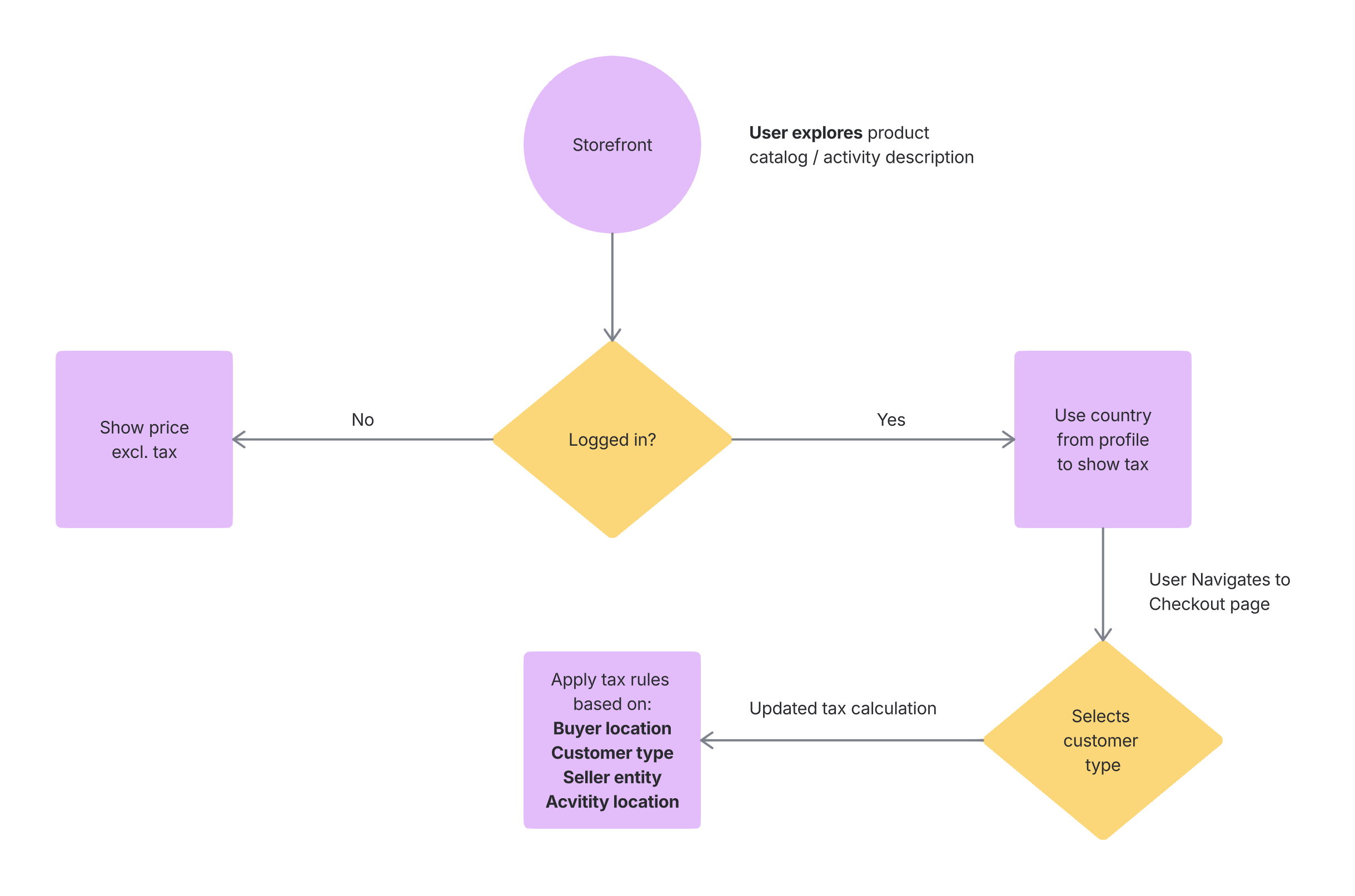
The table below illustrates how pricing may be presented at different stages of the user journey.
| Stage | Information known by the system | How price is typically displayed |
|---|---|---|
| Browsing storefront (not logged in) | No buyer information available | Price displayed excluding TAX |
| Logged in user browsing storefront | Country from user profile available | Price may be displayed incl. TAX or excl. TAX, depending on applicable rules |
| Checkout – customer type selected | Buyer location and customer type known | TAX recalculated and final price updated |
| Checkout – purchase confirmed | Full transaction context known | Final price with correct TAX applied |
Browsing The Storefront
When unregistered users browse the storefront, the platform cannot determine the buyer’s location or customer type. In this situation:
- Prices are typically displayed excluding TAX
- The storefront may display “Price excl. TAX”
This ensures neutral price presentation until the platform can determine the correct tax treatment.
Logged-in Users
When a registered user logs in, the platform can use the country associated with the user profile to refine the tax calculation.
If relevant TAX rules exist for that country, the storefront may display:
- Price incl. TAX, or
- Price excl. TAX
depending on the applicable rule configuration. However, the final tax amount may still change during checkout.
Selecting Customer Type During Checkout
During checkout, users are asked to identify their customer type (Private, Company, Government institution), reflecting configurations performed in Commerce → General.
This step is important because taxation rules often differ between B2C (individual) and B2B (company) transactions.
For example:
- A private individual purchasing training may be required to pay VAT based on their country of residence
- A company purchasing training across borders may fall under reverse-charge taxation, meaning VAT is not added to the invoice
When the customer type is selected, the platform recalculates the applicable TAX and updates the total price immediately.
Final Tax Calculation
Once the platform has all required information, the final tax calculation is determined using:
- Buyer country and region
- Customer type
- Seller entity
- Activity location
- Configured TAX rules and rule priority
If the user changes information during checkout (such as country, region, or customer type), the tax amount and total price are recalculated automatically. This ensures that the final price shown before purchase reflects the correct tax treatment for the transaction.
Activity-level Tax Configuration
Administrators can configure tax settings for individual activities to ensure that the correct tax rules are applied depending on where the training is delivered and which legal entity is responsible for the sale.
This is configured in the activity settings under Activity → Price → Manage tax rules.
Within this section, administrators can define the tax context for the specific activity. The following settings are available:
| Setting | Description |
|---|---|
| Seller country | Defines the country from which the training is sold. This can affect which TAX rules apply during checkout |
| Seller legal entity | Specifies the legal entity responsible for selling the training. This determines which seller information appears on transaction documents and which tax rules may apply |
| Activity location | Defines the country or region where the training takes place. This setting is particularly relevant for in-person or location-based training, where taxation may depend on the venue of the event |
| Regional tax rules | Allows additional region-based taxation rules to apply when configured at the platform level |
The default seller entity configured in Seller registration details is automatically preselected when creating or editing an activity. Administrators can override this selection if a different legal entity should be responsible for the transaction.
Activity-level tax configuration works together with the platform’s global TAX rules and rule priority system. If a specific activity location is defined, its tax rule typically takes priority over more general seller or buyer rules, ensuring that taxes are calculated according to the correct jurisdiction for the training.
Tax Calculation Flow
The simplified logic below illustrates how the platform determines the final tax:
Testing TAX Rules
Administrators can verify how TAX rules will behave during transactions using the Test tax calculation tool.
This tool allows administrators to simulate a purchase and review how the platform applies the configured tax rules before users interact with the storefront. During testing, administrators can specify:
- Activity – the training activity used in the transaction
- Currency – the transaction currency
- Country / region – the buyer’s location
- Customer type – for example Private, Company, or Government institution
Based on this information, the platform calculates the expected tax according to the configured TAX rules and rule priority.
The test result shows how the platform will apply taxation in a real purchase scenario, allowing administrators to confirm that:
- the correct TAX rule is selected
- the correct tax percentage is applied
- the resulting price calculation matches expectations
Testing is recommended whenever:
- new TAX rules are created
- tax rates are updated
- new countries or regions are added
- new seller entities are introduced
It is particularly important to verify tax behavior for different customer types and locations, as taxation may vary significantly between B2B and B2C purchases or between different jurisdictions.
Running these tests before making the storefront publicly available helps ensure that purchases are processed with the correct tax treatment.
Sync TAX Rates
The platform can synchronize tax rates automatically using Vatlayer integration.
The Sync TAX rates function retrieves the latest tax percentages from Vatlayer and can automatically create or update buyer TAX rules within the platform. This helps ensure that tax configurations remain aligned with current tax rates across different countries and regions without requiring manual updates.
Administrators can choose between the following synchronization behaviors:
| Option | Behavior |
|---|---|
| Add new rates only | Existing TAX rules remain unchanged, and only new rates retrieved from Vatlayer are added |
| Replace existing rates | Existing TAX rules are updated with the latest rates retrieved from Vatlayer, and any new rates are added |
This feature is particularly useful for organizations that operate across multiple countries or regions, where tax rates may change periodically. By synchronizing tax rates automatically, administrators can reduce the risk of outdated tax configurations and simplify ongoing maintenance of the platform’s TAX rules.
After synchronization, administrators can still review and adjust the generated rules if necessary to match their specific commercial or regulatory requirements.
Best Practice
When configuring TAX rules, it is recommended to follow a structured setup process to ensure that taxes are calculated correctly across the platform. Recommended configuration sequence:
- Create seller legal entities first—Define the legal entities responsible for selling training, including tax registration details and any tax-exempt entities
- Configure country-level TAX rules—Start by defining general tax rules for the countries where you operate. In many cases, country-level rules are sufficient for organizations operating within a single jurisdiction
- Add regional rules only when required—If a country has different tax rates per state or region, define additional rules for those regions. Regional codes follow internationally recognized ISO geographic standards
- Validate behavior for different customer types—Since tax treatment often differs between private individuals (B2C) and companies (B2B), test the purchasing flow for each customer type to ensure the expected rules are applied
- Configure activity-level tax settings when necessary—If certain activities are delivered in specific locations (for example instructor-led training or events), configure activity-level tax settings so the correct jurisdiction rules apply
- Test tax calculations—Use the Test tax calculation tool to simulate transactions using different countries, regions, and customer types before making the storefront publicly available
- Review storefront price presentation—Remember that tax calculations may change during checkout as the platform learns more about the buyer (such as their country or customer type). Confirm that price presentation behaves as expected for both logged-in and anonymous users
Organizations operating across multiple jurisdictions, international markets, or different delivery models (digital vs. in-person training) should review relevant tax regulations and consult financial or legal advisors when configuring taxation rules.
Regularly reviewing TAX rules is also recommended, particularly when expanding into new regions or when tax legislation changes.