Configure and Maintain Resource Library Access and Documents - Article
Summary
A useful reference library combines relevant documents with dependable access and maintenance. Configure the audience and category structure before filling folders, then choose optional features that make the collection easier to use. Document expiration and organization boundaries need deliberate decisions because they change what a learner can download and what the AI learning assistant (Saga) can use.
Use this article to:
- Design the category and audience model
- Configure available library features and folder presentation
- Upload and maintain documents with appropriate expiration
- Verify the collection using representative access
Agree the audience and maintenance responsibilities
Decide who needs the collection and who maintains its contents. A product owner may own the service manual; an operational specialist may own an SOP; a platform administrator may own category structure and access configuration. These responsibilities can belong to different people.
For an external audience, treat the library as a publication collection rather than a mirror of your internal shared drive. Agree which document versions are approved for customers or partners, who checks them, and who is responsible for replacing them. Keep working drafts and internal-only guidance in the organization’s internal systems. Review the complete file for material that does not belong in the external version before uploading it.
The Resource Library is an optional add-on available on request. Ask Eurekos to confirm activation and the delegated configuration access for your platform. Access to Settings → Resource library is configured separately from permission to enter the library or upload documents; do not assume that every administrative role sees the same settings.
The library-entry configuration can specify which roles may view Resource Library files. An empty role selection means authenticated users. Organization-layer filtering also applies to documents associated with organizations. Establish these boundaries before using interests to make the view more relevant.
Build a category structure people recognize
The first two folder levels follow Category tags and child categories. A new category becomes a corresponding library folder. Use a stable classification that makes sense across training and reference material, such as a product family and its subject areas. Tags explains the shared classification settings.
Training-led interests can then connect a person’s learning relationships with the relevant reference collection. Keep this automatic relevance model separate from a confidentiality rule. When Show folders by user interests is enabled, the filtering does not apply to a person whose interests are empty; administrative roles can have broader category access.
Configure the library’s working features
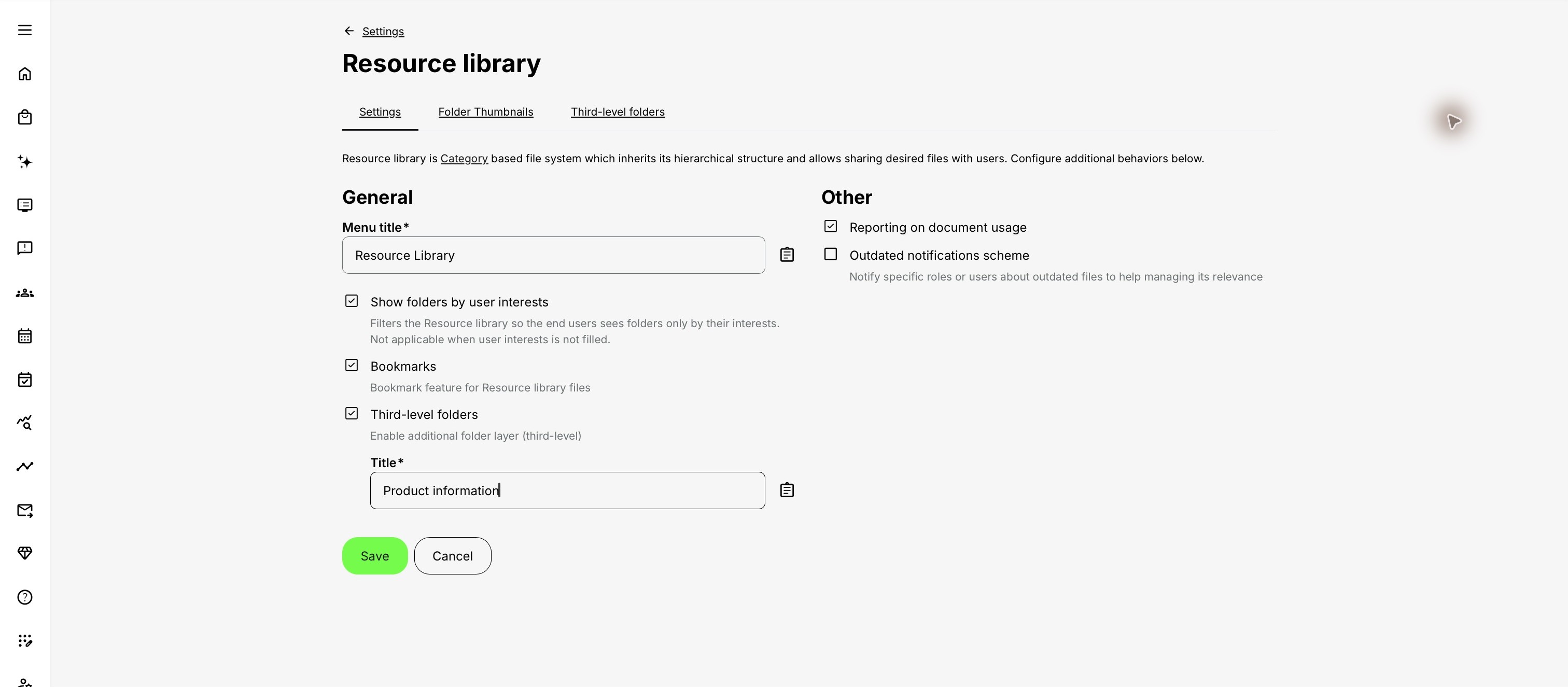
Open Settings → Resource library using an account with delegated access. The Settings tab groups the main choices. Save the intended configuration only after considering its audience and maintenance consequences.
| Setting | What it controls | When it helps |
|---|---|---|
| Menu title and translations | The name users recognize in navigation | Use an audience-friendly name while keeping internal guidance consistent |
| Show folders by user interests | Filters category folders using profile interests, with the empty-interests exception | Reduce irrelevant product collections for a training-led audience |
| Bookmarks | Adds the personal My bookmarks route | Help people return to frequently used manuals |
| Third-level folders and their title | Adds a further folder layer below child categories | Separate product models or document groups without changing the main category model |
| Reporting on document usage | Makes document-use reporting available | Give maintainers evidence for collection review |
| Outdated notifications scheme | Notifies selected roles or users about outdated files | Establish an active document-maintenance process |
The extra folder-layer label is configurable. A platform may call it Products, for example; that is a local label rather than a universal field name.
Use Folder Thumbnails to set a recognizable image for a category folder. Use Third-level folders to add or edit the additional folders, their translations and order. Customize availability determines which selected parent folders offer a particular third-level folder. The platform’s configured subfolder limit and default file sorting are separately administered; ask Eurekos if those service-level settings need to change.
Upload documents in the intended folder
Open Resource library, navigate to the relevant collection and select Upload. Check the category and any required additional-folder selection before choosing the files. Multiple files can be uploaded together. Confirm any displayed file-size validation rather than assuming every file will fit the platform’s current upload limit.
The library can store a wider range of file types than the AI learning assistant can index. Choose a usable format for the learner’s task, and choose a supported text-bearing format when conversational retrieval is also required. PDF, presentation, document and spreadsheet formats can serve reference needs, but content quality and extraction still matter.
Use meaningful filenames, including a useful product or procedure identifier. Avoid ambiguous names such as “final2” when several manuals will appear together. After uploading, reopen the folder and verify that each intended file is present and associated with the correct collection.
Control expiration and replacement
On the Upload or Edit file form, enable Set expiration when the document must stop being available through ordinary download access at a defined moment. Supply the date, time and timezone. A past expiration is not accepted.
Until that moment, people with the relevant access can download the document. After expiration, the file is marked expired; ordinary download access stops, while authorized maintainers with bypass permission can still download it. Expired files are excluded from the AI learning assistant’s sources.
Editing the expiration date or removing expiration changes download availability immediately. Replacing a file does not preserve its expiration: configure the intended expiration again for the replacement. This is important when a replacement SOP is valid only until the next review date.
Expiration is separate from an outdated-file reminder. A reminder tells the responsible person to review information; expiration controls availability. Define both deliberately rather than assuming that one setting automatically provides the other outcome.
For removal, authorized maintainers can select files and use the available Delete action, including bulk deletion. Review the selected files and their uses before confirming removal. Do not use deletion simply to hide a document temporarily when an access or expiry change is the intended action.
Verify the configuration
Use a representative learner and an administrator with the intended responsibilities. Check both the ordinary view and a boundary case before relying on the collection.
| Scenario or check | Expected result or evidence |
|---|---|
| Learner with the intended category interests | Relevant folders appear under the configured role and organization rules |
| Person with no interests | The documented empty-interests exception is understood and the resulting view is acceptable |
| Person outside the intended organization | Organization boundaries prevent the inappropriate document view |
| Maintainer uploading and reopening a file | Correct folder placement, metadata and working download |
| Expiration in a controlled example | Ordinary download stops at the intended time; authorized maintenance access remains distinct |
| Replacement of an expiring file | The replacement has its own explicitly checked expiration |
| AI question about an eligible reference | A relevant answer can identify the accessible source; excluded or expired material is not used |
Related guidance: Introduction to the Resource Library; Review Document Usage and Keep Reference Information Current.
Troubleshooting
| Problem | What to check |
|---|---|
| Settings → Resource library is unavailable | Confirm feature activation and delegated configuration access with Eurekos |
| Upload is absent | Check the person’s upload permission; library viewing and file maintenance are different capabilities |
| A learner sees more categories than expected | Check empty interests, administrative access and the actual role/organization model |
| A third-level folder is absent | Check that the feature is enabled and Customize availability includes the intended parent folder |
| A replacement remains downloadable beyond the intended date | Replacement does not preserve expiration; configure and verify it again |
| The AI learning assistant cannot use a stored file | Check access, expiration, supported format and usable extracted content |
FAQ
-
Does replacing a file keep its expiration date?
No. Configure and verify expiration again for the replacement file.
-
Can a library be filtered by training interests and also restricted by organization?
Yes. Interests provide the configured relevance filter, while organization and role rules provide additional access boundaries. Test the combined view, including a user with no interests.