Connect Your Knowledge Base and Manage Reader Access - Article
Summary
Useful support starts with the right people reaching the right explanation. A public prospect, a customer using your platform and a partner coordinator may need different guidance, while only designated people should maintain the Help Center.
Readers either visit anonymously or sign in through a connected LMS. The article’s Roles selection determines who can read it. Help Center content administration is a separate responsibility with its own authorized sign-in.
Use this article to:
- Plan the LMS connection and content administration responsibilities
- Select article audiences deliberately
- Test public and signed-in access without relying on an administrator preview
Establish the connection with Eurekos
Request activation of the customer-managed Help Center and agree which LMS platform or platforms will connect to it. Confirm the service address, whether a Eurekos-managed Help Center will remain available, and the names of the people responsible for content administration. Connection credentials and platform registration must be agreed during setup rather than inferred from an article audience selection.
Once the relevant LMS connection and user access are enabled, readers open the configured Help Center from the LMS navigation. In the standard platform navigation, the entry is Help center. It opens a new tab and uses single sign-on to establish the reader’s Help Center session. Your configured entry names may distinguish your own service from Eurekos platform help.
Separate reader access from content administration
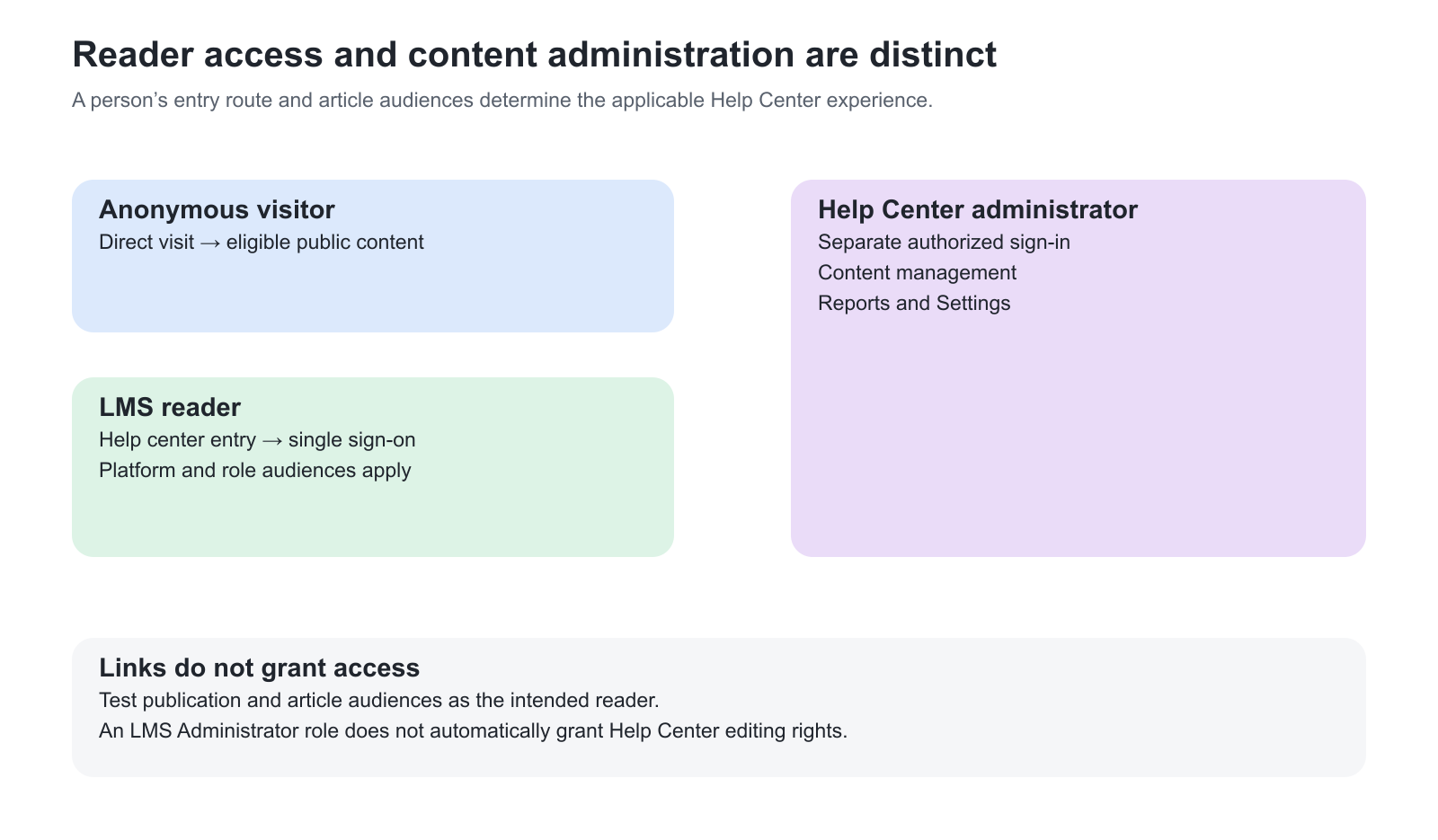
| Route | What the person can do |
|---|---|
| Anonymous direct visit | Read published content available to public visitors and use the public Help Center experience |
| Entry from the LMS | Read published guidance selected for the person’s LMS role or for all platform users, with identity established through single sign-on |
| Help Center administrator sign-in | Use Content management, Reports and Settings with a separately authorized Help Center administration account |
An LMS Administrator or Global Administrator is not automatically a Help Center content administrator. A reader account created through LMS single sign-on cannot be used as a direct Help Center administrator login. Designated Help Center administrators use the Help Center’s direct sign-in route and its verification step.
Profile, role and relevant branding information are synchronized when a person enters the Help Center from the LMS. If a name, role or branding change is not reflected in an existing session, open the Help Center again from the LMS. Do not interpret an old session as evidence that the underlying LMS change failed.
Select the article audience
A platform user is a signed-in person from a connected LMS who already has an LMS role. Choose Platform user in the article’s audience settings to include all of those roles, or select specific roles to target particular responsibilities. An anonymous visitor reads through the public audience without an LMS sign-in.
As a Help Center administrator, open Content management → Articles, create or edit the article and use Roles. Select at least one audience. Multiple selections widen access: a reader can qualify through any selected role. Save the intended publication state after making the selection.
| Selection | Effect and appropriate use |
|---|---|
| Public user | Allows anonymous visitors to read the published article; suitable for openly shareable guidance |
| Platform user | Makes published guidance available to users entering from the LMS, regardless of their individual LMS role |
| A specific LMS role | Targets published guidance to users with that role; useful when a procedure applies only to that responsibility |
| Public user and Platform user | Supports both anonymous visitors and signed-in LMS readers |
| Website AI Assistant | Provides publicly accessible source content for the website AI route; it is not a confidentiality setting |
For role-specific procedures, avoid adding Platform user merely as a convenience: it expands the audience to all LMS users. Equally, do not assume Public user alone expresses the complete signed-in audience you intend. Select and test the relevant public and platform audiences explicitly.
Content assigned to Website AI Assistant can be opened by anonymous visitors through its direct URL and can be indexed externally, even when it is absent from ordinary Help Center listings. Never use this selection to hold confidential or internal-only material.
Use Roles: Purpose and Feature Access for the wider LMS role model. Keep those platform responsibilities distinct from separately authorized Help Center editing.
Article access is matched to the audiences selected in Roles. Organization membership, training enrollment, subscriptions and Resource Library access do not supply additional article permissions. For example, access to a service manual does not grant access to a Help Center article, and publishing an article does not grant access to a linked manual or Course. If you need organization-specific confidential support material, agree the supported access design before publishing it.
Test the whole access path
Test as representative readers in separate sessions. A Help Center administrator can inspect content that an ordinary reader cannot, so an administrator view alone does not establish the audience outcome.
| Scenario or check | Expected result or evidence |
|---|---|
| A permitted LMS reader opens the Help Center | Single sign-on establishes the reader session and the intended Topics and articles are available |
| An anonymous visitor opens a public article | The article is readable without LMS sign-in |
| A reader outside the selected roles follows the direct URL | Restricted content is not disclosed; a link does not override permission |
| A reader opens a linked manual or Course | The destination applies its own access requirements |
| An LMS role changes | The next Help Center entry through the LMS reflects the updated role relationship |
| A new draft is saved | It is available for editorial work but not presented as a published reader source |
Troubleshooting
| Problem | What to check |
|---|---|
| The Help Center link is missing | Check that the optional service and LMS entry are enabled for the intended users; distinguish the customer-managed and Eurekos-managed connections |
| Content management is missing | Use a designated Help Center administration account; an LMS reader session does not grant editing rights |
| A Topic is missing for one reader | Check that it contains at least one published article available to that reader |
| A link opens an access error | Check the target’s publication state and Roles selection; do not broaden the audience before confirming the intended access policy |
| A role or profile update seems missing | Enter the Help Center again from the LMS to refresh the synchronized reader information |
FAQ
-
Does being an LMS Administrator let me edit the Knowledge Base?
No. A designated Help Center administration account is required to edit content. Signing in through the LMS establishes a reader session; published article access is determined by the article’s Roles selections. An LMS Administrator role does not by itself grant Content management access.
-
Do multiple article Roles selections narrow the audience?
They widen it. A reader can qualify through any selected role. Adding Platform user to a role-specific article makes it available across the LMS reader population.
-
Is Website AI Assistant a private article audience?
No. Published content with this selection can be opened anonymously by direct URL and can be indexed externally. Its absence from normal listings must not be treated as confidentiality.
-
Why does a role change not immediately change an existing Help Center session?
Reader information synchronizes when the person opens the Help Center from the LMS. Enter again through the LMS after changing the role, profile or relevant branding information.