Email Sending - Article
Summary
Email Sending is the platform’s central control area for transactional email. Administrators use it to configure what System Emails say, which sender delivers them, which notification schemes permit them, and how translated versions are maintained. The same area provides a 24-hour sending safeguard and separates successful processing, sending errors, and retry operations into dedicated views.
In this article you will learn:
- How System Emails differ from Automated Email Workflows and external email delivery
- How to configure email content, senders, notification schemes, languages, and tokens
- How to import and export templates for governed multilingual maintenance
- How the default notification scheme, sending limit, and Email usage work
- How to use Sent emails, Error log, and Retry queue
- How to investigate delivery problems without creating duplicate communication
- How to govern platform-wide email changes safely
What Email Sending controls
Eurekos can communicate when defined platform events occur—for example, when an account is created, enrollment is confirmed, a request is approved, an Event changes, a certificate is issued, or a participant must complete another action.
Email Sending controls the reusable platform configuration behind those messages. It does not determine every trigger or recipient itself.
| Communication layer | What it controls | What it does not prove or control |
|---|---|---|
| System Email | Template, language version, sender, subject, body, tokens, and notification-scheme mapping for a predefined platform event | It does not change the underlying event, recipient logic, enrollment behavior, certificate rule, or other business process |
| Automated Email Workflow | Additional messages and reminders based on enrollment, dates, deadlines, completion, feedback, or other supported training states | It does not replace every transactional System Email |
| Notification timeline | Whether a connected workflow rule was scheduled, sent, skipped, or inapplicable for a particular signup or request | A Sent result does not prove that the external mailbox placed the message in the inbox |
| Email Sending monitoring | The platform’s sent-email records, sending errors, and eligible retry operations | It does not provide the external provider’s complete delivery, bounce, spam, or inbox evidence |
| Email provider | Transport, authentication, reputation, provider limits, rejection, bounce handling, and delivery beyond Eurekos | It does not decide which Eurekos business event should create the email |
A complete investigation may therefore involve both Eurekos and the organization’s email provider.
Understand the Email Sending areas
Open Settings → Email Sending.
The available areas have different responsibilities:
| Area | Purpose | Use it when |
|---|---|---|
| System emails | Configure predefined transactional email templates, language versions, sender mapping, and notification schemes | You need to change what a platform-generated message says or how it is categorized |
| Senders | Configure sender identities and delivery transport | You need to add or test a sender, configure SMTP, change reply handling, or select a default sender |
| General | Configure the default notification scheme, 24-hour sending limit, and review Email usage | You need to govern users’ initial notification preference or protect the platform from excessive sending |
| Sent emails | Search processed email records and review their recipient, type, subject, content, date, and status | You need to confirm whether Eurekos processed a particular email |
| Error log | Review errors recorded when email sending fails | A record is Not Sent or delivery configuration appears to have failed |
| Retry queue | Review and resend eligible failed emails | The underlying problem has been corrected and the affected message should be attempted again |
Access to these areas follows access to Settings.
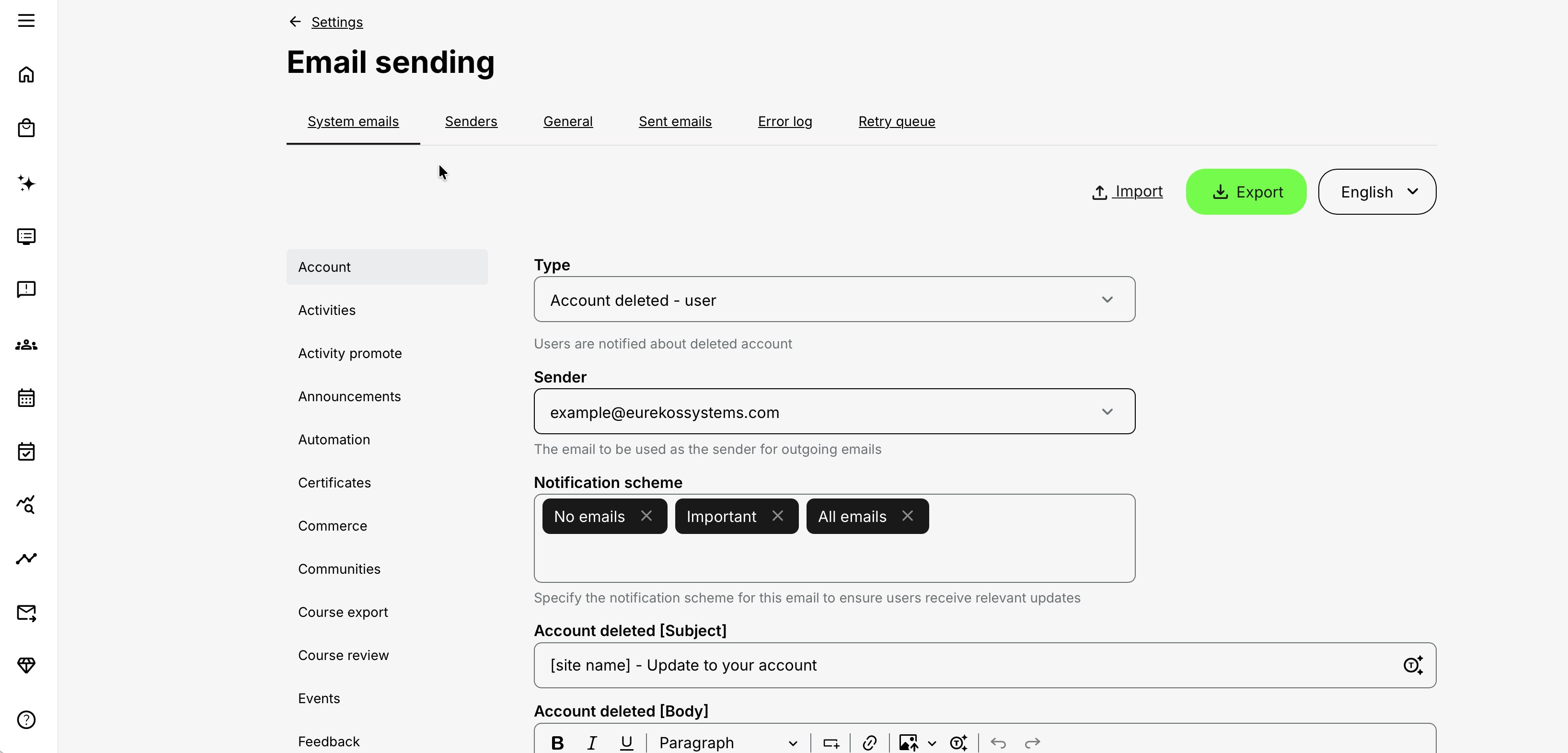
Configure System Emails
The System emails tab contains the predefined email types used by enabled platform features.
Categories can include areas such as:
- Account
- Activities
- Activity promotion
- Announcements
- Automation
- Certificates
- Commerce
- Communities
- Events
- Feedback
- Organizations
- Privacy
- Questionnaires
- Reports
- Subscriptions
The available categories and email types depend on the platform’s enabled functionality.
Find the correct email type
Choose the feature category and select the relevant email type.
A business process can use several related templates because different people receive different information. For example, an enrollment process may have separate messages for:
- The participant
- An administrator or approver
- An instructor
- A manager
- Another responsible role
Read the complete email-type name before editing. A participant-facing and administrator-facing template may describe the same event but require different instructions.
Changing a System Email does not change when its underlying event occurs or who the platform selects as its recipient.
Configure the message
| Field | What it controls | Administrator guidance |
|---|---|---|
| Type | The predefined platform event and intended message | Confirm that the type corresponds to the correct event and recipient |
| Sender | The configured identity used for this email type | Use an identity that recipients will recognize and that the delivery provider authorizes |
| Notification scheme | The user notification schemes under which the message may be sent | Removing every scheme prevents the email from being sent |
| Subject | The recipient-facing subject line | State the event and required action clearly; use supported tokens when context is needed |
| Body | The message content and calls to action | Explain what happened, why the recipient received the email, and what they should do next |
| Language | The version maintained for a supported platform language | Keep meaning, actions, tokens, and links aligned across translations |
Keep transactional messages concise. Put the principal action before explanatory background.
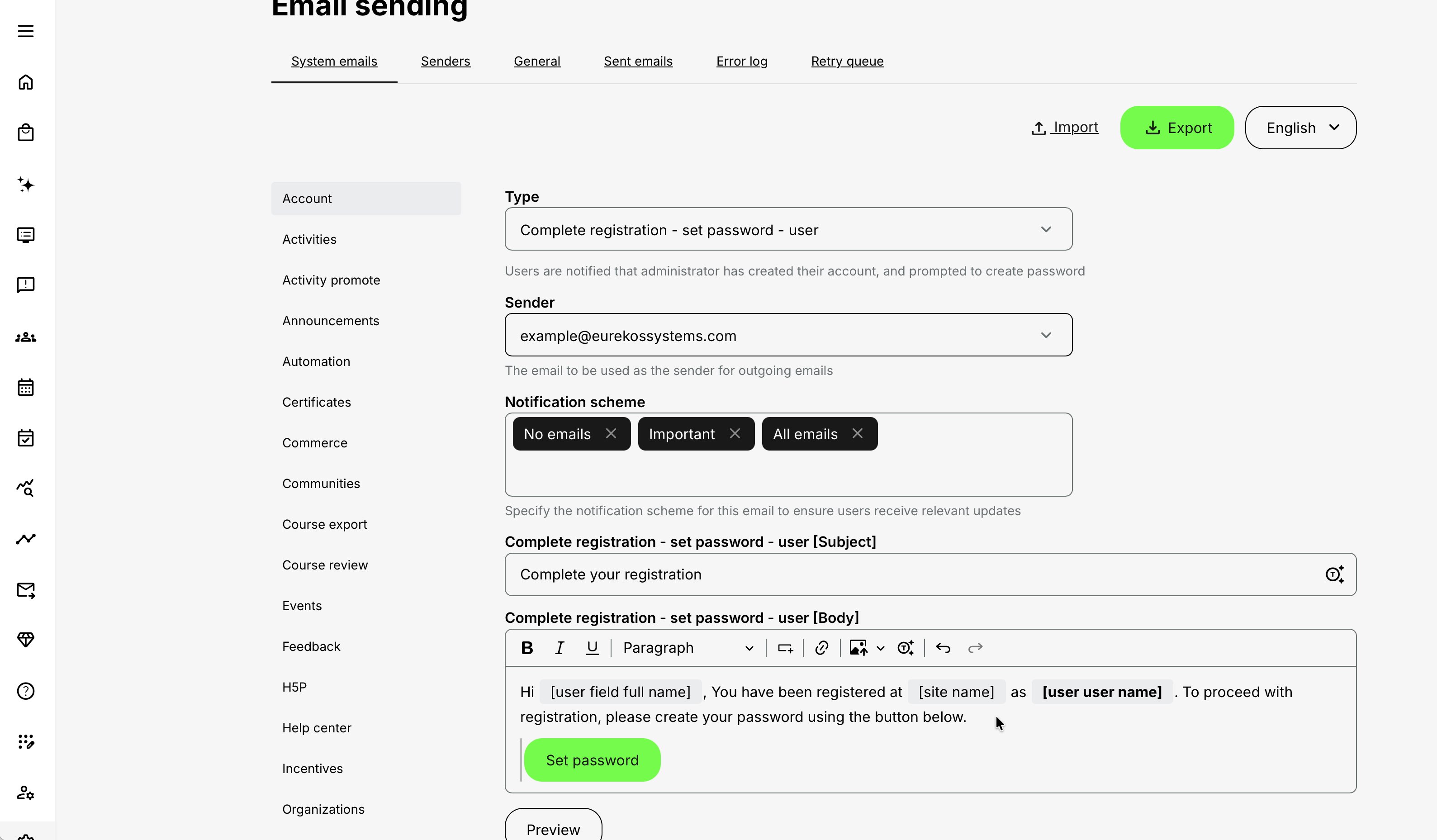
Use the editor
Depending on the current editor configuration, the body can support:
- Paragraphs, headings, emphasis, and lists
- Links to approved URLs or files
- Buttons linked to URLs, files, email actions, tokens, or questionnaires
- Images inserted through supported sources
- Alternative text and linked images
- Dynamic tokens
- Undo and redo
Use buttons for a clear action such as:
- Open the Training Activity
- Continue enrollment
- Complete a questionnaire
- Confirm participation
- View a certificate
- Open the participant’s profile or overview
Do not turn operational emails into newsletters. One obvious primary action is normally more effective than several competing calls to action.
Use tokens safely
Tokens insert contextual data when the message is generated. Available tokens differ between email types because each event has access to different underlying information.
Examples can include:
- Participant name
- Activity title
- Module title
- Start or end date
- Deadline
- Instructor
- Location
- Certificate information
- Organization information
- Signup-specific data
Use the editor’s available token list as the authoritative source for the selected email type.
Do not:
- Alter token syntax
- Translate the token itself
- Insert a token that is unsupported for the selected email
- Assume that an optional underlying field always contains a value
- Copy a token from another template without confirming that it is available
Test messages with representative data. A technically valid token can still produce an empty value if the corresponding activity, module, user, organization, or signup field is empty.
Govern notification schemes
Notification schemes let the platform distinguish between different communication preferences.
Typical schemes include:
- All emails
- Important
- No emails
The scheme names do not independently determine what is sent. Each System Email is mapped to the schemes under which it is permitted.
A user assigned Important receives email types mapped to Important. A user assigned No emails can still receive email types that are deliberately mapped to that scheme, such as essential account or security communication.
If every notification-scheme mapping is removed from a System Email, that email is not sent.
Treat the mapping as a governance decision:
- Map essential operational communication broadly enough to support the process.
- Do not classify promotional or low-value messages as essential.
- Avoid placing so many messages in Important that users lose trust in the distinction.
- Review related templates together so one business event does not produce unnecessary repetition.
- Confirm whether a separate Automated Email Workflow, Event reminder, or manual communication already covers the same purpose.
Maintain language versions
Select the relevant language from the language control before editing.
The recipient’s language preference determines which version the platform attempts to use. Confirm the expected behavior when the preferred language has no maintained translation.
For every active language, verify:
- Subject
- Body
- Buttons and links
- Token placement
- Date and time wording
- Formality and audience terminology
- Legal or policy wording
- Sender identity
- Notification-scheme mapping
Translation is contextual rather than mechanical. A technically correct translation can still provide the wrong action, describe an unavailable feature, or use terminology that differs from the participant interface.
Import and export System Emails
Import and export are useful when many templates or languages must be reviewed together.
Supported formats include:
| Format | Suitable for | Main consideration |
|---|---|---|
| PO | Professional localization tools and translation providers | Preserves a structured relationship between source and translated strings |
| XLSX | Internal review, structured editing, and collaboration with non-technical stakeholders | Easier to review manually, but system fields and tokens must still remain unchanged |
Export email templates
- Open Settings → Email Sending → System emails.
- Select Export.
- Select the required language or languages.
- Select the applicable export type, such as all, translated, or untranslated items.
- Select PO or XLSX.
- Download and store the export securely.
Keep an untouched export as a backup before making a large change.
Prepare an import
Before importing:
- Preserve all system identifiers.
- Preserve tokens exactly.
- Do not translate token syntax.
- Preserve supported formatting.
- Confirm that every row still belongs to the correct email type.
- Review links, buttons, and files.
- Validate the intended language.
- Check that the file does not contain unapproved personal or confidential data.
Choose the import behavior
The import can support different update modes:
- Replace matching existing emails and add new items from the file.
- Keep existing emails and add only new items.
Select the mode deliberately. Replacing existing items can update many live templates at once.
Import email templates
- Export and preserve the current content.
- Prepare and review the edited PO or XLSX file.
- Open Settings → Email Sending → System emails.
- Select Import.
- Select the correct language.
- Select the intended replacement behavior.
- Upload the file.
- Confirm the import.
- Review representative templates in the interface.
- Test the affected business processes.
Do not use bulk import for one small change when direct editing is safer and easier to verify.
Configure Senders
The Senders tab defines the identity and transport used to deliver System Emails.
Sender configuration affects:
- Recipient trust
- Reply handling
- Authentication
- Spam filtering
- Domain alignment
- Deliverability
- Provider limits
- Reputation and blocklisting risk
Coordinate production sender configuration with the organization’s email and security owners.
Understand sender types
| Delivery method | Suitable when | Operational ownership |
|---|---|---|
| Native | A platform-managed delivery route is approved for the environment | Requires coordination with Eurekos and may be restricted to the highest-level system administration |
| SMTP | The organization uses its own mail infrastructure or an approved email delivery service | The organization owns credentials, authentication, provider limits, reputation, and delivery configuration |
A default sender is used unless a different sender is mapped to a specific System Email. The default sender cannot be deleted, but its configuration can be updated.
Choose the appropriate email delivery service
An organization’s existing Microsoft 365 environment is often the first delivery option considered. It may be suitable, but availability does not automatically make it the right service for application-generated email.
The decision should begin with the audience, expected volume, security model, and required delivery visibility.
Distinguish the available approaches
| Delivery approach | Suitable when | Main considerations |
|---|---|---|
| Eurekos native delivery | A platform-managed route is approved for implementation, testing, or a controlled operating model | Requires coordination with Eurekos. Confirm sender identity, permitted volume, ownership, and production suitability. |
| Standard Microsoft 365 or Exchange Online mailbox | Communication volume is controlled and the organization deliberately accepts mailbox-based sending | Subject to mailbox, message-rate, recipient, and tenant external-recipient limits. It is not designed as a general high-volume transactional email service. |
| Microsoft 365 High Volume Email | An application must send substantial operational communication to recipients inside the same Microsoft 365 tenant | Designed for automated internal email. It does not deliver to external recipients and uses dedicated High Volume Email accounts rather than ordinary user mailboxes. |
| Azure Communication Services Email | Application-generated transactional or high-volume email must reach internal or external recipients | Designed for application-to-person communication and supports SMTP, verified domains, delivery reporting, and email analytics. Requires Azure configuration and operational ownership. |
| Another dedicated transactional email service | The organization already uses or approves a provider such as Amazon SES, SendGrid, Postmark, or a comparable service | Confirm SMTP compatibility, authentication, domain verification, provider limits, monitoring, cost, data handling, and support ownership. |
Microsoft service capabilities and limits change over time. Confirm the current Microsoft documentation and the organization’s tenant configuration before making a production decision.
Evaluate the delivery requirements
| Decision area | What to assess | How it affects the choice |
|---|---|---|
| Recipient population | Determine whether messages are sent to:
| A service limited to internal tenant delivery is unsuitable for an external academy, regardless of its sending capacity. Confirm recipient scope before comparing volume, features, or price. |
| Volume and peak demand | Evaluate:
| Select a service that can support normal and peak demand. Keep the Eurekos sending limit within the approved capacity of the provider and include every source of platform communication in the calculation. |
| Operational visibility | Confirm whether the service provides:
| Eurekos Sent emails confirms platform processing, but it does not explain everything that happens after the message leaves the platform. Choose a provider that supplies the external evidence required by the support and compliance process. |
| Authentication and security | Confirm:
| Use an approved service identity or application-oriented delivery service. Avoid using an individual employee account as a production sender. The chosen service must satisfy the organization’s identity, domain, security, and data-governance requirements. |
| Production suitability | Determine whether:
| A standard Microsoft 365 mailbox may be appropriate for a controlled, lower-volume deployment, but it should not be selected merely because it already exists. Use a dedicated application-email service when the operational requirements indicate it. |
| Ownership and review | Document:
| Reassess the decision when the audience, volume, security requirements, delivery problems, or provider services change. A technically working sender is not automatically a sustainable production design. |
Configure a sender
Depending on the transport, available fields can include:
| Field | Purpose |
|---|---|
| Sender | The From address shown to the recipient |
| Reply-to | The address that should receive replies when it differs from the sending identity |
| Transport | Native or SMTP |
| Host | SMTP server or approved relay endpoint |
| Username | Authentication identity required by the provider |
| Password or credential | Provider-approved authentication credential |
| Port | Port required by the provider’s secure transport configuration |
Sender and Reply-to addresses should represent monitored, approved identities. Do not use an address that suggests replies are handled when no one monitors it.
Passwords are not displayed after saving and may need to be supplied again when the sender is changed. Handle credentials according to the organization’s security policy.
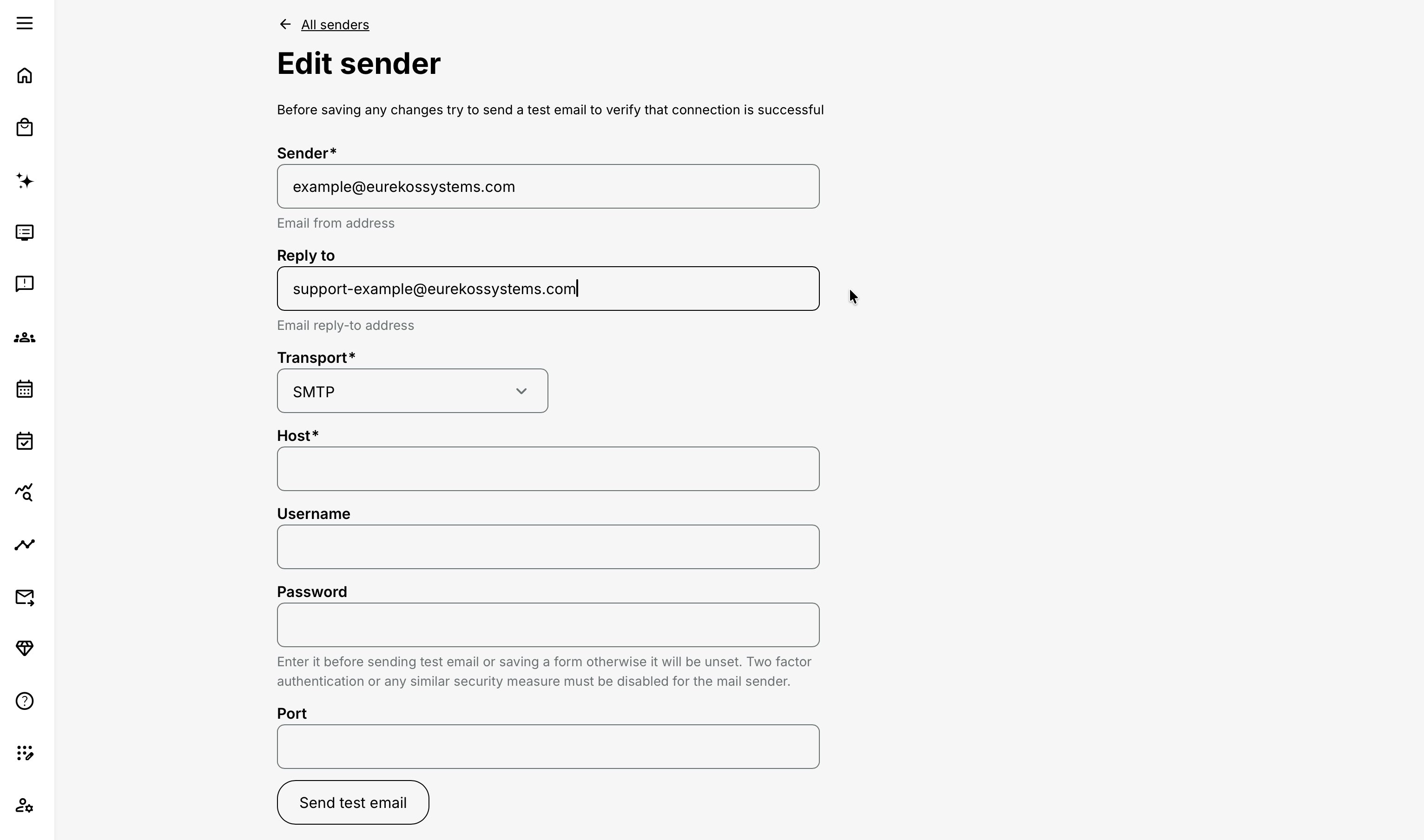
Test the sender
Use Send test email before relying on a sender for live communication.
Confirm:
- The connection succeeds.
- The test reaches the intended mailbox.
- From and Reply-to are correct.
- Authentication aligns with the sending domain.
- The message is not rejected or quarantined.
- The provider permits the expected volume.
- The sender is appropriate for every mapped email type.
A successful test proves that the tested configuration can send a message at that moment. It does not validate every template, trigger, recipient, or future provider condition.
Choose appropriate delivery infrastructure
For production application email, use infrastructure designed for automated or transactional sending. A dedicated email delivery service normally provides stronger support for:
- Application-generated volume
- Authentication and domain verification
- Delivery monitoring
- Bounce handling
- Reputation management
- Rate limits
- Operational separation from employee mailboxes
Microsoft 365 and ordinary employee mail services are primarily designed for human communication and may introduce limits or reduced delivery visibility when used for application-generated email. If the organization must remain within the Microsoft ecosystem, evaluate an application-oriented service such as Azure Communication Services.
Configure General settings
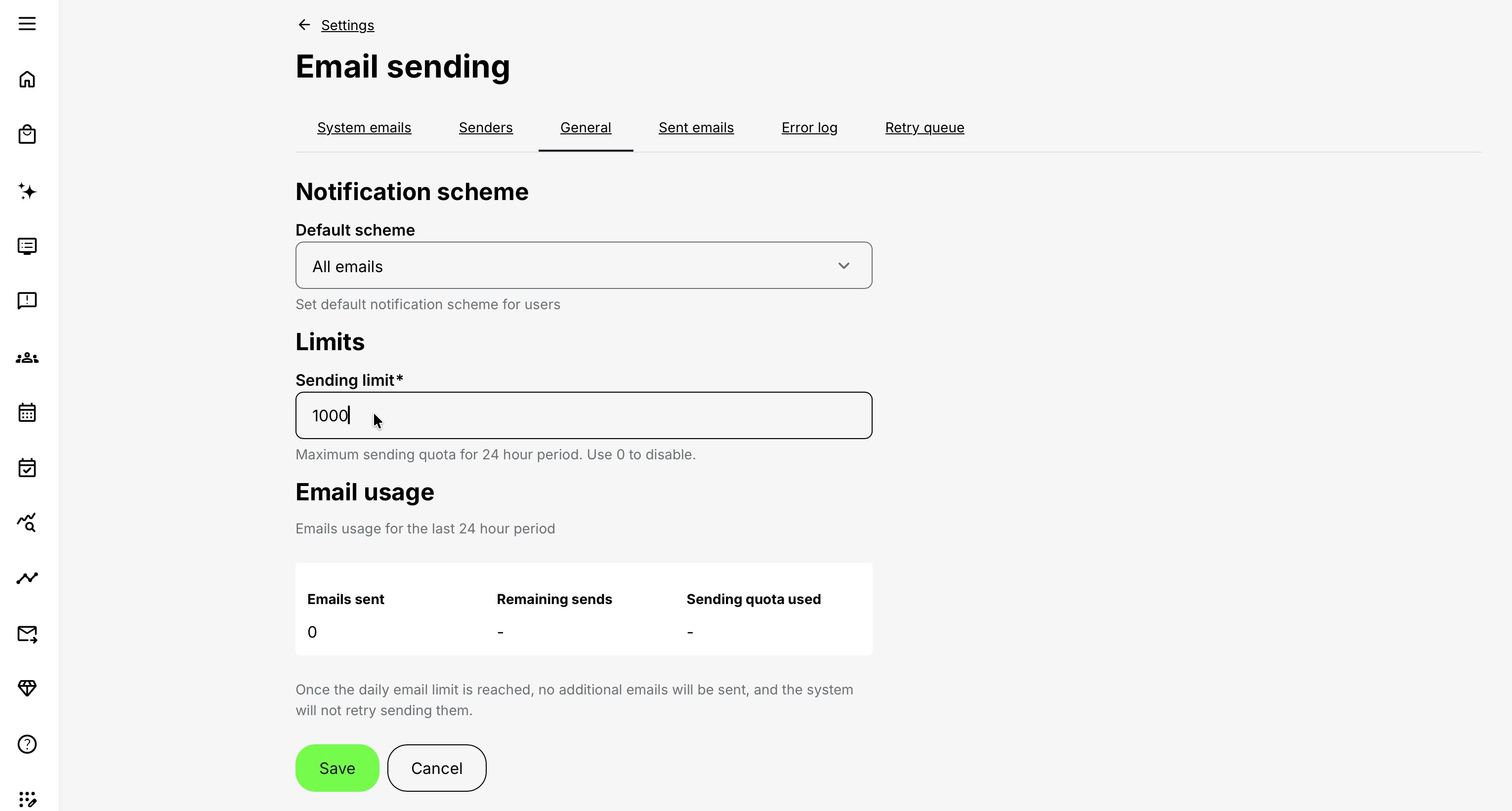
The General tab controls the default notification scheme, the platform’s 24-hour sending limit, and current Email usage.
Default notification scheme
Default scheme defines the notification scheme assigned when new users are created.
Select the scheme that represents the organization’s normal communication policy. Users may later be able to change their preference, but the default influences their experience from account creation onward.
Review the default scheme together with System Email mappings. A sensible default cannot compensate for incorrect mapping, and correct mapping cannot compensate for an inappropriate user default.
Sending limit
Sending limit defines the maximum number of emails that Eurekos may send during a 24-hour period.
A value of 0 disables the platform limit.
When a configured limit is reached:
- Additional emails are not sent.
- The platform does not retry those blocked messages automatically.
- Increasing the limit later does not guarantee that the missed business event will create the email again.
Determine whether affected recipients require a new valid trigger, controlled resend, or approved manual communication.
Estimate maximum volume across:
- System Emails
- Automated Email Workflows
- Calendar communication
- Event reminders
- Assignment communication
- Feedback requests
- Certificate messages
- Enrollment and approval messages
- Onboarding and import operations
- Other enabled automation
The platform limit should also remain compatible with the email provider’s limits.
Choose an appropriate 24-hour sending limit
The sending limit should protect the platform from accidental or unexpected volume without interrupting legitimate communication.
Do not base it only on the number of participants in one Training Activity. One participant can receive several messages from different platform processes during the same period.
Include potential volume from:
- Account creation and password communication
- Enrollment, cancellation, approval, and waiting-list messages
- Automated Email Workflows
- Event invitations and updates
- Mandatory-training reminders and escalations
- Assignment and questionnaire communication
- Training Feedback
- Certificate and re-certification messages
- Onboarding Rules
- Imports, integrations, and API-driven operations
- Administrator, instructor, and manager copies
Use observed and planned demand
A practical process is:
| Step | Question | Action |
|---|---|---|
| 1. Establish normal usage | How many emails does the platform send during an ordinary 24-hour period? | Review Email usage and available provider information over a representative period, such as two to four weeks. |
| 2. Identify the highest observed peak | What was the busiest genuine sending period, and what caused it? | Separate legitimate campaigns from exceptional duplication or configuration errors. |
| 3. Model the largest planned operation | What could the next major enrollment, import, deadline, or certification campaign generate? | Count all messages associated with the operation—not only its primary participant email. |
| 4. Include concurrent communication | What other activities or automation may run during the same period? | Include normal platform traffic, parallel academies, scheduled reminders, and administrative copies. |
| 5. Confirm external limits | What volume does the email provider permit, and are there rate or recipient restrictions? | Coordinate with the mail administrator and keep the Eurekos limit within the approved provider capacity. |
| 6. Add a controlled buffer | How much legitimate variation should the limit accommodate? | Set the limit modestly above the highest realistic requirement without making the safeguard meaningless. |
| 7. Define operational ownership | Who monitors usage and decides whether a limit should change? | Assign an owner and require review before increasing the limit for a campaign or unexpected event. |
A useful planning model is:
Expected 24-hour volume = ordinary platform traffic + planned campaign communication + related reminders and copies + controlled buffer
Example
An administrator plans to enroll 2,000 participants.
The operation may generate:
- 2,000 enrollment confirmations
- 2,000 welcome workflow emails
- 500 manager or administrator notifications
- 1,200 unrelated reminders already scheduled
- Approximately 600 ordinary account, Event, feedback, and certificate emails
The expected volume is therefore approximately 6,300 emails—not 2,000. The configured limit must also remain within the approved capacity of the email provider.
Avoid these approaches
| Approach | Risk |
|---|---|
| Setting the limit equal to participant count | Ignores multiple messages per participant and other platform communication |
| Setting an extremely high limit “just in case” | Weakens protection against duplication, incorrect automation, or unintended imports |
| Using 0 without another volume-control process | Disables the platform safeguard and leaves provider capacity as the remaining limit |
| Increasing the limit only after sending stops | Messages blocked by the limit are not retried automatically |
| Changing the limit without reviewing the underlying increase | Can conceal duplicate workflows, incorrect triggers, or an unexpected mass operation |
| Ignoring provider limits | Eurekos may permit a volume that the external provider subsequently rejects or throttles |
When 0 may be appropriate
A value of 0 disables the platform sending limit.
Use it only when the organization has deliberately accepted that model and has equivalent safeguards through its delivery provider, monitoring, operational approval, and incident-response process. It should not be used merely because the expected volume is unknown.
Before a high-volume operation
- Estimate the complete 24-hour email journey.
- Review existing Email usage.
- Check every System Email and Automated Email Workflow that the operation may trigger.
- Confirm provider capacity and sender status.
- Test with a controlled audience.
- Set or approve the required limit before the operation begins.
- Monitor Email usage during the rollout.
- Review Sent emails, Error log, and Retry queue afterward.
If usage approaches the limit unexpectedly, investigate the source before increasing it. Rapid growth can represent legitimate demand, but it can also reveal duplicated workflows, repeated imports, incorrect triggers, or another configuration problem.
Email usage
Email usage summarizes the latest 24-hour period:
- Emails sent
- Remaining sends
- Sending quota used
Use it before and during high-volume operations such as:
- Large user imports
- Academy launches
- Mandatory-training campaigns
- Certificate releases
- Mass enrollment
- Automated onboarding
- New communication workflows
Email usage is a platform safeguard, not a complete provider-delivery report.
Monitor email delivery
Email monitoring is separated into Sent emails, Error log, and Retry queue. Each answers a different question.
| Question | Use |
|---|---|
| Did Eurekos process this message, and what status was recorded? | Sent emails |
| Why did the platform fail to send it? | Error log |
| Can the failed message be attempted again after correction? | Retry queue |
Sent emails
Sent emails provides the operational record of processed System Emails.
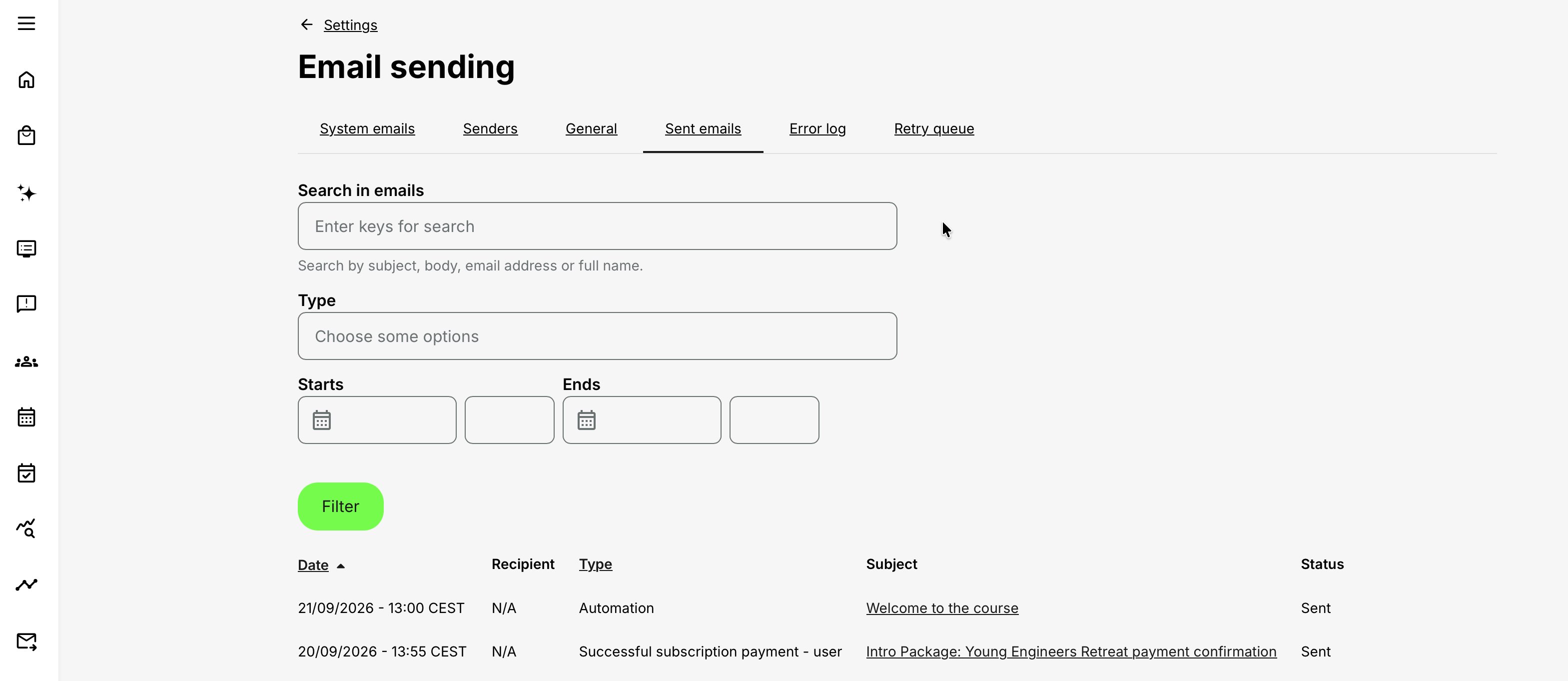
You can search using:
- Subject
- Message content
- Recipient email address
- Recipient name
You can also filter by:
- One or more email types
- Start date and time
- End date and time
The table can include:
- Date
- Recipient
- Type
- Subject
- Status
Where the record remains available, select the subject to review the recipient, subject, date, and generated message content.
Treat email content and recipient information as operational data. Limit access and sharing according to the organization’s privacy and support processes.
Understand the status
A Sent status confirms that Eurekos processed the message for delivery. It does not prove that the external provider delivered it to the inbox or that the recipient read it.
If the status is Sent but the recipient cannot find the email, continue with:
- Stored recipient-address validation
- Junk or spam folders
- Quarantine
- Organizational mail rules
- Provider records
- Bounce information
- Domain authentication
- Recipient mailbox status
A Not Sent status means that the platform did not complete the sending process. Continue with Error log.
Error log
Error log records sending-related failures.
The table provides the error record, message, and date. Search for the relevant sending event and compare its time with the corresponding Not Sent record.
An error can indicate problems such as:
- Sender authentication
- Unverified or unauthorized sender identity
- Provider rejection
- Invalid or unavailable recipient information
- SMTP connectivity
- Delivery configuration
Error messages can contain technical implementation information. In administrator-facing documentation and support communication, describe the business event, visible failure, date, recipient context, and relevant provider message. Do not reproduce internal module, queue, or backend identifiers.
Correct the underlying problem before resending. Repeatedly retrying an unresolved failure can create unnecessary provider traffic and duplicate operational work.
Retry queue
Emails that failed during sending can appear in Retry queue.
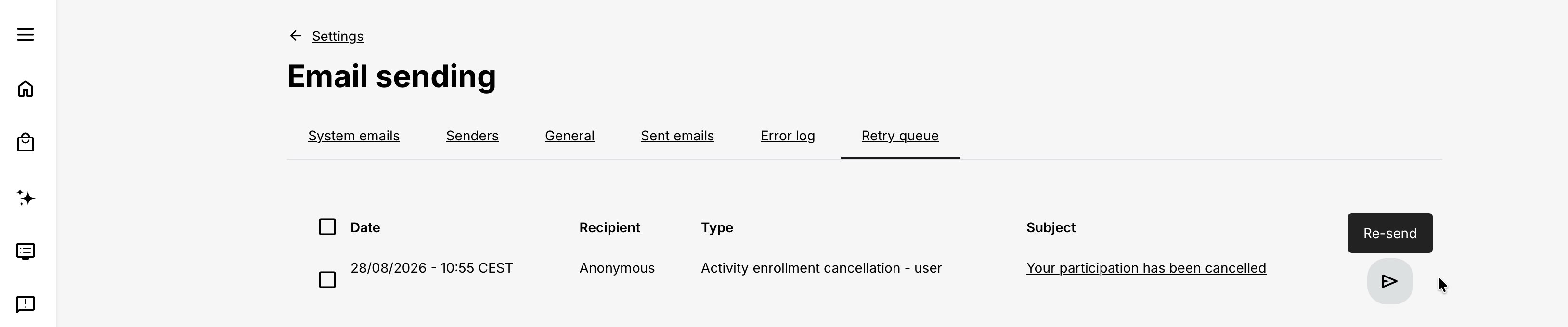
The queue can show:
- Date
- Recipient
- Email type
- Subject
- Available resend action
When the email record remains available, select its subject to review it.
An authorized administrator can resend:
- One eligible email
- A controlled selection
- All selected eligible emails
A confirmation is shown before bulk resend. Successfully resent emails are removed from the queue.
Older or unavailable records may no longer provide a subject preview or resend action. In that situation, determine whether the business event can safely be triggered again or whether an approved manual message is required.
Resend safely
Before using Re-send:
- Identify why the original attempt failed.
- Correct the sender, credential, provider, recipient, or configuration problem.
- Confirm that the participant has not already received the message through another route.
- Review Sent emails for a later successful attempt.
- Select only the affected records.
- Confirm that the content and links are still valid.
- Resend.
- Verify the result in Sent emails.
- Confirm external delivery where necessary.
Do not resend an outdated approval, cancellation, deadline, password, certificate, or participation message without checking whether its underlying state has changed.
Troubleshoot a missing email
Use the following sequence:
- Confirm the business event.
Verify that the enrollment, completion, approval, certificate, deadline, or other event actually occurred. - Confirm the correct System Email.
Check that the template exists, has an appropriate sender, contains the correct language version, and remains mapped to the recipient’s notification scheme. - Check feature-specific evidence.
For an Automated Email Workflow, inspect its Notification timeline. For another feature, review its applicable status, history, or participant record. - Search Sent emails.
Search using the recipient, email type, subject, content, or relevant date. - Interpret the status.
If Sent, continue with external delivery investigation. If Not Sent, open Error log. - Correct the cause.
Resolve sender, authentication, provider, recipient, quota, template, or process configuration. - Review Retry queue.
Resend only when the message is still appropriate and the failure has been corrected. - Verify the final outcome.
Confirm the new status and, when required, external delivery.
This distinguishes four separate questions:
- Was the business event triggered?
- Did Eurekos create the email?
- Did Eurekos send it successfully?
- Did the external mail environment deliver it to the recipient?
Troubleshooting
| Problem | What to check |
|---|---|
| Email Sending is unavailable | Confirm that the administrator has access to Settings. Access to Email Sending follows access to Settings. |
| A System Email was not created | Confirm that the underlying business event occurred, the correct email type exists, the feature is enabled, the recipient qualifies, and the notification-scheme mapping permits it. |
| An Automated Email Workflow says Sent but no email is found | Review the rule’s Notification timeline, then search Sent emails using the recipient, subject, type, and date. Workflow execution and external inbox delivery are separate stages. |
| Sent emails contains no matching record | Recheck the trigger, recipient logic, notification scheme, user preference, language, feature configuration, and relevant activity or signup state. |
| The record is Not Sent | Open Error log and inspect the error recorded at the corresponding time. Correct the cause before retrying. |
| The record is Sent but the recipient did not receive it | Verify the stored address, then check the provider, bounce information, junk filtering, quarantine, organizational rules, domain authentication, and mailbox status. |
| Many emails stopped during a large operation | Review the General sending limit, Email usage, provider limits, sender status, and Error log. Remember that messages blocked by the platform limit are not retried automatically. |
| An email is present in Retry queue | Correct the underlying failure, check Sent emails for a later success, confirm that the message remains valid, and then resend the affected record. |
| Re-send is unavailable | The underlying email record may no longer be available. Determine whether a new valid trigger or controlled manual communication is appropriate. |
| The retry fails again | Stop repeated attempts and recheck sender authorization, credentials, provider response, recipient information, quota, and connectivity. Escalate with the relevant timestamp and visible error. |
| The wrong sender was used | Review the sender mapped to the specific System Email and the platform’s default sender. Test the intended sender before remapping live messages. |
| Replies go to the wrong address | Review the sender’s Reply-to configuration and confirm that the destination mailbox is monitored. |
| A token appears as text | Reinsert the token from the selected email type’s editor. Do not alter or translate its syntax. |
| A token is empty | Confirm that the token is supported and that its underlying user, activity, module, organization, or signup field contains a value. |
| The recipient received the wrong language | Review the user’s language preference, maintained template languages, and applicable fallback behavior. Confirm that the intended translation was saved. |
| The recipient still receives an essential email with No emails selected | Review whether the email type is mapped to the No emails scheme. Essential account or security messages can intentionally be mapped to every scheme. |
| An import changed more templates than expected | Review the selected language and import mode. Restore from the preserved export if necessary, then test representative templates before another import. |
| Participants received duplicate messages | Review System Emails, Automated Email Workflows, calendar communication, feature-specific reminders, manual messages, and connected activity/module workflows together. |
| Formatting differs between email clients | Keep structure simple, test representative clients and devices, use approved buttons and links, and avoid unsupported formatting. |
| A link or button opens the wrong destination | Review its configured URL, file, questionnaire, or token and test it using an account with the intended permissions. |
Change live email configuration safely
System Email templates and sender mappings can be reused across the platform. A small edit can therefore affect several activities, organizations, and future recipients.
Before changing live configuration:
- Identify the affected email type, recipients, features, and language versions.
- Review related Automated Email Workflows and feature-specific reminders.
- Export and preserve the current templates.
- Confirm who owns wording, translation, sender identity, and legal approval.
- Make the smallest necessary change.
- Test tokens, links, buttons, files, images, and Reply-to behavior.
- Trigger a representative business event.
- Review Sent emails.
- Review Error log and Retry queue if the test fails.
- Monitor the first real production use.
Do not assume that editing a template updates emails that were already generated or sent.
Design and governance practices
| Practice | Apply it by | Outcome |
|---|---|---|
| Give communication an owner | Define who owns the template, translations, sender, trigger, and support process | Changes are reviewed and failures have a responsible decision-maker |
| Write for the recipient’s action | State what happened and what the recipient must do in the opening paragraph | Participants can act without interpreting internal process language |
| Use one source for each fact | Use supported tokens for changing names, dates, activities, instructors, locations, and deadlines | Reusable templates remain accurate across deliveries |
| Minimize communication volume | Review the complete journey across System Emails, workflows, calendars, reminders, and manual messages | Recipients receive fewer duplicated or contradictory messages |
| Separate audiences | Maintain participant, manager, instructor, and administrator messages independently | Internal operational information is not exposed to participants |
| Protect sensitive information | Include only data necessary for the recipient’s action and govern access to Sent emails | Email content and monitoring records remain proportionate |
| Control multilingual changes | Maintain an approved source, preserve tokens, test translations, and keep a backup export | Languages remain aligned without breaking dynamic content |
| Test state, not only wording | Trigger real representative events with complete and incomplete data | The email is tested in the business process that creates it |
| Plan for failure | Define who reviews Not Sent records, Error log, Retry queue, and provider evidence | Delivery problems are resolved without uncontrolled resending |
| Monitor volume | Review Email usage and provider limits before large operations | Sending safeguards support rather than interrupt critical communication |
Realistic use cases
| Use case | Configuration | Operational outcome |
|---|---|---|
| Multilingual global academy | Maintain approved source templates, export for structured translation, preserve tokens, import by language, and test representative accounts | Participants receive consistent communication in supported languages |
| Mandatory compliance campaign | Review enrollment, deadline, reminder, completion, and certificate messages together; confirm limits before launch | Critical communication remains understandable without duplicate reminders |
| Separate customer-facing sender identity | Create an approved sender and Reply-to address, test it, and map it only to the relevant System Emails | Recipients recognize the responsible academy or service team |
| High-volume onboarding | Estimate total System Email and workflow volume, set an appropriate safeguard, review provider capacity, and monitor Email usage | Large enrollment operations do not unexpectedly exhaust sending capacity |
| Missing certificate email | Confirm certificate issuance, search Sent emails, inspect Error log when Not Sent, correct the cause, and use Retry queue where appropriate | Support can distinguish business-rule, platform-sending, and provider-delivery problems |
| Large translation revision | Export the current language, review externally, preserve identifiers and tokens, import through the selected mode, and test critical workflows | Broad wording changes remain controlled and recoverable |
Email Sending checklist
Before configuration, confirm:
- The business event and intended recipient are understood.
- The correct System Email type has been identified.
- System Email and Automated Email Workflow responsibilities are not confused.
- Template, translation, sender, and delivery owners are known.
- Sensitive information is limited to what the recipient needs.
- The selected delivery provider supports the required volume and authentication.
While configuring, confirm:
- Sender and Reply-to are correct.
- The sender passes a test.
- Notification-scheme mappings match the communication policy.
- Subject and body explain the event and required action.
- Tokens are supported and unchanged.
- Every active language is reviewed.
- Links, buttons, files, questionnaires, and images work.
- The default user scheme is appropriate.
- Sending limit and provider capacity are aligned.
Before rollout, confirm:
- Current templates have been exported as a backup.
- Representative user, language, organization, and activity data have been tested.
- Critical account, enrollment, Event, feedback, certificate, and security journeys work.
- Sent emails records the expected recipient, type, subject, and status.
- Error handling and Retry queue ownership are understood.
- The first production operation has a monitoring owner.
During operation, confirm:
- Email usage remains within the intended range.
- Not Sent records and errors are reviewed.
- Retry queue is handled only after failures are corrected.
- Sent records are not mistaken for guaranteed inbox delivery.
- Duplicate communication is investigated across every sending mechanism.
- Provider rejections, bounces, and reputation are monitored externally.
- Live template and sender changes follow a controlled process.
FAQ
-
Can I use Microsoft 365 to send Eurekos system emails?
Yes, but the appropriate Microsoft service depends on the audience and expected volume.
A standard Exchange Online mailbox can support controlled application sending but is subject to mailbox and tenant limits and is not intended as a general high-volume transactional email service.
Microsoft 365 High Volume Email is designed for automated communication to recipients inside the same Microsoft 365 tenant. Azure Communication Services Email is the Microsoft option designed for application-generated and high-volume email to external recipients.
Evaluate recipient scope, volume, authentication, monitoring, provider limits, and operational ownership before choosing. See Choose the appropriate email delivery service in this article.
-
Is a System Email the same as an Automated Email Workflow?
No. A System Email belongs to a predefined platform event, such as account creation, enrollment approval, cancellation, or certificate issuance. An Automated Email Workflow provides additional configurable messages based on supported training dates, deadlines, enrollment, completion, and other states.
-
What happens if every notification scheme is removed from a System Email?
The email is not sent. At least one notification scheme must remain mapped for the email to be available to recipients using that scheme.
-
Why can a user with No emails selected still receive some messages?
A System Email can be intentionally mapped to the No emails scheme. This is normally used for essential communication such as account access or security-related messages. Review the mapping of the specific email type.
-
Does Sent mean that the email reached the recipient’s inbox?
No. Sent confirms that Eurekos processed the message for delivery. The external provider, recipient server, organizational mail rules, quarantine, or spam filtering can still prevent it from reaching the inbox.
-
What is the difference between Sent emails, Error log, and Retry queue?
Sent emails shows processed email records and their status. Error log helps explain why sending failed. Retry queue contains eligible failed messages that can be resent after the underlying problem has been corrected.
-
Can I resend a failed email?
Yes, when the message remains available in Retry queue. Correct the original failure first, confirm that the message is still appropriate, and check Sent emails to avoid creating a duplicate before using Re-send.
-
What happens when the 24-hour sending limit is reached?
Additional emails are not sent, and the platform does not retry them automatically. Increasing the limit later does not guarantee that the missed business events will generate their emails again. Determine whether a new valid trigger, controlled resend, or manual communication is required.
-
Does a sending limit of 0 prevent email from being sent?
No. A value of 0 disables the platform sending limit, allowing unlimited sending from the platform’s perspective. External provider limits and restrictions still apply.
-
Why did the recipient receive the wrong language?
Review the recipient’s language preference and confirm that the corresponding System Email translation exists and was saved. Also verify the expected fallback behavior when the preferred language version is unavailable.