General - Article
Summary
The General Settings section defines foundational platform behavior and activates core system capabilities such as onboarding, scheduling, skills, privacy controls, and organizational features that influence every user and workflow across the platform.
In this article you will learn:
- How General Settings control system-wide platform behavior
- How foundational features are activated and configured
- How enrollment, scheduling, and privacy logic are governed
- How General Settings influence core operational workflows
Foundational Configurations
The General section defines how your platform behaves at a structural level. It activates core capabilities, governs enrollment philosophy, enables collaboration and scheduling, and determines whether foundational features such as Storefront, Skills, Incentives, Communities, Calendar, and Organizational Segregation are operational.
These are not feature customizations — they are feature activations. If a capability is not enabled here, it will not appear elsewhere in the system.
Before configuring certifications, onboarding automation, scheduling workflows, storefront logic, or incentives, administrators must ensure the necessary foundational features are activated in this section.
Many advanced features described elsewhere in the Help Center depend on activation here first.
For example:
- The Storefront cannot be meaningfully configured unless Self Enrollment is enabled
- Skills and Incentives must be activated before they can be created or assigned
- Calendar must be enabled before scheduled events can exist
- Organizational content segregation must be activated before content-level isolation can be enforced
Because these settings affect global logic and user experience, access is restricted to Platform Administrators (and, where applicable, Global Administrators).
Before You Configure Functionalities
The Functionalities section is where your learning strategy becomes operational reality.
Every toggle on this page influences how users interact with the platform, how administrators govern it, and how learning is delivered. Before activating features, reflect on the environment you are building.
Are you designing:
- A tightly controlled compliance system?
- A collaborative internal academy?
- A partner enablement ecosystem?
- A commercial training storefront?
- A hybrid model combining multiple audiences?
Your answers shape your configuration decisions.
For example:
- Enabling self-enrollment shifts responsibility toward learners
- Activating Communities introduces visibility and moderation requirements
- Turning on Skills formalizes competence tracking
- Enabling Incentives introduces behavioral economics into your design
- Allowing instructor management decentralizes operational control
Each feature adds power — but also governance, complexity, and ownership obligations.
Avoid enabling features prematurely. Start with the minimum viable configuration aligned to your current phase, and expand deliberately as your operating model matures.
It is also important to remember that enabling a feature does not configure it. Activation simply makes it available — it still requires dedicated setup within its respective section.
⚠️ Change Management Note — Changes to General settings take effect immediately and impact all users. Adjust settings deliberately, ideally as part of a defined rollout plan.
Site Information
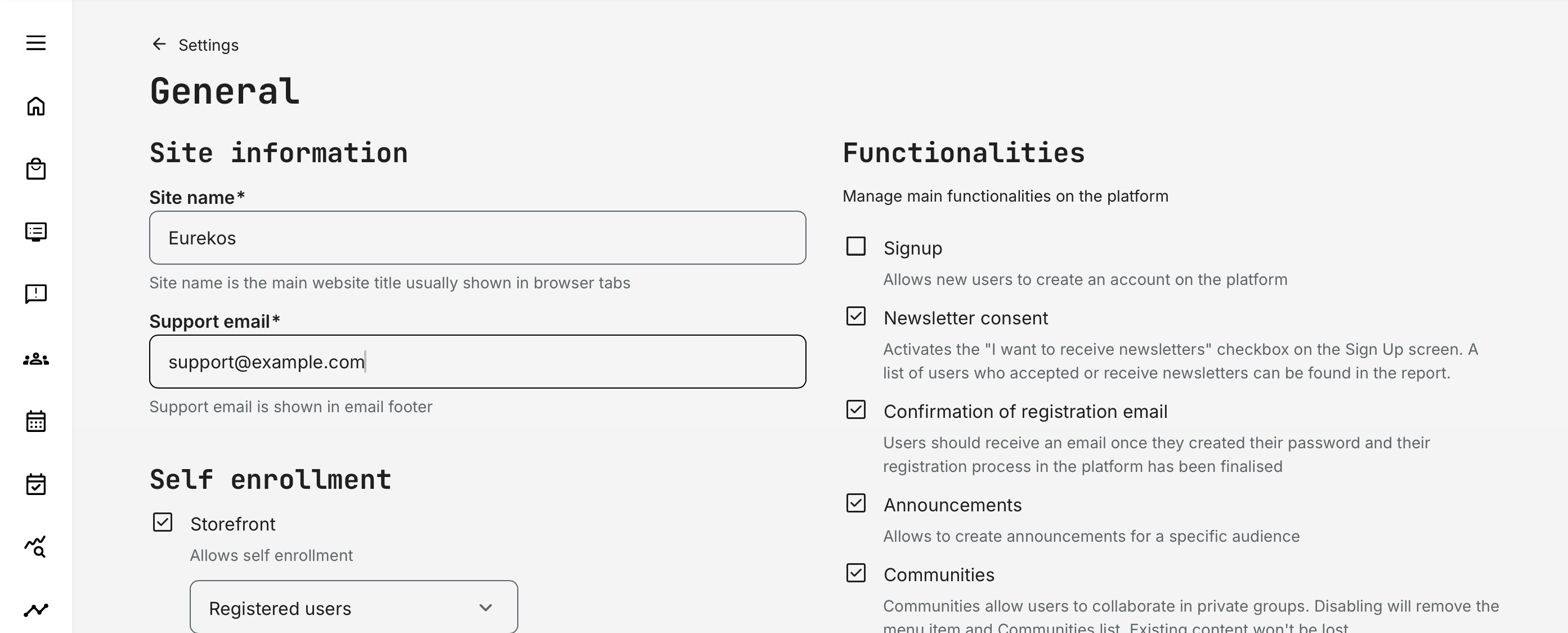
This section defines basic platform identity and contact configuration. These fields affect how your platform presents itself externally and how system-generated communication is perceived.
- Site name appears in browser tabs and system references
- Support email is used in communication footers and user-facing notifications
From an operational perspective, this is where you ensure that users always know who is responsible for the platform and where to seek support. In extended enterprise environments, this is particularly important for brand clarity and trust.
Self Enrollment
Self Enrollment determines whether — and under what conditions — users can join training activities on their own initiative. It defines your platform’s enrollment philosophy: whether learning is centrally assigned, user-driven, publicly accessible, or a controlled hybrid of these models.
When enabled, users can browse and enroll in available training without administrative intervention. You decide whether this applies only to registered users or whether the platform operates as a public-facing storefront where new users can create accounts and enroll themselves.
Importantly, this setting is closely connected to the Signup functionality. When enabling the Storefront for open access, Signup is enabled by default to support account creation. However, it can still be toggled off if you want the Storefront to be visible for promotional or demonstration purposes without allowing public registration.
These decisions are strategic. They influence how your platform supports internal enablement, partner education, certification programs, or commercial training offerings. Enrollment logic should always align with your audience model, governance requirements, and access policies.
Enabling Self Enrollment directly affects:
- How discoverable content is through the Storefront
- Whether learning is primarily assigned or self-initiated
- How segmentation and targeting logic behaves
- Whether account creation must be available to support open access
Disabling Self Enrollment fundamentally changes the operating model. Users cannot enroll independently, and participation must be managed through onboarding rules, role-based assignment, manager enrollment, or manual administration. This model is often preferred in tightly regulated or compliance-driven environments where training must be formally controlled.
For internal corporate platforms, self-enrollment may be limited to registered employees. In extended enterprise, partner enablement, or product education programs, however, self-enrollment is frequently essential — often combined with structured registration workflows and segmentation rules.
Storefront Filters (When Self Enrollment is Enabled)
Storefront filters refine discoverability once Self Enrollment is enabled. These filters influence segmentation, personalization, and how structured your catalog experience becomes.
Below is a contextual breakdown of the available storefront filters and what enabling them means in practice.
| Setting | What It Does | Enable | When to Use |
|---|---|---|---|
| Language Filter | Adds a language selector to the Storefront so users can filter training by content language | Users can filter available training by language, improving discoverability in multilingual deployments | Highly recommended for global deployments, extended enterprise setups, or multilingual catalogs |
| Interests Filter (Tag-Driven) | Uses Tags (from Settings → Tags) to allow filtering by product line, service area, certification track, or business topic | Users can browse and filter training based on structured taxonomy aligned with your product or competency architecture | Recommended for large catalogs, multiple product families, tiered partner programs, or distinct training tracks |
| Type Filter (Tag-Based Classification) | Allows filtering by training format (e.g., Webinar, Certification, eLearning, Event, Blended Program) | Users can refine their browsing experience by delivery format or program structure | Valuable when offering mixed delivery formats or structured certification paths |
| Hide Activities Without a Type Tag | Ensures that only activities with a defined Type tag appear in the Storefront | Activities missing a Type tag are hidden from the Storefront, enforcing classification discipline and consistent filtering | Strongly recommended for structured or external-facing storefronts to maintain quality control and prevent incomplete or unclassified activities from appearing publicly |
These filters depend on proper Tag configuration in Settings → Tags. Category tags are always available in the Storefront.
Re-enrollment (Change dates / Change training)
This setting defines how much flexibility a learner has after enrolling in a training activity and directly influences participation control, governance, and user autonomy.
When enabled, it allows learners to switch from one activity instance to another — typically when multiple scheduled sessions exist for the same course — without requiring administrative intervention.
There are two common scenarios where this becomes particularly relevant:
- Linked training activities — where the same course is offered multiple times (e.g., different dates, time zones, or delivery formats) and learners can choose between equivalent sessions
- Nested or structured training activities (existing training) — where a single activity contains multiple selectable options, such as conferences with parallel tracks, repeated sessions during the day, or alternative participation formats
In both cases, the configuration determines how much flexibility learners have to navigate between available options without administrative involvement.
| Setting | Description |
|---|---|
| Enable |
|
| Disable |
|
| When to Use |
|
Unenrollment (Cancel participation)
Enables learners to withdraw from a training they are enrolled in.
Enabling it increases learner autonomy and reduces administrative friction by allowing participants to manage their own enrollments. Disabling it centralizes control, ensuring that enrollment changes remain subject to administrative oversight and compliance requirements.
| Setting | Description |
|---|---|
| Enable |
|
| Disable |
|
| When to Use |
|
Any financial disputes or special requests resulting from learner-initiated unenrollment are handled manually by administrators. The system does not automatically reverse transactions or reinstate access.
If appropriate, administrators can re-enroll the user, restore access, and reinstate prior progress based on governance policies and business agreements.
Questionnaires
The Questionnaires section defines how questionnaires behave across the entire platform. While questionnaires themselves are created and configured separately, these settings determine their global logic and behavior.
Vocabularies
Enables the use of vocabularies (predefined answer sets) within questionnaires to standardize responses.
When vocabularies are enabled:
- Administrators can create reusable answer lists
- These can be applied across multiple questionnaires
- Responses remain consistent and structured
Using vocabularies instead of free-text answers:
- Improves reporting accuracy
- Prevents duplicate values (e.g., “EU” vs “European Union”)
- Makes segmentation and filtering reliable
- Reduces manual cleanup
When disabled, questionnaires rely more on manual or free-text input, reducing reporting precision but simplifies the interface. See more about this in the articles covering questionnaires in detail.
Send Email About Training Feedback
This setting controls whether administrators are notified when training feedback questionnaires are submitted. It connects directly to course evaluation workflows and determines how proactively you monitor quality and learner satisfaction.
In many organizations, especially those delivering instructor-led training or external programs, there is a need to react quickly to incoming feedback. Notifications can be configured to a specific recipient — often a shared inbox — where responsible teams can review submissions, verify quality, and assess trends or intensity in feedback.
- When Enabled: Every submission of a training feedback questionnaire triggers an email notification. This should be used thoughtfully. In large deployments or high-volume training environments, enabling notifications for every submission may generate significant email traffic
- When Disabled: Feedback is stored and available in reporting, but no automatic notification is sent
It is important to note that this setting applies only to questionnaires configured as training feedback on an activity — not to all questionnaires created across the platform.
Send Email on Low Ratings Only
This sub-configuration refines the behavior above and introduces a more strategic monitoring approach. When enabled, administrators can define a threshold for:
- Rating scale questions
- Linear scale questions
Only feedback submissions that contain a score at or below the defined threshold will trigger a notification.
The threshold can be configured as:
- An integer value (e.g., 3 → triggers notifications for scores of 3 or lower)
- A percentage value (e.g., 30% → triggers notifications for scores at or below 30%)
This approach allows organizations to focus on KPI-based exceptions rather than all feedback. Instead of monitoring every response, administrators are alerted only when performance indicators fall below acceptable levels.
This is particularly useful for:
- Instructor performance monitoring
- Partner program quality control
- Compliance-critical training
- Customer-facing certification programs
Email templates and recipients for these notifications are configured in Settings → Email Sending → Questionnaires.
Configured correctly, this feature becomes a proactive quality assurance mechanism — allowing rapid intervention where it matters most, without overwhelming administrative teams.
Supplemental Questionnaire
The Supplemental Questionnaire setting activates the ability to attach a structured questionnaire directly to the user profile. When enabled, this feature allows you to collect additional, business-specific information that goes beyond standard profile fields.
Unlike basic profile fields (such as name, organization, or hire date), supplemental questionnaires are designed to capture contextual, validated, and often process-driven data — such as professional background, certifications obtained outside the platform, regulatory declarations, partner tier, reseller scope, specialization, or eligibility information.
Enabling means:
- A selected questionnaire can be designated as the platform’s supplemental profile questionnaire
- A new section appears on user profiles displaying the questionnaire name, last update date, and preview/edit option
- Users can complete or update this structured information directly from the profile
Use this when:
- Standard profile fields are insufficient
- You need structured business data (e.g., certifications, job level, partner tier)
- Applications or approvals depend on collected information
This setting connects profile data to operational logic across the platform.
Important: Changing the linked questionnaire resets profile connections — avoid changing this casually in live environments.
Incentives
Incentives is the platform’s engagement and reward framework, allowing you to motivate users through points, badges, leaderboards, and redeemable rewards. It connects learning activity to measurable recognition and, when enabled, can include competitive ranking and a reward shop.
This is the master switch that activates the full reward-based engagement framework across the system.
Before enabling:
- Do you have rules defined?
- Do you have a point logic?
- Do you have rewards configured?
Incentives without clear structure can quickly create confusion and dilute impact. Consider limiting access to specific roles or organizations initially, so you can test and refine the setup before rolling it out broadly in a live environment.
Enabling is where you decide:
- Whether incentives are available at all
- Whether they operate platform-wide or in a scoped manner
- Who can access the Leaderboard
- Who can access the Incentives Shop
Define Scope
This dropdown determines whether incentives apply globally across the platform or per organization.
When set to Available at the platform level, incentives are not restricted by sub-organization or scoped deployment. They apply consistently to all users who have access.
This is particularly important in multi-organization or extended enterprise environments, where incentives may only be relevant for selected audiences. By scoping incentives to specific organizations, you can phase in the program gradually, pilot it with controlled user groups, or test configurations before a broader rollout.
Leaderboard and Shop Combinations
Once Incentives are enabled at either platform or organization level, two additional experience layers can be activated: Leaderboard and Shop.
These settings determine whether your incentives program remains symbolic (points and badges only), competitive (with rankings), transactional (with reward redemption), or a combination of all three.
The table below outlines what each configuration controls and the practical impact of enabling or disabling it.
| Feature | What it Controls | When Enabled | When Disabled |
|---|---|---|---|
| Leaderboard | Displays a ranking of users based on earned points |
|
|
| Shop | Allows users to redeem earned points for rewards |
|
|
Skills
The Skills toggle activates structured competency tracking across the platform.
When enabled, Skills become available on user profiles, certificates, reporting, and (if also enabled) scheduling and availability planning.
This setting determines whether skills function as simple labels or as accumulative, level-based competencies.
| Configuration | What It Means | When to Enable | Typical Use Case |
|---|---|---|---|
| Without Levels |
| Enable when you want a simple qualification model with minimal complexity |
|
| With Levels |
| Enable when you require progressive mastery and structured development paths | Tiered partner programs, qualification frameworks, readiness validation, or environments where competency depth grows over time (e.g., Level 1 → Level 5 progression) |
Enabling Skills affects:
- User profile display
- Certificate configuration
- Reporting and analytics
- Scheduling (if Availability is enabled)
- Extended enterprise readiness validation
If unsure, you can start without levels for simplicity and introduce level logic later once your competency framework matures. Skills are foundational. Activating them is less about interface and more about defining how your organization models capability and progression.
Watermarks
The Watermarks setting allows you to apply dynamic watermarks to PDF documents when they are downloaded from the platform, as well as a video watermark (typically a logo) displayed in the lower-left corner of native streaming videos.
This feature acts as a deterrent and traceability mechanism, not as a strict access control system. It reinforces responsible handling of intellectual property — particularly for paid content, partner documentation, proprietary materials, or regulated information — by clearly associating downloaded content with the individual user.
How PDF Watermarking Works
To configure PDF watermarking:
- Define your watermark text in the simple editor using available dynamic tokens (for example, user name and email)
- Navigate to the Archive (Multimedia Library)
- Locate the specific PDF you wish to protect
- Enable watermarking for that individual file by selecting [Add watermark].
Watermarks are applied per PDF file. This selective approach ensures that only documents requiring protection are marked — particularly important when not all uploaded materials are proprietary.
Once enabled, the watermark is dynamically embedded at the moment of download. You can test the configuration immediately by downloading the document.
Video Watermarking
Video watermarking functions differently:
- It is configured as a global setting.
- When enabled, it applies automatically to all videos uploaded to the video archive.
- A logo image is displayed in the lower-left corner during playback.
- Optionally, the logo can include a URL that directs viewers to a specified webpage when clicked.
| Category | Description |
|---|---|
| What Watermarks Do |
|
| What Watermarks Do Not Do |
|
| When to Use Watermarks |
|
Watermarks are especially relevant in extended enterprise scenarios, where materials are shared with external partners or customers and responsible handling must be encouraged. Users retain smooth access to learning materials.
iCalendar Configuration
The iCalendar setting allows administrators to define the name of the calendar that is embedded in exported .ics files generated by the platform.
When a user exports an event or adds a training session to their external calendar, the system generates a standard .ics file. This configuration ensures:
- The configured name appears when the calendar file is imported into external systems such as Outlook. This helps users immediately recognize the origin and purpose of the event — for example, distinguishing training events from other professional or personal calendars
- The attribute ensures that, in Microsoft Outlook environments, the event opens in the Inspector window upon import. This allows users to review and adjust parameters (such as reminders, categories, or response settings) before saving the event to their calendar
While technically minor, this setting improves:
- Professional presentation of exported events
- Clarity when integrating with external calendar systems
- User experience during event import
For organizations running instructor-led sessions, recurring events, or partner programs with calendar integration, properly naming the exported calendar strengthens brand clarity and reduces confusion in external scheduling environments.
Technical information
- The calendar carries a clearly defined name using the X-WR-CALNAME:Calendar name attribute.
- The file includes the X-MS-OLK-FORCEINSPECTOROPEN:TRUE attribute.
Functionalities
The Functionalities section controls which core capabilities are activated across the entire platform. These are not minor feature settings — they are structural feature activations.
Enabling or disabling options here directly determines:
- Which menu items appear in the interface
- Which workflows become available
- Which pages users can access
- How much visibility, collaboration, or autonomy users have
Because these are platform-wide switches, any change takes effect immediately and impacts all relevant users.
Before activating a functionality, consider:
- Who should have access to this capability?
- Does it require governance or oversight?
- Does it align with your operating model (internal training, extended enterprise, commercial storefront, etc.)?
- Are dependent features already configured correctly?
Below is a structured overview of each configuration option, followed by practical reflections to help you evaluate when and why to activate them.
| Functionality | What It Controls | Enable | Disable |
|---|---|---|---|
| Signup | Whether users can create their own accounts | Users can register independently via the Sign Up page | Accounts must be created via admin, import, API, or SSO |
| Newsletter consent | Displays opt-in checkbox during signup Supports compliance and marketing segmentation strategies | Users can opt in to general communication; consent is reportable | No newsletter consent option is shown |
| Confirmation of registration email | Sends email after successful registration Recommended for professionalism and clarity in user onboarding | Users receive confirmation of account creation | No confirmation email is sent |
| Announcements | Enables platform-wide broadcast messaging Useful for internal updates, campaigns, or operational communication | Admins can create targeted announcements visible to defined audiences | Announcement feature is hidden from navigation |
| Communities | Activates internal collaboration spaces Enable for cohort learning or partner collaboration. Disable for strictly structured learning environments | Community menu and widgets become available; activity-linked communities function | Community feature hidden; existing content preserved but inaccessible |
| Calendar | Enables event-based scheduling and attendance tracking Required for instructor-led, blended, or live training models | Event modules, attendance, and video conferencing become available | No scheduling or event-based training possible |
| Participants | Controls visibility of participant lists Enable when collaboration or transparency is important. Disable in privacy-sensitive environments | Users can view participants of activities they are enrolled in | Participant lists are hidden platform-wide |
| Organization filter | Enables content visibility based on organizational structure Essential in multi-tenant or hierarchical enterprise deployments | Users see content filtered by organization/sub-organization | No organization-based content filtering |
Signup
The Signup setting controls whether new users can create accounts on the platform themselves. This is not merely a technical switch — it is a strategic decision that defines how people gain access to your ecosystem.
There are several common scenarios where enabling or disabling Signup makes sense, depending on your audience and governance model.
| Access Model | What It Means | Typical Use Cases | Key Impact |
|---|---|---|---|
| Controlled Access (Signup Disabled) | Users cannot create accounts themselves. Accounts are provisioned exclusively through administrators or integrated systems (SSO, IAM, HR platforms, partner portals, etc.) |
| Full control over account creation. No public registration is available. Governance and identity validation are handled outside the platform |
| Showcase Without Registration | The Storefront is visible publicly, but Signup is disabled. Visitors can browse training but cannot create accounts or enroll |
| The platform acts as a public-facing catalog while keeping access restricted. No new users can register |
| Invitation-Only Access (Controlled Signup) | Signup is enabled but only accessible through organization-specific invitation links or QR codes. There is no open public registration page. Users are automatically assigned to the correct organization upon registration |
| Scalable user onboarding with governance. Access is controlled while maintaining ease of registration for approved audiences |
Several other platform features rely on Signup being enabled. For example:
- Invitations and promotions
- Organization-based signup flows
- Self-registration campaigns
If Signup is disabled, these workflows cannot function as intended.
Implementation Recommendation
During early implementation or platform build-up, it is often wise to keep Signup disabled.
This prevents premature access while:
- Refining your Storefront
- Configuring onboarding logic
- Finalizing branding and automation
You can enable Signup when you are ready to go live.
In short, Signup defines your access philosophy — closed and controlled, curated and invited, or open and scalable. Choose the configuration that aligns with your audience, governance model, and business strategy. Disable for tightly controlled corporate environments.
Newsletter Consent
The Newsletter consent functionality allows you to collect and manage user opt-in preferences for general communication directly within the platform. While it does not integrate with external email marketing or CRM systems, it ensures that consent is formally captured inside the LMS — which is important because users may only exist in the LMS and not in other business systems. In many organizations, communication consent is collected through multiple channels (websites, events, CRM forms, etc.), and the LMS serves as one of those official collection points.
When enabled, the following elements become available:
- Sign-Up screen – An “I want to receive newsletters” checkbox appears during account creation
- Edit Profile → Preferences tab – Users can subscribe or unsubscribe at any time
- Participant registrations report – Includes a Newsletter column (Yes/No)
- User export – Includes a Newsletter column (Yes/No/–), where “–” represents no recorded choice
- Newsletter consent popup – Displays on My Overview for logged-in users whose newsletter value is not recorded
The popup continues to appear on each visit until the user actively selects Yes or No. It is not shown during masquerade sessions. If a user account was created before the feature was enabled, the popup will not appear for that user.
The popup text is configured under Settings → Translations → Site → Newsletter.
From a governance and compliance perspective, this feature provides a clear, auditable mechanism for capturing communication consent inside the LMS, without coupling it to external marketing systems.
Confirmation of Registration Email
The Confirmation of Registration Email controls whether users receive a dedicated confirmation message after successfully creating an account.
For most deployments, sending this email is recommended. It provides reassurance, documents the registration event, and reinforces trust in the platform. However, some organizations choose to disable it to reduce overall email volume—especially in environments where minimizing communication noise is a priority.
It is important to note that the registration flow already includes a password creation email for security and identity verification. Once users set their password, they are automatically logged in and redirected to the Home screen—meaning they already receive a functional confirmation of access.
Enabling this setting adds an additional confirmation message after registration. The email template can be configured in Settings → Email Sending → Account, where branding, wording, and tone can be adjusted to align with your communication strategy.
Announcements
The Announcements feature allows administrators to communicate important updates directly within the platform interface. Unlike email notifications, announcements appear inside the user experience—typically on the dashboard or relevant list page—ensuring visibility without adding to inbox traffic.
Announcements can be targeted to specific audiences based on roles, organizations, or other profile attributes. This makes them suitable for operational updates, feature launches, deadlines, campaigns, or governance-related messaging that must reach defined groups.
Because announcements are platform-native, they are particularly useful when:
- You want guaranteed visibility upon login
- You need to communicate with segmented audiences
- You wish to avoid excessive email communication
- You are promoting initiatives such as incentives, new certifications, or policy updates
Announcements complement email communication but serve a different purpose: they provide contextual, in-platform messaging that users encounter as part of their normal workflow. Most organizations leave this feature on from the beginning.
Communities
The Communities feature enables collaborative spaces connected to learning activities and programs. When activated, users can access discussion areas directly from their profile and dashboard, creating a layer of peer interaction around training.
Communities can be internal (native platform communities) or externally connected (such as Microsoft Teams or Slack), depending on configuration. They are typically linked to activities, learning paths, or programs where dialogue, Q&A, and knowledge sharing support the learning experience.
You can control how prominently Communities appear:
- Show on “My Overview” (Home screen) → Communities are displayed as a widget, making collaboration highly visible and central to the user experience
- Hide widget from “My Overview” → Communities remain accessible via the main menu, but without occupying dashboard space. This creates a more discreet presence while still enabling access when needed
This allows you to align visibility with your engagement strategy — from community-driven programs to more content-focused deployments.
Strategic Recommendation
Communities should be enabled intentionally. They are powerful when there is:
- A clear facilitation plan
- Dedicated moderators or instructors
- Defined response-time expectations
- A structured approach to engagement
Communities require active leadership and governance. Without facilitation, discussions can stagnate, reducing perceived value. Before enabling, consider whether your audience, internal resources, and program design support sustained interaction.
When used strategically, Communities transform learning from content consumption into shared experience, driven by hybrid learning models. When enabled without commitment, they risk becoming unused spaces.
Calendar
The Calendar setting activates the platform’s scheduled learning capabilities and is essential for any organization running instructor-led sessions, webinars, classroom training, virtual events, or blended programs. When enabled, it transforms the platform from a purely self-paced learning environment into a structured training management system with dates, attendance, and session coordination.
With Calendar enabled, administrators and instructors can create scheduled events—either as standalone activities or as event modules inside Learning Paths. This includes defining session times, managing attendance, sending calendar invitations (.ics files), tracking participation, and coordinating instructors and participants. Attendance marking, session visibility, and event-based workflows all depend on this functionality being active.
If Calendar is disabled, the platform becomes limited to self-paced training only. In this state:
- No scheduled events can be created
- Event modules cannot be added to Learning Paths
- Attendance cannot be tracked
- Calendar-based invitations and time-bound sessions are unavailable
For most organizations—especially those delivering certifications, compliance workshops, partner enablement sessions, or instructor-led training—Calendar is a core operational feature and should remain enabled.
However, there are cases where disabling it is appropriate:
- Platforms used exclusively for on-demand eLearning
- Early-stage implementations or proof-of-concept environments
- Deployments where simplifying the interface is a priority
It is important to recognize that enabling Calendar does more than add a visual schedule. It introduces governance considerations around attendance tracking, session changes, re-enrollment logic, instructor availability, and event communications. For that reason, this setting should align directly with your learning model and delivery strategy.
Participants
The Participants functionality controls whether users can see who else is enrolled in the same training activity. When enabled, it activates the Participants page, allowing users to view other participants within activities they themselves are registered for.
This is a platform-wide visibility setting. It does not expose all users globally — it only shows participants within activities where the logged-in user is enrolled. Even Platform Administrators will only see participants for activities they are registered for.
From a design perspective, this feature supports collaboration, transparency, and networking between learners. From a governance perspective, it introduces deliberate visibility of personal information (at minimum name and email) between participants.
Because this is a global setting, the decision affects all activities and should align with your privacy model and collaboration strategy.
Here is a clear, governance-oriented description of the Organization Filter setting, aligned with the structure we used for Communities and other Functionalities.
Archives (Files, Videos & H5P)
The Archives section controls who is allowed to upload and manage content in the platform’s internal content libraries. These libraries form the backbone of course creation and content reuse.
There are three separate archives:
- Archive – for files such as PDFs, images, presentations, and documents
- Videos – for native video streaming content
- H5P – for interactive learning objects
Access to these areas gives selected roles the ability to upload, organize, and manage reusable learning assets. Disabling access hides the archive interfaces entirely for that role. This configuration lets you exclude roles, but it is not a learner-experience setting — it is a governance decision.
Most organizations restrict archive access to content creators (instructors, course administrators, or higher administrative roles). In extended enterprise or external-facing environments, it is common practice to exclude participants and managers from upload capabilities altogether. Learners do not need access to the archive to consume training, complete assignments, or participate in communities.
When configuring this setting, consider:
- Who is responsible for content quality and ownership?
- Who should be allowed to introduce new files into the system?
- Do you want to limit legal or compliance exposure?
- Are you prepared to moderate uploaded material?
A helpful principle is:
Only grant upload rights to those who actively build or manage training.
You can always expand access later — but reducing it after content is already distributed is significantly harder. In short, the Archives setting defines who can contribute to the platform’s content infrastructure — not who can access training.
Features for Instructors
The Features for Instructors section controls how much operational responsibility instructors have within the platform.
By default, instructors are primarily facilitators and often content-focused contributors. Enabling options in this section expands their authority into areas such as activity management, participant handling, user visibility, and scheduling coordination.
These settings directly influence:
- How autonomous instructors are
- How much administrative workload can be delegated
- How controlled or decentralized your training operations become
Because these options affect governance and data visibility, they should be enabled intentionally — especially in extended enterprise or regulated environments.
Activities for Instructors
When enabled, a dedicated Activities menu item appears for instructors.
This allows them to see the activities where they are assigned as Responsible Instructor and manage those activities within defined limits. Enabling this supports decentralized operations where instructors actively manage their own sessions.
Allow to Manage Participants in Their Training Activities
This option works in combination with “Activities for instructors” and should only be enabled when instructors are trusted operational leads.
When enabled:
- Instructors can add existing users to their own activities
- They can use Move and Cancel actions for participants
- Bulk operations become available
- They can manage attendance and practical assessment status
User List for Instructors
Controls whether instructors can access the full user list (subject to organizational layer rules). They can select users when adding participants to activities.
This setting affects data exposure. In extended enterprise scenarios, limiting user directory access is often advisable.
Availability
Essential for organizations running instructor-led, scheduled training at scale.
When enabled:
- Instructors gain access to My Availability
- Administrators gain access to the Availability management interface
- Instructor booking conflicts can be surfaced via popups
- Scheduling logic becomes more advanced
Social
The Social section enables selected integrations with public social platforms. Unlike Communities, which support internal collaboration, Social features connect your platform to external identity providers and sharing networks.
These settings influence how users authenticate and whether content can be shared beyond the platform. They are most relevant in open, public-facing, or marketing-driven environments — and less so in controlled corporate or compliance-focused deployments.
Before enabling Social options, consider:
- Does your platform serve a public audience?
- Is reduced login friction important?
- Are external identities acceptable within your governance model?
Login with Social Accounts
This option allows users to authenticate using supported third-party accounts such as LinkedIn, Facebook, X (formerly Twitter), or Microsoft (depending on the integrations configured).
This should not be confused with enterprise authentication methods such as OIDC or SAML. Those are configured separately and are typically used for federated identity provisioning and secure single sign-on across organizational systems.
When configured:
- Social login buttons appear on the login screen
- Users authenticate through the selected provider
- External credentials are linked to the platform user account
This can significantly reduce friction in extended enterprise, prospect-driven, or community-oriented environments.
However, social login introduces an external identity dependency and may not align with strict corporate IAM or SSO strategies. For organizations operating in regulated or centrally governed environments, this option should be evaluated carefully before activation.
This requires configuration under Settings → Third-party integrations, and once configured, social login buttons appear in the login form. This feature is not available for activation until appropriate integrations have been configured.
Sharing Posts
This option allows users to share content externally to supported social platforms.
When enabled — share options appear to share comments from communities and potentially from announcements, if comments are available. It is typically only used in extremely open, marketing-oriented or brand-building programs. In controlled internal or partner-only deployments, external sharing is often unwanted.
Organization Filter (Advanced Opt-In)
The Organization Filter introduces structured content segregation across your platform. While organizations already segment users administratively (roles, user management, course administration), enabling this setting extends segregation into the content layer itself.
When activated, courses, activities, videos, files, and other content entities can be explicitly assigned to specific organizations or sub-organizations. Content will only be visible to users who belong to the assigned organizational structure. Everything else becomes hidden from their view.
This is not a cosmetic filter — it changes how content is stored, managed, and surfaced across the entire platform. When this setting is enabled, a dedicated Content tab appears under organizations, accessible only to Global Administrator roles.
When enabled:
- Content (courses, activities, videos, files, etc.) can be restricted to specific organizations
- Segregation applies platform-wide, including archives and course creation.
- A Global Administrator role becomes necessary to oversee content across organizations.
⚠️ This feature can only be activated by Eurekos Service Desk, and activation includes provisioning a Global Administrator role to maintain cross-organizational oversight.
Disabling the Organizational Content Filter does not delete previously configured organizational content restrictions — it temporarily removes the enforcement layer.
- When disabled after is has been enabled:
- The content segregation layer is no longer enforced
- Courses, media, videos, and other content become visible beyond their previously restricted organizational boundaries
- The additional organization-based content management interface is no longer be visible
- Existing assignments and stored metadata linking content to organizations remain in the database
- When re-enabled:
- The previously configured organizational content restrictions are restored
- Content visibility segmentation resumes according to the saved configuration
- The additional content management controls reappear
In other words, the configuration is usually suspended, not erased.
Governance Consideration
Because the Organizational Content Filter introduces content-level isolation and an additional layer of administrative oversight, it should be treated as a strategic architectural decision.
Activating this setting fundamentally changes how content is governed across the platform:
- It introduces structural separation of courses, media, and archives
- It limits visibility across organizational boundaries — even for higher roles
- It adds administrative responsibility for managing content per organization
- It increases complexity in multi-tenant or partner-facing environments
Only activate this feature when there is a clear business requirement for strict content segregation (e.g., multi-brand environments, regulated partner ecosystems, regional business units, or independent content ownership per organization). You operate a very complex multi-tenant or extended enterprise platform.