Create an Organization - Article
Create and manage Organizations and Suborganizations manually or through import
Organizations can be created and managed in various ways to cater to different business scenarios. They can also work in concert with each other.
- Manual lets you to create organizations one at a time.
- Import lets you import a whole structure, including suborganizations by uploading an excel file with the relevant information.
- Organizations can also be created through the API and by auto-creation upon adding users via an authenticating service.
- As a service, we can also technically assist with any customizations that are needed to facilitate automation to you own legacy systems.
List of organizations
Organizations is a section of the main menu, which is available exclusively for Platform Administrators and Global Administrators. The list includes basic information, such as title, description and number of members.
- Default sorting is latest updated.
- Click on the column title to toggle the sorting order between alphabetic and number of members.
- Apply Search to quickly find an organization by name or use the updated schedule picker to limit the list further.
- Titles of organizations on the same level in the hierarchy must be unique.
- Export lets you export the full list of organizations in an excel sheet.
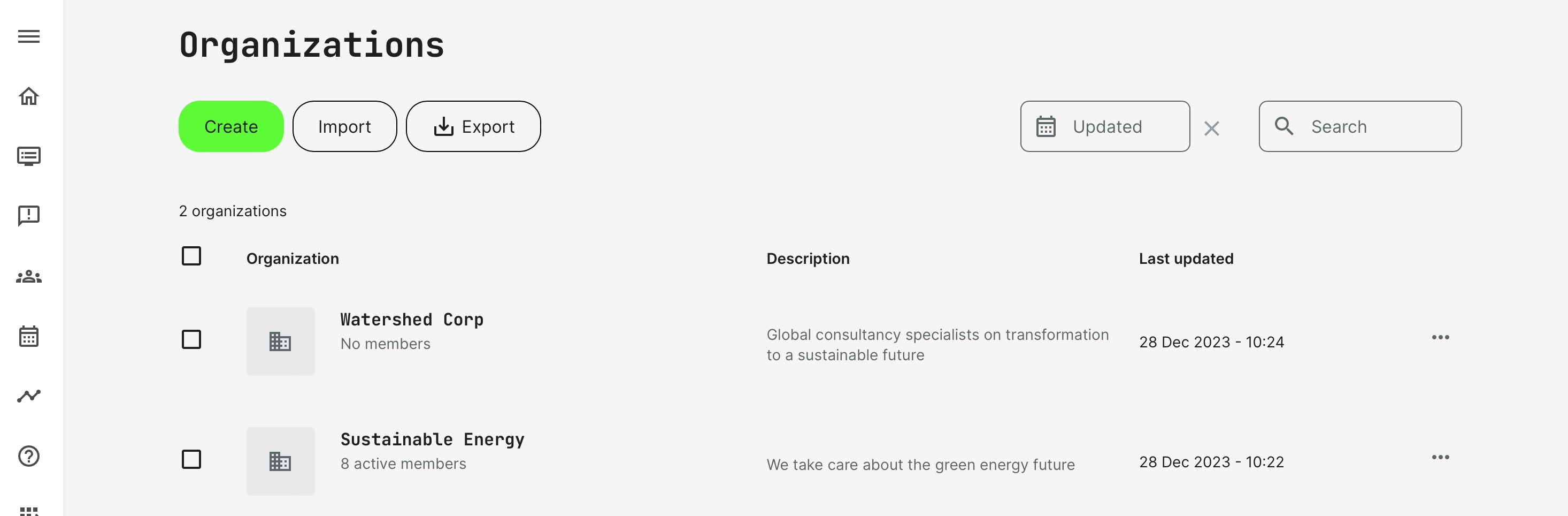
Under each organization title quantity members is displayed as information at-a-glance. This reflects active members, while blocked members are not taken into account in this view.
Manual creation, one organization at a time
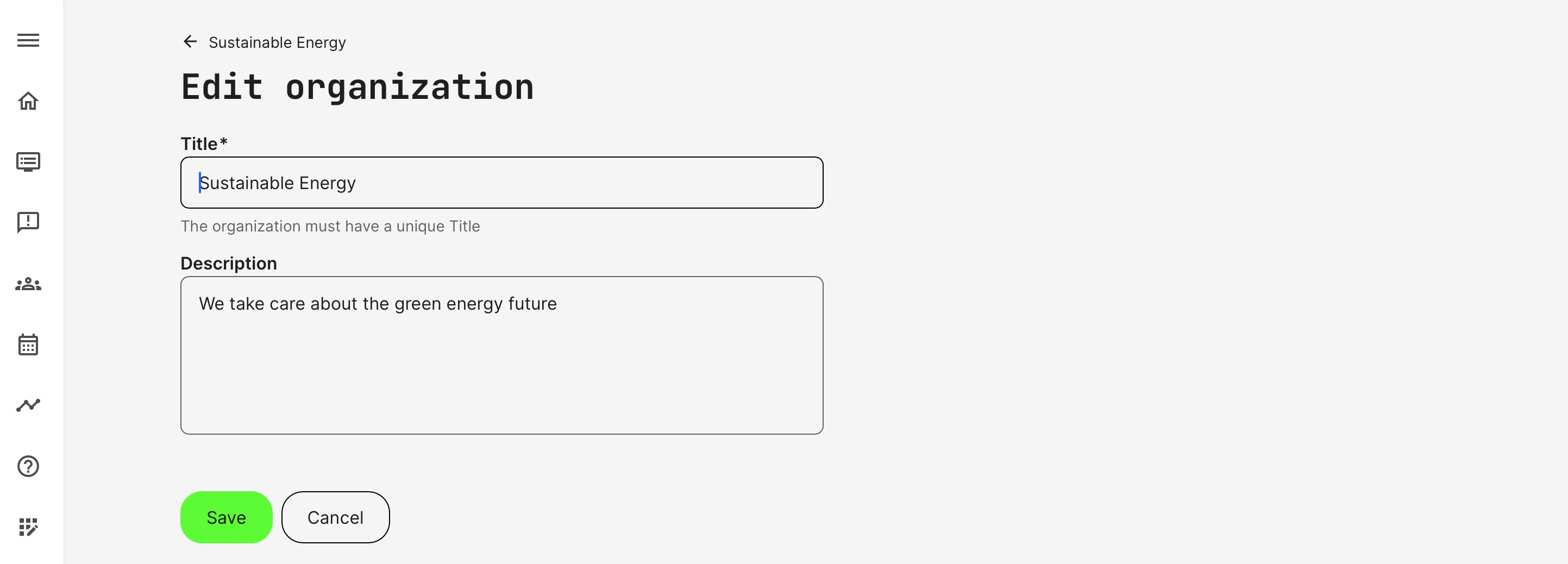
The primary feature on the list of organizations lets you create a new organization. Complete the title and description to make this organization easy to identify, at a later stage. The title must be unique at the highest level in the hierarchy.
Settings and features of an organization
Each organization offers several powerful features to provide control over the appearance of the organization, the number of people who can be added as members and more.
To change the organization settings go to the three-dot menu of the relevant organization. The tabbed view lets you define each option, separately.
Settings → General
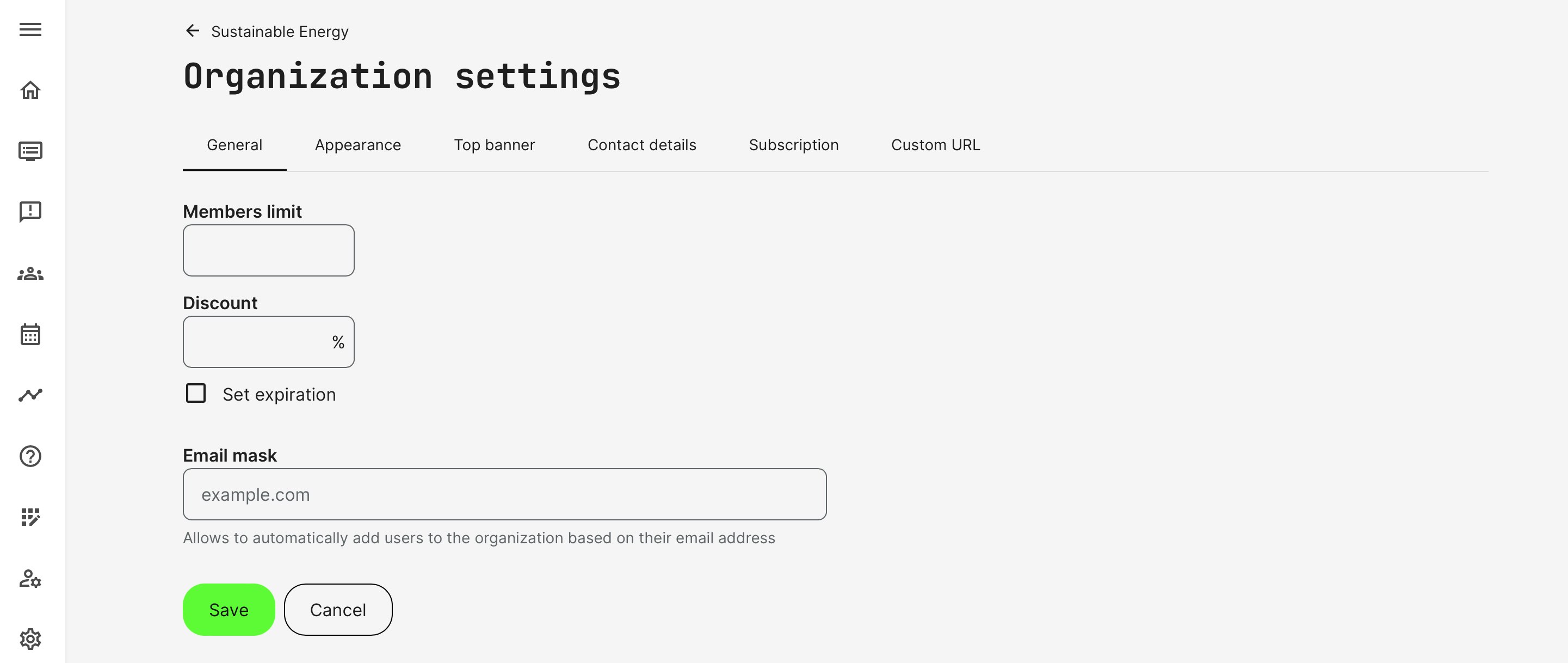
- Members limit set the maximum possible members within an organization. This is especially useful for decentralized user management or when you have an agreement on a corporate level.
- Set an initial Discount for the members of the organization and, if needed, add it’s expiration date. This will overrule any price settings on courses for anyone in this organization and is a great way to manage corporate discount agreements. It affects any courses from the catalog that users have not yet been enrolled to.
- Email mask is a form of white-listing users and just general lightens the administrative burden. Relevant for sign-up scenarios where you can define the email domains that are recognized for the organization - e.g., “company.com”. Such a domain will automatically connect any user “johndoe@company.com” to the correct organization, based on the email domain. Consider that this also allows automatic organizational relations to be performed without exposing your client, partner or channel base.
Settings → Appearance
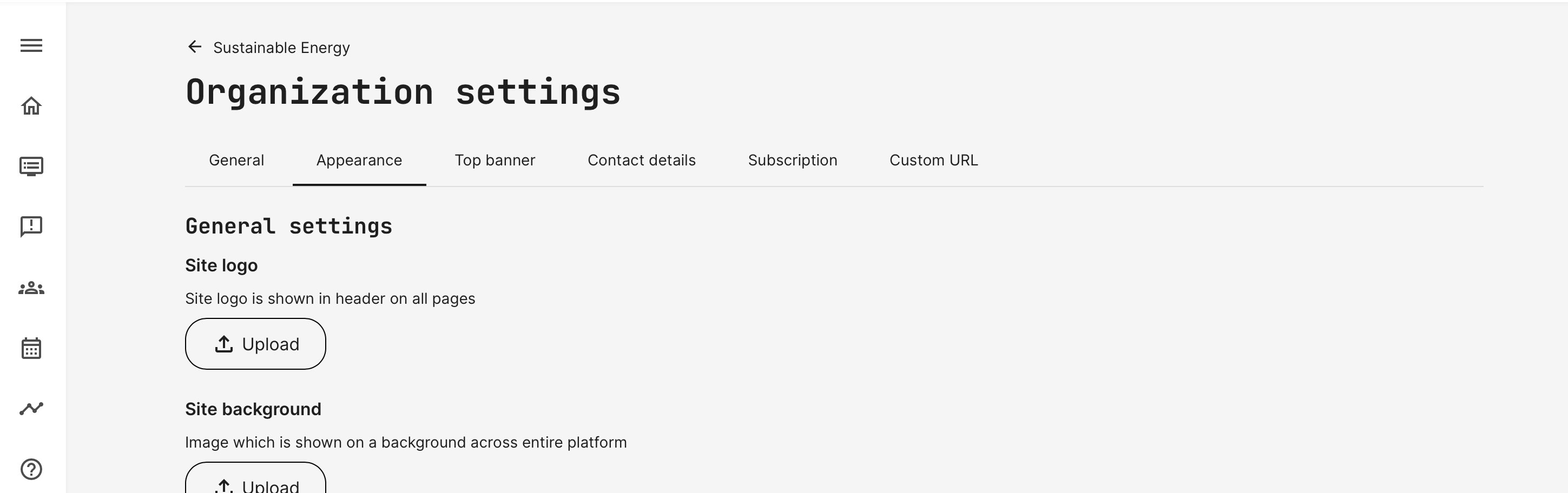
Appearance provides fast white labeling of your platform. This way each organization can have its own appearance and brand recognition.
- Upload a logo.
- Site background: overall page background.
- Video Watermark: automatically adds your logo over the videos. Watermark URL ensures fast access to any set URL while clicking on it. This can be turned on or off as an option on platform level, in the respective general settings.
- Color Settings: two basic colors of your page and advanced settings to define colors on more granular level.
Settings → Top Banner
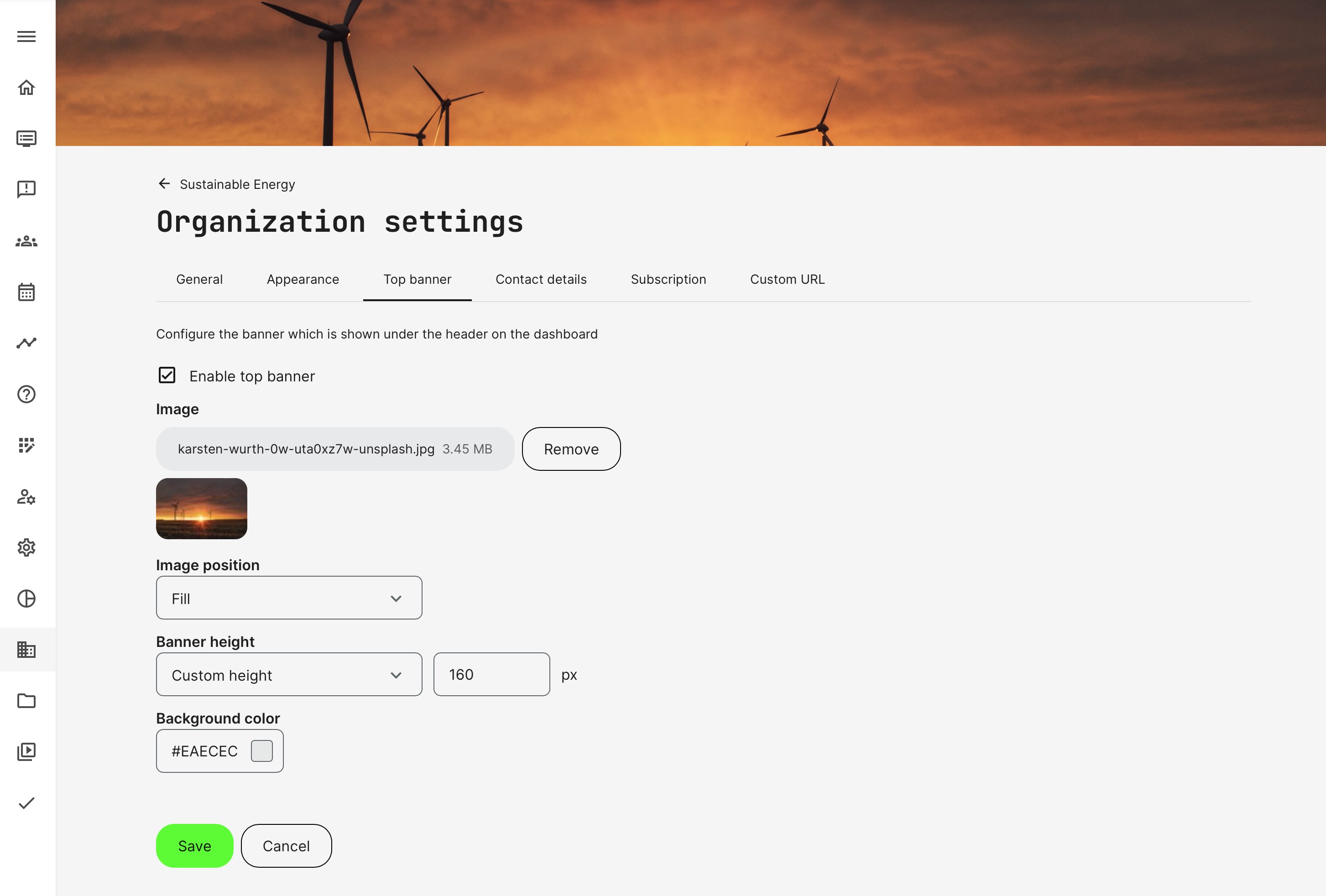
Top Banner is shown under the header on the dashboard to provide additional branding. In some cases, this can be used to provide organizational identity, while still retaining the general visual identity of the the platform.
Settings → Contact details
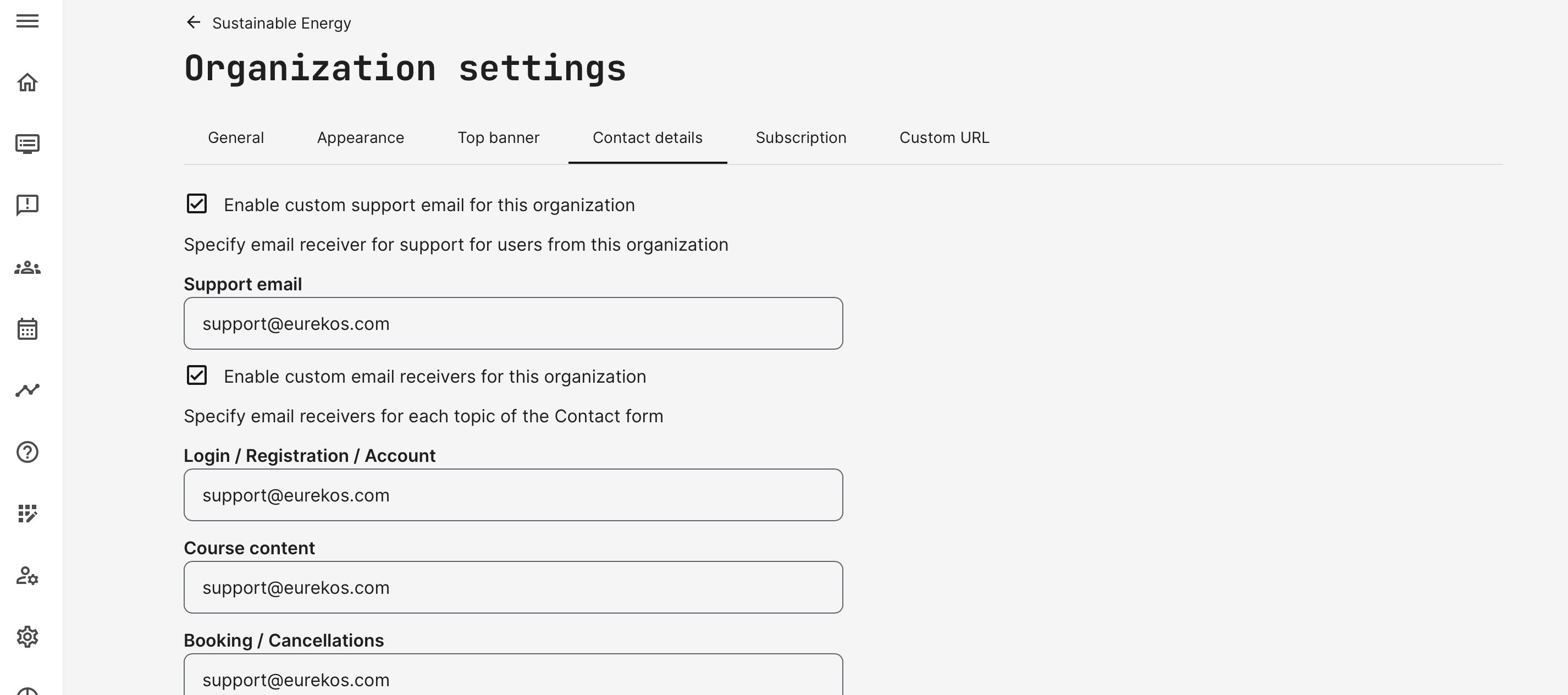
Provide different support email receivers for organizations. The contact form is available through the footer and includes queries for:
- Login/Registration/Account.
- Course content related.
- Booking/Cancellations.
- Support team.
- Product.
- Suggestions.
- Miscellaneous.
Settings → Subscription
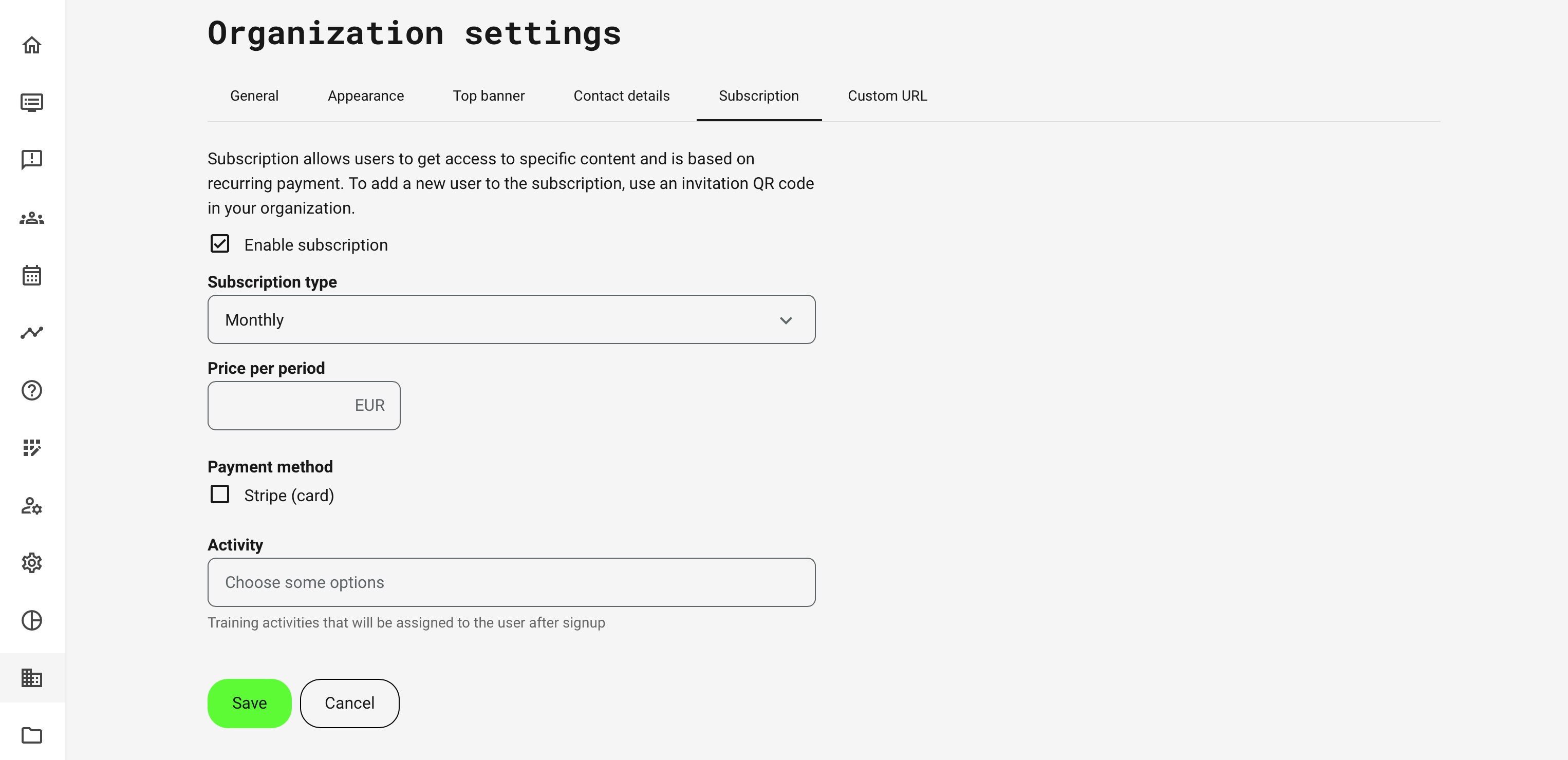 Subscription is described in detail in a separate article. Subscription will give access to a number of pre-configured Training Activities to which the user will be enrolled, once the payment has been completed.
Settings → Custom URL
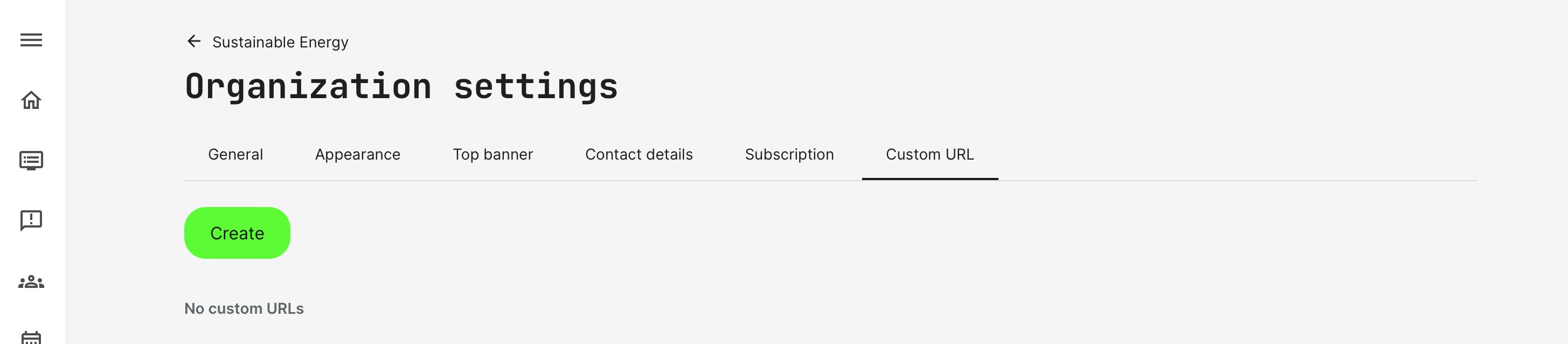
Creating a custom URL is a link, still based on the same domain name (https://academy.yourdomain.com), but with a parameter on like "client name" and it would look like this: (https://academy.yourdomain.com/clientname).
You can distribute these links to clients and partners and as they are unique, the provides a number of advantages:
- The log in screen can already be provided with the appearance settings, colors and logo set on the organization. Even prior log in, for unregistered users.
- Training offers can be unique to the organization and lets you display special offers and special pricing already prior log in, for unregistered users.
- If an unregistered user decides to sign up (should this be available), the user will automatically be signed up to the right organization without any extra effort.
- You can create multiple URLs this way, all linking to the same organization. Useful if you want to be able to shut some down and for future use cases.
Creating a suborganization
Suborganizations are managed similar to an organization at higher level. You can further branch out any structure by creating suborganizations within existing suborganizations.
The primary feature on the list of suborganizations lets you create a new suborganization. The title must be unique for suborganizations at the same level in the hierarchy.
- Organizations supports 10 hierarchical levels
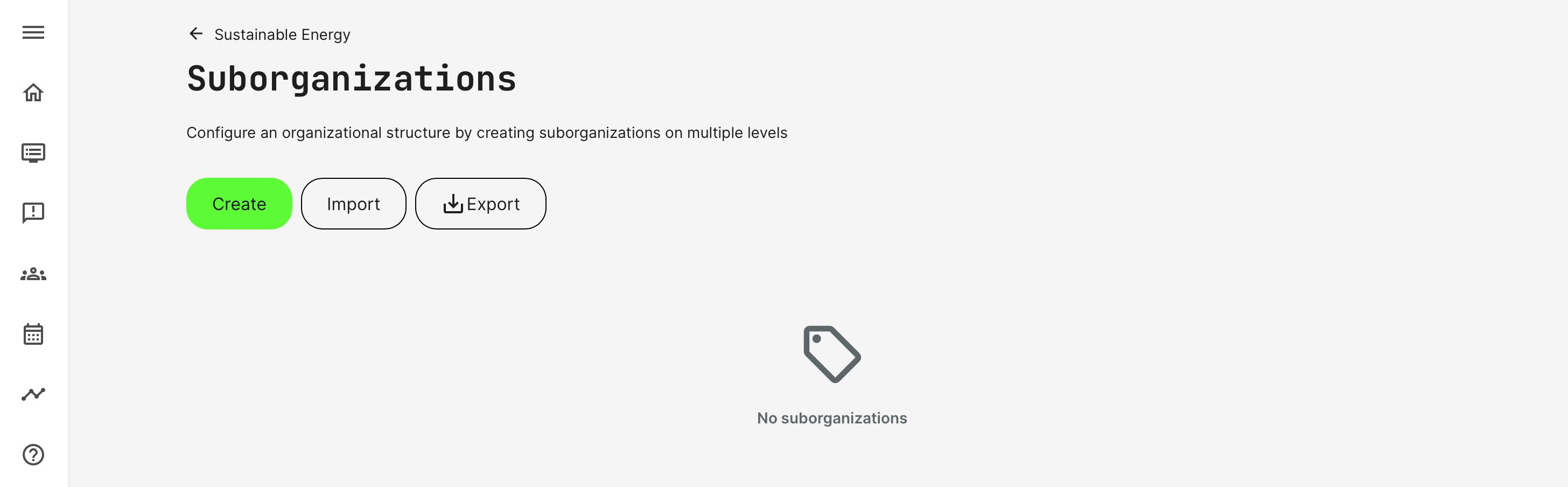
- Import lets you import suborganizations from an excel file.
- Export lets you export the list of suborganizations as an excel file.
Import and export of organizations
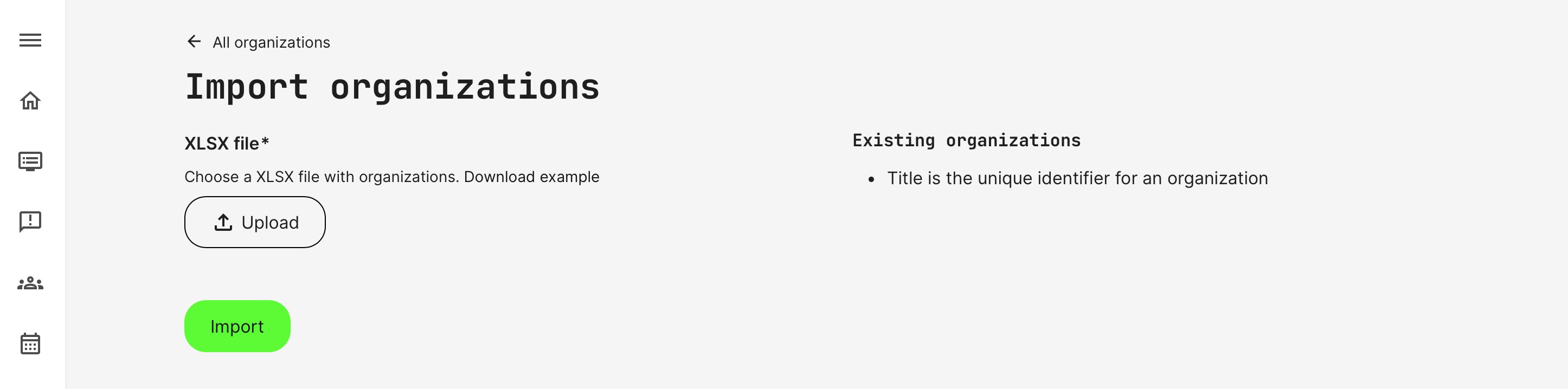
The import function allows you to quickly upload a large number of organizations. In order to get the right format, download the example, which will make it easy to complete the format for upload.
Importing an excel sheet again, will update existing organizations based on the title as the unique identifier. New titles constitutes a new organization.
For suborganizations, import and export will be possible to perform by administrators on the appropriate level in the hierarchy. A Platform Administrator on a suborganization will only be able to import and export organizations from his level and suborganizations below.
If no suborganizations are defined, the file will include:
- Title of the organization.
- Email mask (or masks) to include on the import.
- Discount percentage.
- Discount expriation date.
- If suborganizations exist to the parent level, these will be added as an additional column in the excel sheet.
Pending sign-ups
As previously mentioned, it is possible to set a condition to new sign-ups that they need approval by an administrator, if they don't belong to one of the white-listed email masks. Contact support@eurekos.com to have this condition enabled.
- Prevent sign-up without approval when users who do not belong to any of your currently approved domain email masks - e.g. “company.com”.
- An administrator will need to manually approve every incoming sign up request. This could mean quite a bit of administration, so consider this approach carefully.
Member limits in relation to suborganizations
Member limits in the hierarchy and branching scenarios are accumulated. This is something you should consider, when setting up restrictions. For example:
If the parent level in the hierarchy has a member limit of 100, this applies to the accumulation of members, including those below.
- 50 members in the parent organization and 50 in the suborganization equals 100 and no more users can be added to the organizaiton.
- 100 users in the suborganization will also meet the limit and no more users can be added to the organization.
- Limits on suborganizations on their own will limit how many each of these can hold, but still, any higher branch will have the maximum number of members.