Setting Up Skills - Article
Summary
Skills allow administrators to structure learning around measurable competencies rather than individual courses. By defining skills and linking them to training activities, organizations can manage capability development, certification readiness, and role-based learning requirements across the platform.
In this article you will learn:
- How to create and configure skills in the platform
- How to connect skills to learning activities and certifications
- How skills support role-based learning and capability tracking
- How administrators manage and maintain skill frameworks across programs
Enabling Skills
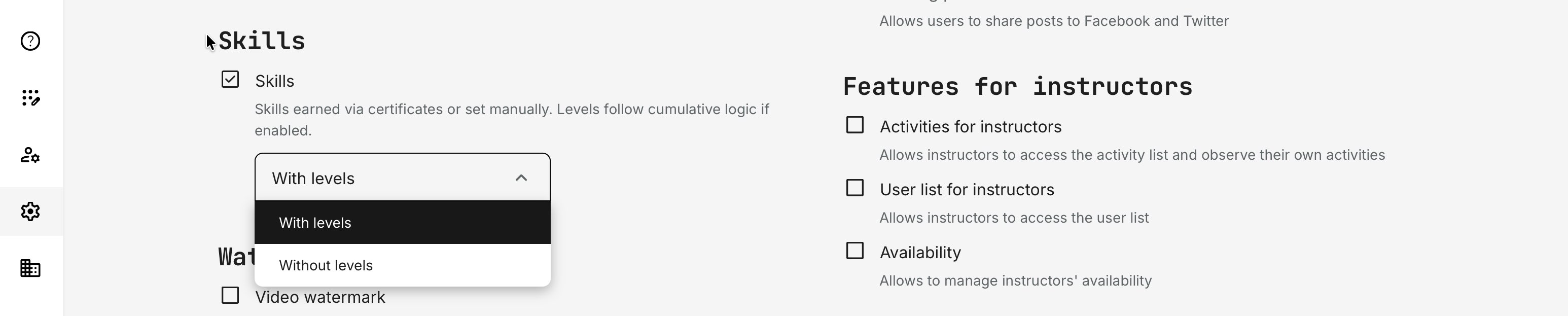
Skills are an optional feature that can be enabled under Settings → General → Skills. When activating Skills, administrators decide whether skills should accumulate through levels (supporting progression over time) or function as standalone labels without cumulative logic.
Once enabled, Skills become a foundational capability across the platform, unlocking additional options for planning, certification, availability, and reporting.
Create Skills
Skills are created in Settings → Skills, where administrators have access to an overview of all configured skills, including search and drag-and-drop ordering.
The ordering is not hierarchical and does not imply priority or proficiency. Instead, it is purely organizational—helping administrators manage, locate, and present skills consistently when selecting them in certificates, filters, and assignment workflows. The order has no functional impact beyond visibility and convenience.
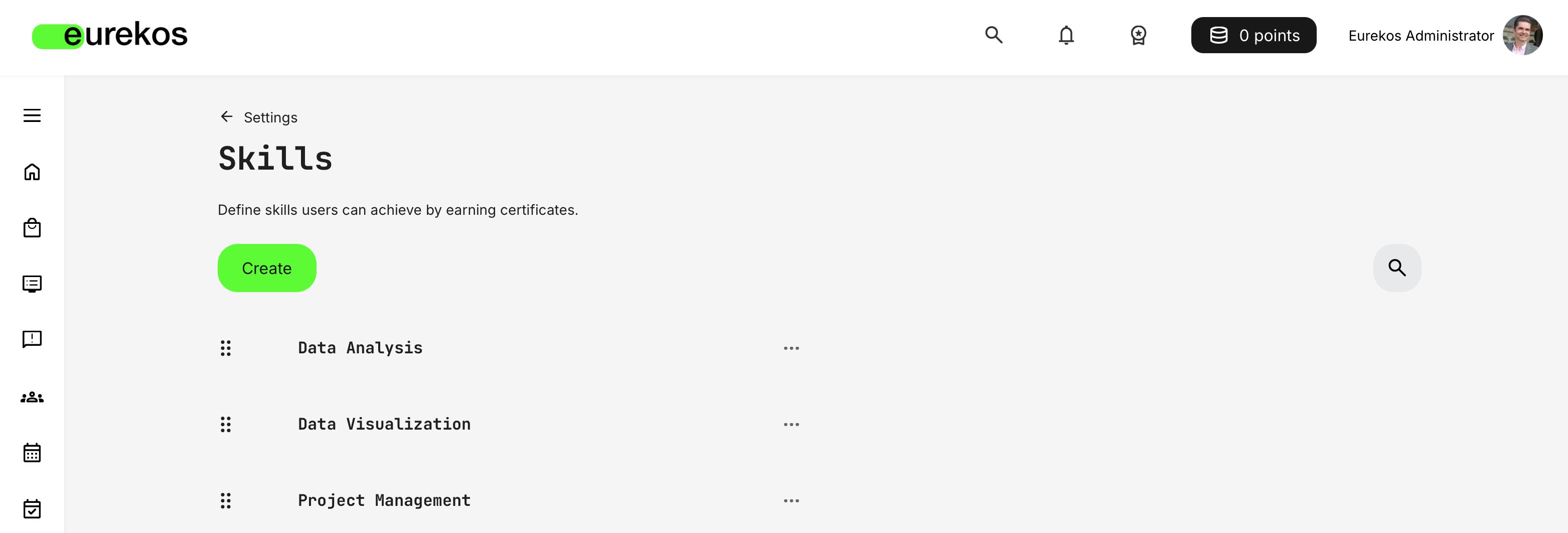
From the Skills page, administrators can define new skills that learners earn through certificates.
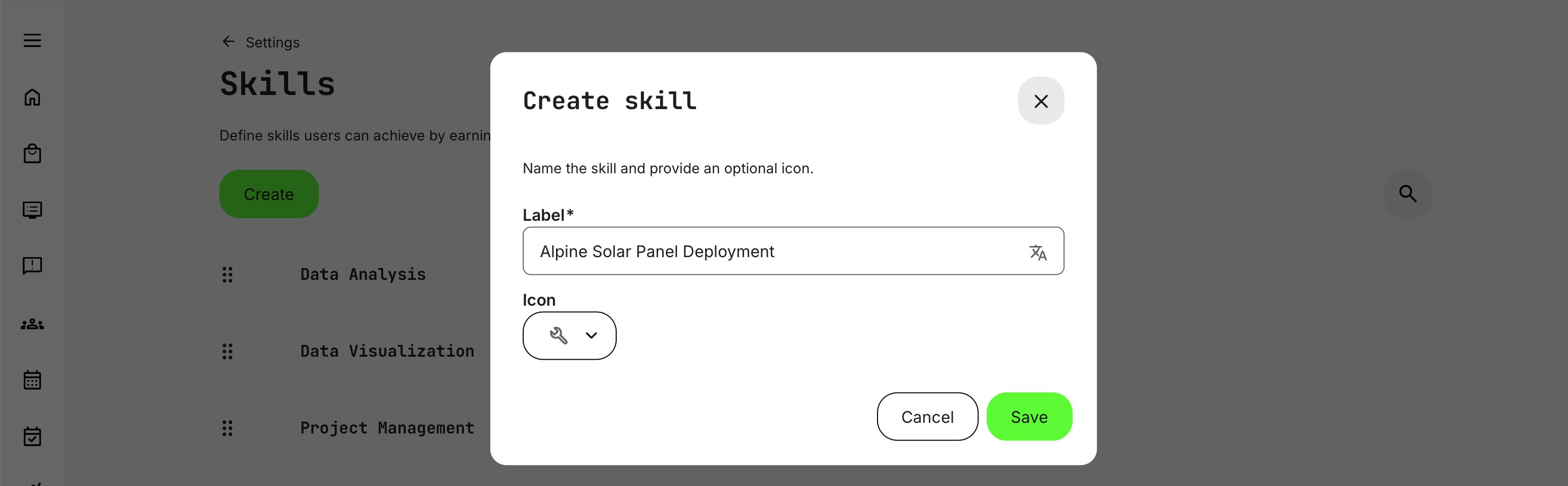
To create a skill, click [Create] and provide a Label (the skill name) and an optional Icon. Once saved, the skill becomes available across certificates, reporting, and planning workflows.
Skill labels are not translated automatically. In multi-language environments, you should therefore provide localized labels for each supported language. If no translation is added, the default label will be shown to all users.
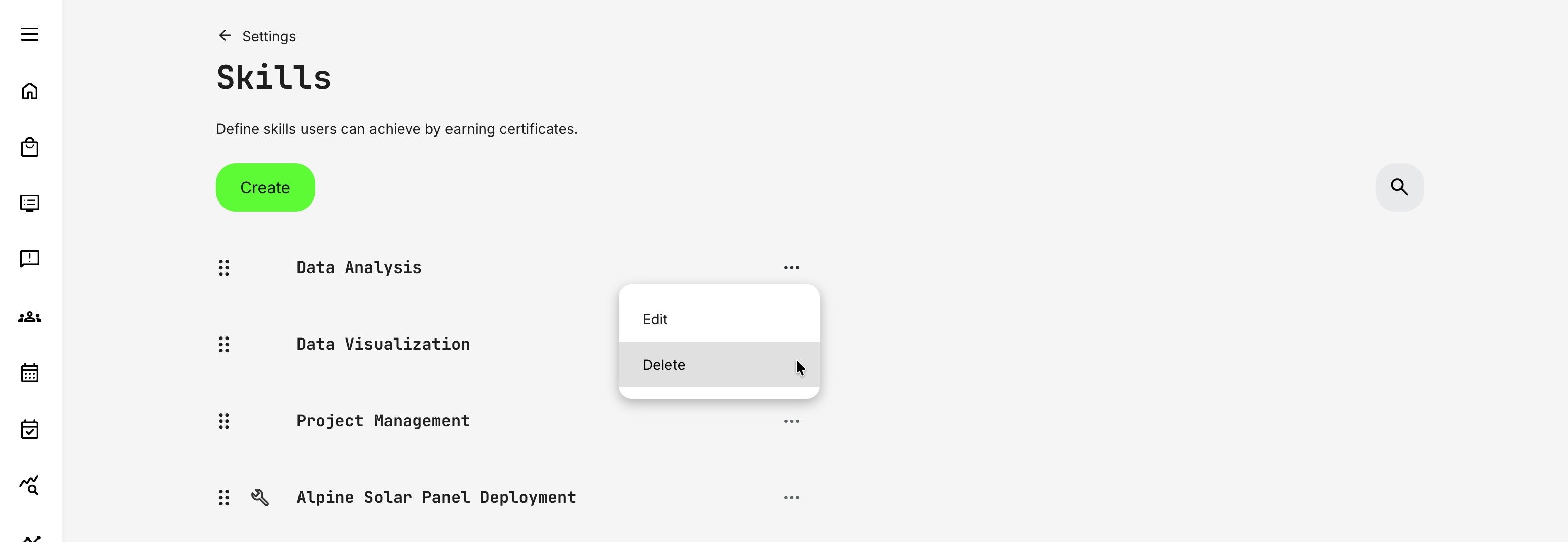
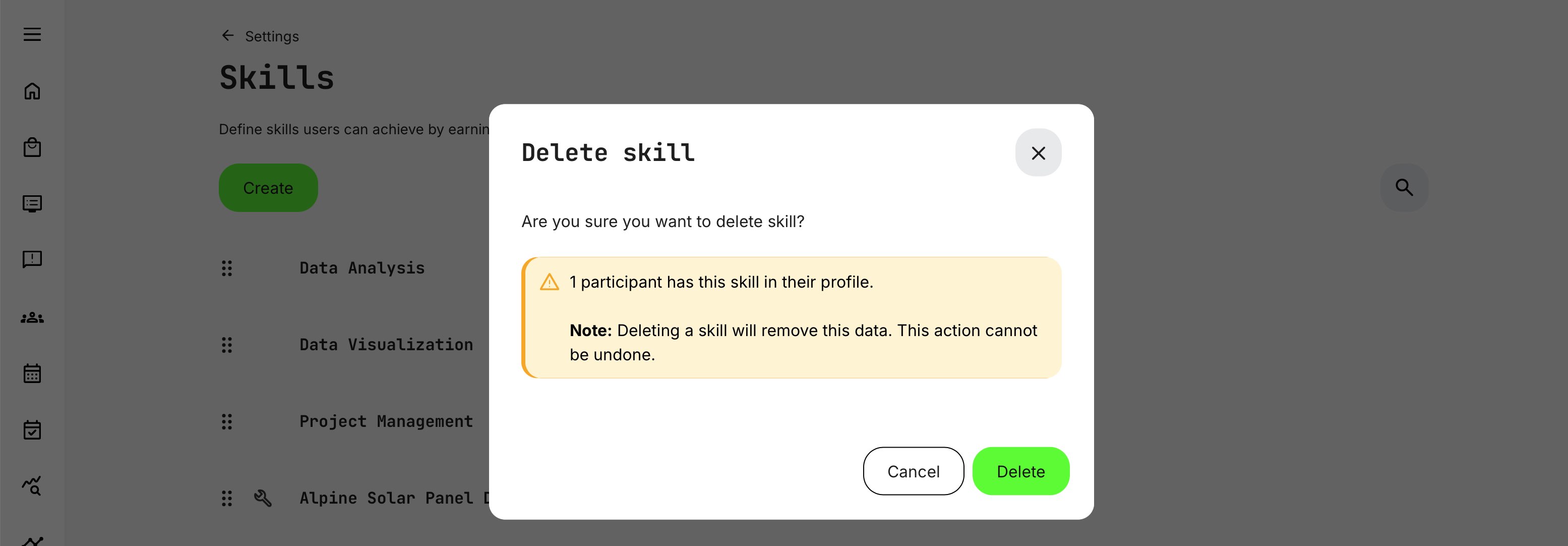
Once created, the skill appears in the Skills list. Use the [More] menu (⋯) next to the skill to edit its name, add or update the icon, or delete the skill if it’s no longer needed.
What Happens When a Skill Is Deleted?
Based on the lifecycle rules:
- Previously earned certificates remain intact: Deleting a skill does not revoke or alter certificates that were already earned. Certificates are preserved as historical records
- The deleted skill is no longer shown as an active skill
- The skill is no longer displayed on user profiles
- The skill is not available for selection in filters or new configurations
- Any certificate that previously granted the skill is still shown, but the deleted skill itself is not rendered as an active skill
- Reporting reflects the deletion event
- The skill’s Active status is updated with a skill deletion timestamp
- Historical records remain queryable, but the skill is marked as deleted rather than silently removed
- This aligns with the platform’s data-integrity model (soft deletion rather than destructive removal)
- Exports and historical data are preserved: Training records and certificates remain exportable. The system does not rewrite history; it records that the skill was deleted at a given point in time
Skills behave as configurable metadata layered on top of immutable learning records. You can safely clean up or refactor skills without corrupting certification history, compliance evidence, or exports — which is especially important for audits and long-running programs.
Assigning Skills Through a Certificate
Once skills are configured, they can be awarded through certificates—optionally with levels, if levels are enabled. On the certificate form, enable Certificate skills to add one or more skills (and levels) that will be granted when the learner meets the certificate’s issuance criteria.
You can associate multiple skills with a single certificate. When the certificate is earned, all configured skills are granted together, providing a clear and structured link between learning outcomes and demonstrated competence.
If skill levels are enabled, levels accumulate across certificates. For example, if a learner earns:
- Product Knowledge at level 2 through one certificate, and
- Product Knowledge at level 3 through another,
their total proficiency becomes level 5 for that skill. This makes it possible to build layered learning paths where foundational and advanced certifications contribute to the same overall capability.
Expiration and Recertification
Skill validity follows the rules of the certificate that grants them. If certificate expiration is enabled, the skills (and levels) awarded by that certificate will expire when the certificate expires. If the same skill is earned through multiple certificates, only the portion tied to the expiring certificate is removed—any remaining levels from other active certificates are retained.
For example:
- Certificate A grants Safety Training level 2 (expires after 12 months)
- Certificate B grants Safety Training level 3 (expires after 24 months)
After 12 months, the learner’s skill level drops from 5 to 3—not to zero.
This approach preserves historical records for audit and reporting, while ensuring that active skills accurately reflect current qualifications.
Displaying Skills on Certificates
Skills can be displayed directly on the certificate document using the [Certificate skills] dynamic token. This automatically lists all skills and levels awarded by that certificate, adapting dynamically if multiple skills are included.
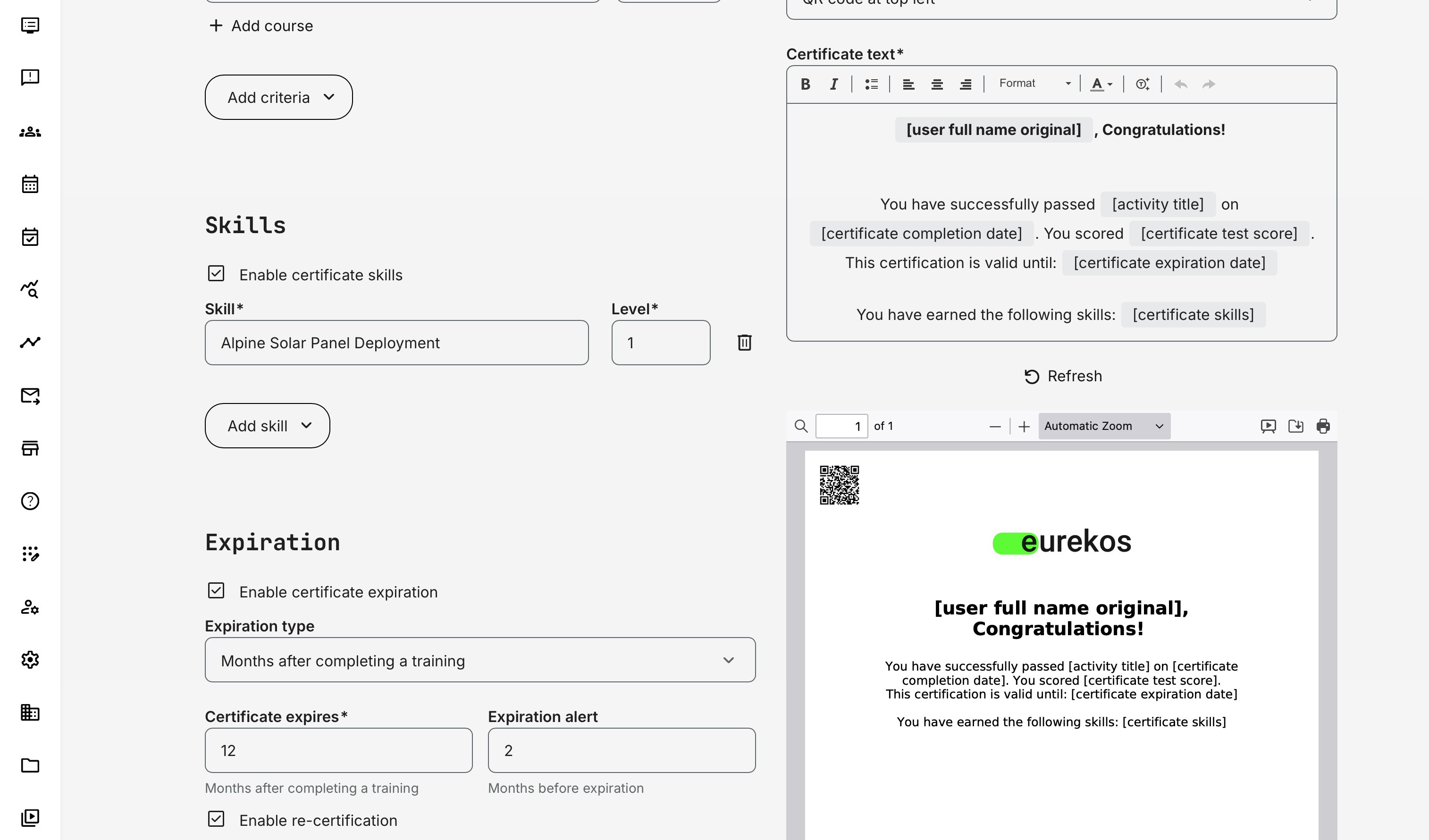
Certificates are managed from Course Administration → Certificates. Broader certificate configuration options—such as issuance rules, templates, and recertification—are covered in dedicated certificate articles.
Manually Assigning Skills to Users
In addition to being earned through certificates, skills can also be assigned manually by administrators. This option exists to reflect real-world competence that does not originate from structured training inside the platform.
Typical use cases include:
- Onboarding users who already hold relevant certifications or qualifications
- Recognizing prior professional experience or seniority
- Registering skills obtained through external training providers, vendors, or partner programs
- Bridging gaps during system migrations where historical learning data is incomplete
To assign skills manually, go to Users, select Edit on the relevant user profile, and open the Skills tab. From here, you can add one or more skills and, if levels are enabled, specify the appropriate level for each.
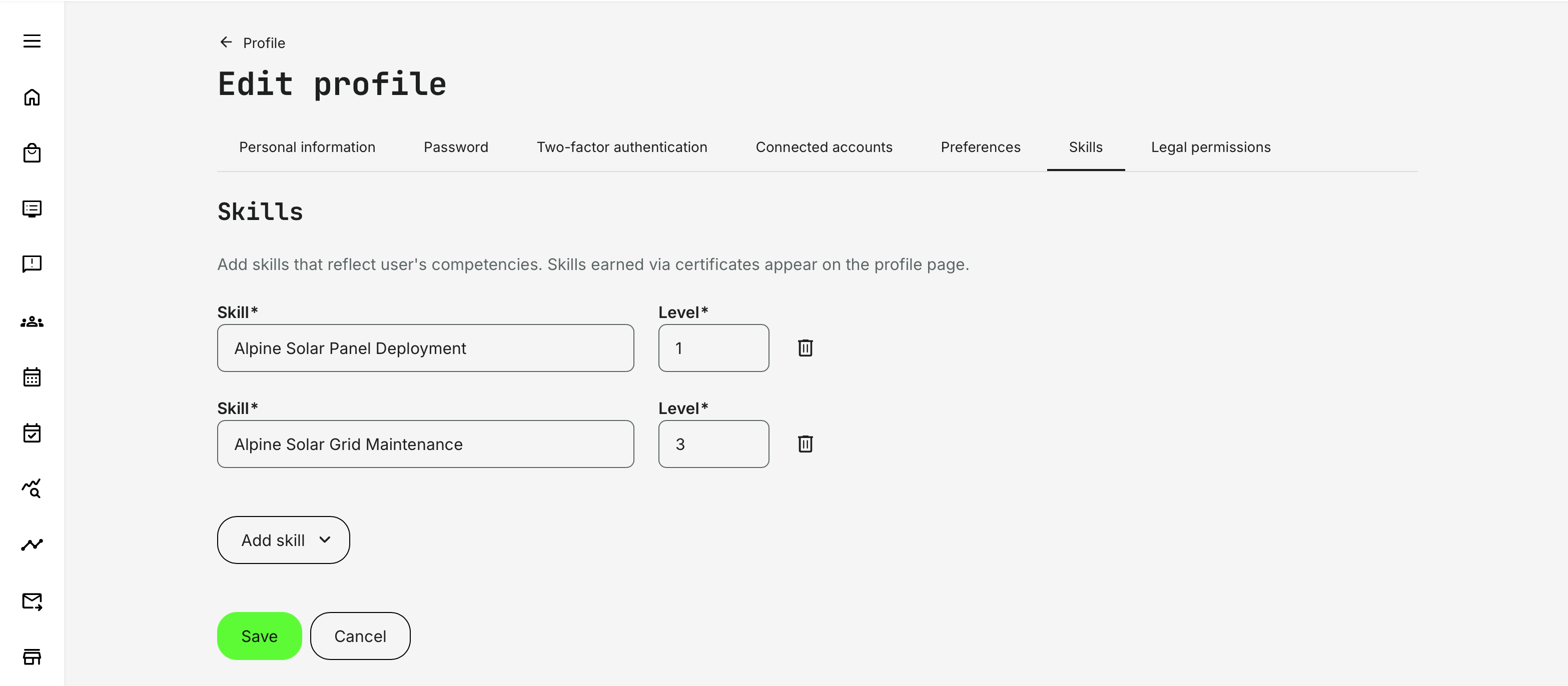
How Manually Assigned Skills Behave
Manually assigned skills behave differently from certificate-based skills in important ways:
- No expiration: Skills added manually do not expire automatically. They remain active until an administrator explicitly removes them.
- No certificate dependency: These skills are not linked to certificates and are therefore not affected by certificate expiration or recertification rules.
- Profile-level recognition: They appear on the user’s profile and can be used for visibility, filtering, and planning purposes (for example in instructor availability or reporting).
From a business perspective, this distinction is intentional. Experience often matters just as much as formal training—and in many organizations, more. Manual assignment allows you to acknowledge trusted competence without forcing users through redundant learning, while still keeping structured certifications as the primary mechanism for time-bound or compliance-driven validation.
Used thoughtfully, manual skills complement certificate-based skills by ensuring that your skill framework reflects reality—not just platform activity.