Certificates - Article
Create and manage certificates and re-certification for compliance and accreditation programs
Certificates can be applied to your training activities for compliance and a simple acknowledgement of achievement. They can be earned by participants upon completion of one or several defined criteria.
Create a certificate
Certificates can be defined as templates and be very general to be shared across multiple training activities or defined as specific achievements for every single Training Activity.
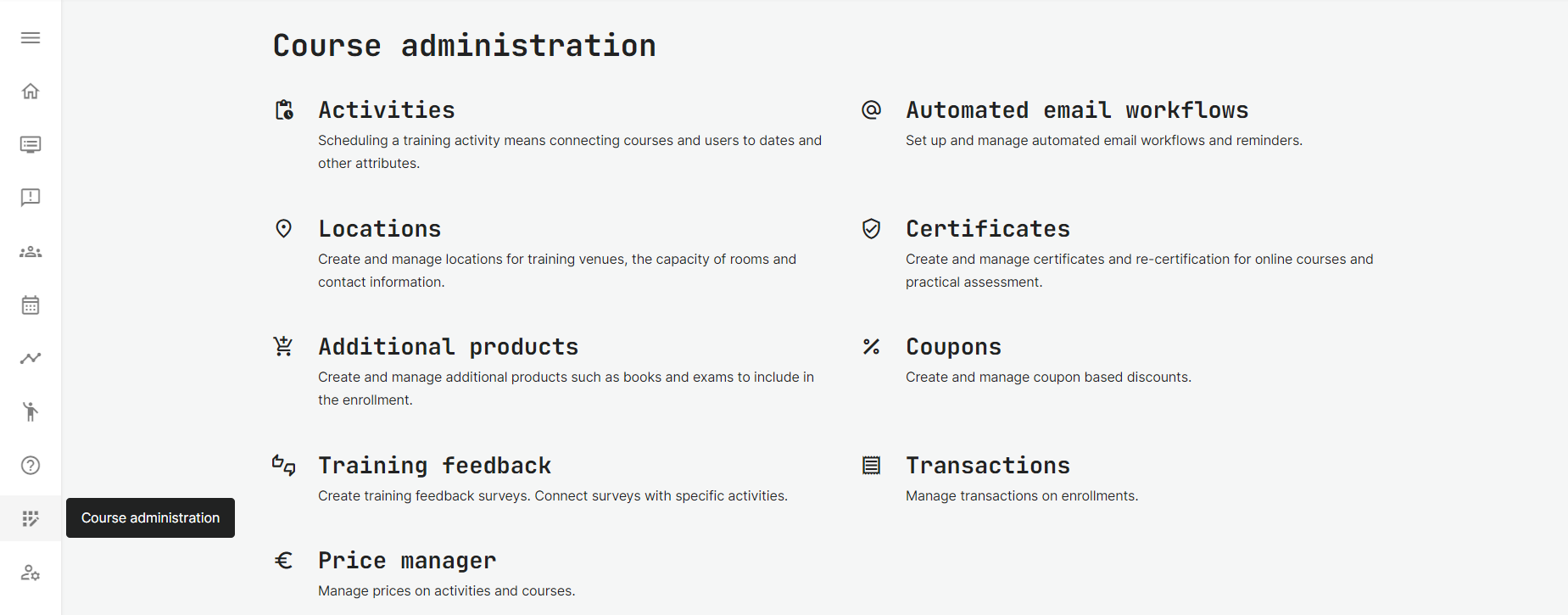
Add certificates from Course administration → Certificates.
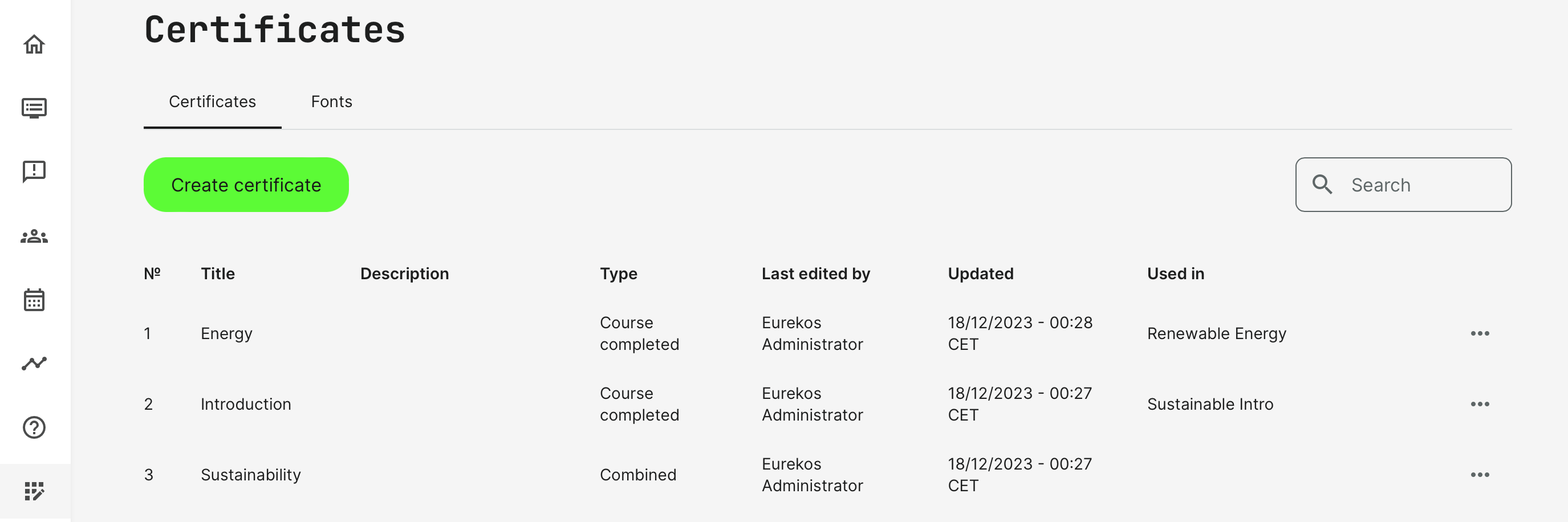
The list of certificates with any descriptions to identify multiple versions, author, latest update and where they are used, at a glance. This will help the administrator manage large numbers.
Upload your own fonts to be used in certificates at the separate tab. You will be able to use multiple fonts in regular, regular italic, bold and bold italics on the certificates.
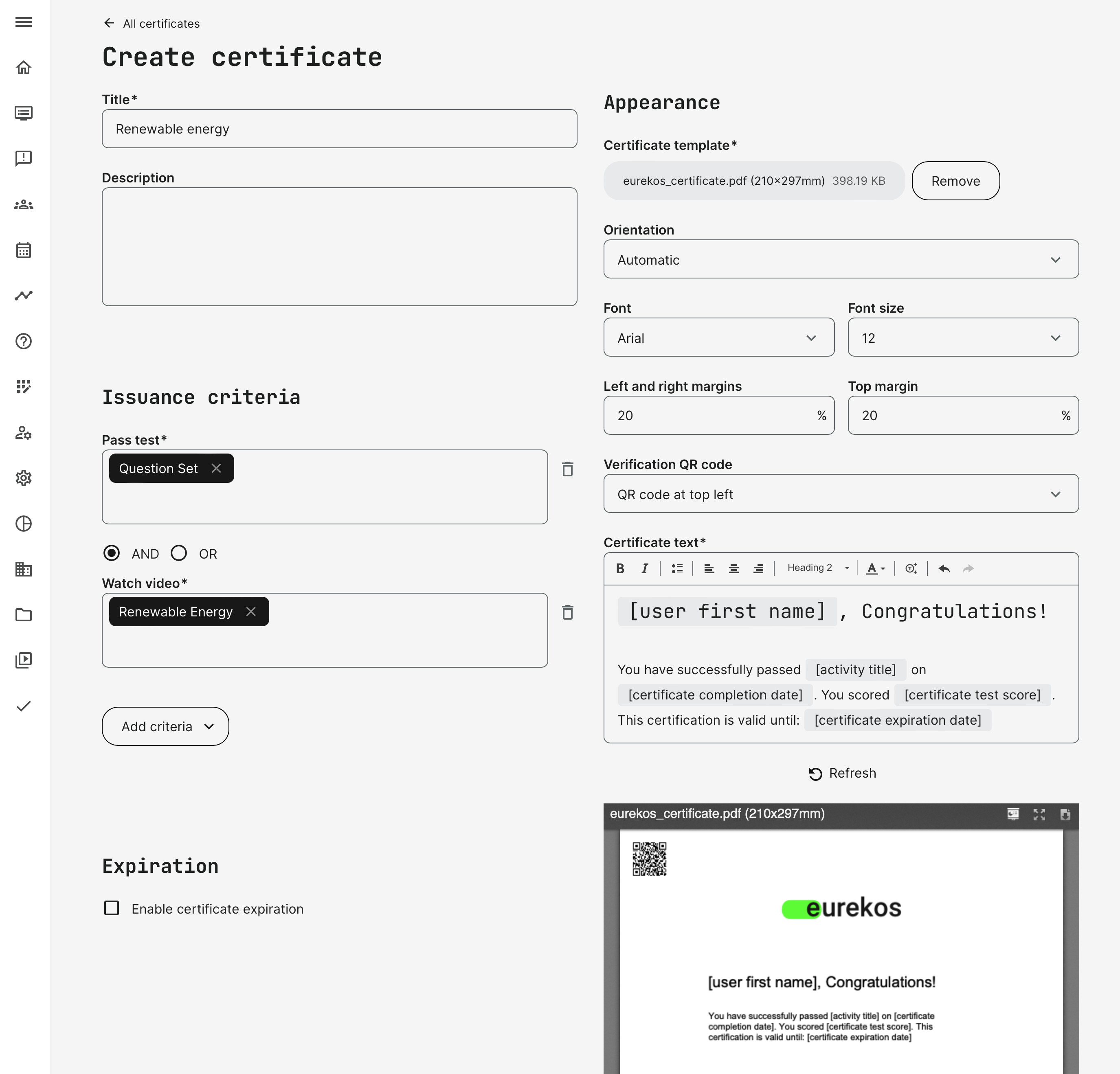
- Design your own PDF file, upload this as your background. Leave an empty area in the center for the dynamic certificate text. The size and orientation of your PDF will be detected automatically.
- Use the margins to position your text area appropriately on your background and prepare the personalized text with dynamic tokens
- Add a QR code to allow verification of the validity of the certificate. This can be verified by anyone and does not need an account on the platform.
Issuance criteria
Define the criteria for issuing the certificate. There are multiple options, including: completing the whole course, accomplishing single elements like videos and quizzes and even attending a number of events in learning journey. Getting a certificate can also depend on an individual assessment from an instructor.
Complex scenarios for completion can be created by combining several issuance criteria using AND/OR across different options.
Please take care: You are responsible for creating possible combinations of completion scenarios as the administrator. E.g., using a video as a completion criteria, make sure the video is part of the course materials.
Certificates are connected to the individual Training Activities as a separate action.
We recommend you test the certification works exactly as you have designed it, prior releasing and promoting it to your audience.
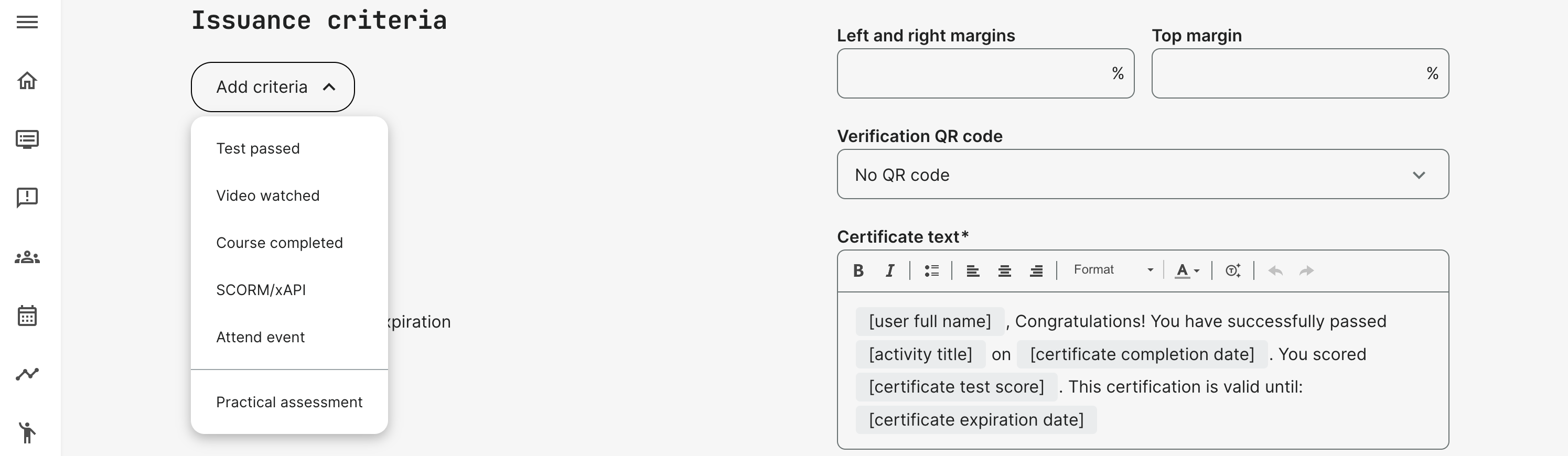
- Test Passed is designed specifically for the Question Set interactive object. The percentage pass criteria is defined in the Question Set.
- Adding multiple Question Sets in the same form allows you to choose combinations of "any of these or specific number" of Question Sets.
- Video watched is based on having watched specific videos from the video archive. Default setting is that the video has been watched more than 50% to be considered watched.
- Adding multiple videos in the same form allows you to choose combinations of "any of these or specific number" of videos.
- Course completed is defined by the progress of course completion in percentages.
- Courses created using the native authoring tool will have granular completion based on numerous calculations, such as video watched, pages visited and whether the interactive elements added to pages, have been attempted.
- Courses imported as SCORM (any version) is always based on a 100% completion criteria and must be set accordingly. The SCORM course must have a completion criterion defined from the authoring tool.
- Adding multiple courses in the same form allows you to choose combinations of "any of these or specific number" of courses. Each can have their individual completion percentage - as defined above.
- SCORM/xAPI is the criterion made specifically for SCORM/xAPI courses that has been created in a 3rd party authoring tool and imported. The criterion in this case is that all pages have been visited.
- Attended events is based on attendance marking. The instructor or the facilitator will need to mark attendance for this to execute. Several options are available to make this flexible.
- "All events" in the training speaks for itself and would require postive attendance marking on every single calendar event in the training.
- "Any of the events", would require attending ANY ONE event, of all the events that might be possible to attend.
- "Specific number of events" will allow you to define, e.g., 4 of the 8 events in the training will be enough to earn the certificate. Regardless of which ones the participant was marked attending on.
- "Include calendar events" is to cover additional use cases where the calendar events are not part of the learning path itself, but have been created by the facilitator as ad-hoc events. This way, you can support use cases for very individually designed virtual instructor led programs, where the course administrator really can't plan ahead. But, you can still issue a certificate when the the participants have attended a set number of training events.
- Practical assessment is the option to choose when the training activity has to be assessed by an actual trainer or instructor. This is a personal assessment based on whichever criteria, the point being that it is based on something other - e.g., a personal talk, a physical and practical demonstration, etc.
- Also, this usually means that there is an end date for the activity. For this reason, the Instructor (Responsible as set in the activity) will receive an automatic reminder to make sure he remembers to go and assess the participants. This includes a link to go and assess.
- Assessments can be made in bulk or individually.
- Once the assessment has been made, the status changes from "Pending" to either "Failed" or "Passed". This will automatically issue the certificate as appropriate.
Expiration and automated re-certification
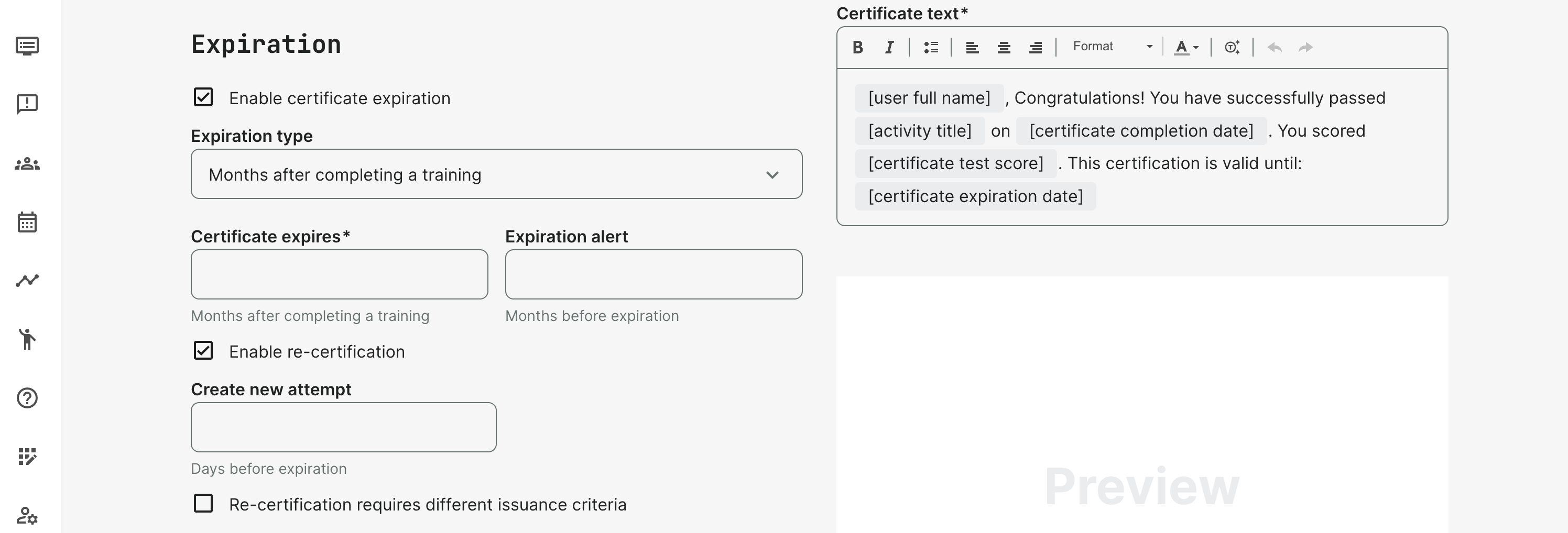
Certificates can expire if you define the expiration criteria. Several options to manage this is available.
- Specific date and irrespective of when neither the training started, ended or when the participant enrolled.
- Months after completing the training, which is a variable and great for "rolling" enrollment of participants over time, with a minimum of administration.
- In both cases, an expiration alert, which is an automated email will be sent the the predefined number of months prior expiration.
- You have the option to extend certificate validity periods on existing certifications through the participants' list in activities- This is to accommodate special circumstances and without leaving participants in a situation of non-compliance.
- Re-certification is an automated function to minimize adminstration and easily manage large groups of people on multiple certification programs that are very often based on rolling dates, not a single recurring event, at a fixed date.
- Set the schedule for when the re-certification can start prior to the expiry of the previous certification, to avoid gaps in the compliance.
Connect a Certificate to your training activity
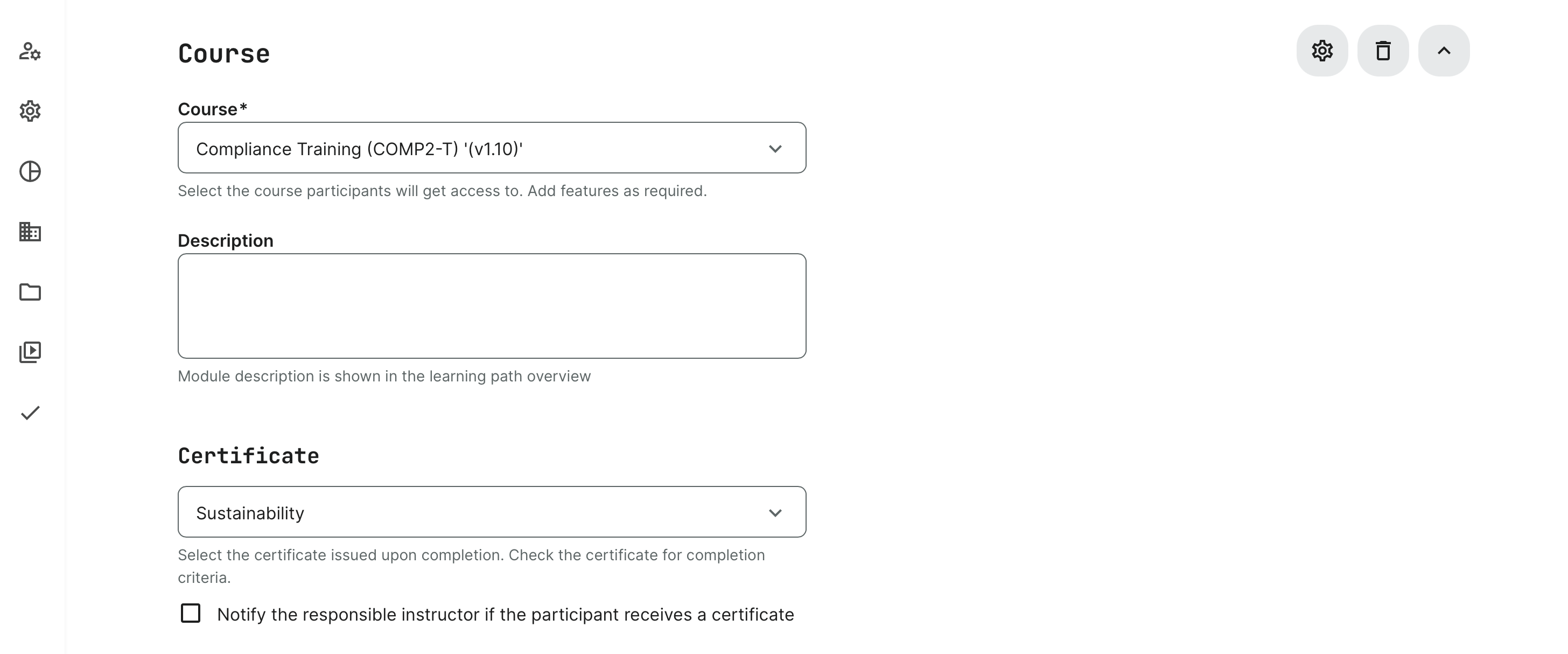
Once you have created a certificate, you need to connect it to the appropriate training activity. From this point on, participants can earn certificates.
- Edit the activity.
- Enable certificate on either module or acrivity level. This depends if you have a learning path and if you want certification at the very end, or upon completion of each training module. This can be performed on both course modules and events, virtual and in-person events on location.
Who can see certification data?
Certification is a central part of several different features and through many processes. Organizational restrictions are respected in all scenarios, meaning that they will only be able to see data from their own organizational layer(s). This includes:
- All certificates a user has earned are available on the user's profile, which can be accessed from the top right corner of the window.
- Relevant reports include details of completion in the excel sheets.
- Analytics/statistics shows certificates on the trainings the user has completed. This is available to all user roles who has access to this - e.g., an instructor facilitating a specific training.
- Managers and immediate managers has access to certification data for the people they supervise and download reports.
- Auditors has access to all users' certificates.
- Administrators can access to all users' certificates.