Getting started - Article
Summary
Questionnaires in Eurekos can support application workflows, consent management, and standardized data collection. Administrators can review submissions, approve or decline requests, and use shared vocabularies to maintain consistent answer options across questionnaires and organizations.
In this article you will learn:
- How questionnaires can be used as application forms for enrollment or participation requests
- How administrators can review, filter, and manage questionnaire submissions
- How consent collection can be handled within questionnaire workflows
- How vocabularies help standardize answer options across multiple questionnaires
Fundamentals of Questionnaires
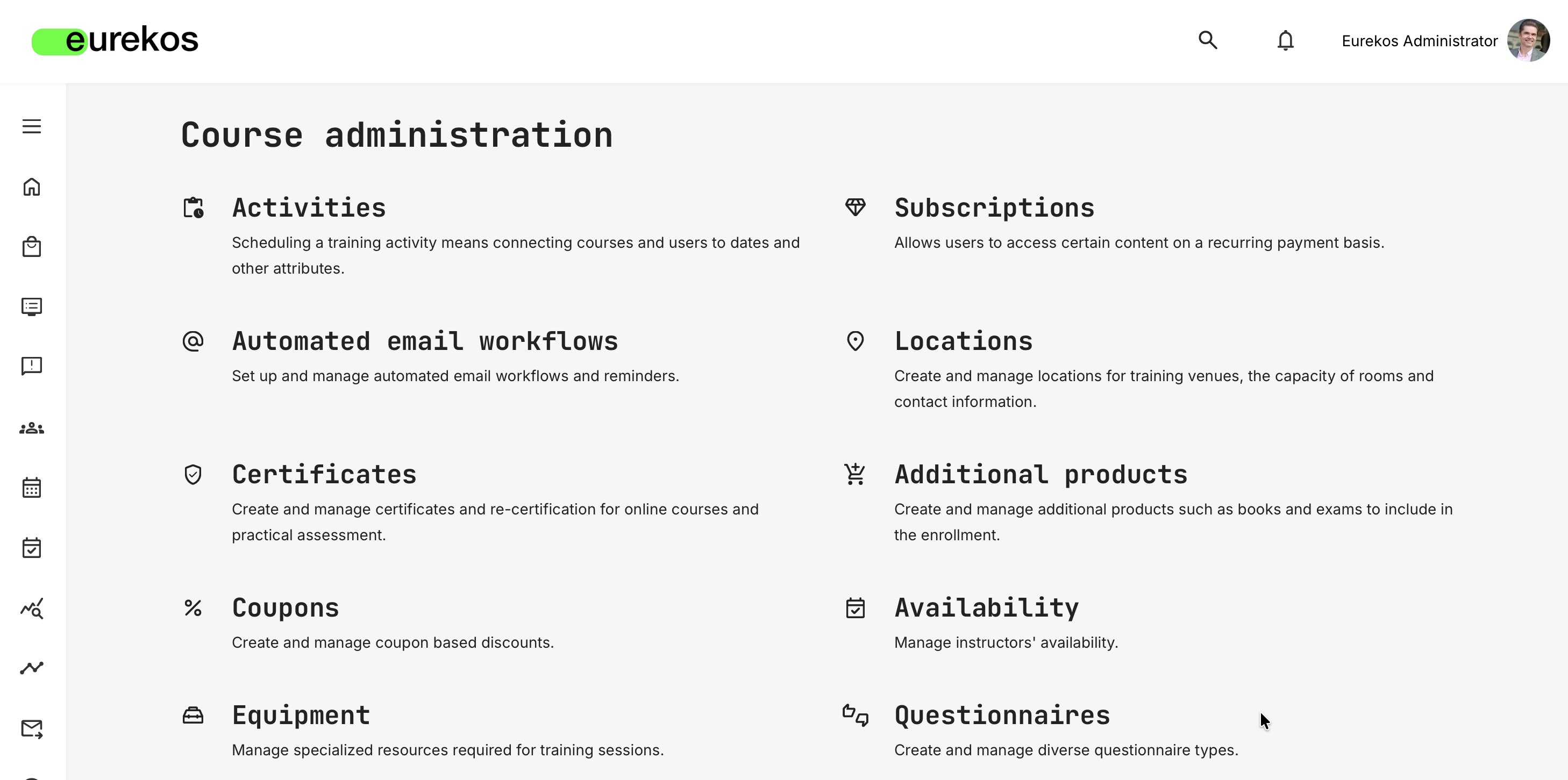
The Questionnaires page is nested within the Course Administration menu (Course Administration → Questionnaires):
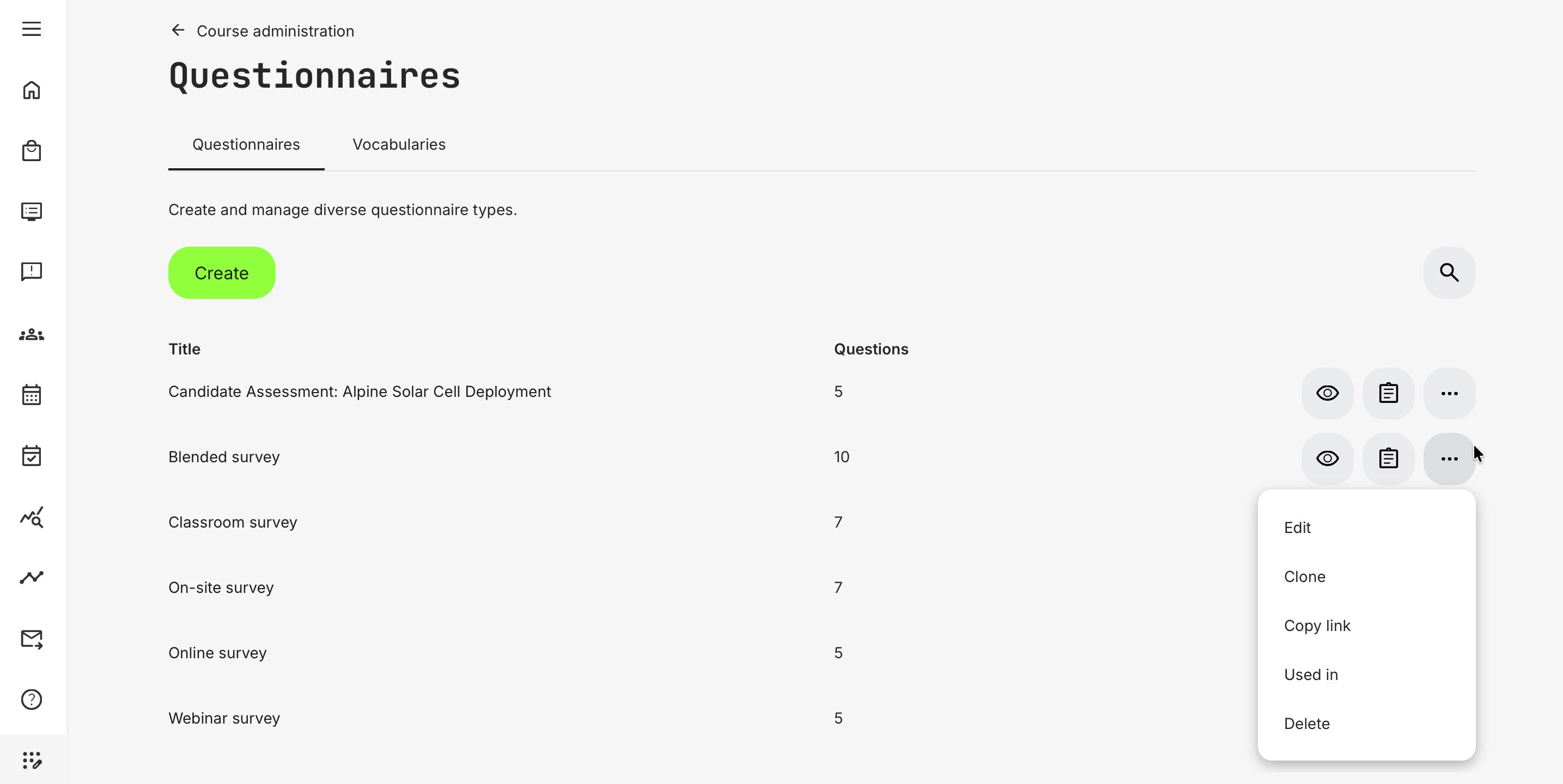
When you navigate to Questionnaires, you will immediately be presented with a list of existing questionnaires that you have access/editing rights to, as well as the option to create new ones:
Definitions: Questionnaires vs Surveys
Questionnaires are typically tied to specific training activities and are used to gather structured feedback from participants - often immediately after course completion. They help evaluate things like course quality, instructor effectiveness, or training relevance. Questionnaires can be applied in both instructor-led and self-paced training scenarios, and they can be presented to users at any stage, including account creation/onboarding and on a scheduled basis.
Surveys, on the other hand, are broader tools used to collect insights across the platform, regardless of course participation. They’re often used for cohort research, needs analysis, or general feedback from users, partners, or teams. Moreover, they can be used to gather information around potential trainings to be created and open requests for topics, setup, structure, and similar. Surveys are therefore usually optional to take, more flexible in format, and not linked to specific learning paths.
Various functions have been implemented to ensure form fidelity and comprehensive content creation capabilities, including:
- ~20 different question types: From texts and paragraphs to dividers, a variety of answer types (short, long, multiple choice) and HTML embedding, and file uploads with restriction settings – forms can be as simple or as deep as needed
- Multilingual support: Quickly and easily translate forms to accommodate for the language requirements of your target audience(s)
- Vocabulary support: Long lists can easily be managed by using your integrated vocabulary to auto populate form sections, reducing workload significantly in cases when similar questions, lists, and answers are required across suborganizations
- Auto-populate user profiles: Answers provided by respondents can be set to automatically fill in or update various fields of their user profiles on the platform
- Anonymization options: Specific trainings can be assigned privacy and consent features, including high fidelity and toggle variants, in order to protect sensitive personal data as well as the compliance policies of the organization. Please note that anonymization precludes file uploads to avoid accidental sharing of data
- Autocomplete feature: To lessen the workload in cases of lists with various options, our built-in autocomplete feature will provide suggestions as you type
- Conditional questions: Create various “if/then” scenarios for complex forms, where previous answers will trigger specific new questions to a survey taker or allow them to further specify an answer from a subcategory related to their initial answer (i.e. education level → bachelor’s degree → university name), and trainings can be automatically assigned based on these answers to cover any shortcomings
- Responsive form layout: You have the ability to drag and drop sections within the form to minimize revision time when adding new questions or changing their order
Questionnaires as Application Forms
A valuable aspect of the Questionnaires feature is that you can use them as forms for user/candidate preselection processes.
When administrators receive an application for enrollment, they can manage it from the list of Activities (Course Administration → Activities) belonging to their organization. Simply navigate to the Requests tab to see open requests made by current and potential users.
Here, you can preview applications that have been made through questionnaires, including specific answers provided and files uploaded by respondents. You can set up filters to scan for certain submissions based on respondent profiles and answers, and you are able to manually approve or decline them. Furthermore, you can choose to assign respondents directly to groups that have already been created within the LMS, enabling you to provide them with specific group assignments.
Questionnaires for Consent Management
Certain training programs may require participants to provide additional, context-specific consent beyond the platform’s general Terms of Service and Privacy Policy—for example when submitting extra personal or sensitive documentation (accreditation, CVs). In these cases, a separate privacy policy may apply to a specific program. Collecting and maintaining consent records in one place helps ensure compliance and reduces administrative workload
Vocabularies
The Vocabularies feature can be helpful when setting up standardized lists with similar questions and options across various suborganizations. It is possible to select whether edits can be made to the original vocabulary or not, though this requires admin rights.
1. Enabling/Disabling Vocabularies
As an administrator, go to your general settings (Settings → General) and scroll down to the Questionnaires section, then check or uncheck the box as preferred, then click [Save]:

2. Vocabulary Management
Once Vocabularies have been enabled on your platform, they become available as a tab within the admin environment of the Questionnaires page:

Existing vocabularies will appear on this tab as well and can be edited and deleted by clicking the [More]/[…] button on the right-hand side of their entry.
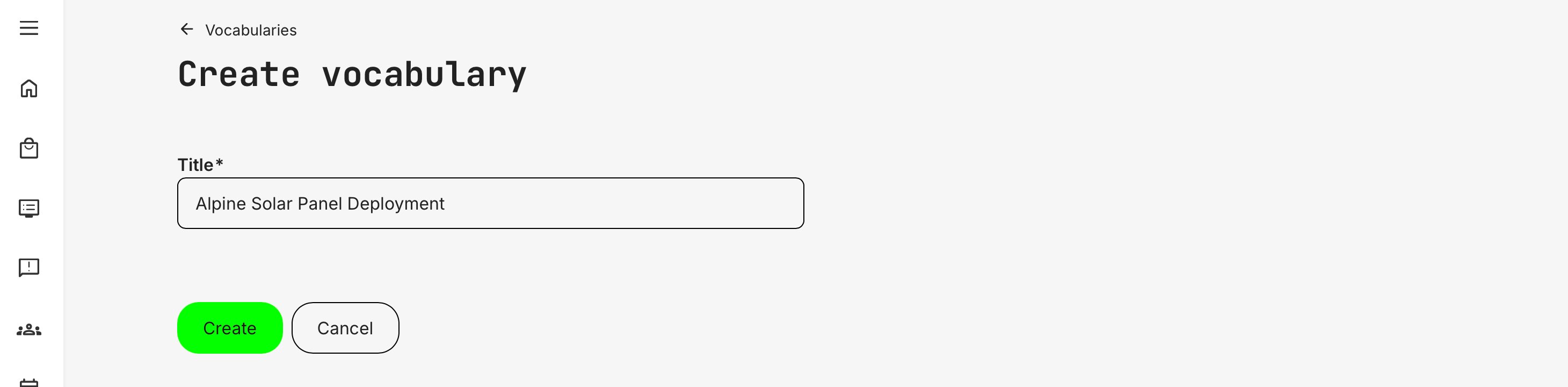
Click the [Create] button to commence with the creation of a vocabulary. You must then provide it with a relevant title and once more click [Create] to confirm it:
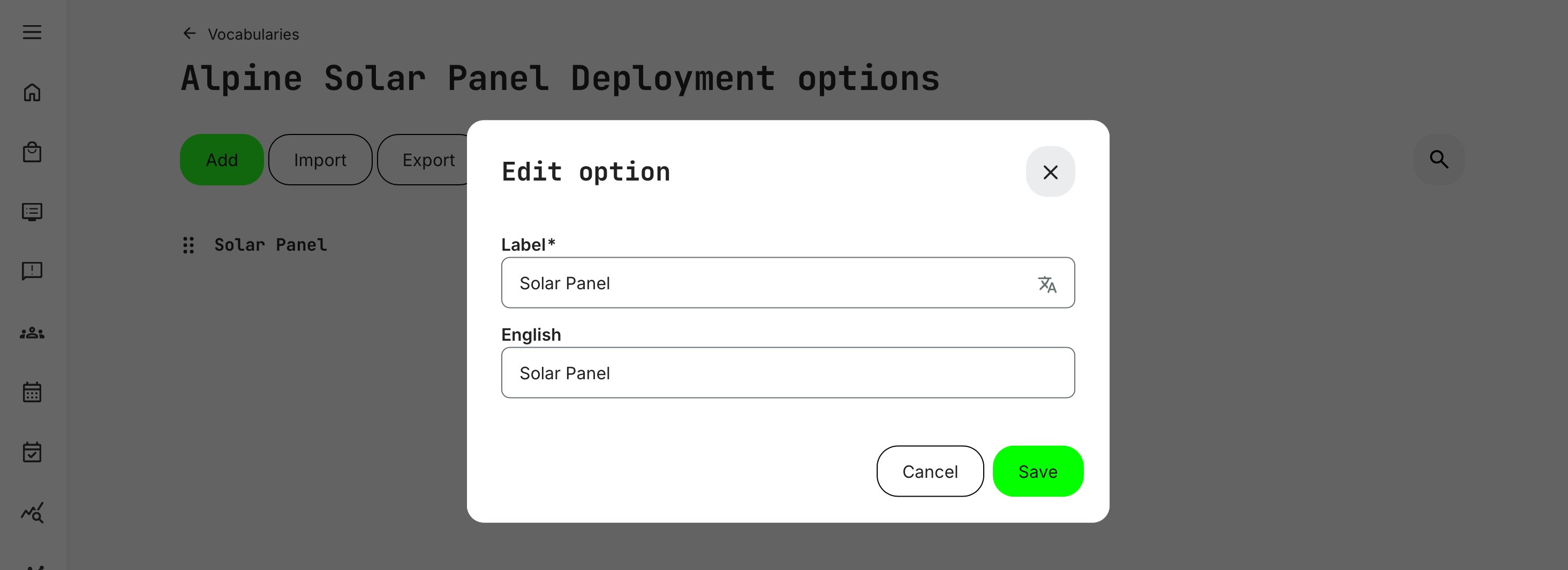
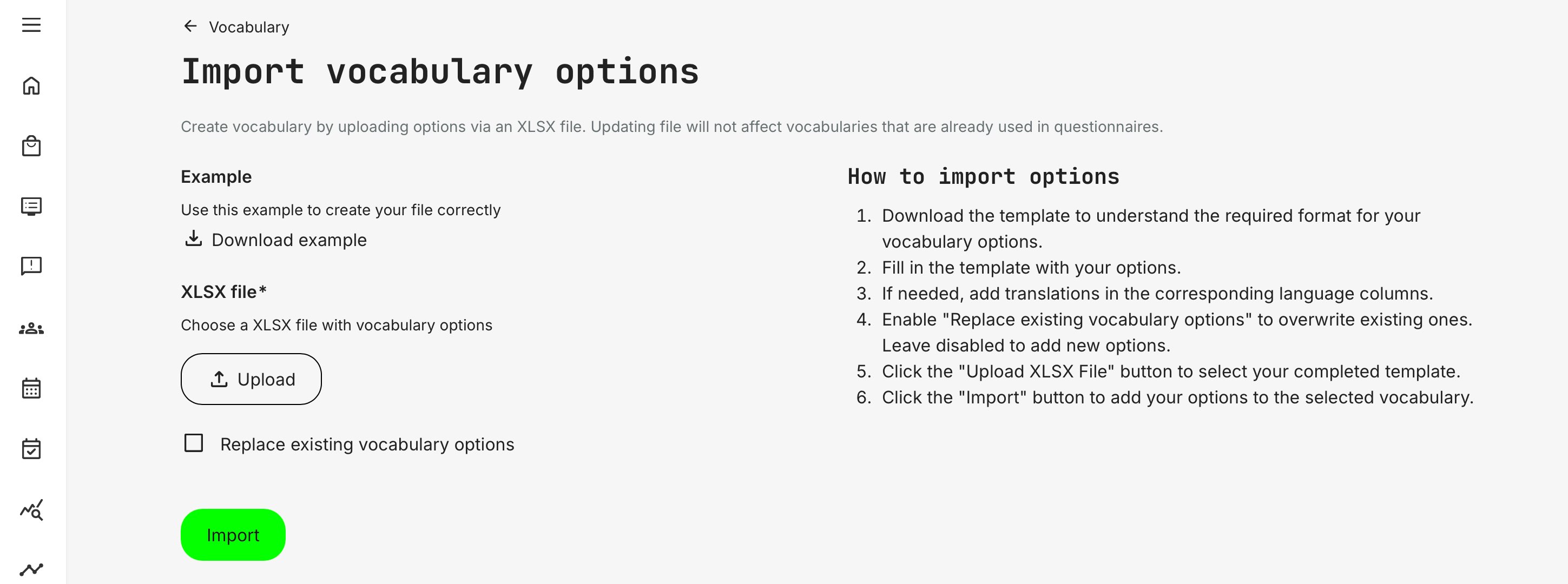
Click either the [Add] button to set up a new vocabulary and the options within from scratch (including single entry translations for other platform languages), or click the [Import] button to import an existing list from an .xlsx file, keeping the following in mind:
- Using an XLSX file is often a preferable alternative for large lists with several entries (e.g., a list from other systems). Download the example template to meet the required format and follow directions on the screen
- You have the option to replace or overwrite existing vocabulary options
- Uploading a new vocabulary file will not overwrite or otherwise impact vocabularies that are currently used in questionnaires, nor their answers
- You can also export vocabularies for editing and safekeeping outside Eurekos
3. Using Vocabularies within Questionnaires
When Vocabularies have been enabled and set up on your platform, existing vocabulary lists can be selected as an option for the following question types:
- Single choice
- Multiple Choice
- Dropdown
Click the [Add Vocabulary] button next to the [+Add Option] button to trigger a pop-up window that will allow you to select which existing vocabulary you wish to employ for this question:
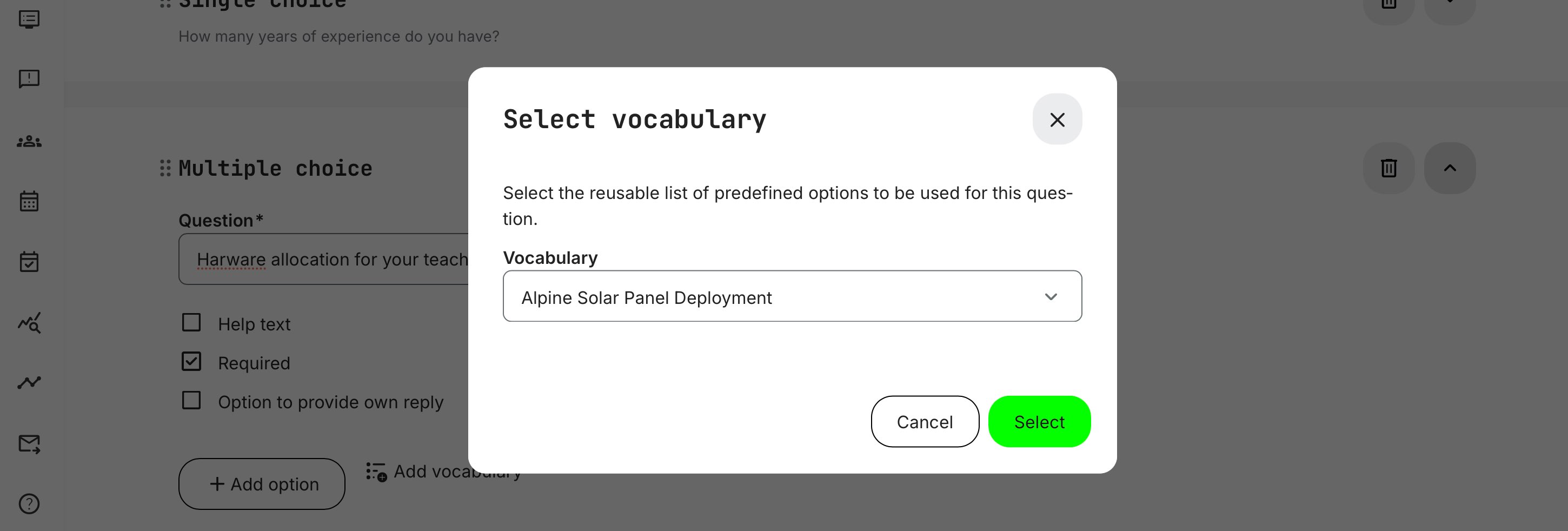
You can manually overwrite these vocabulary options as you edit the questionnaire, you are not constrained or restricted by the original options after they have been applied.