Communities - Article
Communities are for conversations, file sharing, and an integrated part of facilitation
In Communities you can create a collaborative space for any registered user on the platform.
It can be a space for subject matter experts, product specialists, facilitators, and instructors to use between sessions for exercises and collaboration.
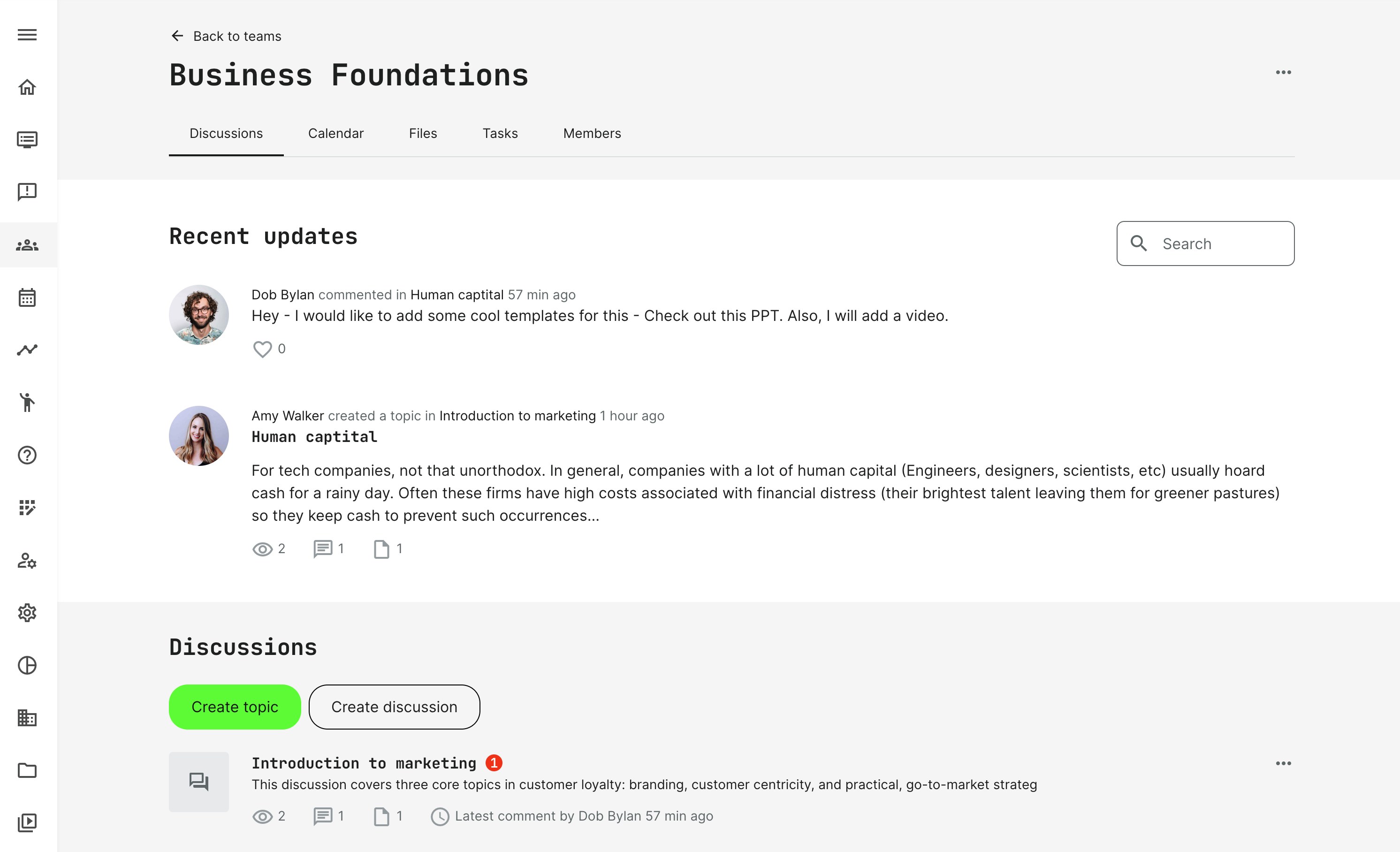
Within Communities, participants can communicate, share ideas and materials, ask questions about the course, and get feedback from peers, colleagues, and experts.
- Communities are private: You can only see the content within a Community if you are a part of that Community.
- My Communities on the home screen (My overview) shows all the Communities in which you are listed as a member. This can also be accessed from the main menu, if this configuration is switched off, in favor of a more simple home screen.
- The Discover tab displays all Communities that exist within your organization. You can request membership to a Community and wait for the Community owner to approve or reject your request.
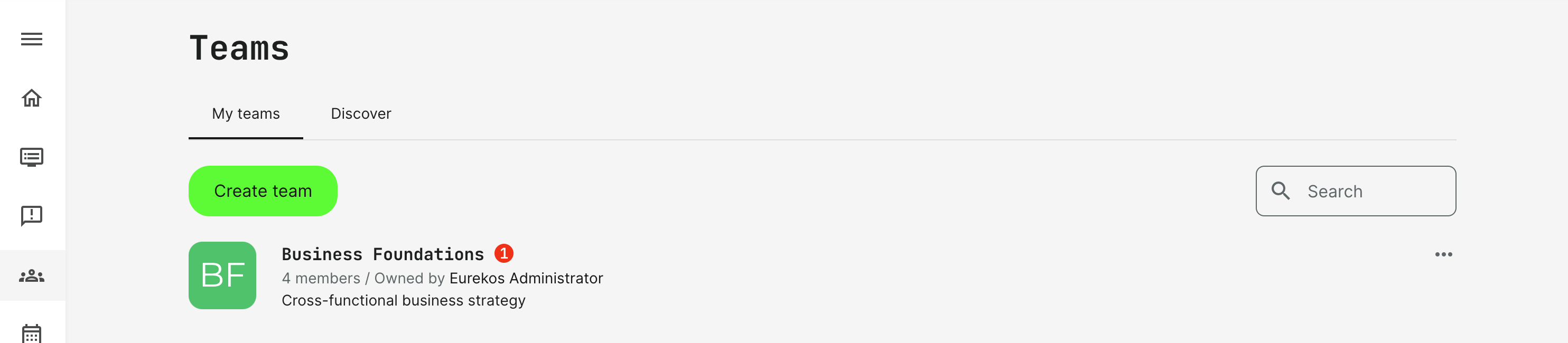
Create a Community
Communities can be created from the Community main menu item.
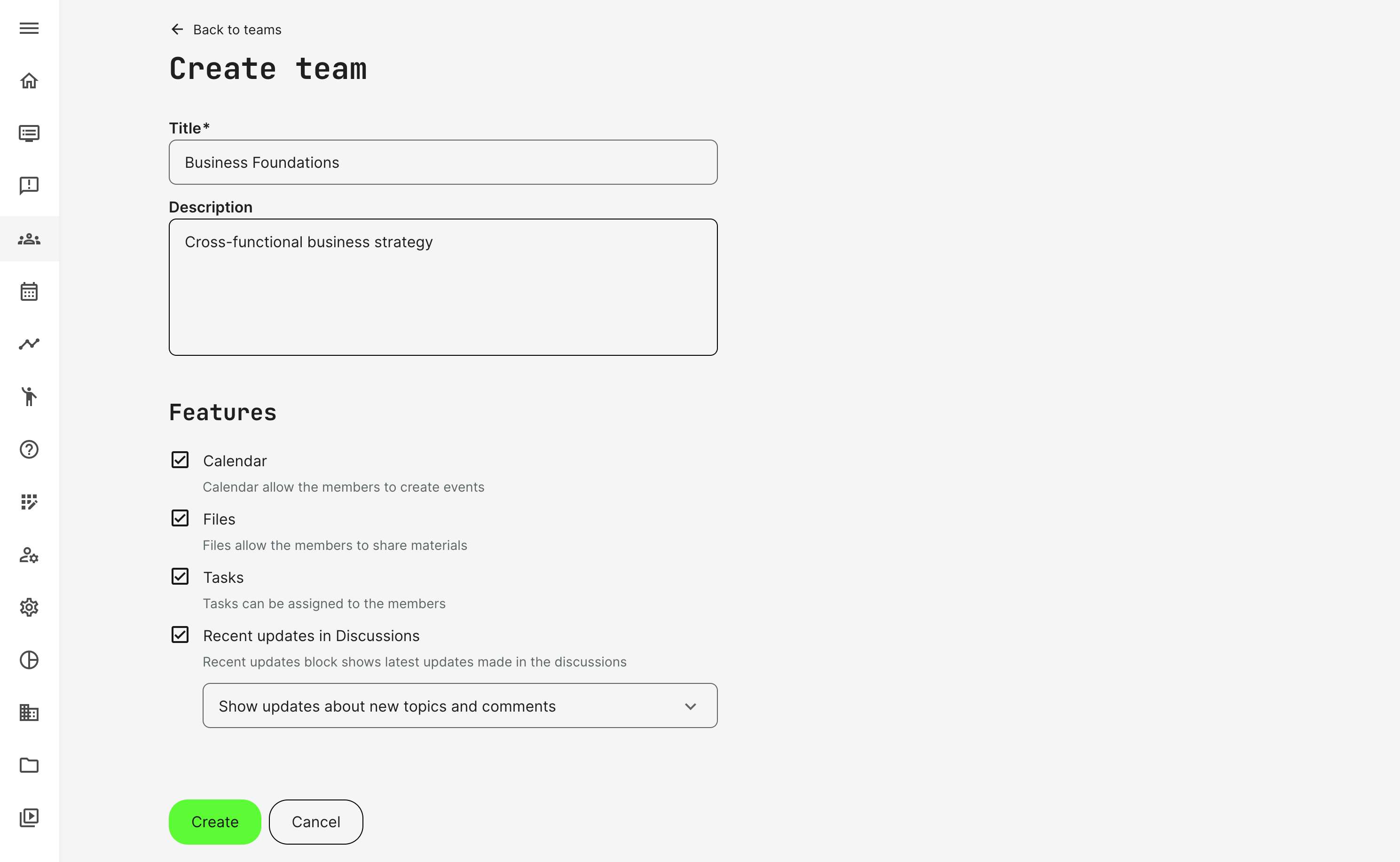
While creating a Community manually, choose the features settings for the Community. You can edit those settings at any time.
Show recent updates provides an overview with latest actions on the entry page of the Community.
Calendar
This feature lets you create an event for Community members, including video conferences.
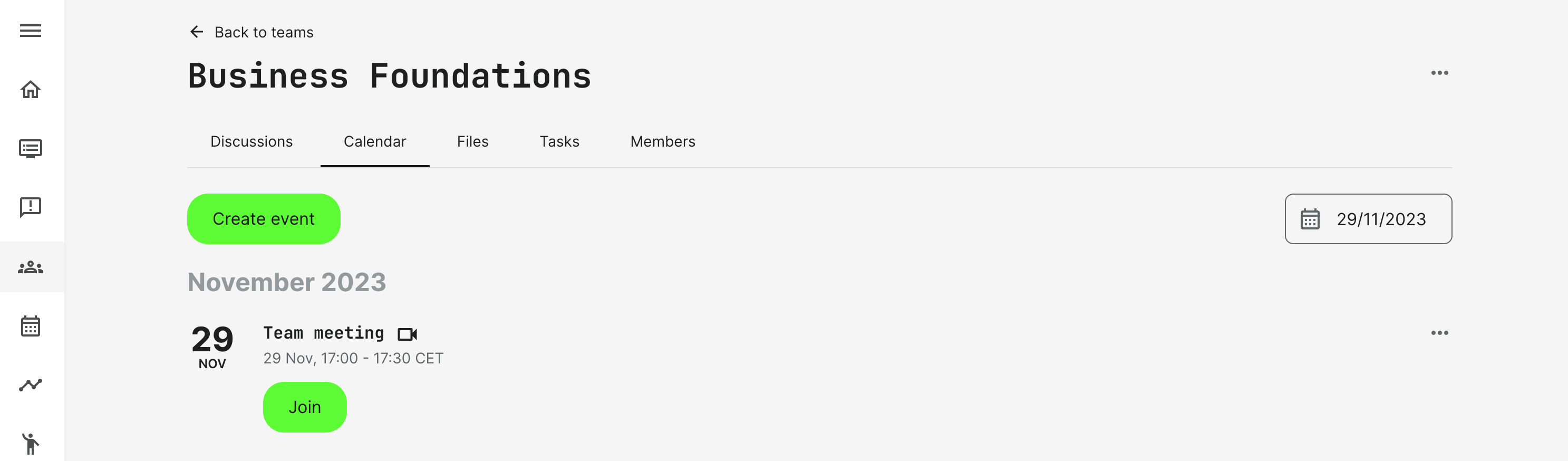
- All events created in the Community's calendar will be represented as part of each user’s individual calendar as well.
- In Communities, it is possible to invite specific people - or everyone - from the Community.
- Attendance marking is an option, which can be marked by the instructor, who is typically also the Community owner in these scenarios.
- Participants can cancel their participation if they are not attending - if this is made an option during creation.
- Video recordings can be added to the invitation. Upload these to the video archive, add them to the calendar event upon completion and notify participants with the automated option to do so.
Files
This tab is an archive for sharing files among Community members. Use this as part of collaborative exercises or work groups. This is a powerful integrated option for Instructors and coaches as part of their training.
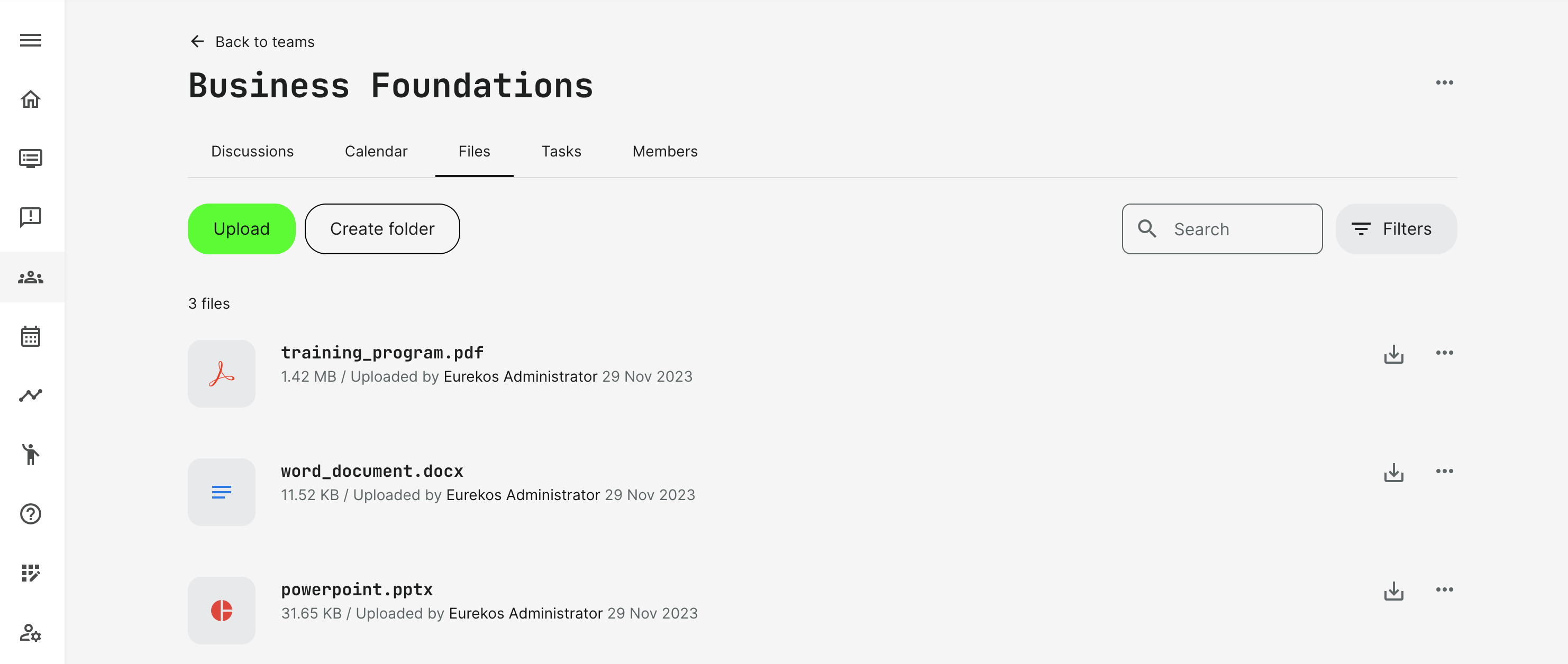
- Upload single or multiple files at time.
- When you upload files into the file archive manually you can also manually tag them.
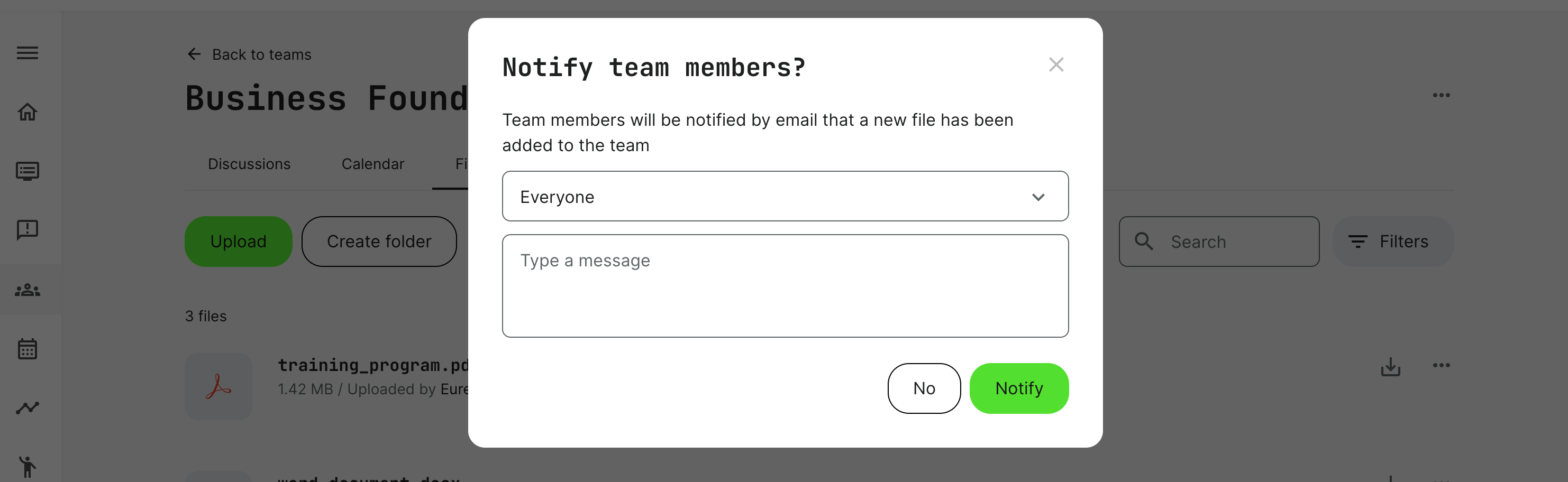
- Notifications to Community members that new files have been shared is an option.
- Files attached to discussions and topics are automatically tagged by discussion and topic information, which will allow users to find “files from this discussion” easily, from the files archive.
- Within Files, you can Create a separate folder, download any file, move files to other folders and filter the files by tag for fast search.
- Versioning is supported when you replace files. If you replace a file with another version and would like to revisit the old version, a version history overview which allows download of any previous version and restore a previous version.
- If Microsoft Online is configured through 3rd party integrations, you can collaboratively work on files without having up up/download the files. This happens automatically and changes will be auto-saved to the files within your Community.
Tasks
Create tasks to facilitate collaborative activities. A simple project management tool is also available this way.
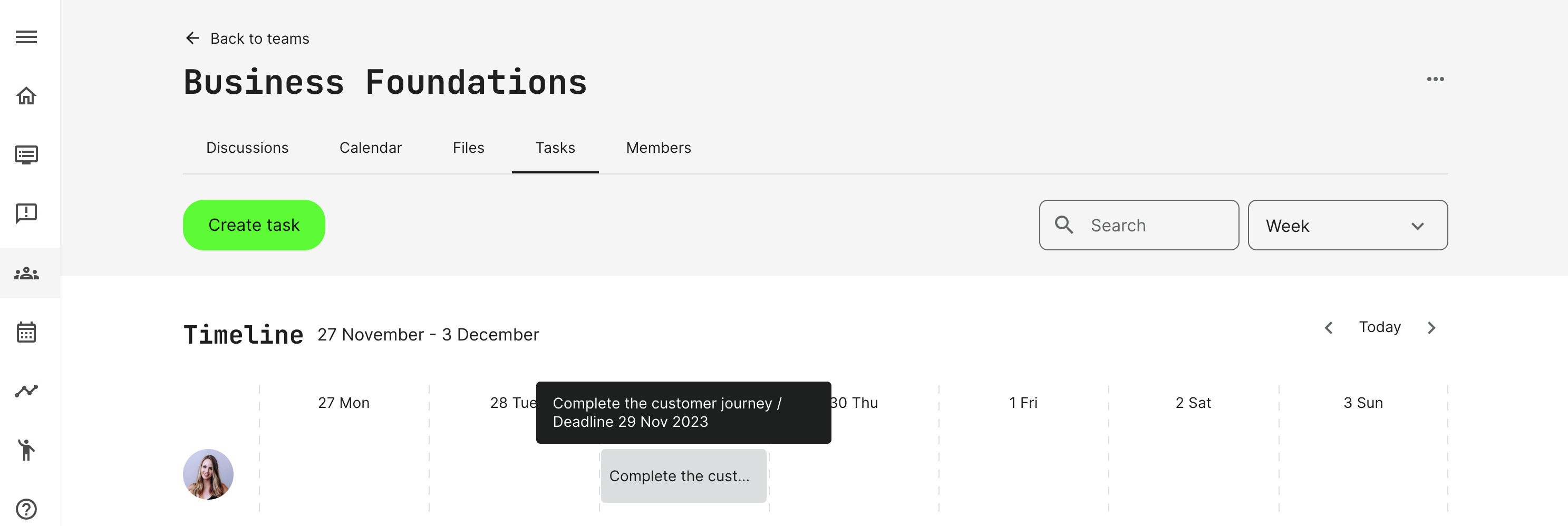
- Any Community member, including non-owners, can create a task and selectively assign others to this task.
- Created tasks are displayed to all the Community members with deadlines, an overview of all tasks, my tasks and search options.
- Each task can be marked complete.
Communication and structure
The levels of communication is based on three levels. Every Community member can create any of these:
- Discussion.
- Topic.
- Comments.
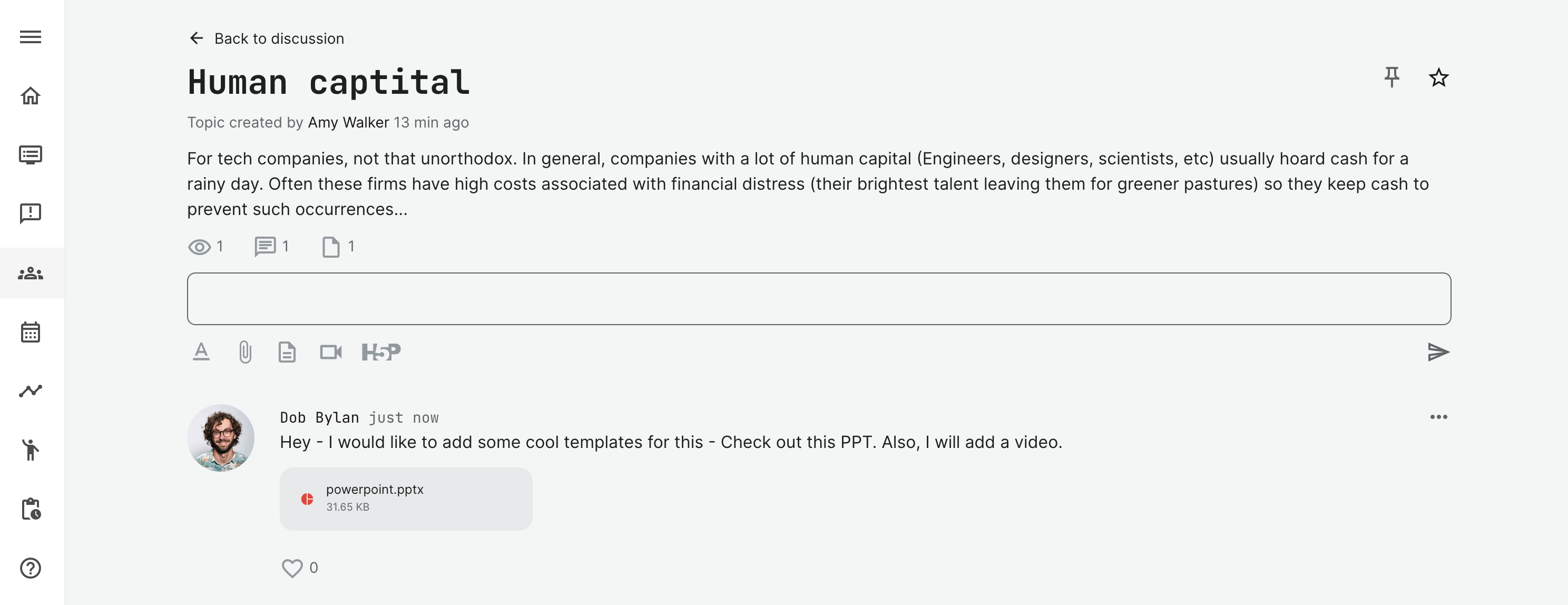
Any member can edit and delete the posts they have created. The Community owner will act as a moderator, with the ability to delete and edit any materials within owned Communities.
Posts can be shared to Facebook or X, but only if the Platform Administrator has integrated these services.
If a new comment appears in a topic, every Community member will be notified about this. This is also true for comments that contain @usermention for a certain user.
- The Follow/Unfollow Star function allows you to select or deselect the topics you would like to be updated on, which will send you an email to bring this to your attention. As every Community member is automatically following every topic created within the Community, you can use this feature to unfollow those you don’t need.
- You can Pin a topic, to make it an agenda and to bring it to the top of the list. This function works specifically for you, so every user can have a different selection of pinned topics.
When any activity (new topic or discussion) appears in the Community, you will get an email. You can choose to tick/untick Notify Community Members function when a new topic is created.
Can Community membership be automated?
It is important to be aware that there are two ways to create a Community. Either manually or through the Training Activities, which is a fully automated process.
- Manual Community creation also means you invite and manage Community members manually. There are bulk operations and filters to make this efficient and convenient.
- Automatic Community creation is through the features option in a Training Activity. This option offer the following advantages:
- The Community is created automatically, using the Activity title as the name of the Community. Community owner is set from the Activity as well.
- The Community is automatically populated when participants register (enroll) for the training and they are automatically removed, if they are cancelled from the training. This means absolutely zero management on members coming through this way.
- It is possible to grow a community by adding an existing Community to other trainings, and automate their enrollment to the same Community in exactly the same way.
- It is still possible to go and manage the Community, edit feature options and change the title. Also, add other members subsequently as a manual process, from within the Community itself. All manual actions will also need manual administration, upon changes.
- Automatic onboarding to an existing Community is also an option. As mentioned, this requires that the Community already has been created. Onboarding rules based on user profiles can be used to identify characteristics, which automatically adds a person to a Community. These rules are defined by a Platform Administrator.
Members
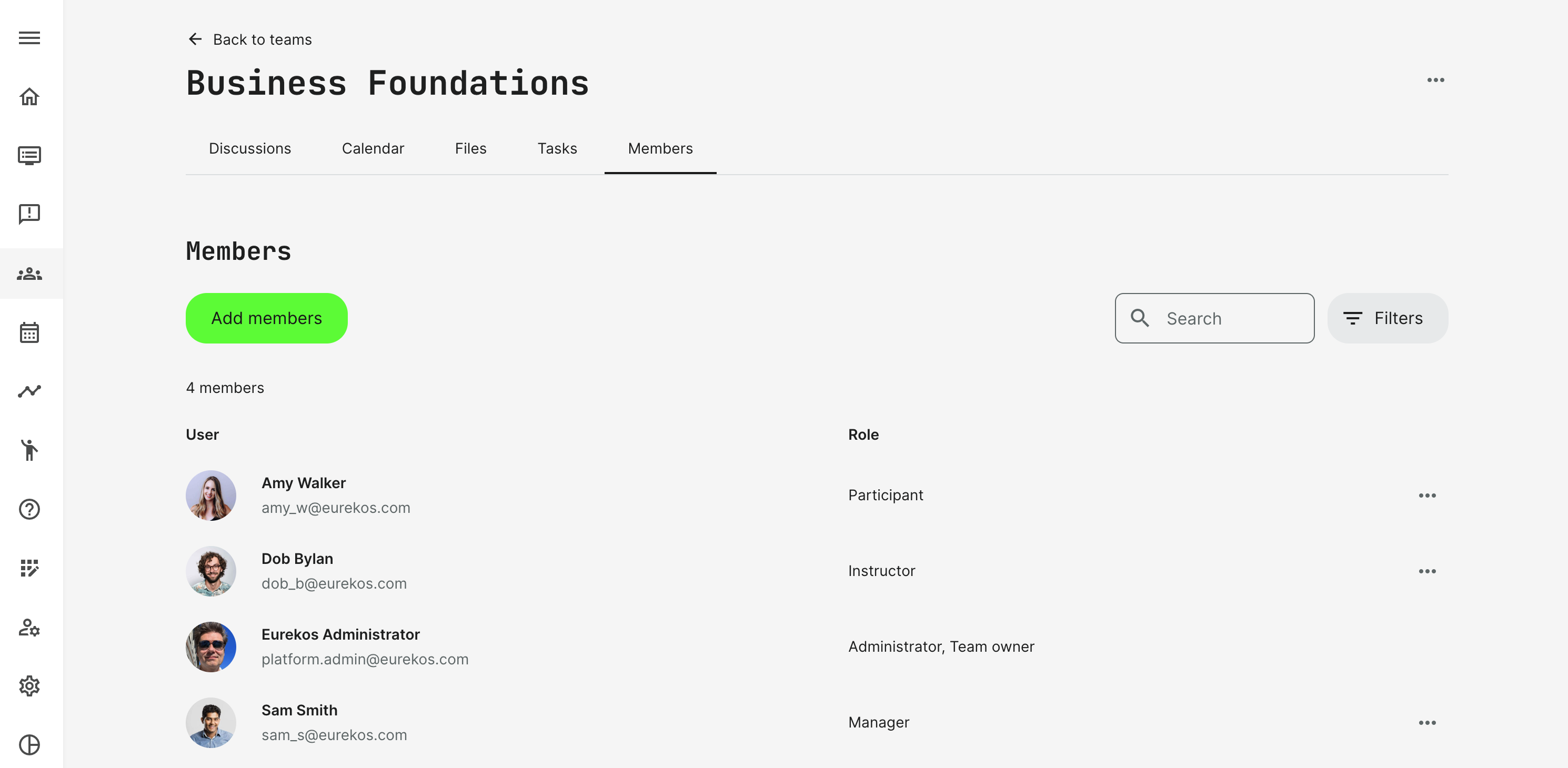
Referring to the different methods of member management, it is always possible for a Community owner to add members manually.
- Bulk operations or single member registration.
- Only users from within own organizations (if organizations are in place) can be added, according to appropriate user segregation.
- Members will receive an email with the notification that they have been added to a Community, or if they have been removed.
- Requests need to be approved by the Community owner.
- A Community owner can transfer ownership to another member of the Community.
Communities and courses
As a unique feature, Communities can also be inserted on course pages using the native authoring tool. This is a very powerful tool and several dependencies must be in place.
- The feature can be used when a Community is created, which has been created through automation of the Training Activity. This is what makes it possible to identify the relation between the exact Community and the course.
- A discussion can be displayed directly on a specific course page, even to the level of a particular topic.
- Be aware that this level of integration between content and conversation requires more administration in general.
Permissions overview
Permissions are across multiple levels, so the following short overview helps understand the different options and their individual permissions.
Communities can be disabled on platform level. This can be managed in General Settings if communities is an undesired option.
- Any registered user can create a Community.
- Administrators and the Community owner can manage users.
- Any Community member can create discussions, topics and comments.
- Any Community member can view all posts and comments.
- Any Community member can edit own comments.
- Any Community member can create and manage own Tasks.
- Any Community member can create events and manage own events.
- Any Community member can upload files and manage own files.
- Any Community member can download all files.
- Any Community owner, administrator and support role can manage everything.
- User mention (@user) will send out email notifications to specific users, once applied. Important to notice that only individuals from within the Community can be looked up.
FAQ
-
Does hiding the Communities widget always hide external Teams and Slack links?
No. Activity-connected Teams and Slack channels are documented as remaining in the widget even when the Community configuration is disabled or Hide widget on My Overview and Profile is selected. Test the participant view.