Calendar events - Article
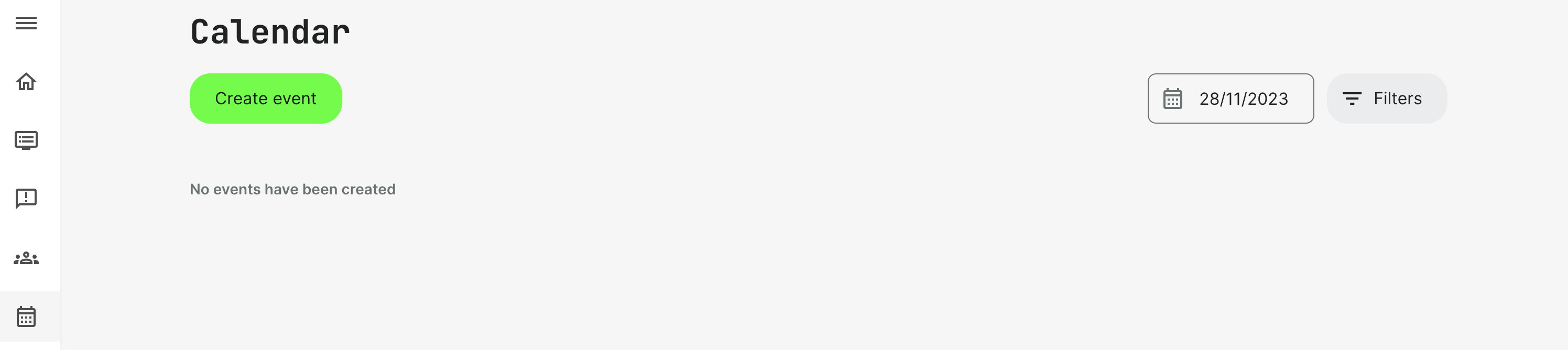
The Calendar shows scheduled events, including Assignments by due date for Training Activities and Communities
Calendar events are accessed through the Calendar menu item.
Events can be filtered by date and limited to show events for a specific Training Activity or Community. Select a date or combine the date with the filters to focus the Calendar overview. Current date will be the default choice.
Create an Event
You can create a new event straight from the Calendar menu item. It is important to distinguish creating ad-hoc calendar events, like this one, from calendar events created through a training activity directly.
- Calendar events created through the training activity as a module type, is part of a learning path and has all the capabilities offered with this. Including sequencing calendar events in an order where course modules and assignments. This, in turn, is presented to the participant as a single ordered view in a learning path.
- Calendar events created from the Calendar menu item directly are intended as ad-hoc calendar events, created by the instructor directly as part of a process led by the instructor.
When creating an event, provide a Title specifically for this event. Secondly, schedule your event start and end time. Don’t forget to check that you are scheduling for the relevant timezone.
It is possible to change the timezone and schedule straight to a different timezone if this is more convenient.
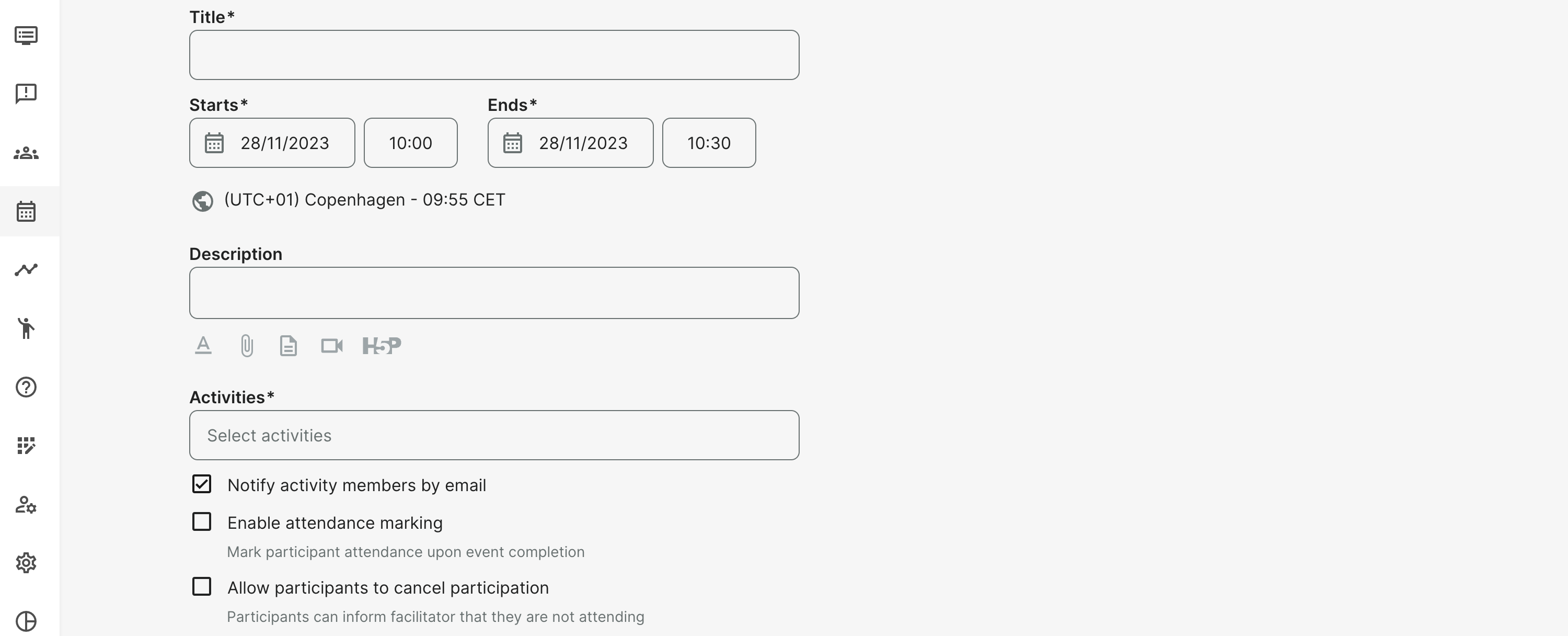
Choose an Activity or multiple activities to assign your event to. This will automatically define the participants of the event, as those will be members of the added Activity. Further options will also concern those members:
- Notify activity members by email. If you don't, the calendar event will show for the relevant people at the top of their home screen (My overview), when they log in the next time.
- Enable attendance marking. This will allow the instructor or admins to mark attendance.
- Allow participants to cancel participation. This information will be available for the instructor in charge. The Instructor is notified upon cancellation.
Add a URL (link) for an online event, webinar or video conferencing. Leave this empty, if this is not the case. Links can be updated at any time.
Multiple options for integrated services such as Microsoft Teams, Zoom, Google Meet and others are available. Once they have been set up, links can be automatically generated from the service.
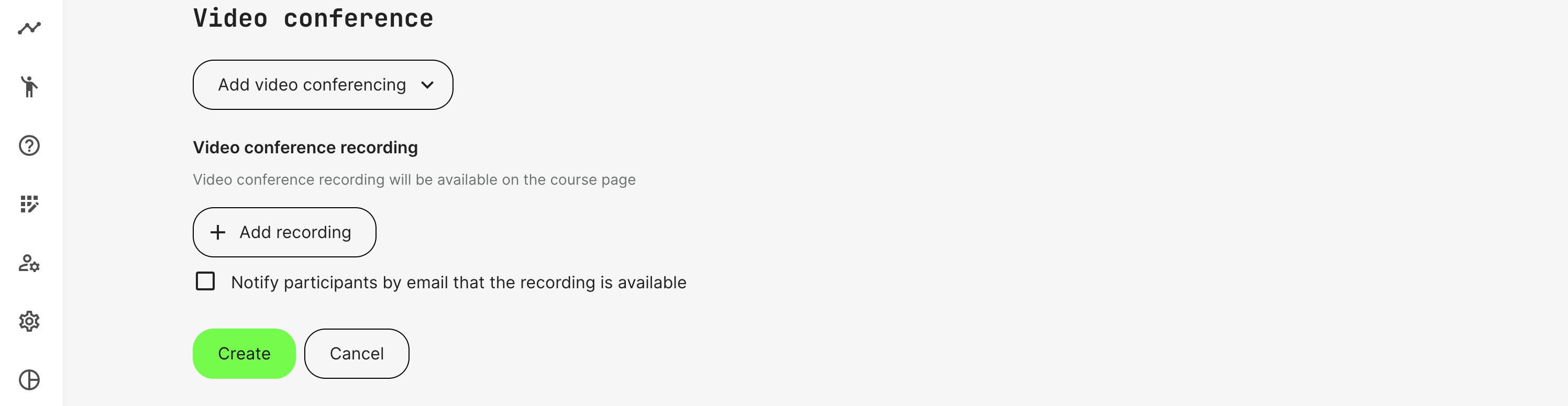
Add recording: upload a recorded event to the Video archive and add it to the event so the participant can go back and rewatch it later. This also includes the ability to notify the particpants that this is available and pull them back into the platform to see this.