Attendance marking - Article
Enable instructor-led and semi-automatic attendance marking for calendar events and learning paths. Mark participation manually or approve integrated webinar data, with bulk actions and post-event notifications.
Updated: 2 Mar 2026
2 min read
Instructor led and semi-automatic attendance marking
The ‘Mark attendance’ option can be enabled on calendar events by design and desire for facilitation. This is both an option for calendar events created ad-hoc by instructors and as options in a learning path which contains multiple events of any type - e.g., VILT (Virtual Instructor Led) and ILT (Instructor Led) in-person events.
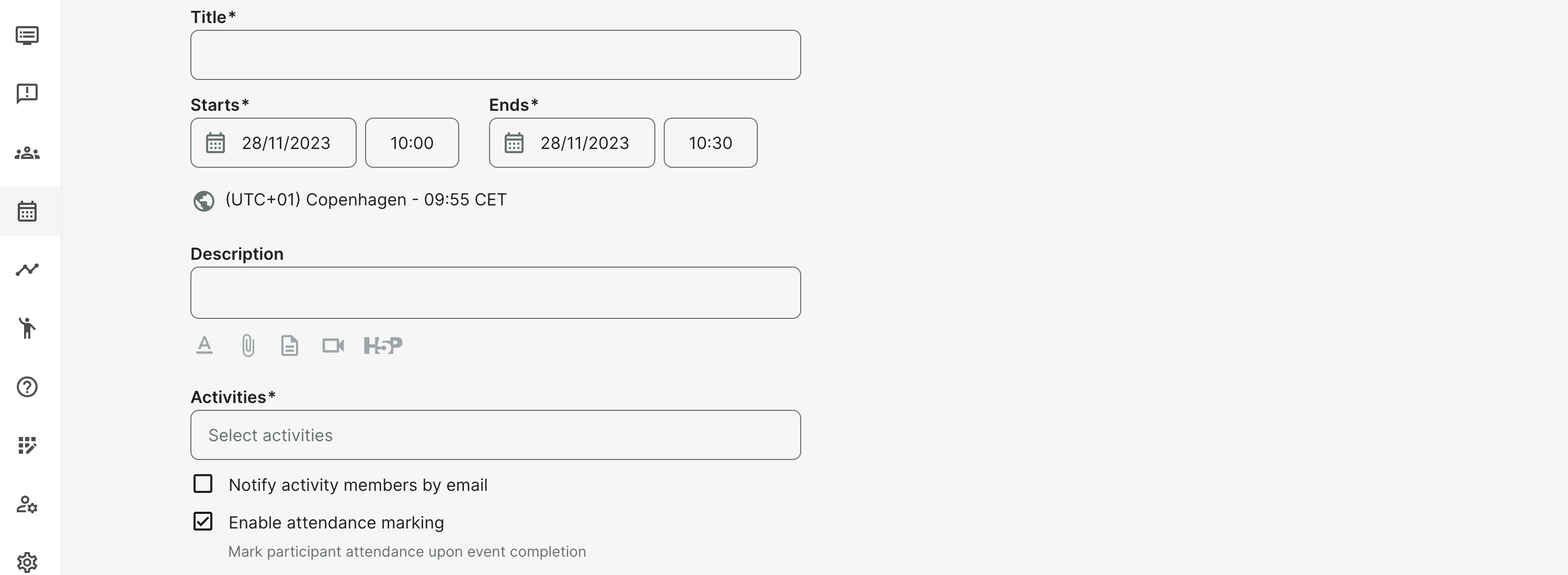
How does attendance marking work?
Attendance marking is available for the completed Event.
- Attendance marking can be accessed from the Event details page and from the analytics in general.
- Participants with “Registered” and “Expired” status are shown with the option to mark attendance.
- The available options are: Not marked, Attended and Not Attended.
- This can be performed by the instructor added to the Activity as Responsible in a training acvitiy, if the instructor created the event himself or by any administrator.
- Bulk operations are available to mark attendance on multiple users at a time.
- Some integrated web conferencing tools (e.g., Zoom et al) will pass on attendance information based on their individual definitions. This will be presented as a suggestion (marked as attended), but will still require the instructor to formally approve. This is semi-automatic and the desired approach by most, as it factors in an evaluation of the situation.
A notification is shown on the home screen (My overview) for an Instructor (Responsible Instructor) after the event ends. This will lead to the page for attendance marking. This notification is only shown only for events with attendance marking enabled.