Use Saga During Training - Article
Summary
The training assistant keeps learning support close to the lesson. A participant can ask for an explanation, find a relevant passage or connect ideas across modules without leaving the learning context.
Each Training Activity has its own dedicated conversation. The assistant can use that activity’s accessible indexed material and relevant discovery context; it does not simply search every other course the participant has ever joined.
Use this article to:
- Open the assistant beside your training
- Understand the activity-wide conversation context
- Use sources and follow-ups while retaining your place
- Keep chat, progress and assessment requirements separate
Open the assistant in the learning experience
Where enabled, open Saga while viewing a Course module in Learn mode or a Learning Path’s overview. The chat appears alongside the learning content, and the layout makes space for it. On narrower screens, opening one sidebar can close another so that the learning area remains usable.
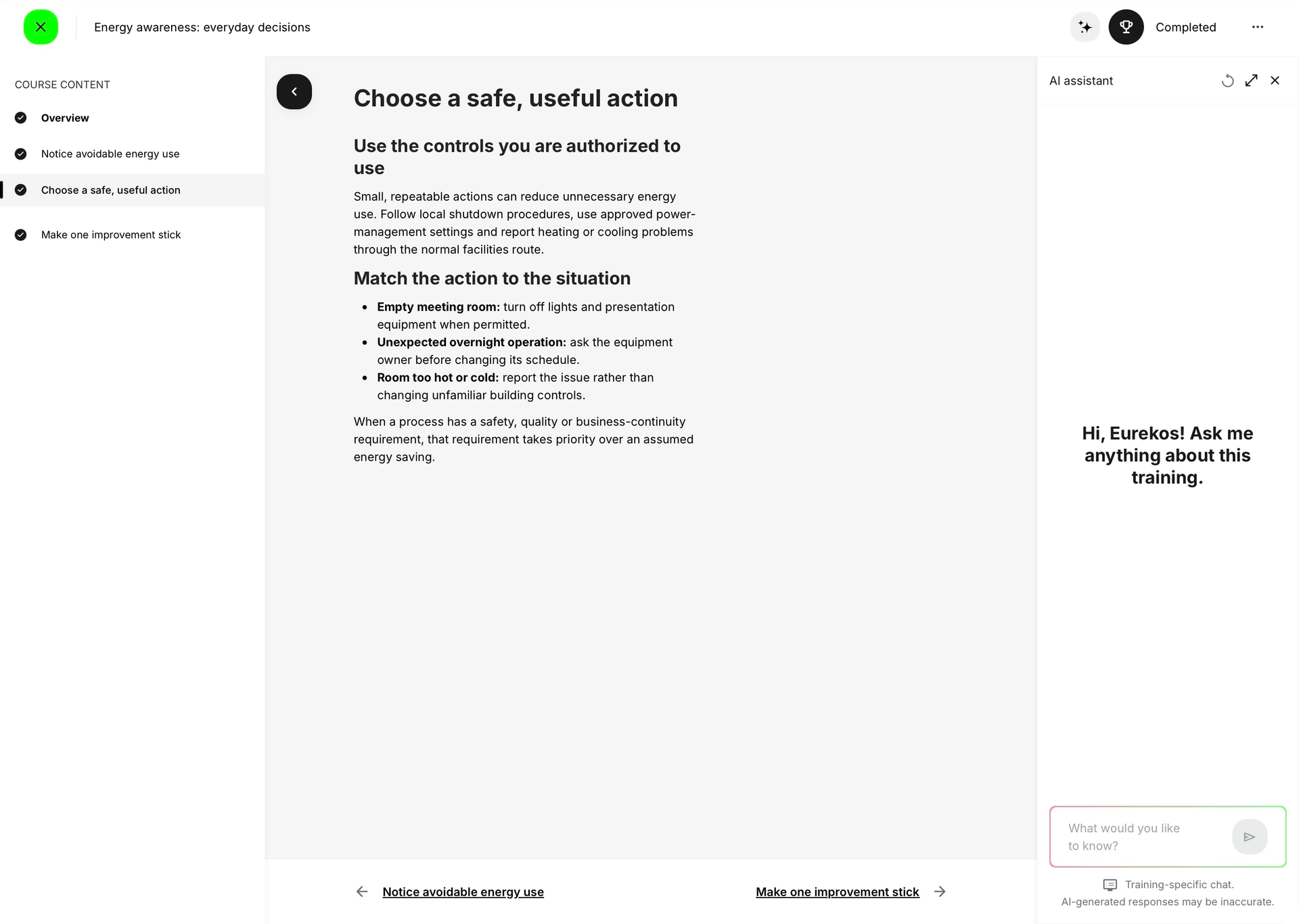
- Open the relevant training and navigate to the lesson or overview you are working with.
- Open the assistant and ask a focused question, such as “What is the key distinction between operating hours and standby consumption in this training?”
- Read the explanation and follow its source references to the appropriate module or learning item.
- Continue the same conversation for related questions, or close the sidebar to return to the full learning area. Closing it does not delete the conversation.
Understand what one training chat means
The dedicated chat is created when the first message is sent. It belongs to the Training Activity, not to each page and not simply to the reusable Course asset. Moving between modules of one Learning Path can therefore retain one activity conversation, rather than creating an unrelated chat for every module.
This is useful when a programme combines several topics. A learner can ask how an example in one module relates to another module in the same training. The assistant can reference the relevant source module, provided that the material is accessible and indexed.
A different Training Activity has its own training context. Reusing the same Course in another delivery does not mean the learner is continuing one universal course-asset chat. General chat is also a separate experience; use Find Answers and Training with Saga for its wider conversation and history tools.
Know the scope of the answer
| Material | How it relates to this chat |
|---|---|
| Current activity’s learning material | Accessible indexed content across the activity’s modules can support the answer; the visible page is not necessarily the only source. |
| Activity overview | Basic activity information, module titles and descriptions, and relevant Event schedule context can be available even when the activity is not self-enrollable. |
| Other enrolled training | Do not assume it is included in this dedicated activity chat. Use a general conversation for a broader question. |
| Personal Storefront offers | Relevant eligible offers can support a next-training suggestion. They do not become assigned or enrolled merely because they are recommended. |
| Restricted or excluded content | The assistant is not a way to unlock a page or retrieve an intentionally excluded assessment body. |
Use the assistant to learn, not to bypass the route
Ask for an explanation, a simpler example, a comparison or a source location. For instance, “Give me a workplace example of reducing unnecessary operating hours, using this training” is more useful than “Tell me what to click so I can finish.”
Reading an answer does not mark a video watched, submit an Assignment, record attendance, pass a quiz or perform a required Complete confirmation. Continue the actual learning activities and check the normal completion indicators.
If the source is a graded H5P or SCORM assessment, the organization should decide whether its body may be indexed at all. This is a content-governance decision, not an automatic guarantee that the assistant will redact every answer. Authors should use Control AI Content Indexing and Protect Assessments.
Manage the dedicated conversation
Use the available Clear chat action only when you deliberately want to remove the activity’s conversation and begin again. Read the confirmation carefully: this is different from closing the sidebar and cannot be used as a learning-progress reset. A cleared conversation does not undo or award course completion.
Keep sensitive operational details and unnecessary personal information out of questions. If a learner needs human help, use the configured facilitator, comments, Community or support route rather than assuming that the assistant’s answer has reached an Instructor.
Check the experience before rollout
- A learner can open the sidebar and still navigate the lesson on the intended screen size.
- A question about an allowed lesson returns an appropriate source in the correct module.
- A cross-module question stays within the intended Training Activity context.
- An inaccessible page or excluded assessment is not made available as answer content.
- Closing and reopening the sidebar preserves the conversation, while normal progress remains tied to the learning objects.
Troubleshooting
| Problem | What to check |
|---|---|
| The answer does not use another course I am enrolled in | The dedicated chat is scoped to this activity. Try a general Saga conversation for a broader learning question. |
| The chat panel replaces the navigation panel | On narrower layouts, only one sidebar may be shown at a time. Close Saga or reopen the navigation when needed. |
| The assistant cannot explain an object on the page | Check access and indexing. The object’s body may be intentionally excluded or may not have usable extracted text. |
| I read the answer, but the module remains incomplete | Complete the actual required learning, assessment, attendance or confirmation actions. Chat is not a completion mechanism. |
FAQ
-
Is there a separate chat for every page?
No. The dedicated conversation belongs to the Training Activity and can support its accessible modules. It starts when the first message is sent.
-
Does closing Saga remove the conversation?
No. Closing the sidebar and clearing the chat are different actions. Clear chat deliberately removes the activity conversation after confirmation.
-
Does an answer count as viewing the required video?
No. The video and other learning objects keep their own participation and completion rules. A chat response does not replace them.