13.3.0 - Release notes
Storefront - Smarter Organization Targeting in Audience Controls
We have simplified how organization-based audience controls are configured on Storefront sections. The reworked configuration significantly reduces the burden of running Storefronts in environments with complex organizational hierarchies, and makes targeting rules dynamic so that future sub-organizations are picked up automatically.
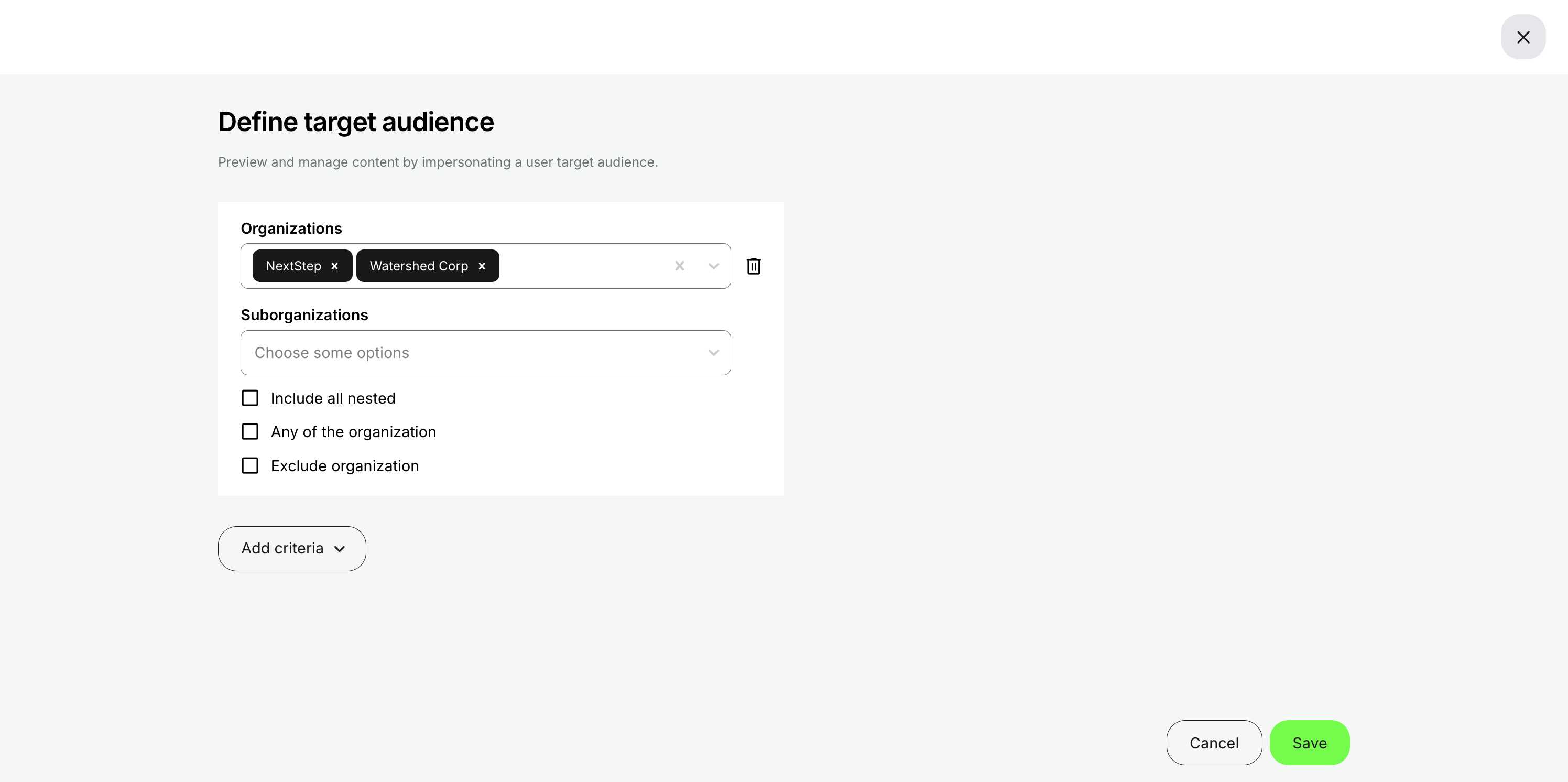
Storefront audience controls determine which Storefront sections — rows, carousels, banners — are visible to which users (see Target Audience Controls for the broader feature). Previously, when targeting a section to an organization with multiple sub-organizations, admins had to add each sub-organization individually and combine them with AND/OR rules. With this release, organization targeting is configured through a structured, hierarchy-aware interface that mirrors the model used for onboarding rules on the platform.
Features & Benefits
Smarter organization targeting in audience controls: Configuring organization-based audience controls is now considerably easier. Previously, when targeting a Storefront section to an organization with multiple sub-organizations, you had to add each sub-organization individually and combine them with AND/OR rules — which became difficult to mange in deep hierarchies, and was static (sub-organizations created later did not inherit the targeting automatically).
The redesigned configuration introduces:
- An Organization field for selecting the parent organization
- A Suborganization field for selecting specific sub-organizations
- An Include all nested option that automatically applies the rule to every level below the selected organization - including any sub-organizations created in the future
- An Exclude organization / suborganization option that inverts the rule, applying the audience to everywhere except the selected organization or sub-organization
These options mirror how organization configurations work elsewhere on the platform, such as on activities and onboarding rules — so admins working across those settings now have a consistent mental model.
Configuration
The new configuration applies to any Storefront section under Settings → Storefront. To use the new organization audience controls:
- Open a Storefront section and click Define target audience
- Click Add criteria → Organization
- Select the parent Organization and the relevant Suborganization(s)
- Check Include all nested to apply the rule dynamically to every sub-organization under the selected level, including any created later
- Check Exclude organization / suborganization to invert the rule, applying the audience to everywhere except the selection
Considerations
- Existing audience configurations are preserved on upgrade. Storefront sections continue to honour the per-organization selections set before this release. You may want to revisit them to take advantage of the new Include all nested suborganizations option and remove manual sub-organization entries that are no longer necessary.
Require Questionnaire Completion Before Self-Enrollment
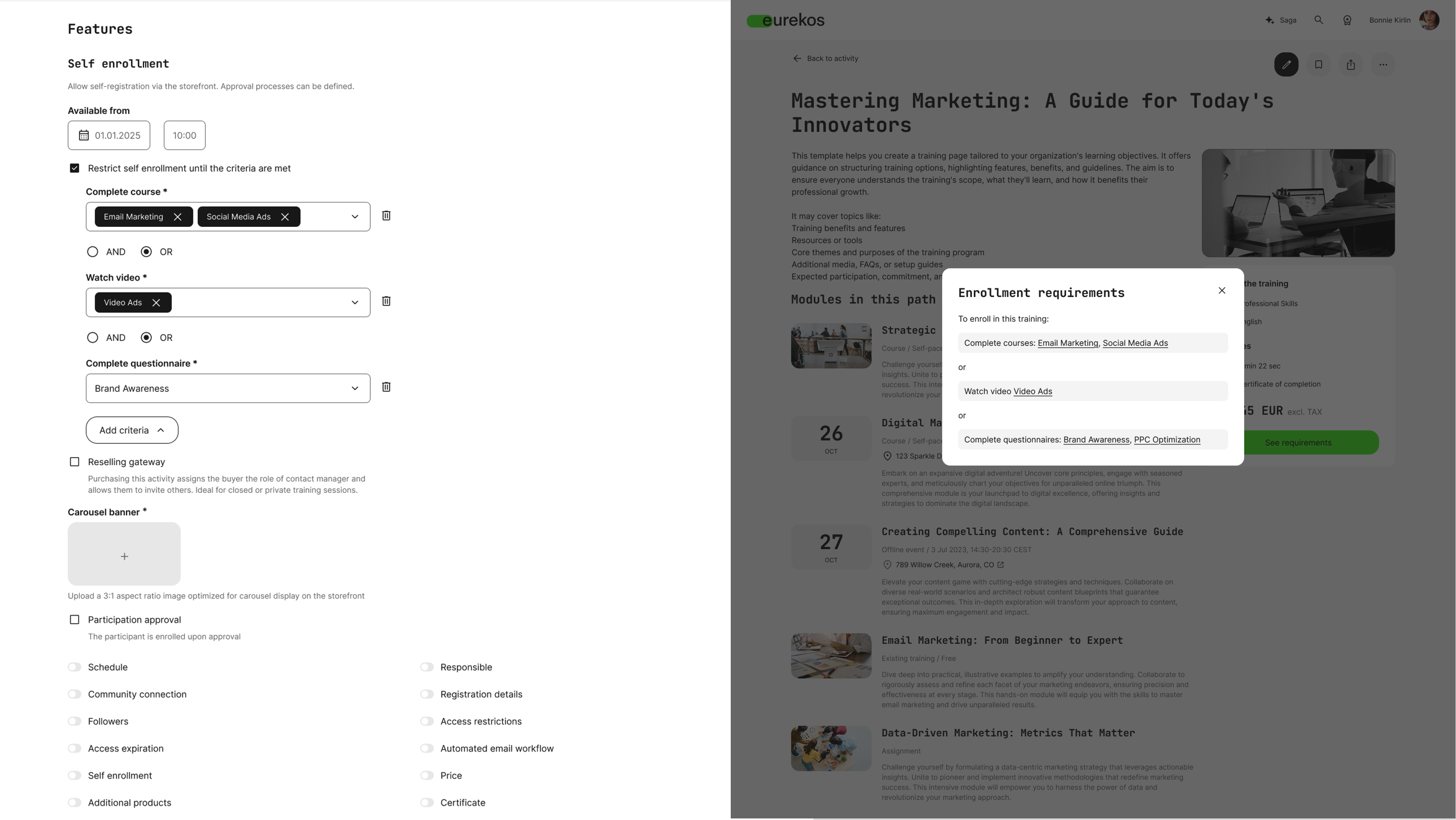
It is now possible to require that a user completes a questionnaire as part of the self-enrollment flow for an activity in the Storefront. A new Complete questionnaire option has been added to the Restrict self enrollment until the criteria are met setting at the activity level, extending the existing criteria framework - which already supports conditions such as completing a course, watching a video, or earning a certificate - with a mechanism for collecting structured input at the point of enrollment.
The flow is fully inline: when a user clicks Enroll on the activity description page and the questionnaire is the only unmet criterion, the questionnaire opens immediately as a fullscreen popup. On submission, the user is enrolled. If the activity has a price, the user is taken to checkout after submitting, where enrollment is confirmed on payment. If the activity has multiple enrollment criteria set up, the user first sees the standard Enrollment requirements list - with the questionnaire listed alongside the other requirements - and completes each in sequence.
Features & Benefits
Questionnaire-gated self-enrollment: Any questionnaire created under Course Administration → Questionnaires can be selected as a self-enrollment criterion on an activity. This gives you a structured way to collect relevant information from learners at the point of enrollment - qualifying intent, gathering role or context, presenting terms or acknowledgements - without requiring a separate step outside the Storefront.
Seamless end-user experience: When the questionnaire is the sole unmet criterion, clicking Enroll opens it directly as a fullscreen popup with Enroll and Cancel buttons. Submission triggers enrollment immediately. For paid activities, the questionnaire response is recorded on submission, and the user is then routed to checkout; the response is retained regardless of whether the user completes checkout.
Enrollment-specific analytics and reporting: Responses submitted through the enrollment flow are stored as a distinct response type - Enrollment restriction - and are accessible in Analytics → Questionnaires. Administrators can filter the questionnaire analytics dashboard and report by this type, and additionally by the specific activity, to review and export enrollment-related responses. Access to questionnaire analytics is governed by the permissions matrix in Settings → Analytics Permissions (Course Administrator role and above).
Schedule-based anonymization for enrollment questionnaires: The questionnaire anonymization rule has been extended to support activity-aware scheduling. In addition to anonymizing responses a set number of days after submission, you can now anchor anonymization to the start date or end date of the activity in which the questionnaire is used as an enrollment criterion or feedback mechanism. Supported schedule types are: At the time of, Days after, Days before, and Specific date - each applied against the chosen anchor. This allows you to collect information relevant to a specific training and have it automatically anonymized or deleted at a meaningful point relative to the activity lifecycle, rather than at a fixed offset from submission.
Configuration
To add a questionnaire as a self-enrollment criterion:
- Open the activity in Course Administration → Activities
- Under Features, enable Self enrollment
- Check Restrict self enrollment until the criteria are met
- Click Add criteria and select Complete questionnaire
- Pick the questionnaire from the list (any questionnaire in Course Administration → Questionnaires can be selected)
- Save the activity
The activity must be published and available for self-enrollment in the Storefront for the enrollment flow to apply to end-users.
To configure anonymization anchored to the activity schedule:
- Open the questionnaire in Course Administration → Questionnaires
- Navigate to the anonymization rule settings
- Select the schedule type (Days after, Days before, etc.) and set the anchor to Start date or End date
Considerations
- Questionnaire submission is required for enrollment. If a user opens the questionnaire popup and dismisses it without submitting, they will not be enrolled and must initiate the flow again from the activity description page.
- Anonymization anchors are resolved at submission time. When an activity-anchored anonymization rule is in place, the anonymization timestamp is calculated from the activity's scheduled start or end date at the moment the response is submitted. Changes to the activity schedule after submission do not retroactively update the anonymization timestamp.
Update User Profile Fields via Questionnaire Responses
Questionnaires in Eurekos can now automatically update a user's profile with address and company information based on submitted answers. When a user completes a questionnaire with fields configured to update the profile, the corresponding profile fields are written on full submission - no manual data entry or separate import step required.
This extends functionality that has existed for vocabulary-based profile updates. Previously, questionnaires could already update a user's profile tags automatically — for example, assigning a vocabulary tag based on a selected answer, which could then influence content assignments, recommendations, or access rules. The same principle now applies to structured profile fields: Street, Street number, City, Postal code, Country, State/Region, and Company.
The result is a scalable mechanism for collecting and maintaining accurate user data — particularly valuable during onboarding, when profiles may be incomplete, or when collecting information from external learners you don't yet have full records for.
Features & Benefits
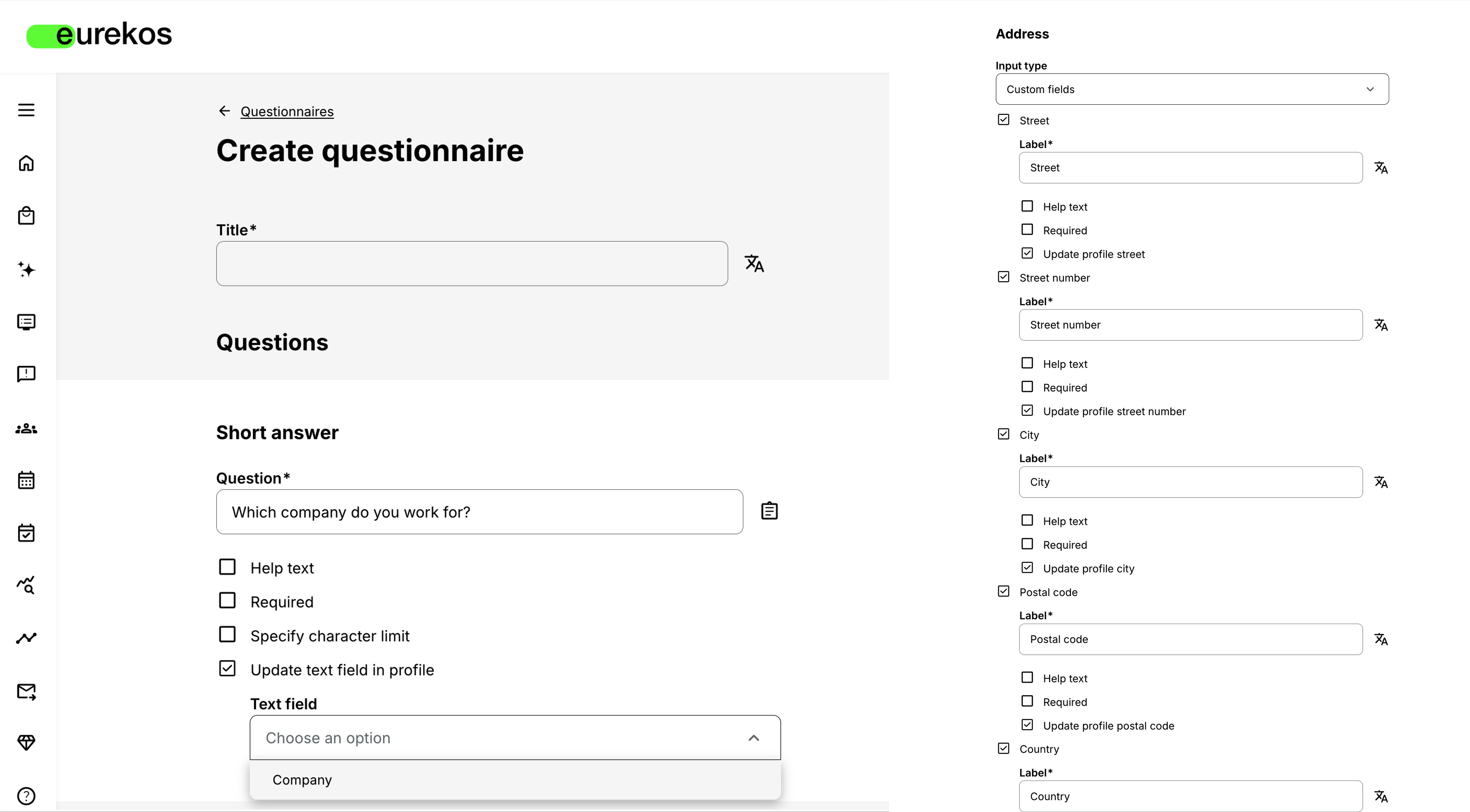
Granular address field updates: The Address question type in the questionnaire builder supports a Custom fields input type, which exposes six individual sub-fields: Street, Street number, City, Postal code, Country, and State / Region. Each sub-field can be independently enabled or disabled - so you only ask for the fields relevant to your use case - and each has its own checkbox to update the corresponding profile field on submission.
Company field updated via short answer: The Short answer question type now includes an Update text field in profile checkbox. When checked, a Text field selector appears — currently supporting Company — and the submitted value is written to the user's company profile field on submission. This makes it easy to collect or correct company information as part of any questionnaire flow, including enrollment questionnaires, onboarding surveys, or periodic profile-refresh campaigns.
Builds on established vocabulary update logic: Eurekos questionnaires have long supported automatic tag assignment: a selected answer could update a user's vocabulary tags, influencing what content they are assigned, recommended, or granted access to. Address and company updates follow the same pattern — the questionnaire becomes a trigger for profile enrichment, not just a data collection tool. Organizations running personalization at scale can use questionnaires as a lightweight, user-facing mechanism for keeping profiles current and accurate.
Effective for onboarding and data collection at scale: Presenting a profile-updating questionnaire to a target group during onboarding can populate key profile fields in one step, without requiring admins to import data manually. Updated fields can in turn affect content targeting, reporting segmentation, and downstream integrations.
Configuration
Profile update behavior is configured per question in the questionnaire builder.
For address fields:
- Add an Address question to the questionnaire
- In the question settings, set Input type to Custom fields
- Enable or disable the individual sub-fields as needed (Street, Street number, City, Postal code, Country, State / Region)
- For each sub-field you want to write to the user's profile, check the corresponding option.
For company:
- Add a Short answer question to the questionnaire
- Check Update text field in profile
- In the Text field dropdown that appears, select Company
Profile updates fire on full questionnaire submission only, and require the user to be logged in. Questionnaires distributed anonymously will not trigger profile updates, as the user's identity cannot be resolved.
Considerations
- Submitted values overwrite existing profile data. If a user already has values in the relevant profile fields, submitting the questionnaire will replace them. Consider this when deploying profile-updating questionnaires to existing users with established records.
- Vocabulary tag updates are unaffected. Existing questionnaire configurations that update vocabulary tags continue to work as before. This update adds address and company fields alongside that mechanism — it does not change or replace it.
- Anonymous distribution is incompatible with profile updates. If a questionnaire is distributed anonymously, the profile update rules will not fire even if configured. The user must be authenticated for the submitted values to be matched to a profile.
User Interests - Now Visible on Profile and in Import/Export
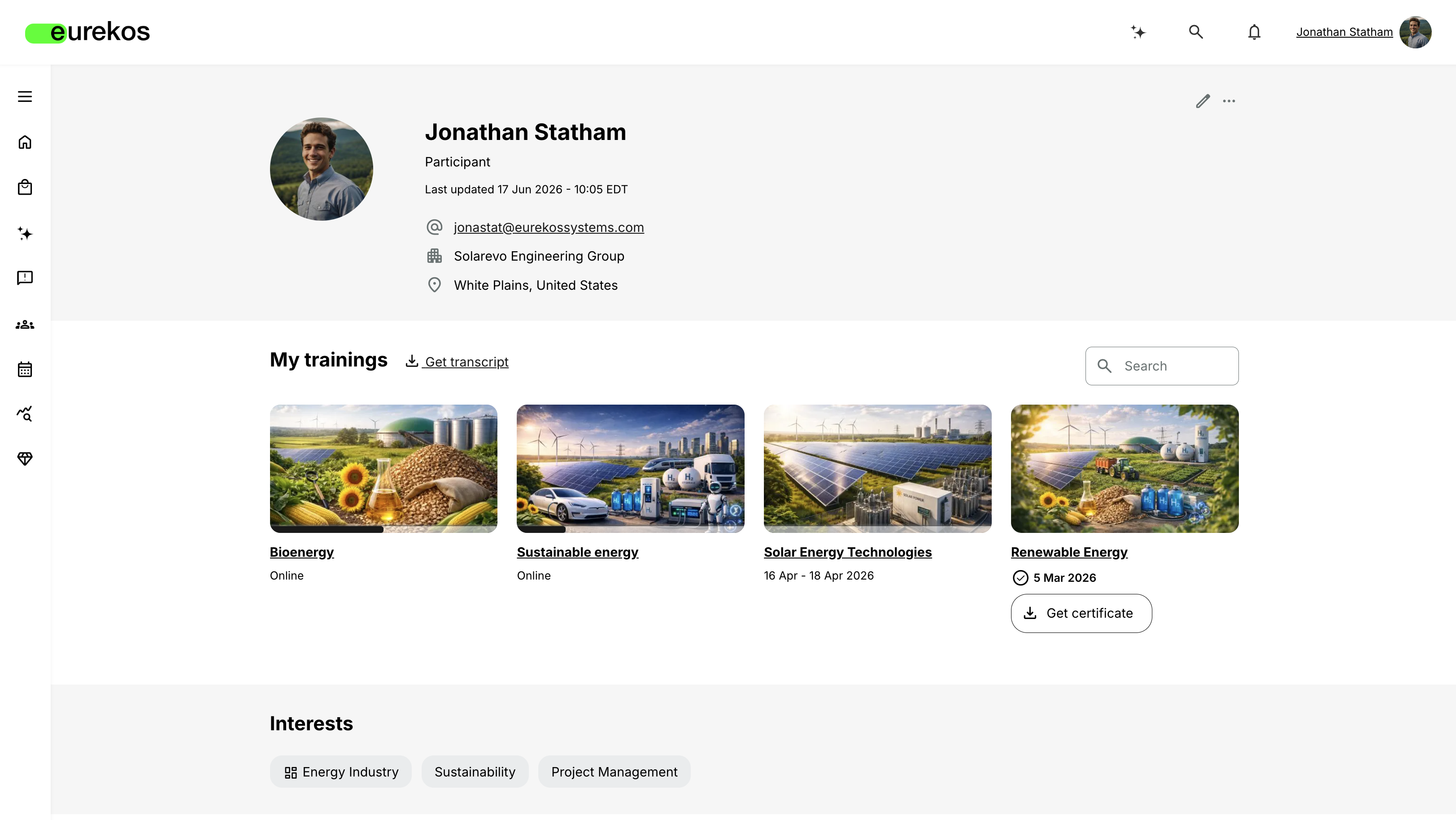
A user's Interests are now displayed on their profile page and included as a dedicated column in the User Import/Export. This makes it easier to understand a learner's engagement pattern at a glance and to work with interest data in bulk reporting and system integrations.
Interests in Eurekos are automatically populated based on enrollment activity: when a user is enrolled in a training tagged with a Category vocabulary tag, that tag is added to the user's interests. Interests can also be manually added or removed from the user's edit profile page under the Preferences tab — by the user themselves or by an administrator. Both of these behaviors are existing functionality. What's new in this release is that interests are now visible on the view profile page and included in the User Import/Export.
Features & Benefits
Interests visible on the user profile page: A dedicated Interests section now appears on every user profile page, positioned below the trainings sections. Administrators and relevant staff roles can see at a glance which categories a user has been active in — without needing to navigate to the edit user view or run a report.
Role-based visibility: The Interests section is visible to: Global administrator, Platform administrator, Affiliate administrator, Course administrator, Assistant, and Instructor (where the Instructor has access to the user list). All users can additionally see the Interests section on their own profile, regardless of role.
Interests column in User Import/Export: A new Interests column is included in the User Import/Export, with values stored as a comma-separated list in a single cell. The column is writeable: importing a value will update the user's interests accordingly, provided the Category tag already exists on the platform. Tags that do not exist are ignored. This supports bulk management of interest data alongside other profile fields, and makes it straightforward to filter or segment user records by interest in external tools.
Considerations
- Interests reflect enrollment-based Category tagging and manual edits. The Interests field is automatically populated as users enroll in activities tagged with Category vocabulary tags, and can be manually adjusted from the Preferences tab on the edit profile page. The profile page view reflects the current state of both sources.
- Import values must match existing Category tags. When updating interests via import, only values that correspond to existing Category tags on the platform will take effect. Unrecognized values are silently ignored - no error is returned.
- The Interests section can be removed on request. If you do not wish to display category tags as interests on your users' profiles, the section can be disabled by contacting support@eurekos.com.
Newsletter Consent Status Report
A dedicated Newsletter consent status report is now available in Analytics, giving you a structured way to track users' newsletter consent status and when it changed — over any selected time period.
Previously, newsletter consent status was available as a column in the standard user export, showing each user's current consent state as a static snapshot. The new report goes further: it lists all users who changed their consent status within the selected period, with a Change time timestamp for each record. This supports compliance documentation, marketing suppression list management, and audit requirements where time-stamped records of consent changes are necessary.
The report is available on platforms where the Newsletter consent setting is enabled under Settings → General.

Features & Benefits
Track consent changes over time: Unlike the standard user export — which reflects a user's current consent status at the time of export — the Newsletter consent status report scopes output to a chosen time window and shows only users whose consent changed within that period. Each row includes a Change time timestamp, giving you a verifiable record of when a user opted in or out.
Fixed report columns for consistent output: The report includes a fixed set of fields — Full name, Email, Consent status, Change time, Company, Organization, and Country — making it straightforward to feed the output into downstream processes such as CRM syncs, marketing platform suppression lists, or compliance audits without additional data transformation.
Supports compliance and consent governance: For organizations operating under consent-based marketing regulations, a time-stamped log of consent changes is essential for demonstrating when consent was obtained or withdrawn for a given user. The report provides this directly, without requiring a manual cross-reference against export snapshots.
Configuration
The Newsletter consent status report becomes available once Newsletter consent is enabled in Settings → General. Enabling this setting activates the following consent collection touchpoints across the platform:
- Sign-up screen (if sign-up is enabled): an I want to receive newsletters checkbox is added to the sign-up form
- Edit profile → Preferences tab: users can subscribe or unsubscribe at any time via an I want to receive newsletters checkbox
- Newsletter consent popup: shown at login on each visit until the user makes a selection. The popup appears for users whose consent value is unset. Users created before the setting was enabled will not see the popup.
The report is accessible from Analytics in the main navigation sidebar. Access is governed by the permissions matrix in Settings → Analytics Permissions. The report is generated on demand.
If Newsletter consent is not enabled on your platform, the report will not appear in Analytics.
Considerations
- Only users who changed their consent status within the selected period appear in the report. Users with an existing consent status that did not change during the reporting window are not included. Use the standard user export for a full current-state snapshot of all users' consent status.
Security Improvements 🔐
- Email Injection Protection: Improved validation and sanitization of email-related tokens to prevent unauthorized manipulation of email content and reduce the risk of spam, phishing or misuse of trusted communication channels.
- Improved Protection of Video Upload Credentials: Enhanced handling of video service credentials by removing sensitive access keys from client-side exposure and retrieving them securely through protected API endpoints.
- Text editor security update: Upgraded the rich text editor component to the latest supported version, addressing known third-party security vulnerabilities and improving overall platform security.
- Enhanced Browser Security Policies: Strengthened browser-side security controls by addressing issues related to page lifecycle event handling and improving compliance with modern Permissions Policy recommendations.
Shortlist of Additional Noticeable Changes
- Units vocabulary now supports child-tags: The Units vocabulary (the default name — it can be renamed per platform) now supports hierarchical child-tags, consistent with the existing behavior of the Category and Job function vocabularies. This is not enabled by default; contact support@eurekos.com to activate it for your platform.
- Managed Subscription contact fields are now editable: The First name, Last name, and Email fields on the edit managed subscription page (Course Administration → Subscriptions → [Edit managed subscription]) can now be updated by administrators. Previously, all three fields were locked in edit mode. Note that updating the email address updates the contact record only — it does not re-link the managed subscription to a different user account (the UID remains the same).
- 2FA filter added to the Users page: A 2FA filter (values: Enabled / Disabled) has been added to the Users page, allowing administrators to segment users by whether they have set up two-factor authentication. This makes it straightforward to generate a list of users who have not yet enabled 2FA and take action accordingly. The user API has been updated with a corresponding 2fa parameter. Note that 2FA is not enabled by default — to have it activated on your platform, contact your Customer Success Manager or support@eurekos.com.
- Adaptive module "Event attended" criteria: Include linked activities. When configuring an Event attended criterion for an adaptive module, a new Include linked activities checkbox is available. When checked, the criterion is satisfied if the user has attended any activity in the linked group — not just the specific event selected. This avoids having to enumerate each linked event individually and ensures the criterion automatically covers new events added to the linked group in the future.
- Progress report - filter by Course Administrator: The Progress report now includes a Course Administrator filter, allowing you to scope the report to activities for which a specific course administrator is responsible.
- Calendar events - Remind participants: A Remind participants option is now available on calendar events (events created via the calendar, as distinct from event modules within activities). This allows you to schedule a system email reminder to participants a defined number of minutes, hours, or days before the event — consistent with the reminder functionality already available on activity events.