13.2.0 - Release notes
Skills - Expanded Capabilities for Access Control, Enrollment, and Bulk Management
We have significantly expanded what Skills can do on the Eurekos platform. Until now, Skills served primarily as a way to track and report on competencies — learners acquired Skills by completing certifications, admins could assign them manually, and reporting surfaced who held which Skills at what level (more context in our Introduction to Skills article).
With this release, Skills move from being a primarily descriptive layer to an active mechanism in your learning workflows. You can now use Skills as enrollment requirements on the storefront, as access restrictions inside training paths, and manage them at scale through user import. Together, these make Skills a stronger basis for sequencing, prerequisite logic, and bulk user provisioning.
These enhancements build on the existing Skills framework. If Skills is not yet enabled on your platform, see Setting up Skills for how to turn it on under Settings → General.
Features & Benefits
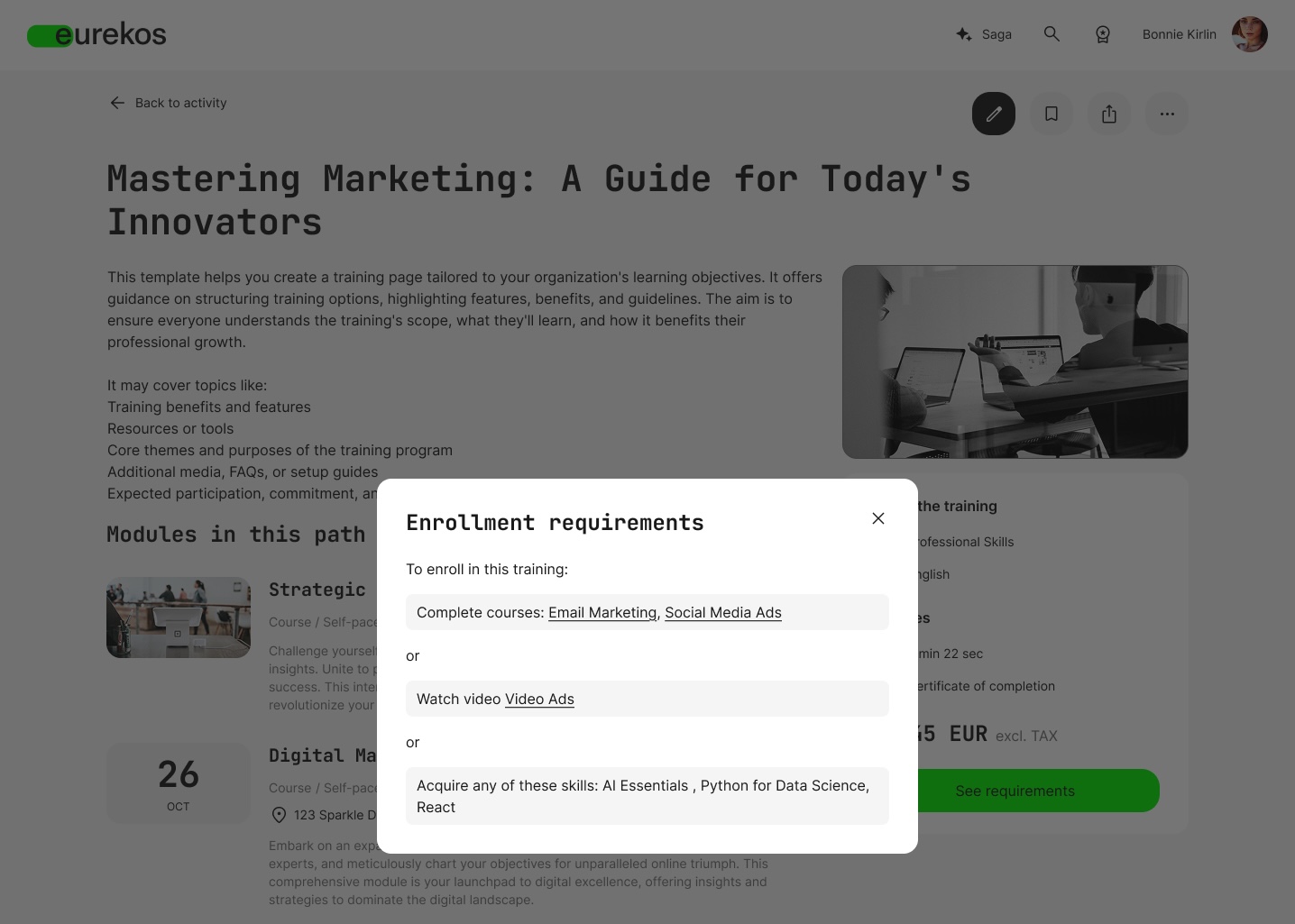
Skills as enrollment restrictions: You can now require learners to hold specific Skills before they can self-enroll in a training activity. When configuring an activity's Self enrollment feature, the option Restrict self enrollment until the criteria are met now supports Skills as a criterion alongside the existing options such as Complete course, Watch video, and Pass assignment. Multiple Skills can be combined with each other and with other criteria using AND/OR logic, so you can build precise prerequisite chains — for example, "must complete the Foundations course AND acquire either Python for Data Science or React."
On the storefront, when a learner views an activity description page that has enrollment restrictions in place, the enroll button is replaced with a See requirements button. Clicking it opens a popup that lists exactly what they need to do — including any required Skills, with levels shown where applicable.
Skills as access restrictions, at activity and module level: Skills can also act as access restrictions, applied either to a whole activity or to individual modules within a learning path. Unlike enrollment restrictions, access restrictions allow learners to enroll first — but they then need to satisfy the requirements before they can actually start the activity or open specific modules.
This is particularly useful for structured learning journeys where you want learners enrolled and progressing, but want to gate specific content behind acquired skills — for instance, a hands-on advanced module that should only become available once the learner has earned a foundational Skill. As with enrollment restrictions, learners see a See requirements button on the locked activity or module, and the popup explains what is needed to unlock it.
Skills via user import: Skills can now be managed in bulk through the user import workflow. When Skills is enabled on the platform, the user export file and the example import file both include a Skills column. You can populate this column with one or more Skills per user (comma-separated) and import them like any other user data — see User import for the broader workflow.
This makes Skills practical to manage at scale — for example, when migrating user data from another system, applying recognised prior learning to a batch of new hires, or correcting Skill assignments across many learners at once.
Configuration
These enhancements require Skills to be enabled at the platform level under Settings → General → Skills. See Setting up Skills for additional setup details.
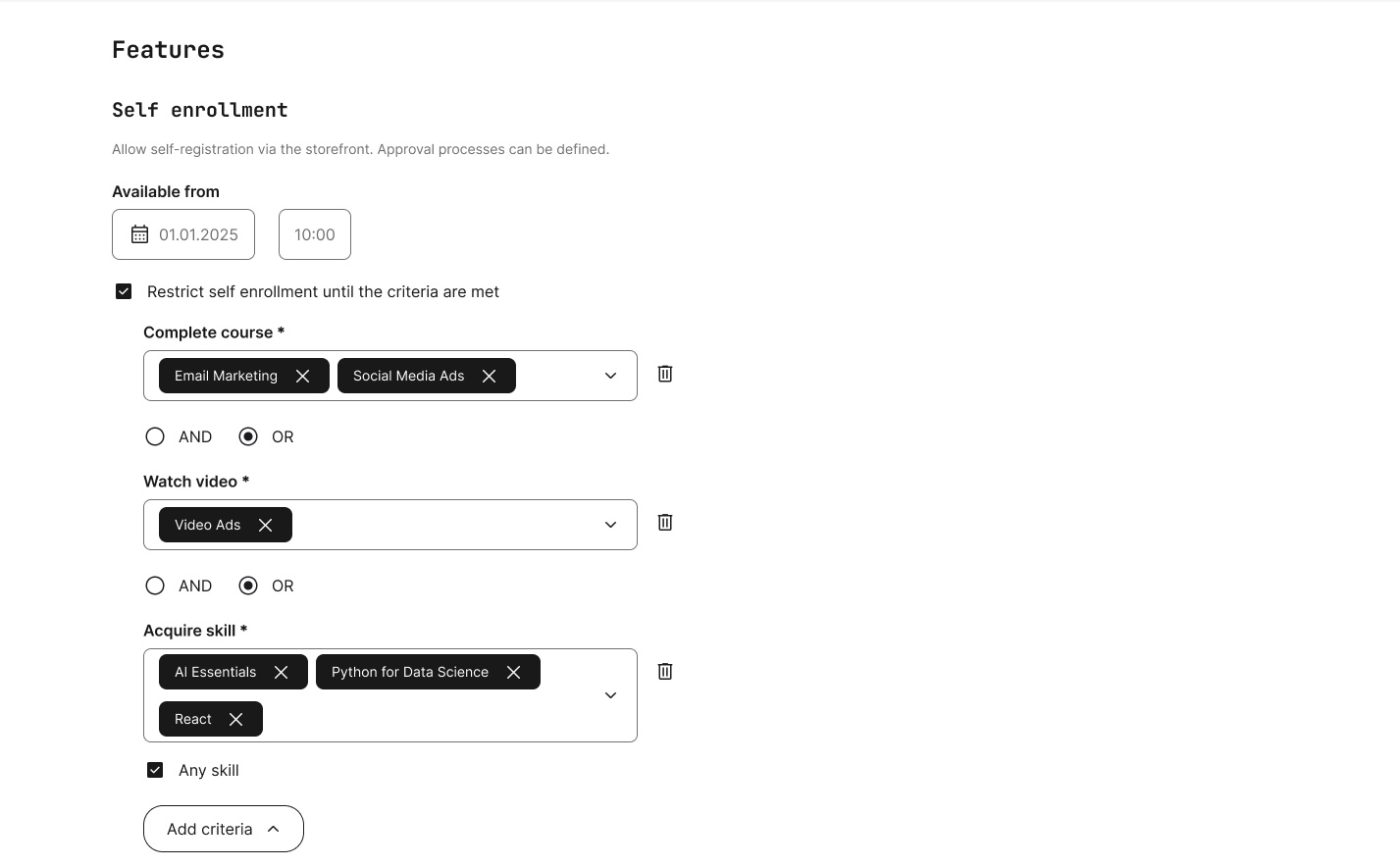
To configure Skills as an enrollment or access restriction:
- Open the activity in Course Administration → Activities and edit it
- Enable the relevant feature: Self enrollment for enrollment restrictions, Access restriction at activity level to block the start of the activity, or Access restriction at module level to block specific modules within a learning path
- Within the feature's restriction settings, click Add criteria → Acquire skill
- Combine multiple Skills and other criteria using AND/OR
When Skills with levels is enabled, each Skill restriction is added as a separate item with an optional Level field. Leaving Level blank accepts any level of that Skill. When Skills without levels is enabled, multiple Skills can be selected within a single criterion — the Any skill option treats them as an OR relationship.
To assign Skills via user import:
- Navigate to the user import page and download the example file
- Populate the Skills column with one or more Skills per user, comma-separated
- Import the file
Considerations
- User import is only available when Skills are configured without levels. If your platform is set up to use Skills with levels, the Skills column does not appear in the user export or example import files. This is worth thinking through at platform setup, particularly if bulk Skill provisioning is part of your operational model.
- Choosing between enrollment and access restriction: Use enrollment restrictions when you want to prevent learners from enrolling at all until they meet the prerequisites. Use access restrictions when you want learners enrolled and visible in reporting, but want to control when they can actually start specific activities or modules. Both can be combined within a single learning path.
- Existing Skill assignments are not affected. This release adds new ways to use Skills; it does not change how learners acquire Skills from certificates or how Skills appear on user profiles (How Skills appear).
Net Promoter Score (NPS) - Now Built into Questionnaires and Analytics
We have brought Net Promoter Score into Eurekos as a built-in capability. You can now create NPS surveys directly inside Questionnaires and measure the results through a dedicated, filterable analytics dashboard — making it straightforward to track sentiment across your customers, partners, or other audiences.
NPS is a widely-used framework for measuring how likely a respondent is to recommend a product, service, or experience. Because we have built this on top of our existing Questionnaires feature, NPS surveys inherit all the distribution options you already use — training feedback, button widgets inside course modules, enrollment restrictions, onboarding rules, and anonymous URL access (see Introduction to Questionnaires for the broader Questionnaire framework).
This also means you can run NPS in both modes that matter:
- Transactional NPS — measure sentiment about a specific activity, course, or moment (for example, immediately after completing a training)
- Relational NPS — measure overall sentiment toward your platform, brand, or training programme as a whole (for example, via onboarding rules or recurring URL-based surveys)
How NPS works: Respondents rate on a scale where higher numbers indicate stronger likelihood to recommend. They fall into three categories — Promoters (9–10), Passives (7–8), and Detractors (1–6). The NPS score is calculated as (Promoter % − Detractor %) and ranges from -100 to +100. A score below 0 typically signals dissatisfied customers outweigh happy ones and warrants concern; 0–30 is considered solid with room to improve; 30–70 is strong; above 70 is exceptional, meaning most respondents are actively brand advocates.
Features & Benefits
NPS question type in Questionnaires: When creating or editing a questionnaire, you can now add an NPS question alongside the existing question types such as Single Choice, Linear Scale, and Rating Scale. You define the question text — for example, "How likely are you to recommend this course to your peers?" — and respondents rate on a 1–10 scale, where 1 is "Not likely at all" and 10 is "Extremely likely." The question can be marked as required and supports help text in the standard way.
Because NPS is a question type within Questionnaires, your NPS surveys inherit every existing distribution channel:
- As training feedback after activity completion
- Through the Button widget inside a course module
- Via an onboarding rule, including recurring intervals such as every six months
- Through a generated URL for anonymous access (no login required)
This makes the same NPS question useful for both transactional measurement (deployed at a specific moment) and relational measurement (deployed across the platform as a whole).
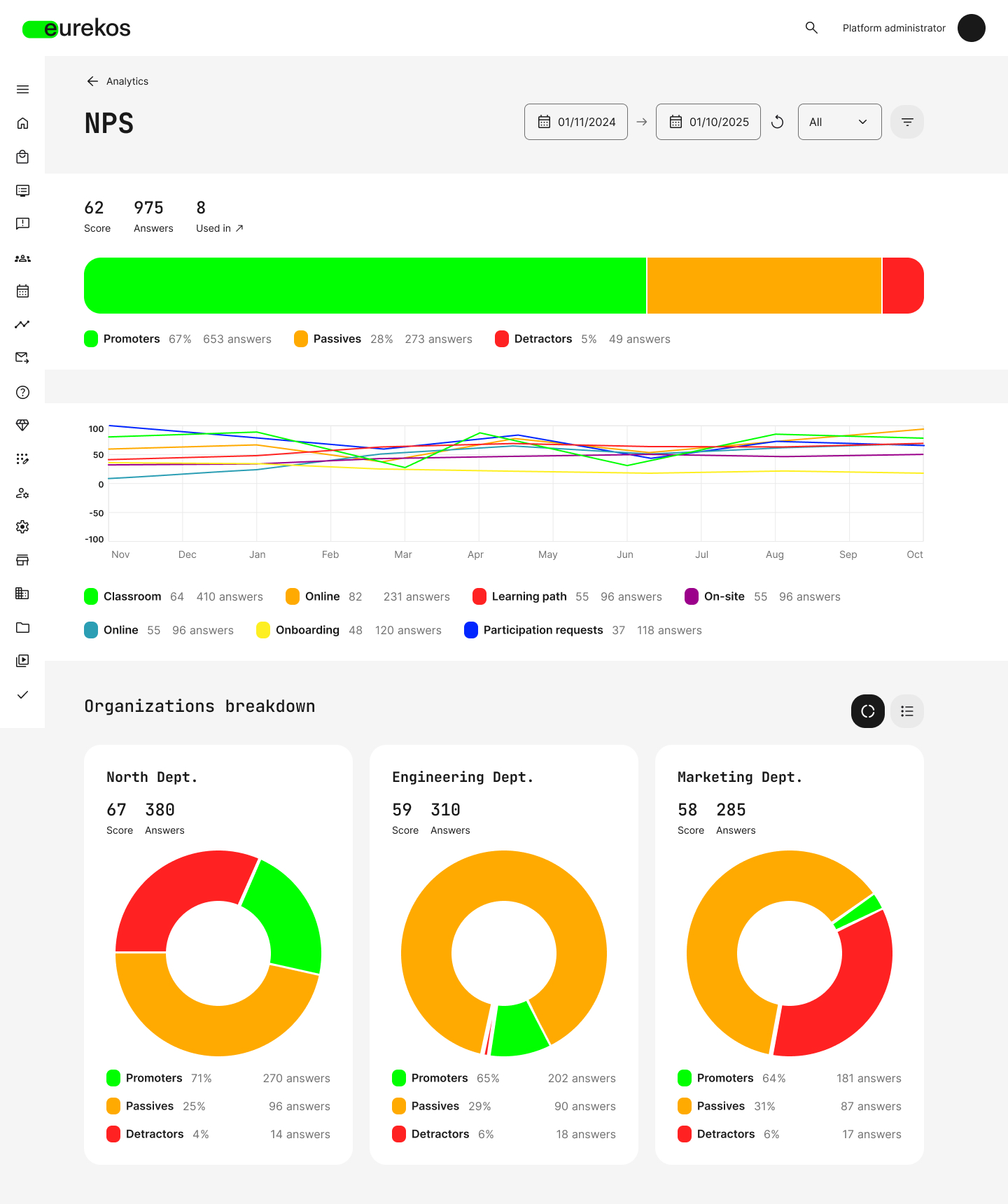
Dedicated NPS analytics dashboard: Under Analytics → NPS, you will find a new aggregated dashboard that summarises NPS responses across all questionnaires on your platform. The page surfaces:
- An overall Score (the NPS itself), total Answers, and a Used in count showing the number of places this NPS data is being collected from
- A horizontal distribution bar showing the share and response counts of Promoters, Passives, and Detractors
- A trend line chart showing NPS performance over time, broken down by where it is collected (training types, onboarding, on-demand, participation requests, automation, and so on)
- An Organizations breakdown with doughnut charts per organization, viewable as charts or as a table
Filters let you narrow the dashboard by training type, activity, organization, questionnaire, registration status, or time period — making it equally useful for relational NPS (unfiltered, platform-wide) and transactional NPS (filtered to a specific activity or moment).
Individual response-level data and downloadable reports remain available through the existing Analytics → Questionnaires page, where the new NPS question type also appears in the per-question breakdown alongside other question types.
Configuration
The NPS capability is enabled automatically on upgrade — there is nothing to configure at the platform level.
To add an NPS question to a questionnaire:
- Open or create a questionnaire under Course Administration → Questionnaires
- Click Add question and choose NPS
- Enter the question text and (optionally) help text; mark the question as Required if appropriate
To view aggregated NPS data, navigate to Analytics → NPS.
Considerations
- Anonymous and "Hide personal details" submissions: Where a questionnaire has personal-detail anonymisation enabled, responses are still included in the aggregated totals on the NPS dashboard, but they are excluded from user-level filters and the Organizations breakdown. Plan filter usage accordingly if a significant share of your responses are anonymised.
- Filter for actionable insight: The unfiltered dashboard works as a broad relational signal. To get useful transactional insight, build the habit of filtering by activity, questionnaire, or time period — particularly when comparing performance across audiences.
- Analytics permissions: The new NPS topic respects the existing Analytics Permissions framework. After upgrade, review Settings → Analytics Permissions to confirm which roles can access the NPS dashboard on your platform.
Storefront - Audience Controls Now Cover Search and Filters
We have made a meaningful change to how Storefront audience controls work. The audience controls you set per Storefront section now also govern what users can find through search, storefront filters and the Catalog API — closing the gap that previously allowed users to discover activities through paths that weren't reachable via the Storefront layout you had configured for them. See Target Audience Controls for the broader feature.
⚠️ Important behavior change: Storefront search, global search, and the Catalog API now all respect the audience controls you set at Storefront section level. Activities that are not exposed through any Storefront section the user can see will no longer appear in their search results or be returned by the Catalog API. Its recommended to audit your existing Storefront and audience configurations before the upgrade — see Considerations for detailed guidance.
Features & Benefits
Audience controls now extend to search and the Catalog API: Previously, the audience controls you set at Storefront section level governed only the visible Storefront layout. Users could still discover activities outside those controls through search and applying storefront filters — provided the activity was available for self-enrollment and not restricted by another layer such as platform-level Storefront restrictions under Settings → General.
The audience controls you set per Storefront section determine what each user can find through:
- The Storefront search and filters
- The global search bar
- The Catalog API
The Storefront layout itself behaves as before. Logged-in users continue to see content from the registered user Storefront, the anonymous Storefront, and any active subscriptions they have. Anonymous users continue to see only the anonymous Storefront. The change is that search now follow the same visibility rules — so what learners can discover always matches what you have intentionally exposed.
This is particularly meaningful if you are using audience-targeted Storefronts to gate content by membership, subscription tier, organization, or other profile criteria. Until now, those gates could be circumvented through search; with this release, they hold consistently across these discovery surfaces.
Considerations
- Direct-link enrollment is not restricted by default. Direct enrollment links continue to work as they always have — a user who has a direct link to an activity can still enroll, even if that activity is not exposed through any Storefront section visible to them. An optional setting is available that extends the same Storefront-visibility rule to direct enrollment, so direct links are blocked for activities outside the user's visible Storefront. This restriction is disabled by default; contact Eurekos support if you would like it enabled on your platform.
- Activities a learner is already enrolled in may still appear in Global search. If a user is already enrolled in an activity and that activity has Self-enrollment enabled, it will still appear in their Global search results — even if it is no longer exposed through any Storefront section they can see. This is intentional: learners retain a path to find content they are actively working through.
- Audit existing audience-controlled Storefronts before the upgrade. If your platform uses Storefront sections with audience controls for memberships, subscriptions, or other gating, audit the activities currently available for self-enrollment — particularly any that were intentionally not exposed through Storefront sections. Users who previously discovered these via search will no longer be able to. If anything is currently surfaced only via search, decide whether it should be exposed through a dedicated audience-targeted section or left hidden.
- Catalog API integrations may return different results. If you are using the Catalog API for downstream integrations, you should expect API responses to change shape. Activities not exposed through any Storefront section visible to the requesting user will no longer be returned.
- A fallback option is available for the search visibility behavior. If the new visibility behavior creates compatibility issues during your audit, contact Eurekos support — there is a setting that can restore the previous behavior.
Subscriptions - More Flexible Tag-Based Content Inclusion
When configuring what content is included in a subscription, you can now select multiple tags from a vocabulary rather than just one. This is a small change with meaningful impact: a single subscription can now span several related categories or themes without splitting into multiple subscriptions or falling back to hand-picking activities individually.
Subscriptions in Eurekos include training activities through one of three methods: All self-enrollable activities, Specific activities chosen individually, or Activities with tag — where any activity carrying a matching tag is automatically part of the subscription, including activities created later (see Setting up a subscription for the broader configuration model).
Previously, the Activities with tag option allowed one vocabulary and one tag. With this release, you can pick one vocabulary and any number of tags within it.
Features & Benefits
Multi-tag selection with OR logic: When choosing Activities with tag as the inclusion method, the Tags field now accepts multiple tags from the selected Vocabulary. Activities with any one of the selected tags are included. This is useful when a subscription should span several related categories or content themes without requiring you to maintain a parallel "supertag" or to fall back on hand-picking activities one by one.
The dynamic behavior that the Activities with tag method has always provided is preserved: any activity created in the future that carries any of the selected tags will be added to the subscription automatically. This makes tag-based subscriptions practical to set up once and let evolve with your training catalog as the included activity set grows.
Configuration
When creating or editing a subscription under Course Administration → Subscriptions:
- In the Content section, set What's included to Activities with tag
- Choose a Vocabulary
- Select one or more Tags from that vocabulary
Activities matching any selected tag will be included automatically, including activities created later that meet the criteria.
Considerations
- OR logic, not AND. Selected tags are combined with OR — an activity is included if it carries any of the selected tags, not only if it carries all of them. Confirm this matches your intent when configuring multi-tag selections, particularly when the tags represent narrowing criteria rather than alternatives.
- Dynamic membership applies across all selected tags. Activities created in the future that carry any of the selected tags will automatically become part of the subscription. Plan your tag governance accordingly — if a tag begins to be applied to content that should not be subscription-included, it will join silently. This is the same dynamic-membership model the Activities with tag method has always used, now extended across the wider set of tags you can select.
Automated Email Workflows - Rule Updates Now Apply to Existing Enrollments
We have changed how updates to email automation workflows behave on activities with active enrollments. Workflow updates — including adding new email rules and changing the triggers on existing rules — now apply to every enrollment in the activity, not only enrollments created after the change.
Previously, edits to an activity's email automation workflow only affected new enrollments. Adding a new email rule, or changing the trigger criteria on an existing rule, would not reach participants who had enrolled before the change — even when the rule's trigger had not yet fired for them. This could produce cohort gaps where part of a cohort received automated communications and part did not, depending on when each learner had enrolled.
With this release, that gap is closed. Workflow updates are applied forward-looking: existing enrollments now receive automated emails for triggers that have not yet fired. Triggers whose time has already passed are not retroactively replayed, so editing a workflow does not generate a wave of historical email sends. See Automated Emails for the broader Email Workflow framework.
Features & Benefits
Workflow updates now reach existing enrollments going forward: Both new email rules added to a workflow and changes to the triggers on existing rules now apply to existing enrollments — not only to enrollments created after the change. When the workflow is saved, the system re-evaluates each enrollment against the updated rules and acts according to one of three outcomes:
- If the rule's trigger time is in the future for that enrollment, the email is scheduled normally
- If the trigger time is within the last ~30 minutes (a short grace window), the email is sent immediately
- If the trigger time is further than ~30 minutes in the past, the email is skipped.
Considerations
- The change is forward-looking, not retroactive. Existing enrollments are now included in workflow re-evaluation, but only for triggers that have not yet fired. Rules whose trigger time has already passed are not re-fired, so editing a workflow on a live activity will not generate a wave of historical sends for events that have already concluded.
- A short grace window applies to recently-passed triggers. Rules whose trigger time falls within roughly the last 30 minutes will fire on save. This handles cases where a learner enrolls just before a time-sensitive event — for example, a "send 1 hour before activity starts" reminder will still fire for a learner who enrolls 31 minutes before the activity begins, because the trigger time is only a few minutes overdue.
- Manual sends remain available for edge cases. If you do want to communicate with enrollments whose trigger time has already passed — for instance, to retroactively notify existing learners about a new rule — the manual email options remain available for reaching those learners directly.
Progress Report - Corrected Data Formatting in Export
We have corrected the data formatting of the Progress report export. Exported cells now use the appropriate data type for each column — text columns as text, numeric columns as numbers — so the report no longer needs manual reformatting after each download.
Previously, several columns in the Progress report export were emitted with a generic text format regardless of the underlying data. Numbers therefore came through as text strings, which had to be reformatted in the spreadsheet — or parsed explicitly in any downstream system — before they could be used in calculations, sorts, or visualisations.
With this update, the export preserves correct cell types across the affected columns. See Progress report for context on the report itself.
⚠️ Integration impact: If your platform has existing integrations that consume the Progress report — for example, PowerBI dashboards or ETL pipelines into a data warehouse — the cell data types in some columns will change.
Features & Benefits
Correct data types in exported cells: The Progress report (available under Analytics → Progress → Get report) now exports each cell with the data type that matches its underlying column. The recurring task of reformatting numeric columns after each download is eliminated, and the report is directly consumable in spreadsheets, BI tools, and downstream systems.
Beyond the time saving, this also removes a quiet source of error: numeric values that look like numbers but are actually text strings frequently break sorts, aggregations, and formulas in subtle ways. With the corrected types, the export is directly usable without preliminary cleanup.
Considerations
- Audit downstream integrations before the upgrade reaches your platform. Any system that parses the Progress report on the assumption of text-formatted values will need to be reviewed. Test affected integrations against a fresh sample of the new export to identify columns where the cell type has changed and update parsing logic accordingly.
- Spreadsheet workflows that explicitly handled columns as text may behave differently. If you have macros, formulas, or PivotTables that explicitly cast or parse columns as text, review them — they will receive different cell types after the upgrade and may need minor adjustments.
- No change to the in-app view. The Progress report viewed inside Eurekos is unchanged. This update only affects the formatting of exported files.
Shortlist of Additional Noticeable Changes
- Retry queue for failed system emails: A new Retry queue tab under Settings → Email sending lists all system emails that failed to send, showing the receiver, subject, email type, and timestamp. Admins can view or resend individual emails, or resend multiple in bulk; successfully resent emails are removed from the queue automatically. This gives platform administrators direct visibility into email delivery failures that previously had no surface in the platform.
- Download certificates in bulk for offline training: The activity-level download options for offline training have been extended to include certificates, alongside the existing badge and nameplate downloads. Admins can now prepare printed certificates ahead of time and hand them out to participants after a session. Certificates can be downloaded for all participants or for a selected subset.
- Promotions to "All contact managers" now update dynamically: For the Promotions and Invitations feature set, activities promoted to All contact managers now update dynamically as users gain or lose the contact manager role. Previously, the promoted audience was fixed at the moment of promotion — users who later became contact managers were not included, and users who lost the role continued to receive the promotion. Promotions and Invitations is not enabled by default; contact your CSM to activate it.
- Download all upcoming calendar events from a Learning Path: A new download button on the Learning Path page lets a user export every upcoming calendar event available to them in the learning path as a single .ics archive — useful for adding all scheduled sessions to a personal calendar in one step.
- Category vocabulary no longer mandatory on courses and activities: The Category tag is no longer a required field when creating or editing activities and course modules. The field can also be disabled for activities and courses entirely under Settings → Tags → Category. The Category vocabulary itself remains available because it continues to power the Interest field on user profile preferences (see Vocabularies and tags for the broader tagging framework).
- Restrict course page access until a specific date and time: Access restrictions on course pages now support a specific date and time criterion, in addition to the existing relative options (days before, at the time of, or days after the course started, the course was completed, or the user enrolled). This mirrors the date-based restriction option already available for activity- and module-level restrictions.
- Faster navigation between Questionnaires and their analytics: The questionnaire list under Course Administration → Questionnaires now includes a shortcut to each questionnaire's analytics page, and the reverse shortcut is available from a questionnaire's analytics view back to the questionnaire editor. This makes iterating on questionnaire content based on response data noticeably quicker.
- H4 and H5 heading levels in text editors: The text editor used in the course authoring text widget and on activity and module description pages now supports H4 and H5 heading levels in addition to the existing options. This gives content authors finer-grained heading structure for long-form material.