Users list - Article
Manage users in bulk from the Users list
The list shows all the registered users, regardless of their relation to various courses and individual roles. They are default sorted by the date of registration with the latest being on top. Search and filters on profile data can be used in combination to isolate users on job function, organization, country, status, etc.
No, you don't need to pre-define and manage groups of people and manage these. This is dynamic and the interfaces support selection and bulk operations, based on user profiling.
The more user data you have, the better profiling and management options you get - with minimal administration.
The 3 primary options on the Users list:
- Create user to create single users on-the-fly. This This is great for a manual creation of an individual or just a couple of users.
- Import users via an excell sheet when you have tens, hundreds or thousands of users to import.
- Export all lets you export the entire database of registered users in an excel sheet.
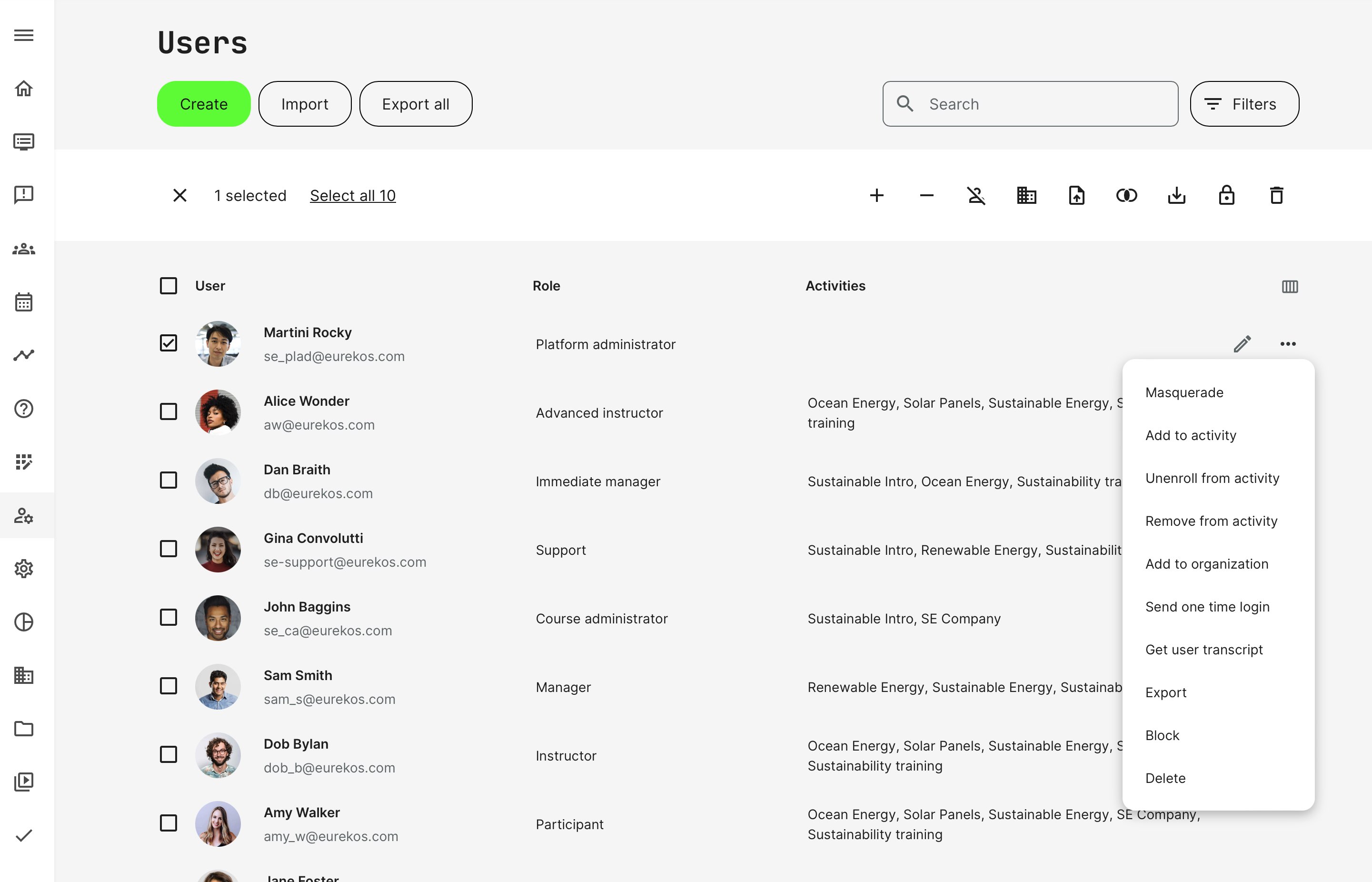
Bulk operations
Select multiple users at the same time to apply bulk operations - e.g., give two users access to several training activities in just one operation or export just a selection of users. Again, based on arbitrary filters and results.
The top bar to execute bulk operations shows up, when multiple users have been selected. Various scenarios will make these bulk operations very efficient ways to manage users. From left to right:
- Select all or multiple using the options or tick the boxes next to their image. Actions will apply to the selected users.
- Add to activity is a way to enroll the selected users to one or more Training Activities in a single operation. This allows an arbitrary selection of users to get access to an arbitrary selection of trainings.
- This is a manual enrollment and all processes, registration details, waiting lists et al, will apply as defined in the individual Training Activities. See more about enrollment in related articles.
- You can optionally inform users, as manual enrollment is default, a silent enrollment.
- Unenroll from an activity is a way to cancel individuals across an arbitrary selection of Training Activities they are already enrolled to.
- The combined set of activities the selected users are enrolled to, can be used to cancel users. If some of the selected users are not enrolled to those activities, they will not be affected.
- Cancelled users will typically be notified of their cancellation.
- Cancelled users will figure as cancelled for historic data, and can be re-enrolled with their previous progress restored.
- Remove from activity will fully remove the users and their historic data, as participants in a Training Activity.
- Add to organization will add the selected users to one or more organizations. A filter option based on the logic "No organization" can filter any users who are without organization, which empowers you to quickly isolate and manage these.
- Get transcript is a schedule based export, providing a training history per user in PDF format, for the selected users. Users can download these themselves, from their home page.
- Merge accounts will merge training history of two or more individual accounts. There are many reasons why a user might have multiple accounts, which is typically not a desired scenario. This will merge progress and training history of the accounts into one main account. Up to 10 accounts can be merged into the main account, as a single operation.
- Export users will export the selected users in a single excel sheet, rather than all users in the database.
- Block users will block the selected users from accessing the platform. Blocked users can be unblocked (active) by a user administrator again.
- Delete users will fully remove users and their training history from the platform. It is not possible to recover this, other than from a backup and within a limited period of time.
- This does not remove content they have created - e.g., a course or posts they have shared in the communities. However, these will be anonymized and have anonymous as "author", for example.
Options for individual users
Individual users can be managed on the 3 dots and several useful features are available through these options.
- Masquerade is the ability for an administrator to impersonate as another user. This can also be performed from the main menu when expanded, but this is direct selection.
- Great for support and trouble shooting or simply testing, using a test user to see the effects for regular participants.
- Be aware that you are this person, in terms of analytics.
- Add to activity is a way to enroll the user to one or more Training Activities in a single operation. Effective to give a user access to a set of trainings without going to each activity, one-by-one.
- This is a manual enrollment and all processes, registration details, waiting lists et al, will apply as defined in the individual Training Activities. See more about enrollment in related articles.
- You can optionally inform the user, as manual enrollment is default, a silent enrollment.
- Unenroll from an activity is a way to cancel the user across an arbitrary selection of Training Activities he is already enrolled to.
- A cancelled user will typically be notified of his cancellation.
- A cancelled user will figure as cancelled for historic data, and can be re-enrolled with his previous progress restored.
- Remove from activity will fully remove the user and his historic data, as participant in a Training Activity.
- Add to organization will add the user to one or more organizations.
- Send one time login is an effecient way to manage users who claim they didn't receive their notification to create a password. Remember to inform them to check their spam folders.
- Get transcript is a schedule based export, providing a training history in PDF format for the selected user. Users can download these themselves, from their home page.
- Export will export the selected user in a single excel sheet, rather than all users in the database.
- Block users will block the selected user from accessing the platform. A Blocked user can be unblocked (active) by a user administrator again.
- Delete a user will fully remove the user and his training history from the platform. It is not possible to recover this, other than from a backup and within a limited period of time.
- This does not remove content the user has created - e.g., a course or posts the user has shared in the communities. However, these will be anonymized and have anonymous as "author", for example.
Compact and expanded view
To the right of the User list the column icon toggles between the compact- and the expanded view.
- The default view is the compact view, which shows the user name, email, role and the activities a user is enrolled to.
- The expanded view shows more columns and will also show when the user was originally registered on the platform, when their last login was and the organizations they belong to.
Exporting the user database
The export will create an excel spreadsheet with the selected users, whether this is is all users or just a few. The format is defined by configuration of the User Profile and will change, if tags and fields are changed on the User Profile.
The import and the export format is identical. These are both based on the User Profile configuration and are integrated into all the related processes.
Import and enroll users via spreadsheet
Use the spreadsheet to import users in bulk, when you have a lot of users to create.
- Apart from importing new users to the platform, the excel sheet also allows user enrollment in bulk.
- Users can be enrolled to multiple Training Activities in one import operation and is a very efficient way to manage large groups of users, which could be delivered to you from a partner or client.
- Minimize your administration and is also useful to make updates to existing users in bulk.
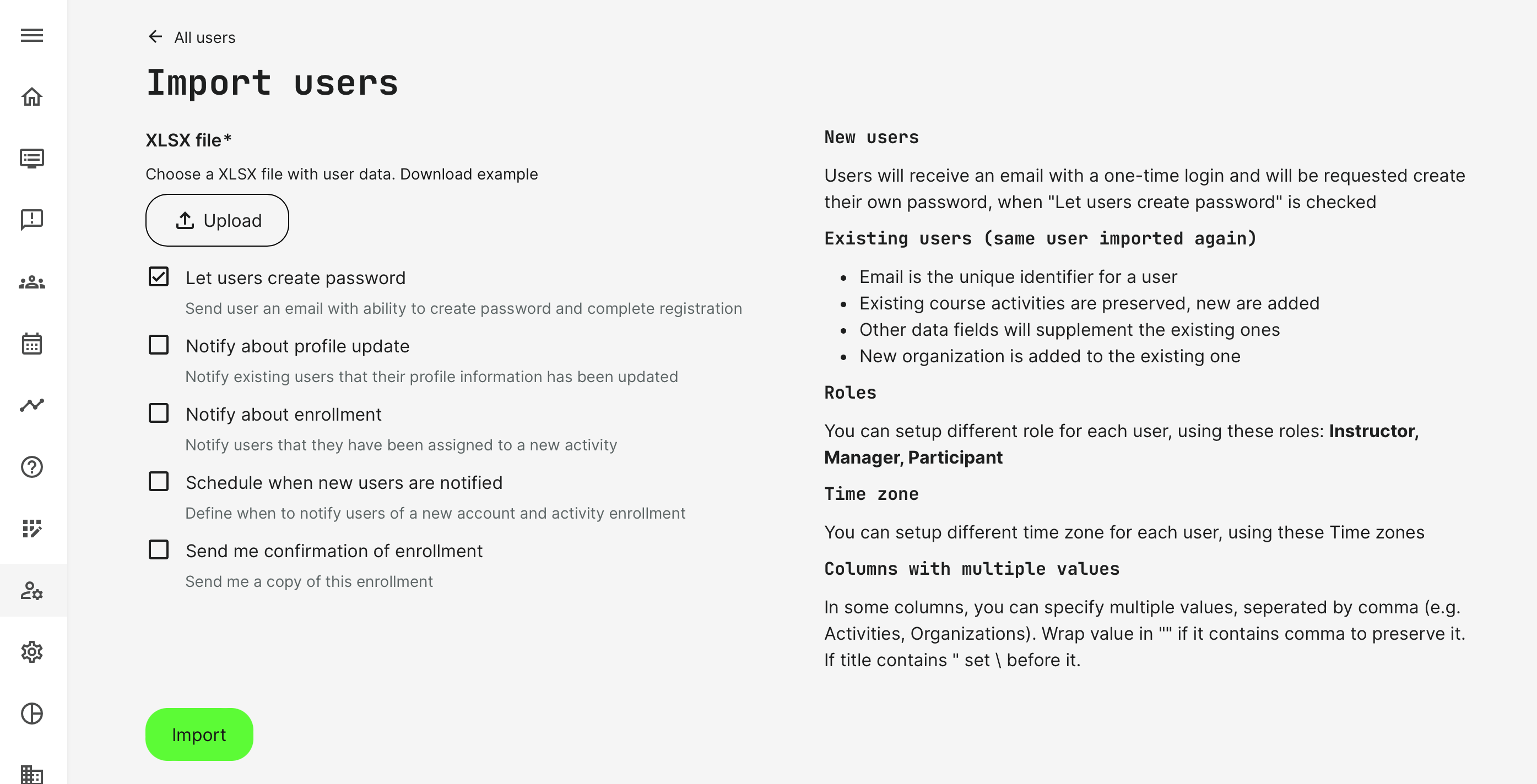
Make sure you download the example file. This is a spreadsheet created from your configuration of the User Profile at the moment of download.
The most common approach is to let users create their password upon creation. This means a new user will get an email with a simple request to complete the registration and create a password, upon which the user gets access to the platform with any assigned training activities. If the user already has an account, no email is sent.
- You can alternatively, provide a predefined password, which is convenient for some use cases. In that case the users will receive no email and would have to be instructed how to enter the platform by other means.
- Other options provide scheduling and notification for various scenarios. Consider carefully any additional notifications and remember that new users will not benefit from addtional emails before they have an account created.
- The language of the emails are based on the user's language setting. This is also set in the import file.
- Use the import sheet as it is and don't delete columns or change their order.
- The import sheet will allow you to add the training acitivity title to enroll users in the appropriate training activities at the time of creation if you wish. This way you can minimize administration.
- Uploading the same person twice, will simply update profile information and add any additional Training Activity.
- If you import a list of users and the email is not formatted according to conventions you will get a report following the import with the problematic emails. Use this to double-check any mistakes. When emails bounce (no recipient), this is not something the platform is solving.

The roles Participant, Instructor and Manager can be imported in bulk. Any other roles will need to be managed manually to prevent bulk import of users with high permission level and the ability to "upgrade" permissions beyond your own role.
Be careful not to include yourself in the list, as you would effectively removing your own administration rights.