Create a new user - Article
Manual and automatic user creation can be executed in several ways, to support a variety of use cases
There are multiple settings ways to create new users. This can be manual, automatic, as well as easily facilitated through other systems.
Creating a user is often also related to enrolling in training activities and potentially related to purchase processes and more. Other articles address these topics from different angles.
Creating a user will not provide access to any training on its own. This can be combined with other processes, including onboarding rules to assign Training Activities automatically, based on user profiles, etc.
Users can be created in the following ways:
- Manual creation from the User list.
- Manual creation and combined enrollment from the activity. This includes reservation for a new user.
- Import via excel sheet.
- Shared links/invites and QR codes from activities and the organization.
- Sign up and self-enrollment.
- API.
- Authentication and creation via OIDC and SAML.
- Managers - on behalf of others.
Manual creation from the Users list
The list shows all the registered users, regardless of their relation to various courses and individual roles. They are default sorted by the date of registration with the latest being on top. Search and filters can be used find and show exactly who you need.
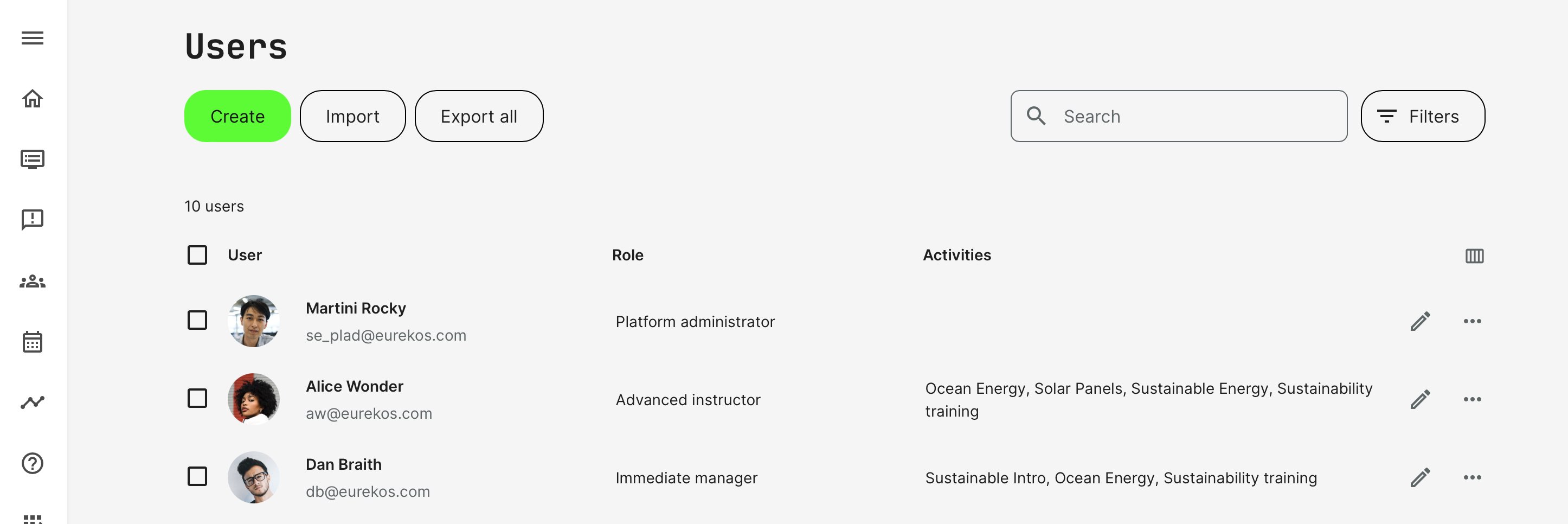
They are default sorted by the date of registration with the latest being on top. Search and filters can be used to find and show exactly who you need, for easy management.
To create a user, manually, simply click Create. The create user form is accessible from several different features and will have identical, or almost identical options.
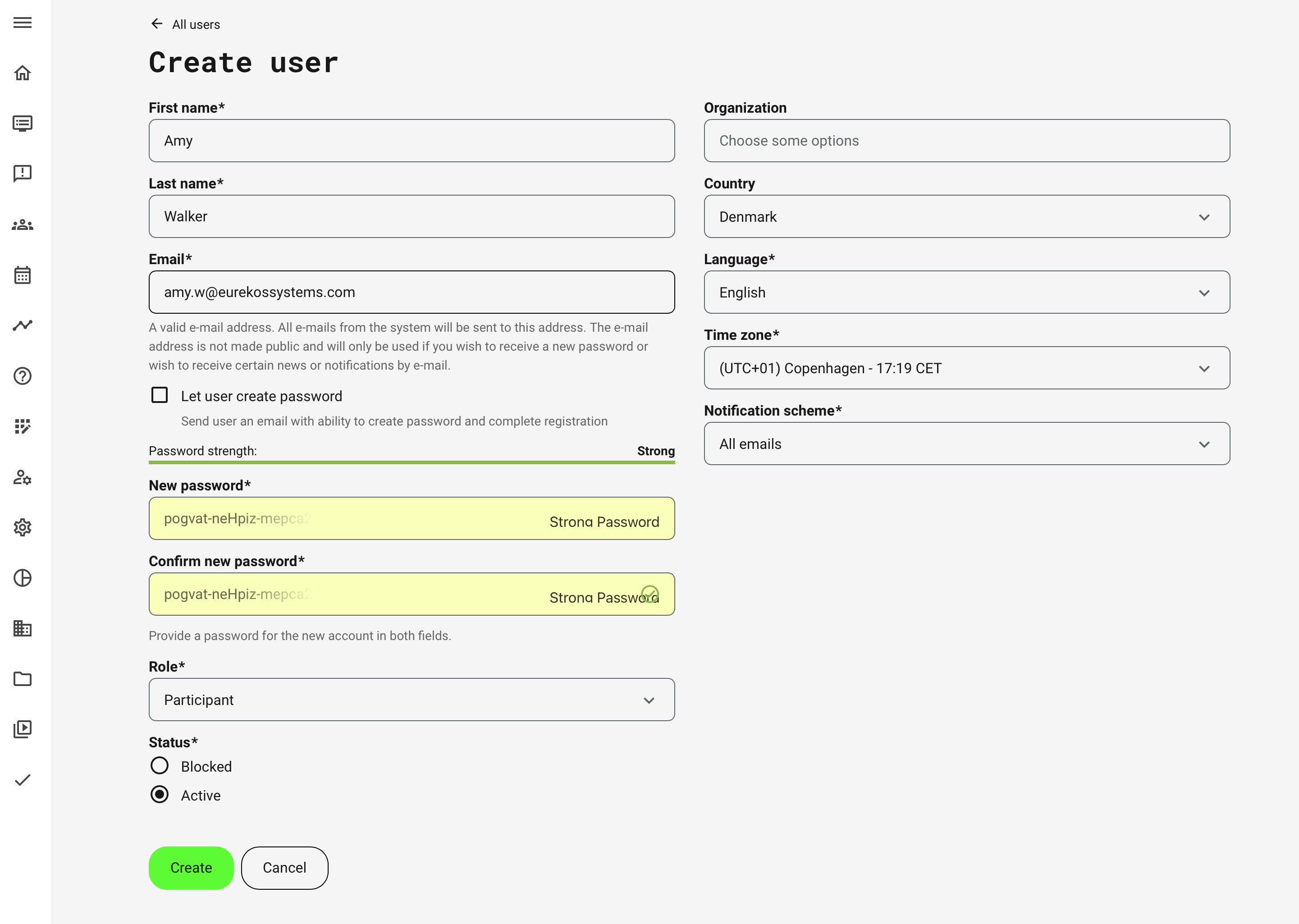
When creating a new user, you can either choose to let the user create their own password or create one for them right away.
- Provide First name, Last name and Email.
- Let the user create their own password will send a standard email and ask the user to create a valid password. Once this has been performed, the user becomes a registered user and a participant on this Training Activity.
- If you create a password, you will have to inform the user of their password, yourself. This is a silent user creation and gives you the freedom to choose when and how this happens.
- Tip: this is a great way to create test users, as no emails are sent upon creation.
- Select the role of the user. Default is participant, which is what you will assign to most users. See detailed role descriptions in a separate article.
- As most users are active upon creation, this is the default choice. If you want to create a blocked user, this means they will not receive emails at all and will not be able to log in.
- A number of options, such as Organization, Country, Language, Time zone and Notification Scheme are either mandatory or optional data fields. These and other configurable options are defined on platform level by the platform administrators and can vary. More data and enriched user profiles will allow more granular access to content and automation features. A few comments on the typical use cases for this example:
- Organizations are used when there is a need to segregate users into a hierarchy of clients, distributors, etc. This will provide isolated options for user management, analytics insight, etc.
- Country will impact VAT calculations, when applicable.
- Language impacts the interface of the user - e.g., if the user is created with a Spanish language setting, the platform menus, emails and options will be in Spanish. You can only choose languages the administrator has activated.
- Time zone will impact schedules and adjust any time/date information to the user's time zone and format.
- Notification scheme is an approach and represents the general barrage of emails the user will be subject to. Even "No emails" would send a request to recover a password, for example. You can maintain these schemes on platform level.
Manual user creation and simultaneous enrollment
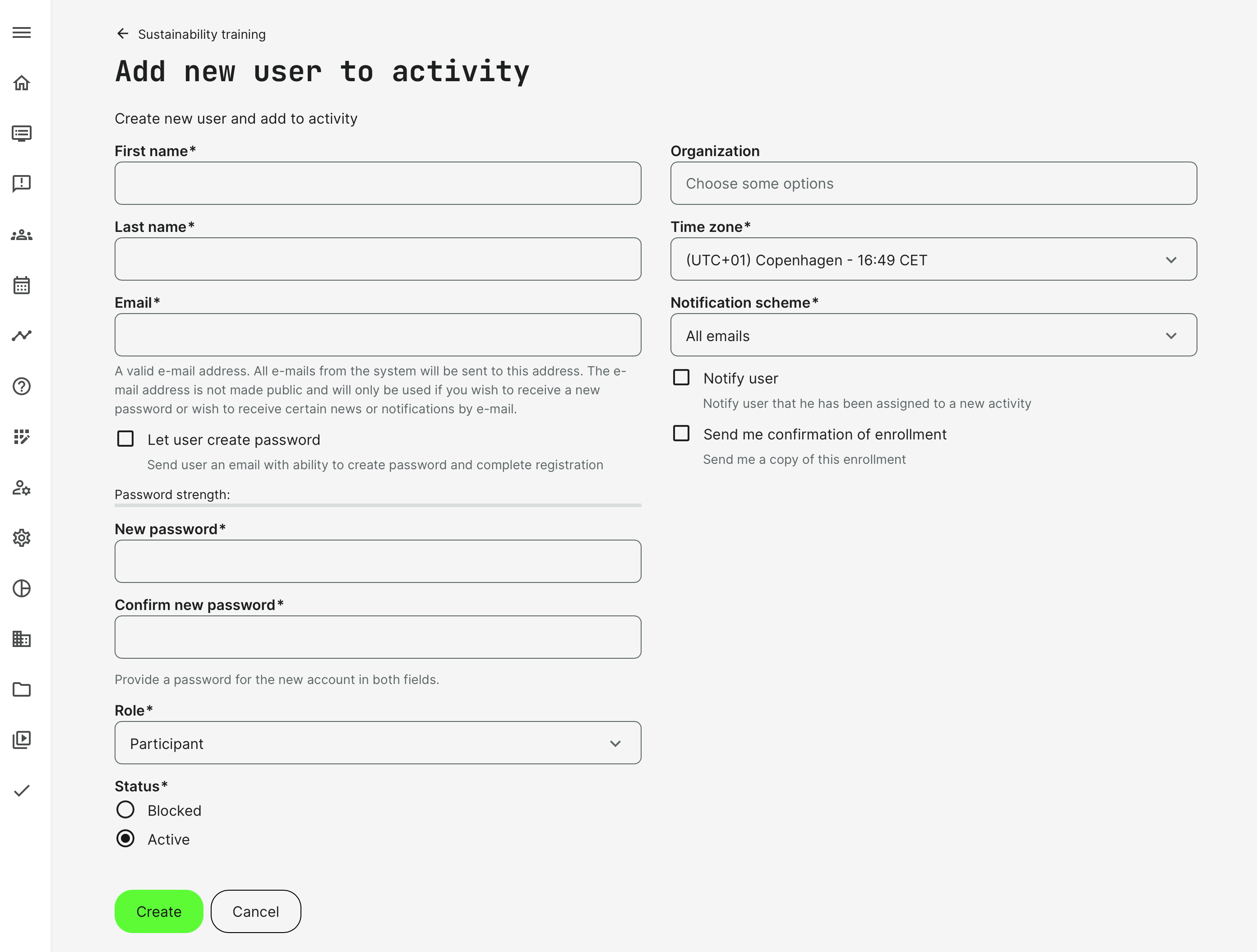
From inside the activity you can enroll participants directly by creating a new user, register the user on the platform, and enroll the same user to a specific Training Activity in a single operation.
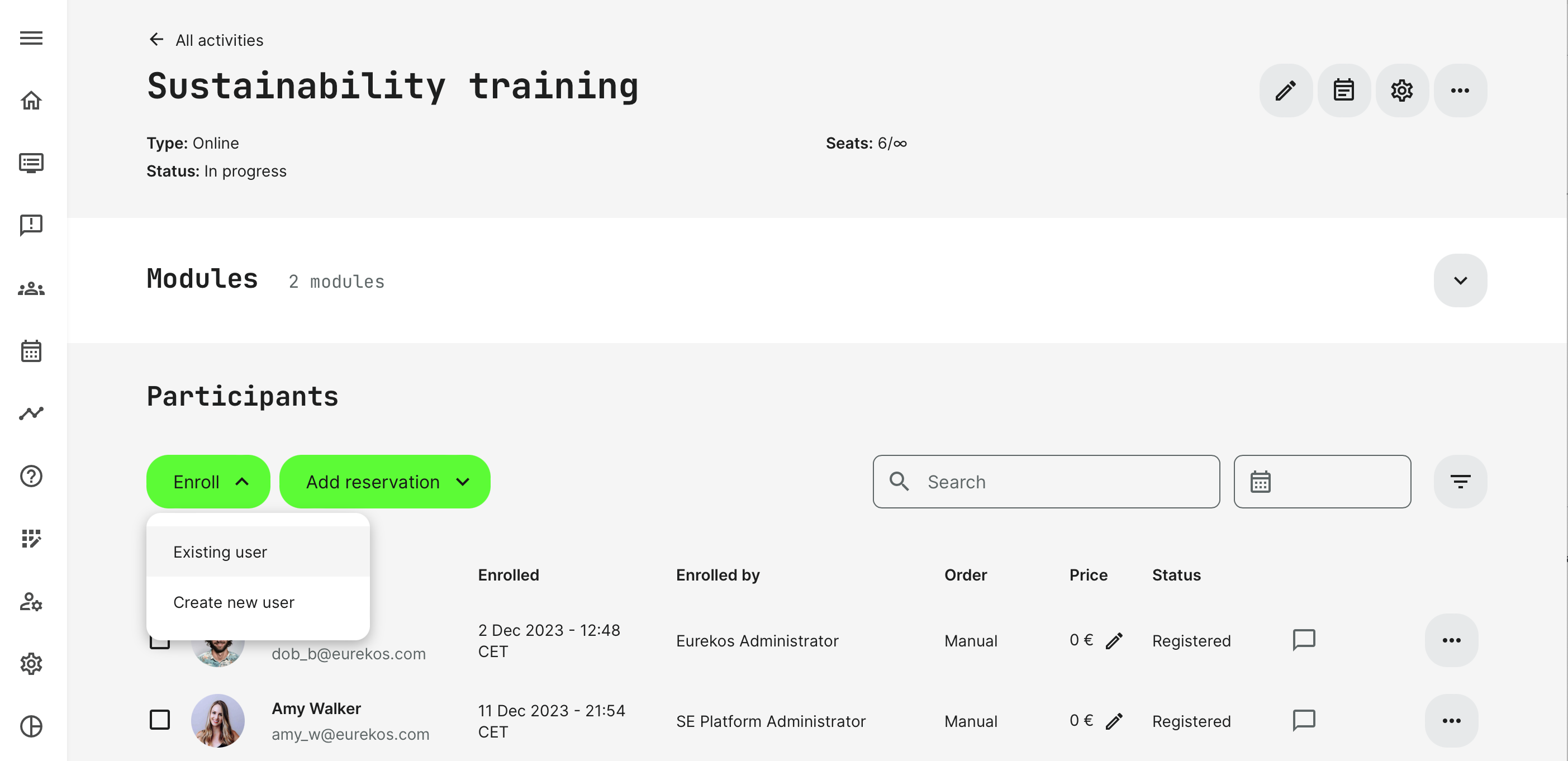
The form to create the user is almost identical, with the added option of additional notifications related to enrollment. Consider your process carefully, as this will submit more emails to your audience. If most users are new, it will likely be enough to receive an email with the request to create their password.
As this is also manual enrollment:
- Should a Training Activity have a price, there is no payment through this process.
- Any invoicing and other subsequent processes can be managed through the API or by exporting participant lists and address this as a separate operation.
- Reservations are a subset of manual enrollment options and the process can be based on new user creation as well. This is relevant for securing seats on virtual- or instructor led trainings with a limited number of participants. Reservations mean that users don't get access to the trainings until their status changes from reserved to enrolled.
Import and enroll users via spreadsheet
Use the spreadsheet to import users in bulk, when you have a lot of users to create.
- This allows user creation in bulk.
- Apart from importing new users to the platform, the excel sheet also allows user enrollment to Training Activities in bulk.
- Users can be enrolled in multiple Training Activities in one import operation and is a very efficient way to manage large groups of users, which could be delivered to you from a partner or client.
- Minimize your administration and is also useful to make updates to existing users in bulk.
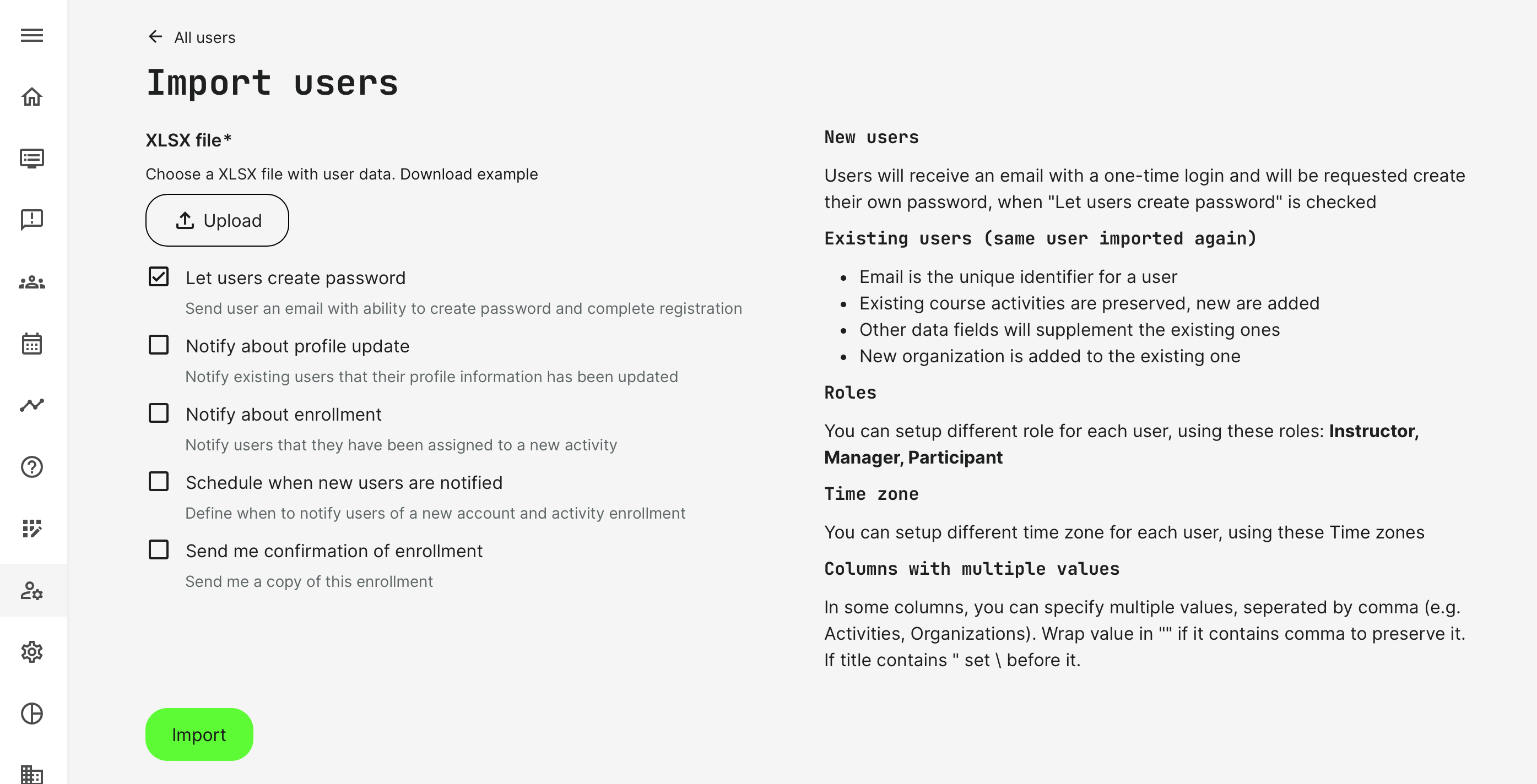
Make sure you download the example file. This is a spreadsheet created from your system configurations exacty at the moment of download.
- This file will match the user profile of your system configurations, including what is mandatory and what is not.
- Use it as it is, and don't delete columns or change their order. Do not remove the headline.
- The import sheet will allow you to add the Training Activity title to enroll users in the appropriate training activities at the time of creation if you wish. This way you can minimize administration.
- Uploading the same person twice will simply update profile information and add any additional Training Activity.

Enrollment via QR-code and direct links
You can generate a QR code that can be used as a fast enrollment option. Users will be directly enrolled into the activity. Multiple additional options are available alongside this enrollment type, which is designed to offer custom scenarios:
- Effective and easy way to facilitate specific agreements, made with clients on individual basis.
- Allow enrollment in activities that are not publicly available, but can only be accessed through shared links.
- Convenient for partners who wish to either distribute links themselves, OR present links to enroll somewhere on their own platforms, intranet, link directly from their own 3rd party LMS, etc..
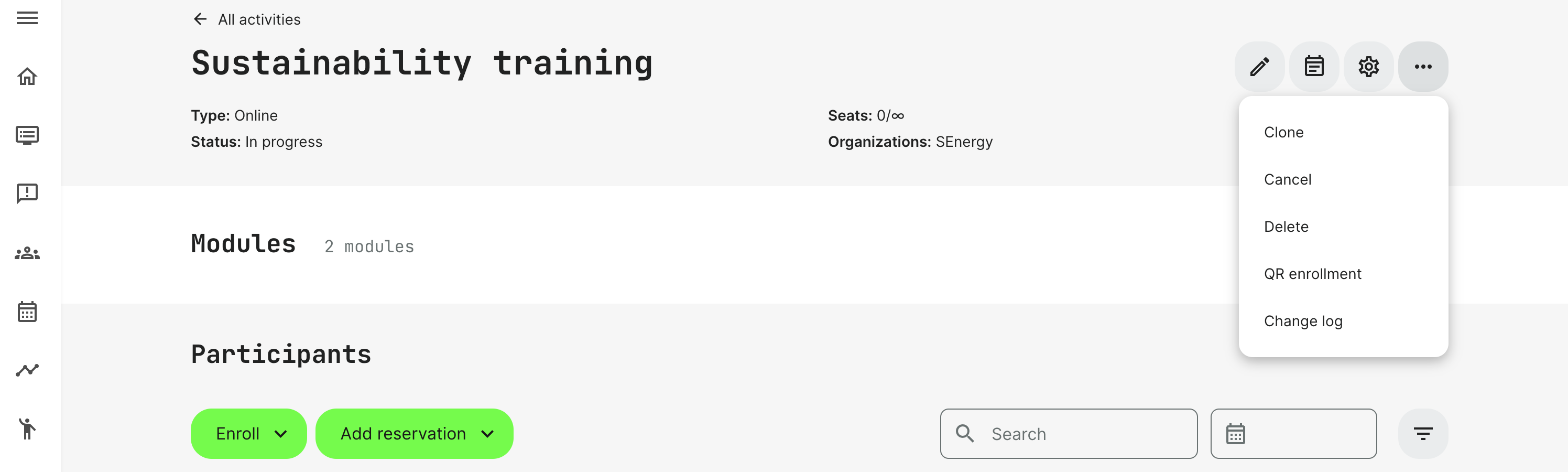
Whichever reason, the following still applies:
- A registered user will log in during the process.
- An unregistered user will have to create a user during the process. This will adhere to the sign-up form when users are signing up on their own.
- Waiting lists applies.
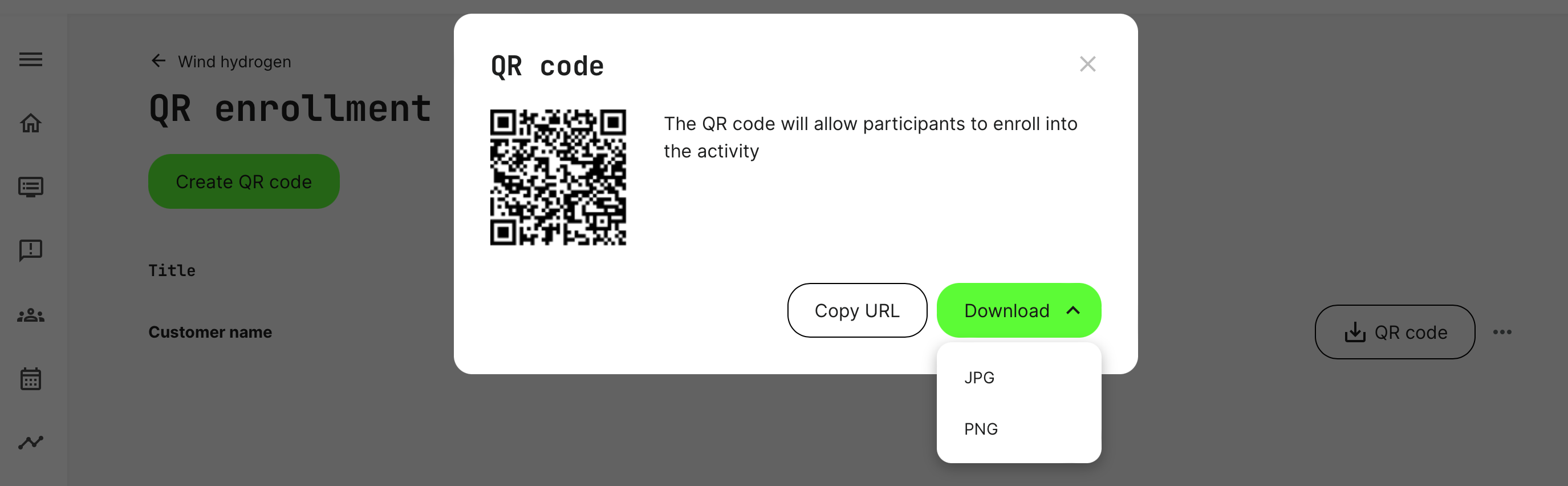
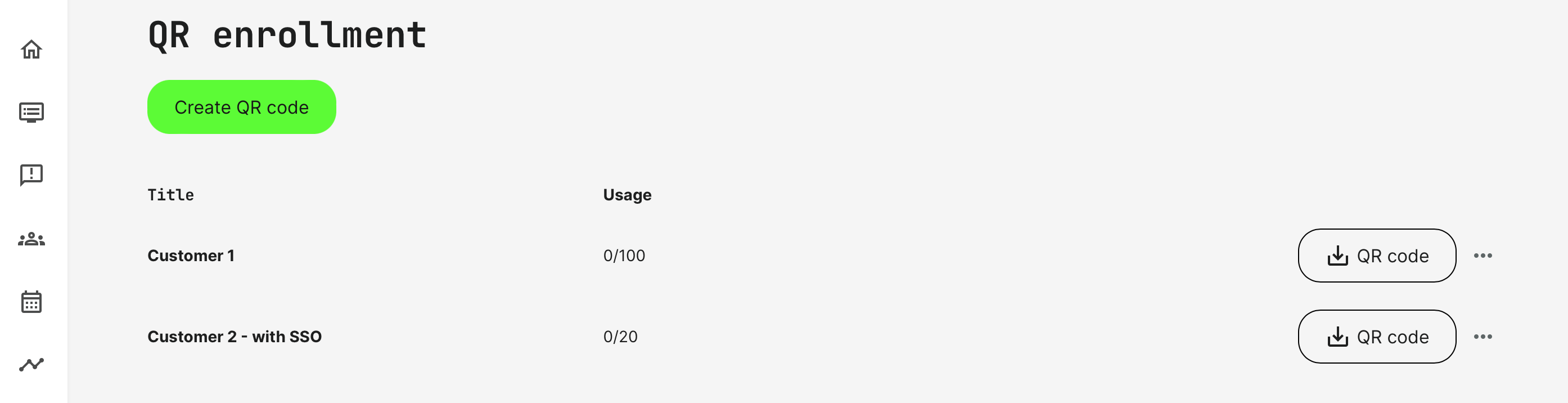
- QR codes/links can be limited to be used a number of times. This way you can distribute a QR code and limit it to e.g., 100 enrollments.
- Any number of individual QR codes/links can be created from within an activity. This way you can distribute different codes with different usage restrictions to a number of different clients and organizations.
- QR codes/links can include SSO/authentication through a specific service on individual basis. This means you can have multi-federation and distribute specific links to facilitate an authenticated sign-up, coming from any OIDC/SAML service, set up with partners and clients. Users will be created upon log in, using their regular credentials and get access to the training activity immediately.
- QR codes/links can be rendered inactive, if you at any point see or suspect that the shared link is subject to abuse. Create a new QR code/link and reshare with your trusted partner.
A prerequisite to SSO/authentication through a federated service is configured in collaboration with the partner, who will allow their users to log in to your platform.
User sign up and self-enrollment
Users signing up is an alternative to administrators creating users manually. This is still a manual user creation, simply through a different process. When the store front is active you also expect prospects to be able to create a user while enrolling to your offerings. This is called a sign up.
- An unregistered user can be offered the option to sign up.
- The required data fields are configured through the sign up form. The sign up form can be customized in much the same way as the create user form, allowing for a different intake of information.
- Invitation processes can also require users to sign up. Invitation and promotion flow is an opt-in feature option.
API
The open API lets you create and enroll users to training activities through other systems and services owned by you. The Platform Administrator or Global Administrator can configure this.
To start working with the API, Postman is needed. Please read the related article on configuring the API.
OIDC/SAML authentication and user creation
Users can be created automatically upon log in from a 3rd party system. This can be a customer portal, Microsoft Azure AD, Google or any other system supporting either OIDC or SAML. Between the two standards you can connect almost any service in the world.
- Users are typically created and updated when they log in.
- They keep their regular credentials and don't need a new password to log in to the platform.
- Users and their profiles are updated every time they log in, as a minimum.
- Easy user management. Once the authenticating service does not recognize a user, they will not be able to log in.
Managers
The Manager role can have the option to create and potentially invite people under his supervision.
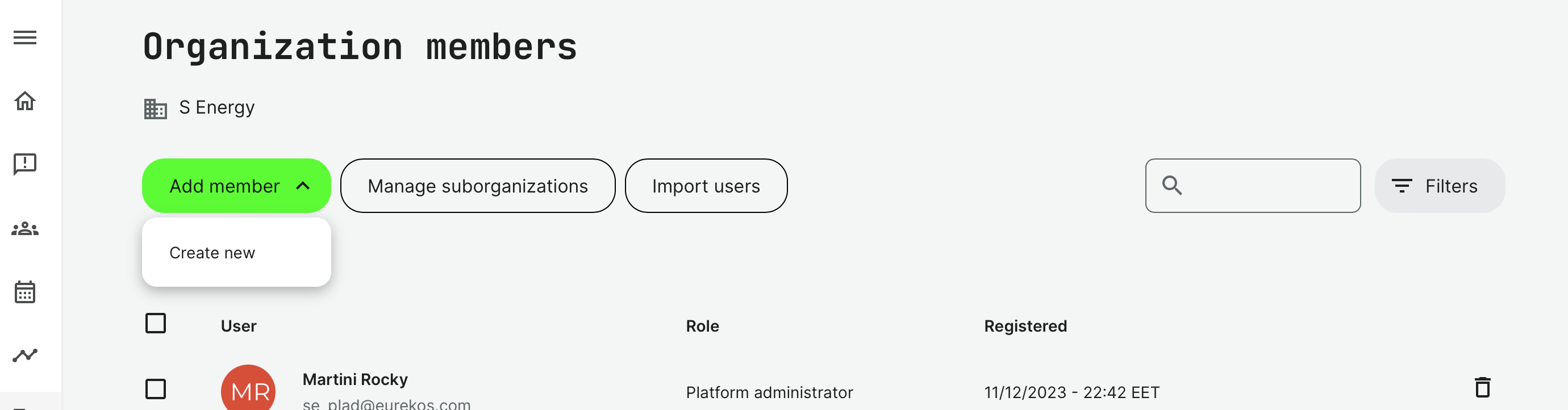
The Manager has special options by default. These can be disabled, if you don't want managers to have this capability.
- Create new users and let the user create their own password. This is the create user form.
- Invite new users, which is an opt-in configuration. This will let managers send an invite to new users and they will sign up.