13.5.0 - Release notes
Storefront Improvements - Sharper Branding, Smarter Rows, Clickable Banners
This release gives you significantly more control over how your Storefront looks and behaves. The global appearance settings have been reorganized and expanded, individual Storefront sections can now be styled more deeply, and two of the most visible Storefront elements — rows and banners — gain new options that make it easier to guide learners toward the content that matters most.
Together, these updates make it easier to align the Storefront with your organization's visual identity, and to use it more actively as an engagement and conversion tool rather than a purely functional catalog page.
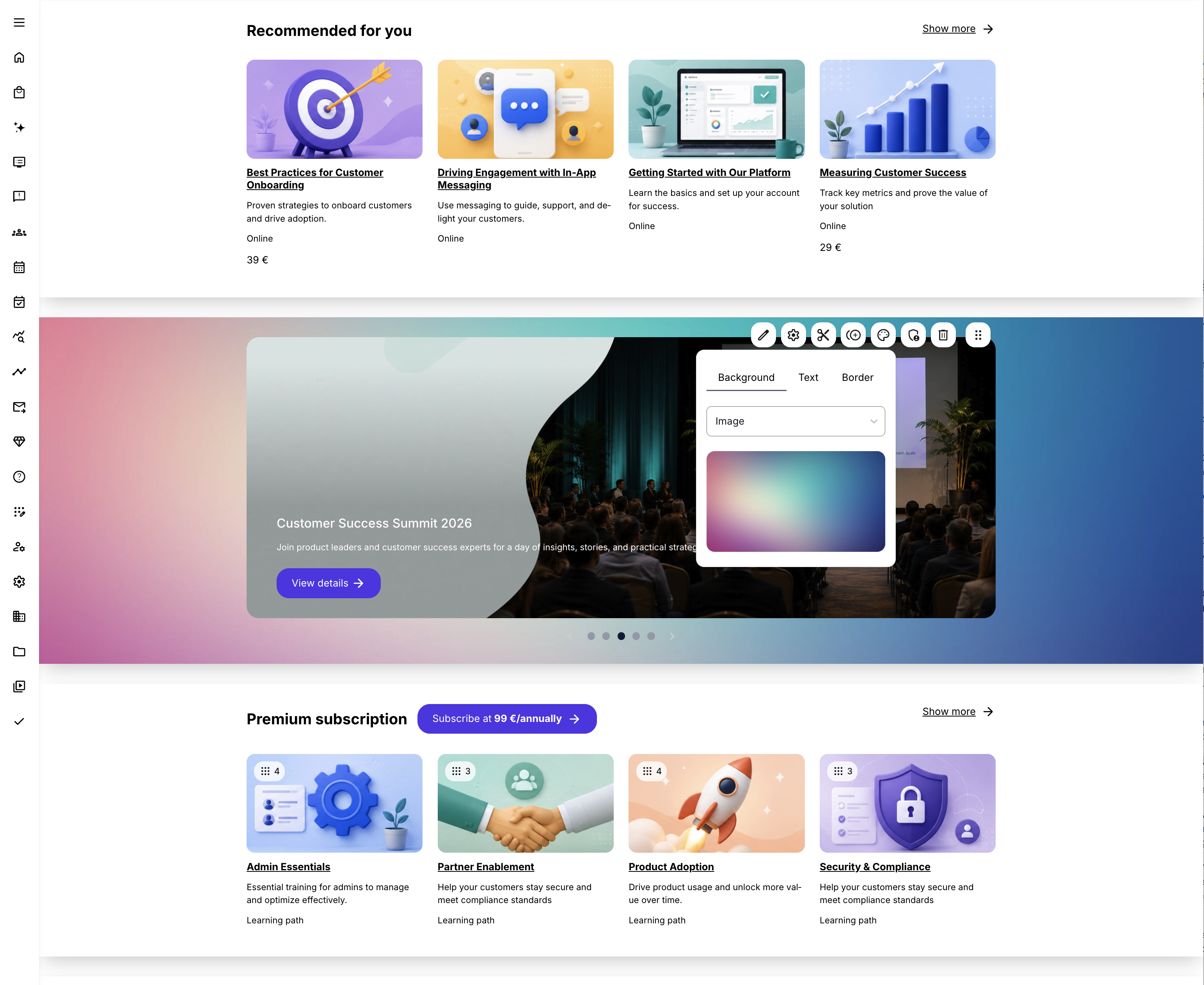
Appearance settings on the Storefront now work at two levels. Global settings, configured under Settings → Storefront → Appearance Settings, define the default look and feel across the entire Storefront. Individual sections can override most of these defaults with their own settings — the one exception is Shadow, which remains fully global and cannot be adjusted per section.
Features and Benefits
Expanded appearance settings, globally and at section level
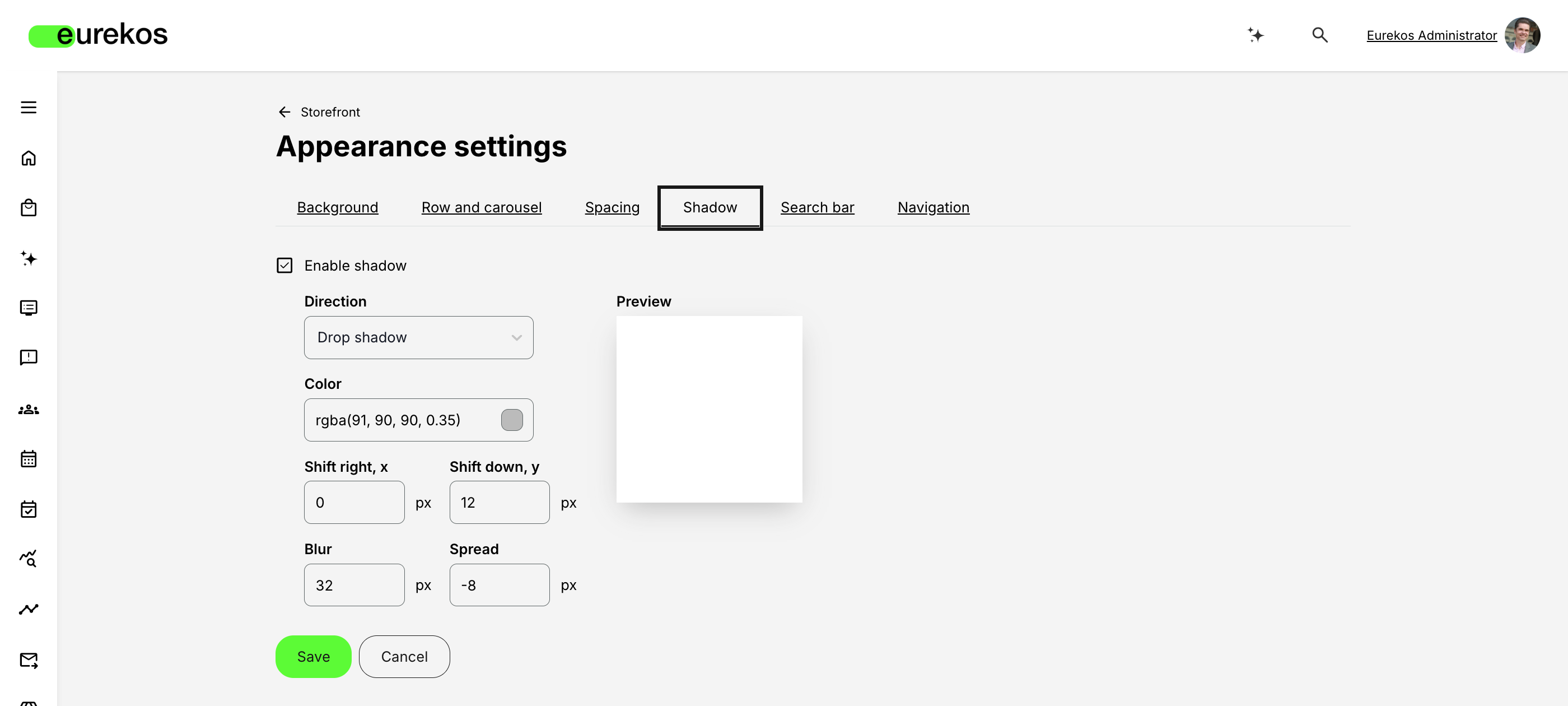
- The Storefront appearance page (Settings → Storefront → Appearance Settings) is now organized into six tabs: Background, Row and carousel, Spacing, Shadow, Search bar, and Navigation. Two of these are new. The Shadow tab lets you apply a Drop shadow or Inner shadow to Storefront sections, with a color picker that supports transparency. The Search bar tab gives you full styling control over the search field, quick filters, and autocomplete dropdown — each with its own background, text, and border colors. The global Background and Row and carousel color pickers also now support transparency, where previously only solid colors were available.
- At the section level, any Storefront section can now have its own background image, border (color and width), and vertical padding, using the same brand and custom color palette already available in the course authoring tool — letting you override the global look for a specific section. The Search bar section can now be styled the same way (background color or image, border, padding, and brand/custom colors).
Page descriptions for Storefront rows
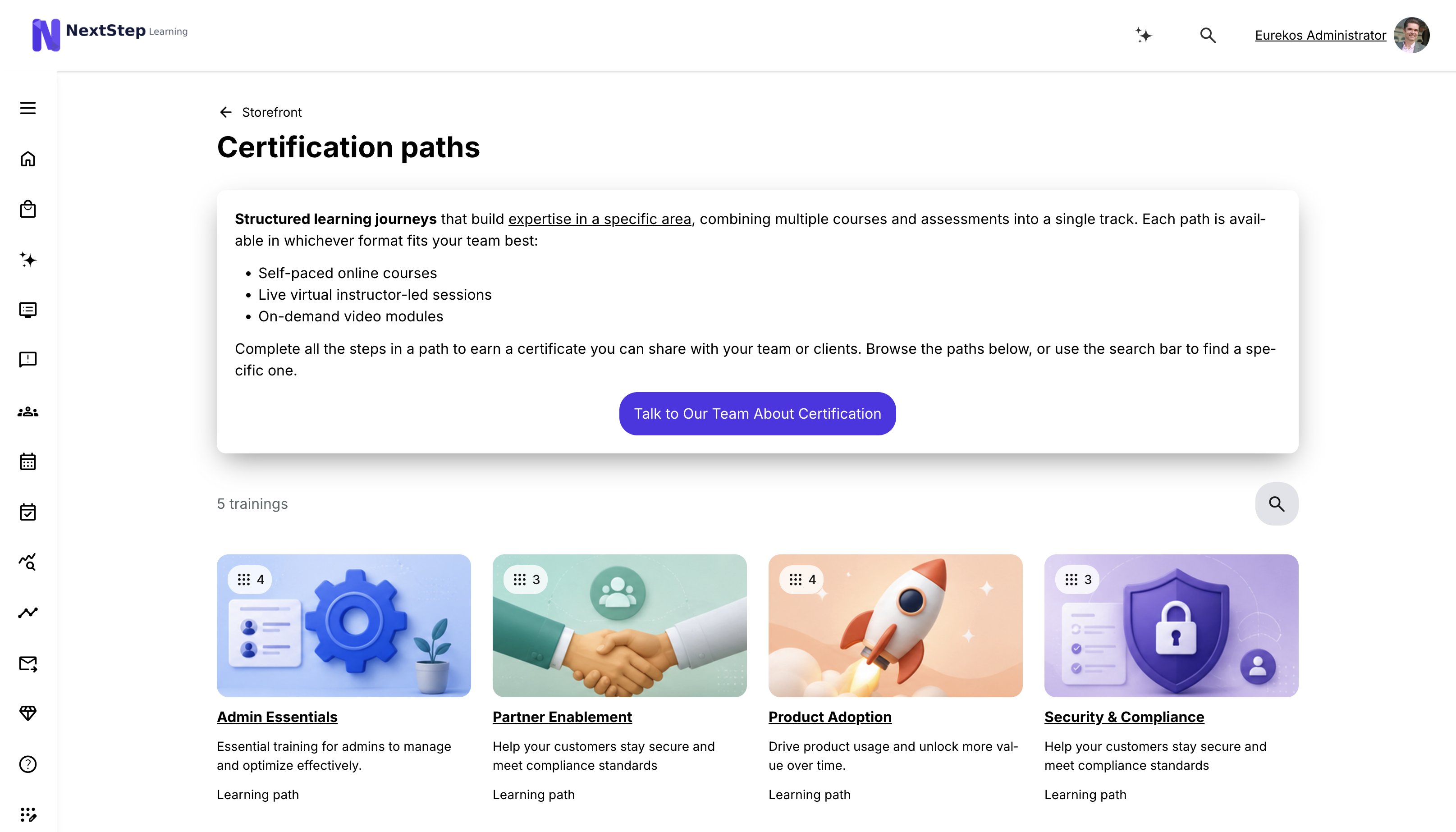
- Storefront rows can now have a rich-text Page description configured from Edit Row → Page Description. When set, the description appears at the top of the row's dedicated subpage — the page a learner reaches via Show more — giving you a place to add context, guidance, or promotional copy above the full list of activities in that row.
- The editor supports basic rich text formatting and links, and you can style the description block with its own background color, border, padding, and shadow. Image support in this editor is confirmed for our September release.
Clickable banners
- Banner sections now support click behavior. When enabled on an image banner, you can set a URL that opens in a new tab whenever a learner clicks the banner. This turns banners from purely visual elements into active calls to action, for example linking a promotional banner directly to a subscription page, a specific course, or an external campaign page.
Configuration
- Global appearance: Settings → Storefront → Appearance Settings, across the Background, Row and carousel, Spacing, Shadow, Search bar, and Navigation tabs.
- Section-level appearance: available via the palette icon on each Storefront section, now including a Background image option and a Border area (color, width, and vertical padding), alongside brand and custom colors.
- Storefront row page descriptions: Edit Row → Page Description, when creating or editing a row.
- Banner click behavior: on the banner section, open its settings (gear icon on hover) → Click behavior → enable and enter a URL.
Considerations
- Section-level appearance settings override the global defaults for that section — Shadow is the one exception and always follows the global Settings → Storefront → Appearance Settings → Shadow configuration, regardless of what is set at section level.
- Adding a Page description to a row causes that row to always display a Show more button and generate a subpage, even if the row contains fewer activities than its configured row size. Previously, Show more appeared only when the number of items exceeded the row size.
- The URL field for banner click behavior is a plain text field, not a content picker — it works for internal Storefront pages just as well as external destinations, but there's no built-in way to browse and select a specific activity or page; you'll need to have the exact link on hand.
Microsoft Teams - Automatic Attendance Sync and Co-Host Assignment
This release extends the Microsoft Teams integration in two ways that cut down on manual admin work around online meetings. Eurekos can now pull attendance directly from a Teams meeting once it ends, instead of requiring someone to mark attendance manually from the participant list afterward. And Responsible Instructors are now automatically given meeting-level control as co-hosts in Teams, rather than needing to be added by hand. Both changes are aimed at the same thing: making Teams-based training sessions run with less manual upkeep before and after the meeting itself.
Features and Benefits
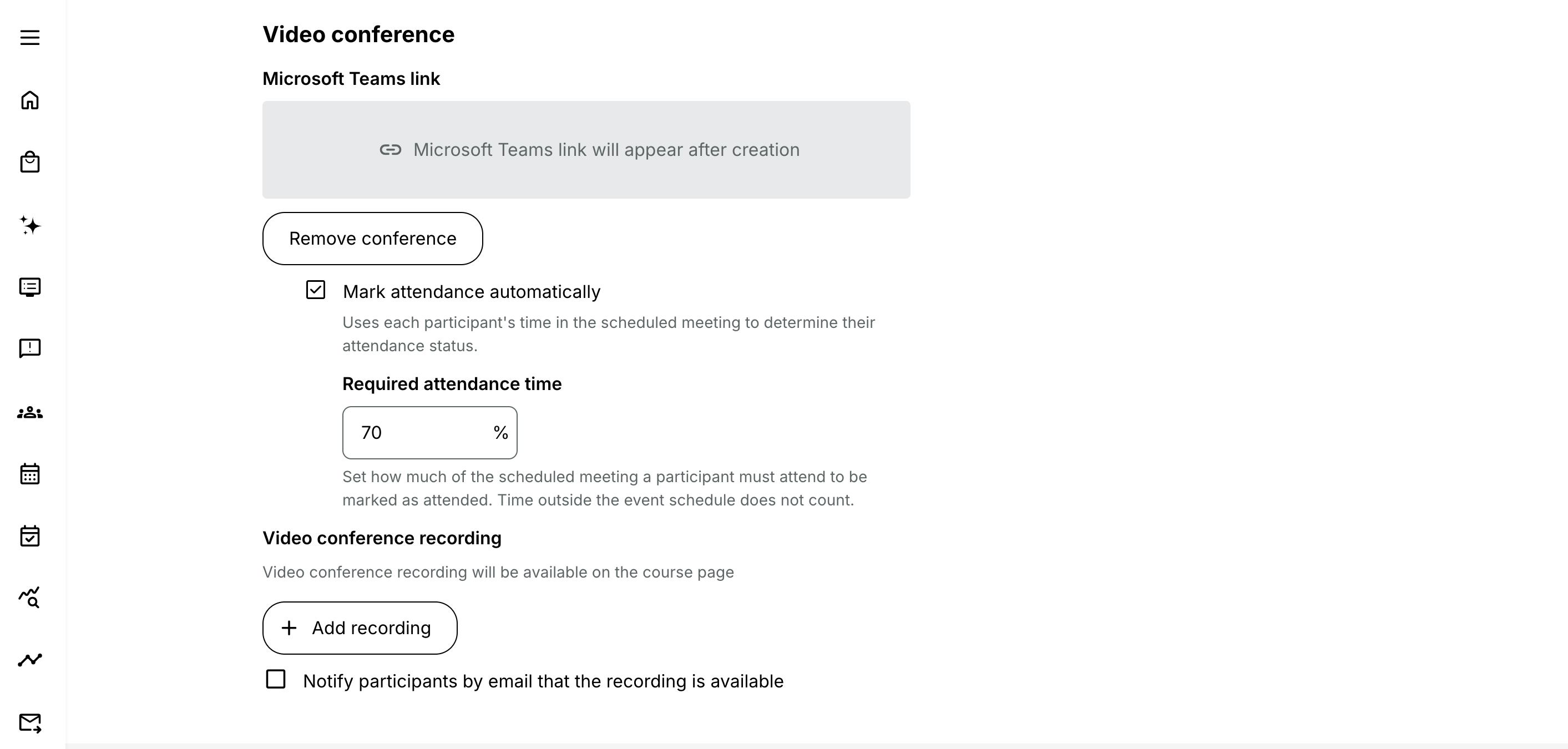
Automatic attendance sync from Microsoft Teams: For any scheduled online meeting using Microsoft Teams as the video conferencing tool — whether set up through an Event module, a calendar event, or a community event — Eurekos can now automatically pull each participant's attendance status from the Teams meeting after it ends. You control how strict this is with a Required attendance percentage, set on the event itself: participants who meet that threshold are marked present, everyone else absent. This replaces manually reviewing who attended and updating the participant list by hand.
Responsible Instructors added as Teams co-hosts automatically: Any Responsible Instructor assigned at module level, or a Responsible user assigned at activity level, is now automatically added as a co-host (co-organizer) in the corresponding Microsoft Teams meeting — no manual setup in Teams required. It gives instructors the in-meeting controls they need — managing participants, muting, screen sharing, recording — without anyone having to set that up separately.
Configuration
- Enable the integration setting: Settings → Third party integrations → Microsoft → Enable automatic attendance marking. This is required before attendance sync will run for any meeting — without it, the per-event percentage field will not be available. Co-host assignment does not require this toggle; it works automatically wherever Teams is used on an activity.
- Set the required attendance percentage: on the event itself, under Video Conference → Microsoft Teams, a Required attendance percentage field appears once Teams is selected as the conferencing tool. Enter a value from 1–100. The default value is 70%, which can be changed by reaching out to Eurekos support.
- Co-host assignment: no separate configuration — it happens automatically whenever a Responsible Instructor (module level) or Responsible user (activity level) is assigned on an activity using Microsoft Teams as its video conferencing tool.
Considerations
- Leaving the Required attendance percentage field blank sets the threshold to 0%, meaning any participant who joins the meeting at all — even briefly — will be marked present.
- Attendance status typically updates 10–15 minutes after a meeting ends, once Microsoft Teams generates the attendance report — this can take longer in some cases, so attendance won't necessarily reflect immediately.
- Only time within the event's scheduled start and end time counts toward the required percentage; time a participant spends in the Teams meeting outside that window isn't counted.
- If you're using breakout rooms, please note that time spent in breakout rooms is not counted towards the required attendance percentage.
- Once a participant is marked present, later syncs won't change their status — and if their attendance record is missing from a later sync, their existing status is left as-is rather than being reset to absent.
- Automatic co-hosting is available for activities only. Calendar Events and Community Events don't support assigning a Responsible Instructor, so co-host assignment isn't available for those event types.
For background on the wider Microsoft integration, see Microsoft in the help center.
Subscriptions Improvements - Ownership Transfers and Bulk Enrollment
This release gives subscription owners more direct control over their subscription, and administrators an easier way to find the subscriptions they're looking for. Owners of a Team subscription can now transfer ownership to someone else entirely, and enroll their subscribers into included activities directly from the subscription's own management page — building on last release's ability to enroll subscribers from the Storefront. On the admin side, the Ownership and Billing overview can now be filtered by organization.
Features and Benefits
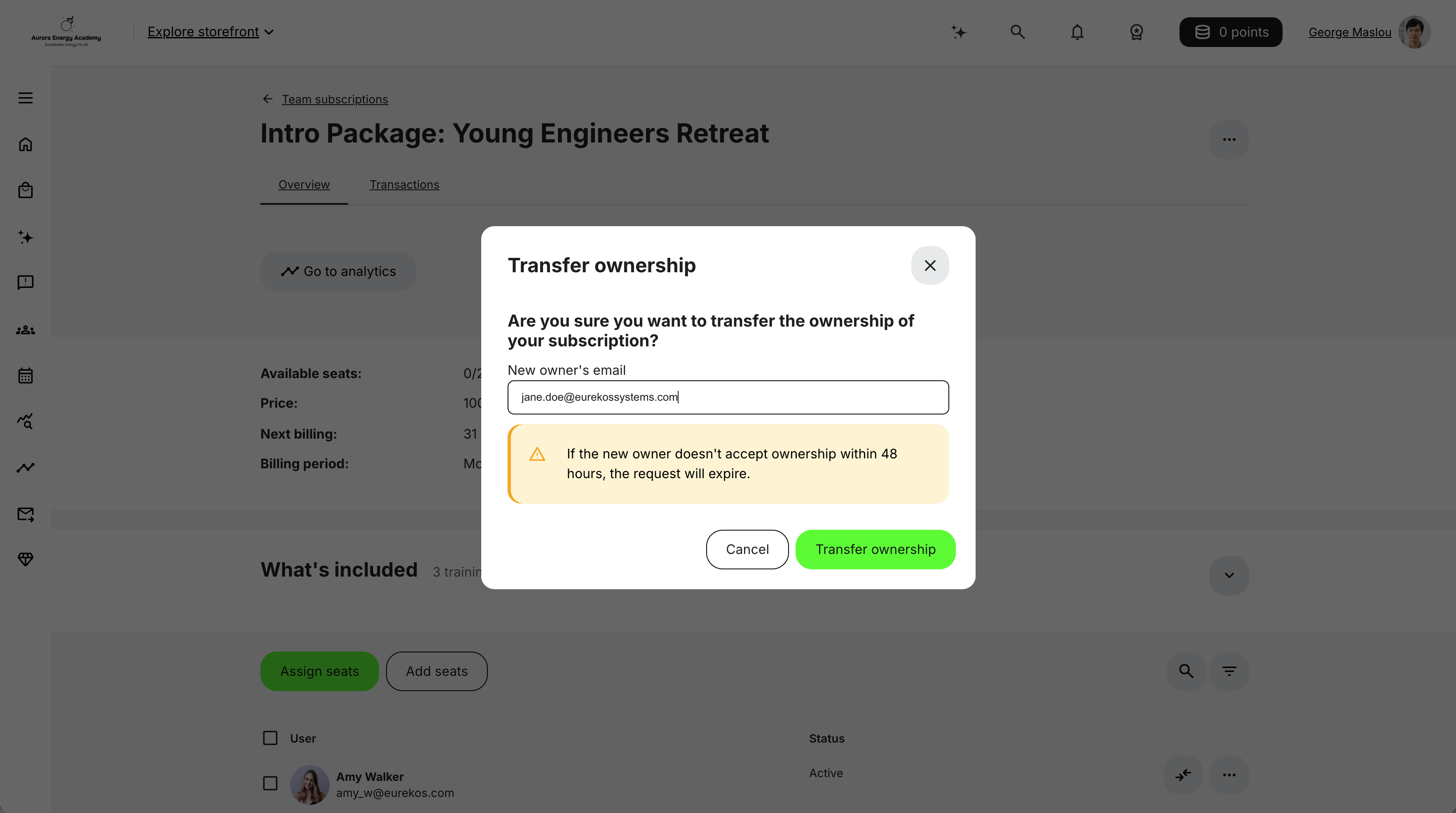
Transfer ownership of a Team subscription: Team subscription owners can now transfer ownership to someone else. From the subscription's [⋯] menu, choose Transfer ownership and enter the new owner's email — they'll receive an email invitation to accept, which expires after 48 hours if not accepted, and the current owner is notified by email if that happens. The current owner can also cancel a pending transfer at any time before it's accepted. Once accepted, ownership transfers immediately and completely, and the previous owner loses all management access to the subscription.
Enroll subscribers directly from the subscription page: Subscription owners can now enroll their subscribers into activities included in the subscription directly from the subscription's management page. Selecting Enroll from the [⋯] menu next to a subscriber — alongside Unassign user and Deactivate seat — opens a dialog listing the activities included in the subscription, so the owner can select one or more to enroll that subscriber into. Selecting multiple subscribers first enrolls them all into the chosen activity or activities in bulk. This complements last release's ability to enroll subscribers from the Storefront, giving owners a second, more direct path to the same outcome from the subscription page itself.
Filter Ownership and Billing by organization: The admin overview at Course Administration → Subscriptions → Ownership and Billing can now be filtered by organization, making it easier to find the subscriptions relevant to a specific organization when managing subscriptions across many of them.
Considerations
- Transfer ownership is available for Team subscriptions only; Managed subscriptions don't have this option since their ownership is already established through the existing owner-acceptance flow when an administrator creates them.
- Accepting an ownership transfer is immediate and irreversible: the previous owner loses all management access right away. Existing seat assignments and subscribers are unaffected — only who owns and manages the subscription changes.
For background on how Team and Managed subscriptions differ more generally, see Use Cases and Management Overview in the help center.
Security Improvements 🔐
- Security Dependency Updates: Updated security-related libraries to newer secure versions, incorporating security fixes and maintaining protection against known vulnerabilities.
- Frontend Dependency Security Updates: Applied non-breaking security updates identified through npm dependency auditing, addressing known vulnerabilities in third-party dependencies.
- Improved Protection Against Cross-Site Scripting (XSS): Strengthened handling of HTML content by addressing potentially unsafe rendering patterns, reducing the risk of malicious content being executed in the browser.
Shortlist of Additional Noticeable Changes
- Certificate report includes CEU and Skills columns: The Certificates report (Analytics → Certificates) now includes two additional columns, CEU points and Skills, showing the CEU points and Skills connected to each certificate. Both are conditional on CEU and/or Skills being enabled in the first place (Settings → General) — previously, getting this overview meant combining data from multiple reports.
- New Automated Email Workflow tokens for Immediate Manager and organization: If you're using the Immediate Manager module, two new tokens are available for Automated Email Workflows: [user immediate manager full name] — useful for referencing a user's manager by name in any automated email (if a user has multiple immediate managers, all are listed, separated by commas; if none is assigned, nothing is shown) — and [user organization], which includes all organizations and sub-organizations a user belongs to.
- New system emails for Assignment comments: Two new system emails notify people when a submitted Assignment is commented on: Assignment commented - instructor (sent to all responsible instructors when a participant comments) and Assignment commented - user (sent to the participant, and any other responsible instructors, when an instructor comments). Both are available under Settings → Email sending → Activities.
- Enrollment restrictions now flagged to unregistered visitors: For activities with Self enrollment and Restrict self-enrollment until criteria are met enabled, unregistered visitors browsing the Storefront now see a note in the enrollment block: "Self-enrollment may require you to meet certain requirements. Click enroll to log in and check your eligibility." Previously, only registered users who didn't meet the criteria saw any indication (a See requirements button) — unregistered visitors saw a plain Enroll button with no hint that enrollment could be restricted.
- "Points on completion" shown on the enrollment block: If you have Incentives enabled (Settings → General), the enrollment block on the Activity Description Page now shows Points on completion — the number of incentive points a learner will earn for completing the training.
- New schedule filter and end date field for the Activities list: The Activities list (Course Administration → Activities) now includes a Schedule filter — All, Scheduled, or Without schedule — alongside a new End date calendar picker, joining the existing search field and Starting from date filter.
- Managers can be granted permission to manage roles within their organization: A new configuration — enabled by contacting Eurekos Support — lets Managers change a user's role within their own organization (from Participant to Manager or vice versa), or create new users directly with the Manager role.
- Username can now be disabled on Profile forms, and gets its own column in User import: The Username field could previously only be disabled on Signup and Enroll forms; it can now also be disabled from Settings → Forms → Profile. A new Username field is being added to User import, and disabling Username on the Profile form removes it from User import as well. If your platform allows non-unique emails, don't disable the Username field — doing so will break that setup.
- Progress report exports now respect organizational scope for deleted users: Improved the handling of deleted users in hierarchical organizations to ensure that Progress report exports consistently follow the manager’s organizational scope. Deleted users can be included in the report upon configuration by Eurekos support.
- Sorting options for the H5P archive: The H5P archive page can now be sorted by Update date, Creation date, Title, or Type, in ascending or descending order.