Use Cases and Management Overview - Article
Summary
Subscriptions in Eurekos combine recurring billing with flexible access management for individuals and organizations. Personal and team subscriptions support scalable learning delivery while allowing subscribers and administrators to manage access, seats, billing plans, and subscription lifecycle actions efficiently.
In this article you will learn:
- How personal and team subscriptions differ and when to use each
- How subscribers manage billing, plans, and subscription lifecycle actions
- How administrators oversee subscription access and seat management
- How subscription management supports scalable learning delivery models
Eurekos offers both Personal and Team subscriptions, supporting individual learners as well as organizations that manage access for multiple users. This provides a wide range of features that enable efficient self-service subscription management for subscribers. Options are reflected through their subscription purchase.
Personal Subscriptions
Personal subscriptions are those where the individual users has access to their own personal use, and control of payments, billing, etc. An individual subscriber always have access to the subscription (content) and their actions impact only their own decisions. Subscriptions are accessed from the Main menu → Subscriptions.
The Subscriber
Users can view their active subscriptions—either as a list when they have multiple subscriptions, or directly in the subscription details view when they have only one. In the details view, subscribers can review key information such as what's included, price, billing period, next billing date, and any scheduled cancellation.
The [More] menu shown as […] allows subscribers to deactivate a subscription or change the billing period, if alternative plans are available.
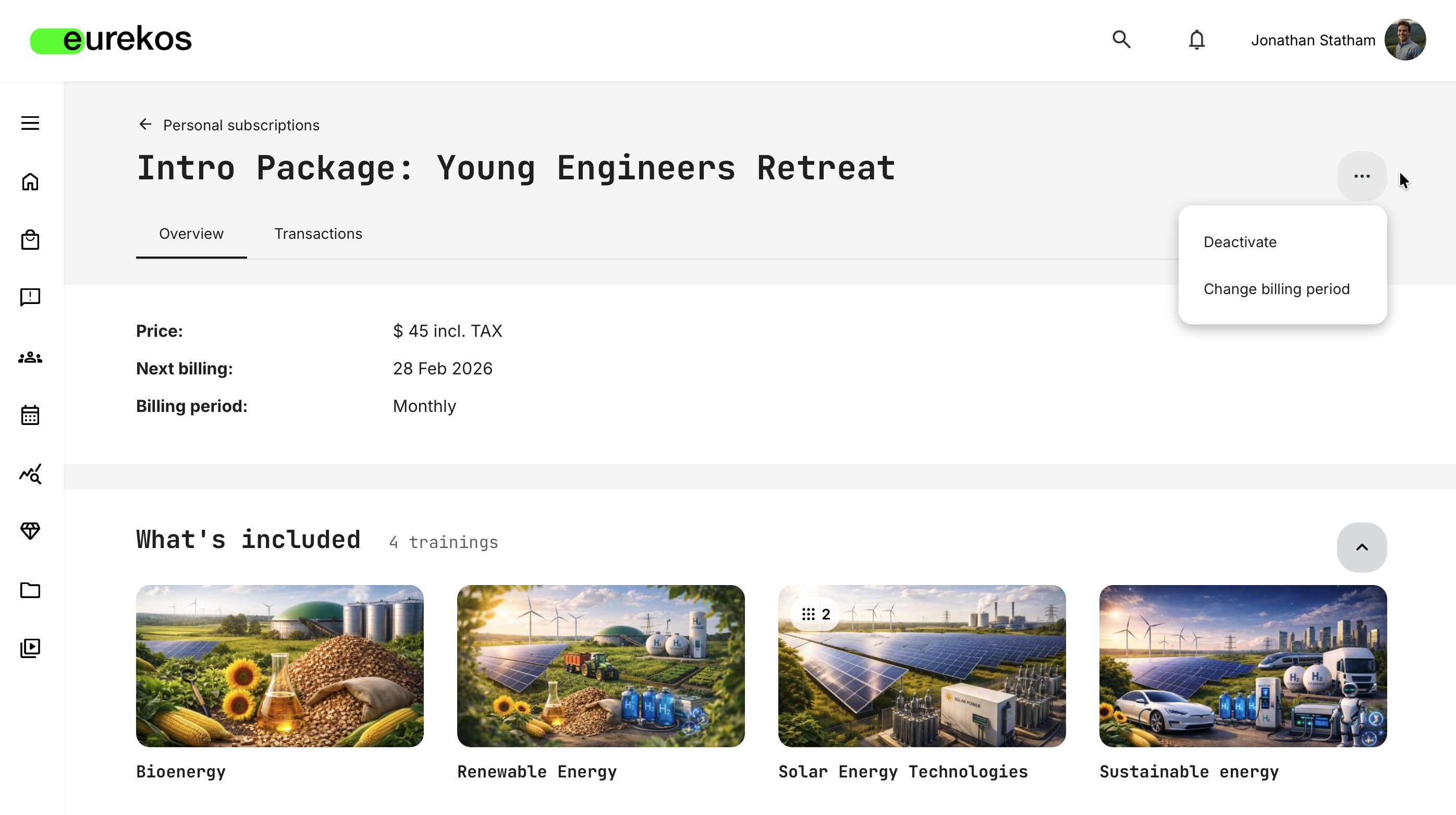
If a subscription owner has multiple subscriptions, each active subscription appears in a list with its own management options in the subscription details. The interface supports common self-service actions—such as resubscribing and reactivating—helping users manage their subscriptions and supporting standard subscription business scenarios. An overview of these use cases is provided below.
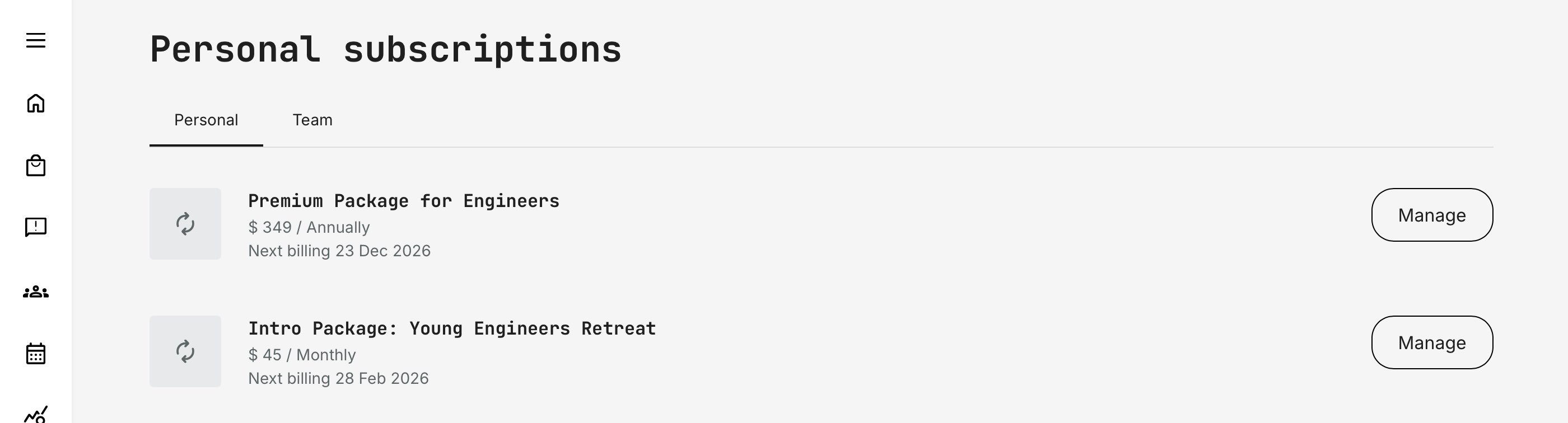
- [Manage] is displayed for all active subscriptions, including those that have been deactivated but are still valid until the end of the current or upcoming billing period. The subscriber can review subscription details within
- [View details] is displayed for subscriptions that has been cancelled, with an option to [Subscribe again]
- [Subscribe again] is available for subscriptions that were cancelled due to a failed payment (after the cancellation period), or because the reactivation window has passed. In these cases, resubscribing requires a new purchase
- [Purchase again] is shown for subscriptions with a failed payment that are still within the cancellation (grace) period. Selecting this option takes the subscriber to the “Checkout page”, where they can update their payment details and complete the payment before the grace period expires. During this time, no changes can be made to the subscription. Once payment is successfully completed, subscription management options become available again
- [Reactivate] is shown for subscriptions that have been deactivated by the subscriber or an administrator. Reactivation is possible until the start of the next billing period; after that point, the option changes to [Subscribe again]
Cancellation (grace) period: When a payment fails, a default grace period of 5 days applies before the subscription is cancelled. This period can be adjusted by raising a request to Eurekos support. Note that this is a global setting and applies to all subscriptions.
Email confirmations are sent for subscription changes, such as updates to the billing plan. These notifications—along with other subscription-related emails—can be customized to match your organization’s communication strategy and tone of voice under Settings → Email sending → Subscriptions.
The relevant system emails for the subscriber examples above:
- Subscription change billing plan – owner (billing plan updated)
- Subscription deactivate – owner (subscription deactivated)
- Subscription reactivate – owner (subscription reactivated)
Transactions
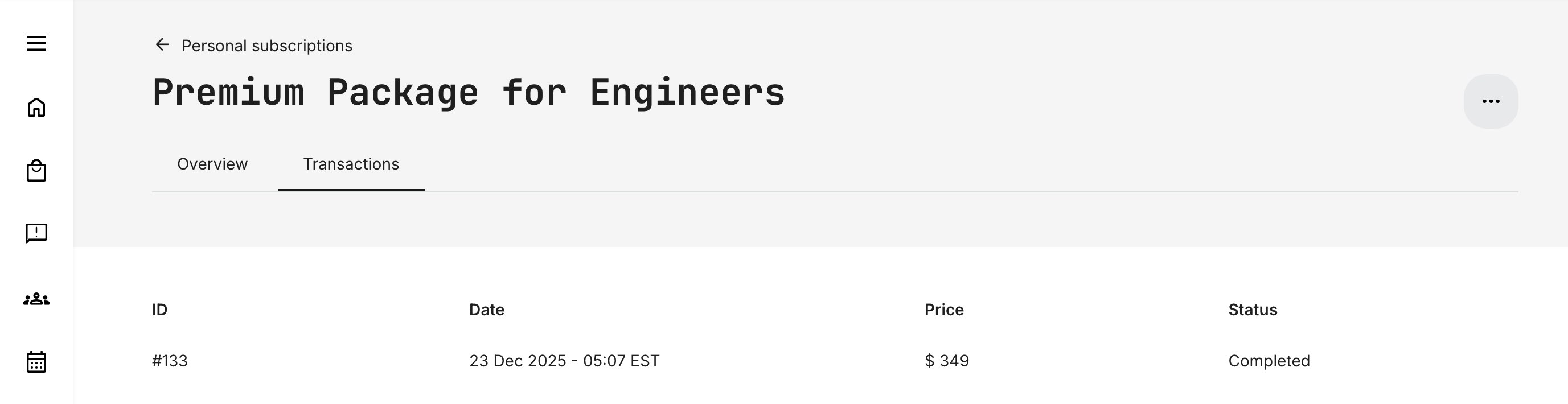
Within the subscription details view, subscription owners have access to a [Transactions] tab, which displays payment history and transaction details. This complements the email confirmations sent for successful payments and subscription changes.
This view includes the transaction ID, payment date, amount paid, and status, making it easy to reference specific payments and follow up with your service desk if needed.
Team Subscriptions
Team subscriptions allow a designated subscription team owner to manage access on behalf of others—often referred to as managing seats. The team owner can invite members, remove members, and manage payments and billing, just as with personal subscriptions.
This model is similar to managing licenses for other software services (such as office or productivity tools). Subscriptions are accessed from “Main menu → Subscriptions”.
The Team Subscription Owner (Subscriber)
Users can view their active subscriptions—either as a list when they have multiple subscriptions, or directly in the subscription details view when they have only one.
If a user has several subscriptions and they comprise both personal- and team subscriptions, they will be organized in tabs to differentiate them. In the details view, subscribers can review key information such as what's included, price, billing period, next billing date, and any scheduled cancellation.
The [More] menu allows subscribers to deactivate a subscription or change the billing period, if alternative plans are available.
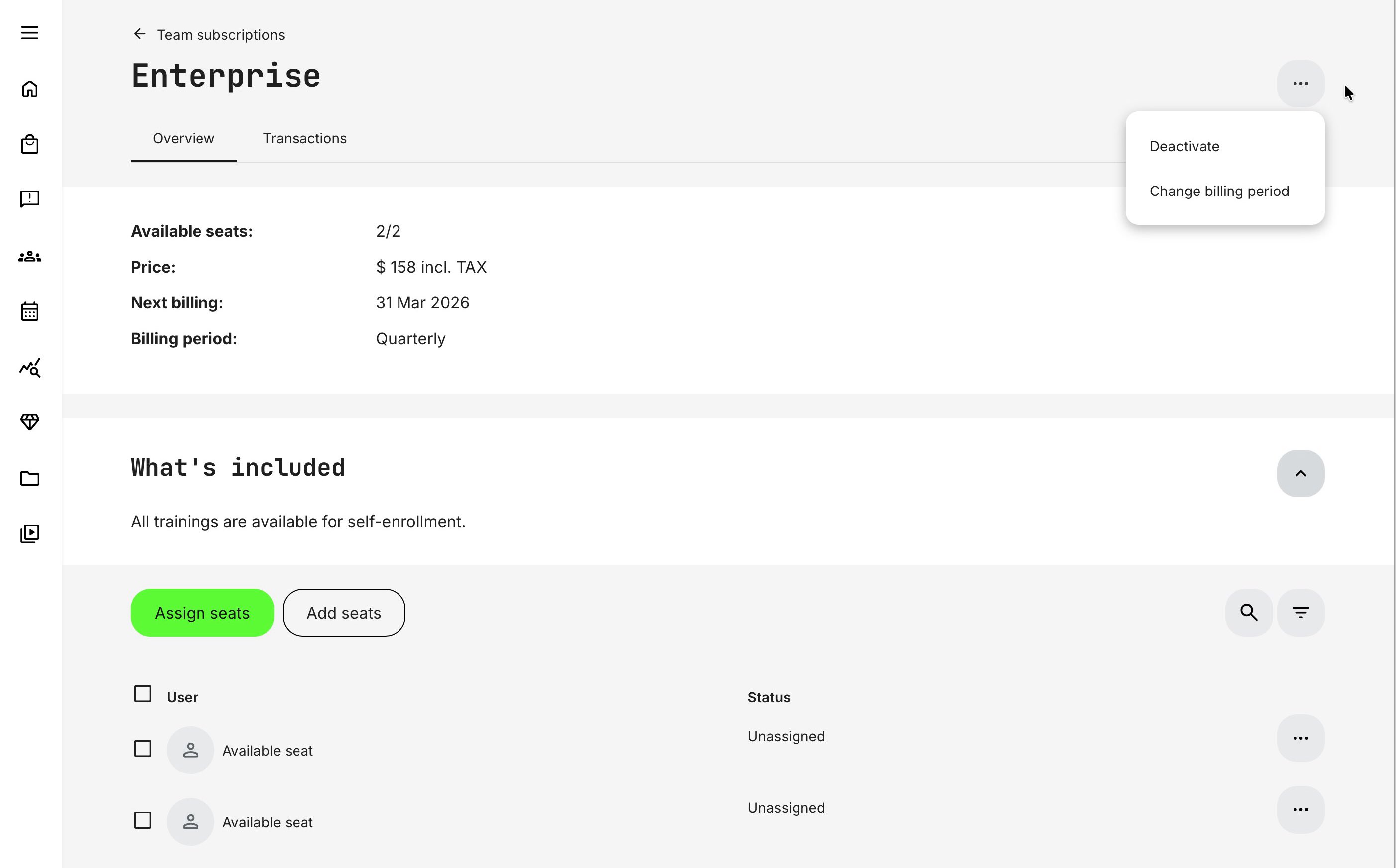
The team subscription owner has additional management options available in a dedicated section on the subscription details page. The payments overview shows the total number of seats in the subscription and how many are currently available.
The members list displays assigned and available seats with columns for User, Status, and the option [More], where actions can be performed on individual members. For larger teams, search and filters help manage users by status, including Active, Expiring soon, Pending, and Unassigned. Bulk operations allow you to efficiently unassign or deactivate multiple seats at once, saving time when managing larger teams.
A team subscription owner does not need to occupy a seat in the subscription. They can manage the team, distribute or assign training, and allow subscription members to enroll in training independently as needed.
Team subscription member management
The two primary actions available are [Assign seats] and [Add seats]. Selecting [Assign seats] allows the Team Owner to allocate unassigned seats to new or existing platform users.
The Team Owner enters the users’ email addresses, regardless of whether they are already registered. This is to maintain privacy in all use cases. Existing users (registered users) are assigned a seat immediately with no additional confirmation required. Unregistered users receive an invitation to create an account to complete the process; until they complete registration, their status remains Pending.
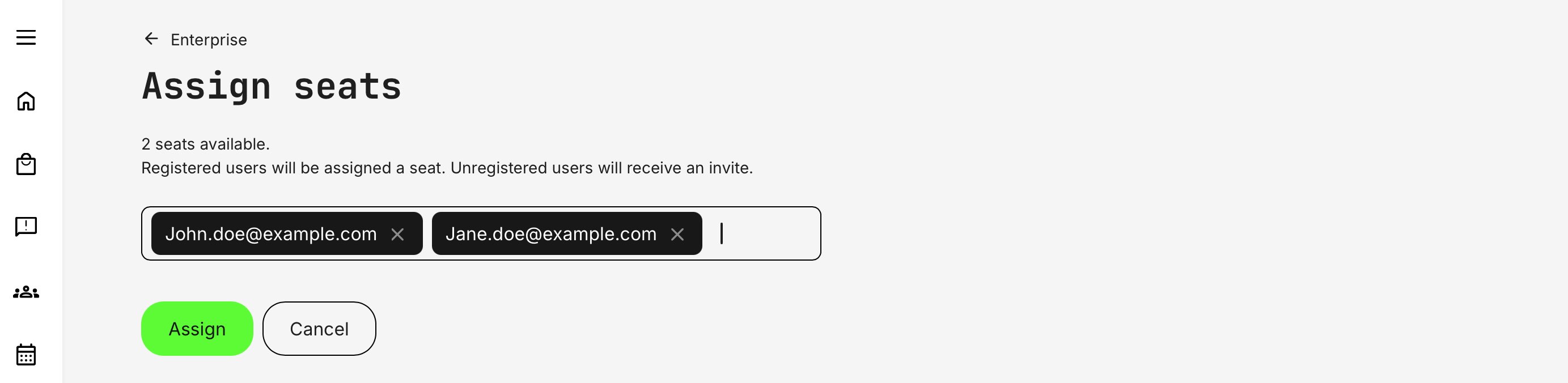
The team subscription owner can paste a list of email addresses directly into the field, instead of entering them one by one, if a list exists. Up to 100 email addresses can be invited in a single action. Use a comma, space, or semicolon to separate addresses, then press Enter to proceed.
Unregistered users will provide their own information during account creation, following the profile requirements already configured for sign-up. There is an option to resend the invitation for Pending users, should they not react.
Once a seat has been assigned, the team member gains access to the subscription content until the team owner makes a change. Team members cannot manage their own membership or access.
To remove a user, the team owner can select [More] next to the subscription member and choose [Unassign user].
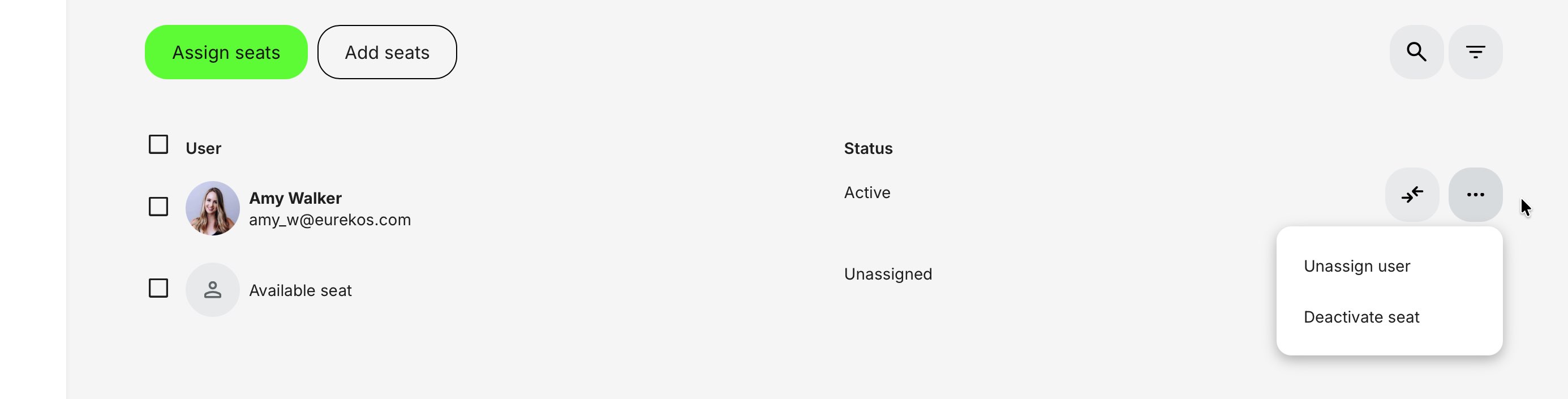
Unassigning one or more subscription members prompts a confirmation that clearly explains the impact of the action.
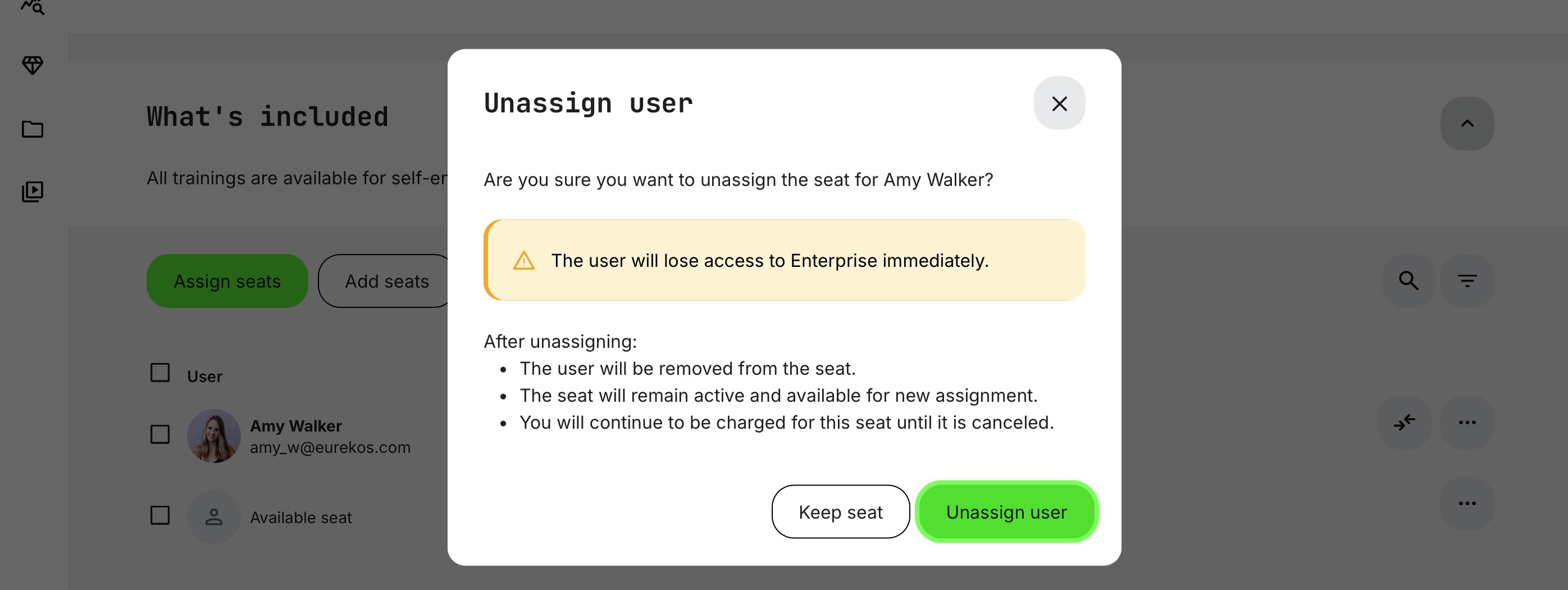
There is a clear distinction between unassigning a seat and deactivating a seat.
- When a seat is unassigned, it remains part of the subscription but is simply not allocated to a user. This means there is no financial impact, and the seat can be reassigned at any time
- Deactivating a seat removes a seat permanently from the subscription, decreasing the number of seats and has financial impact.
This flexibility supports common organizational scenarios such as role changes or employee turnover, allowing access to be transferred to another person. For longer subscription periods, this is especially valuable, as organizations expect to reassign prepaid access as needs evolve.
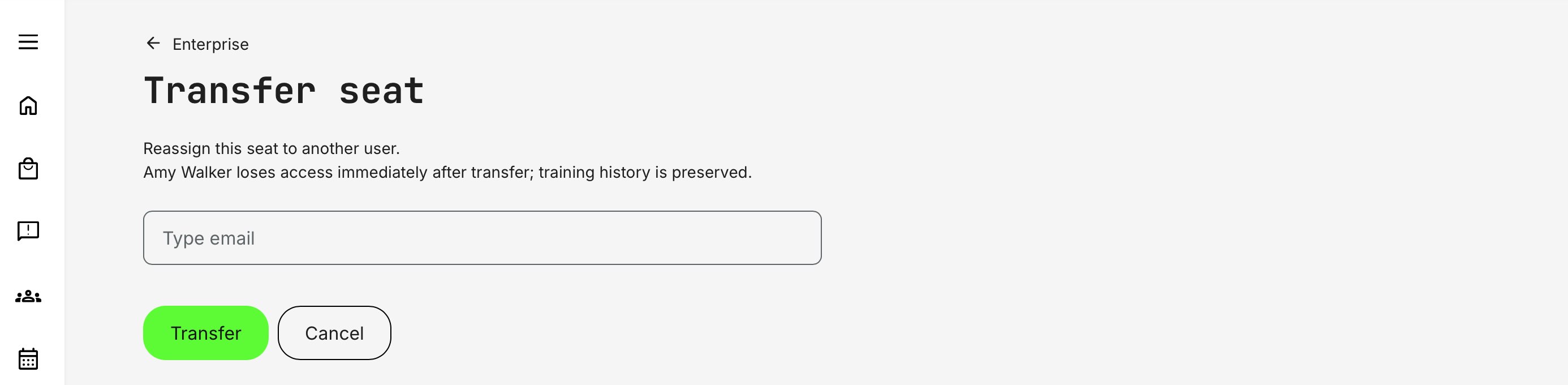
[Transfer seat] provides a quick way to transfer a seat within the subscription. This option is available only for seats assigned to Active or Pending users; it is not shown for unassigned seats.
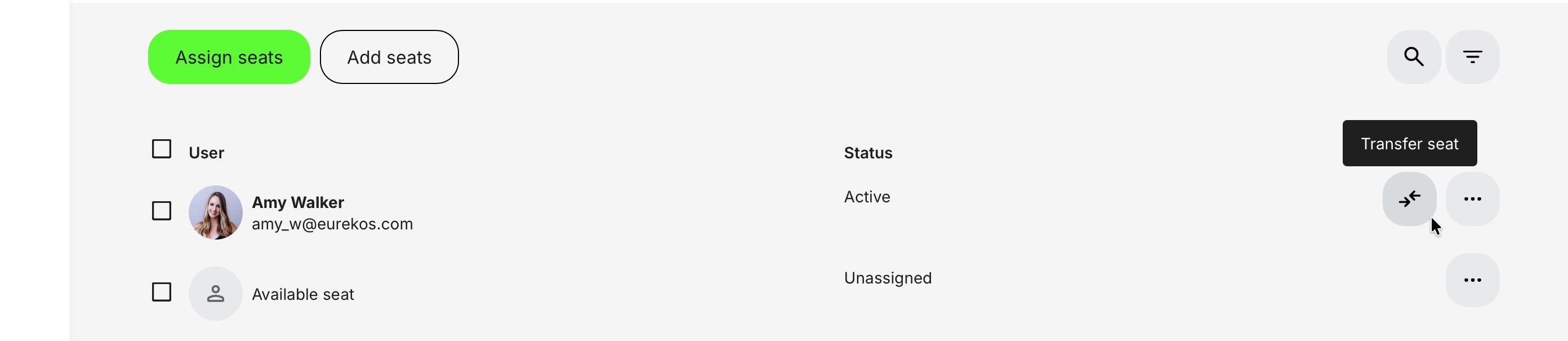
A prerequisite for this option is that Allow seat transfers between users is enabled in the subscription configuration.
Once initiated, the seat can be transferred to another user. The recipient does not need to be registered in advance.
- If the email belongs to an existing user (registered user), the transfer happens immediately: the current seat holder loses access, and the new user gains access to the subscription content with no additional confirmation required. The user is now Active.
- If the email belongs to a new user (unregistered user), the transfer is set to Pending while an invitation is sent and the account is created. During this time, standard platform sign-up rules apply, and the same resend options are available as when assigning a seat for the first time.
A user’s training history is preserved when a subscription seat is removed. While access to subscription content is revoked, any previously earned accreditations, progress, and certificates remain visible on the user’s profile and are reflected in reports.
The user does not lose access to the platform itself. Other training activities remain available, and the user can repurchase the subscription if needed. Standard data retention and user management rules continue to apply.
Clicking [Add seats] lets the subscription owner increase the number of available seats for a growing team. This opens the “Checkout” page, where additional seats can be purchased in the same way as the original seats. This is addressed in a separate article on purchase flows.
As noted earlier, a subscriber can have multiple subscriptions, including both Personal and Team subscriptions, which are organized into separate tabs. Team subscriptions offer the same core management options as personal subscriptions, but outcomes affect multiple users.
The interface supports standard self-service actions—such as reactivating and resubscribing—making it easy to manage common subscription scenarios. The sections below focus specifically on use cases related to team subscriptions. All of these management options are only available to the owner of the subscription.

- [Manage] is displayed for all active subscriptions, including those that have been deactivated but are still valid until the end of the current or upcoming billing period. The subscriber can review subscription details within
- [View details] is displayed for subscriptions that has been cancelled, with an option to [Subscribe again].
- [Subscribe again] is available for subscriptions that were cancelled due to a failed payment (after the cancellation period), or because the reactivation window has passed. In these cases, resubscribing requires a new purchase. All subscription members will have to be invited again
- [Purchase again] is shown for subscriptions with a failed payment that are still within the cancellation (grace) period. Selecting this option takes the subscriber to the “Checkout page”, where they can update their payment details and complete the payment before the grace period expires. During this time, no changes can be made to the subscription. Once payment is successfully completed, subscription management options become available again. Subscription members have access to the subscription during this period
- [Reactivate] is shown for subscriptions that have been deactivated by the subscriber or an administrator. Reactivation is possible until the start of the next billing period; after that point, the option changes to [Subscribe again]. Subscription members have access to the subscription during this period
Cancellation (grace) period: When a payment fails, a default grace period of 5 days applies before the subscription is cancelled. This period can be adjusted by raising a request to Eurekos support. Note that this is a global setting and applies to all subscriptions.
Once the cancellation period has expired, all member access is revoked. However, it is still possible to restore access: if the subscription owner selects [Subscribe again] and re-invites members who were previously part of the subscription, their progress is restored for training activities that were originally included—provided those original activities are still part of the subscription.
Email confirmations are sent for subscription changes, such as updates to the billing plan. These notifications—along with other subscription-related emails—can be customized to match your organization’s communication strategy and tone of voice under “Settings → Email sending → Subscriptions”.
The relevant system emails for the subscriber examples above for the team subscription owner:
- Subscription change billing plan – owner (billing plan updated)
- Subscription deactivate – owner (subscription deactivated)
- Subscription reactivate – owner (subscription reactivated)
- Additional seats purchase - owner (confirmation of additional seats and billing information)
The relevant system emails for subscription members:
- Subscription seat assigned - user (invitation email to the subscription member)
- Subscription seat deactivate - user (seat deactivation to subscription member, but access remains until next billing period)
- Subscription seat reactivate - user (seat has been reactivated to subscription member)
- Subscription cancelled - user (upon final cancellation, access revoked to subscription member)
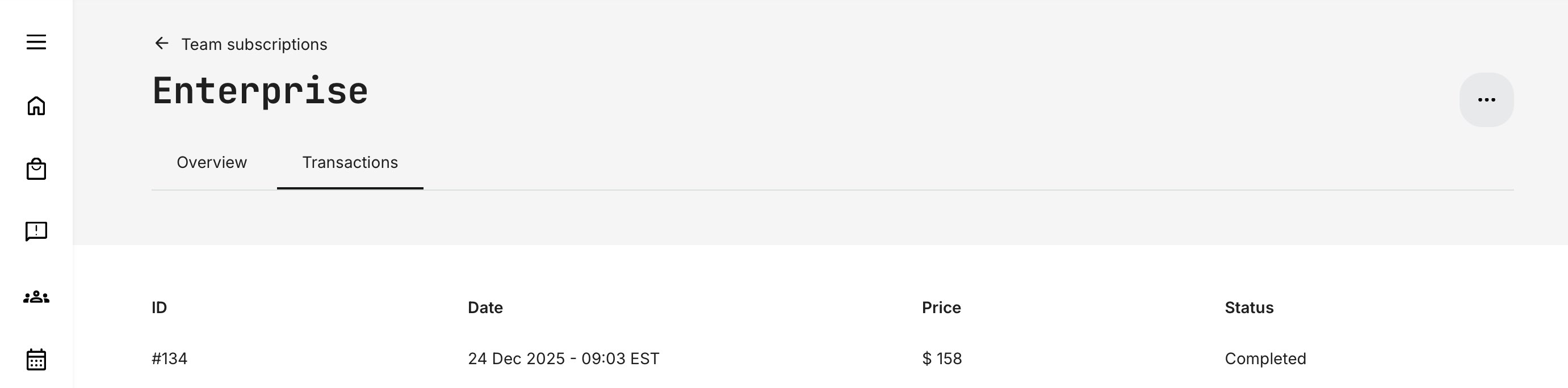
Transactions
Within the subscription details view for Team subscriptions, subscription owners have access to a [Transactions] tab, which displays payment history and transaction details. This complements the email confirmations sent for successful payments and subscription changes.
This view includes the transaction ID, payment date, amount paid, and status, making it easy to reference specific payments and follow up with support if needed.
System Administrators of Subscriptions
Any role with access to Course Administration can manage subscriptions, including assisting and supervising subscriptions in collaboration with subscribers. Administrative subscription management is available under Course Administration → Subscriptions, in the [Ownership and Billing] tab.
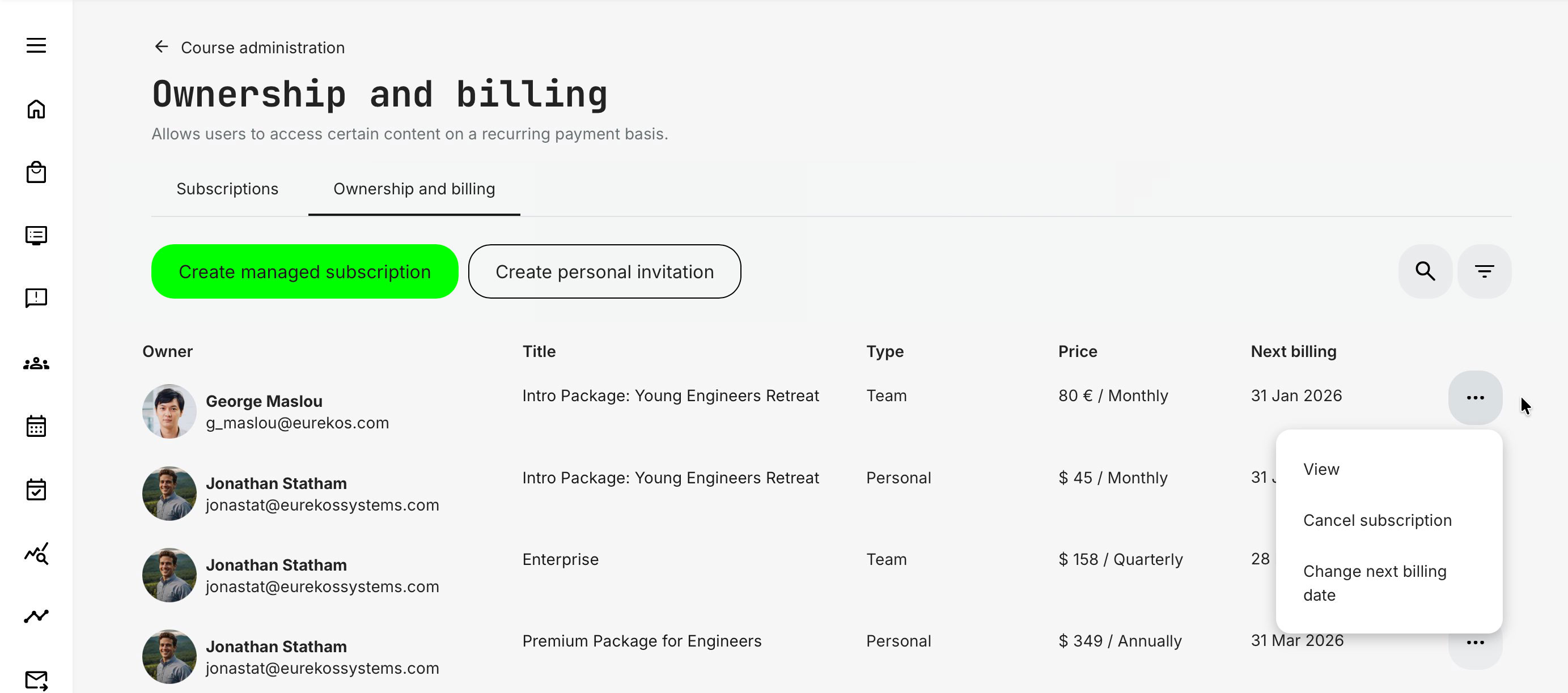
This page displays a list of subscription owners on the platform, providing administrators with the information needed to locate and manage active subscriptions. Each row shows the owner’s subscription details, and the list is sorted by Next billing date in ascending order.
The Create managed subscription and Create personal invitation buttons provide administrative options for issuing subscriptions under special conditions. These options are described separately.
The table includes the following columns:
- Owner – user avatar (initials or photo), name, and email
- Title – clickable subscription title that opens the subscription details page
- Type – Personal or Team, depending on the subscription
- Price – subscription price for the selected billing period
- Next billing – date of the upcoming payment
- [More] – additional management actions
The page also includes Search (by owner name or email) and Filters (by subscription type and title). If more than 25 subscriptions are available, [Load more] button displays additional results in increments of 25.
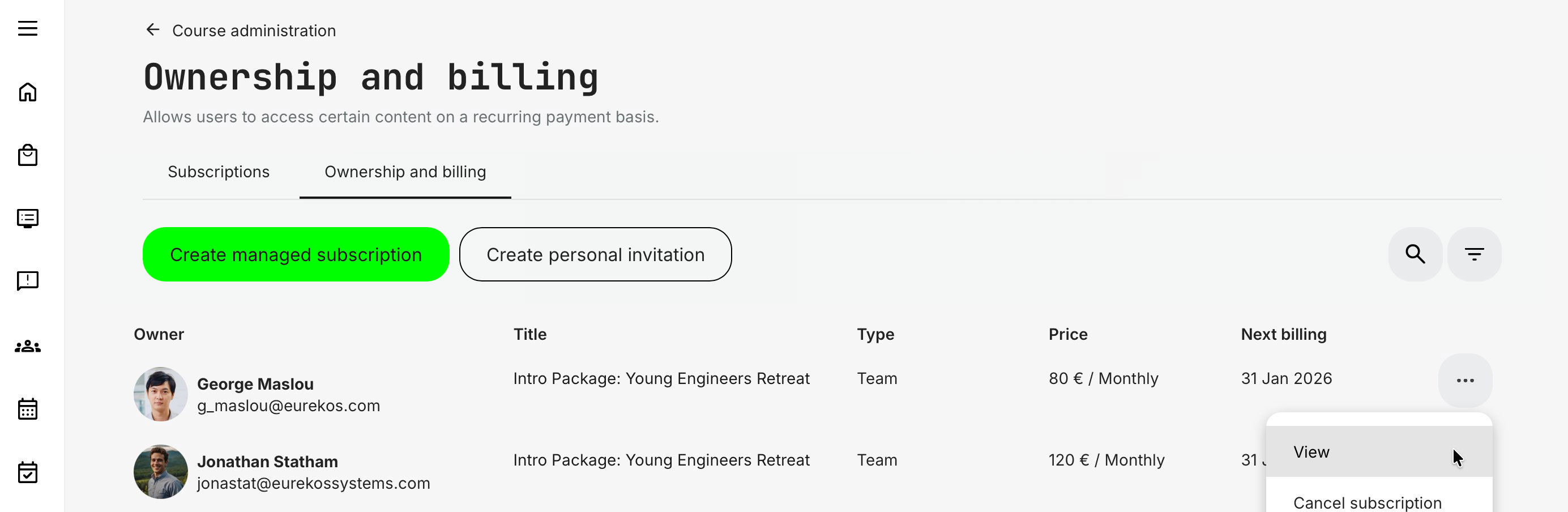
The [More] menu provides options to View, Cancel subscription, Change next billing date and Change cancellation date (available only for an already cancelled subscriber). The same options are available from the subscription details page.
- [View] leads directly to the subscription detail page
- [Cancel subscription] is an administrative override and is more definitive than a subscriber-initiated deactivation. Once cancelled, the action cannot be reversed—by administrators or the subscriber—and a confirmation is required. Existing subscribers retain access to included activities and their progress until the end of the current billing period, as payment has already been made. An additional option to impact the cancellation date is available for cancelled subscriptions
- [Change next billing date] provides an input option to change the next billing date into the future.
Changing the next billing date allows administrators to grant a subscriber a temporary free period or discount, based on business needs or specific scenarios.
Example: A monthly subscription is billed next on 31 January. If an administrator moves the next billing date to 31 March, the subscriber will not be charged for upcoming months of February and March. Billing then resumes on 31 March and continues monthly thereafter. The billing frequency remains unchanged; only the next billing date is shifted forward.
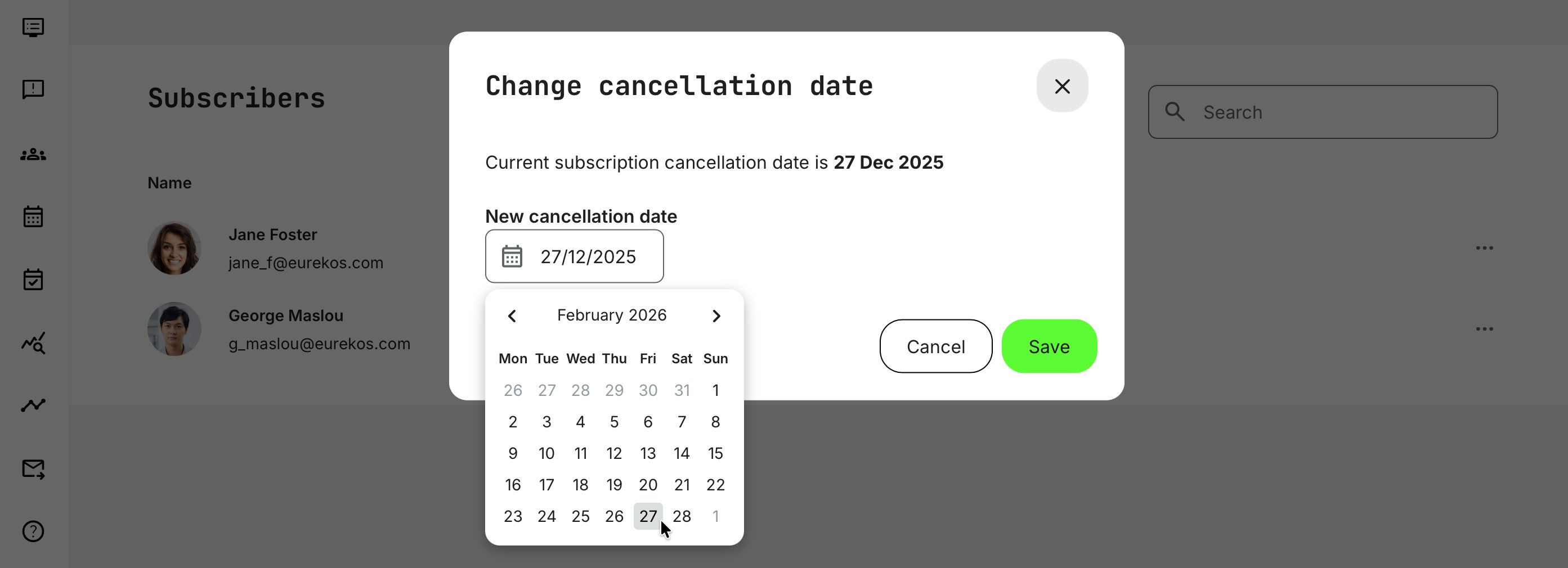
Once a subscription has been cancelled, a new option becomes available to [Change the cancellation date]. This option is accessible both from the subscription details view and from the [Ownership and Billing] tab.
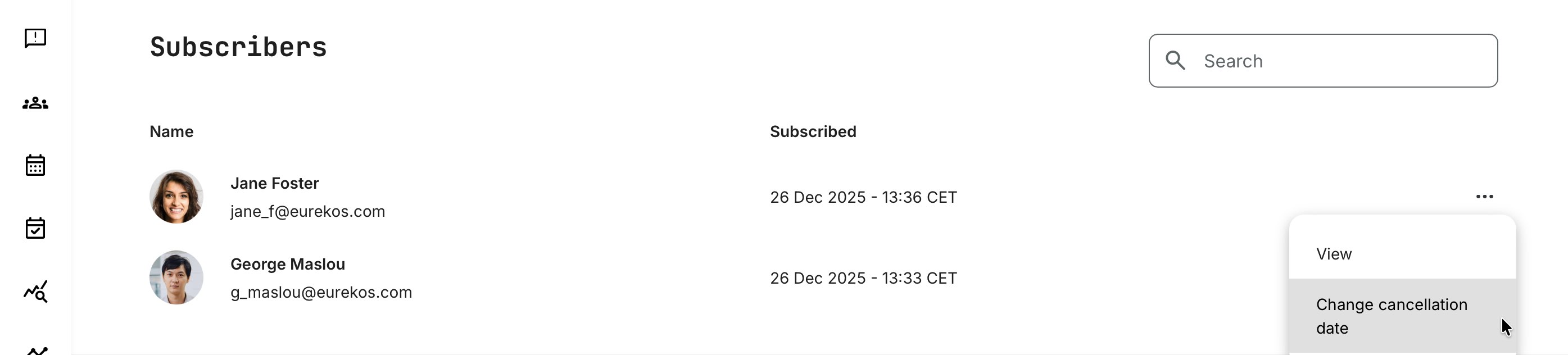
This action allows an administrator to set a new cancellation date. It has no financial impact and only determines when access to the subscription is revoked.
Use this option for special administrative cases—such as extending or shortening access—to accommodate customer considerations or apply system overrides for alternative agreements. The date can be set from current date, but not in the past. Once date has passed, no actions can impact or reactivate access except to purchase again.
Transactions
An extended Transactions view is available for administrative purposes within the subscription details page (Course Administration → Subscriptions → Ownership and Billing).
From the list of subscription owners—regardless of subscription type—select [View] to open the subscription details, then navigate to the [Transactions] tab to review payment history and transaction details.
The [Transactions] overview includes an additional option to view individual transactions using the [eye] icon. This opens detailed information for each transaction, making it easier for administrators to locate specific payments and efficiently respond to subscriber inquiries.
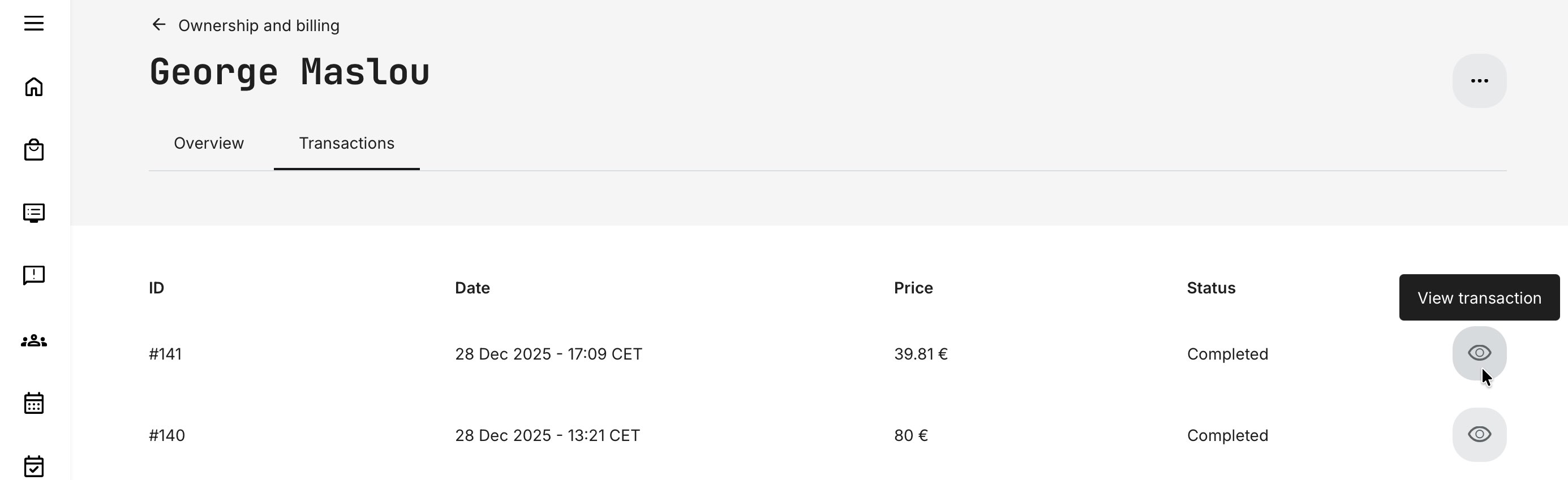
While this view offers a convenient and efficient overview, all transactions—including those related to subscriptions—are also available from the dedicated Transactions menu within Course Administration, which is covered in detail in a separate article.
In the context of subscriptions, it is important to note that recurring payments, seat quantity changes, and billing period updates are each recorded as individual transactions. In addition, any auto-enrollments triggered by a subscription are listed with references to the relevant training activities, reflecting the full scope of the subscription offering.
Permissions and actions
The following table provides a simplified overview of each role’s capabilities within the subscription process flow, for guidance and support. Some actions—such as payment confirmation or updating credit card details—can only be performed by the subscription owner, while others may be assisted by administrators.
| Action | Owner | Administrators |
|---|---|---|
| Purchase subscription | Manage | View Change next billing date |
| Deactivated subscription (within grace period) | Reactivate Manage | View Change next billing date |
| Payment fails (within grace period) | Purchase again Manage | View Change cancelation date |
| Deactivate subscription | Manage | View |
| Cancel subscription | Not available | Cancel subscription Change cancellation date |
| Cancelled (past grace period, post billing date) | Subscribe again View | View |
| Add seats in Team Subscriptions | Manage | Not available |
| Deactivate seats in Team Subscriptions | Manage | Not available |
| Assign users in Team Subscriptions | Manage | Not available |
| Transfer seats | Manage | Not available |
| Create subscriptions and billing plans | Not available | Manage Deactivate |
| Create subscriptions and billing plans | Not available | Manage Deactivate |
Masquerade as a user
As reflected in the permissions table above, subscriptions that involve payments are intentionally designed to be managed by the subscribers themselves. This includes actions such as updating payment methods, purchasing additional seats, and deactivating users or seats—all of which have financial implications. As a general principle, administrators should encourage subscribers to manage these actions directly.
For administrative intervention, [Cancel subscription] is the appropriate action. It allows administrators to act without interfering with subscriber-managed financial workflows and should always be done in collaboration with the subscriber.
That said, Masquerade is a system feature that allows administrators to temporarily act as another user. While sensitive information such as credit card details is never accessible, masquerading can enable limited assistance or workarounds when absolutely necessary. We strongly recommend obtaining written confirmation from the subscriber before making any changes on their behalf (for example, deactivating a team member).
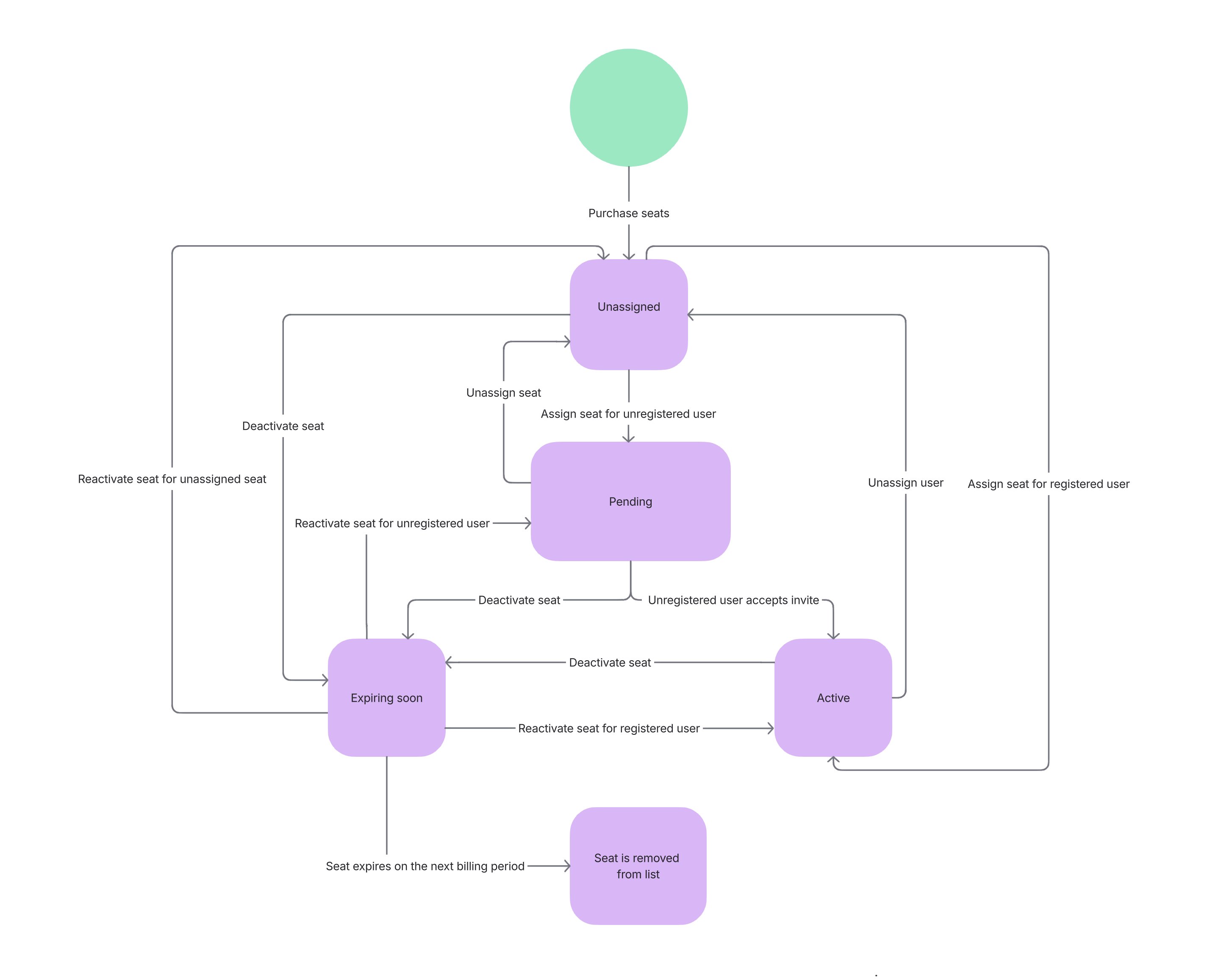
Flow diagram for seat management
Refer to the flow diagram to understand the sequence of purchasing, assigning, and unassigning seats within a Team Subscription, and how these steps relate to the descriptions above.
Testing subscriptions
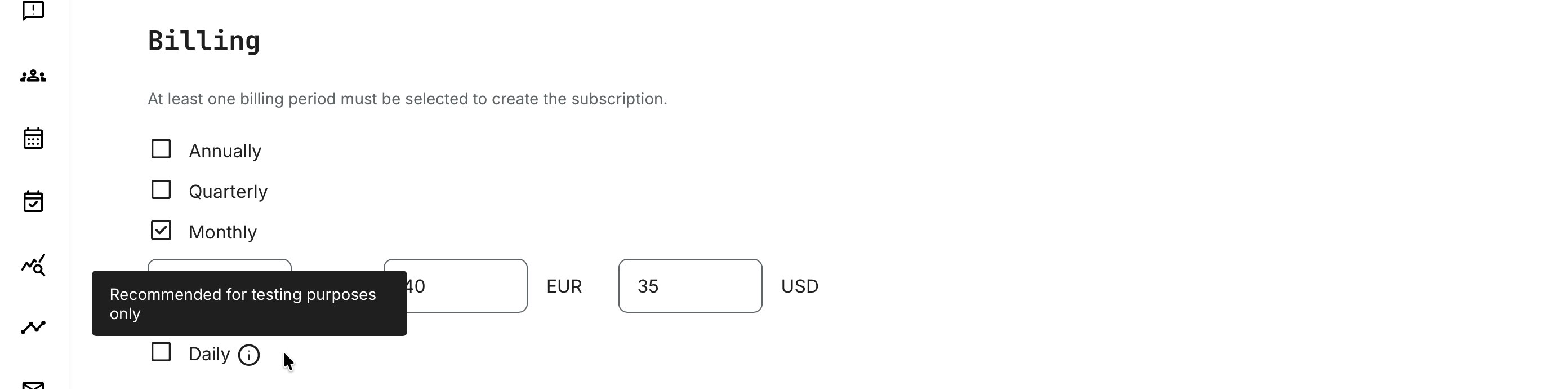
Because subscriptions involve recurring payments and multiple email notifications, it’s important to test the full flow as part of your due diligence. For this purpose, you can use the optional “Daily” billing configuration when creating a subscription. This setting is intended only for testing and allows you to quickly trigger events—such as billing, cancellation, and notification emails—without waiting for long billing cycles.
We recommend testing the entire subscription journey, from discovery to cancellation: Storefront → Purchase → Seat management → Deactivation / Reactivation → Cancellation
Recommended testing approach
- Configure payments
- Set up a Stripe account (Platform Administrator)
- Use Stripe’s sandbox and test credit card numbers before going live
- Create a test subscription
- Connect it to the Stripe sandbox
- Use the “Daily” billing option for fast iteration
- Remember to switch this off before going live
- Expose the subscription in the Storefront
- Add it as rows or in the carousel with full descriptions
- Use audience restrictions to keep it hidden during testing if needed
- Create test users
- Create 2–3 (or more) test users that match your audience criteria
- Test the full user journey
- Masquerade as test users and walk through all scenarios (including all navigation options to double-check your description pages)
- Test purchases, seat assignment, failed payments, reactivation, and cancellation (configure and update email notifications during this process)
- Test administrative workflows
- Perform subscription management as an administrator to understand support-related actions
Before going live
- Disable the Daily billing configuration
- Switch the subscription from Stripe sandbox to your live Stripe account
- Make the subscription visible in the Storefront by adjusting audience restrictions