Microsoft - Article
Summary
Connect Eurekos with Microsoft services to automate scheduling, virtual delivery, collaboration, and content integration through Outlook, Microsoft Teams, and OneDrive—supporting efficient and scalable learning operations.
In this article you will learn:
- How Microsoft services integrate with Eurekos across scheduling, collaboration, and content
- How Outlook enables automated invitations and calendar synchronization
- How Microsoft Teams supports virtual sessions, collaboration, and activity-level user synchronization
- How OneDrive enables dynamic content integration and collaborative editing
- How to configure and activate the integration in both Azure and Eurekos
Business Context
The Microsoft integration connects Eurekos with Microsoft 365 and Azure services, extending the platform beyond its native capabilities into a comprehensive enterprise ecosystem for scheduling, collaboration, and content management.
As Microsoft is a global provider of widely adopted productivity and infrastructure services, this integration represents far more than a simple feature extension. It enables a configurable set of capabilities across multiple functional areas, supporting both user experience and operational workflows in a cohesive and scalable way.
At its core, the integration supports three key domains:
- Scheduling and coordination (Outlook Calendar)
- Virtual delivery and collaboration (Microsoft Teams)
- Content and document management (OneDrive)
This makes the integration particularly valuable for organizations that:
- Deliver instructor-led, virtual or blended learning
- Use Microsoft 365 as part of their ecosystem
- Require alignment between learning activities and operational tools
The objective of this integration is to streamline and centralize your existing enterprise ecosystem for both administrators and learners by leveraging familiar Microsoft tools. It enables organizations to make use of existing files, data, and workflows while improving user experience, reducing manual effort, and minimizing the risk of human error.
At the same time, it introduces a higher level of automation and operational efficiency—particularly in scheduling and delivery—by ensuring that processes are handled consistently across systems. For example:
- Events are created once in Eurekos
- Invitations, meeting links, and updates are handled automatically
- Changes are reflected consistently across all connected systems
This integration offers multiple configuration options, allowing each organization to decide which capabilities to enable based on its specific needs. It supports a granular approach to feature activation, including precise control over permissions and security settings—both of which are critical in enterprise environments.
These requirements often vary significantly between organizations and may also differ across user groups, particularly when supporting external audiences. This flexibility ensures that the integration can be aligned with both internal governance policies and diverse user scenarios.
Feature Overview
The Microsoft integration enables multiple services within Eurekos, each with a distinct purpose but shared configuration.
| Service | Function |
|---|---|
| Outlook Calendar | Creates and synchronizes events as Outlook invitations (RSVP) for users with connected Microsoft accounts |
| Microsoft Teams | Enables creation of virtual meeting linksand collaboration enrollment capability from specific teams |
| OneDrive | Allows access to files within course content and optionally the ability to collaborate on Office 365 using Microsoft Online |
These services are activated centrally by administrators but may require user-level connection to function fully, depending on the specific use case and implementation. This dependency is explained in detail within each section below, where relevant.
How the Integration Works
The Microsoft integration in Eurekos is built around a layered model that separates configuration, execution, and user interaction, allowing organizations to combine centralized control with flexible user-level functionality.
1. Platform Configuration (Administrator) → Administrators define the integration by configuring:
- A Microsoft Azure application
- Required Microsoft Graph API permissions (e.g. Teams, OneDrive, Outlook)
- Defining which services are enabled in Eurekos
This layer determines what capabilities are available, such as creating Teams meetings, accessing OneDrive files, or sending Outlook invitations.
2. System Execution (Service Account & Microsoft APIs) → Once configured, Eurekos communicates with Microsoft through Microsoft Graph APIs.
- A service account is used for scheduling and sending calendar invitations
- This account behaves like a real user sending invites, ensuring proper Outlook RSVP functionality
- File access are handled through Microsoft services
This enables key operational use cases such as:
- Creating events once in Eurekos and distributing them as Outlook invitations
- Automatically generating Teams meeting links for virtual sessions
- Ensuring updates are reflected consistently across systems
3. User Interaction (Where Required) → Some features depend on user-level interaction:
- Users may connect their Microsoft account (required for Teams and OneDrive)
- Users may enable or disable calendar synchronization in their profile
This layer ensures:
- Controlled data sharing and user consent
- Flexibility for mixed audiences (internal vs external)
- Alignment with governance and privacy requirements
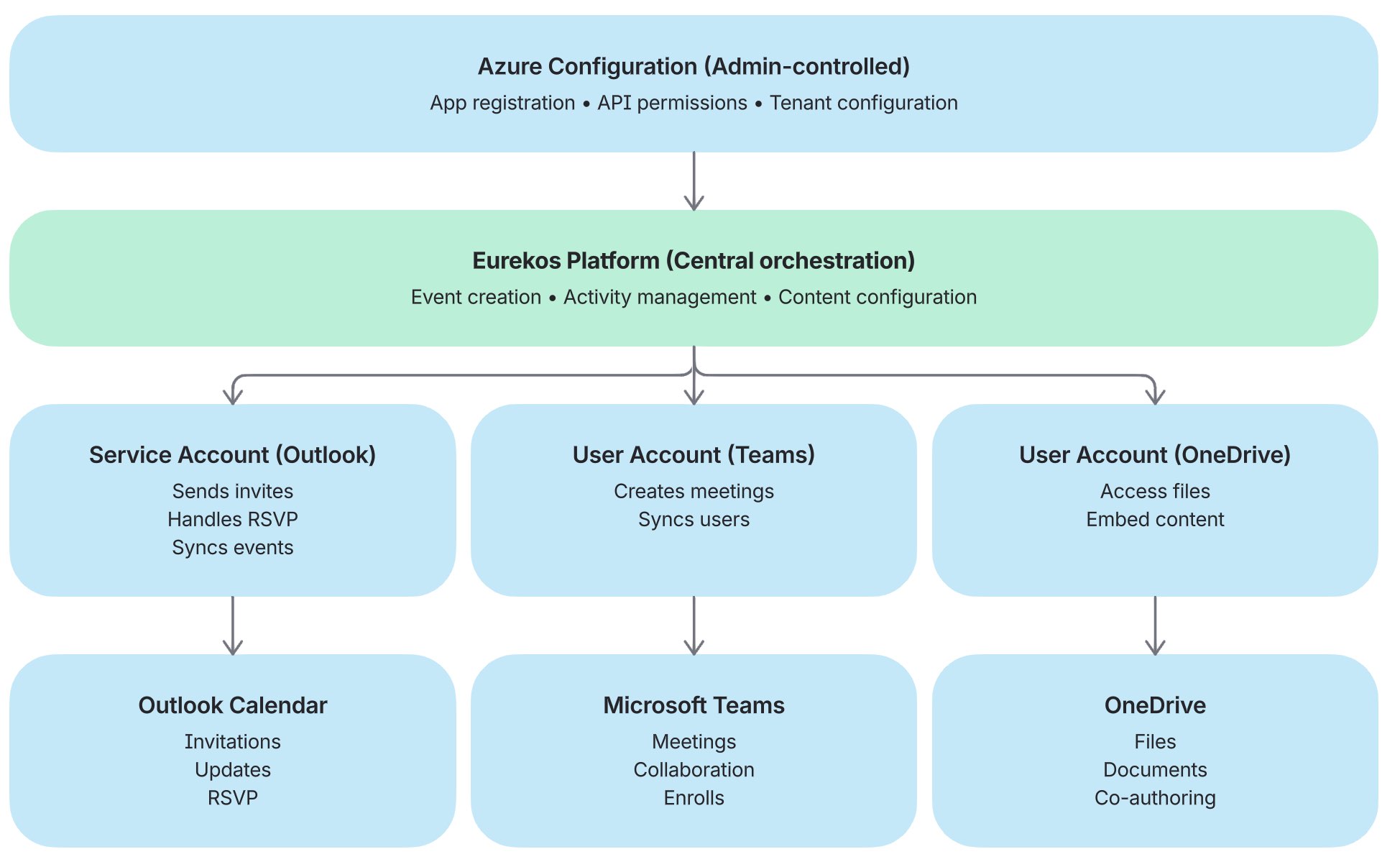
Below you will find detailed guidance on the available configuration options for the Microsoft integration, including how each setting impacts functionality and behavior within Eurekos.
Outlook Calendar and Synchronization
Outlook Calendar integration is a critical operational feature, enabling administrators and instructors to create and manage scheduled events directly in Eurekos while ensuring these are reflected in Microsoft Outlook calendars. The key value lies in how events are synchronized and delivered to users, supporting both visibility and reliable attendance through proper calendar invitations and RSVP functionality.
There are two primary user scenarios to consider:
1. Automatic synchronization via Microsoft-connected access → Existing users who access the platform through a Microsoft-connected method (such as SSO) can be automatically associated with Outlook synchronization via the configured service layer. In this scenario:
- Calendar invitations are delivered as standard Outlook meeting requests
- Users receive RSVP-enabled invitations without requiring additional setup
- Updates to events are reflected automatically, a new RSVP is created and updates the original event
This creates a seamless experience where synchronization happens without requiring user awareness or manual action.
2. Manual connection via user profile → Users who log in using traditional credentials (e.g. username and password) can still benefit from Outlook synchronization by connecting their Microsoft account in their profile.
In this scenario:
- Users actively connect their Microsoft account via Connected Accounts
- Calendar synchronization becomes available once connected and enabled
- Their login method remains unchanged
This allows flexibility for users who are not part of a centralized Microsoft identity setup.
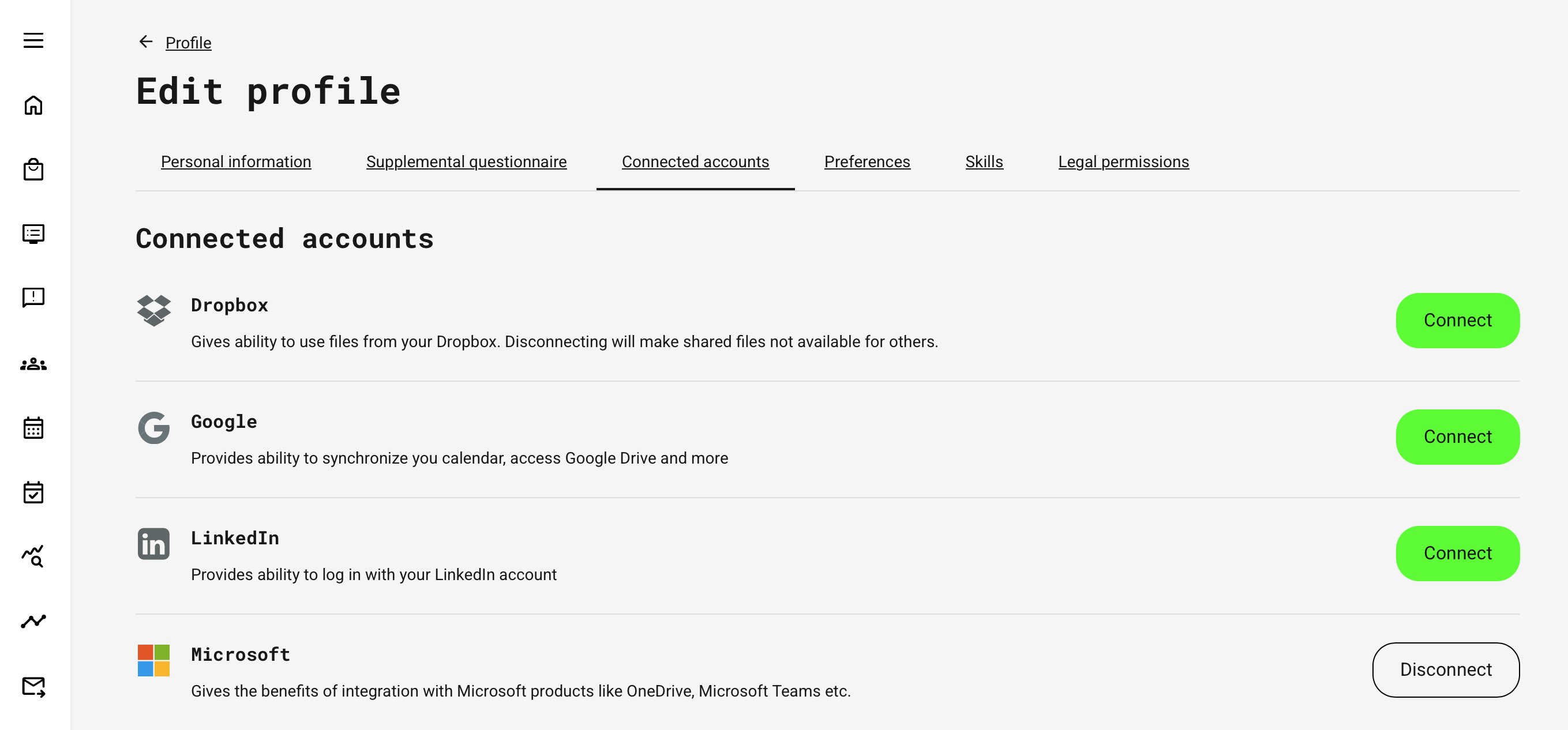
Refer to the appropriate configuration section below to understand how using a Microsoft Service Account enables seamless calendar synchronization and a consistent user experience across scheduled events.
Notification and Delivery Behavior
The integration supports both standard system notifications and Outlook-based delivery:
- Users with a connected Microsoft account receive:
- Outlook invitations with RSVP functionality
- Automatic updates reflected in their Outlook calendar
- Standard system emails related to scheduled events (as configured in Settings → Email Sending → Events)
- Users without a connected Microsoft account receive:
- Standard system emails only
- Calendar export options (e.g. ICS files via “Add to calendar”)
- No direct synchronization with Outlook
This ensures that all users receive event information, while those connected to Microsoft benefit from a more integrated and reliable scheduling experience.
By automating invitations, updates, and synchronization, organizations reduce manual effort, improve accuracy, and ensure that participants always have access to the most up-to-date event information—ultimately increasing attendance and operational efficiency.
⚠️ The integration is one-way, from Eurekos to Outlook. If a user declines or removes an event in Outlook, this action is not communicated back to Eurekos—even if event cancellation is enabled within the platform. Eurekos does not have access to users’ personal calendars and cannot read or update their responses.
Only actions performed within Eurekos itself—such as canceling an event through the platform—are recorded and reflected in the system.
Microsoft Teams
Microsoft Teams integration enables virtual session delivery by allowing Eurekos to generate Teams meeting links directly during event creation, significantly reducing manual effort and avoiding duplication across systems.
Beyond meeting creation, this integration introduces a collaboration layer that extends the learning experience into Microsoft Teams. Activities in Eurekos can be connected to existing Teams, allowing organizations to align training delivery with established communication, file sharing, and collaboration workflows.
This is particularly valuable for organizations already using Microsoft Teams extensively, as it enables learning activities to take place within familiar tools while maintaining a centralized experience in Eurekos. At the same time, it supports governance and privacy requirements by leveraging Microsoft’s existing permission structures.
Activity Connection and User Synchronization
Microsoft Teams integration operates directly at the activity level, where administrators define how collaboration and participant management should be handled for each training activity.
When configuring an activity, administrators can connect an existing Microsoft Team. This establishes a relationship between the activity and the collaboration space in Teams, enabling structured interaction around the learning experience.
From a workflow perspective, this supports two key use cases:
- Collaboration space → Participants enrolled in the activity can be added to the connected Microsoft Team, giving them access to communication, shared files, and ongoing interaction related to the training
- Enrollment source → Administrators can use an existing Microsoft Team as the basis for enrollment, adding its members directly into the activity and reducing manual user management
Synchronization behavior
Synchronization between Eurekos and Microsoft Teams is event-driven and controlled from Eurekos, rather than continuously synchronized between systems.
- Enrolling users into an activity → may add them to the connected Microsoft Team
- Using a Team for enrollment → adds Team members into the activity
- Changes made directly in Microsoft Teams → are not automatically reflected back in Eurekos
This ensures that Eurekos remains the system of control for training participation, while Microsoft Teams serves as the collaboration layer.
Key Use Cases
- Automatic meeting link creation → When scheduling events, users with a connected Microsoft account can automatically generate Microsoft Teams meeting links. These are embedded directly into the event workflow, ensuring consistency and eliminating the risk of incorrect or manually copied links
- Collaboration in Microsoft Teams → Administrators can connect a Microsoft Team to an activity, allowing participants to collaborate in a shared space. The Team is accessible from within Eurekos, enabling a seamless transition between learning and collaboration
- Enrollment via Teams → Existing Microsoft Teams can be used as a source for enrollment, allowing administrators to add groups of users efficiently without duplicating user management efforts
Important Considerations
- Available Teams are determined by Microsoft permissions and access control, outside of Eurekos
- Users must have a connected Microsoft account to create meetings or interact with Teams functionality
- Organizational policies in Microsoft (e.g. group visibility, external access) directly impact what can be configured
⚠️ This integration follows Microsoft’s security and consent model. Eurekos does not control which Teams are visible or accessible beyond the permissions granted in Azure.
Explore the relevant articles for detailed guidance on how to use and configure these features in practice.
OneDrive
OneDrive integration enables content creators to use externally managed files directly within Eurekos course content. For many organizations, it is preferable to maintain documents centrally in OneDrive—ensuring they are always up to date—while exposing them seamlessly within courses using Eurekos’ native authoring capabilities.
This allows administrators and content creators to reference live documents rather than uploading static files. Depending on how the content is shared in Microsoft, files can be made available either to anyone with access to the link or restricted to authorized users, in line with organizational governance and permission settings.
Collaborative Editing and File Management
In addition to content display, OneDrive integration also supports collaborative editing workflows for users with connected Microsoft accounts.
A key use case is within Eurekos Communities, where Office documents (such as Word or Excel files) are shared within native archives. Instead of downloading, editing, and re-uploading files with each change, users can open and edit documents directly in Microsoft Online via their browser. Changes are automatically saved back into the native archives, ensuring that the most recent version is always available.
From a user perspective, this creates a seamless editing experience, while technically the file is temporarily handled within the user’s OneDrive during the editing session—following Microsoft’s standard co-authoring model. This enables efficient collaboration without requiring users to leave the Eurekos environment or manage multiple file versions manually.
The OneDrive integration supports two key use cases:
- Content authoring → Course authors can create dynamic content by linking to a OneDrive folder and presenting an automatically updated list of files within a course page. This ensures that any updates made in OneDrive are immediately reflected in Eurekos, eliminating the need to manually re-upload content into course pages with changes or additions to the contents of the folder in OneDrive
- Co-authoring and collaborative editing → Users—such as community members or administrators working in the file archive of Eurekos—can edit Office documents directly in the browser using Microsoft Online. Changes are saved automatically, enabling real-time collaboration without version conflicts or repeated downloads and uploads
It is important to note that this functionality depends on Microsoft permission settings and organizational governance policies. In some environments, IT restrictions may limit who has access to which folders. Each user must connect their account in the profile.
Once OneDrive has been configured, users interacting with relevant features—such as Community members accessing a team or administrators managing files within the file archive—will be prompted to connect their Microsoft account. This ensures they are aware of and able to use the available integration features, such as accessing and editing files directly through Microsoft services.
For more detailed guidance on how to use these features, refer to the relevant articles.
Configuration
To connect Eurekos with Microsoft services, you must create and configure an application in Microsoft Azure.
Step 1: Create Azure Application
Go to https://portal.azure.com → Microsoft Entra ID → App registrations, and create a New registration.
In the Register an application form:
- Enter a name for the application
- Select the appropriate Supported account type based on your organization’s needs
- Provide the Redirect URL, which can be found in Settings → Third party integrations → Microsoft in your Eurekos platform
Ensure the Redirect URL is entered exactly as shown to allow proper authentication flow.
⚠️ Ensure that “Web” is selected as the application type, and enter the provided Redirect URL in the Redirect URI field when registering the application in Microsoft Entra ID. Refer to the Microsoft documentation and recommendations for tenant and account types.
Step 2: Create Credentials
Once the application has been created, the required API permissions must be configured to enable the integration features.
Navigate to API permissions → Add permission → Microsoft Graph → Delegated permissions, and add the permissions relevant to the features you intend to use (e.g. OneDrive, Microsoft Teams, and service account functionality).
💡 If you are unfamiliar with configuring Microsoft permissions, there are publicly available resources and tutorials that can help you understand the concepts and best practices. These can provide a useful starting point, but please note that Eurekos does not maintain or take responsibility for external content.
Step 3: Enable Required API Permissions
Navigate to Azure → App Registration → API Permissions. Only enable the permissions required for your use case.
API Permissions for OneDrive
| Permission | Description |
|---|---|
| Files.Read | Allows course creators to browse OneDrive folders, select files, and display shared file lists within course content. Also enables viewing and editing of Office documents via Microsoft Online (SharePoint) in the browser |
| Files.ReadWrite | Extends access to allow creating, updating, and modifying files, supporting full editing and collaboration workflows directly through the integration |
This configuration enables both content integration and collaborative editing, depending on the level of access granted.
API Permissions for Microsoft Teams
Microsoft Teams integration supports multiple capabilities, each requiring specific Microsoft Graph permissions. These can be grouped by functionality:
Connect Microsoft Teams to Activities
| Permission | Description |
|---|---|
| Team.ReadBasic.All | Allows administrators to view available Microsoft Teams and connect a Team to a training activity |
Synchronize Teams and Activity Participants
| Permission | Description |
|---|---|
| TeamMember.Read.All | Read members of a Microsoft Team |
| TeamMember.ReadWrite.All | Add or remove members from a Microsoft Team |
| User.Read.All | Access user profiles for synchronization |
| User.ReadBasic.All | Read basic user information |
| User.Invite.All | Invite users when required during synchronization |
These permissions enable synchronization between:
- Activity participants in Eurekos
- Members of a Microsoft Team
Connect Azure AD Groups to Activities
| Permission | Description |
|---|---|
| Directory.Read.All | Read directory data (Azure AD) |
| Directory.ReadWrite.All | Modify directory data where required |
| Group.Read.All | Read group information |
| Group.ReadWrite.All | Create or manage groups |
| GroupMember.Read.All | Read group membership |
| GroupMember.ReadWrite.All | Modify group membership |
These permissions allow administrators to use Azure AD groups as a basis for enrollment, enabling scalable user management aligned with organizational structures.
Create Microsoft Teams Meetings
| Permission | Description |
|---|---|
| OnlineMeetings.Read | Read meeting information |
| OnlineMeetings.ReadWrite | Create and manage Microsoft Teams meeting links |
This enables:
- Automatic creation of Teams meeting links
- Integration of virtual sessions into events and activities
Step 4: Grant Administrator Consents
After adding the required API permissions, you must grant admin consent for these permissions.
This action requires administrator privileges in Microsoft Azure. By granting admin consent, the administrator approves the data exchange between Eurekos and Microsoft services on behalf of the entire organization.
This ensures that individual users are not prompted to approve permissions repeatedly, enabling a smoother and more controlled integration experience.
Step 5: Generate Client Secret
Generate a new Client Secret in the Azure Portal under Certificates & secrets.
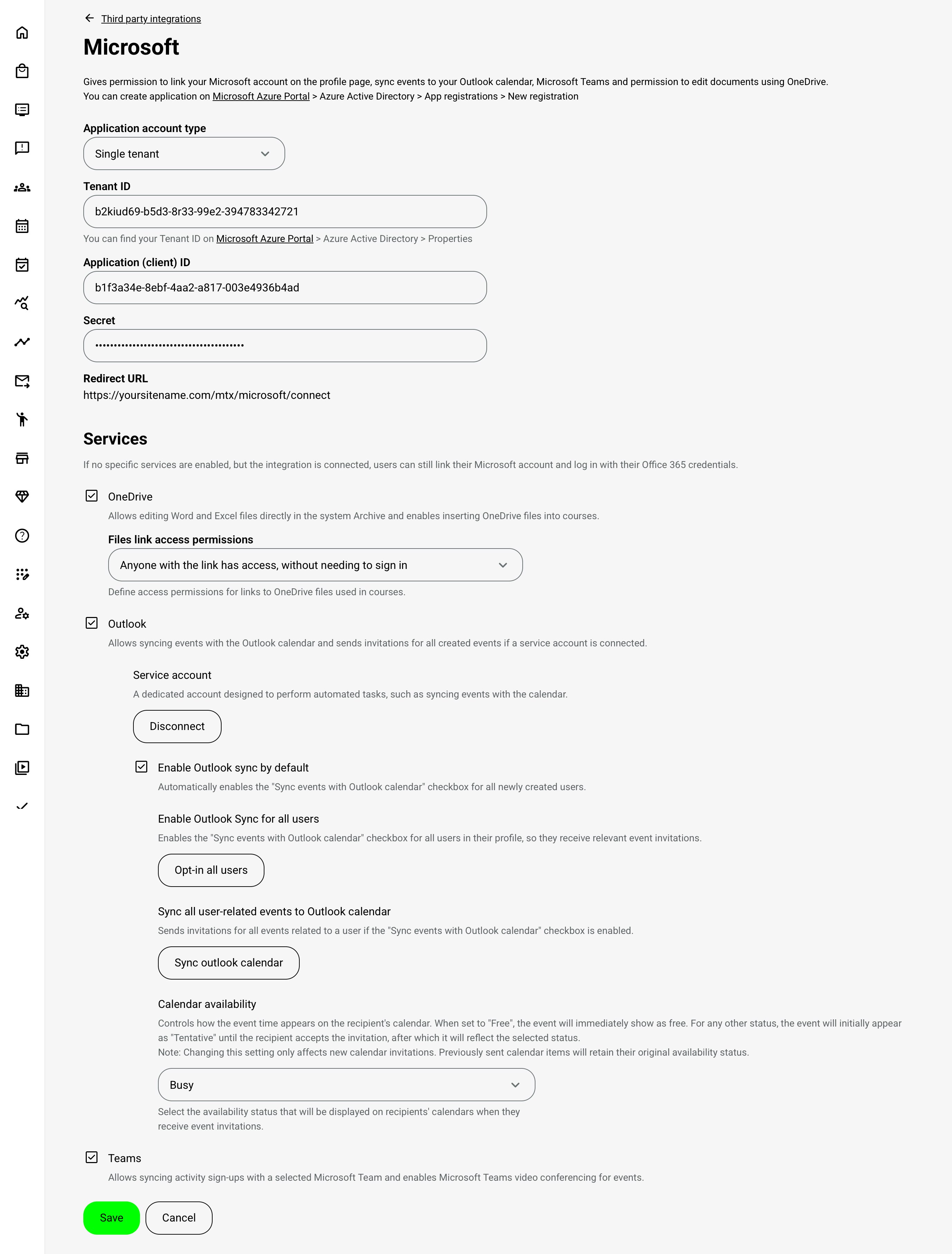
Once created, copy the secret value and navigate to Settings → Third party integrations → Microsoft in Eurekos, where you must provide:
- Application (Client) ID
- Client Secret
Ensure the secret is copied and stored securely, as it may not be fully visible again after creation.
Step 6: Configure Service Account (Outlook Synchronization)
The Service Account is a standard Microsoft account with access to Outlook, used by Eurekos to send calendar invitations and manage event synchronization on behalf of the organization.
It effectively replicates a manual invitation workflow—ensuring that users receive proper Outlook meeting invitations with RSVP functionality—but does so automatically and at scale. This introduces several operational advantages, including consistent delivery, reduced manual effort, and centralized scheduling.
To enable this functionality, both additional API permissions in Azure and configuration in Eurekos are required.
6.1 Add Required API Permissions (Outlook)
Navigate to API permissions → Add permission → Microsoft Graph → Delegated permissions. Add the following permissions:
| Permission | Description |
|---|---|
| Calendars.Read | Allows reading calendar events for synchronization |
| Calendars.ReadBasic | Provides basic calendar access |
| Calendars.Read.Shared | Enables access to shared calendars |
| Calendars.ReadWrite | Allows creating and updating calendar events |
| Calendars.ReadWrite.Shared | Enables managing events in shared calendars |
These permissions enable Eurekos to create, update, and synchronize Outlook calendar events, including sending RSVP-enabled invitations to users.
6.2 Add Service Account Redirect URL
In your Azure application, go to Authentication and add the following Redirect URI: https://yourdomain/mtx/microsoft/service-account/connect. This endpoint is required for authenticating the service account used for calendar management.
6.3 Connect Service Account in Eurekos
Navigate to Settings → Third party integrations → Microsoft.
Once the application credentials are correctly configured, the option to connect a Service Account becomes available.
- Click [Connect]
- Authenticate using the Microsoft account that will act as the service account
6.4 Administrative Actions (Post-Setup)
After successful authentication, a set of administrative helper actions becomes available. These are designed to support rollout, onboarding, and ongoing management of Outlook synchronization.
| Action | Description | Impact |
|---|---|---|
| Enable Outlook sync by default | Automatically enables calendar synchronization for all newly created users by setting the “Sync events with Outlook calendar” option on their profile | Ensures frictionless onboarding and immediate inclusion in scheduling workflows |
| Enable opt-in for all users | Activates calendar synchronization for all existing users, allowing them to receive Outlook invitations | Brings current users into the scheduling flow without affecting past events |
| Sync Outlook calendar | Initiates synchronization for users who have opted in, covering events with an end date within the last 24 hours | Ensures only relevant events are distributed as Outlook invitations (processed in background) |
| Calendar availability status | Defines how events appear in recipients’ Outlook calendars (Free, Busy, Tentative, Working elsewhere, Unknown) | Controls how event time is represented and whether it blocks availability in user calendars |
Calendar Availability Behavior
The selected availability status determines how events are displayed in Outlook:
- Free → Event appears immediately as free time
- All other statuses → Event may initially appear as Tentative until accepted
- Once accepted, the selected status is applied
Important considerations:
- Applies only to newly created events
- Existing calendar invitations are not updated
- Final behavior may vary depending on Outlook or other calendar clients, as interpretation is handled outside Eurekos
These actions provide administrators with control over how synchronization is introduced—whether gradually or across the entire user base.
💡 Users retain control at all times and can opt out of calendar synchronization directly from their profile. This ensures alignment with user preferences and supports good governance practices related to notifications and data sharing.
Validation and Testing
After completing the Microsoft integration setup, it is strongly recommended to validate each enabled capability to ensure correct behavior across Outlook, Microsoft Teams, and OneDrive.
Validation should be performed using real scenarios that reflect how the platform will be used in practice.
1. Validate Outlook Calendar Synchronization
Test scenario: Event scheduling and invitations
- Create a new activity with a scheduled event
- Assign participants (both connected and non-connected users)
Verify:
- Users with connected Microsoft accounts receive:
- Outlook invitations with RSVP functionality
- Correct event details (time, title, description)
- Users without connected accounts receive:
- Standard email notifications
- ICS-based “Add to calendar” option
Check availability status:
- Confirm how the event appears in Outlook (Free, Busy, etc.)
- Accept the invitation and verify final status
Test updates:
- Modify the event in Eurekos
- Confirm updates are reflected in Outlook
⚠️ Note: Outlook may initially display events as Tentative, depending on client behavior.
2. Validate Microsoft Teams Integration
Test scenario: Virtual event creation
- Create an activity and enable Microsoft Teams meeting
- Ensure the user creating the event has a connected Microsoft account
Verify:
- Teams meeting link is generated automatically
- Link is included in:
- Event details
- Invitations
Test collaboration setup:
- Connect a Microsoft Team to an activity
- Enroll users
Verify:
- Users are added to the associated Team
- Team is accessible from Eurekos interface
Test enrollment via Teams: Select an existing Microsoft Team as enrollment source
Verify: Members are correctly enrolled in the activity
3. Validate OneDrive Integration
Test scenario: Content authoring: Add a OneDrive folder to a course page
Verify:
- Files are displayed correctly
- Updates in OneDrive are reflected automatically
Test collaborative editing:
- Open a document from:
- Community
- File archive
Verify:
- Document opens in Microsoft Online
- Changes are saved automatically
- Updated version is visible in Eurekos
⚠️ Ensure user has connected Microsoft account and sufficient permissions.
4. Validate User-Level Behavior
Test different user scenarios:
| Scenario | Expected Behavior |
|---|---|
| User with Microsoft SSO | Automatic Outlook synchronization |
| User with connected account | Full feature access (Teams, OneDrive, Outlook) |
| User without connection | Email + limited functionality |
| User opting out of sync | No Outlook invitations |
5. Validate Permissions and Governance
- Confirm correct API permissions are applied in Azure
- Verify available Teams and OneDrive resources reflect user permissions
- Ensure service account behaves as expected for invitations
Recommended Approach
For a controlled rollout:
- Start with a small test group
- Validate all three domains (Outlook, Teams, OneDrive)
- Set calendar availability to Busy for training scenarios
- Use “Sync Outlook calendar” to distribute recent events
FAQ
-
Do users need to connect their Microsoft account for the integration to work?
Yes — a Microsoft account connection is required for the integration to function fully.
However, depending on how the integration is configured, this connection may be established automatically on behalf of the user (for example, when using Microsoft-based login such as SSO).
For Outlook specifically:
- If a service account is configured, users with a Microsoft account can receive Outlook invitations without needing to take any manual action
- This depends on how the administrator has configured synchronization and user onboarding
For other features:
- Microsoft Teams (meeting creation and collaboration)
- OneDrive (file access and editing)
- Full calendar synchronization and user-specific interactions
→ Users must have an actively connected Microsoft account
This ensures proper authentication, permission handling, and compliance with Microsoft’s security and consent model.
-
Why do some users receive Outlook invitations while others only get emails?
This depends on whether the user has connected their Microsoft account:
- Connected users → Receive Outlook invitations with RSVP
- Non-connected users → Receive standard emails and ICS calendar files
This ensures all users are notified, but only connected users benefit from full synchronization. Not everyone has a Microsoft account.
-
Why do Outlook events sometimes appear as “Tentative” instead of “Busy”?
This is expected behavior:
- Outlook may initially display events as Tentative, even if another status is configured
- The final status is applied after the user accepts the invitation
- Calendar clients ultimately control how availability is displayed
-
Does Eurekos sync changes from Outlook back into the platform?
No. The integration is one-way (Eurekos → Outlook).
- Changes made in Outlook (e.g. decline, delete) are not sent back to Eurekos
- Only actions performed inside Eurekos are recorded
-
Why are my Teams not visible when trying to connect them to an activity?
Available Teams are controlled by Microsoft permissions:
- Visibility depends on Azure configuration and user permissions
- Eurekos only displays Teams accessible through the connected account
- Ensure correct Graph API permissions and user access
-
Is user synchronization between Eurekos and Microsoft Teams automatic?
No — synchronization is event-driven, not continuous.
- Users are added when:
- Enrolled into an activity
- A Team is used as an enrollment source
- Changes made directly in Teams are not reflected back automatically
- Users are added when:
-
Can I use a Microsoft Team to enroll users into an activity?
Yes.
- Administrators can select a Microsoft Team as an enrollment source
- All members of the Team can be added to the activity
- This reduces manual user management and aligns with organizational structures
-
Why are Teams meeting links not created automatically?
This typically happens when:
- The user creating the event has not connected their Microsoft account
- Required permissions (e.g. OnlineMeetings.ReadWrite) are missing
- The integration is not fully configured
Meeting creation depends on both user connection and API permissions
-
Do changes to calendar availability settings affect existing events?
No.
- Calendar availability settings (Free, Busy, etc.) apply only to newly created events
- Existing invitations will retain their original configuration
-
Can users opt out of Outlook synchronization?
Yes.
- Users can disable “Sync events with Outlook calendar” in their profile
- This gives users control over notifications and data sharing
- It is recommended as part of governance and user preference management
-
Do I need to enable all Microsoft features to use the integration?
No.
- The integration is modular
- You can enable only what is relevant:
- Outlook (scheduling)
- Teams (virtual delivery & collaboration)
- OneDrive (content & editing)
This allows alignment with your organization’s security, governance, and use cases