Setting up a Subscription - Article
Summary
Subscriptions in Eurekos allow administrators to package training into recurring access models with defined pricing, billing cycles, and included content. This article explains how to configure a subscription and publish it in the Storefront for purchase and enrollment.
In this article you will learn:
- How to create a subscription and define its core configuration
- How to add descriptions, images, and visual elements for Storefront presentation
- How to define pricing, billing plans, and included training content
- How to publish subscriptions and control their visibility in the Storefront
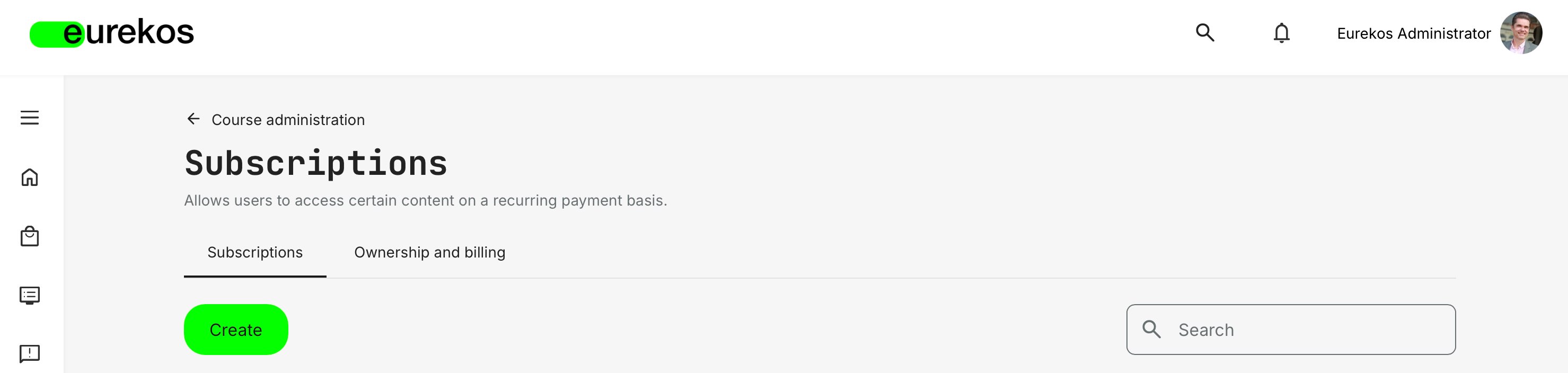
Subscriptions are generally defined as recurring payments that grant registered users access to training content. Administrators configure subscriptions in Course Administration → Subscriptions, where both the learning library available to subscribers and the standard billing options for the subscription are defined.
Once created, a subscription is independent of how it is purchased or distributed. The same subscription can support multiple Eurekos commerce and distribution workflows, including personal, team, and managed subscriptions, as well as special price invitations with recurring payments. This flexibility allows organizations to apply different purchasing models while managing access through a single centralized subscription configuration.
Basic Subscription Setup
In order to create a simple subscription for one or more training activities, navigate to Subscriptions, and click [Create]. You will then be taken to the Create Subscription page, where you can configure the available options. Begin by adding the required texts and images.
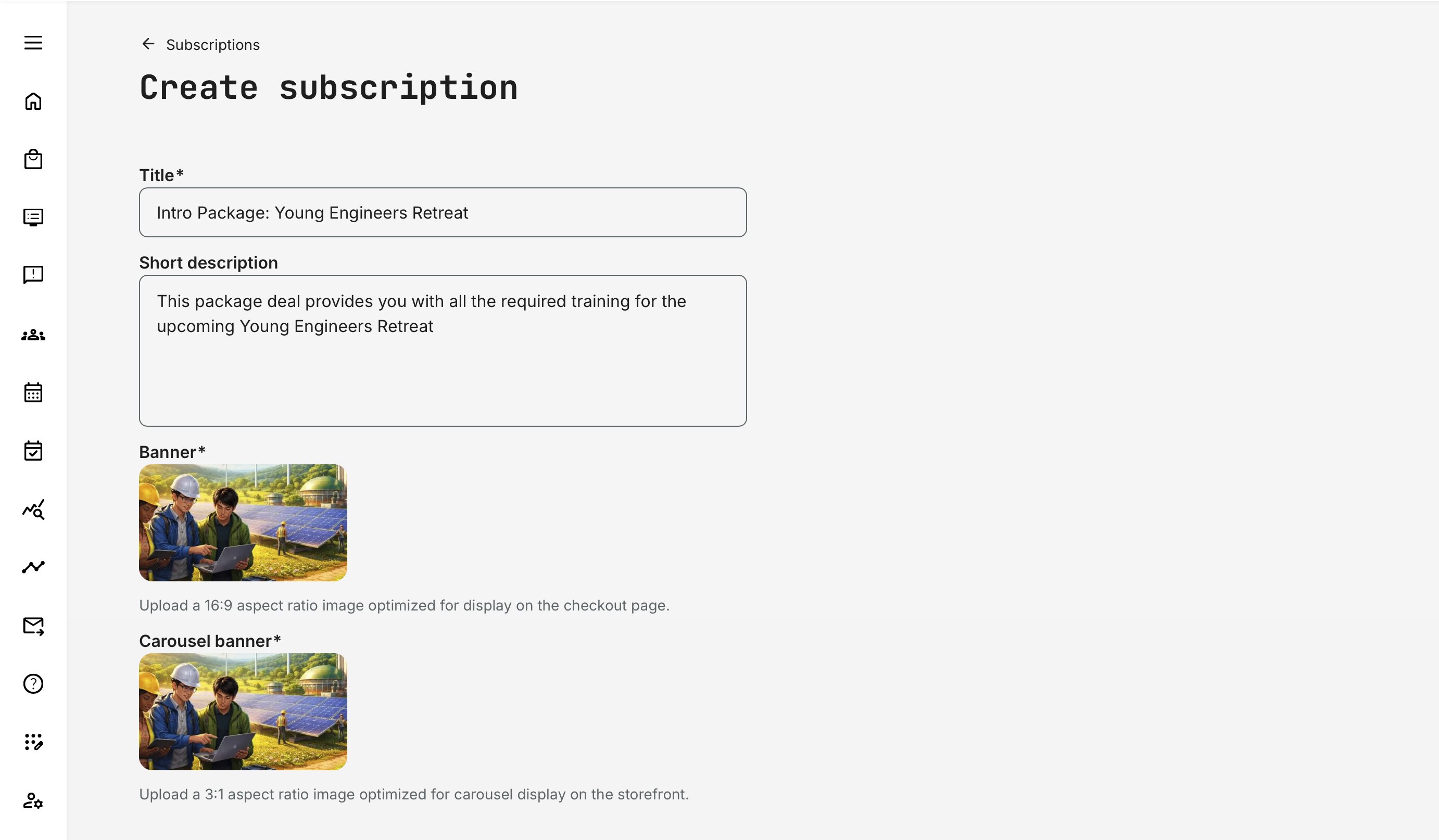
- Title: Give your subscription or training package a clear, relevant name. This title is shown to users in the carousel and is also used for identification during purchase and subscription management
- Short description: Add a concise, engaging description that captures attention. This text appears on the carousel banner and helps users quickly understand the value of the subscription
- Banner: Upload a Storefront banner in 16:9 aspect ratio for the checkout page of the subscription
- Carousel Banner: Upload a banner in 3:1 aspect ratio for including the subscription in a Storefront carousel section
You can upload images in other aspect ratios, but they will be cropped to fit the required display format. For full control over how your content appears in the Storefront, we recommend creating images using the suggested aspect ratios.
If the image is primarily decorative, a 16:9 format can often be reused for both rows and carousel placements for convenience. Adjust aspect ratios on a case-by-case basis as needed. For best visual quality in the carousel, we recommend a resolution of 1280 × 720 pixels.
You now have the option of deciding whether your subscription will include all activities available for self enrollment or specific activities only – and in the case of the latter, you may allow the customer to be automatically enrolled into these activities upon a successful purchase by checking the Auto-enrollment after purchase box.
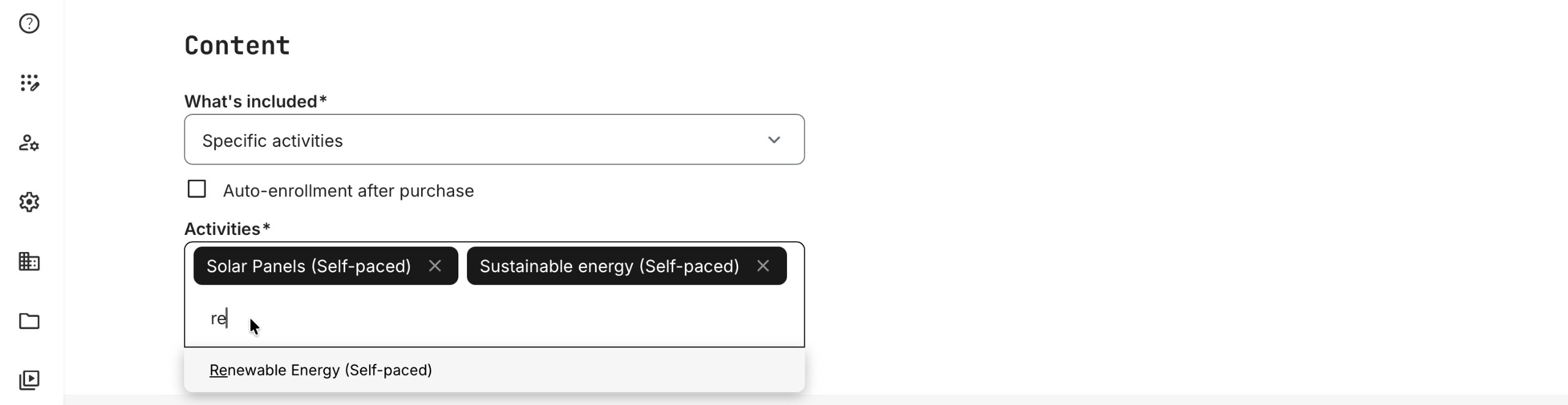
⚠️ Auto-enrollment does more than make individual training activities available—it automatically enrolls users upon subscription purchase. Enrolled activities appear directly on the user’s Home screen under Ongoing, which can be useful for focused or guided learning scenarios.
However, if a subscription includes many activities, we recommend presenting the content through subscription rows in the Storefront instead. This avoids clutter and allows subscribers to choose when and what to enroll in.
When not configured for Self Enrollment
It is possible to include training activities in a subscription even if they are not configured for self enrollment (use Specific activities). This enables scenarios where certain content is exclusive to a subscription and cannot be enrolled in or purchased individually outside of it.
This is a more advanced use case and typically requires a deeper understanding of Storefront configuration and audience controls. It is often best approached after gaining some experience with how visibility rules interact.
If you offer both subscriptions and standalone courses at the same time, you can control their visibility by grouping or excluding items using categorization.
Scrolling down to the Billing section, you get to decide whether the customer will be billed on a monthly, quarterly or an annual basis, as well as define the price in the currencies you have enabled:
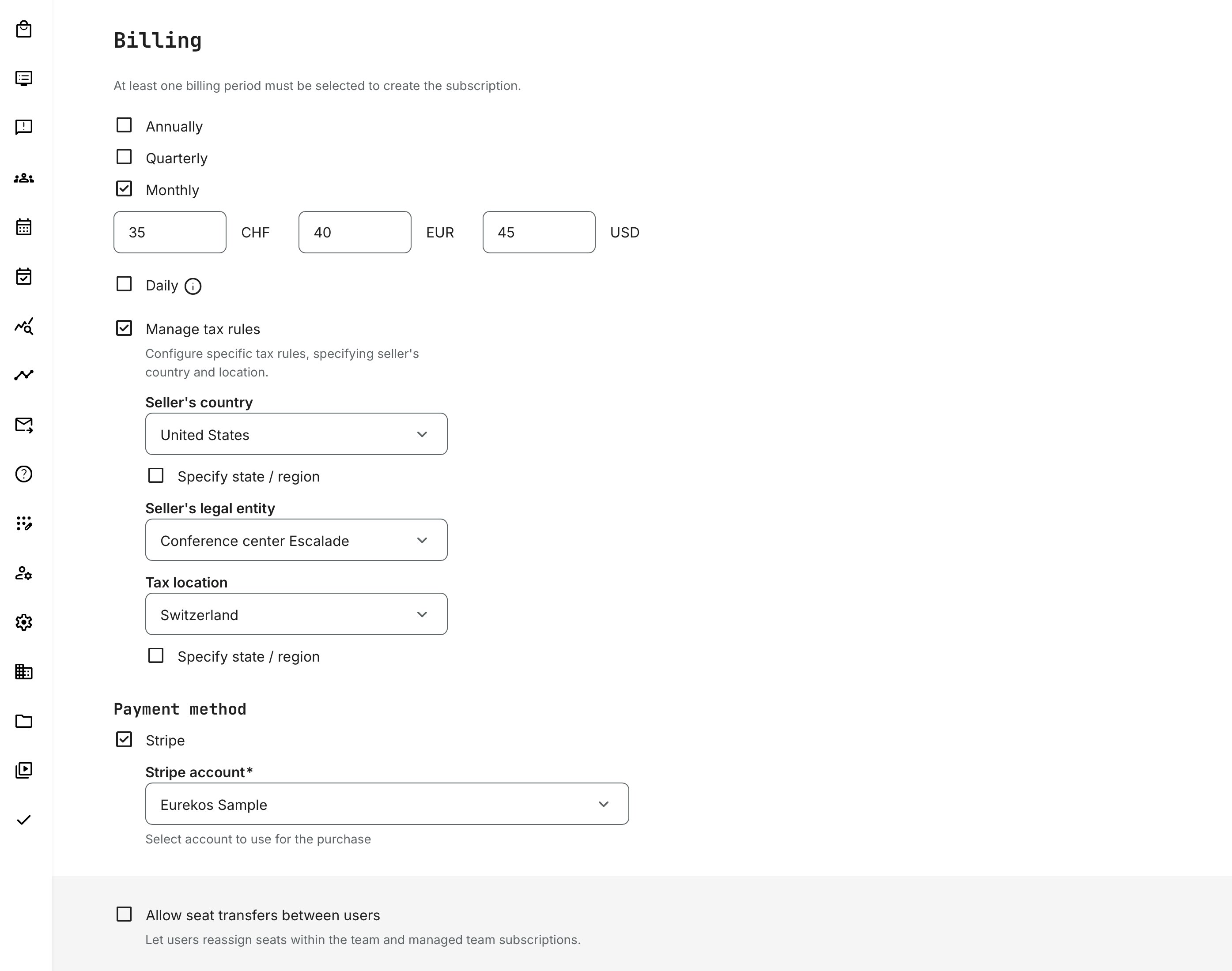
Billing options: You can configure multiple billing periods or plans for a subscription and define discounted prices (as whole numbers) in your supported currencies. The platform automatically calculates and displays the discount percentage during the purchase flow, helping users clearly see the benefit of choosing a longer billing period.
If you have defined country-specific tax rules for your organization (Settings → Commerce → Tax Rules), these can be entered into the corresponding fields after the Manage Tax Rules box has been checked. In further, you are able to connect an existing Stripe account as a Payment method. See relevant articles on the our extensive Tax Management and how to connect a Stripe account.
Allow seat transfers between users applies only to Team and Managed Subscriptions, where multiple members share access. When enabled, it allows the subscription owner to quickly transfer seats between users in a single action.
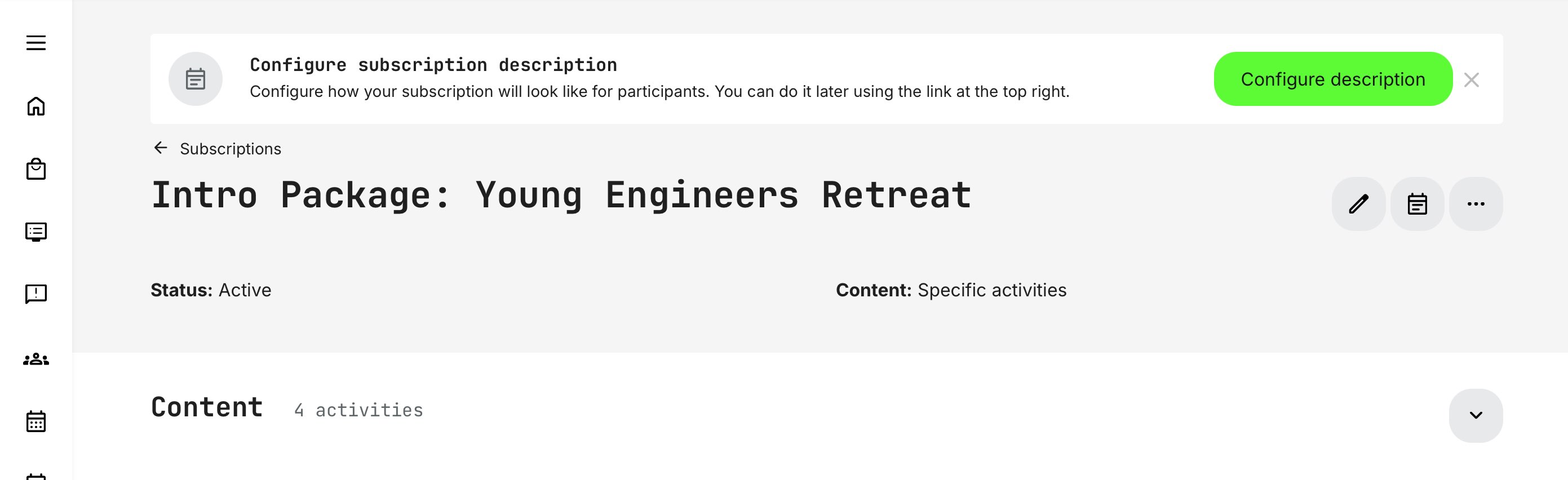
Once you are happy with the subscription setup, click the [Create] button and the bottom of the screen and await the confirmation message. You will automatically be taken to the main page of your new subscription, and the subscription will automatically be set as Active. As recommended by the platform, we now press the [Configure Description] button in the upper right-hand corner to proceed with filling in the description for the subscription.
💡 An active subscription does not automatically become visible or available for enrollment to any audience. There is no risk of it being published prematurely—it simply allows you to begin configuring and working with the subscription before deciding when and how to expose it.
You will be treated to a preview of the subscription page as it appears to a potential customer, and by clicking the [Edit] button (stylized as a pen icon) you can make changes to its different elements – i.e. change descriptive texts, swap images and select a layout using the native page editor used for course creation.
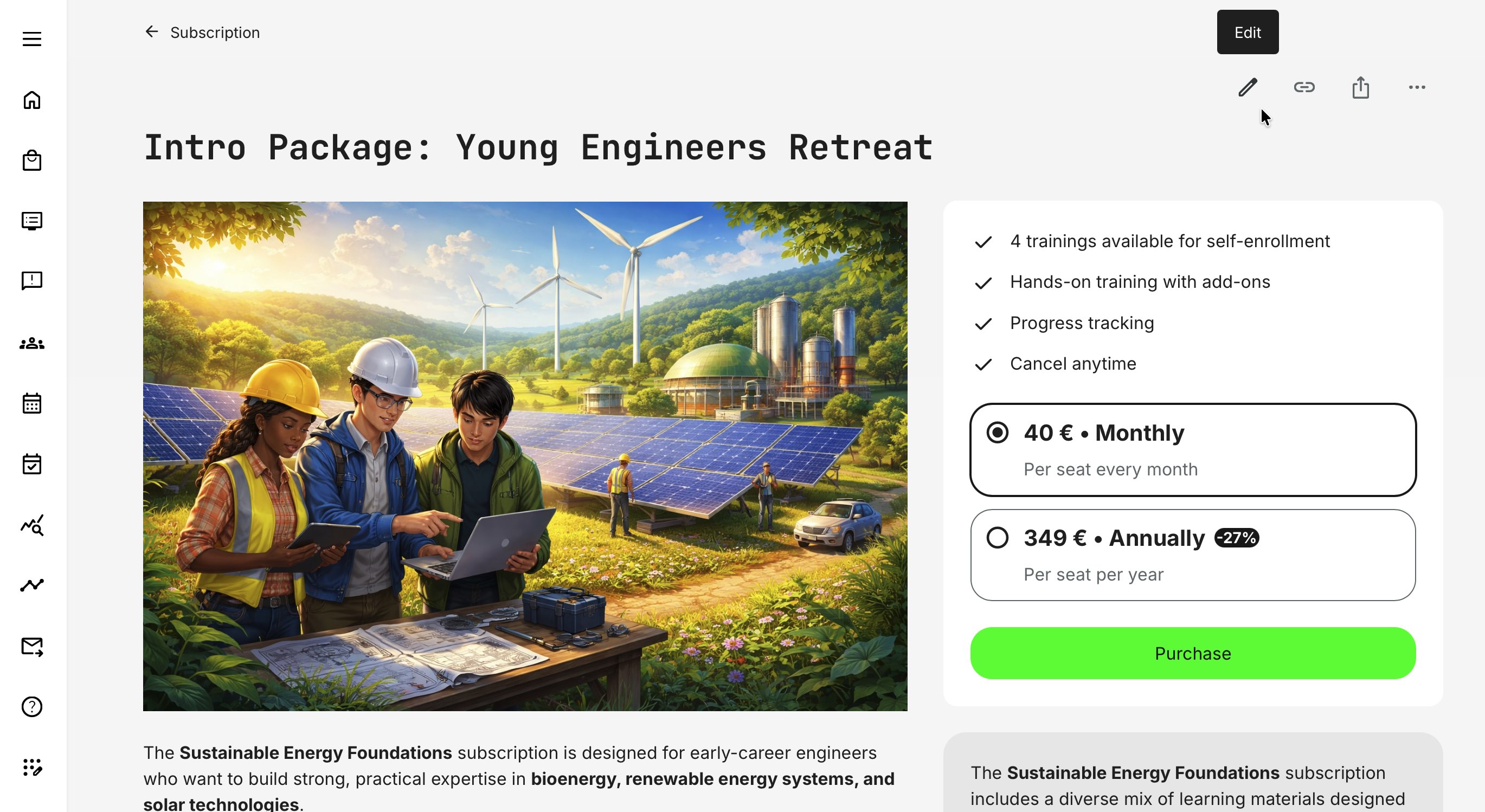
Next to the [Edit] button, you will find the following additional options:
- Copy Link to Subscription (subscription link is copied to your clipboard, and also available to all users who can view the subscription)
- Share Subscription (input email address of recipient, and available to all users who can view the subscription)
- More [...] which is only available to a role able to review this page.
- Revisions (lets you see the revision history, including time and page editor)
- Copy (copies subscription description to clipboard)
- Clear Content (caution: upon confirmation, this deletes all page content)
- Subscription (returns you to the main page of this subscription)
Display subscriptions to your audience: Subscriptions are displayed in the Storefront in the same way as other training activities—by adding them to rows (in this case, subscription-based rows) or featuring them in the carousel to promote your offers. You can then use the platform’s powerful audience targeting features to control which users can see and purchase each subscription.
You can create multiple active subscriptions to serve different audiences or package offerings—for example Basic, Extended, and similar. Or you can package it by topics or product series.
💡 Changing the term “Purchase” globally can easily be done under Settings → Translations → Interface (tab), alongside other system strings.
Less commonly used—but also supported—is the ability to customize this label per individual subscription. Eurekos can enable options to change button text for specific subscriptions or even replace a button action with a custom URL that links to an external page. Contact Eurekos Service Desk if you wish to enable this functionality.
Editing a Subscription
If you wish to edit a subscription, you can find the settings by its entry in the Subscriptions list (Course Administration → Subscriptions) and simply click the [More] option. Please note that these actions apply to the subscription entity itself, not to individual subscribers or members. However, certain subscription-level actions may still have an impact on subscribers.
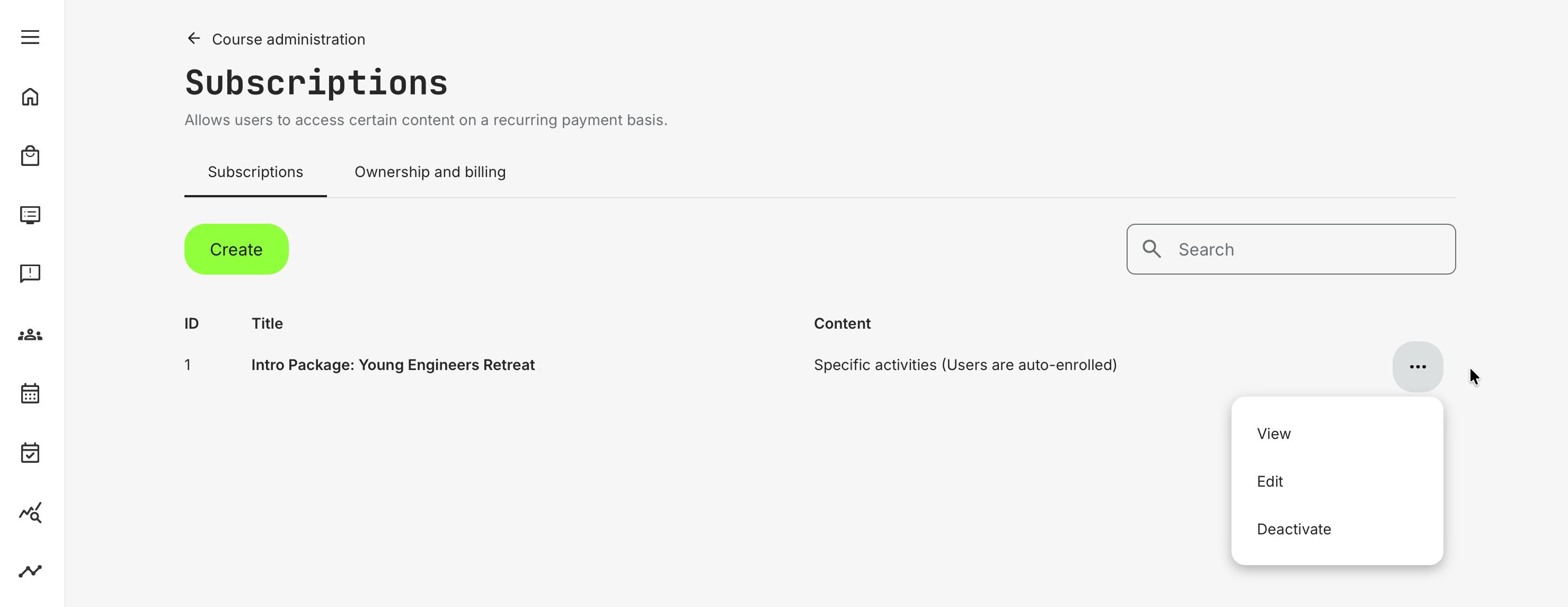
Change Subscription Terms
From the list of subscriptions or from the subscription page, click [Edit] in the upper-right corner (pen icon) to open the Edit Subscription page, which contains the same settings available during creation.
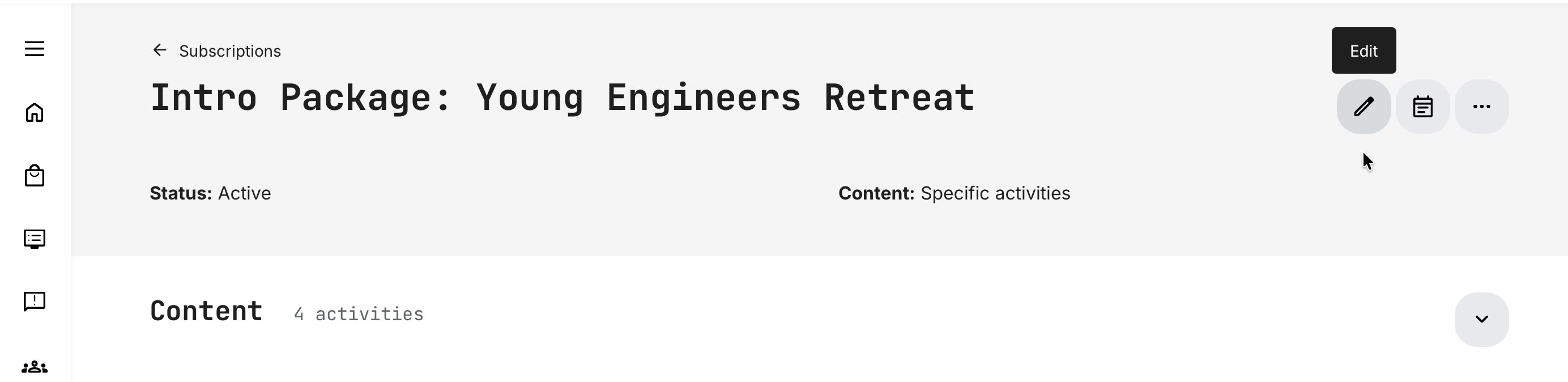
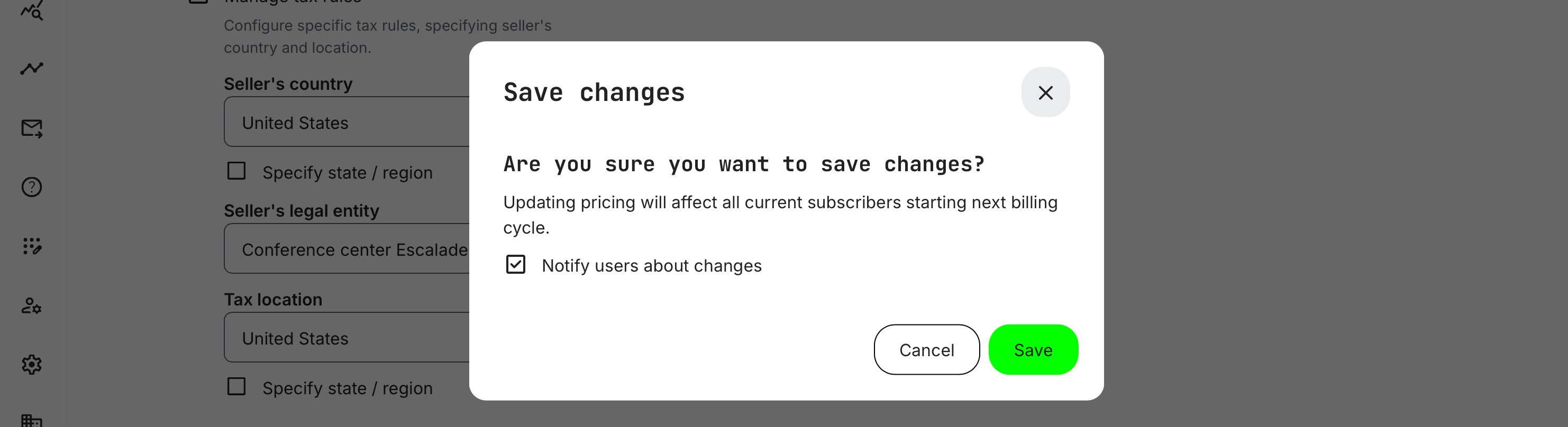
Here you can update the subscription title, descriptions, banner images, included content, and commercial details (pricing, billing, payment methods). Changes to content or pricing take effect at the start of the next billing cycle. If you enable Notify users about changes when saving, subscribers will automatically be informed by email.
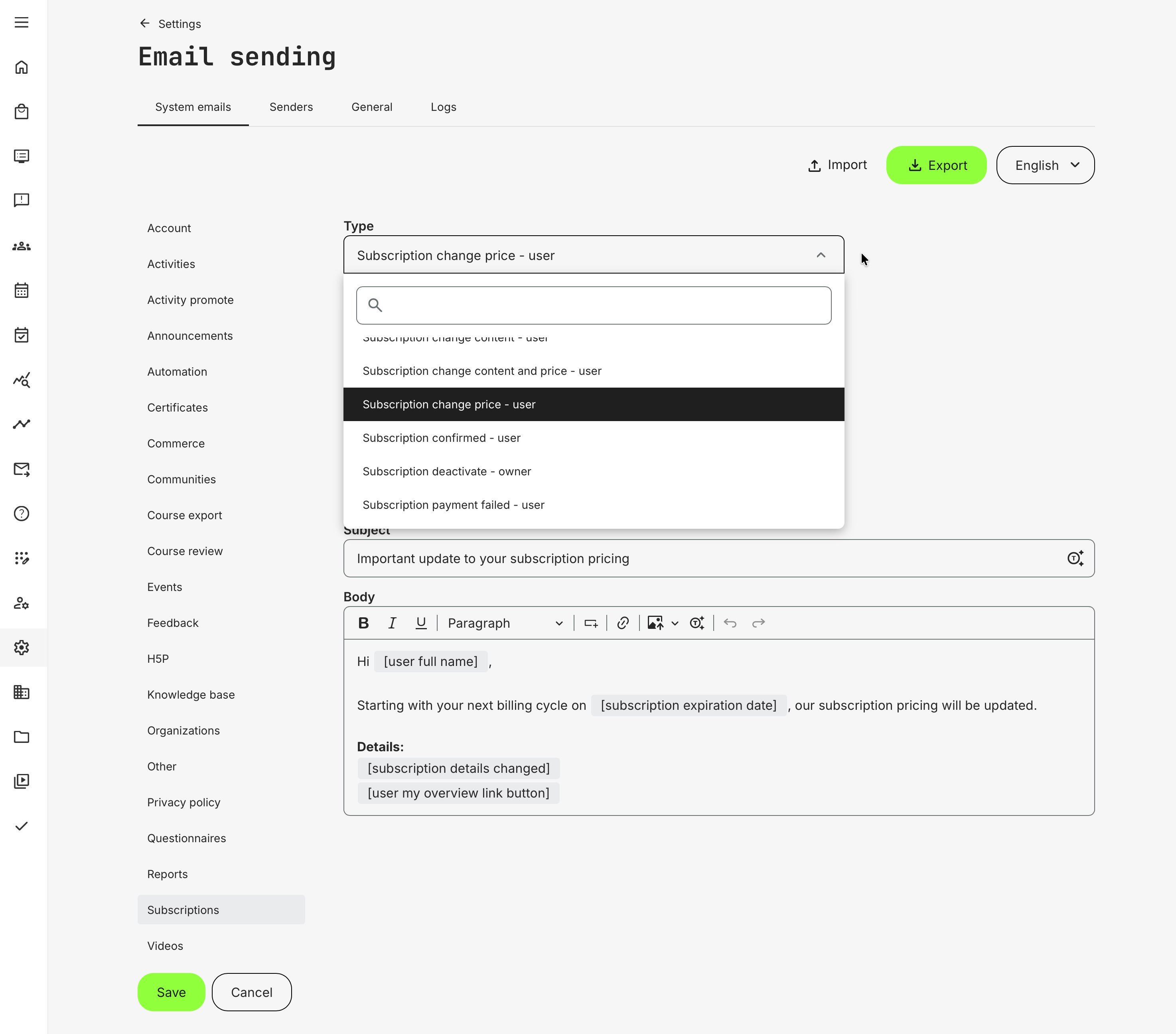
Standard system emails can be customized under Settings → Email sending to match your organization’s communication needs and tone of voice. An overview of all standard email notifications—both for subscriptions and other features—is available in the relevant articles.
Use cases: Other automated notifications related to the subscription purchase process are covered in separate articles, and additional answers may also be found in the FAQ section.
Edit Subscription Description
On the subscription page, click the [Subscription Description] button in the upper right-hand corner (stylized as a board icon) and you will be taken to its preview page, where edits to its layout and contents can be made in the usual way.
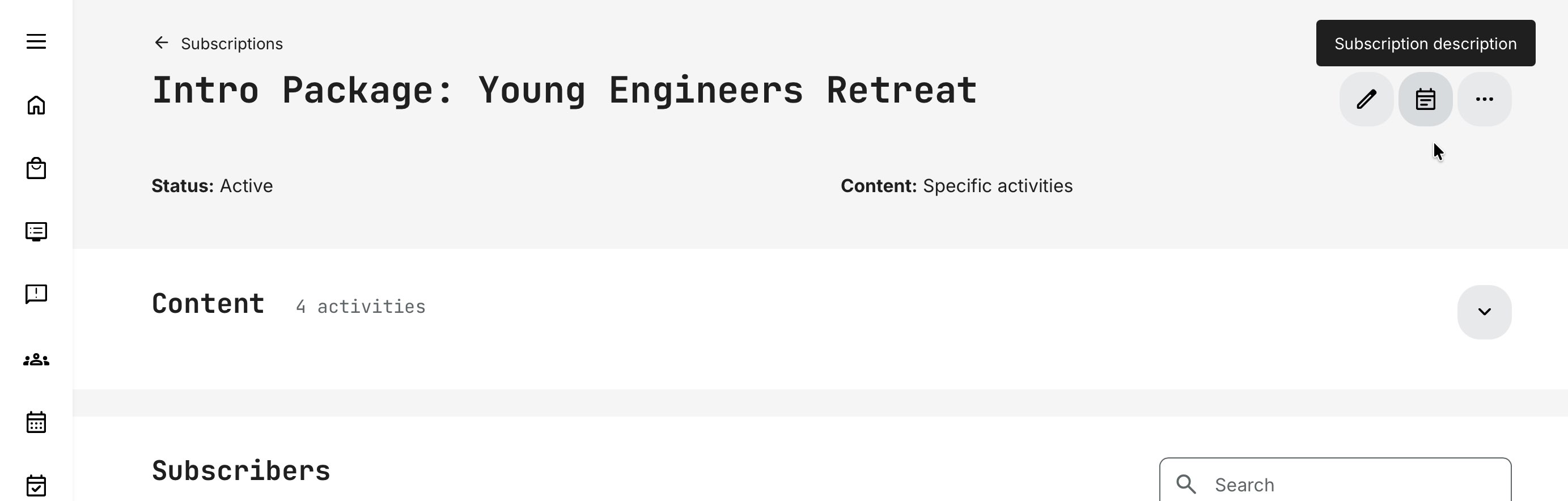
Use the native editing interface to manage your updates with images, texts, video teasers and anything you wish to include in your promotion. Updates to a subscription or activity description page is instantly online when you [Save] your changes.
Updates to the subscription description do not trigger automatic emails to existing subscribers, as these changes are typically minor (clarifications, grammar, or cosmetic updates). If a description change represents a more substantial update, you can communicate it using the Announcements feature or another appropriate channel as appropriate.
Deactivate a Subscription
To deactivate a subscription, navigate to its individual settings by locating its entry in the Subscriptions list (Course Administration → Subscriptions). Simply click the [More] option. Please note that these actions apply to the subscription entity itself, not to individual subscribers or members. However, this subscription-level action has an impact on subscribers.
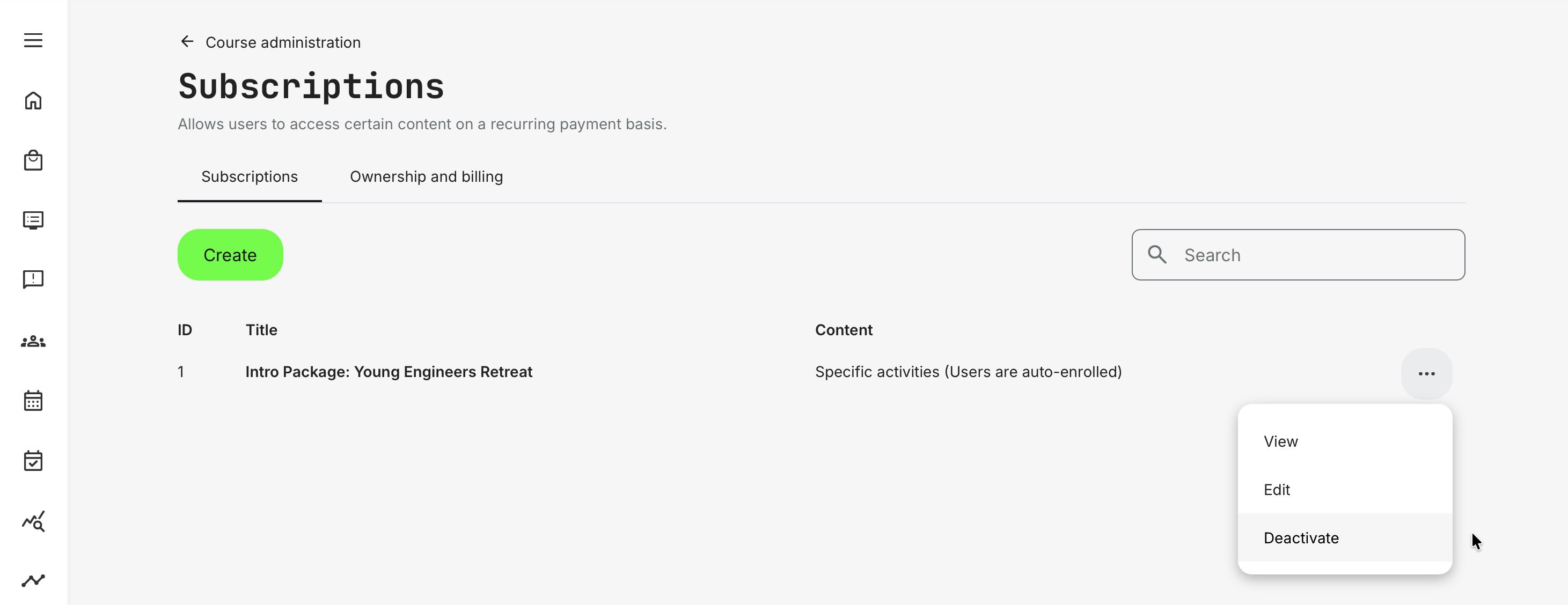
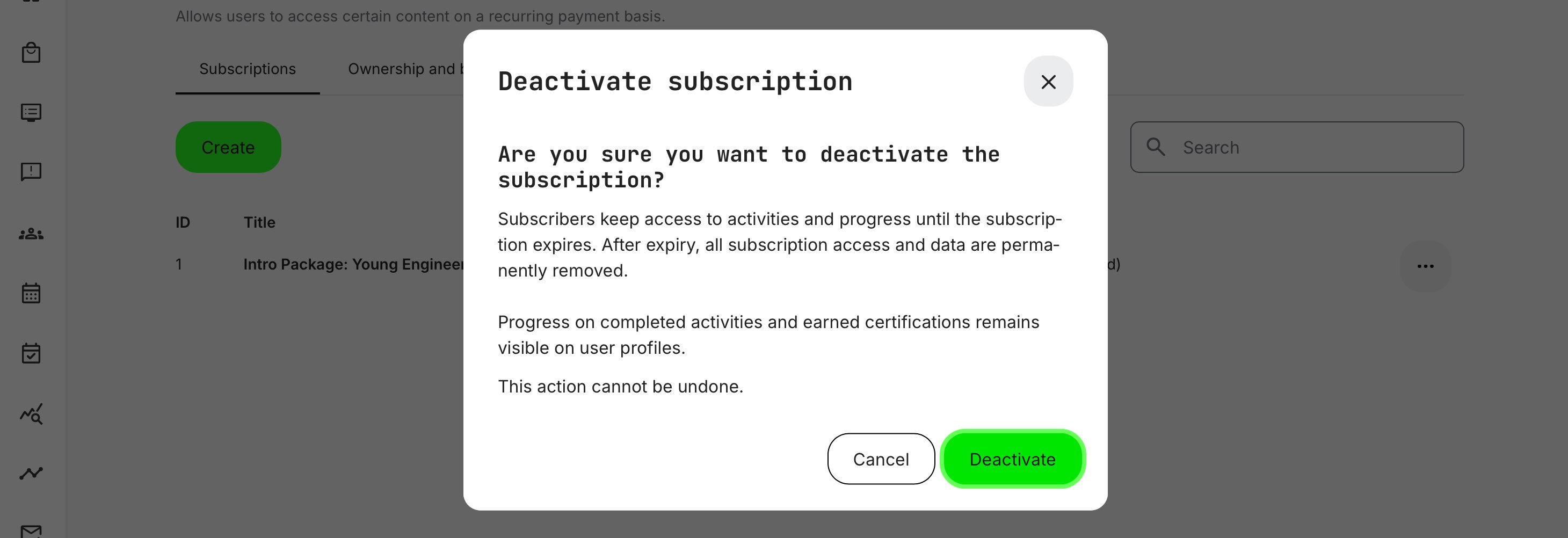
Once a subscription is deactivated, subscribers retain access to its activities and their progress only until the subscription’s effective expiry date. After that point, all access to the subscription is revoked and all subscription-related data is permanently deleted. This action is irreversible.
The subscription will become inactive, which also means it can no longer be purchased or accessed from the Storefront.
User progress on completed training activities and any earned certifications remain available on individual user profiles unless they are later removed due to data retention, anonymization rules, or similar policies.
FAQ
-
Can a subscriber transition one subscription to a different subscription?
No. Each subscription is currently an independent entity. As a subscription member, you can purchase a different subscription and deactivate your existing one, but you cannot directly upgrade or transition between subscriptions.
-
Will training progress be restored if a subscriber reactivates a subscription?
Yes—if a subscriber deactivated a subscription and later reactivates it, their previous progress is normally restored, as the data is retained and the subscription was simply inactive.
However, there are important exceptions:
- Data retention or anonymization rules may remove user data and progress.
- Changes to the subscription content (adding, removing, or modifying training activities) can affect or invalidate previous progress.
In these cases, progress may not be recoverable as a natural consequence of those changes.
-
Can a subscriber change billing plans?
Yes. Subscribers can switch billing plans (for example, from monthly to yearly) and benefit from any discounts, provided these options have been configured by an administrator.