Personal Invitations for Subscriptions - Article
Summary
Personal invitations allow administrators to offer a negotiated subscription price to a specific individual without modifying the standard subscription configuration. The recipient receives a private checkout link and can purchase the subscription using the agreed price.
In this article you will learn:
- What personal invitations for subscriptions are and when to use them
- How administrators create and manage subscription invitations
- How special pricing is applied without changing the standard subscription setup
- How the invitation behaves before and after the purchase is completed
Overview
Personal invitations allow administrators to offer a negotiated or discounted subscription price to a specific recipient while keeping the standard subscription configuration unchanged.
Instead of modifying the default subscription pricing or creating duplicate subscription configurations, administrators can create a targeted invitation tied to an existing subscription. The recipient receives a private checkout link where the subscription is offered at the negotiated price.
This approach provides commercial flexibility while preserving centralized subscription management. Standard pricing remains unchanged in the storefront and for other customers, while individual offers can still be negotiated when required.
Personal invitations are particularly useful when subscription pricing has been discussed with a specific customer, partner, or learner and the agreement should be completed through the platform’s standard payment flow.
Key characteristics:
- Negotiated pricing without modifying the subscription—Administrators can override the standard price for a specific invitation while keeping the base subscription configuration intact. This ensures that special pricing does not affect public subscription pricing or other customers
- Reuse of existing subscription configuration—Personal invitations always reference an existing subscription. Billing periods, currencies, and subscription conditions follow the configuration defined in the subscription setup
- Private checkout link for the recipient—The invited recipient receives an email invitation directing them to the checkout page with the negotiated price applied. The invitation functions as a private purchase offer
- Supports both personal and team subscriptions—During checkout, the recipient can choose whether to purchase the subscription as a personal subscription or as a team subscription, depending on their needs
- Optional expiration deadline—Administrators can define an expiration date for the invitation. Once the deadline passes, the invitation automatically becomes invalid
Creating a Personal Invitation
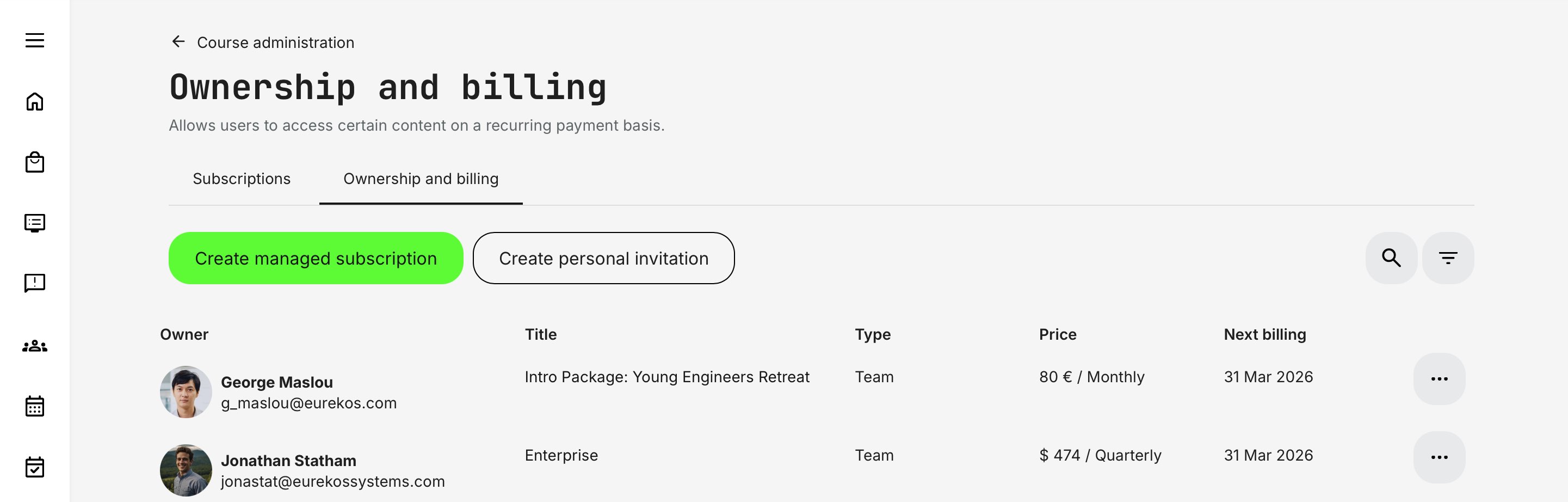
Personal invitations are created by administrators under Course Administration → Subscriptions → Ownership and Billing. From this page, administrators select [Create personal invitation], which opens the invitation configuration form.
Selecting the Subscription
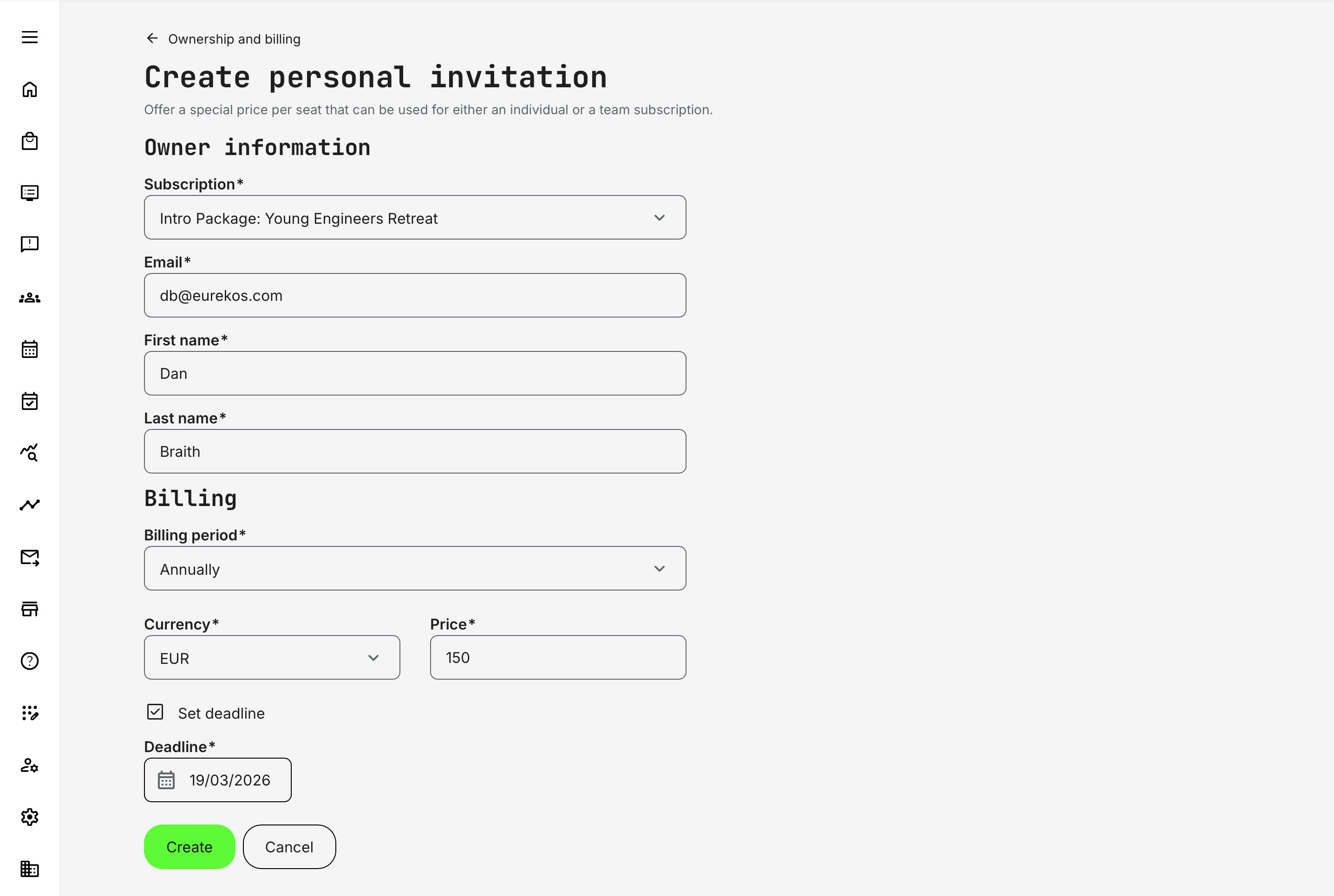
The administrator first selects an existing subscription to which the invitation will apply.
The invitation inherits the standard subscription configuration, including:
- Available billing period options
- Supported currencies
- Included learning content
This ensures that invitations reuse the existing subscription setup rather than creating separate subscription configurations.
Entering Recipient Information
The administrator specifies the invitation recipient by entering their email address. If the recipient is already registered on the platform, personal details such as first name and last name may be prefilled automatically from the user profile.
The invitation will be sent to this email address, allowing the recipient to access the checkout page where the subscription is offered at the negotiated price. The content and tone of the invitation email can be configured in Settings → Email sending → Subscriptions.
⚠️ If an invitation is sent to a recipient who does not yet have an account on the platform, the standard sign-up and user creation process is initiated. This ensures that the recipient has an authenticated user account, which is required to complete the purchase, access the subscription content library, and maintain accurate transaction records.
Defining the Special Pricing
Administrators configure the negotiated pricing in the Billing section.
This includes:
- Billing period (from the subscription’s configured options)
- Currency
- Special price per seat
The price entered here overrides the standard subscription price only for the invited recipient.
Setting an Expiration Deadline
Administrators can optionally define a deadline for the invitation. If a deadline is set, the invitation remains valid until that date. After the deadline passes, the invitation can no longer be used to complete the purchase.
This allows administrators to control the availability of promotional or negotiated offers.
Invitation Status and Management
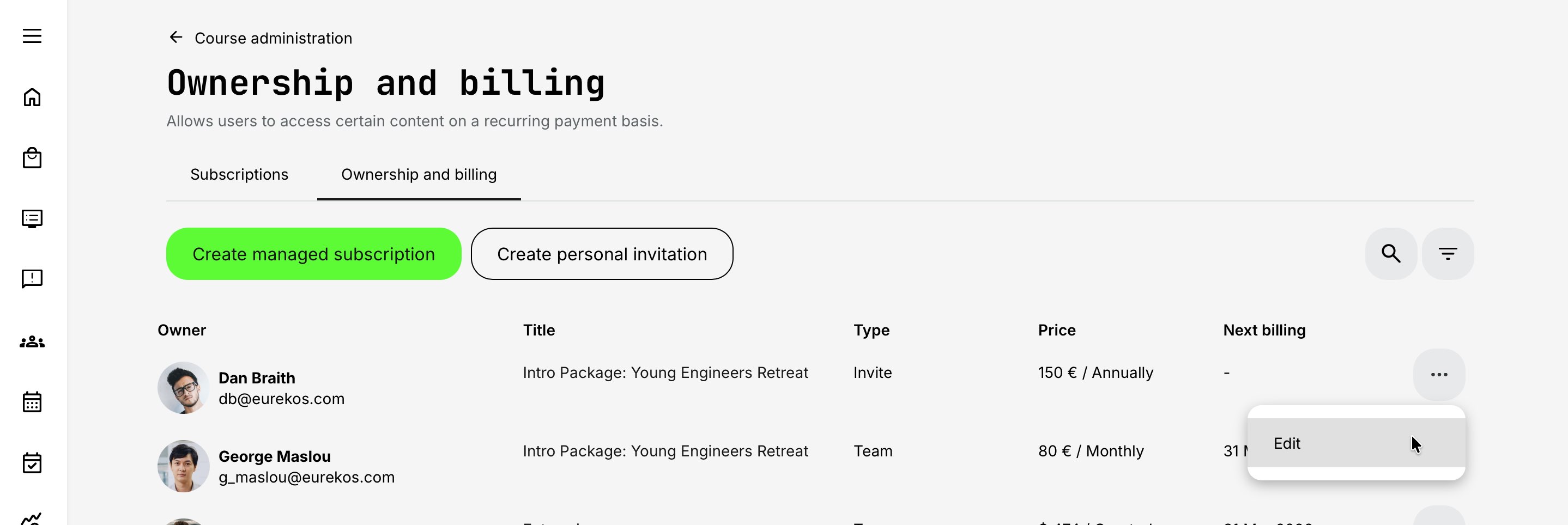
Once created, the invitation appears in the Ownership and billing overview with the type Invite. The invitation remains in this state until the recipient completes the checkout process.
Administrators can open the action menu to manage the invitation while it is still pending.
Editing a Personal Invitation
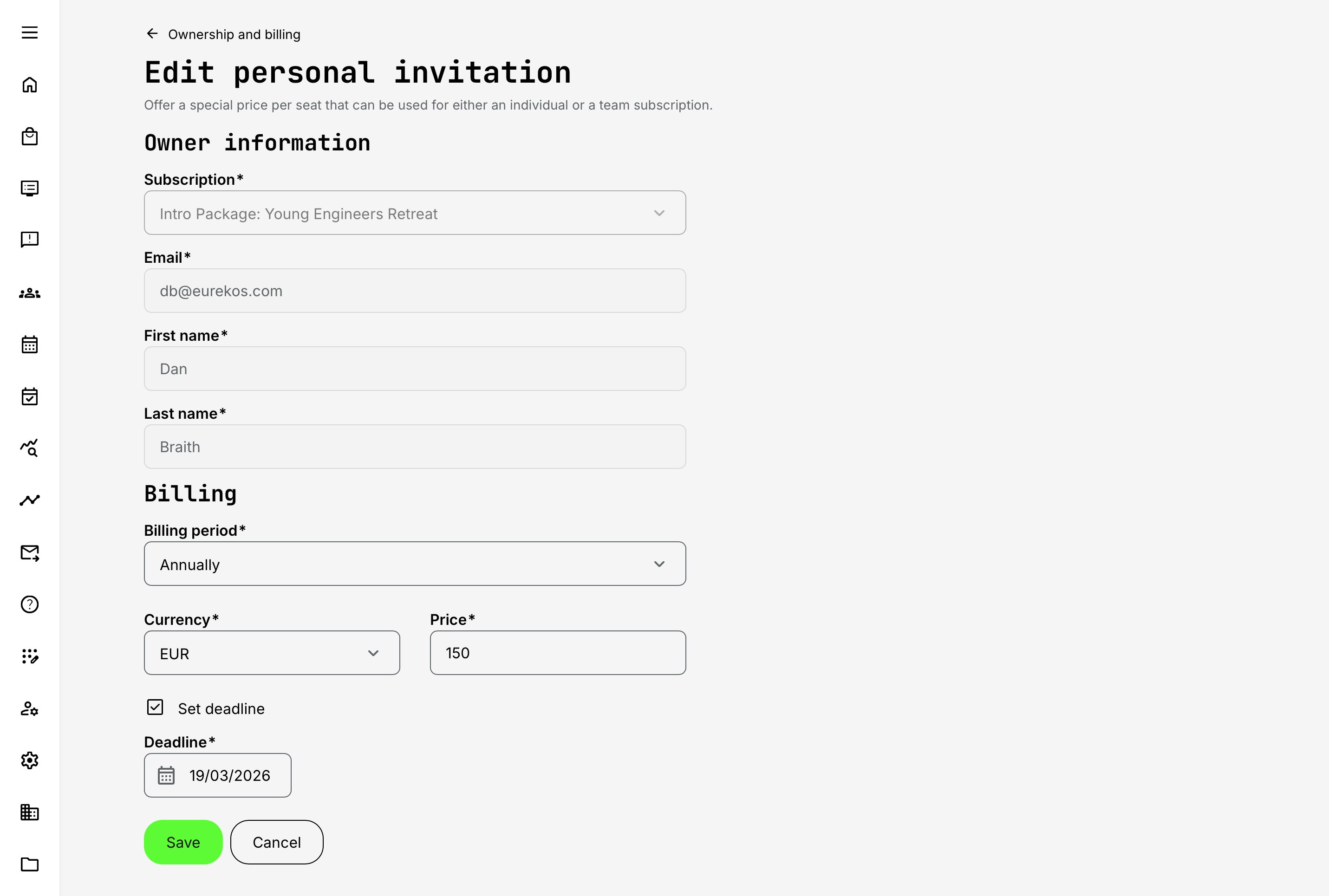
Until the subscription has been purchased, administrators can edit the invitation to adjust its conditions.
Editable parameters include:
- Billing period
- Currency
- Negotiated price
- Invitation deadline
Once the purchase has been completed, the invitation can no longer be modified because the commercial transaction has been finalized.
Completing the Purchase
When the recipient follows the invitation link, they are directed to the subscription checkout page where the negotiated price is applied.
After the payment has been completed:
- The invitation converts into an active subscription.
- The subscription behaves like a standard personal or team subscription depending on the option chosen during checkout.
- The subscription becomes visible under Main menu → Subscriptions for the owner.
From this point forward, the subscription follows the normal lifecycle and management behavior of the selected subscription type.
When to Use Personal Invitations
Personal invitations are particularly useful in scenarios such as:
- Negotiated discounts for specific customers
- Partner or reseller agreements
- Promotional offers for selected individuals
- One-off commercial agreements that should not affect public subscription pricing
By allowing administrators to offer targeted pricing while preserving the standard subscription configuration, personal invitations provide a controlled and flexible way to manage subscription offers.