Purchase Flow - Article
Summary
The subscription purchase flow describes the end-to-end journey from Storefront discovery to checkout, confirmation, and ongoing subscription management. It explains how personal and team subscriptions are purchased, managed, and maintained throughout their lifecycle.
In this article you will learn:
- How users discover and purchase subscriptions through the Storefront
- How checkout, billing plans, and payment processing work during purchase
- How team subscription owners manage seats and subscription lifecycle actions
- How cancellations, reactivations, and failed payments are handled in the platform
Purchasing a Subscription
The user journey typically begins in the Storefront, as shown in this customer-facing example. Subscriptions can be promoted through a carousel and/or displayed in rows that highlight the included content—or selected parts of it—depending on how the Storefront is configured. This flexibility allows you to present subscriptions differently to different audiences, or to change the presentation before and after purchase.
That said, this article focuses on the purchase process. When users are offered a subscription, it is essential that they receive a clear and transparent overview of what they are paying for, the applicable terms, and—just as importantly—what makes the subscription valuable and appealing to them.

Clicking [Learn more] in the promotional carousel—or the [Subscribe from …] button—takes the user to the subscription description page. This page presents the full promotional content and key Unique Selling Points (USPs), helping potential customers decide whether the subscription meets their needs before proceeding with the purchase.
If the user is already registered, prices are displayed in the currency associated with the country on their account. For unregistered users, prices follow the platform’s default currency configuration.
The following steps are shown from the perspective of a registered user who has already accepted the “Terms and Conditions” and “Privacy Policy” during account creation. This integrated purchase flow ensures immediate access after completion, with all required safeguards in place.
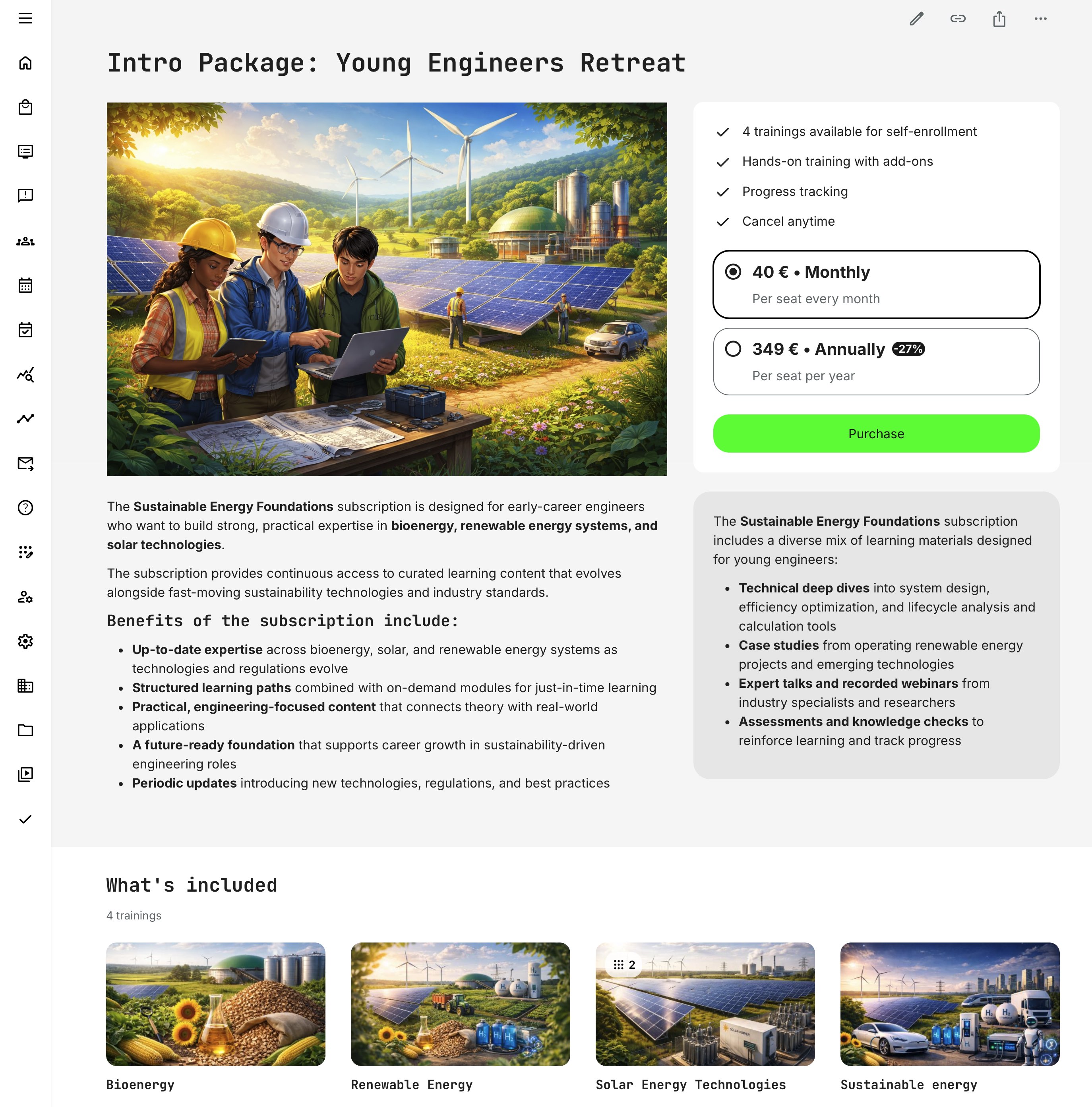
In this example, users can choose between monthly or annual subscription plans, with the annual option typically offering a percentage-based saving. Available billing plans are defined when the subscription is created and are clearly presented to the user.
The subscription landing (description) page always includes:
- A purchase widget showing available billing plans and standard purchase information
- A What’s included section listing the included training activities (courses and programs).
- A copy link option to easily share the subscription page
- A share option that allows users to email the subscription details to a colleague or friend who may be interested
The “What’s included” section lists the individual training activities that are part of the subscription. We recommend adding clear descriptions for each activity—even if they are not available as standalone purchases—since subscribers can click through from the Storefront rows or this section to learn more about each option.
Included activities may range from simple self-paced courses to comprehensive programs, virtual sessions, or instructor-led on-site training with venue details. Providing this information helps users understand the full value of the subscription before making a purchase decision.
Clicking [Purchase] starts the buying process and opens the “Checkout page”. Here, the user can choose to purchase the subscription for personal use or for a team.

When selecting a team subscription, the default is two seats, which can be adjusted from a minimum of one up to one thousand seats. Pricing updates immediately based on the selected number of seats and is calculated in real time, including applicable tax rules that depend on factors such as buyer type (individual or company), seller location, and venue where relevant.
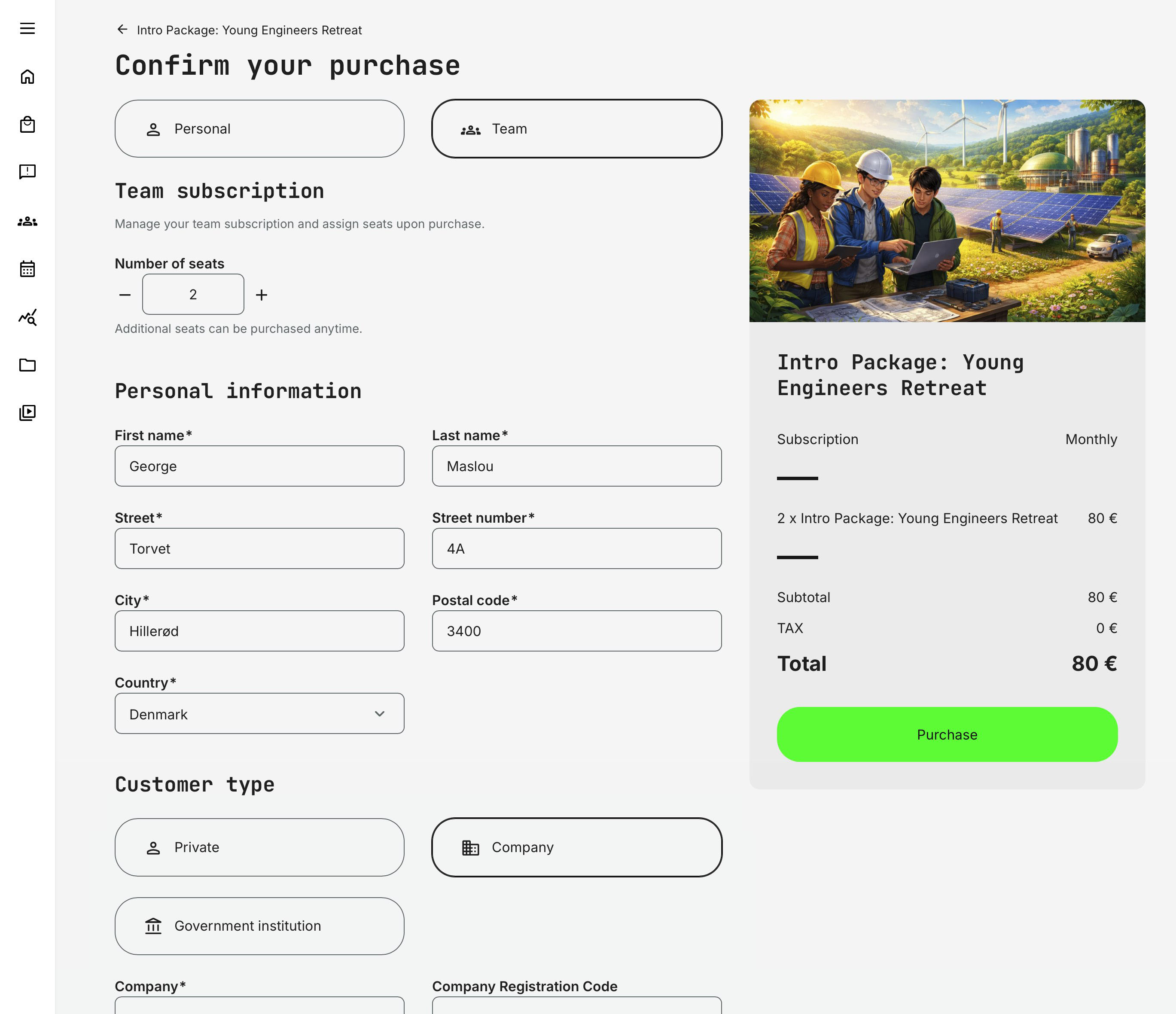
Personal information is prefilled from the user’s profile if it already exists and can be edited during checkout. The checkout form itself—including which fields are mandatory—can be customized by a Platform Administrator or higher under Settings → Forms → Enroll, for each customer type.
Any changes made are saved to the user profile once the purchase is completed. Additional details on payment gateways, tax management, and related configurations are covered in separate articles.
Having completed all the mandatory fields, the credit card information is provided to complete the purchase. Eurekos integrate payment gates and no credit card information is ever stored within the service-only transaction IDs to reference the transaction on 3rd party services are provided and only data for your financial tracking and audit is stored within Eurekos.
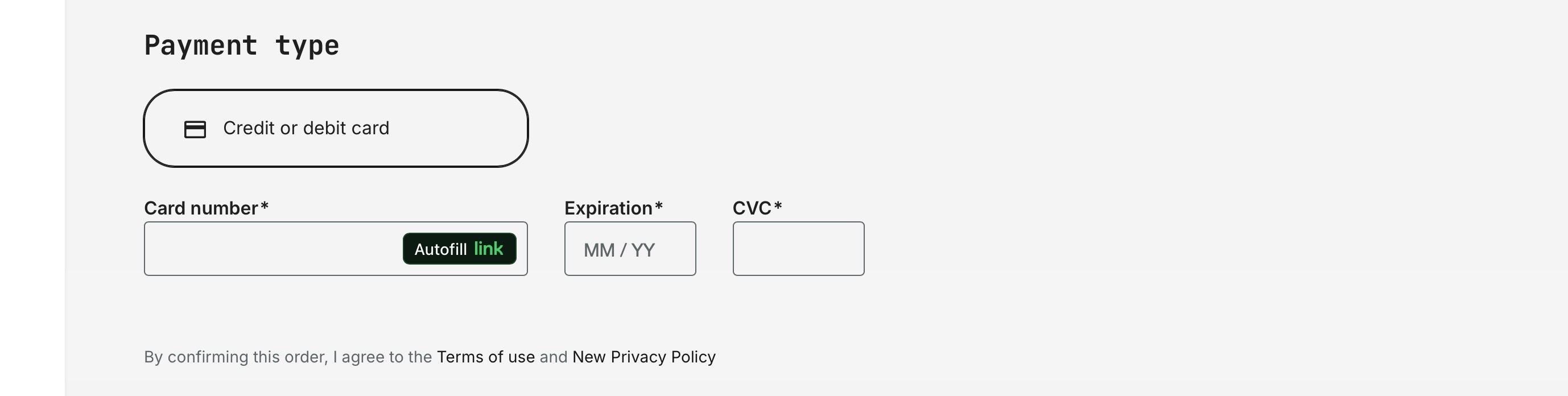
Currently, Stripe is the only supported payment gateway for subscription purchases using credit cards.
Before completing the [Purchase], the user is prompted to review the Terms of Use and Privacy Policy via clickable links below the payment fields; each opens in a new tab.
After a successful purchase, the user is taken to the Order Confirmation page. The confirmation text—along with related system messages and emails—can be customized by a Platform Administrator.
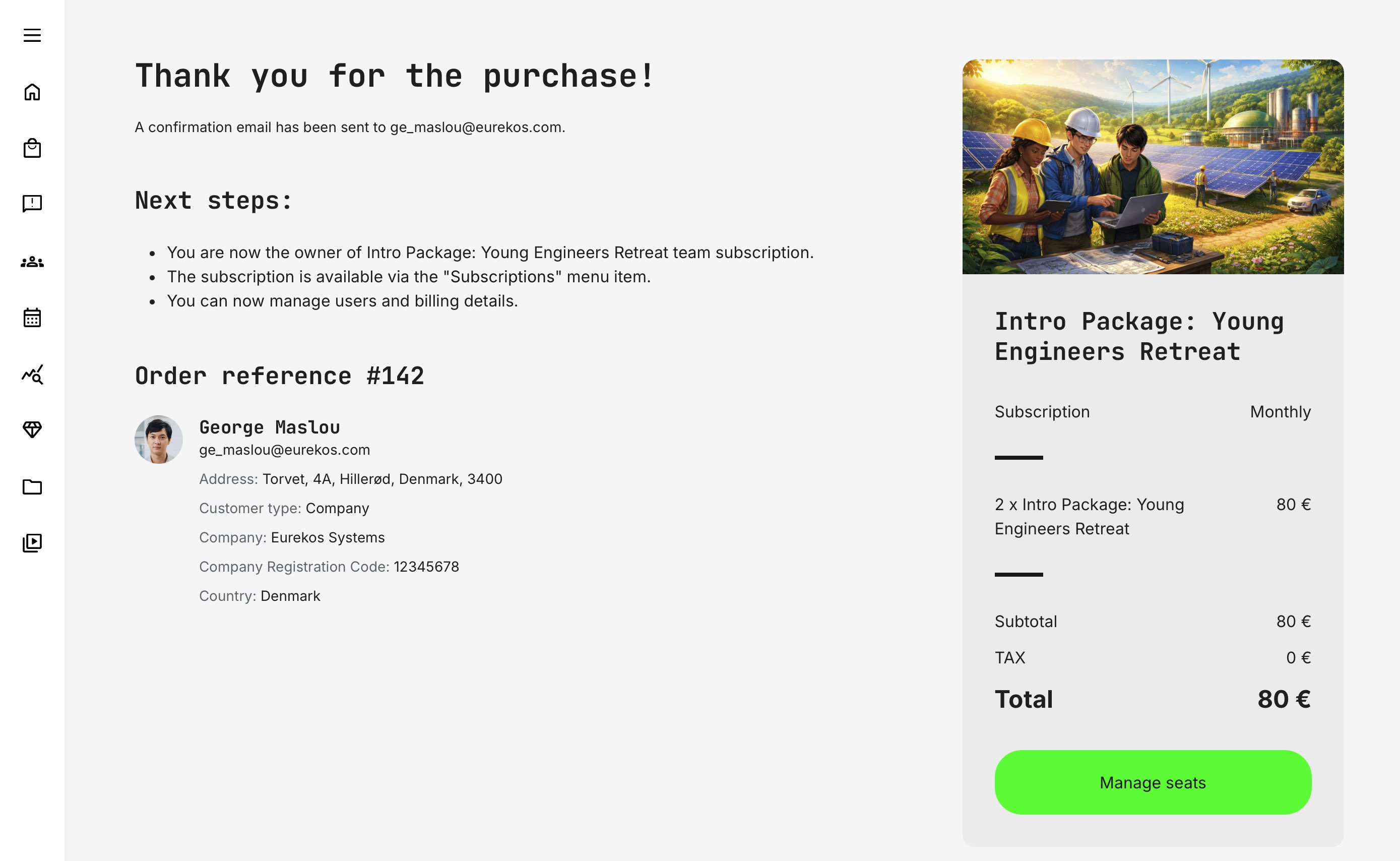
The Order confirmation page for subscriptions includes various information depending on configuration and type:
Personal subscription:
- A confirmation message (this Thank you for the purchase!) and notice that a confirmation email has been sent
- A Next steps section explaining where to find the subscription
- An Order reference with the user details from checkout
- A summary of the purchase with a [Go to overview] button
Next steps messaging varies by subscription setup:
- Selected activities (no auto-enroll): Included trainings appear in the Storefront with a 100% discount—users can choose what to start
- Selected activities (auto-enroll): Included trainings are already available in the Ongoing section and ready to begin
- All self-enroll activities: Users are directed to the Storefront to explore and start available trainings
In this case, it provides him with various key information related to his purchase, such as:
- A confirmation notice that his subscription is active, and a direct hyperlink for him to proceed to the trainings included
- A brief order summation (right-hand column), including a link to his training overview for quick access to this content
- An order reference with the buyer contact details he provided in the previous step
- The legal entity info related to the seller of the subscription (when applicable rules are configured)
The Order confirmation page for a Team subscription includes the same core elements as a Personal subscription, with additional team-specific actions:
Team subscription:
- A confirmation message (this Thank you for the purchase!) and notice that a confirmation email has been sent
- A Next steps section explaining where to find the subscription
- An Order reference with transaction ID, showing all user details entered during checkout
- A purchase summary with a Manage seats button, allowing the subscription owner to begin assigning seats immediately
After purchase, the subscription is available from Subscriptions in the main menu. The purchaser also receives a confirmation email for reference, summarizing key subscription details such as the plan title, billing frequency, total amount paid, and next billing date.
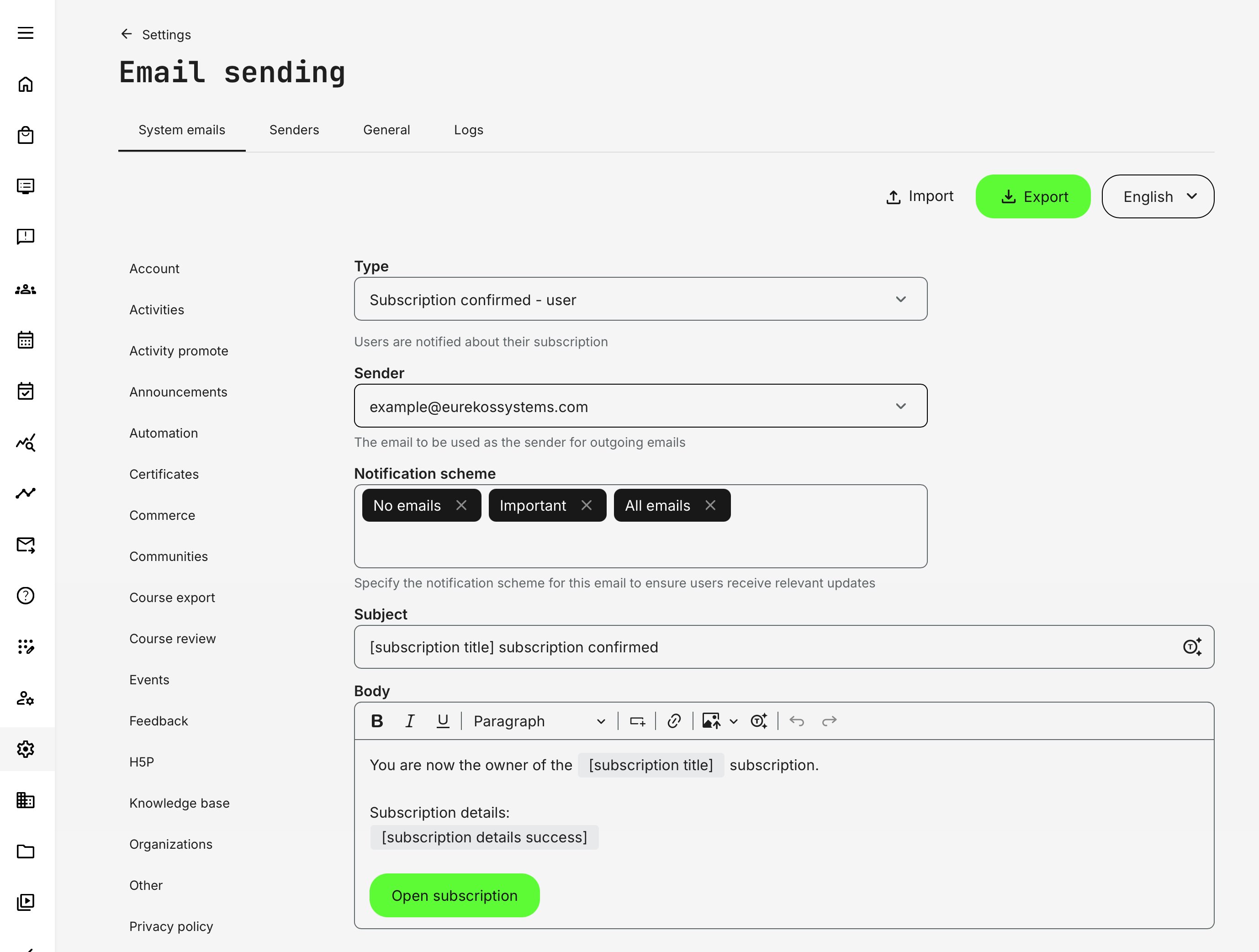
The standard confirmation email can be customized (Settings → Email sending → Subscriptions → Subscription confirmed – user) to organization specific communication guidelines. The token [subscription details success] will automatically provide the key subscription details.
There are no additional invoices, PDF attachments or similar. The transaction history is available to the subscription owner and all relevant payment information is included in the confirmation email.
Add or Deactivate seats in Team Subscriptions
After completing a purchase, a team subscription owner will typically start by assigning seats, which is covered in detail in a separate article. Over time, they may also need to add or remove seats to reflect organizational changes.
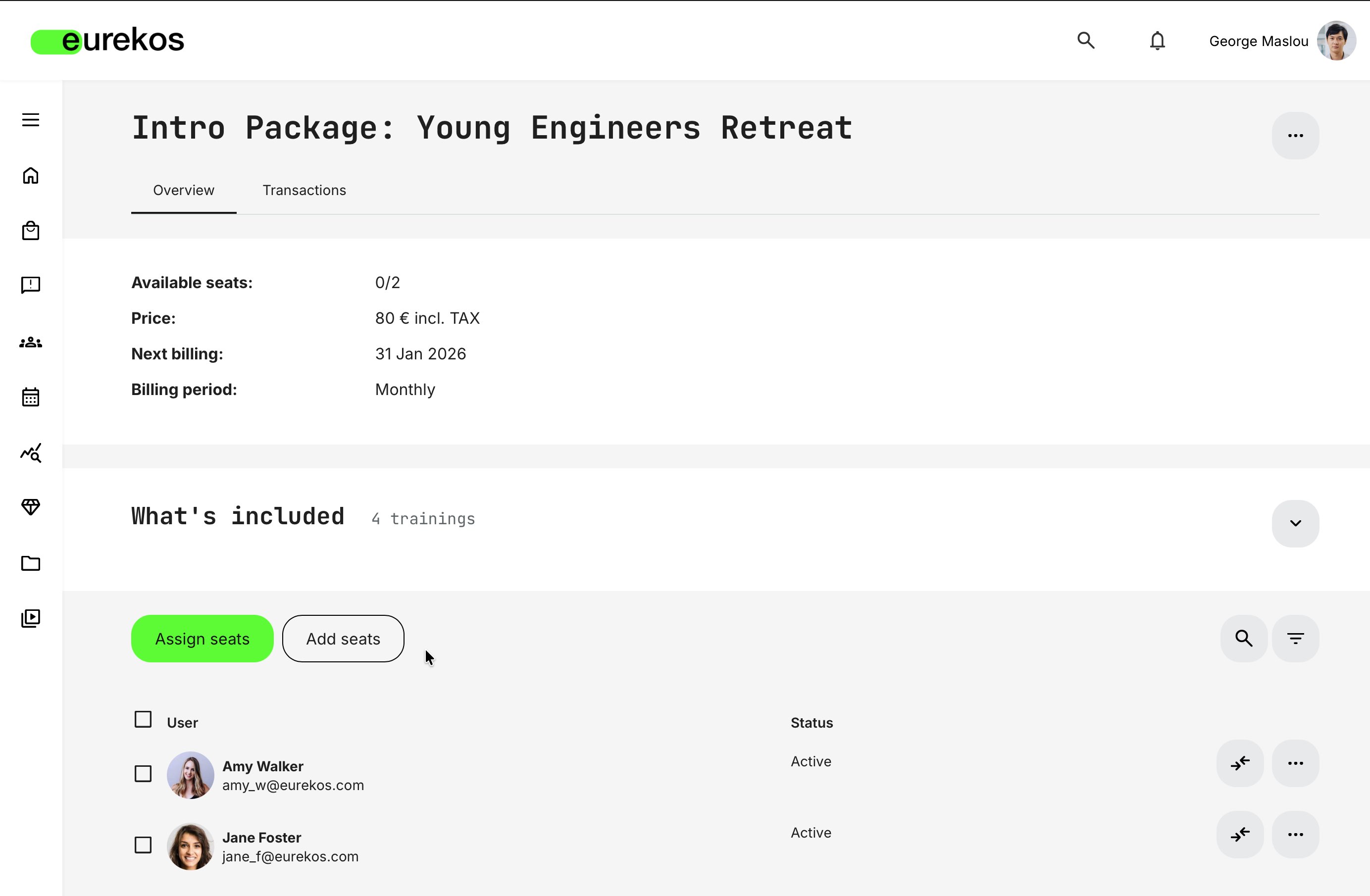
Additional seats can be added from the subscription details page by selecting [Add seats].
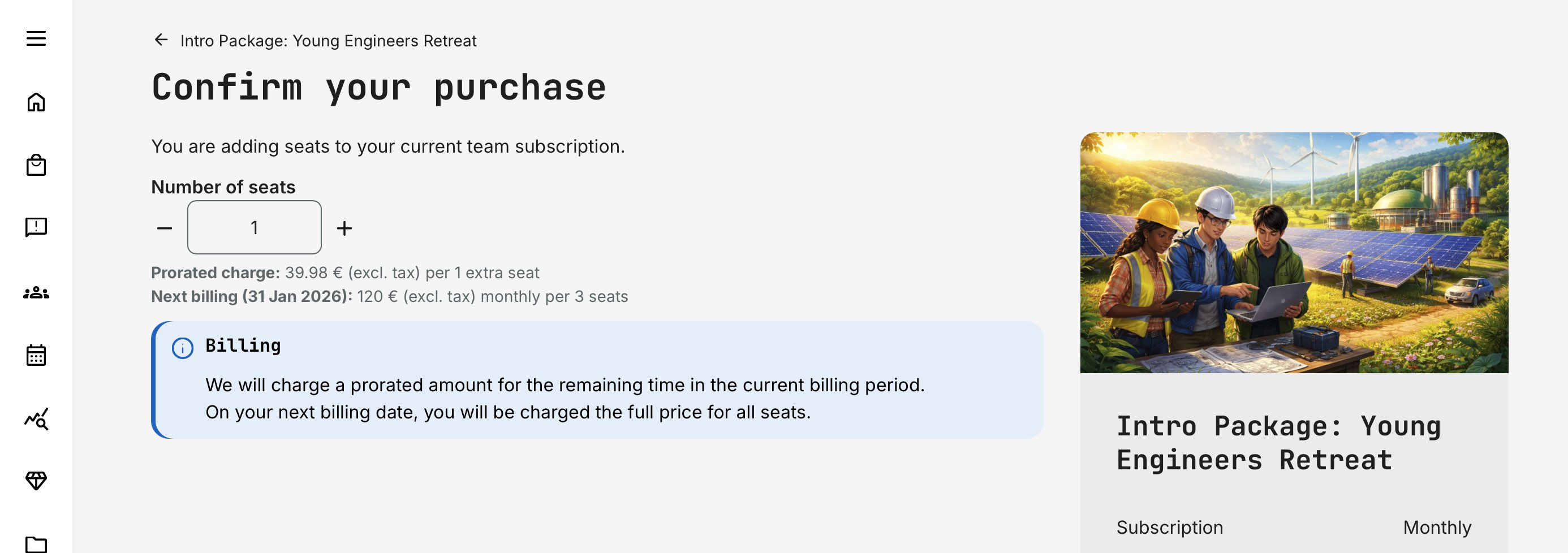
This opens the Checkout page, where seats are purchased in the same way as the original allocation. Up to one thousand seats can be added using the input field or plus/minus controls. The checkout clearly displays the prorated charge for the current billing period, as well as the updated amount for the next billing period based on the new total number of seats.
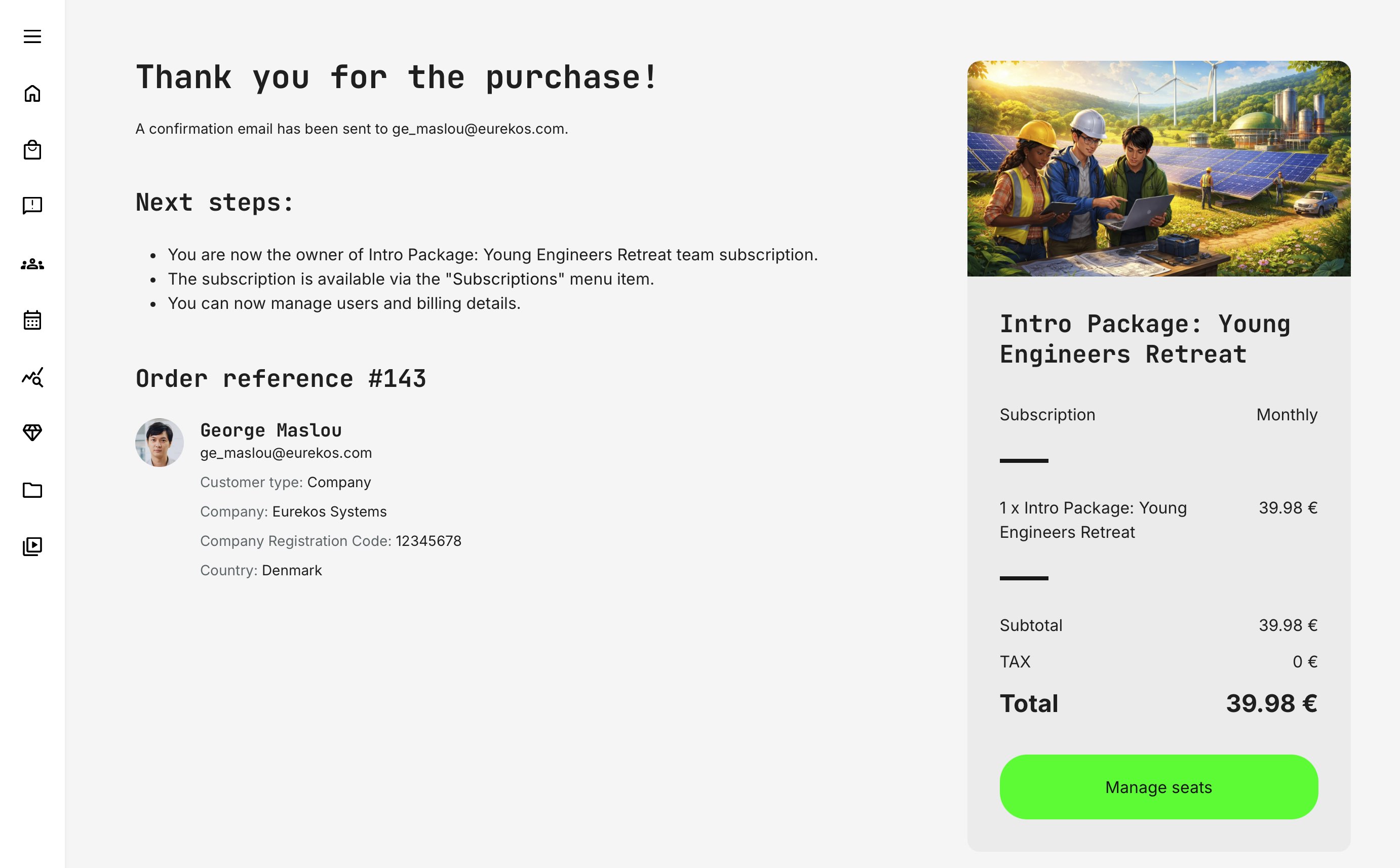
The purchase uses the currently active payment method for recurring charges and processes the order immediately. Once successful, the order confirmation flow—identical to the original purchase—is shown again.
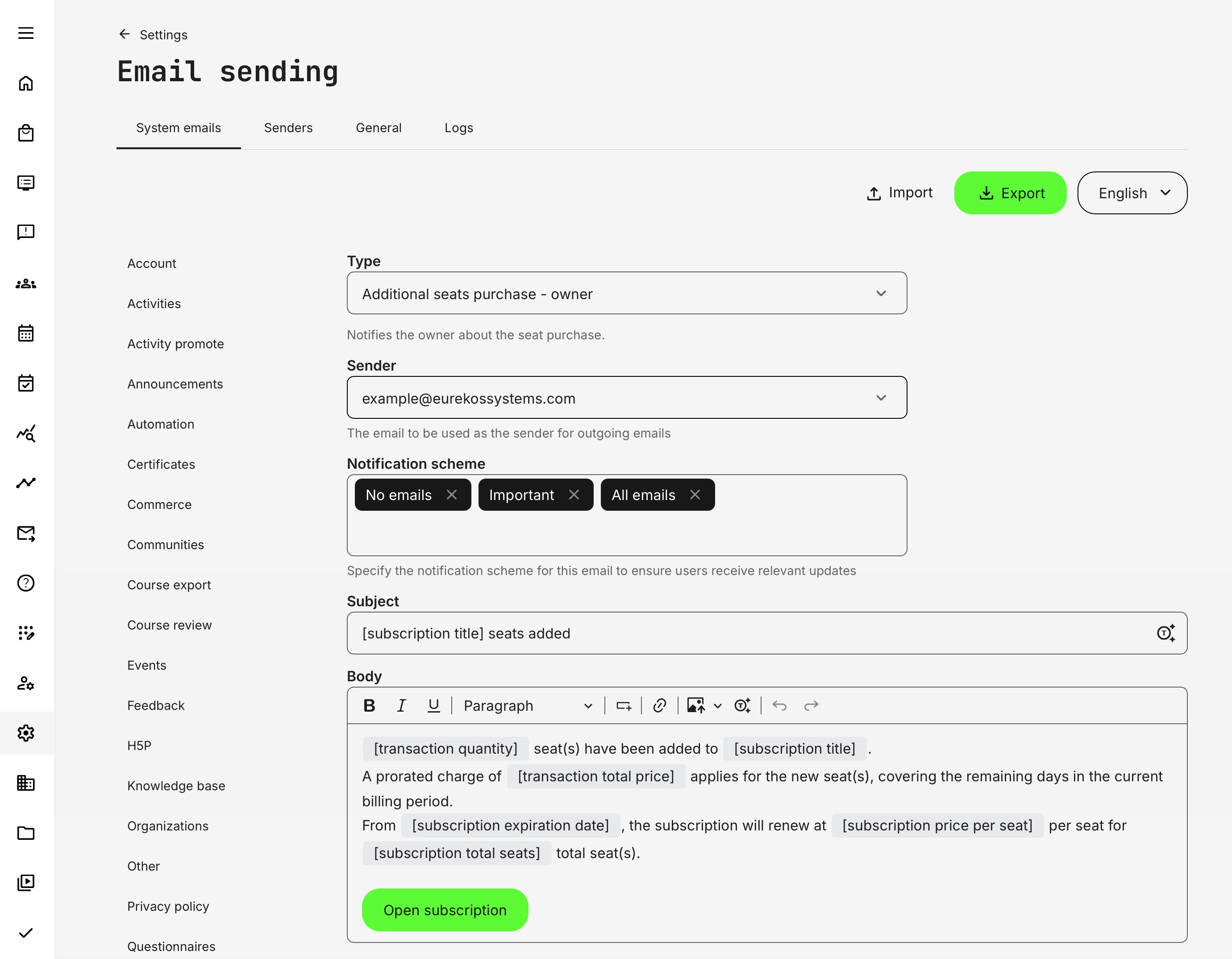
In addition, the subscription owner receives a separate confirmation email titled Additional seats purchase – owner, summarizing the added seats and related billing information.
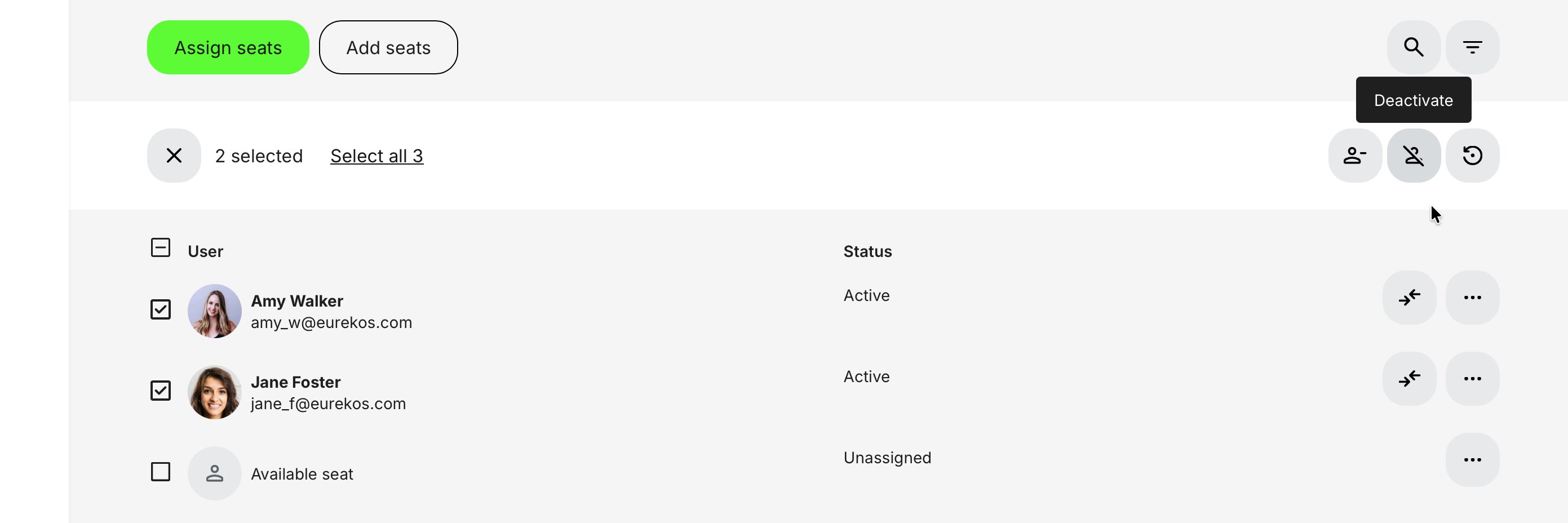
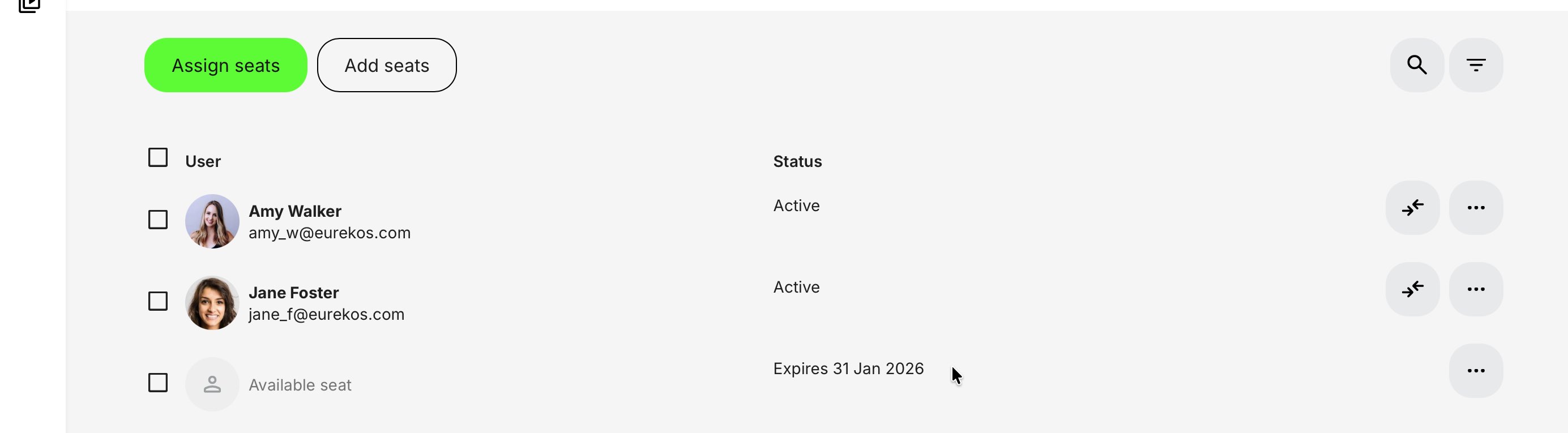
If the subscription owner needs to reduce the number of seats, this can be done for both Active and Unassigned seats. Seats can be removed individually using the [More] option for each user, or in bulk by selecting multiple users from the list.

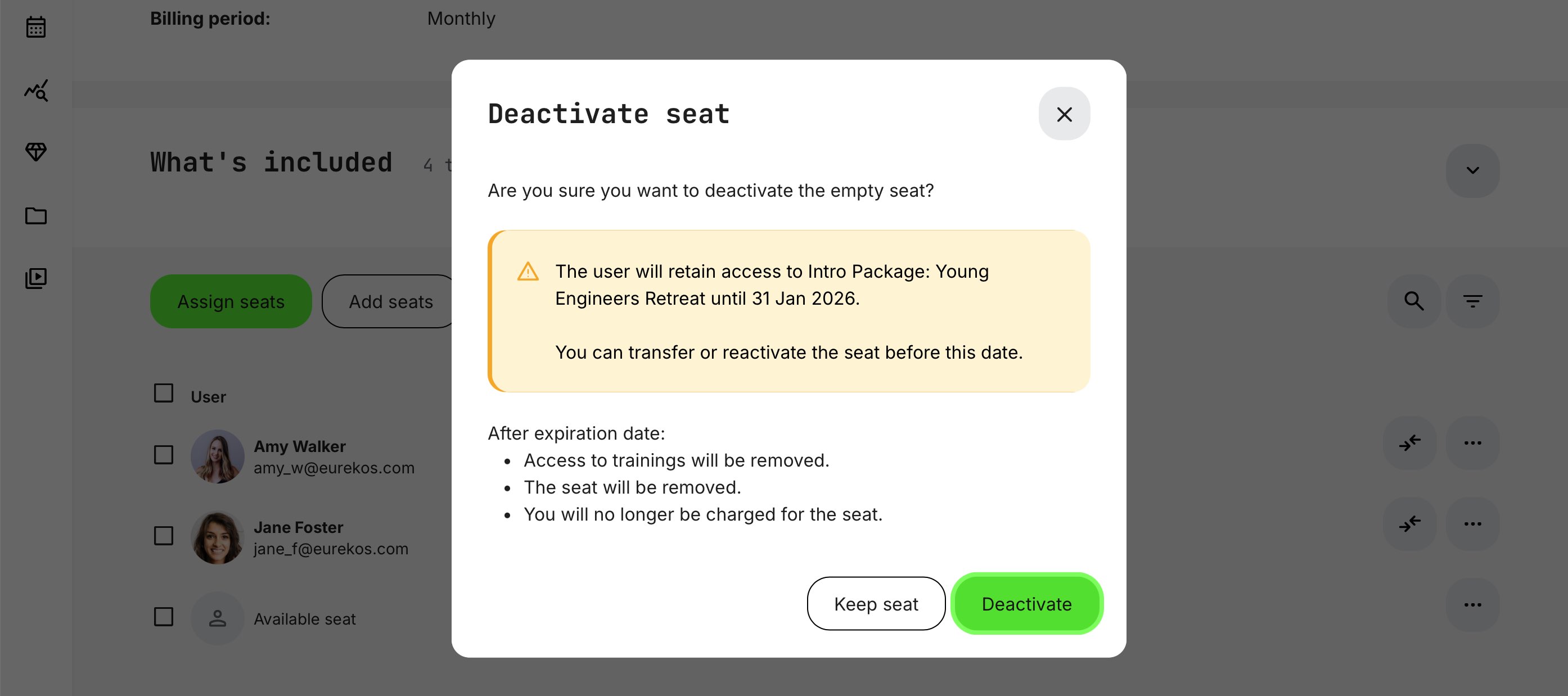
Deactivating a seat has a financial impact, as the seat is permanently removed from the subscription starting with the next billing period. Until then, the seat can be reactivated, with appropriate confirmation emails.
The subscription owner is informed of the impact and must confirm the action. Selecting [Deactivate] proceeds with removing the seat(s), while [Keep seat(s)] cancels the operation.
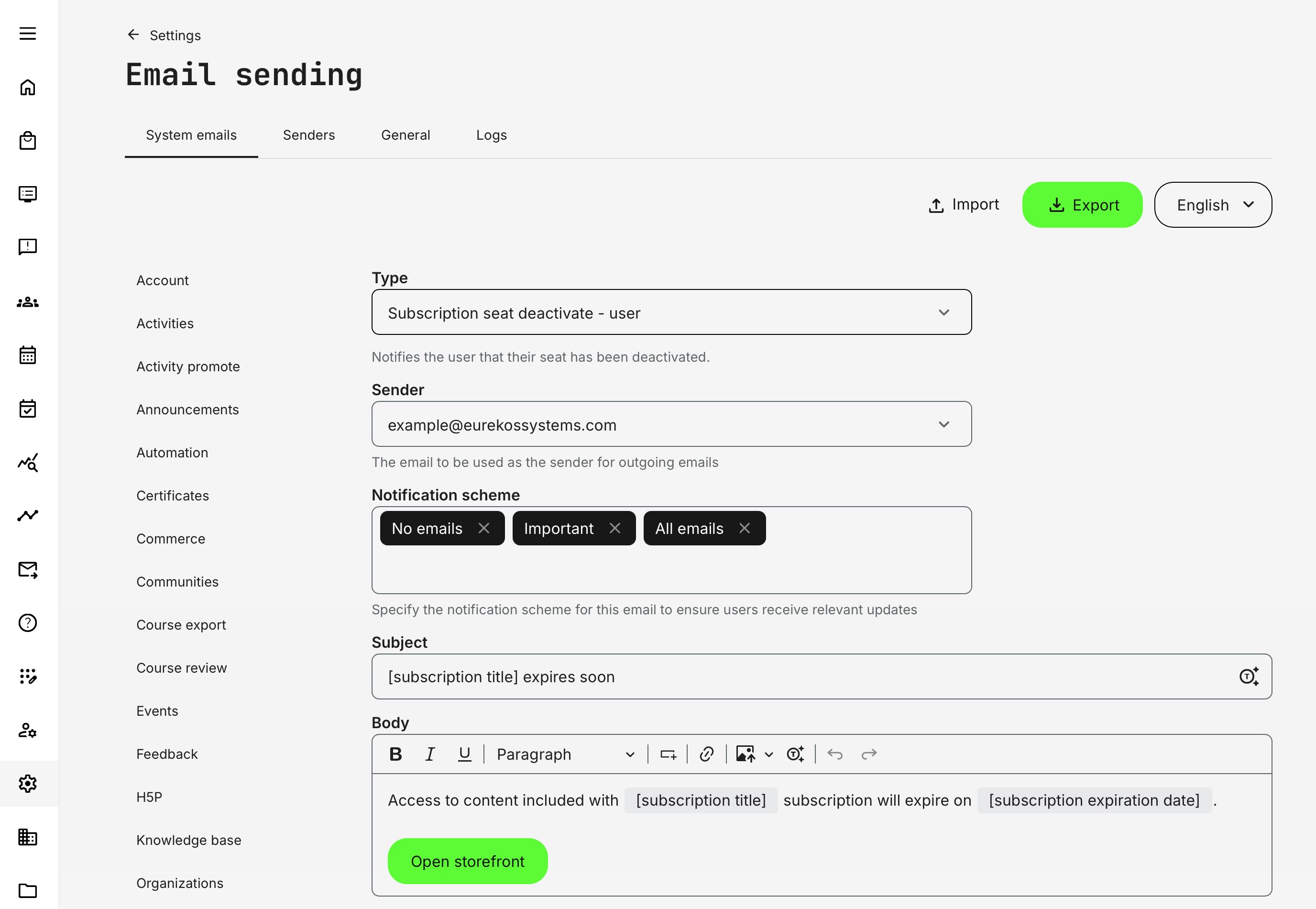
Upon deactivation, the subscription member receives an email Subscription seat deactivate – user, informing them that their seat will expire on a specified date.
The subscription owner can see each member’s (seat's) expiration date in the user overview but does not receive separate email notifications for upcoming billing changes. Members and available seats can be reactivated before the prepaid expiration date, and other adjustments may be made to other existing seats.
Any resulting changes are reflected in the next Successful subscription payment – user email notification.
Email confirmations relevant for seat changes can be customized to match your organization’s communication strategy and tone of voice under Settings → Email sending → Subscriptions.
- Additional seats purchase - owner (confirmation of additional seats and billing information)
- Subscription seat assigned - user (invitation email to the subscription member)
- Subscription seat deactivate - user (seat deactivation to subscription member, but access remains until next billing period)
- Subscription seat reactivate - user (seat has been reactivated to subscription member)
- Subscription cancelled - user (upon final cancellation, access revoked to subscription member)
Deactivate a subscription
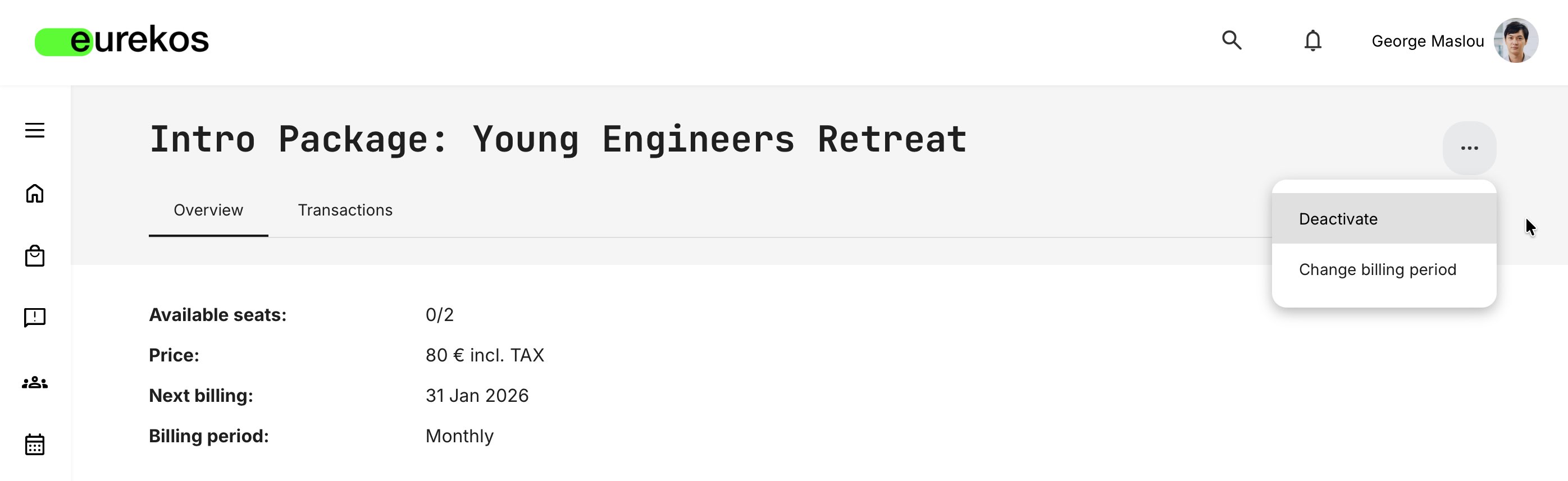
Subscription owners can deactivate a subscription from the Subscription details page. Deactivation disables the subscription entirely and, for team subscriptions, revokes access for all assigned members.
The [Deactivate] option is available in the contextual [More] menu.
Clicking this option opens a confirmation dialog showing the effective cancellation date for the subscription, along with a reminder that the subscription can be reactivated before cancellation takes effect, that is, before the end of the prepaid period.
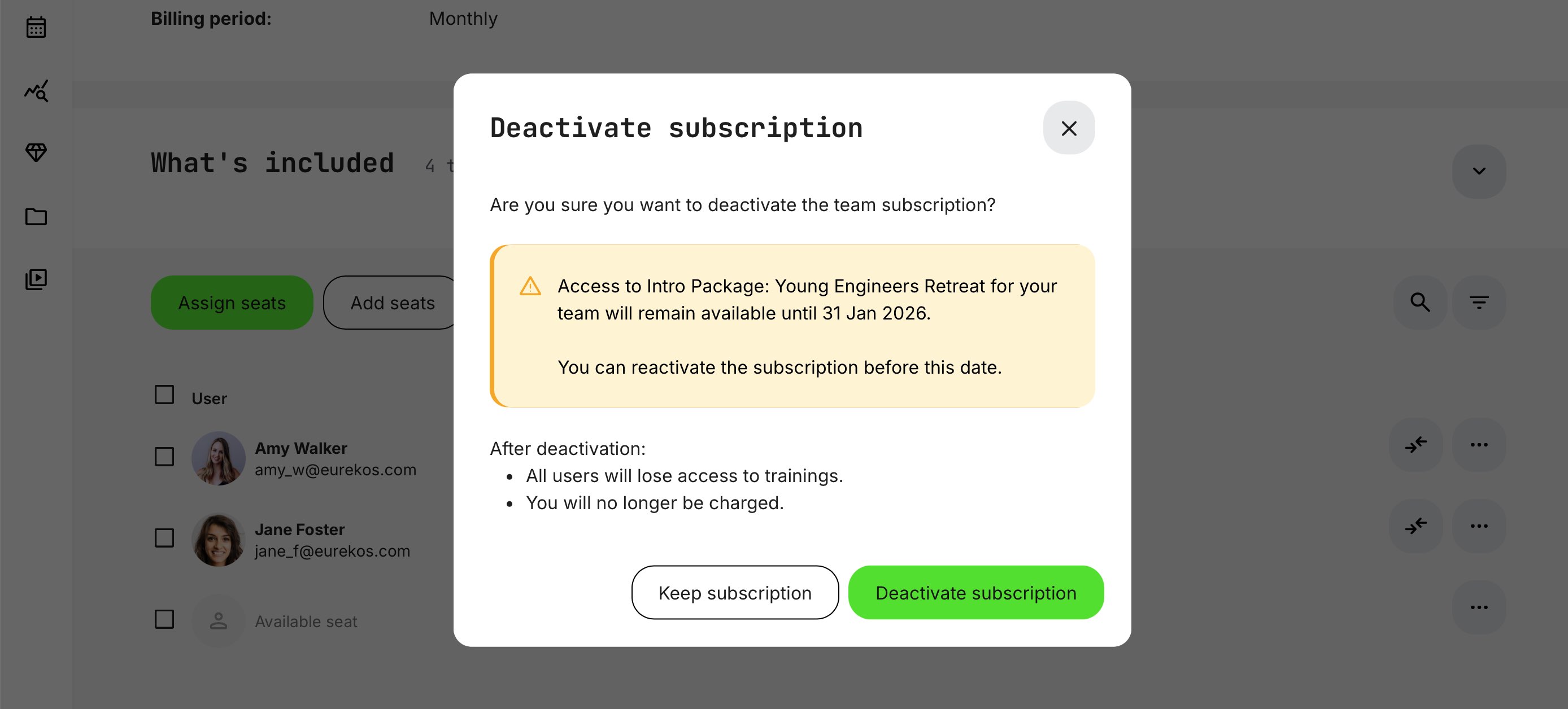
Selecting [Deactivate] proceeds with the action, while [Keep subscription] cancels it.
Once deactivated, subscription members receive an email titled “Subscription seat deactivate – user”, informing them of the date their access will expire (for team subscriptions).
The subscription owner receives the email notification Subscription deactivate – owner, confirming the effective expiration date and outlining the option to reactivate before cancellation takes effect.
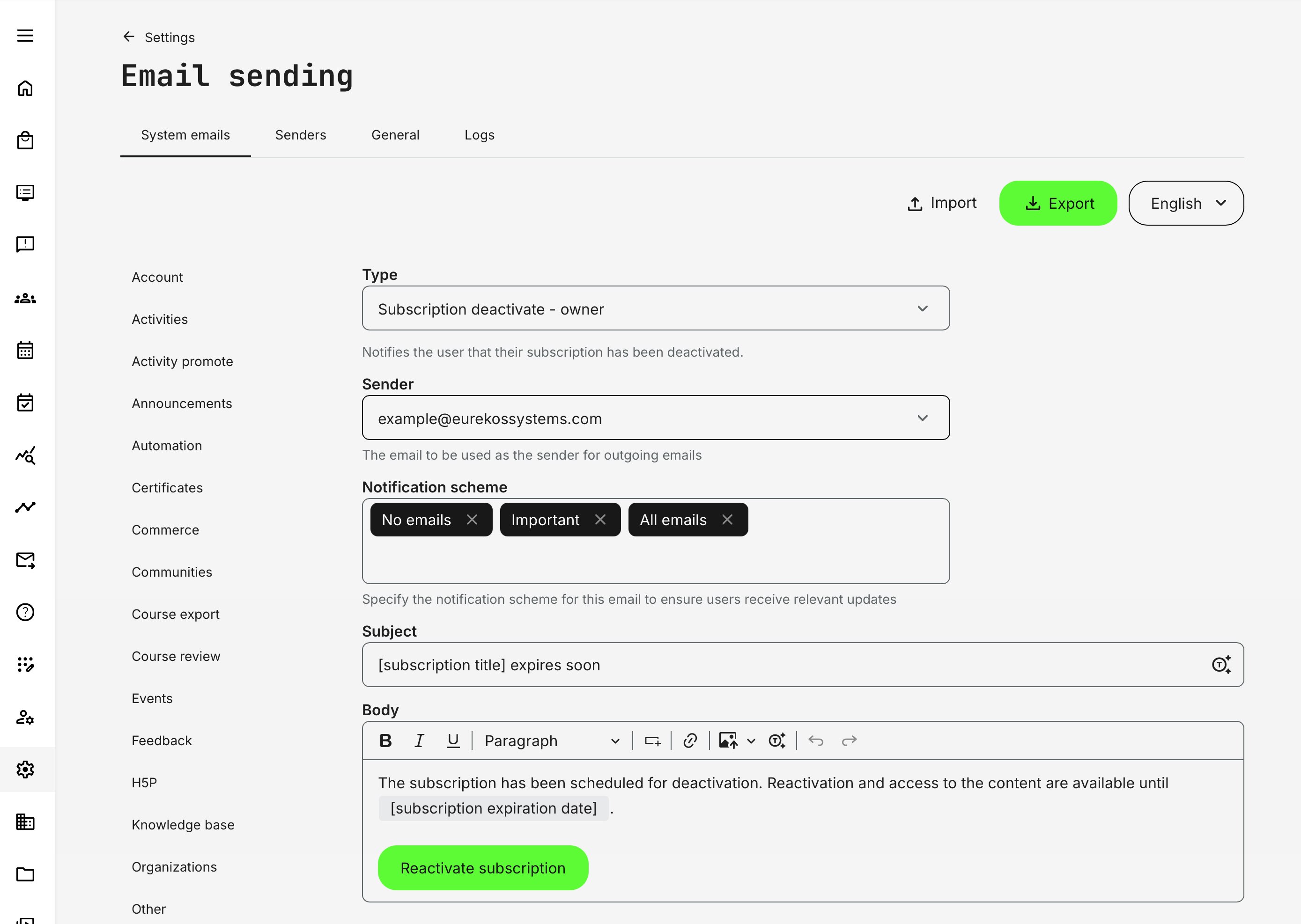
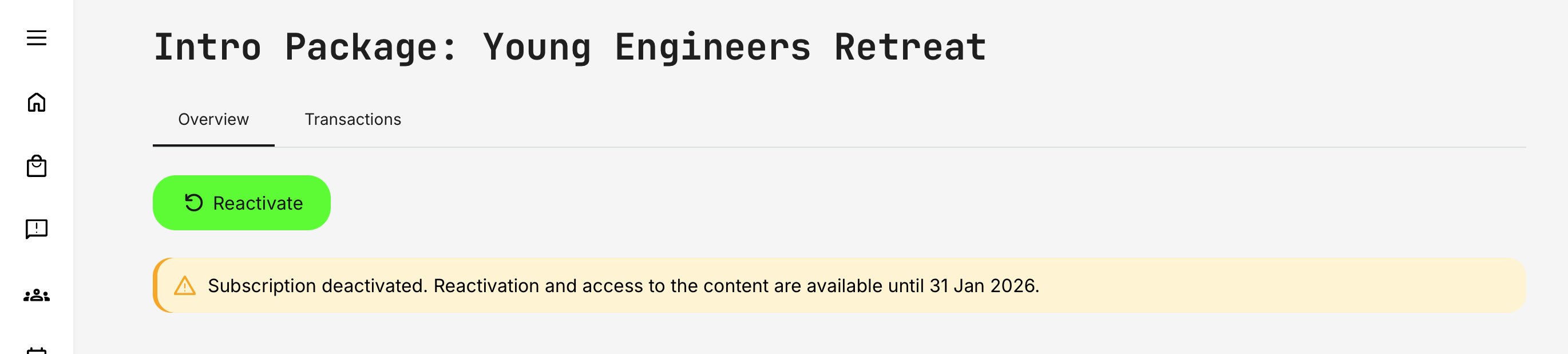
Deactivating a subscription has a financial impact going forward only, as the subscription is permanently cancelled starting with the next billing period. Until that time, the subscription can be reactivated. No reimbursements are issued for the prepaid period.
If the subscriber selects [Reactivate] before cancellation takes effect, a confirmation is required. No additional payment information is needed—the existing payment method remains valid—and reactivation takes effect immediately.
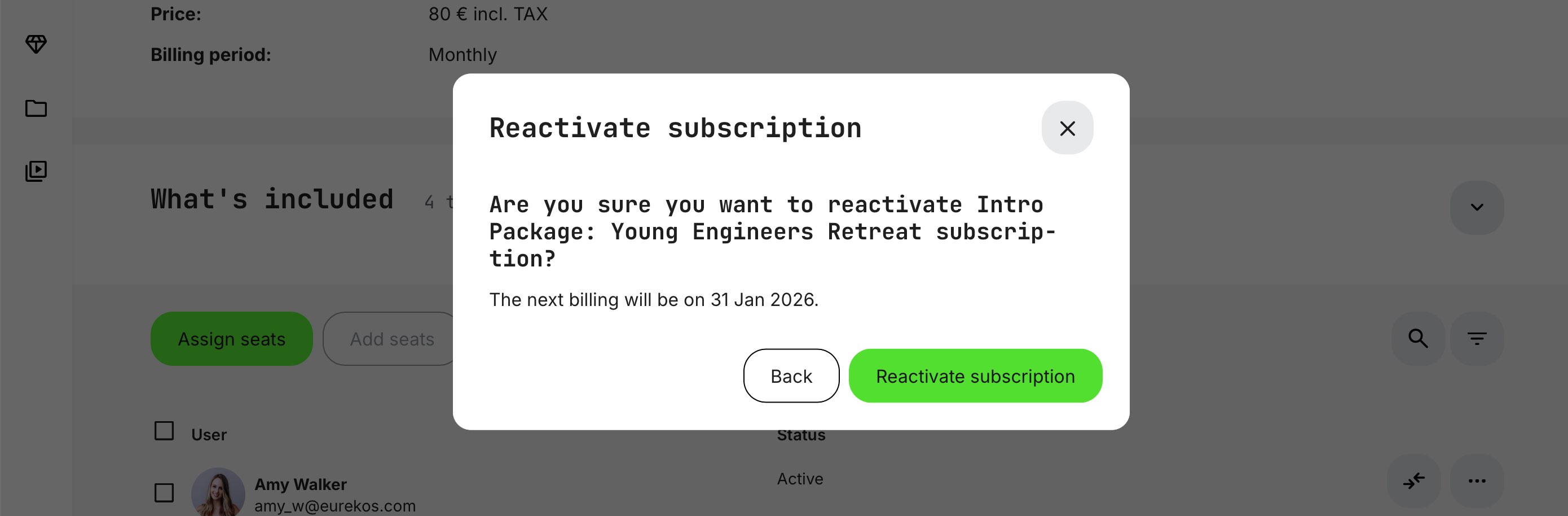
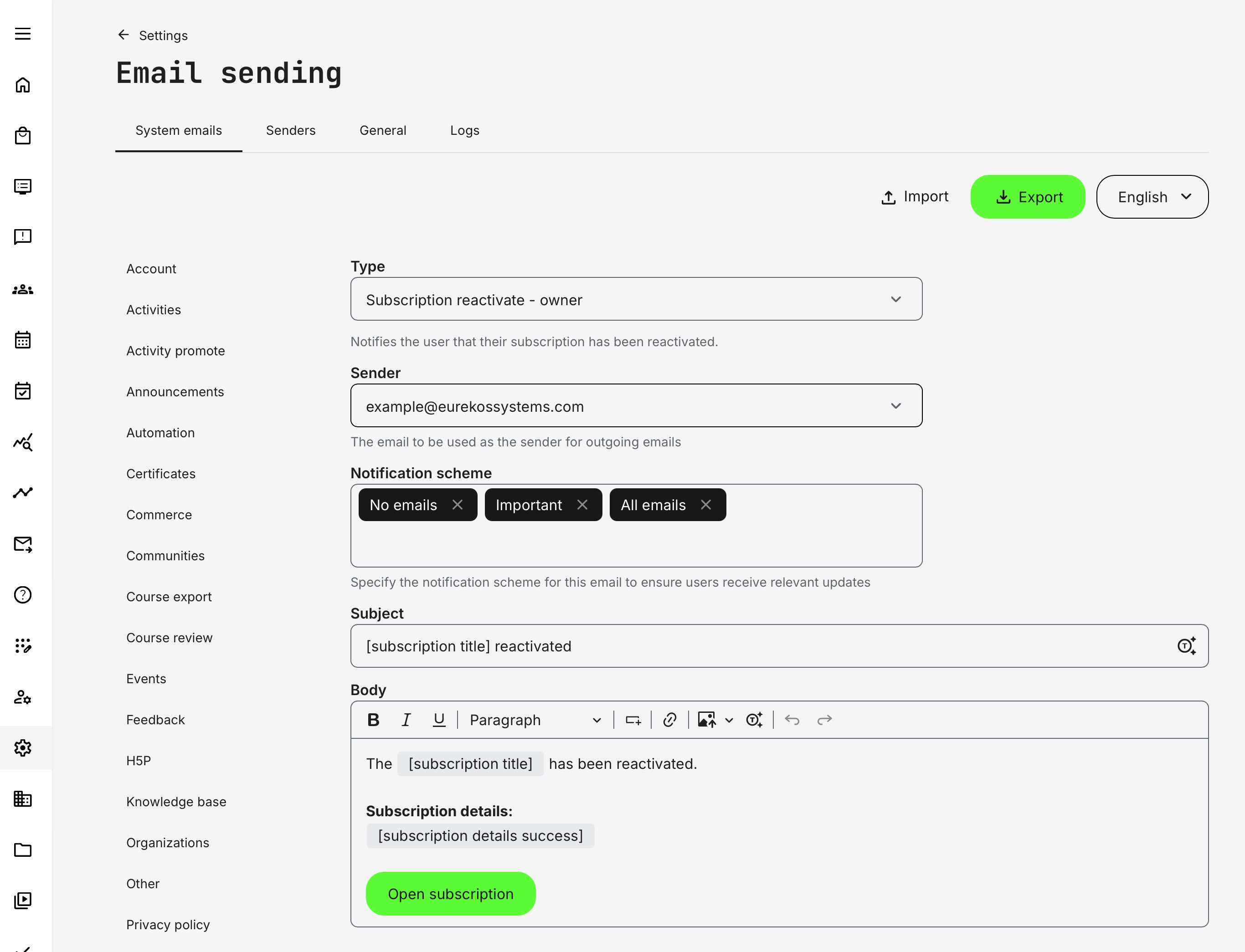
The subscriber receives the email confirmation Subscription reactivate – owner, and the original billing schedule is restored. For example, if the subscription was billed monthly, it remains monthly, and the next billing date stays unchanged. The same applies to other billing cycles, such as quarterly or yearly plans.
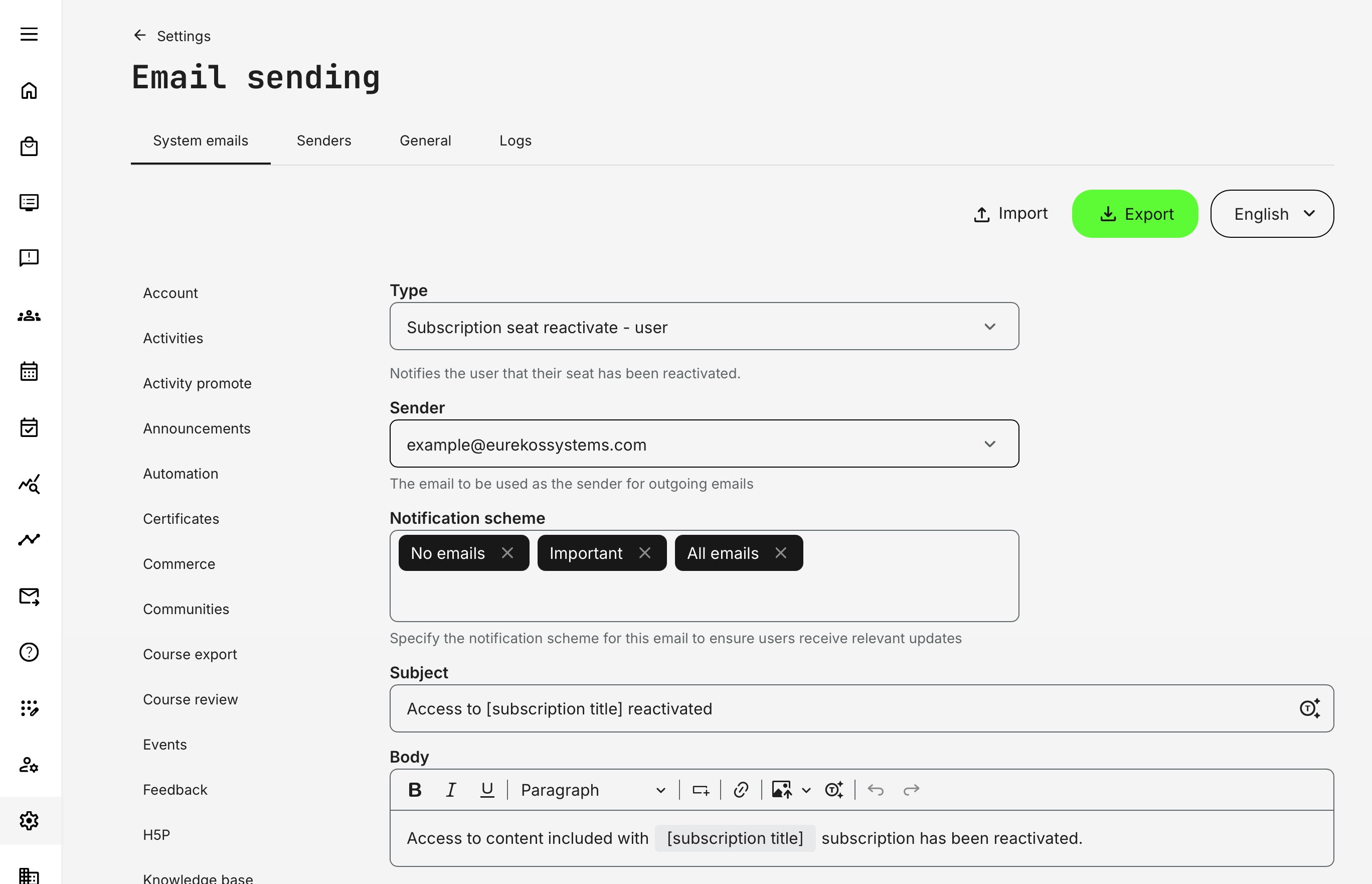
Upon reactivation, all subscription team members receive an email titled Subscription seat reactivate – user, informing them that their access has been reinstated. This completes the cycle of deactivation and reactivation of subscriptions for subscribers and subscription members.
Cancelled Subscriptions
If the subscriber wants to rejoin after the cancellation has taken effect, a [Subscribe again] option is available from the subscription details page. This requires a new purchase, but the user is conveniently redirected to the purchase flow.
For team subscriptions, a new purchase requires reinviting previous team members, if so desired. Even so, progress is restored for training activities that are still included and are identical to previous enrollments.
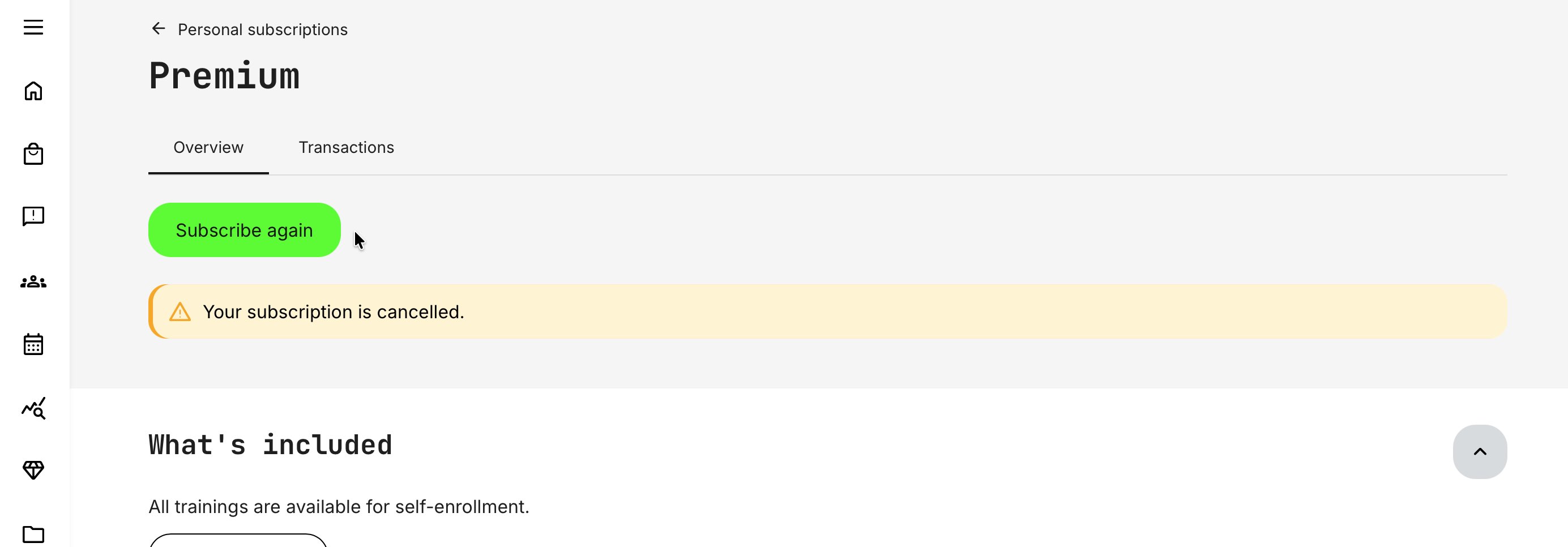
Email confirmations are in relation to deactivating and reactivating subscriptions, as described above and covering both whether Personal or Team below. As always, they can be customized to match your organization’s communication strategy and tone of voice under Settings → Email sending → Subscriptions.
The relevant system emails for the subscriber examples above for the team subscription owner:
- Subscription deactivate – owner (subscription deactivated)
- Subscription reactivate – owner (subscription reactivated)
The relevant system emails for subscription members:
- Subscription seat deactivate - user (seat deactivation to subscription member, but access remains until next billing period)
- Subscription seat reactivate - user (seat has been reactivated to subscription member)
- Subscription cancelled - user (upon final cancellation, access revoked to subscription member)
Failed payment
Credit card payments are processed automatically at the billing intervals selected during purchase. Over time, payments may occasionally fail—most commonly due to an expired card, but also because of spending limits or other technical issues.
When a payment fails, the following process applies:
- The subscription owner receives an email notifying them of the failed payment and explaining how to resolve it, along with a grace period to prevent cancellation. The failed payment affects the subscription and all active seats.
- The subscriber is expected to act within this grace period, typically by updating payment details.
- If no action is taken, the subscription is cancelled at the end of the cancellation (grace) period, and the subscriber is notified that the subscription has been cancelled.
Cancellation (grace) period: When a payment fails, a default grace period of 5 days applies before the subscription is cancelled. This period can be adjusted by raising a request to Eurekos support. Note that this is a global setting and applies to all subscriptions.
The subscriber can select [Purchase again] directly from the email notification or access it via the subscription details or subscription list. In all cases, the user must log in to complete the payment using updated card details.
[Purchase again] is available only while the subscription is still within the cancellation (grace) period following a failed payment. Selecting this option opens the Checkout page, where the subscriber can update payment information and complete the transaction before the grace period expires. During this period, no other subscription changes are allowed; full management options are restored once payment is successful.
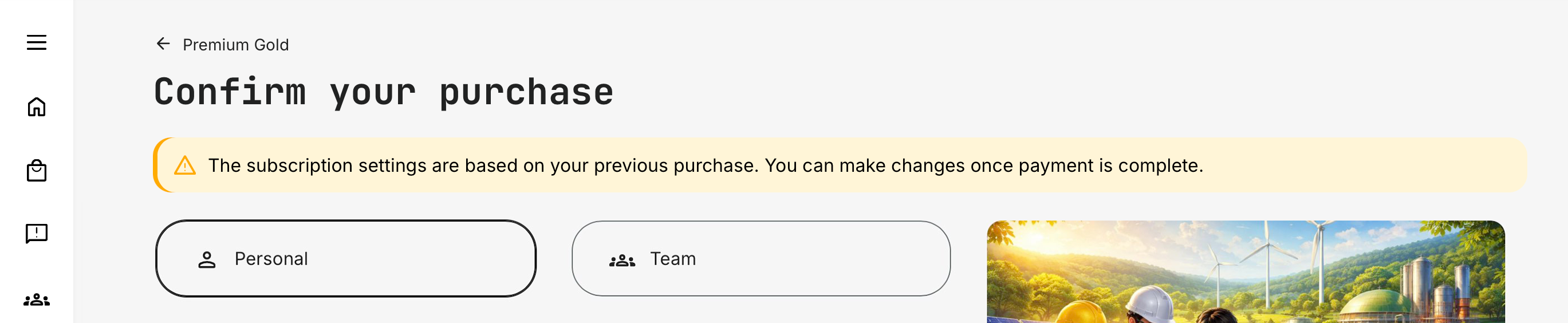
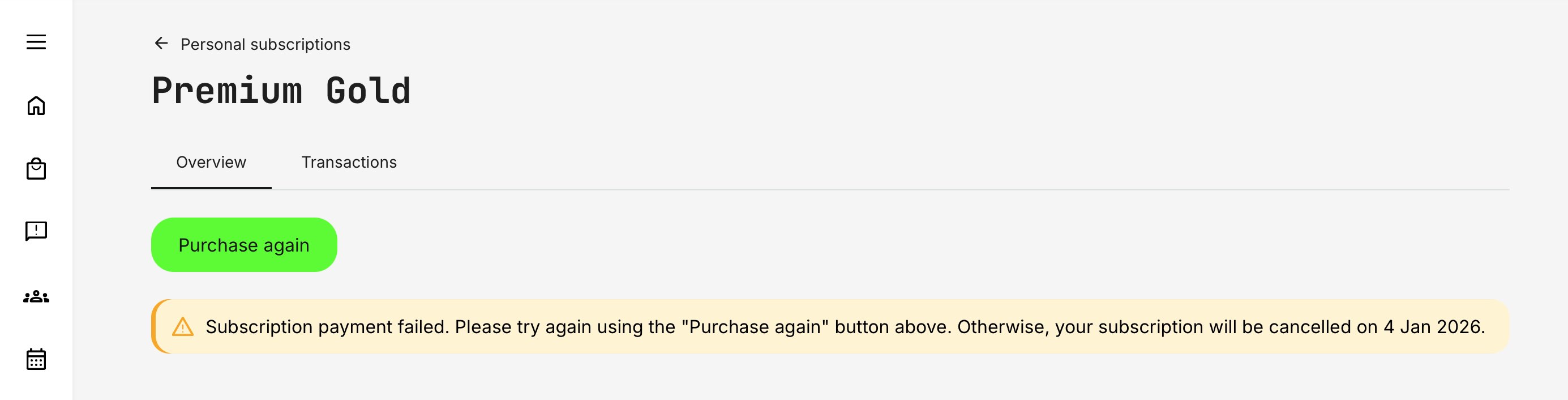
On the list of subscriptions the information that the payment has failed is also visible, with the option to initiate the payment method update.

Within the subscription details, the deadline for payment is clearly shown, informing the subscriber of the final date to complete payment before cancellation takes effect. If the subscriber contacts support, an administrator can extend the cancellation date to allow additional time for payment.
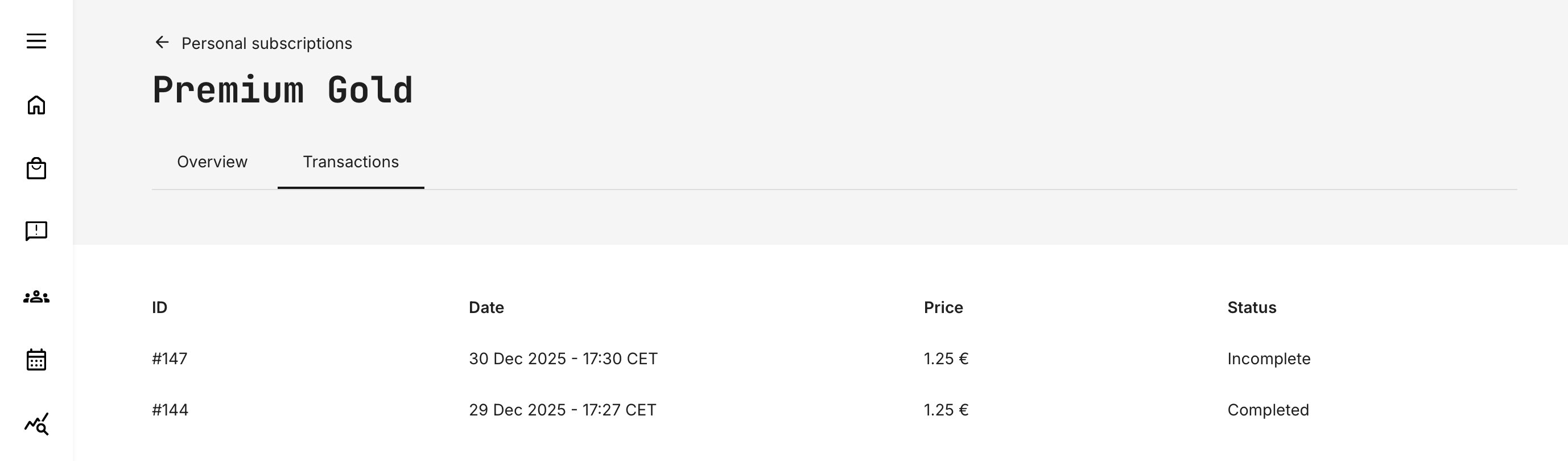
The payment status is also displayed in the [Transactions] tab of the subscription details, showing all previous transactions and their effective dates, as described in a separate article.
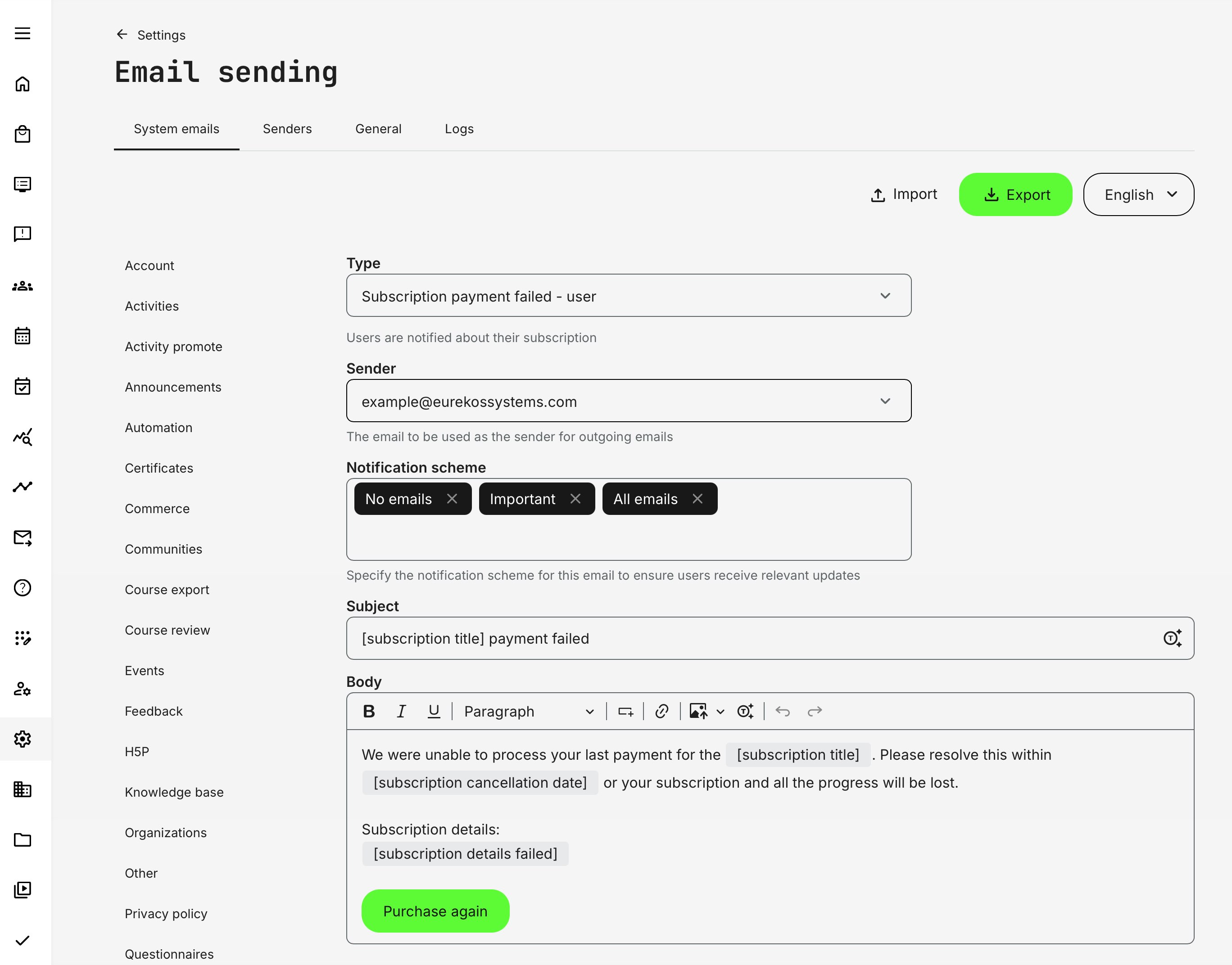
The only relevant email confirmation in relation to the failed payment scenario is Subscription payment failed - user, which is sent to the subscriber for any type of subscription with a recurring payment and applies to any billing cycle, such as quarterly or yearly plans. The email can be customized under Settings → Email sending → Subscriptions.
To test the failed payment process, Eurekos can temporarily enable an override that forces credit card payments to fail. Contact Eurekos Support to enable this option, and remember to have it disabled again once testing is complete.
Recommended testing approach:
- Configure a subscription with a daily billing schedule to trigger recurring payments quickly (within 24 hours)
- Use Stripe test credit cards, so no real transactions occur during testing
- If available, use a pre-production (test/staging) environment, which Eurekos can provide and which is ideal for this and similar purposes
Testing can also be performed in a production environment, but preferably before go-live or during initial implementation. Additionally, this override cannot be used if other active credit-card-based purchase flows are in use, as it would affect all such payments.
Advanced user journey and navigation
Subscriptions involve several detailed navigation paths that vary by use case and presentation. While purchasing a subscription may seem straightforward, navigation differs depending on the purchase flow and whether the user is acting as a subscription owner or a subscription member in a team subscription.
A subscription includes one or more training activities—the native Eurekos term covering everything from single courses and webinars to complex learning paths and programs. Once a subscription is purchased, all included activities are available to the subscriber at no additional cost.
This means:
- Enrollment is optional for each activity, unless the subscription is configured for auto-enrollment
- All activity types are supported, including scheduled, instructor-led, and prerequisite-based training
- Prices are neutralized for subscribers, even if the same activities are also sold as standalone offerings
- The Storefront can present subscriptions in multiple ways, including categorized views and subscription-aware visibility
While this introduces a higher level of complexity—especially when combined with audience targeting and presentation rules—Eurekos provides advanced flexibility to support these scenarios and manage them effectively. Take a look at this simplified flow chart:
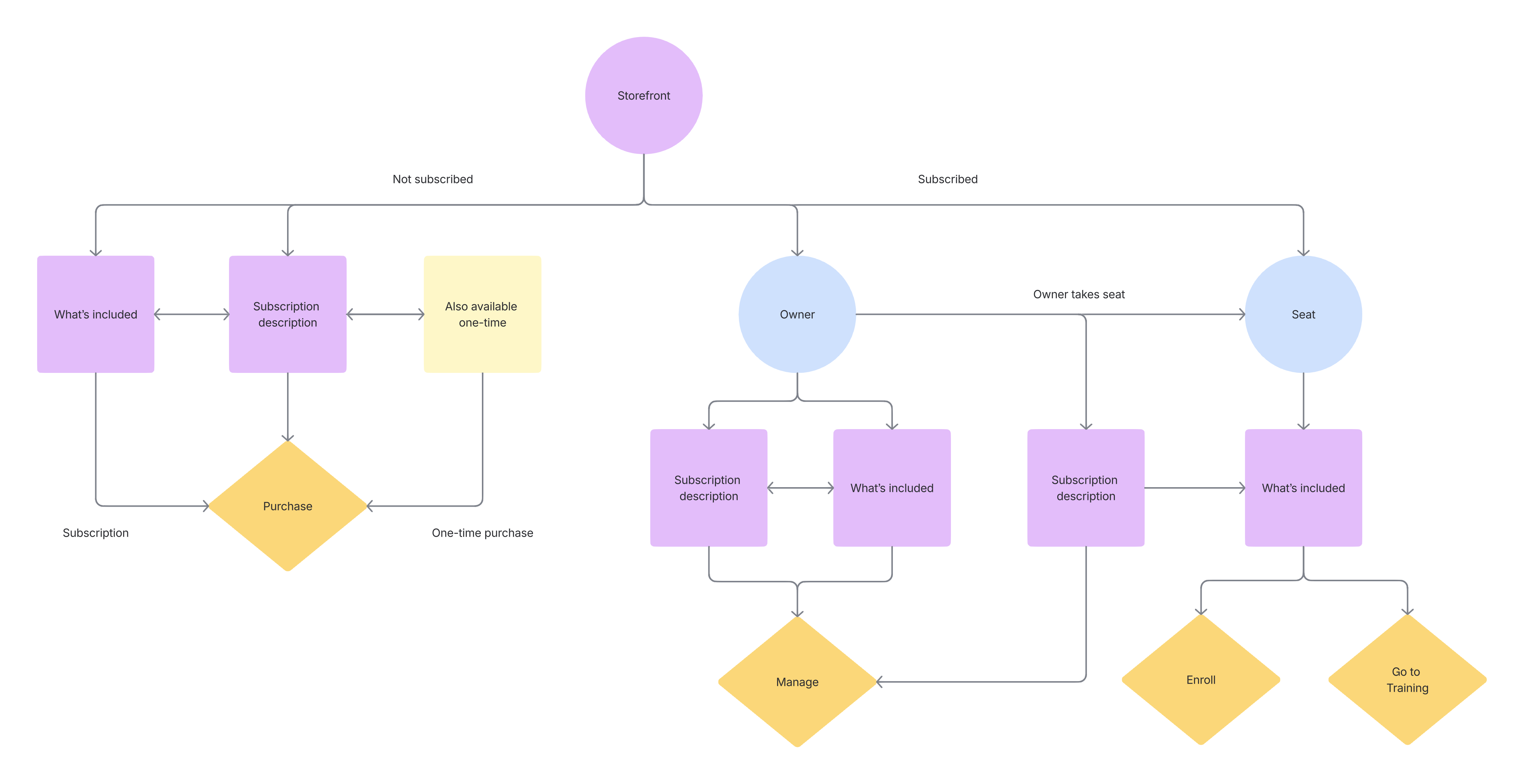
Not subscribed - from the Storefront
- User clicks [Subscribe] from a subscription row or [Learn more] in the carousel → lands on the Subscription description page → from there, they can proceed with [Purchase]. The What's included section can also be explored, and uses can initiate the subscription purchase from each included activity.
- User clicks on an option in the subscription rows (which shows what's included) → directed to the Activity description page and can [Purchase]
- If the user already has access to the training outside of the subscription, the option [Go to training] is shown instead.
- If the activity is also available as a one-time purchase, an information block is displayed. The user can select [View] to explore purchasing the activity individually instead of the subscription—or switch back to the subscription option as needed.
- If the activity is not available for self enrollment outside of the subscription → Not available in the Storefront will show for one-time purchase
Subscribed
- A subscription owner clicks [Subscribe] from a subscription row or [Learn more] in the carousel → lands on the Subscription description page → from there, they can proceed with [Manage]
- All included activities can be explored → each leading to [Manage]
- If the owner also has an active seat in the subscription → [Enroll] is available for each option
- If the owner already enrolled → [Go to training] is available for each option
- A subscription member with an active seat clicks [Subscribe] from a subscription row or [Learn more] in the carousel → lands on the Subscription description page → from there, they can proceed with [Purchase].
- All training activities are available and the user can navigate to any Activity description and enroll himself
- A subscription member with an active seat clicks on an option in a subscription row (which shows what's included) → directed to the Activity description page and can [Enroll]
- If the user already had enrolled, the option [Go to training] is shown instead
- Any activity, even if it is not available for self enrollment outside of the subscription → [Enroll] is available from within this subscription
- If a subscription member with an active seat already has access to an activity through another subscription or a one-time purchase → the option [Go to training] is shown
Storefront configuration has a significant impact on the user journey. You can define one Storefront experience for unregistered users and a completely different one for registered users.
Audience controls further refine this experience, including the option to display subscription rows only to subscribed users. Depending on demographics and the size of your subscription offering, this flexibility allows you to design a more intuitive journey. For example, if a subscription includes 30 training options across four categories, registered (and already subscribed) users may benefit from seeing the content segmented into category-specific rows rather than a single, all-inclusive row. This makes navigation and discovery easier.
For unregistered users, it may be more effective to present a simplified view—highlighting the subscription as a single offer focused on value and benefits—while reserving detailed content segmentation for subscribers.
FAQ
-
Why does Tax not show in the Storefront and on the subscription description page?
Tax (VAT/GST) is not shown at this stage because it cannot yet be calculated accurately. Tax treatment depends on factors such as whether the buyer is purchasing as an individual or a company, as well as location and other regulatory conditions.
The applicable tax will be calculated and displayed on the checkout page, once the required information and selections have been provided and prices are updated accordingly.
-
Can I customize the content shown in the subscription enrollment widget?
When a user views the subscription landing page (subscription description), a set of standard benefits is displayed automatically, such as:
- <number> trainings available for self-enrollment
- Hands-on training with add-ons
- Progress tracking
- Cancel anytime
These texts can be customized under Settings → Translations → Interface by searching for the relevant strings. Note that <number> is a dynamic token; when editing the text, make sure to keep this token intact so the correct value continues to display.