Introduction to Search - Article
Summary
Search helps people move from a question or a task to the right training, reference or working record. Learners can discover relevant offers without knowing a course title; authors and administrators can locate the assets and deliveries they maintain.
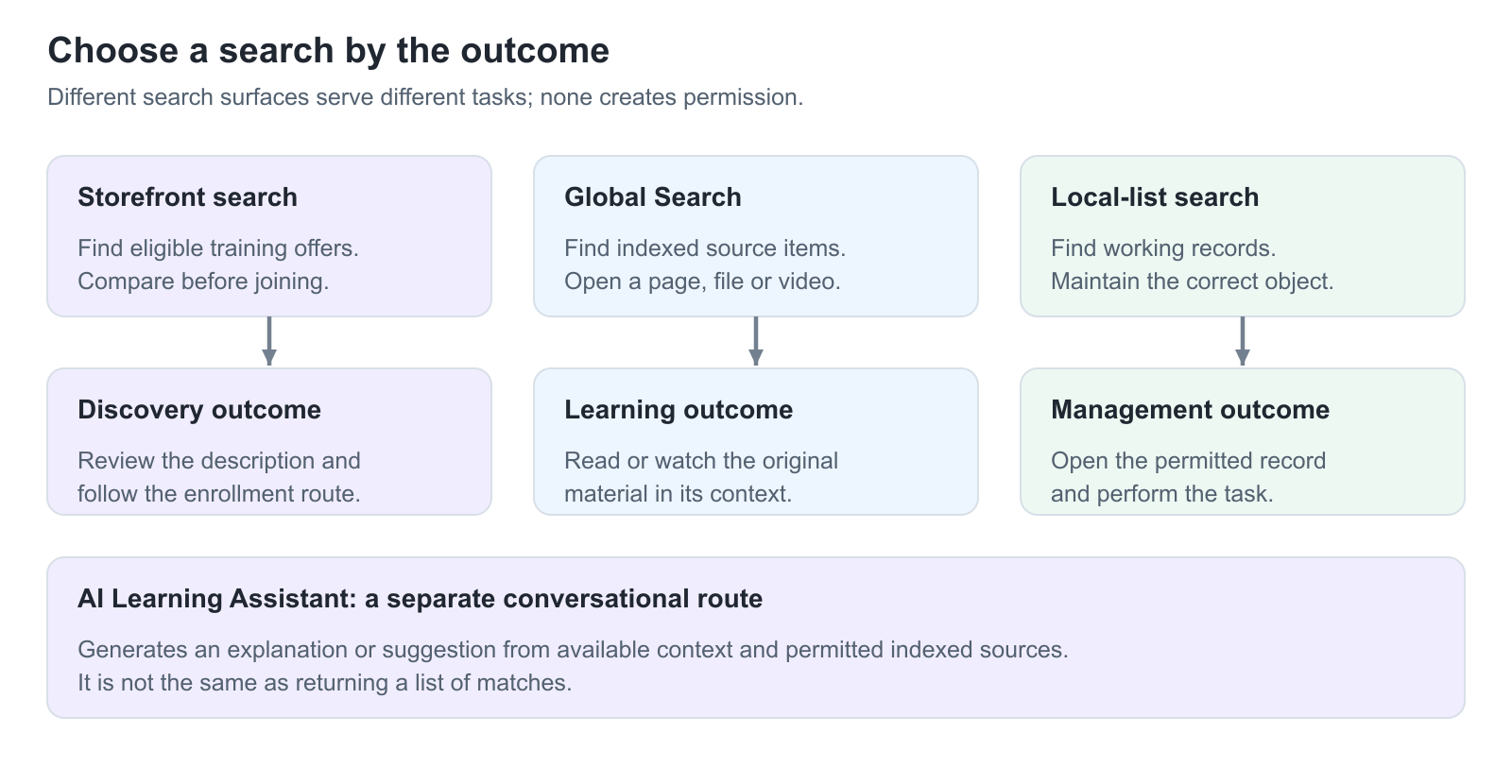
Eurekos provides several search experiences rather than one unrestricted search of everything. The place where you search determines the scope, the type of result and the next action. The optional AI Learning Assistant adds a conversational route, but does not replace search or grant access.
Use this article to:
- Choose the right search for your task
- Understand discovery before enrollment and content access afterwards
- Recognize role and indexing boundaries
- Diagnose missing results without changing access unnecessarily
Choose where to start
| Your purpose | Best starting point | Expected outcome |
|---|---|---|
| Find training to join | Storefront search and filters | Compare eligible training offers, open their descriptions and follow the applicable enrollment or purchase process. |
| Find a passage, resource or learning item | Global Search | Open a relevant result in its source context, subject to your access. |
| Find a record you manage | Search and filters within the relevant list | Narrow Courses, activities, users, media or other working records without searching unrelated feature areas. |
| Ask for an explanation or a suggested next step | AI Learning Assistant | Receive a generated answer based on available context and permitted indexed material; inspect the sources before relying on it. |
Understand the learner journey
Before enrollment, the Storefront helps a learner decide whether training is relevant. A search can match material associated with an offer without granting access to the lessons themselves. Open the activity description to review its purpose, audience, delivery, price and enrollment conditions.
After a valid enrollment, accessible learning material can also become available through Global Search and Saga where those features are enabled. Page restrictions, hidden content and other access conditions still matter. A search result is not a substitute for enrollment, and opening a result does not automatically complete a learning requirement.
For example, a new facilities colleague searches for “avoidable energy use” to compare training. Once enrolled, the colleague can look for the explanation of standby consumption inside the course. These are related needs, but the first is discovery and the second is learning support.
Keep role and working context in view
A Manager, Instructor or administrator can also be a participant. Administrative search may include records that the person can maintain because of their role or responsibility. That does not mean every participant can find those records, or that the AI assistant can use all of the administrator’s management results.
Use an ordinary learner account or an appropriate participant preview when validating learner discovery. An administrator’s successful search is evidence of administrative visibility, not proof that the intended audience can see the same result. For the wider role model, see Roles: Purpose and Feature Access.
Know what affects discoverability
- Feature availability: Global Search, AI and optional resource services depend on the platform configuration. Local search controls also vary by feature.
- Descriptive information: Useful titles, short descriptions, keywords and tags help people recognize a result and can support matching and filtering.
- Indexed content: Supported page text, files and asset information can contribute to search. External services and every possible file format are not automatically searchable.
- Visibility and permission: Organization, Storefront targeting, enrollment and content restrictions affect the available population.
- Processing: A recent edit may need indexing before the latest text is available. Filtering a list and rebuilding an index are different operations.
Use search efficiently and accessibly
Start with a distinctive topic, task or phrase rather than a very broad word. If the result is missing, try a shorter expression or a synonym, then check active filters. Use the language of the source material when a multilingual query gives weak results. Search behavior differs between the Storefront, Global Search and local lists; do not assume that quotation marks, wildcards or partial words work identically everywhere.
Search fields and result links can be reached with the keyboard. Use Tab and Shift+Tab to move between controls, Enter to submit where required, and Escape to dismiss a search overlay or suggestions where supported. When a search icon expands a field, open it before typing.
Troubleshooting
| Problem | What to check |
|---|---|
| I cannot find the search shown in an example | Check whether the example refers to the Storefront, Global Search or a particular list. Feature availability and your permissions can differ. |
| An administrator finds an item that a learner cannot | Compare the two users’ purpose and access. Do not broaden learner access merely to reproduce an administrative result. |
| A result exists, but the latest paragraph is missing | Check the source and indexing status. Follow Maintain Searchable Content and Check the Search Index rather than repeatedly changing the search phrase. |
FAQ
-
Does Search bypass enrollment?
No. Discovery can reveal an eligible training offer or a matching description, but access to the training content still follows enrollment and the applicable access rules.
-
Is Saga the same as Global Search?
No. Global Search returns matching items. Saga generates an answer from available context and permitted indexed material, and its response should be checked against the sources.
-
Why do search results differ between people?
Results depend on the search surface, role, responsibility, Organization, visibility, enrollment, content restrictions and indexing. Administrative access is not a learner-access test.