Find Training with Storefront Search and Filters - Article
Summary
Storefront search turns the training catalogue into a practical discovery tool. It helps people find an appropriate offer by subject, skill or need, even when they do not know its exact title.
Results are training offers, not permission to read every matching lesson. The available search scope, filters and display options depend on the platform and the offers visible to the person searching.
Use this article to:
- Find and compare relevant training offers
- Interpret matches inside an activity’s associated material
- Combine keywords and filters effectively
- Check availability before expecting an enrollment route
Search for a training need
- Open the Storefront and select its search field.
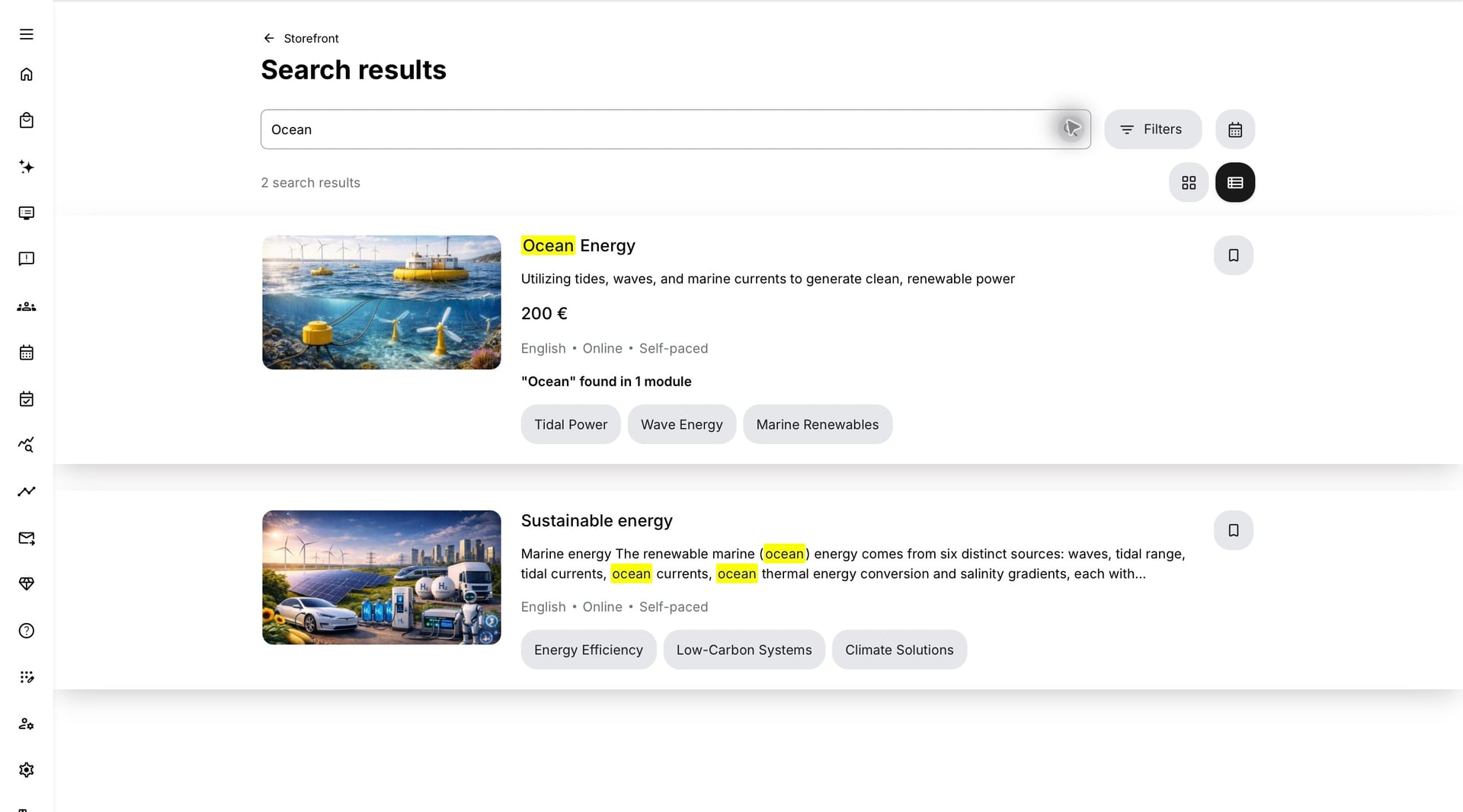
- Enter a meaningful term, such as ocean energy, energy efficiency or the name of a skill. Select an appropriate suggestion, or submit the search to see the result list.
- Review the title, description, delivery information, price and tags shown for each offer. Where available, switch between List and Grid to compare the results in the most useful format.
- Open an offer’s description to check the audience, prerequisites, schedule and enrollment or purchase options.
The Storefront can support visitors as well as signed-in users when configured to do so. Sign in when you need the catalogue and enrollment conditions that apply to your profile. The anonymous catalogue is not necessarily the same as your personal Storefront.
Understand what a match means
A platform can use a basic catalogue search or a broader indexed search. With the broader configuration, a result can match an activity description, module information, native course text or indexed asset information rather than the visible activity title alone. Storefront search does not use HTML and Code widgets as searchable course text.
Highlighted text helps explain a match. A label such as “Ocean” found in 1 module indicates where the search term was found; it is not a progress measure, a number of required modules, or permission to open that module before enrollment. The description may show a relevant extract rather than the activity’s usual introductory text.
For short queries, use complete words. Suggestions begin after enough characters have been entered; longer terms can support partial-word matching. If a short abbreviation gives no useful result, try its full name. Search configuration can affect the behavior, so avoid treating one customer’s results as a universal matching rule.
Narrow the result set with filters
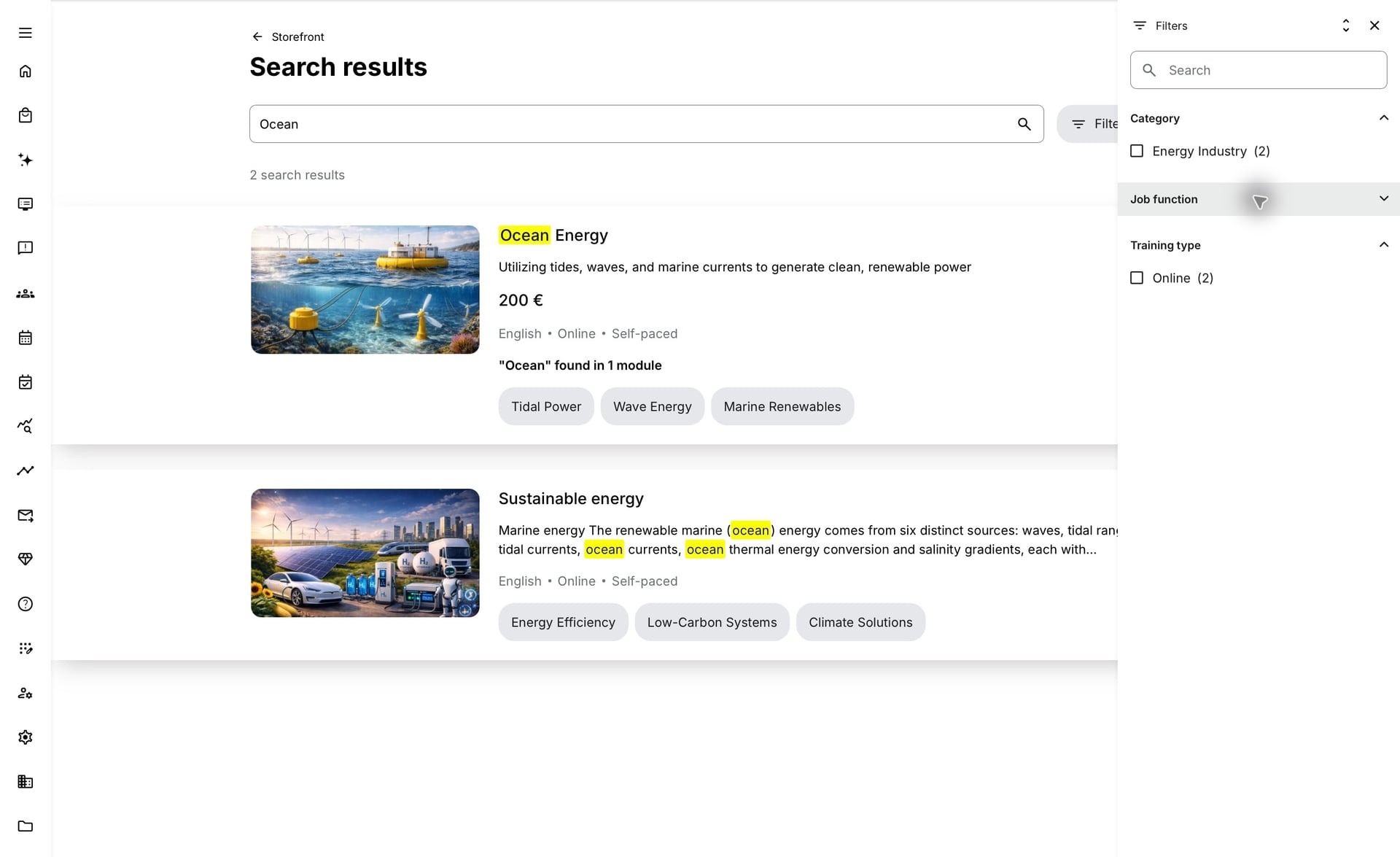
Use Filters when you need an appropriate group of offers rather than one named course. Depending on configuration, choices can include Category or other activity tags, Training type, Language and availability options. Only relevant, enabled filter groups and values are presented; an unused tag is not guaranteed to appear.
- Open Filters from the Storefront or its search results. A platform can use a sidebar or a full-screen filter view.
- Expand the relevant groups and select your criteria. Use the filter’s own Search field to find option names in a long list. This searches filter values, not course content or filter-group headings.
- Select Apply where shown, then review the result population.
- Use the group’s clear control to remove one condition, or Clear all to remove the filter selections. Clear the main search term separately when you also want to remove the text query.
Interpret tags, counts and combined selections
Within one filter group, multiple selected values are alternatives: an offer can match one of those choices. The combination between different groups is configured for the platform. With an AND combination, an offer must match the selected groups together; with an OR combination, matching one selected group can be sufficient.
For example, Energy Industry and Online can mean “online training in this category” when groups are combined with AND. Do not assume that the same selection on every platform always has that intersection behavior.
Selecting a parent tag also selects its descendants. Selecting a child can show a partially selected parent; that partial state does not itself add the parent as a separate search condition. Counts help indicate availability, but their recalculation depends on the configured AND or OR behavior. A disabled zero-count value is not evidence that the taxonomy is broken.
Separate discovery from eligibility
A visible offer may still require an approval, payment, available seat or a particular registration period. Conversely, training already assigned to you may be easier to find under Use My Overview as a Participant rather than as a new offer to join.
Storefront targeting and search visibility are configurable. A curated homepage row is not necessarily the complete searchable catalogue. If an unexpected offer appears, compare its configured audience and the platform’s search-visibility rules before concluding that the row design controls all access.
Validate a useful discovery journey
| Check | Evidence of a useful result |
|---|---|
| Language and audience | An intended learner can recognize the offer and its purpose without opening an unrelated course. |
| Matching content | A distinctive term returns the intended offer and any extract accurately describes the source. |
| Filters | Relevant tags and delivery types narrow the population; clearing them restores the expected results. |
| Next action | The description explains the actual enrollment, approval or purchase route. No test wording or misleading availability remains. |
Troubleshooting
| Problem | What to check |
|---|---|
| The expected offer is missing | Clear filters, check the query and sign-in state, then verify audience, language, activity status and availability. Ask an administrator to check indexing if the source text has just changed. |
| The title does not contain my search term | Read the highlighted extract or “found in” information. A broader search can match associated course or asset content. |
| Selecting two groups gives unexpected results | Confirm the configured AND/OR combination and parent/child tag selections. Filter counts are not always a live intersection. |
| I see an offer but cannot begin its lessons | Open its description and follow enrollment, payment or approval requirements. A Storefront match is not lesson access. |
FAQ
-
Does “found in 3 modules” mean I must complete three modules?
No. It is search-match information, not a completion rule. The activity’s actual requirements determine completion.
-
Why is my Storefront different after signing in?
The personal catalogue can use your Organization, profile, language and other visibility or availability rules. Anonymous visitors can have a different offer population.
-
Does the filter Search field search inside courses?
No. The search within the filter panel finds filter-option names. Use the main Storefront search to look for training by subject or indexed material.