Maintain Searchable Content and Check the Search Index - Article
Summary
Good search results start with clear source content and a usable index. Authors and administrators can make training easier to find by giving it meaningful names, useful descriptions and appropriate metadata, then checking that the expected material has been processed.
The search index is a processed representation of supported content. It is not the source editor, an enrollment control or proof that every learner can open the item. The optional AI features can use related indexed material, so assessment exclusions and freshness also need deliberate attention.
Use this article to:
- Prepare useful searchable content
- Inspect an item’s Search index and processing status
- Re-index deliberately after relevant changes
- Test freshness, permissions and assessment exclusions separately
Make the source useful before troubleshooting search
| Source element | Good practice | Why it matters |
|---|---|---|
| Title and short description | Name the purpose, topic and audience plainly. Replace template guidance with real introductory text. | People can recognize the result and decide whether to open it. |
| Keywords and tags | Use consistent subject terms, known abbreviations and the configured taxonomies. Do not add irrelevant popular words. | Keywords can support matching; tags support the configured filters and targeting. They are not interchangeable access controls. |
| Course pages and asset captions | Use meaningful headings and explain diagrams, videos and links in context. | Extracted text is more useful when it describes the learning point instead of navigation filler. |
| Videos and files | Provide accurate subtitles and supported, readable documents where appropriate. | A title does not supply the spoken explanation or the body of an unreadable file. |
| External and embedded material | Keep enough accurate context in the course to explain the resource. | A remote service’s complete content is not automatically indexed by Eurekos. |
Open an item’s Search index
Where your permissions and the item type provide it, navigate to the relevant course page, learning object or supported description and open More → Search index. This is an inspection tool, not the page-editing interface. Other object types can expose the same action in their own menu.
- Confirm the item title in the dialog so that you are checking the intended source.
- Read its indexing status and timestamp. Queued means it is waiting for processing; Processing means processing is underway; Indexed means a processed version is available.
- Expand the available sections to inspect the extracted Content and Resources. A formatted-content view can also be available with AI indexing.
- Compare the extracted wording with the saved source. If a relevant change is missing, use Re-index where available and allow processing to finish.
- Repeat the actual search and, when relevant, the learner-access test.
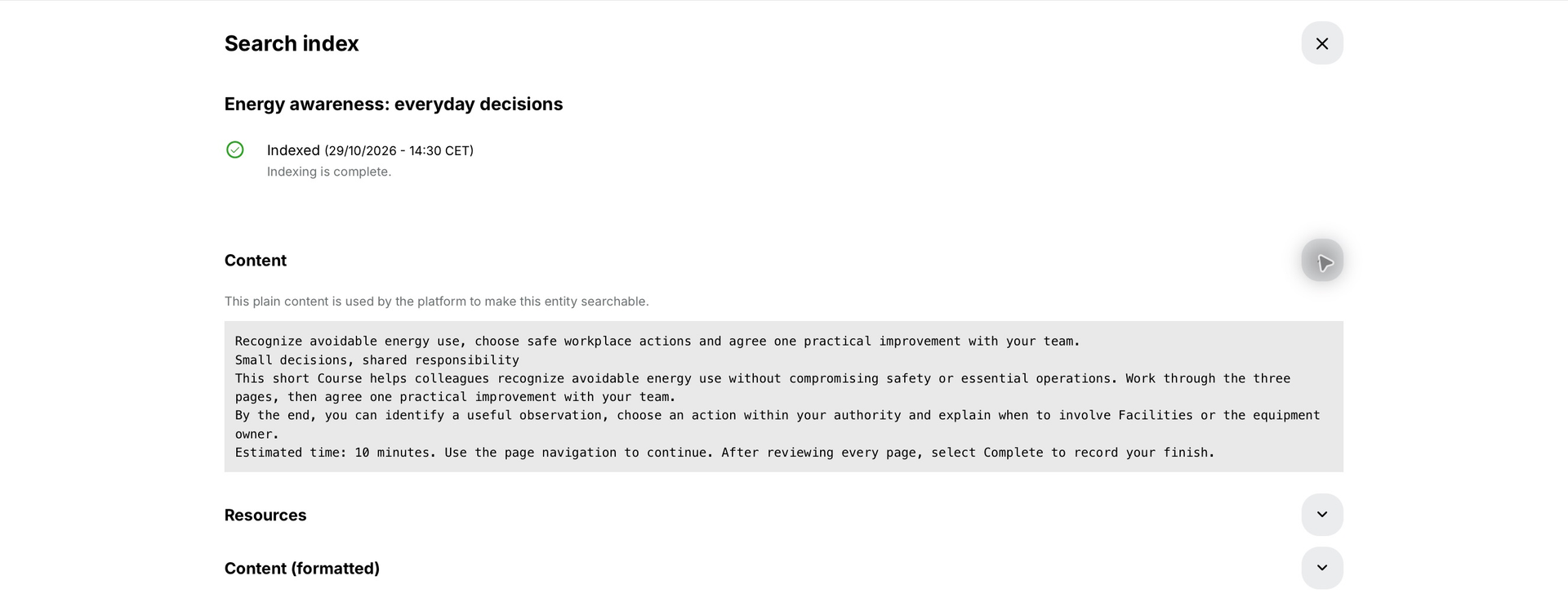
Interpret what the index does and does not prove
An Indexed status means a version has been processed; compare its timestamp and text with your latest saved changes. A queued update is not evidence that the current source has already replaced the previous indexed content. The Re-index action can be temporarily unavailable during processing.
An empty body can be intentional. Hidden pages or widgets and excluded learning-object content are not expected to provide the same searchable text as visible, included material. Metadata can remain available even when the object body is excluded. Conversely, a title in the index does not prove that all content in a complex package or file was extracted successfully.
Supported file formats include TXT, VTT, SRT, PDF, DOC, XLS, PPT, DOCX, XLSX, PPTX, PPSX, ODT, ODS and ODP. Check the actual extracted text rather than relying only on the file extension.
Keep content extraction separate from learner access
Indexing answers “What supported content has been processed?” Access answers “May this person use this source in this context?” A successfully indexed page can still be unavailable to a particular learner. An administrator’s broad maintenance search is not a sufficient participant test.
For H5P and SCORM, include or exclude the detailed content deliberately. Excluding an object is not the same as hiding its title, changing its learning completion rule or removing the source from the course. Follow Control AI Content Indexing and Protect Assessments for the extraction controls and the additional steps required after a setting change.
Run a focused verification
| Test | How to check |
|---|---|
| Positive content match | Search for a distinctive phrase from an allowed, visible lesson. Confirm the result opens the right source. |
| Freshness | Change or inspect a known source phrase, complete indexing and verify that the processed version is current. |
| Audience boundary | Repeat with a normal intended learner and with a user who should not have access. Administrative access is a separate case. |
| Assessment exclusion | Check excluded object bodies after re-indexing and test that the assistant does not retrieve their protected content. Also review answer material copied elsewhere. |
| Discovery quality | Check the title, snippet and short description for meaningful language, not template instructions or test data. |
Escalate with useful evidence
If processing remains stuck or the extracted content is clearly wrong, give Support the item title, source location, indexing status and time, a safe example phrase, the affected user role and the expected versus actual outcome. Avoid including real assessment answers, personal data or provider credentials in an ordinary troubleshooting example. A platform-wide index rebuild is not a routine authoring step.
Troubleshooting
| Problem | What to check |
|---|---|
| Indexed, but a new edit is absent | Compare timestamps and extracted text, confirm the edit is saved, then re-index where available. Do not assume the previous body disappears as soon as a new job is queued. |
| Re-index is unavailable | The item may already be queued or processing, or your permissions may not allow the action. Check status before escalating. |
| A quiz title is present but questions are absent | Check whether detailed content was intentionally excluded. Metadata can remain searchable without the protected body. |
| A learner cannot open a valid indexed item | Inspect enrollment, visibility and page restrictions. Re-indexing does not grant access. |
| A global default was changed, but old object text remains | Existing objects may require resaving or re-indexing. Verify the resulting body before relying on the exclusion. |
FAQ
-
Does Indexed mean the latest version is searchable?
It confirms a processed version exists. Compare its timestamp and extracted text with the latest saved source, especially when another update is queued.
-
Does Re-index give learners access?
No. It processes supported content. Access still follows the person’s permissions, enrollment, visibility and content restrictions.
-
Does excluding a learning object remove its title from search?
Not necessarily. Metadata and the detailed body are separate; a title or caption can remain discoverable while the protected content is excluded.