Search and Filter Administrative Lists - Article
Summary
Local search reduces the effort of managing a large platform. Instead of scanning every course, activity or resource, you can narrow the current working list and continue directly into the record that needs attention.
The list determines the scope. A search in Courses is not Global Search, a dashboard search is not necessarily the whole activity database, and a Resource Library filename search is not full-text document search.
Use this article to:
- Choose the correct working list and scope
- Combine search, filters and sorting deliberately
- Distinguish a missing record from an active filter or permission boundary
- Validate learner outcomes separately from administrative access
Start in the feature that owns the work
| Your task | Search in | What to keep in mind |
|---|---|---|
| Maintain source learning content | Courses or the relevant asset archive | The course entity and a delivered Training Activity are different records. Search the source when editing reusable content. |
| Coordinate delivery or enrollment | Activities in Course Administration or the permitted dashboard Activities view | The working population can depend on responsibility, Organization and platform configuration. |
| Find an existing video or H5P object | The corresponding content archive or selection dialog | Search is scoped to available reusable assets, not every participant’s course navigation. |
| Find reference documents | Resource Library | Its local search finds filenames; Global Search and Saga can use indexed file content where available and permitted. |
| Investigate a person or operational record | The relevant Users or management list | Use the fields and filters available there. A user search does not grant a broader user-management scope. |
Use a repeatable working sequence
- Open the list that owns the record. Check any scope control, such as My, All, an Organization selection or an activity context.
- Open the Search field if it is collapsed. Enter a distinctive title, name, code or other supported identifying value. Submit with Enter where required.
- Apply the available filters to narrow a meaningful population, such as training type or status. Do not assume every list has the same fields or tag groups.
- Select an appropriate sort field and direction. Sorting changes the order of the current population; it does not broaden access.
- Open the correct record, perform the intended work and verify the result in its source location. Clear search and filters when moving to a different task.
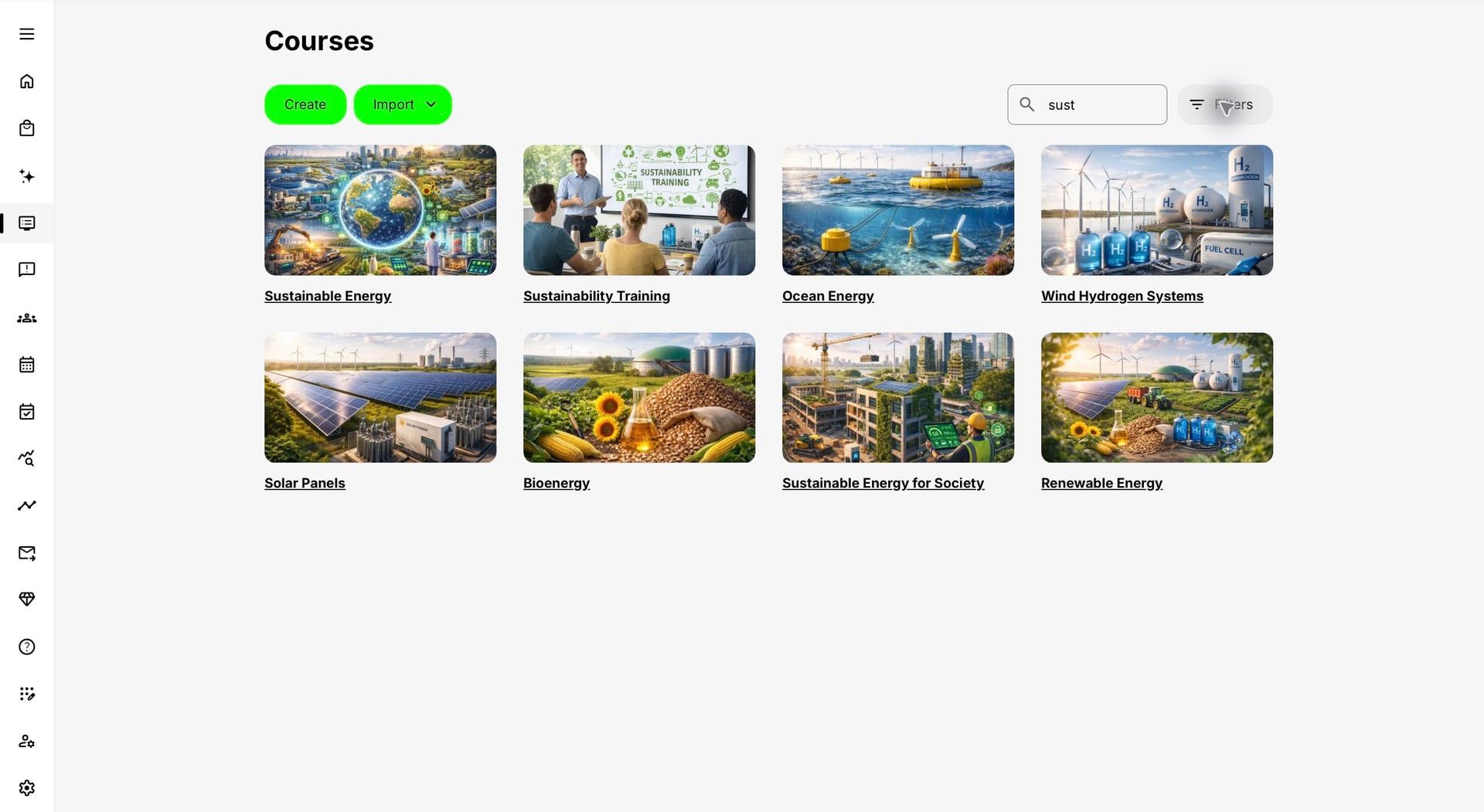
Understand scope, search, filters and sorting
| Control | What it changes | What it does not change |
|---|---|---|
| Scope | The working subset offered to you, for example your activities rather than other permitted activities. | Your underlying role, Organization or responsibility permissions. |
| Search | Matches within the current list using that feature’s supported fields. | Every unrelated feature or the full text of all learning material. |
| Filters | The record population according to the available criteria. | Record ownership, enrollment, completion or source metadata. |
| Sort and direction | The order in which matching records appear. | Whether a record is eligible to be shown. |
| Load more or pagination | How much of the matching population is currently displayed. | The filter rules or the total access scope. |
Use the role’s working view appropriately
An Instructor looking for a course they teach, a Course Administrator locating a delivery they manage and a content author reusing a video may search different lists even when the activity names are similar. The first question is therefore not “Why does search fail?” but “Am I searching the correct object and working population?”
In the dashboard Activities view, All means the other activities made available within the user’s permitted scope. It does not mean unrestricted access to all platform activity. Some configurations specifically limit Course Administrators to activities they authored or for which they are Responsible. For that workspace, see Use My Overview as a Course Administrator.
Avoid carrying an old filter into a new investigation
For example, a Course Administrator searches for a November workshop while a previous Completed filter is still active. The workshop is absent because it is still scheduled, not because its enrollment has disappeared. Clear the status filter before changing the activity configuration.
Similarly, a recently updated course can move under an Update date sort. A missing first-page card is not proof of deletion. Inspect the current query, sort direction and any additional pages before recreating a record.
Use keyboard navigation and verify the actual behavior
Use Tab and Shift+Tab to move between the search, filters, sort controls and results. Enter submits where required. Some fields update automatically; others wait for a submit action. A clear icon can remove the query without removing separate filters, so verify both.
Local search rules vary. An exact code can be useful in a course library, while the Resource Library’s filename search will not find a sentence that exists only inside the PDF. Use Global Search for supported indexed learning content instead of changing filenames solely to imitate full-text search.
Troubleshooting
| Problem | What to check |
|---|---|
| A record is missing | Check the list, scope, query, filters, sort and pagination first. Then confirm the user’s role, Organization and responsibility. |
| The Resource Library does not find a paragraph inside a file | Its local search is filename-based. Try Global Search or Saga if the file is indexed and you have access. |
| All does not show another administrator’s record | All remains within permitted access. Check responsibility and platform-specific limits rather than assuming the control is faulty. |
| The same term behaves differently in another list | Different lists support different matching fields and submission behavior. Use each feature’s controls, not a universal search syntax. |
FAQ
-
Does All mean every record on the platform?
No. It is a working scope within the user’s permitted population. Role, Organization, responsibility and platform configuration can still limit the results.
-
Do search and filters change the record?
No. They change the working view. Editing, assigning, enrolling or changing completion requires a separate action in the relevant record.
-
Why does a filename search not find document text?
A local list can use filename-only matching. Indexed document-content search is a different capability provided through Global Search or the AI assistant where enabled.