Use My Overview as a Participant - Article
Summary
Participants need a clear answer to three everyday questions: what must I do, what can I continue, and what should I consider next? My Overview organizes those decisions without requiring the participant to understand how the organization assigned the training.
The participant experience is the shared foundation of My Overview. It organizes the user's enrolled, required, completed and requested training into relevant sections and provides quick access to recommendations, Events, Communities, progress, transcripts and Storefront discovery. Empty sections are omitted so the page reflects the user's actual learning situation.
Use this article to:
- Understand the participant sections and their order
- Interpret training labels, dates and status changes
- Resume learning or open detailed progress
- Find invitations, waiting-list records, bookmarks and completed training
- Troubleshoot training that appears in an unexpected section
Understand the participant foundation
Every signed-in user can have a participant perspective when they are enrolled in training. This remains true for users who also act as instructors, managers, Course Administrators, Support users or administrators.
My Overview does not reproduce every activity and participant field. It turns current records into a focused home page so the user can identify what requires attention and continue with the appropriate action.
Review the top of My Overview
The top of the page can contain several types of current information.
Announcements and Events
Applicable announcement and Event banners can appear above the training sections.
| Entry | What it can contain | How the queue behaves |
|---|---|---|
| Announcement | A current message selected for the user's audience | Up to three applicable announcements are presented at a time |
| Event | Date, time, location, description and supported participation or virtual-session actions | Up to three applicable Events are presented in chronological order |
Dismiss an entry when it no longer needs attention. This removes it from the visible queue for that user and can allow another applicable entry to appear. Dismissing the banner does not cancel Event participation or change the underlying announcement.
Recommendations
Recommendations is the first learning-focused section. Depending on configuration and the user's history, it can contain recently visited training, activities in progress, bookmarks, personalized suggestions or administrator-selected Storefront activities.
Recommendations do not all represent active enrollment. Select Learn more to review the activity and its available action, or use the applicable resume/open action for an enrolled activity. See Understand Recommendations on My Overview for the complete behavior.
Use Trainings I attend
Trainings I attend brings together the user's training records. Activities are grouped so urgent or operationally distinct states do not become mixed into one long catalog.
Only sections with applicable records are shown. If there is no participant training to display, the page can show No trainings to show instead of empty groups.
Understand the training groups
| Section | What it represents | Typical participant action |
|---|---|---|
| Mandatory | Required training that is incomplete and has not yet passed its Deadline | Continue the activity and plan completion before the displayed Deadline |
| Recertification | A renewal attempt or activity connected with an expiring certificate | Complete the renewal path before validity is lost |
| Missed deadline | Mandatory training that remains incomplete after its Deadline | Continue if access remains and follow the organization's overdue process |
| Ongoing | Non-mandatory active training that is Not started or In progress | Start or resume learning |
| Not passed | Applicable SCORM or xAPI training that has not been passed, where this separate section is enabled | Review the result and follow the supported retry or assistance path |
| My invites | Training the user has been invited to consider or accept | Review the invitation and enroll before it expires |
| Completed | Training the user has completed | Review the record, certificate or available learning history |
| Waiting list | Training for which the user is waiting for capacity or an applicable enrollment decision | Review the current status; do not treat it as active access |
| Bookmarked | Storefront activities saved for later | Return to the activity description and enroll when appropriate |
The same activity is normally placed in one participant group rather than repeated in every group it could match. Mandatory and missed-deadline conditions take priority over ordinary ongoing placement. The displayed section can therefore change when a Deadline passes, an invitation is accepted, a certificate enters renewal or the activity is completed.
Mandatory and overdue training
A Mandatory activity includes a participant Deadline. Before that date, it is prioritized as required work. If the user remains incomplete after the Deadline, the activity can move to Missed deadline and display Overdue.
Overdue is a status and reporting signal. It does not itself remove access. Access ends only when another rule, such as Access Expiration, produces that outcome. Learn more in Mandatory Activities and Deadlines.
Recertification
Recertification appears when the user's certificate lifecycle creates or exposes the applicable renewal route. Certificate expiration and the renewal attempt's own completion Deadline are separate controls.
If no certificate is approaching renewal, the Recertification section remains absent. Learn more in Re-certification and Certificates.
Invitations
My invites contains training invitations that have not yet become active registrations. Invitation cards do not show ordinary participant progress because the user has not started that training relationship.
After the user accepts and enrolls, the invitation leaves My invites and the activity moves to the appropriate participant group. An expired or used invitation can remain available through filters where supported.
Waiting list and enrollment requests
A waiting-list or pending-request record does not provide the same access as Registered participation. It records the user's place in an enrollment process.
If the user is promoted or approved and becomes Registered, the activity moves to the appropriate active group. Learn more in Waiting list and Participation Approval and Enrollment Requests.
Completed training and certificates
Completed contains the user's completed activity records. Depending on the design, the card can provide a certificate action or a route to the completed learning record.
A certificate connected at module level may be available inside the activity rather than directly on its top-level card. A completed activity can later move into a recertification state when the certificate lifecycle opens a new attempt.
Bookmarks
Bookmarks are Storefront activities the user saved for later. A bookmark is not enrollment and does not reserve a seat, approve participation or lock the current price.
When the user enrolls, joins a waiting list or receives another signup state, the activity is handled through the applicable enrollment and participant sections rather than remaining only a discovery item.
Read a training card
The exact card content depends on the activity and platform configuration. Information can include:
- Activity title and banner
- Number of modules
- Not started, In progress, Completed or certification-related status
- Progress indicator
- Mandatory Deadline, Overdue date or certificate expiration
- Training type, delivery format, language or other configured tags
- Schedule or location information
- Price when it remains relevant to the available action
- A supported certificate, requirements or navigation action
Do not interpret one label without considering the complete lifecycle. For example, Completed describes the activity result, while Expires can describe the validity of its certificate.
In the enrolled example below, the 10 badge is the number of modules, not a count of completed modules. The progress bar sits at the lower edge of the thumbnail and represents progress for the Training Activity. Learning path identifies the training type; In progress is the participant's status on a separate line. The bookmarked offering has no participant-progress indicator because saving it is not enrollment.

Use this distinction when deciding what to do next. Open an enrolled activity to continue learning. Open a bookmarked offering to review its Activity Description and the available enrollment route; any eligibility, price or approval requirements still apply.
Search, filter and hide training
Search and filters help users work with a large personal training history. Available filters depend on the group, platform configuration and metadata used by the organization.
They can include:
- Status and certification
- Training type
- Category, Job function, Department or Language
- Configured activity tags
- Hidden training, when user-controlled hiding is enabled
- Invitation or lifecycle states applicable to that group
Filters narrow the user's current records; they do not change enrollment, completion or access.
When hiding is enabled, use the available hide action to remove an activity from the normal view. The activity and its history remain. Use the Hidden filter or corresponding action to find and restore it.
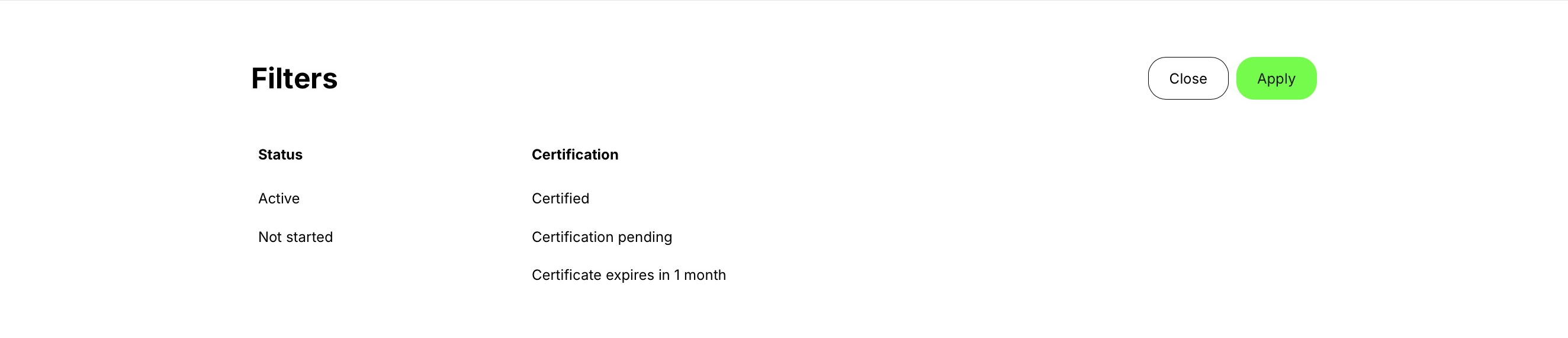
Open the filter control beside the relevant training-group heading, choose the criteria needed for your task, and select Apply. For example, certification-related choices can help locate learning associated with a certificate that is nearing expiration. Apply the filter to find the relevant records, then open the activity or certificate to check its exact state and dates.
Understand priority, ordering and movement
An activity is placed in one participant group at a time. An incomplete Mandatory activity takes precedence over an ordinary Ongoing or Recertification placement. If its Deadline passes, Missed deadline takes precedence and the card emphasizes the overdue date. This explains why a renewal activity can appear under Mandatory rather than in a separate renewal row.
Within the normal ordering, Mandatory training is arranged by upcoming deadlines, Missed deadline by the missed deadline, and Completed by the most recent completion. Ongoing puts In progress work ahead of Not started work and favors recently visited training. A configured activity Priority can also influence ordering, so the position of a card is not itself a completion rule.
Each group has its own search and filters. Use the controls in the group being investigated rather than assuming one search narrows the whole dashboard. Groups initially show a limited set of cards; use Load more when more records are available. In the standard view, cards are loaded in batches of up to eight.
Use the labels to choose the next action
Deadline answers when the learning must be finished. Expires can describe certificate validity. An Event’s date describes delivery. These dates can coexist and should not be treated as interchangeable. If a deadline is missed, continue learning while access remains and follow the organization’s instructions; Overdue alone does not remove access.
For example, a participant may have an upcoming workshop, an overdue online module and a certificate that remains valid until the end of the month. Attending the workshop does not automatically finish the online requirement, and the valid certificate does not remove the overdue label from the current attempt. Open the activity’s requirements or progress to identify the remaining task.
Waiting list can also contain different enrollment states: On waitlist, Enrollment requested or Participation confirmation pending. Open the Activity Description and follow the action for that state. An approved request that still requires participant confirmation is not the same as a completed registration.
Example: continue overdue learning during an allowed access period
A participant must finish an activity within 30 days, while access is deliberately retained for 44 days. Before the Deadline, the incomplete activity appears under Mandatory, even after learning has started. If it is still incomplete after day 30, it moves to Missed deadline. The participant can continue during the remaining access period; the move is a change in urgency, not a new enrollment or proof that access has ended.
After the participant satisfies the required learning and any participant confirmation, the recorded completion determines the next group. A later certificate expiration or renewal attempt is a separate lifecycle. If the participant cannot reopen the overdue activity, check the current access explanation with the training contact rather than assuming that every overdue activity is automatically locked.
This is why finding the activity in a different row can be the correct outcome. Read the current status and requirements before looking for a second copy or trying to enroll again.
Resume or open training
Select an enrolled activity to open its Training page or learning experience. Depending on the activity type and state, the next view can be a Learning Path Overview, a Course, an Event, an Assignment or another supported module.
The activity can still contain locked, optional or adaptive modules. Seeing the activity on My Overview does not mean every module is currently available. Access Restrictions and Adaptive Modules continue to apply inside the learning experience.
Use Explore Storefront and transcript actions
When Storefront access is enabled, Explore Storefront opens the activities available for discovery and supported self-enrollment. Storefront availability, target audiences, capacity, approval, subscription and commerce rules continue to apply.
The transcript action creates the available record of the user's learning history for the selected period or supported scope. Use detailed progress, certificate or activity records when more evidence is required than the transcript provides.
Communities
The Communities section appears when the feature is available, the widget is enabled and the user belongs to at least one Community. A Community can support a specific training cohort or a continuing professional group that exists independently of one activity.
Community visibility is based on membership. Another participant using the same Course through a different Training Activity does not automatically receive access to an unrelated Community.
Allow time for changes to appear
Some enrollment, completion, certificate and grouping updates are processed in the background. A newly assigned activity or a recently changed status may therefore take a short time to reach its final My Overview section.
Confirm the source record first. Avoid creating a second enrollment or changing completion simply because the dashboard has not refreshed immediately.
Troubleshooting
| Problem | What to check |
|---|---|
| An assigned activity is missing | Confirm the user has a valid signup and the expected status. Check activity and user scope, Supplemental Adaptive Modules, Access Expiration and recent background processing. |
| An activity appears under the wrong group | Review Mandatory, Deadline, completion, certificate, recertification, invitation and signup status. One higher-priority condition can determine the group. |
| Mandatory training does not show a Deadline | Confirm Mandatory is enabled with a valid date rule and the signup is Registered. Start-relative rules also require a valid activity Start. |
| A completed activity still appears as ongoing | Verify activity and required-module completion, participant confirmation, assessment, attendance and certificate criteria. Allow recalculation to finish. |
| Waiting-list training opens no learning content | This is expected until the user becomes Registered. Check capacity, approval and promotion instead of changing content access. |
| A hidden activity cannot be found | Use the Hidden or Other filter where available. Confirm participant-controlled hiding is enabled on the platform. |
| A recent enrollment is not visible yet | Verify the signup in Course Administration, then allow background processing and refresh My Overview. Do not enroll the user again unless the original action failed. |
FAQ
-
Why did my activity move to another section?
Its lifecycle changed. Examples include accepting an invitation, passing a Deadline, completing the activity, receiving a certificate or entering recertification.
-
Why is the same activity not shown in both Mandatory and Ongoing?
Trainings I attend normally places one activity in its most relevant group. Required and overdue states take priority over ordinary ongoing placement.
-
Does Waiting list mean I can open the training?
No. Waiting list does not create Registered access or occupy a seat. Access begins only when the supported process changes the signup to Registered.
-
Does Overdue remove access?
No. Overdue identifies incomplete training after its Deadline. Access remains unless Access Expiration or another rule ends it.
-
Does bookmarking reserve a seat or price?
No. A bookmark saves a Storefront activity for later. Availability, capacity and applicable pricing are evaluated through the later enrollment or purchase flow.
-
Why is my certificate not available on the activity card?
It may be pending, connected at module level or unavailable until all certificate criteria are satisfied. Open the activity and review its completion and certificate state.
-
Can I remove completed training from my history?
Hiding, where enabled, changes the normal dashboard view; it does not delete the participation, completion or certificate record.