Use My Overview as a Course Administrator - Article
Summary
Course Administrators coordinate delivery as well as their own learning. My Overview provides a practical starting point for finding activities, reviewing upcoming work and following operational reminders into the record where the work is completed.
Course Administrators retain their personal participant experience and receive operational access to permitted Training Activities. Activity lists, schedules and reminders help the administrator identify work, while Course Administration remains the source for configuration, participants, Events, assessments and delivery records.
Use this article to:
- Understand the Course Administrator layer on My Overview
- Work with activity List and Timeline views
- Understand how operational reminders reach the dashboard
- Continue from a dashboard signal into the correct source record
- Keep personal learning separate from administered activities
Begin with the participant foundation
A Course Administrator can be enrolled in training. Personal assignments, Mandatory training, recertification, recommendations, Events, Communities and completed learning remain available through the shared participant sections.
Administrative visibility does not make the administrator a participant. Use a valid participant signup and the participant section when the administrator must complete training personally.
See Use My Overview as a Participant for the shared learning experience.
Understand the Course Administrator workspace
My Overview helps a Course Administrator answer three operational questions:
- Which activities am I responsible for now?
- Which scheduled delivery requires attention?
- Which workflow or participant condition needs follow-up?
The dashboard provides routes and summaries. Use Course Administration for the complete activity settings, modules, participants, capacity, communications, progress and financial conditions.
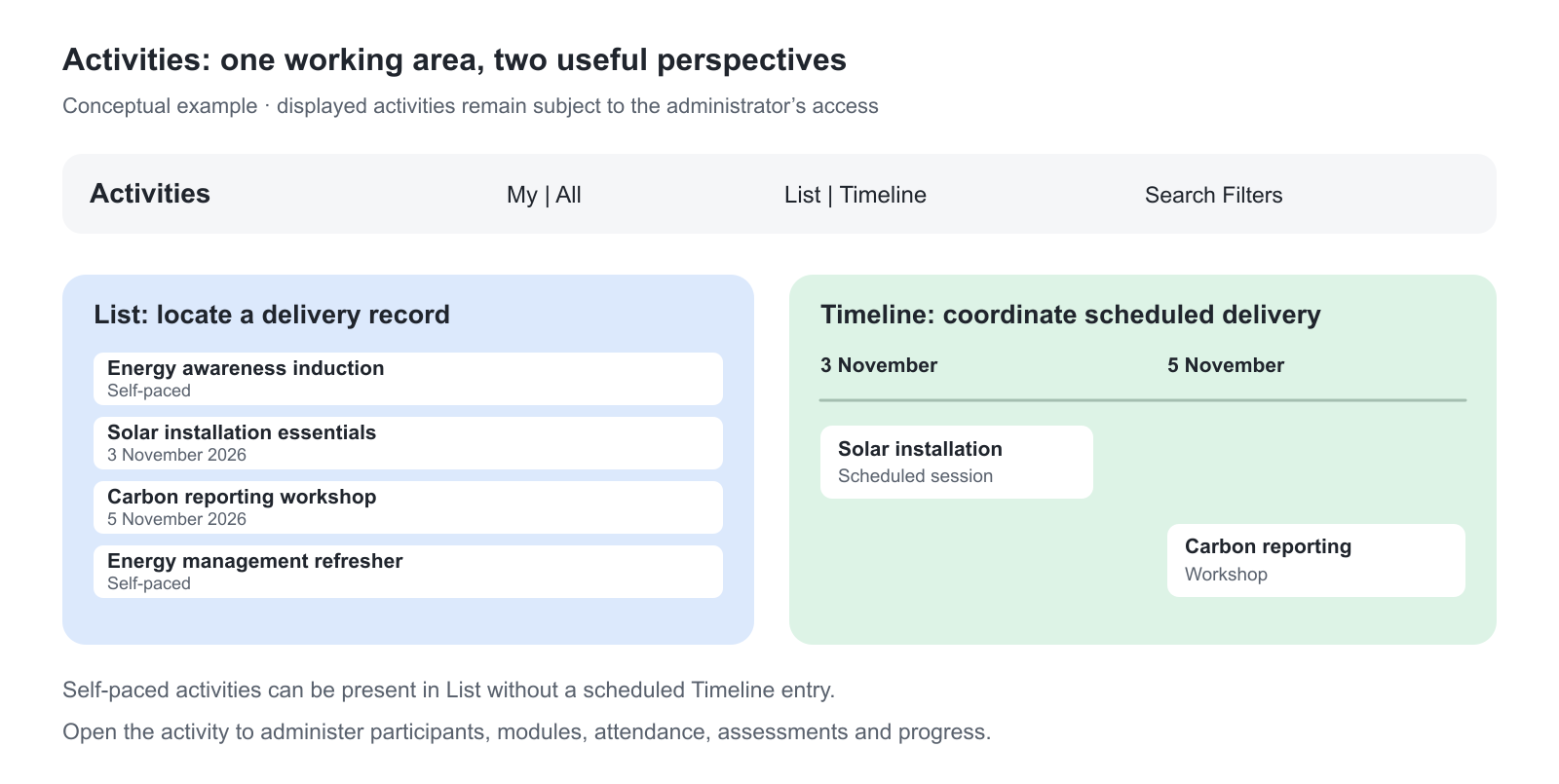
The Activities section is the quick working overview for delivery administration. It is separate from Trainings I attend: the first helps you coordinate activities, while the second contains your own participant relationships. Switch between List and Timeline according to whether you need to find a record or coordinate its scheduled delivery.
Use the activity List
The activity List provides a compact view of permitted Training Activities. Where the scope controls are available, use My to focus on your activities and All to review the other activities made available to you. The labels organize your working view; All does not override role, Organization or activity-access restrictions.
The list brings together the activity Title, included Modules, Schedule, Seats, Status and Self enrollment information where applicable. It helps you locate the delivery and open its record without treating the dashboard as a replacement for Course Administration. A limited number of records is loaded initially; use Load more where available.
Use Search and Filters to narrow the working list by the available activity details and metadata. A title search is useful when you know the delivery; a filter is useful when you need a group such as a particular status or training type. Clear those selections when an expected activity is missing. Filters do not change activity ownership or access.
Some platforms explicitly limit Course Administrators to activities they authored or for which they are Responsible. When that configuration applies, it also limits the dashboard and Timeline; selecting another Organization or All does not expand that underlying access. A Responsible filter can be unavailable under this configuration. Other platforms permit a broader operational population, so confirm the actual platform setup before treating a particular assignment as the only visibility rule.
Use the activity Timeline
Timeline places scheduled activity into a date-based view. It is most useful for Training Activities with Events or other meaningful delivery dates.
The standard view opens around the current period and can be adjusted to the dates being coordinated. On smaller screens, the visible period can be shorter.
Timeline and List do not have to show identical populations:
- A self-paced activity can remain useful in List without a scheduled Timeline entry.
- An activity with no scheduled module can be absent from Timeline.
- A learning path can be represented as one operational activity rather than repeating every module as a separate activity.
- Grouping by Responsible can help distinguish delivery ownership.
Use List when the task is activity administration and Timeline when the task is schedule coordination.
Understand operational reminders
Course Administrator reminders on My Overview originate from configured Automated Email Workflows. A reminder is created when the workflow is designed to notify Course Administrators and the activity has an applicable Responsible Course Administrator.
The dependency is therefore:
- The activity has the intended Responsible user.
- That user has the Course Administrator role required by the workflow audience.
- The Automated Email Workflow is connected at the correct level.
- Its trigger conditions are met.
- The resulting reminder appears for the applicable administrator.
A reminder is an operational prompt, not a change to the participant record. Open the related activity or participant evidence, perform the required work and then use the supported reminder status action where available.
Learn more in Automated Email Workflows.
Continue to the source of the work
| Dashboard signal | Continue to |
|---|---|
| An activity is approaching delivery | Schedule, modules, participants and Responsible users in Course Administration |
| Participant progress requires attention | Activity Progress and the participant's module statistics |
| Event completion is pending | Event attendance and participant records |
| Assignment completion is pending | Assessment and resubmission records |
| A Mandatory population is overdue | Deadline, workflow and permitted grace-period handling |
| Capacity or enrollment requires action | Signup, waiting-list, approval and reservation records |
| Recertification is approaching | Certificate and new-attempt configuration |
| A reminder was generated | The activity or participant condition named by the workflow |
Do not change completion, attendance or certification merely to dismiss a dashboard condition. Correct the source evidence or complete the operational task.
Use analytics within the permitted scope
The Course Administrator workspace on My Overview provides the Activities List and Timeline and applicable operational Reminders. The Course Administrator role does not itself provide the administrator dashboard charts or the three-panel Analytics widget.
To investigate participant progress, open the relevant activity and its participant records, or use Analytics from the main navigation where your permissions provide access. Those separate Analytics pages can help identify populations such as Not started, In progress, Overdue or participants needing certification follow-up. Permission to open an Analytics page does not make its figures appear on My Overview.
Analytics access and data scope are separate from the dashboard layout. Administering one activity does not automatically grant unrestricted access to every platform user or activity. Confirm participant-level decisions in Course Administration or the relevant source record. A separate responsibility, such as an Immediate Manager relationship, can add its own overview and reporting perspective; do not attribute that to the Course Administrator role alone. See Understand Analytics on My Overview and Use My Overview as a Manager or Immediate Manager.
Separate configuration, delivery and personal learning
| Perspective | Purpose | Use |
|---|---|---|
| Personal participant | Complete the administrator's own training | Trainings I attend and Learn mode |
| Operational administrator | Deliver and maintain permitted Training Activities | Activity List, Timeline, reminders and Course Administration |
| Analytics viewer | Identify patterns and populations requiring attention | Permitted Analytics pages and activity Progress, separate from the dashboard Activities workspace |
Keeping these perspectives distinct prevents preview activity from being confused with participant progress and prevents an administrative dashboard from being treated as the source of learning evidence.
Turn a reminder into the correct operational action
A reminder is a prompt to do work, not evidence that the work has been done. Its content comes from the configured Automated Email Workflow and the relevant activity relationship. Follow it into the activity, inspect the current records and complete the actual operational task there.
For example, a reminder after an Event may ask the Course Administrator to ensure attendance has been marked. Confirm who attended and record the supported attendance outcome; clearing or reading the reminder does not supply attendance evidence. A reminder for an Assignment instead requires assessment and, where appropriate, a Passed decision. This distinction matters when those results unlock later learning or certificate issuance.
The List and Timeline help locate the delivery. The activity and participant records establish the current state. Keep the reminder, delivery schedule, participant Deadline and assessor workload aligned so a participant is not made Overdue solely because the operational review was scheduled too late.
Verify the participant experience
A Course Administrator can often see content, modules and records that a participant cannot. Validate important journeys with representative participant accounts.
Test:
- Enrollment and approval
- Target audience and Organization scope
- Mandatory Deadlines and Access Expiration
- Access Restrictions and Adaptive Modules
- Event schedule and capacity
- Completion, certificate and recertification
- Participant-facing communication and labels
Administrative access is necessary for support, but it is not evidence that the participant route works.
Troubleshooting
| Problem | What to check |
|---|---|
| The activity List is missing or empty | Confirm the Course Administrator role, permissions and activity scope. Check My versus All, active filters and any author-or-Responsible activity restriction. |
| An activity is absent from Timeline | Confirm it has a relevant schedule or Event. Use List for self-paced or unscheduled activities. |
| A reminder is missing | Verify the Responsible Course Administrator, workflow connection, Course-administrator audience and completed trigger. |
| A reminder points to a condition that appears resolved | Confirm the source record and workflow timing. Allow background processing, then update the reminder through its supported action. |
| The administrator cannot see participant detail | Check activity responsibility, Organization scope and the specific Progress or analytics permission. |
| A recent activity change is not visible | Refresh the Activities view after saving. For figures in a separate Analytics page, allow the relevant background processing and refresh. |
| The administrator's preview differs from a participant report | Retest with an ordinary participant and review access, adaptive, schedule and signup conditions. |
| Analytics is available in the main menu, but dashboard charts are absent | These are separate capabilities; the Course Administrator role provides an Activities workspace, not the administrator dashboard Analytics widget |
FAQ
-
Does administrative visibility enroll a Course Administrator as a participant?
No. Administrative access supports delivery and maintenance but does not create a participant signup or progress. Give the administrator a valid participant signup when they must complete the training personally.
-
Why does an activity appear in List but not Timeline?
Timeline requires meaningful scheduled delivery, such as an Event or another relevant date. Self-paced or unscheduled activities can remain available in List without creating a Timeline entry.
-
Where do Course Administrator reminders on My Overview come from?
They originate from configured Automated Email Workflows. The activity needs the intended Responsible Course Administrator, the user needs the required role, and the connected workflow trigger and audience conditions must be met.
-
Why is an expected Course Administrator reminder missing?
Verify the Responsible user, Course Administrator role, workflow connection level, workflow audience and completed trigger. Allow background processing when the condition was reached recently.
-
Does dismissing or updating a reminder change the participant record?
No. A reminder is an operational prompt. Complete the work in the related activity or participant source record, then use the supported reminder action. Do not change completion merely to clear the reminder.
-
Can a Course Administrator see every user and activity?
Not necessarily. Activity administration and Analytics depend on permissions, responsibility and organizational scope. The ability to administer one activity does not create unrestricted platform-wide access.
-
Why does the Course Administrator preview differ from the participant's experience?
Administrative visibility can bypass conditions needed for configuration and support. Retest with a representative participant and review signup, target audience, restrictions, adaptive logic, schedule and capacity.