Configure the Recommendations Carousel Appearance - Article
Summary
The Recommendations carousel can provide a calm return-to-learning area or a more prominent visual invitation to explore training. Its presentation should help people recognize the next action without making titles, descriptions or controls difficult to read.
Appearance controls the layout and visual behavior, not which activities the learner is eligible to see. Choose the slide content in Settings → Recommendations, then test the visual design against the actual mixture of slides and devices.
Use this article to:
- Choose Compact or Vivid layout for a clear purpose
- Configure title handling and automatic slide changes
- Set readable overlay and text colors
- Verify presentation without changing activity access or enrollment
Open the Recommendations appearance settings
Open Settings → Appearance → Recommendations with the relevant configuration permission. This tab controls the current Recommendations section on My Overview, including the return-to-learning content previously associated with Last visited.
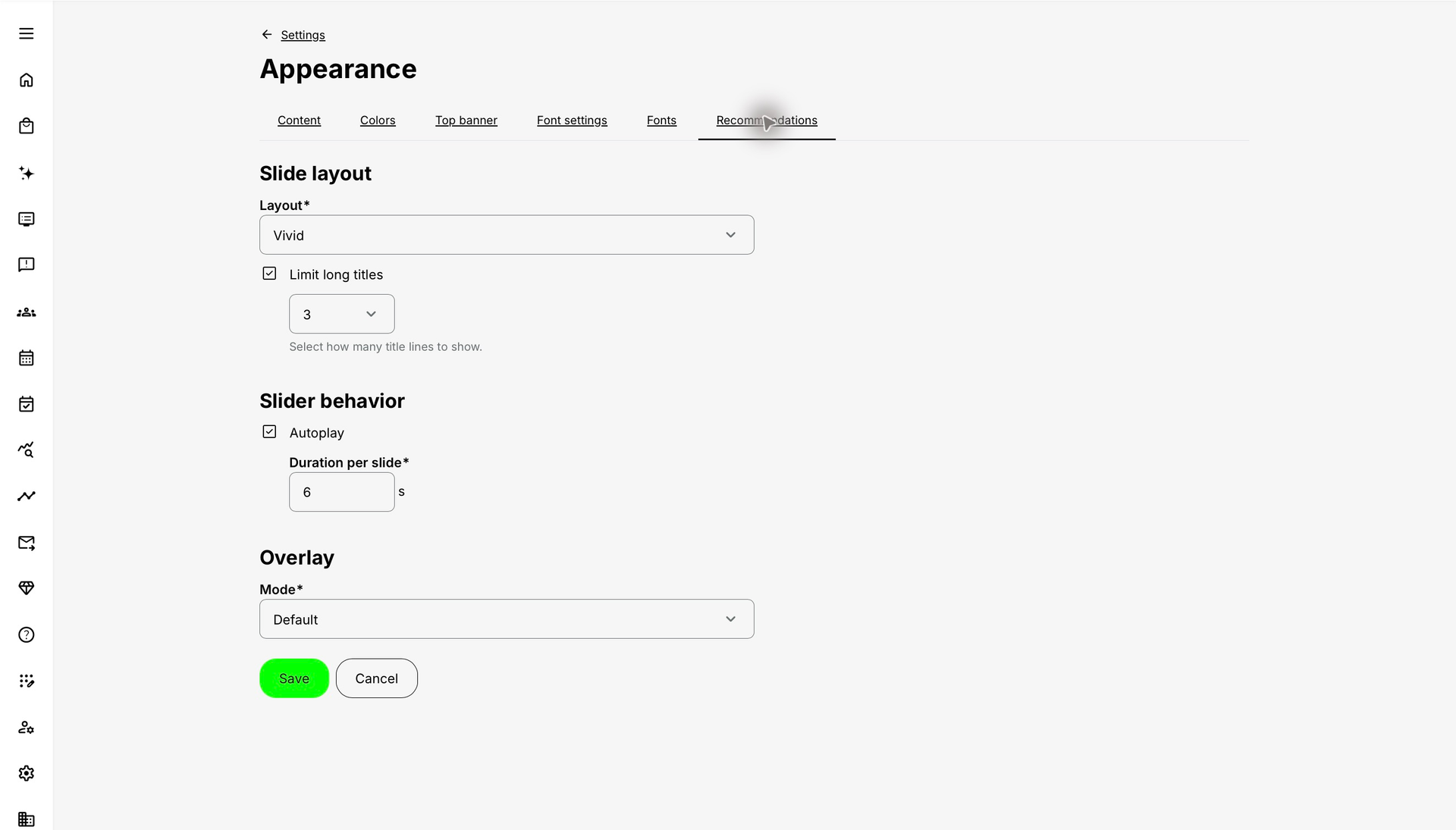
Choose the layout
| Layout | Presentation | When to consider it |
|---|---|---|
| Compact | Keeps the activity information and banner in a more contained presentation. | Use when a restrained dashboard and quick recognition of the training matter more than a large promotional image. |
| Vivid | Uses the activity banner across the section, with the text and actions presented over it. An overlay supports readability. | Use when the banner provides helpful visual context and the image has enough clear space for text and controls. |
Use the actual activity banner and meaningful text when testing. A design that works over one dark photograph can fail over another slide’s light background. Do not stretch a banner to imitate a “wide” layout: the interface’s real crop and responsive behavior determine what users see. Where the configured design uses video, verify its actual playback and fallback presentation rather than assuming every slide behaves like a still image.
Control titles and slide timing
| Control | Effect | Practical guidance |
|---|---|---|
| Limit long titles | Limits the displayed title to the configured number of lines. | Keep titles meaningful and test the longest realistic title. A line limit is not a reason to remove essential distinctions between similarly named offers. |
| Autoplay | Allows the carousel to move between applicable slides automatically. | Use only when the movement supports discovery without distracting the learner from the primary task. |
| Duration per slide | Sets how long each slide remains when autoplay is enabled. | Allow enough time to read the title, description and action. Test the actual content and available manual navigation. |
The number of configured slides and the selected duration do not guarantee the same animation for every learner. If only one slide is applicable, there is no multi-slide sequence to navigate. If none are applicable, the Recommendations section is omitted.
Configure the Vivid overlay
The overlay sits between the banner and the information so that the text remains legible. Default uses the standard presentation. Choose Custom when a deliberate brand or image requirement calls for another treatment, not simply to make the image more decorative.
| Custom control | What to decide |
|---|---|
| Type | Choose Solid for one color, or a directional gradient such as Top to Bottom, Bottom to Top, Right to Left or Left to Right. Align the treatment with where the text and controls actually appear. |
| Start color and position | Choose the initial color, opacity and position. Check whether enough image detail remains while the text region has sufficient separation. |
| End color and position | For a gradient, choose its other color, opacity and position. Avoid a light transition directly behind important text. |
| Text color | Set a color that remains readable against the resulting overlay across every applicable banner, not only the current example. |
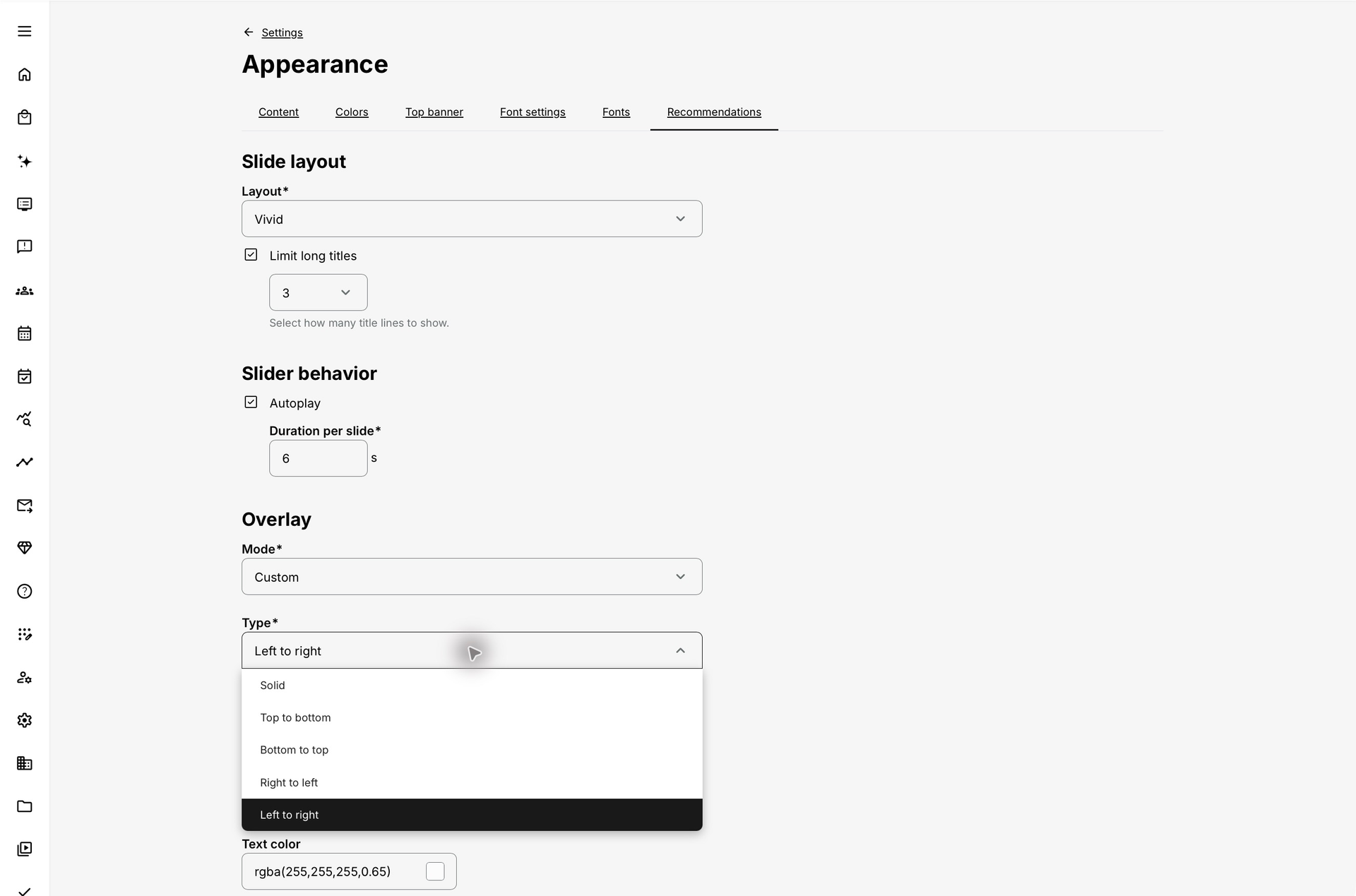
Save the appearance settings when the design is ready. Use Cancel to leave an unapproved experiment without applying it. A temporary preview or unsaved field value is not evidence that the learner-facing design has changed.
Separate the visual plan from the content plan
Use Configure Recommendations on My Overview to select, order, hide or maintain the slide types. The appearance tab does not select a Custom offer, create a bookmark, change machine-learning ranking or make an unavailable activity eligible.
Likewise, a more prominent visual treatment does not make an offer Mandatory. Use the activity’s actual configuration and clear communication for requirements and deadlines. The carousel is a useful invitation or return route, not a replacement for the participant’s training status.
Review the whole experience
| Review area | What a good result looks like |
|---|---|
| Image crop and proportions | The banner is not distorted, the important subject survives normal crops and no critical instructions are baked into the image. |
| Text and controls | Titles, descriptions and actions remain readable over bright and dark banners, with long and translated text. |
| Movement | Users have enough time to read and can understand the manual navigation. Automatic changes do not obscure the main task. |
| Responsive layout | Desktop and smaller-screen presentations remain usable without overlapping text or clipped actions. |
| Different learner populations | A single slide, several slides and an empty applicable set all behave cleanly. |
| Brand consistency | The overlay and text choices support the platform palette without concealing status or action meaning. |
Troubleshooting
| Problem | What to check |
|---|---|
| Text disappears over some banners | Review the overlay direction, color, opacity and text color across those images. Do not judge contrast from only one slide. |
| A title is cut off | Check Limit long titles and the chosen line count, then review whether the source title can be clearer without losing meaning. |
| Autoplay appears not to run | Check that it is enabled and that the learner has more than one applicable slide. |
| A desired activity is missing | Inspect Recommendations content and learner eligibility, not the appearance tab. |
| The old Last visited visual controls cannot be found | Use Appearance → Recommendations for the current carousel layout, timing and overlay controls. |
FAQ
-
Does Vivid change which activities are recommended?
No. Layout and overlay are presentation controls. Slide configuration and learner eligibility determine the content.
-
Why is there no carousel navigation for one learner?
If only one configured item is applicable, there is no multi-slide sequence. Different learners can receive different numbers of slides.
-
Can one custom overlay be tested on only one banner?
It should be checked across the actual range of banners, long titles, translations and screen sizes. A readable design on one image can fail on another.