Configure Recommendations on My Overview - Article
Summary
Recommendations can make My Overview a useful starting point even before a person has joined training. The organization can combine a return-to-learning route with relevant catalogue offers instead of relying on automatic enrollment simply to fill the dashboard.
Use this article to:
- Choose recommendation types for different learner needs
- Order and maintain the slide configuration
- Understand eligibility, learning-history recommendations and refresh timing
- Verify a meaningful experience for new and returning learners
Separate the recommendation mechanisms
| Mechanism | Purpose | Configuration owner |
|---|---|---|
| My Overview Recommendations | Combines resume, progress, bookmarks, personalized suggestions and selected offers in a dashboard carousel. | This article owns the slide configuration. Configure the Recommendations Carousel Appearance owns its visual controls. |
| Learning-history recommendation engine | Suggests eligible next training using patterns from similar learners and their training history. | Supplies Personalized recommendations slides; technical service tuning is not the slide-order interface. |
| Questionnaire-based AI recommendations | Uses stated needs and questionnaire responses, with relevant profile and training context, to propose suitable offers where enabled. | A separate optional questionnaire completion workflow; see Guide Learning Choices with Questionnaire-Based AI Recommendations. |
| Adaptive or recommended course pages | Guides a route inside native course content according to the course’s rules. | Course builder configuration; see Design Adaptive and Recommended Course Pages. |
Open and review the configured slides
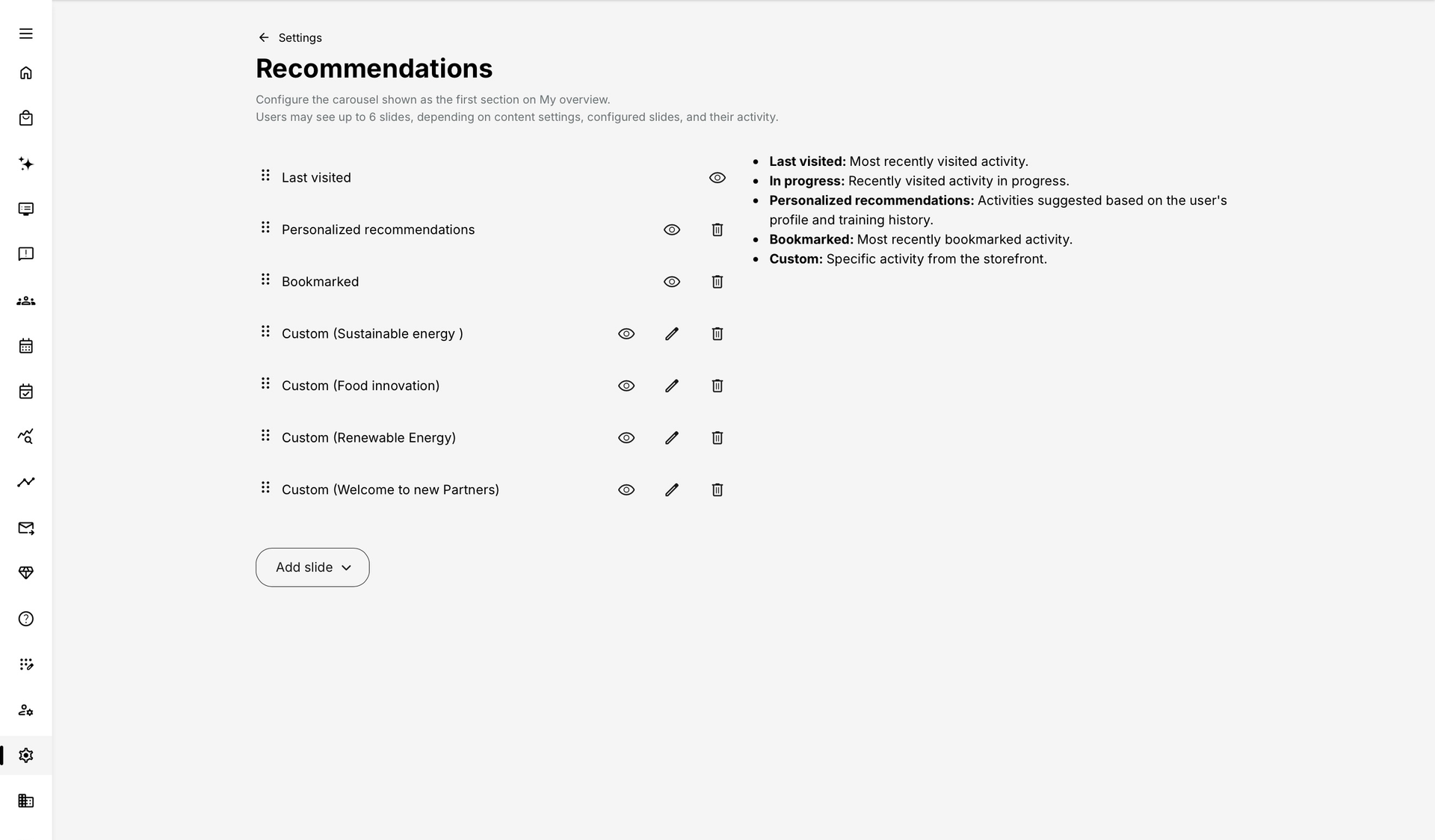
Open Settings → Recommendations with a role permitted to maintain the configuration. The list is the organization’s presentation plan, not an individual learner’s final result. Review each slide’s type, visibility and order before adding more.
Choose a slide by its purpose
| Slide type | What it gives the learner | Important behavior |
|---|---|---|
| Last visited | A quick route back to the most recently visited relevant training. | A protected configuration item: it can be hidden but not deleted. It is a resume route, unlike a new-offer promotion. |
| In progress | Another relevant route into training already underway. | Useful when people participate in several activities. More than one slide can be configured where suitable data exists. |
| Personalized recommendations | Eligible next-training suggestions informed by learning history and similar profiles. | Needs a useful learning-history starting point and refreshes through the recommendation service. It is not a newly assigned requirement. |
| Bookmarked | A reminder of eligible offers the learner has chosen to save. | Only applicable bookmarks produce slides; an empty bookmark set does not need a placeholder. |
| Custom | An administrator-selected offer, for example an introductory or seasonal training. | Still follows the learner’s personal Storefront eligibility. Choosing it does not force visibility or enroll anyone. |
Add, order and maintain the plan
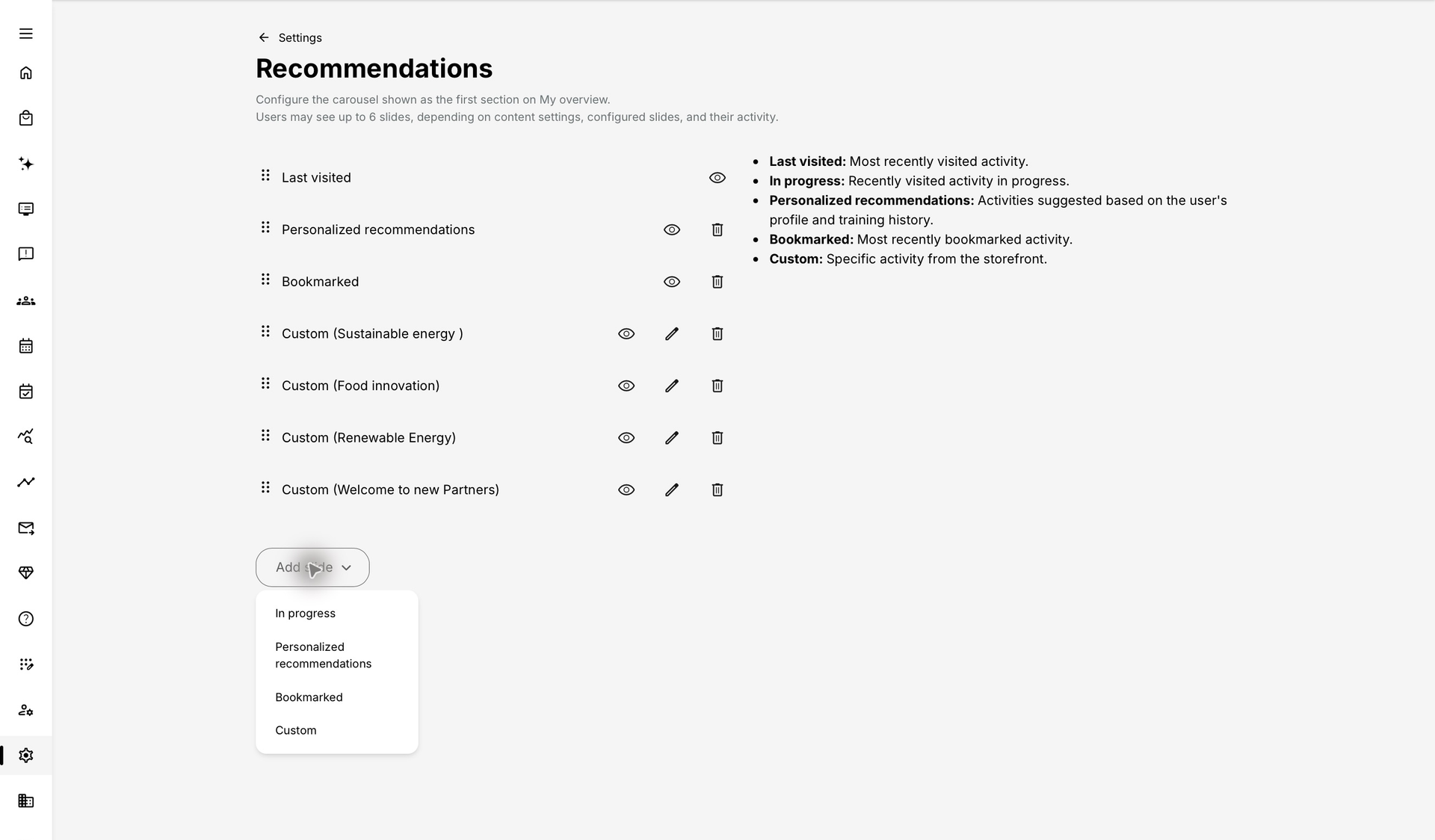
- Use Add slide and choose the appropriate available type. For a Custom slide, select the intended training offer.
- Place slides in the order of priority using the list’s ordering control. For example, put a return-to-learning route first and a relevant starter offer after it.
- Use visibility controls to hide a slide that should not currently contribute. Remove ordinary slides only when they are no longer needed; Last visited is protected.
- Add another instance of a supported type when you deliberately want several ranked items, rather than duplicating the same promotion without a purpose.
- Reopen the configuration to confirm the stored list, then test the learner outcomes. This interface can apply list changes directly rather than presenting one final Save button.
Up to six applicable slides are displayed. More configured items do not mean more visible slides. A type added several times can supply successive eligible items in its ranking; it is not an instruction to show the same activity repeatedly. With one applicable item there is no need for carousel navigation. When no applicable visible slides remain, the section is not shown.
Understand personalized recommendations
The recommendation engine looks for useful patterns among learners with similar profile characteristics who have taken the same training. Relevant characteristics can include Organization and sub-organization, country, language, category, job function and skills where configured. It uses subsequent training choices to propose an appropriate next offer.
The engine needs a starting point in the learner’s enrolled or completed training history. A brand-new learner without that history may not receive Personalized recommendations. Add a suitable Custom slide when the first visit should still provide a useful option, but make sure that offer is actually eligible for the intended audience.
Personalized recommendations refresh overnight rather than immediately after every profile edit or completion. Technical ranking and commercial weighting can affect order where configured, but do not override the eligibility rules. A recommendation is not a statement that an offer is Mandatory or the only appropriate next step.
Respect eligibility and the relationship to the Storefront
Personalized recommendations, Bookmarked and Custom slides do not show activities for which the learner is already registered, reserved or waiting-listed. They also omit offers that are unavailable in that learner’s personal Storefront, including relevant closed, cancelled or completed activities. Resume and In progress routes serve an enrolled-learning purpose and should not be interpreted using the new-offer rule.
This makes a Custom slide useful for practical or commercial cross-promotion without turning the dashboard into an unrestricted catalogue. One offer can be shown to eligible audiences while being omitted for others. A learner can open the description to learn more, or continue to the Storefront to explore the wider personal offer. No slide changes prerequisites, availability, payment, approval or enrollment requirements.
Design a coherent example
For a sustainability learning series, a new colleague might see an eligible Energy awareness: everyday decisions starter offer. A returning colleague might instead see the training they last visited, another activity in progress and a relevant next-course suggestion. An already enrolled person should not receive the same starter offer as a new Custom promotion merely because it remains configured.
Keep titles, short descriptions and banners meaningful. A recommendation card is part of the learning and commercial relationship: it should explain why the offer is useful, not expose template guidance or a test title.
Verify representative outcomes
| Person or condition | What to verify |
|---|---|
| New learner with no history | A suitable eligible Custom offer can provide a starting point; no artificial enrollment is needed merely to populate the dashboard. |
| Returning learner | Resume and progress routes lead to the correct training; other recommendations remain relevant. |
| Already enrolled, reserved or waiting-listed | The same activity is not promoted as a new Personalized, Bookmarked or Custom offer. |
| Different Organization or audience | Only eligible personal Storefront offers appear. The administrator’s own view is not the audience test. |
| No bookmarks or recommendation history | Non-applicable types are omitted cleanly; the configured order still produces a coherent result. |
| More than six applicable items | The first six applicable slides match the intended priority. |
For the participant explanation, refer to Understand Recommendations on My Overview. Configure the visual presentation in Configure the Recommendations Carousel Appearance.
Troubleshooting
| Problem | What to check |
|---|---|
| A Custom slide is absent for one learner | Check personal Storefront visibility, activity status and whether the person is already registered, reserved or waiting-listed. |
| A new learner has no Personalized recommendations | The engine needs a training-history starting point. Use a relevant eligible Custom offer for the first-visit use case. |
| A profile change did not immediately change ranking | The recommendation engine refreshes overnight. Verify after processing rather than repeatedly reordering the carousel. |
| The administration list has more slides than the learner sees | Hidden, inapplicable and unavailable items are omitted, and at most six applicable slides are rendered. |
| The section has disappeared | Check slide visibility and whether any configured items are applicable to that learner. |
FAQ
-
Does selecting a Custom slide enroll the learner?
No. It promotes an eligible offer. The learner still follows the configured description, enrollment, approval or purchase route.
-
Why are seven configured slides not all visible?
Only applicable visible items contribute, and the carousel renders at most six. The configuration list is not an exact preview for every learner.
-
Are Personalized recommendations updated immediately?
No. The recommendation engine refreshes overnight, so changes to profile or training history can appear after the next processing cycle.