My Overview (Participant) - Article
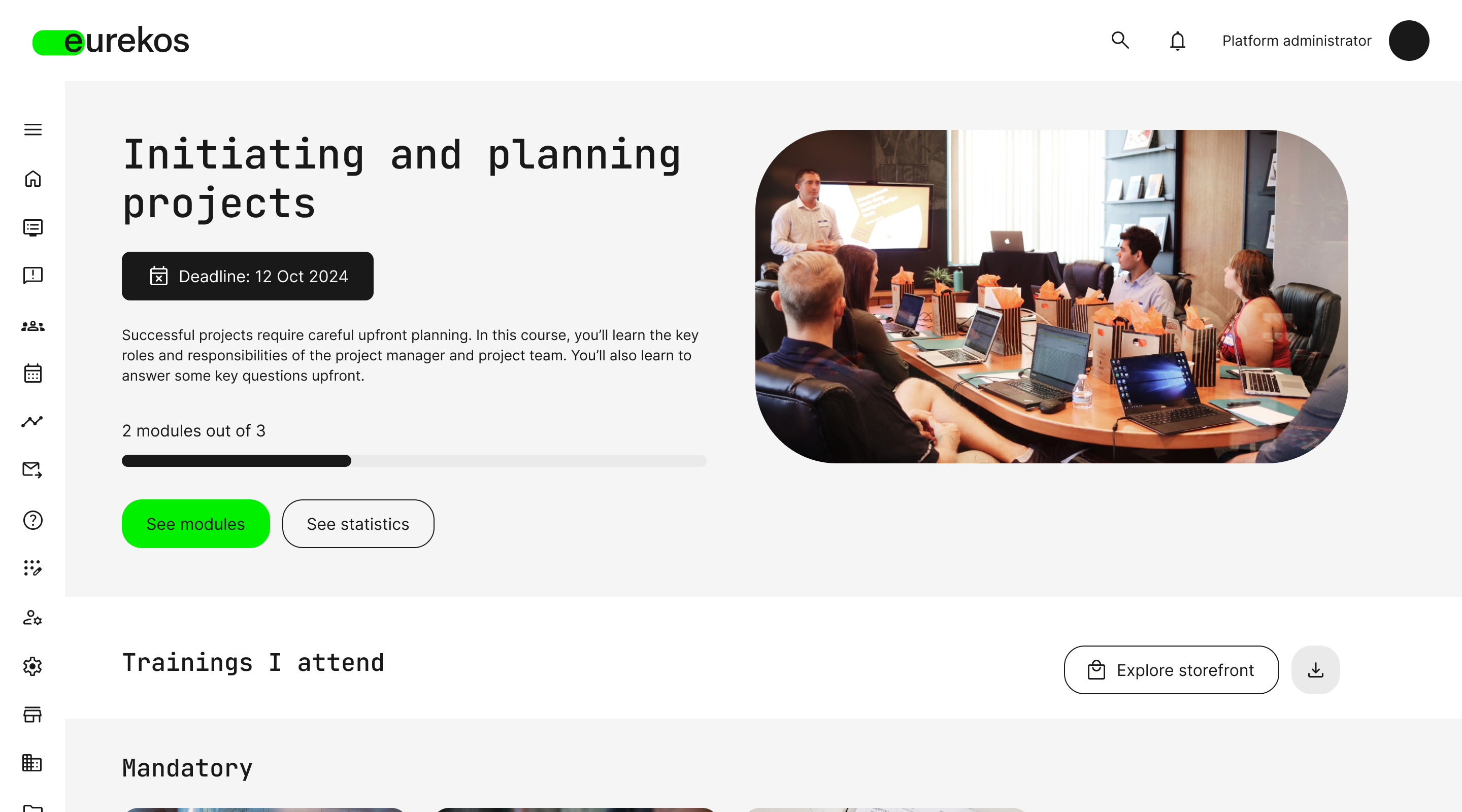
Participant Home Screen
The Participant Home Screen is the start screen of any user who has signed up (or has been signed up) to participate in activities on the Eurekos platform. Serving as a base and a cockpit for learners, it provides a dashboard with a quick and concise overview of the trainings they attend – automatically headlined by a training that may be particularly relevant to the user in question.
In the sample picture above, the learner has a mandatory training on “Initiating and Planning Projects” with an upcoming deadline for completion and two modules left out of three, making its completion a clear priority for this learner. If the deadline for completion has passed, the learner would instead be faced with an “Overdue” notice, as is the case for this training on “Viral Marketing and Growth Hacking”:
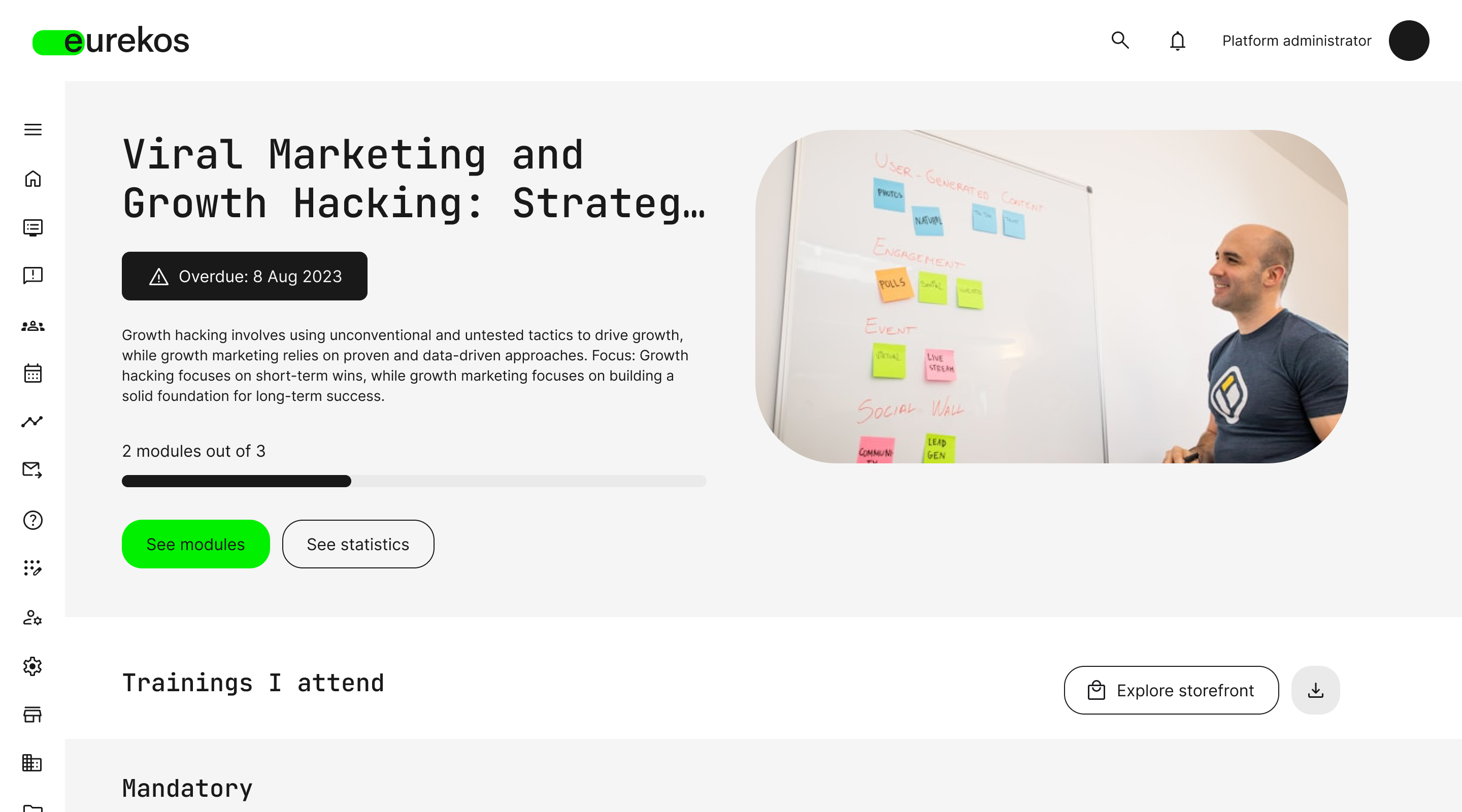
Clicking the [See Modules] button will immediately take the user to the training modules that are required for completion of the training, whereas clicking the [See Statistics] button will transport the user to their “My Progress” section for access to stats on their learning journey, performance, and other relevant data.
Trainings I Attend
Scrolling down to the “Trainings I Attend” section, the participant can choose to immediately visit the full storefront with courses available to them by clicking the [Explore Storefront] button to the right. The participant can also download a PDF version of their training history transcript by clicking the [Get Transcript] button next to it:
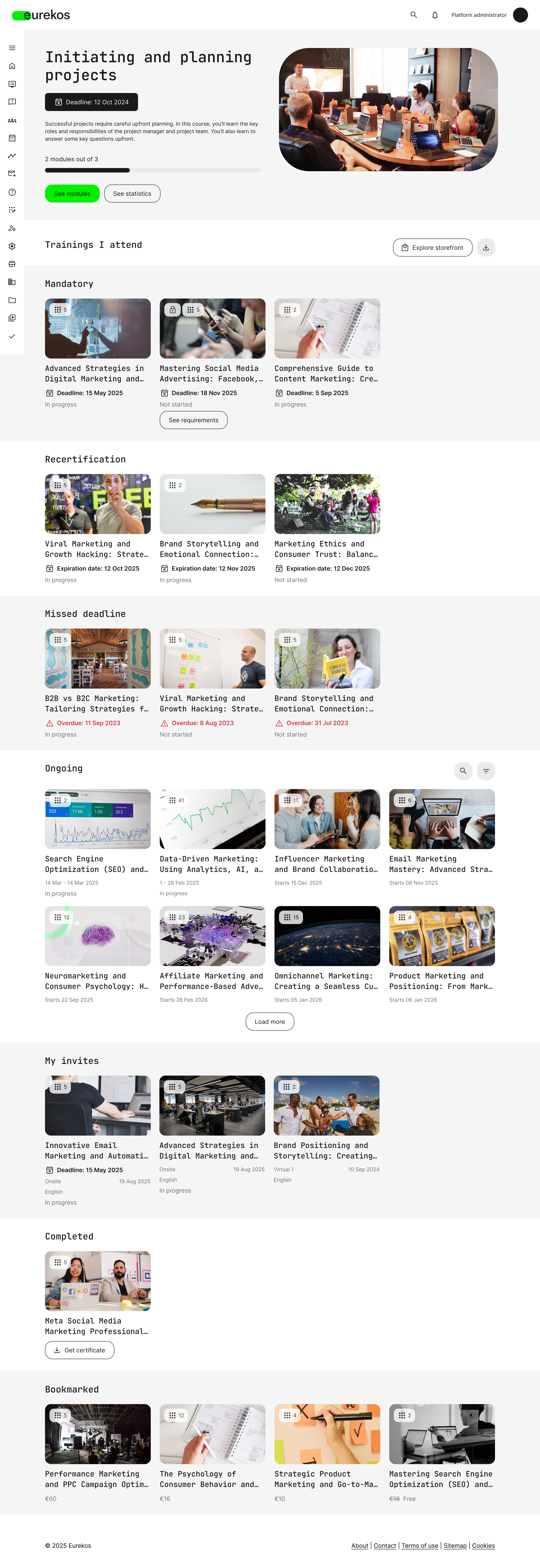
The “Trainings I Attend” section displays courses organized into rows, grouped and sorted using a built-in hierarchy. This structure provides a clean, uncluttered overview of your training—automatically prioritizing what’s most important based on upcoming deadlines and completed activities.
- Mandatory: Trainings that the participant must complete within a set deadline
- Recertification: Trainings required for renewing the participant’s certificate(s)
- Missed Deadline: Mandatory recertification trainings whose deadline are overdue
- Ongoing: Active trainings that are currently in progress or set to soon commence
- My Invites: Trainings assigned by Contact Managers* to their participants
- Completed: Trainings that have already been completed by the participant
- Bookmarked: Trainings that have been bookmarked by the participant
Mandatory courses, recertification, and missed deadlines can all trigger automatic email reminders. These notifications can be managed in two ways:
- Course-specific workflows: Use Course Administration → Automatic Email Workflows to configure tailored process flows with targeted communication.
- System-wide notifications: Navigate to Settings → Email Sending → System Emails to manage standard system-generated emails.
*: Contact Manager privileges can be assigned to Eurekos users when editing their profile (User → Edit Profile → Personal Information).
NOTE: If no courses fill the requirements for a specific group, that group will be excluded from this overview. In further, please be advised that structure of the “Trainings I Attend” hierarchy has been pre-defined for all platforms and cannot be edited.
Training Info – At a Glance
As can be seen in the sample image of “Trainings I Attend” above, individual training tiles may contain various types of relevant information about the training in question, which is already available to the user within this overview. This information is automatically generated for each training tile, using relevant high-level info such as:
- Training Modules: The number of included modules for a training is shown in the left-hand corner of the training thumbnail and can be clicked to explore further
- Training Status: Not Started, In Progress, Completed, Certified, Hidden (by user)
- Time Sensitivity (for mandatory trainings): Deadline, Certificate Expiration Date, Overdue
- Training Setup: Onsite or Virtual, Language(s) Offered
- Training Price: The price of a specific training in a pre-defined currency, or “free” if applicable
Ongoing Trainings: Search & Filters
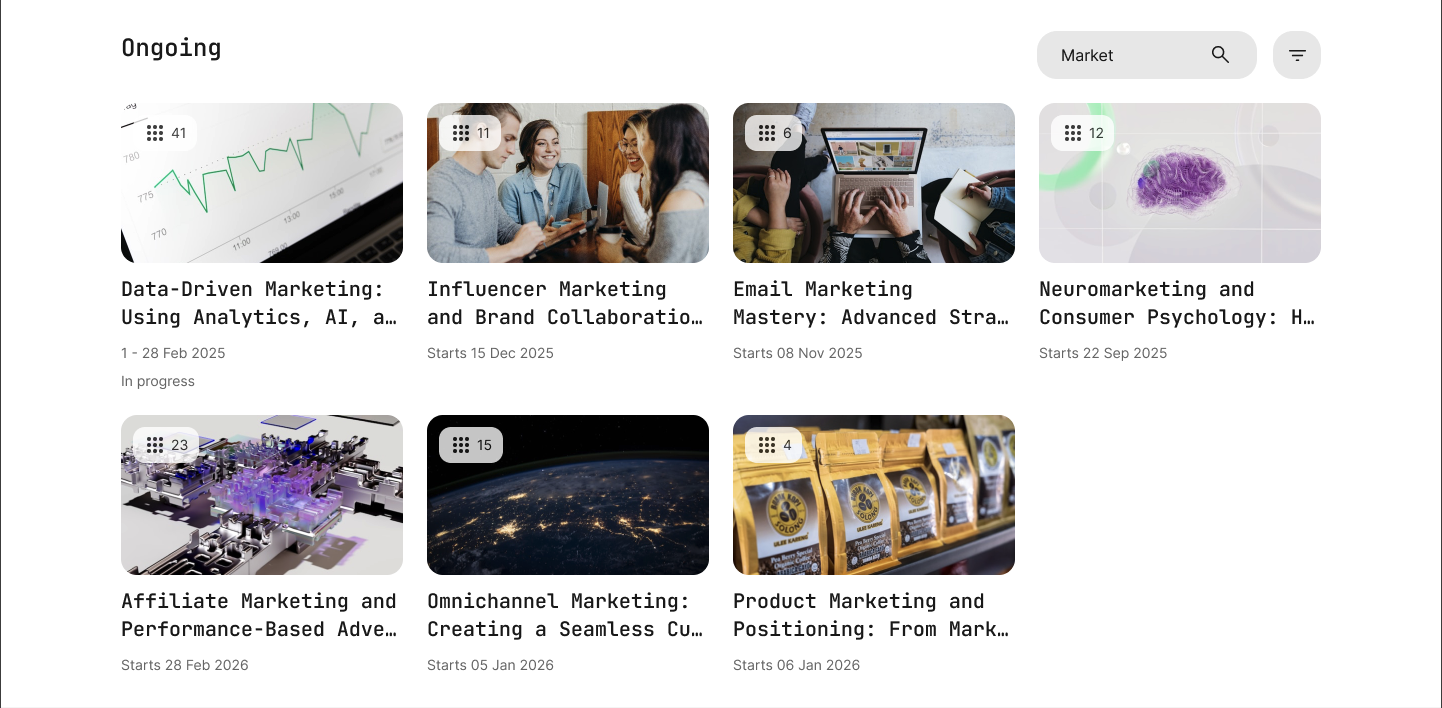
For quick and practical navigation within the selection of active trainings on offer, two selection options are available on the right-hand side of the group of “Ongoing” trainings – the search bar and a filter:
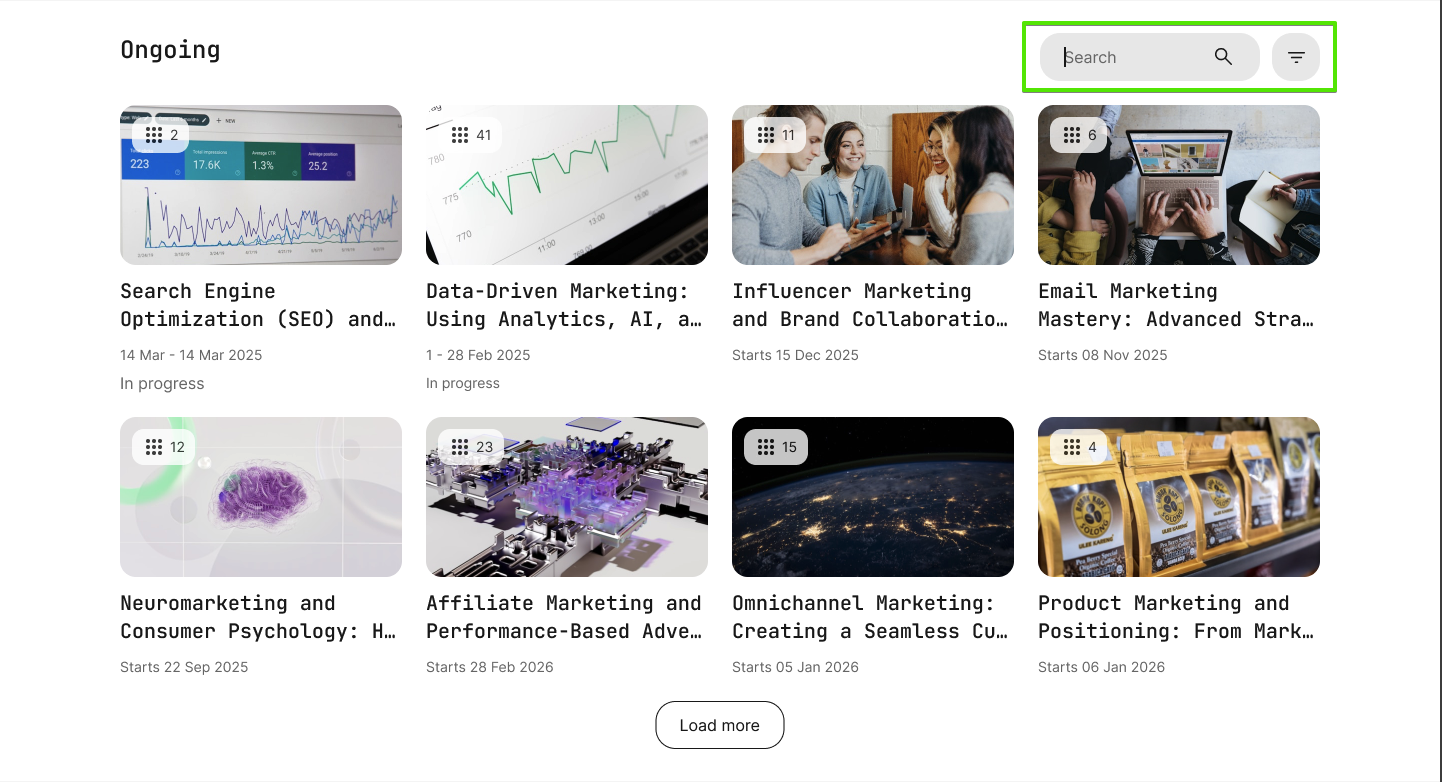
A search string can be as broad or specific as desired; however, it is recommended to mainly use broad terms and strings unless you know the full title of the training:
When clicking the [Filter] button – which is stylized as a funnel icon – you will be given a range of options for narrowing down your search within the “Ongoing Trainings” section:
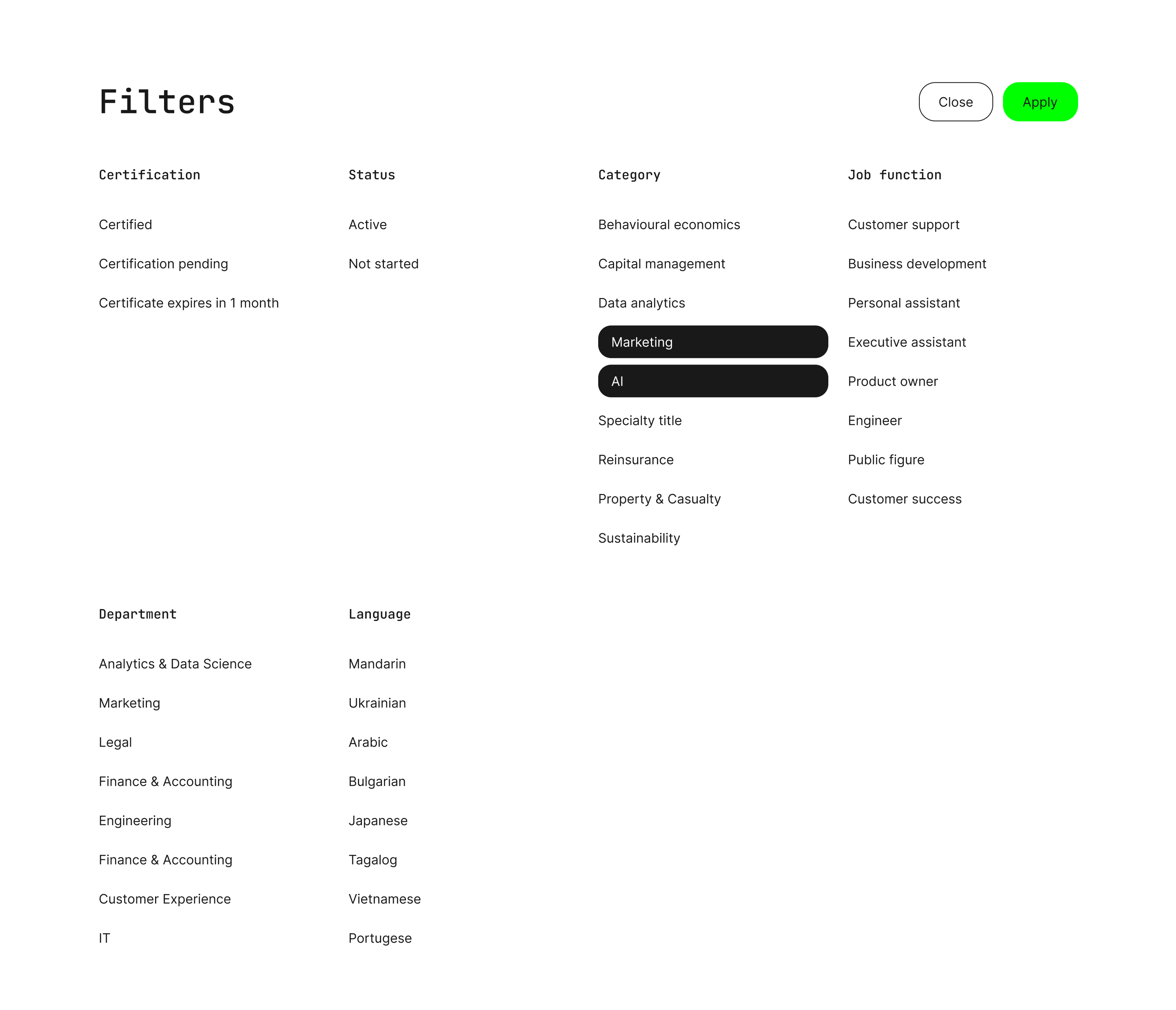
Taking “Marketing” and “AI” as examples, it is possible to set one or more filters by various metrics, depending on the specific information fields that have been populated for users within the organization that the participant belongs to and their viewing rights:
- Certification (available by default for all users)
- Status (available by default for all users)
- Category
- Job Function
- Department
- Language
NOTE: If a user has set one or more trainings to “hidden” in their overview, that filter will appear under the autogenerated subsection named “Other”
Once the desires filters have been set and the [Apply] button is clicked, the participant will see their filters applied to the “Ongoing” course selection:
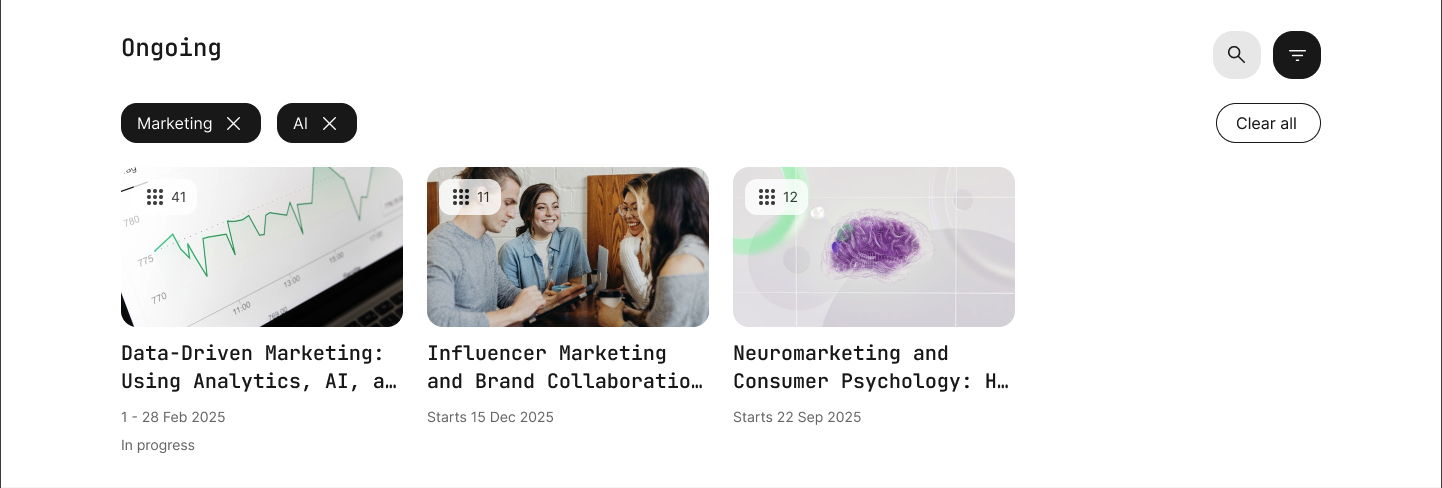
These filters can then be removed individually by clicking the (X) next to their name.