Support Dashboard - Article
Think of the support role is a mini-administrator
Support can do everything the Course Administrator can do, with a few differences. The role is designed to be a technical assistance to both the Course Administrator and Instructors.
The role is given to technical and experienced individuals.
As Support you can
- Have extended options to access/communicate to additional audiences.
- See the courses and events that you are attending or maintain support for.
- Have access to content editing functions (including other people's content). That provides a sufficient level of support activity.
- Have access to communities and help supervise these.
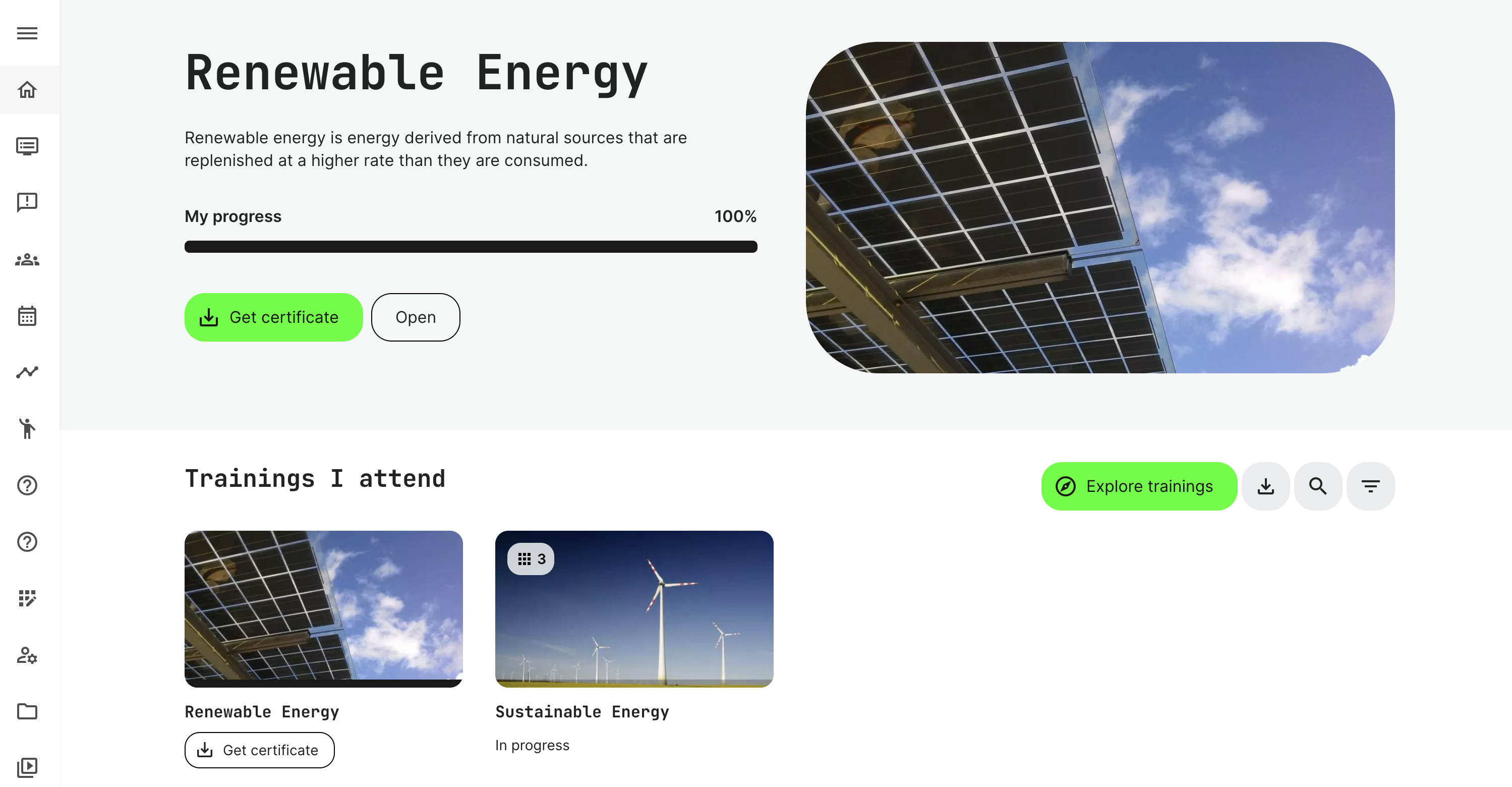
My overview as Support
- Thumbnail with quick access to your latest viewed, attended, or upcoming course and your progress line. You can Resume from where you left off.
- Trainings I attend section with courses that you are enrolled in. Above the courses catalog, you have options to Search and Filter those courses or Get Transcript of your training history within a certain period of time.
- Get certificate appears under your completed certified courses.
- Communities: If you are a member of a community, this will by default show on your dashboard. Communities can be used as part of trainings to give participants a dedicated space for collaboration, or perhaps as a general discussion forum to ask - and receive answers to - questions.
- Explore: Selection of courses for self-enrollment sorted by tags. This helps to find the most appropriate options. Change the view of Explore compilation by switching between 'Catalog' and ‘Calendar’ modes.
- Search box: Find a course by its name.
Users and Participants
The Support role also has access to platform level insight on the home screen, similar to the Platform Administrator.
The first statistics panel shows overall progress data across all of the users on your platform. With a help of a date picker and filter by country so you can specify the time period and cohort of people to be reflected on the graph below. The data is sorted by categories, date and time. The categories on the graph are:
- Users: the total number of registered users in the period
- Participants: the total number of users signed up for a Training Activity. This number is typically higher than the number of users because of participation in multiple trainings.
- Passed: the total number of users who have passed an online or practical assessment. Only Training Activities with a pass criterion are included.
- Failed: the total number of users who have failed an online or practical certification. Only Training Activities with a pass criterion are included.
- Pending: the total number of users who have not yet been assessed by any method, but are still pending. Only Training Activities with a pass criterion are included. You can turn on/off a category by clicking on it.
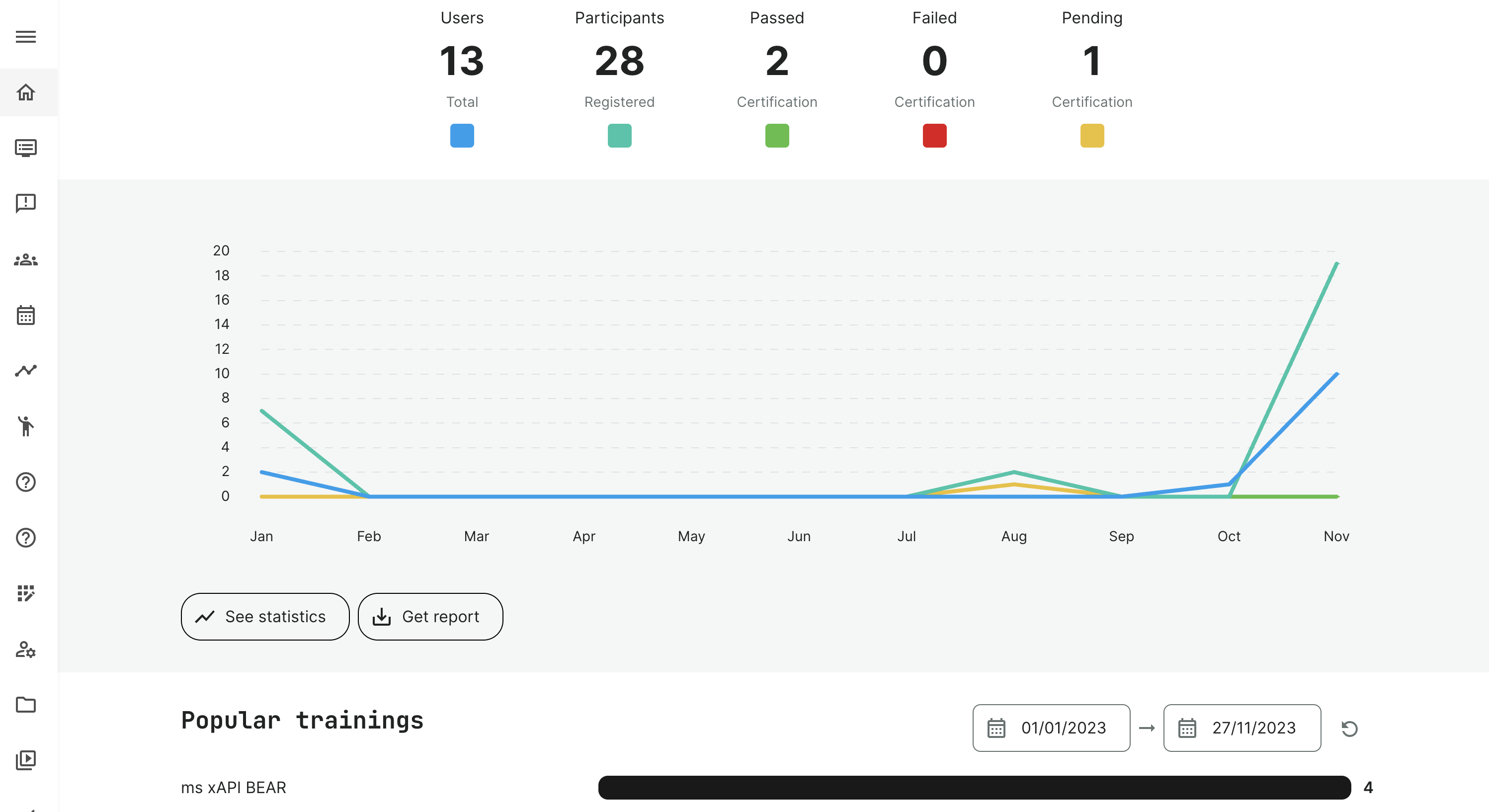
Popular trainings
The statistics panel offers insight into the top 10 trainings by registered users in a specific period. The schedule allows focus on any special efforts and campaigns and evaluate their success. Each can be clicked for user forensics.
Active users
The statistics panel provides an "at-a-glance" insight to how many unique users have logged in during a month or a quarter. Detailed reports can be exported in a given period.
The focus is unique users in a given period, who has been active on your platform.
Courses overview
The statistics panel provides a high-level overview of the number of training activities you are offering on the platform and by which type, these are - e.g., Virtual, Learning paths, self-paced and how many of these are available for self-registration.
Remember that you can rename and automatically tag your training activities, should you want to perform your own naming conventions.
Support can also register for training
In case, a Support role is enrolled as a learner, you will find those in the Trainings I attend section. The trainings I attend will show up first, as for other user roles.
Training status
The list shows all the training activities I have been enrolled to. These also have different status options, which can be used to filter them by:
- In progress.
- Not started.
- Completed.
- Certified are activities in which I achieved a certificate.
- Certification pending represents activities where the certificate has not yet been received. This scenarios of manual assessment.
- Certificate expires in 1 month.
- Mandatory, which also always has a deadline.
- Hidden are activities manually hidden by the user. This is performed while hovering and use the "eye" icon to hide/show activities.
Order and last visited
Last visited is for convenience shown as the prominent training activity at the top, making it easy to resume where you left off. The rest will sort according to the following standard logic:
- Last visited.
- Mandatory in progress, newest signup.
- Mandatory in progress.
- Mandatory Not started.
- In progress non-mandatory, newest signup.
- In progress non-mandatory.
- Not started non-mandatory, newest signup.
- Not started non-mandatory.
- Re-certificate, newest signup.
- Re-certificate.
- Completed, newest signup.
- Completed.