My Overview (Immediate Manager) - Article
What's the immediate Manager role?
The Immediate Manager is most commonly configured as a user profile attribute rather than a traditional system role. This allows it to be assigned flexibly to a wide range of users, regardless of their existing roles, and grants them managerial insights and limited oversight over individuals who report directly to them.
Much like the traditional Manager role, an assigned Immediate Manager gains visibility into the training progress, compliance status, and activity data of their direct reports—presented high-level directly on their Home Screen. This ensures ongoing visibility supporting proactive engagement with training objectives.
- Flexible assignment: Can be added to any user profile without role conflict, expanding oversight beyond formal managerial structures
- Automated provisioning: When integrated via third-party systems (such as HRIS, CRM, or IAM platforms), the Immediate Manager relationship is automatically maintained, ensuring accuracy and scalability
- Cross-role compatibility: The Immediate Manager attribute can be combined with other roles, including the traditional Manager role, enabling advanced reporting for external organizations, such as clients or partners, without interfering with internal responsibilities
Assigning an Immediate Manager through the profile
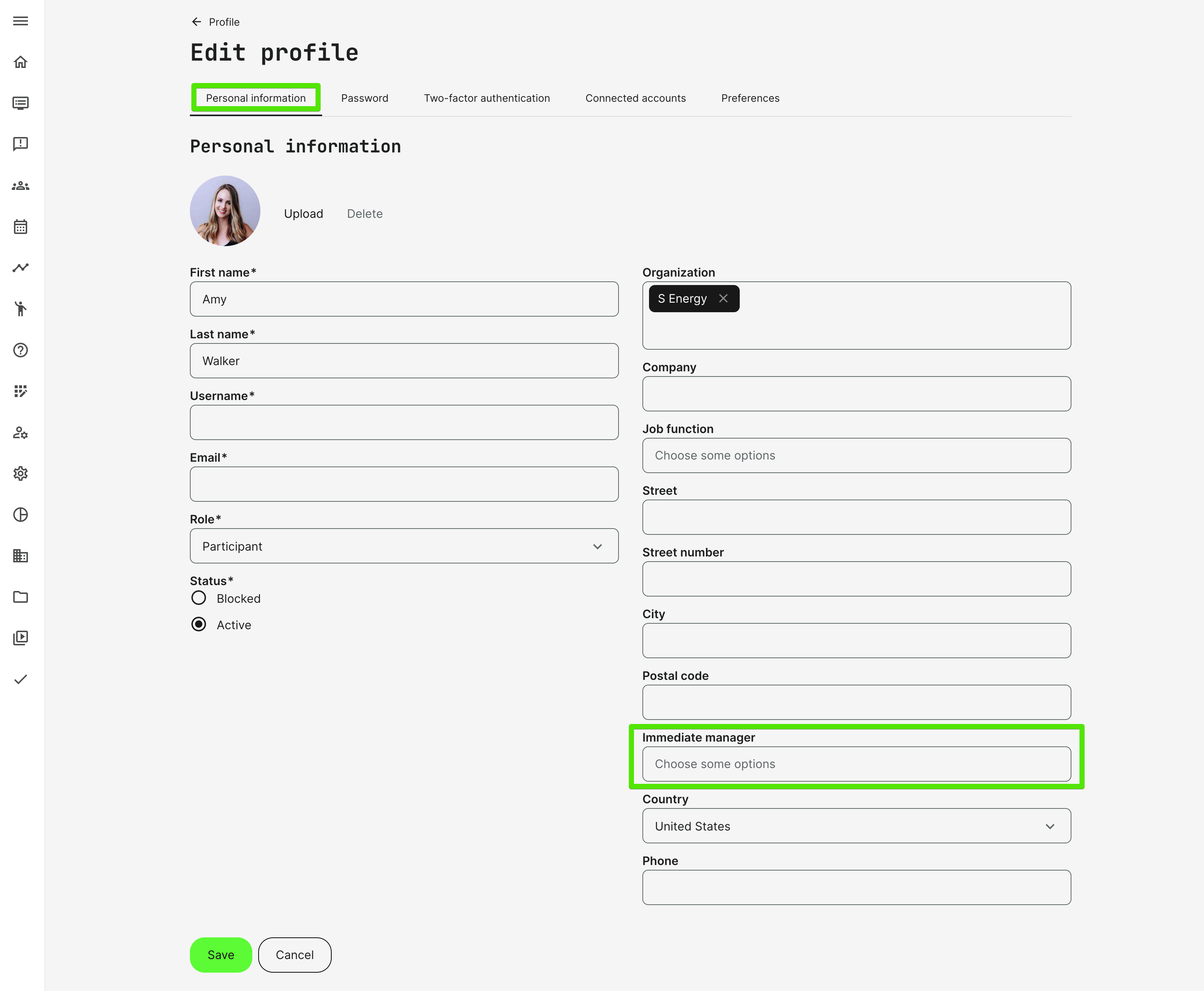
To assign a user as the Immediate Manager of another user who reports to them as a relation attribute, go to the “Personal Information” tab in the profile of the latter (Users → Edit Profile → Personal Information). In the right-hand column of fields, you are able to select one or more Immediate Manager(s) that this user is reporting directly to, then press the [Save] button to proceed with your selection:
Immediate Manager Home Screen
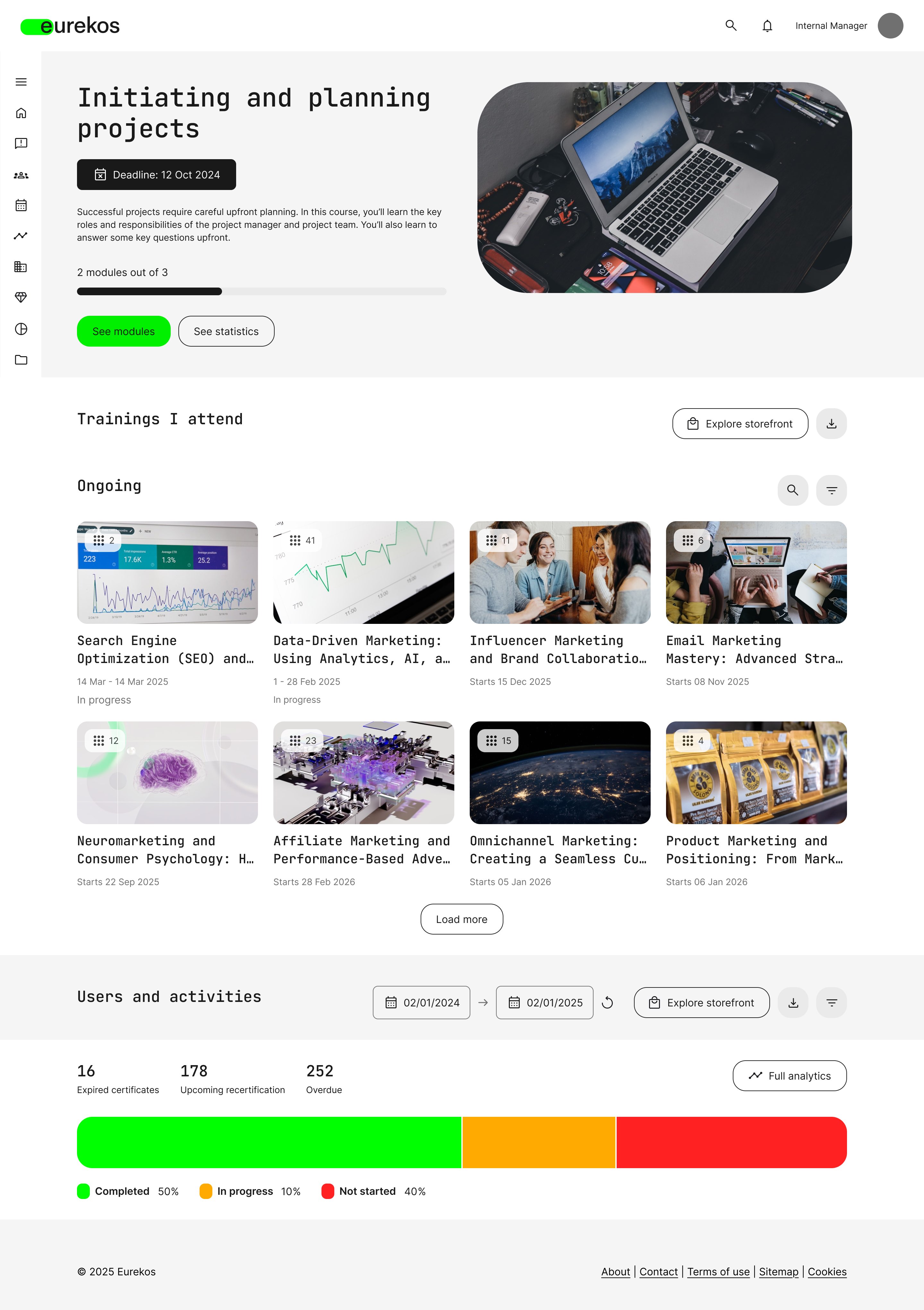
The Immediate Manager Home Screen will appear similar to that of a regular participant at first glance. As such, it will be headed by a top tile featuring the user’s most relevant current or future training, followed by rows populated with trainin grouped by the same logic as other participants. If you wish to explore this training focused layout further, please visit our Participant Home Screen article to learn more.
For Immediate Managers, the main feature added to their Home Screen is the section on high-level analytics for these data types associated with the people they manage:
- Total number of trainings that are completed, in progress, and not started
- Expired certificates, upcoming recertification, and overdue
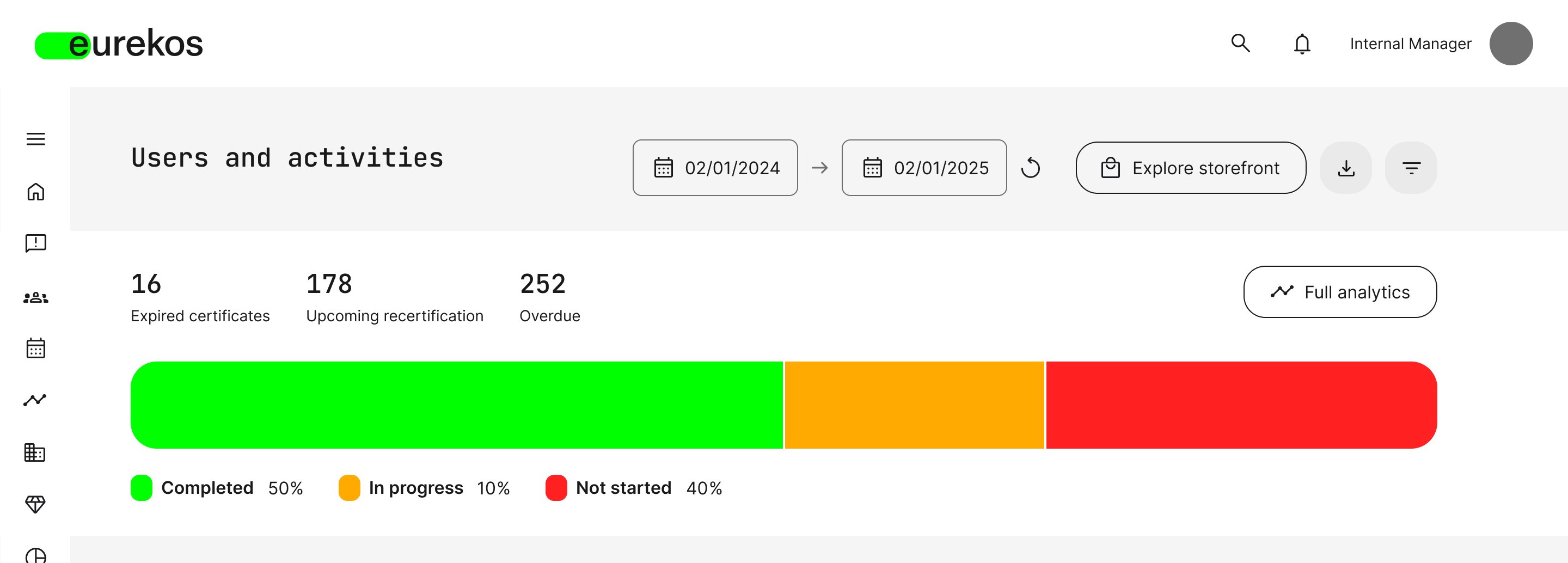
This overview is meant to provide at starting point for the Immediate Manager, but it is by no means a static info screen. Using the Date Selector, for instance, the figures and graphics in this section can be updated to reflect data from a specific time period:
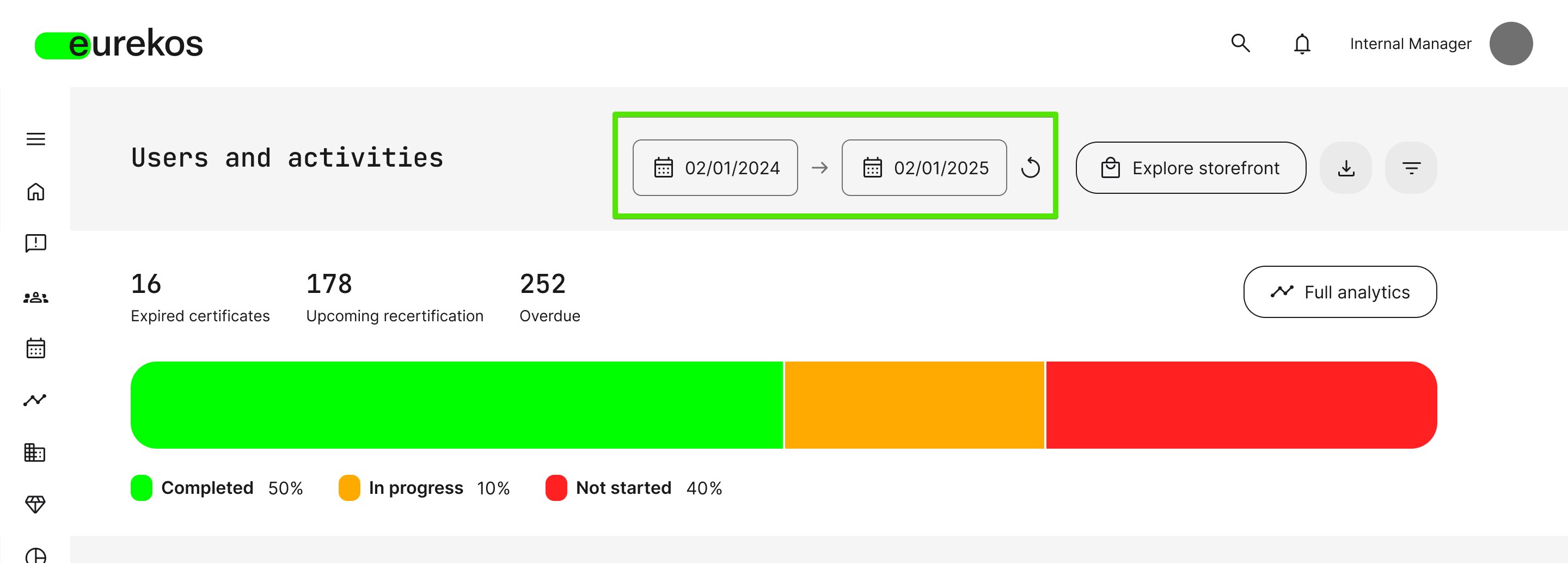
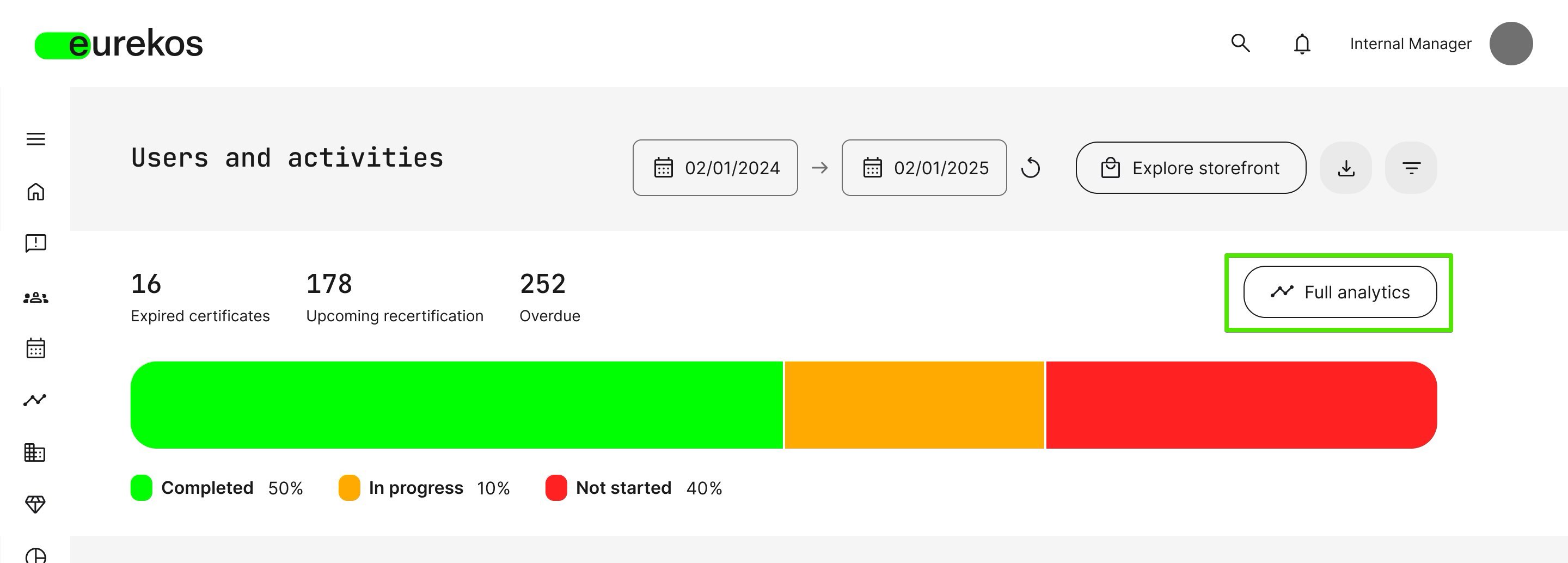
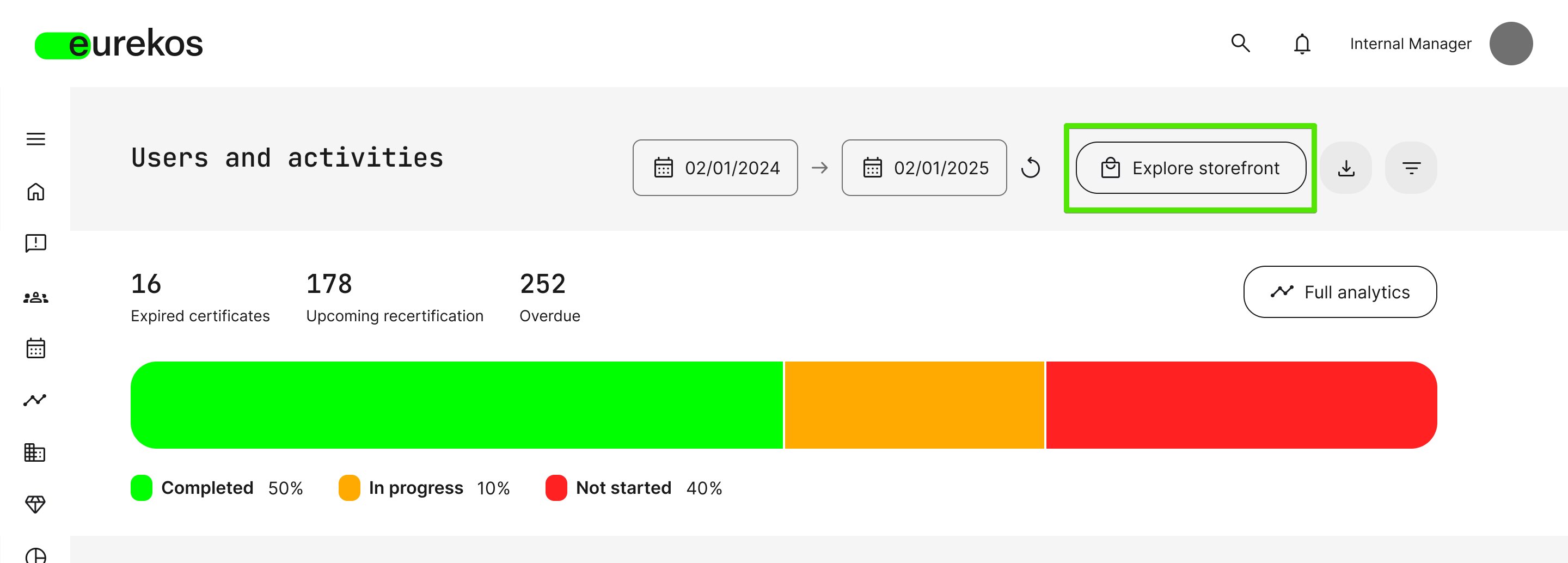
Should the Immediate Manager wish to visit the Storefront in order to book trainings for themselves or the people they manage, the [Explore Storefront] button is conveniently located next to the date selector:
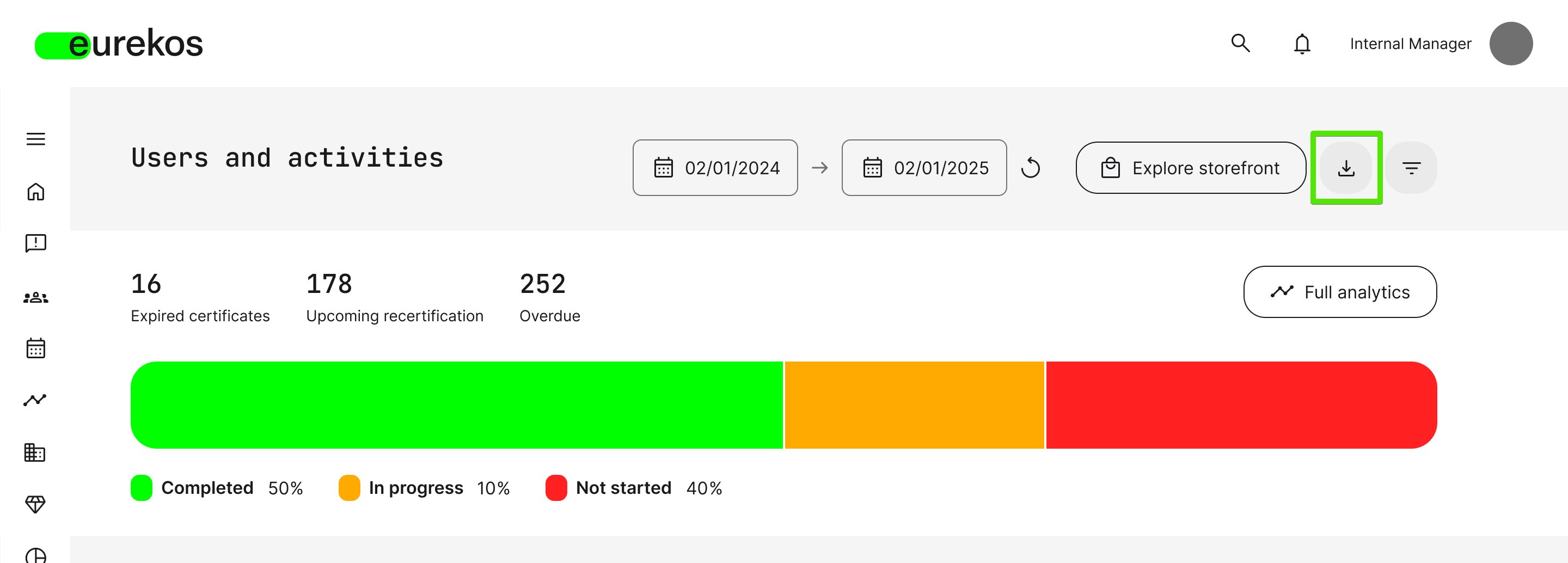
The [Download] button - stylized as a downward facing arrow icon – allows the Immediate Manager to download the Progress report to document their learning history on the platform:
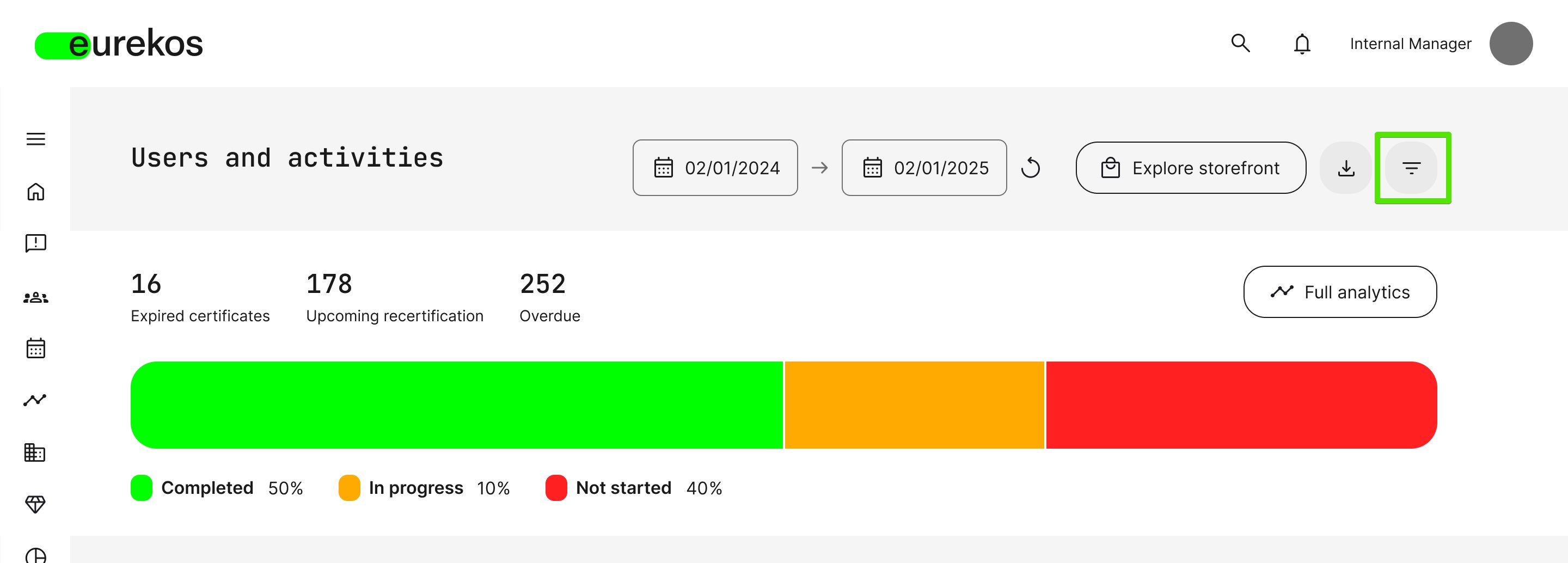
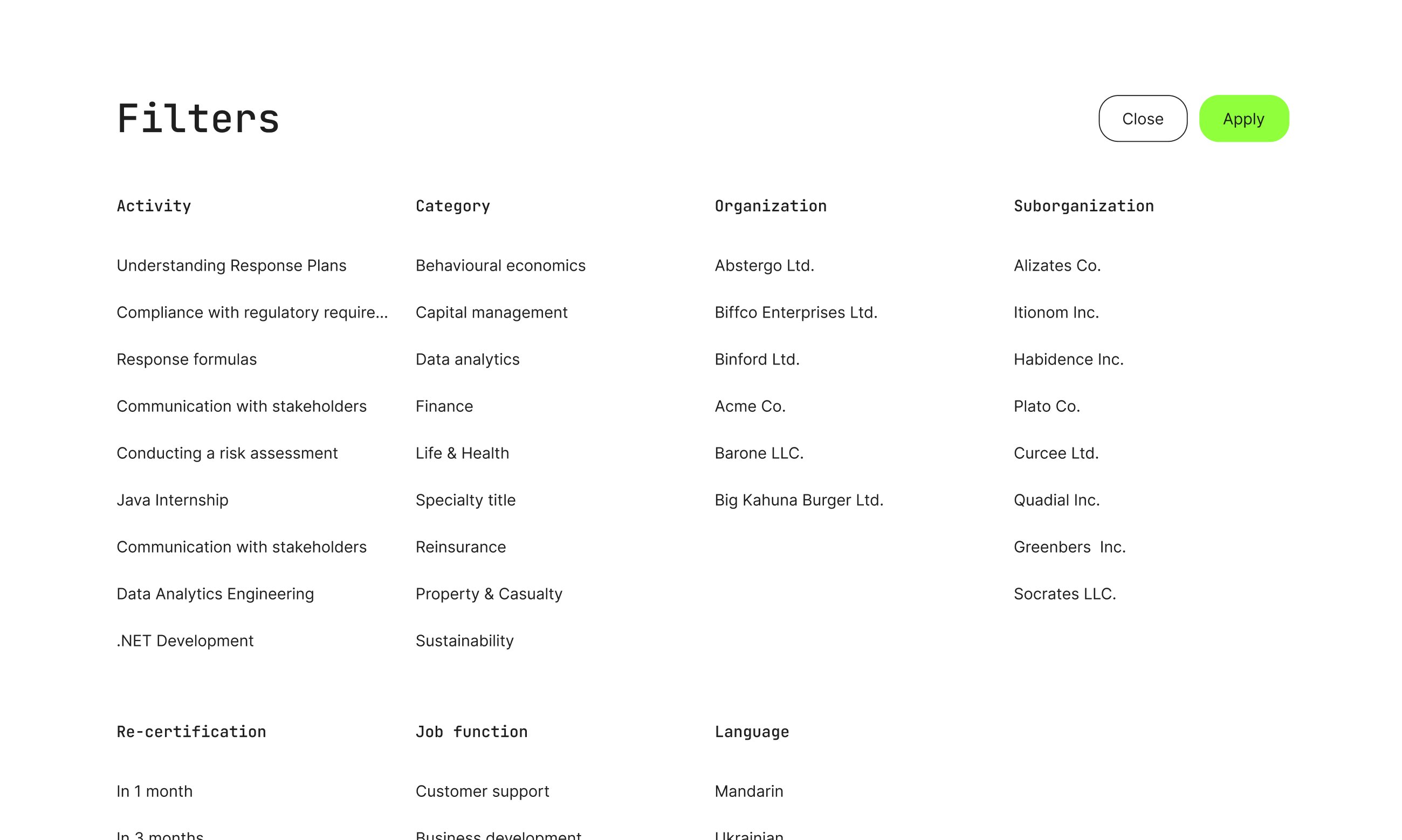
For deeper data dives, the [Filters] button – stylized as a funnel icon – allows the Manager to obtain more granular views of training-related data, offering filters pertaining to:
- Activity: Filter by the name of a training activity
- Category: Filter by preset training categories
- Organization: Filter by overall organization, if applicable and relevant
- Suborganization: Filter by suborganization (if one or more has been set up)
- Re-Certification: Filter by re-certification status (1 month, 3 months, Expired)
- Job Function: Filter by the job title- or department tags assigned to trainings
- Language: Filter by language tags assigned to trainings
For Immediate Managers wanting to see more in-depth data on individual participant training performance, clicking the [Full Analytics] button will allow them to explore analytics they have been permitted to access by a Platform Administrator (Settings → Analytics permissions):