Platform- and Global Administrator Dashboard - Article
Platform- and Global administrators incorporate all access and functionality across the system
The two roles are almost identical and you will only need the Global Administrator role when you need a high level of granular control across both content creation, asset management and user segregation, at the same time.
Unless you have these scenarios configured, there is no difference between the roles.
Global Administrator
The Global Administrator role holds a pivotal position, overseeing platform-wide configuration and organization management. This role boasts unparalleled access to all users and content across organizations, with the ability to edit or delete as needed, regardless of their organizational affiliation. Notably, this is the sole role endowed with access to content from all organizations. The Global Administrator role is activated exclusively upon the most comprehensive configuration of organizational restrictions.
- Responsible for high-level platform configuration and organization management.
- Access to all users and content across the platform, irrespective of organizational boundaries.
- This role is functional when organization layers are enabled, ensuring global access to content.
- Can handle critical platform-wide settings and administrative tasks.
Platform Administrator
When the organizational layer is active, the Platform Administrator assumes the highest-ranking role within an organization. This role is vested with comprehensive authority to create, update, and delete components within the specific organization. However, in the absence of the organizational layer, the Platform Administrator's rights align with those of the Global Administrator.
- When organization layers are enabled, assumes the highest authority within a specific organization.
- Empowered to create, update, and delete resources within their designated organization.
- Holds a similar level of control as a Global Administrator when organization layers are not in use.
- Capable of managing and overseeing organization-specific settings and operations.
As an Administrator you can
- edit other users' content and assets without restriction of any kind.
- have access to simulate any other user, by employing the Masquerade function. When you mascarade you can view the platform as any user of your choosing. You will find it at the top left if you click Open Menu.
- When you masquerade, be aware that you are generating statistics for that user.

Important note. You are effectively logged in as the masqueraded user, which is great for support. Use a test user to simulate any comprehensive flows in your learning journeys to experience everything as a participant rather than an active participant.
My overview as Administrator
If you are enrolled to some of the courses, those will be displayed in the I attend section.
Above the courses catalog, you can find fast access to Explore trainings and the options to Search and Filter those courses; and to Get Transcript of your training history within a certain period of time.
Users and Participants
The Support role also has access to platform level insight on the home screen, similar to the Platform Administrator.
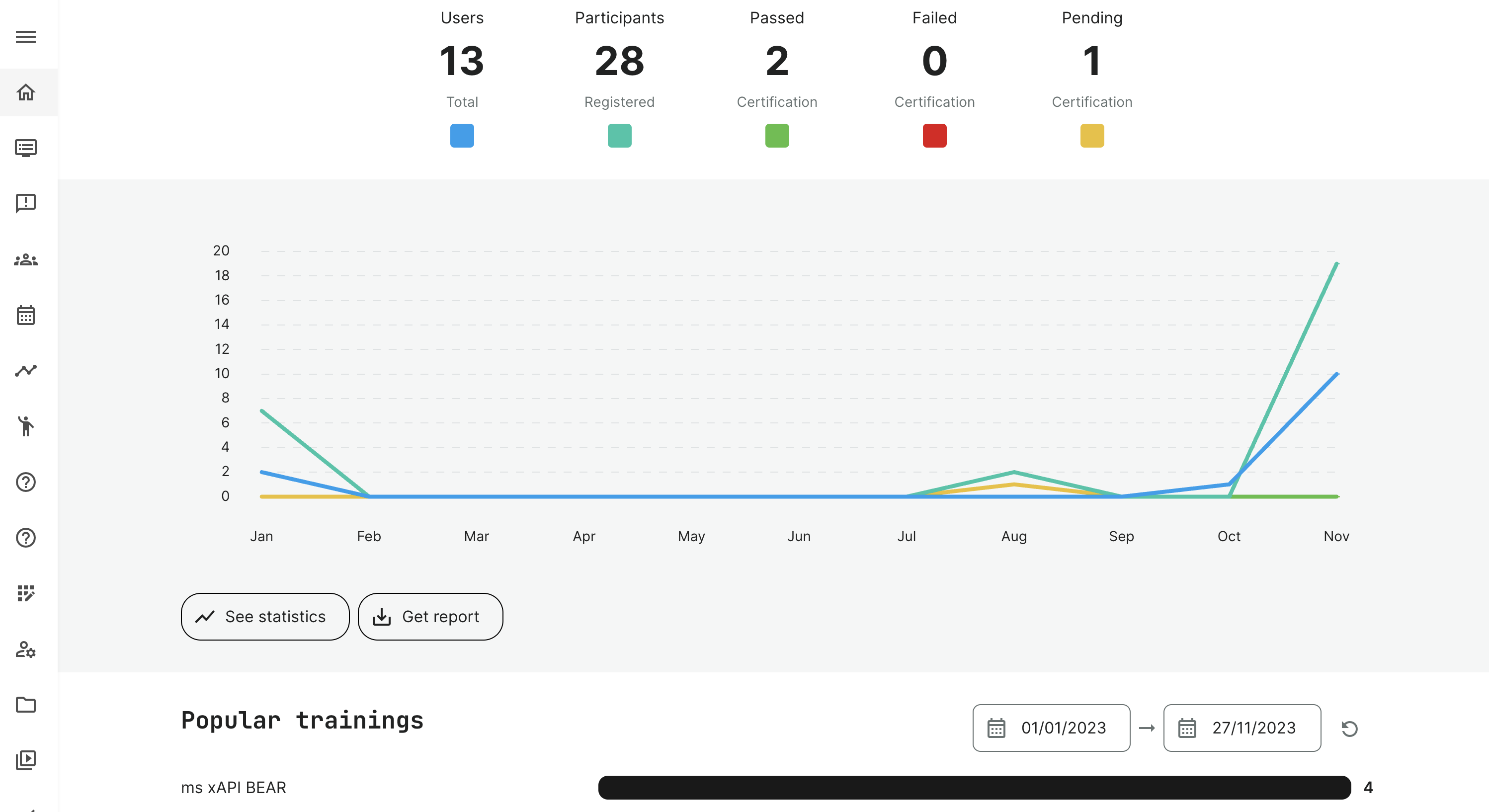
The first statistics panel shows overall progress data across all of the users on your platform. With a help of a date picker and filter by country so you can specify the time period and cohort of people to be reflected on the graph below. The data is sorted by categories, date and time.
You can access more detailed information about courses and users in see statistics and get report. The categories on the graph are:
- Users: the total number of registered users in the period
- Participants: the total number of users signed up for a Training Activity. This number is typically higher than the number of users because of participation in multiple trainings.
- Passed: the total number of users who have passed an online or practical assessment. Only Training Activities with a pass criterion are included.
- Failed: the total number of users who have failed an online or practical certification. Only Training Activities with a pass criterion are included.
- Pending: the total number of users who have not yet been assessed by any method, but are still pending. Only Training Activities with a pass criterion are included. You can turn on/off a category by clicking on it.
Popular trainings
The statistics panel offers insight into the top 10 trainings by registered users in a specific period. The schedule allows focus on any special efforts and campaigns and evaluate their success. Each can be clicked for user forensics.
Active users
The statistics panel provides an "at-a-glance" insight to how many unique users have logged in during a month or a quarter. Detailed reports can be exported in a given period.
The focus is unique users in a given period, who has been active on your platform.
The 2 colours also represent QR codes as a sepeate element. QR codes can be both registered and unregistered users.
Courses overview
The statistics panel provides a high-level overview of the number of training activities you are offering on the platform and by which type, these are - e.g., Virtual, Learning paths, self-paced and how many of these are available for self-registration.
Remember that you can rename and automatically tag your training activities, should you want to perform your own naming conventions.
Administrators can also register for training
In case, an Administrator role is enrolled as a learner, you will find those in the Trainings I attend section. The trainings I attend will show up first, as for other user roles.
Training status
The list shows all the training activities I have been enrolled to. These also have different status options, which can be used to filter them by:
- In progress.
- Not started.
- Completed.
- Certified are activities in which I achieved a certificate.
- Certification pending represents activities where the certificate has not yet been received. This scenarios of manual assessment.
- Certificate expires in 1 month.
- Mandatory, which also always has a deadline.
- Hidden are activities manually hidden by the user. This is performed while hovering and use the "eye" icon to hide/show activities.
Order and last visited
Last visited is for convenience shown as the prominent training activity at the top, making it easy to resume where you left off. The rest will sort according to the following standard logic:
- Last visited.
- Mandatory in progress, newest signup.
- Mandatory in progress.
- Mandatory Not started.
- In progress non-mandatory, newest signup.
- In progress non-mandatory.
- Not started non-mandatory, newest signup.
- Not started non-mandatory.
- Re-certificate, newest signup.
- Re-certificate.
- Completed, newest signup.
- Completed.