Course Administrator Dashboard - Article
Designed for supervision
Course administrators are in charge of everything around learning delivery, supervising registrations and automations around facilitationIf you have the system role of Course Administrator, you will have a quick overview of your training activities. This will enable you to keep track of your reminders and actions, if these have been defined.
As Course Administrator you can
- Create, import and manage all courses and related course materials.
- Create and manage learning journeys, certificates and coupons.
- Create and mange automated email workflows.
- Create and manage users.
- Masquerade as other users for support
- Manage storefront descriptions for self-enrollment and commercial options.
- Assist instructors in facilitation, set up communities, events and announcements.
- Access analytics and generate relevant reports.
- Extensive user management.
As a Course Administrator, you can have access to simulate any other user, by employing the Masquerade function. When you mascarade you can view the platform as a user. You will find it at the top left if you click Open Menu.
When you masquerade, be aware that you are generating statistics for that user.
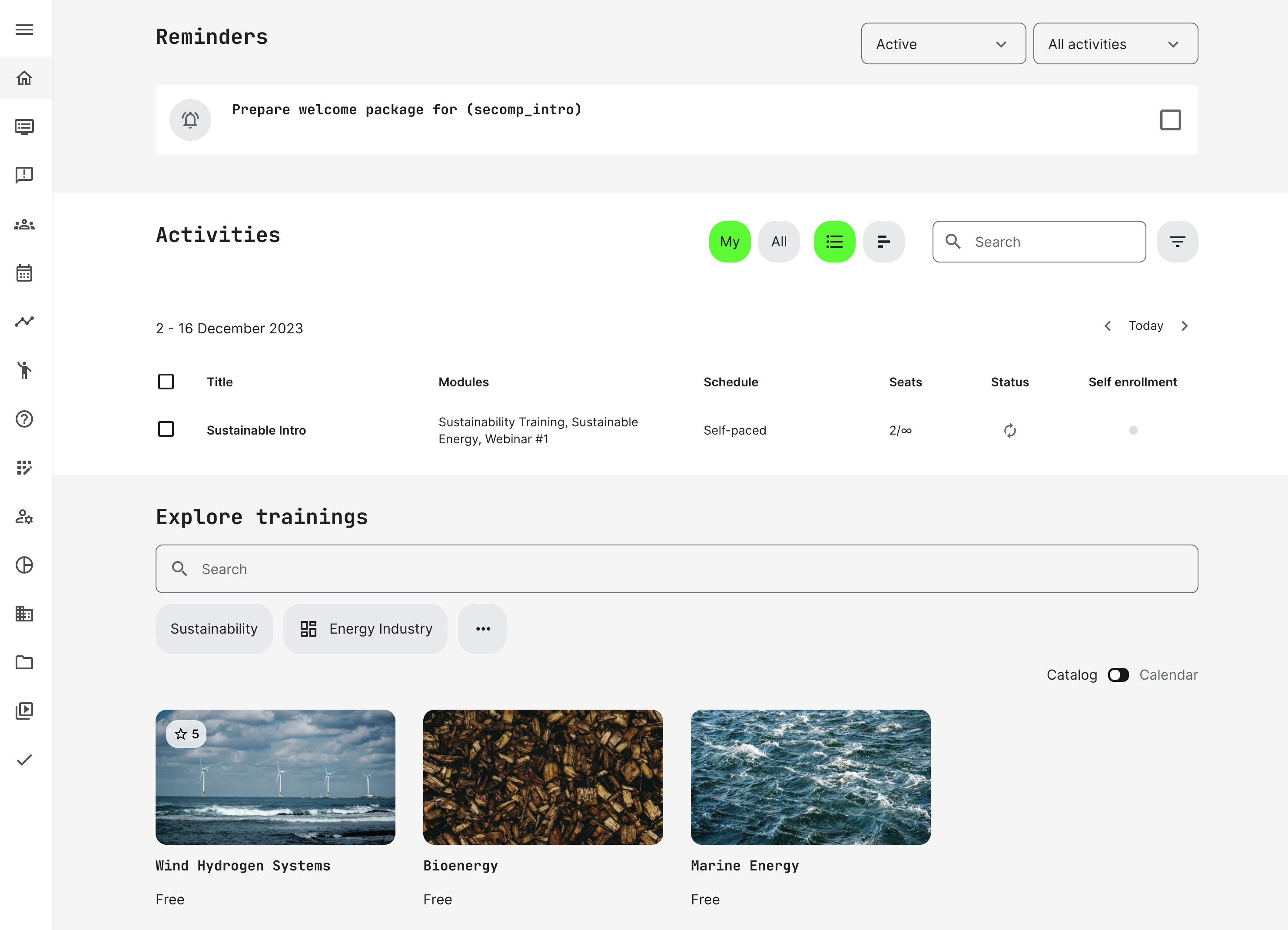
My overview as a Course Administrator
A few extra options are available on the dashboard for a Course Administrator:
- My Trainings shows if the Course Administrator is a participant in any trainings, like every other registered users.
- Reminders will show if these have been configured and only for the training activities you are personally responsible for. You are also able to mark reminders complete and change the status. This helps you manage programs which require some manual actions from an administrative perspective.
- Created based on Automated email workflow rules.
- In order to receive the reminder a Course Administrator has to be assigned as the one who is responsible ("Responsible" feature) in the relevant activity.. Sort by Active/Completed.
- Activities provides access to the training activities right at your fingertips. Use search and filters to change the list. You have full access to the course administration from the main menu.
- Quick filters allow you to focus on the courses and programs you are responsible for, all or use combinations with search and filter criteron in combination - e.g., Mine, All, List, Timeline, Training Status and more.
- Explore trainings shows training activities available for self enrollment. The courses can be searched by short description and title and filtered by tagging the the activity.
- Tagging is meant to be simple and easy to use on generic categories and can be configured to have sub-categories if there is a need for extensive lists of options.
- Tags are vocabularies that are predefined, can have icons and will show only if the tag has been set to show in the store front and if any trainings with the relevant tag is available for self enrollment. This way only tags with results are shown.
- The 3 dots to show more, will allow other categorisation to show - such as job function and more.
Course Administrators can also register for training
In case, a Course Administrator is enrolled as a learner, you will find those in the Trainings I attend section. Trainings I attend will show up first, as for other user roles.
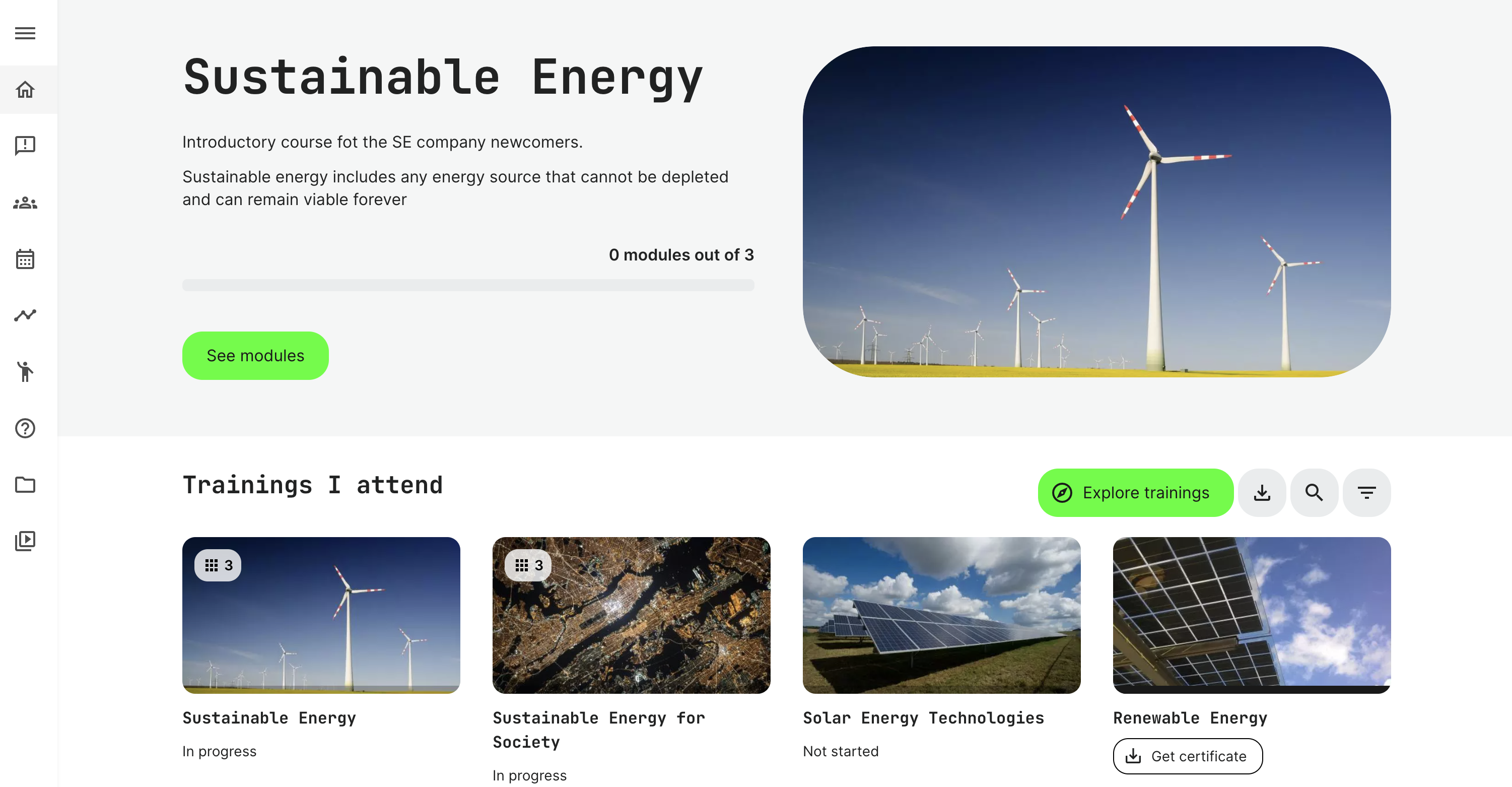
Training status
The list shows all the training activities I have been enrolled to. These also have different status options, which can be used to filter them by:
- In progress.
- Not started.
- Completed.
- Certified are activities in which I achieved a certificate.
- Certification pending represents activities where the certificate has not yet been received. This scenarios of manual assessment.
- Certificate expires in 1 month.
- Mandatory, which also always has a deadline.
- Hidden are activities manually hidden by the user. This is performed while hovering and use the "eye" icon to hide/show activities.
Order and last visited
Last visited is for convenience shown as the prominent training activity at the top, making it easy to resume where you left off. The rest will sort according to the following standard logic:
- Last visited.
- Mandatory in progress, newest signup.
- Mandatory in progress.
- Mandatory Not started.
- In progress non-mandatory, newest signup.
- In progress non-mandatory.
- Not started non-mandatory, newest signup.
- Not started non-mandatory.
- Re-certificate, newest signup.
- Re-certificate.
- Completed, newest signup.
- Completed.
Training acitivites with the same status and progress are sorted from the newest to the oldest sign-up schedule.