My Overview (Manager) - Article
What's the Manager role?
The Manager role is designed to provide users with broad visibility across organizational hierarchies, making it well-suited for both internal administration and external client-facing scenarios. This is particularly valuable for training providers, software companies and manufacturers who deliver programs to external organizations and need to ensure adoption, compliance, and measurable outcomes.
In external use cases—such as when a customer or client organization assigns a higher-level representative (e.g., a team lead, department head, or compliance officer)—the Manager role empowers that individual to oversee the training activities of their assigned users. This includes:
- Tracking progress, time spent, and certification status
- Monitoring compliance with statutory and legal training requirements
- Demonstrating value delivery and program effectiveness through analytics
Additionally, Managers can be granted the ability to manage the organizations they are responsible for, including administrative functions such as user assignments and enrollments. In more complex deployments, they may also oversee multiple suborganizations, with full visibility into performance and engagement metrics across each one.
Manager Home Screen
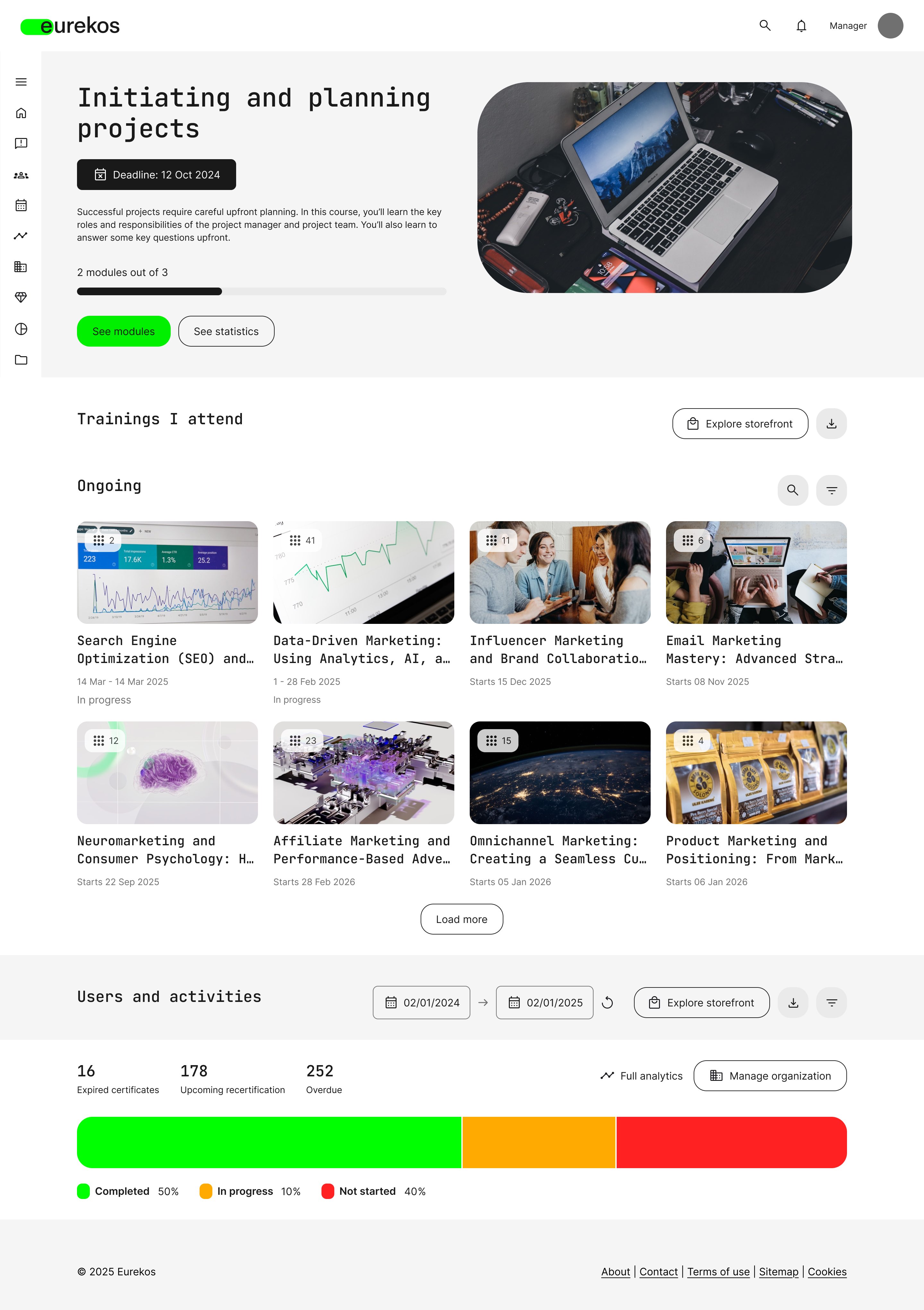
Managers are generally focused on the general progress of the learners that report to them within the organization; whether they meet their training goals within a timely manner and achieve the necessary scores and certifications to remain compliant. Therefore, having easy access to overall participant and training data is at the core of their Home Screen.
If a user with the Manager role is attending any training themselves, the role-specific Manager Home Screen will appear similar to that of a regular participant at first glance. As such, it will be headed by a top tile featuring the user’s most relevant current or future training, followed by rows populated with trainings grouped by the same logic as other participants. If you wish to explore this training focused layout further, please visit our Participant Home Screen article to learn more.
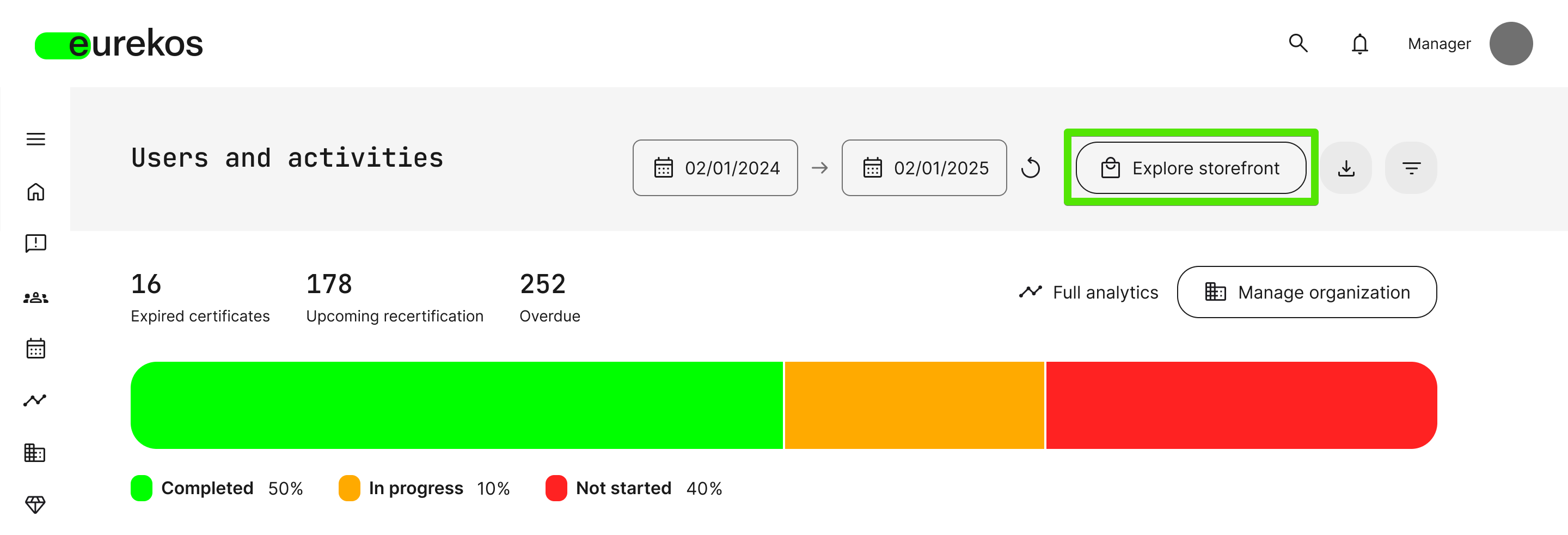
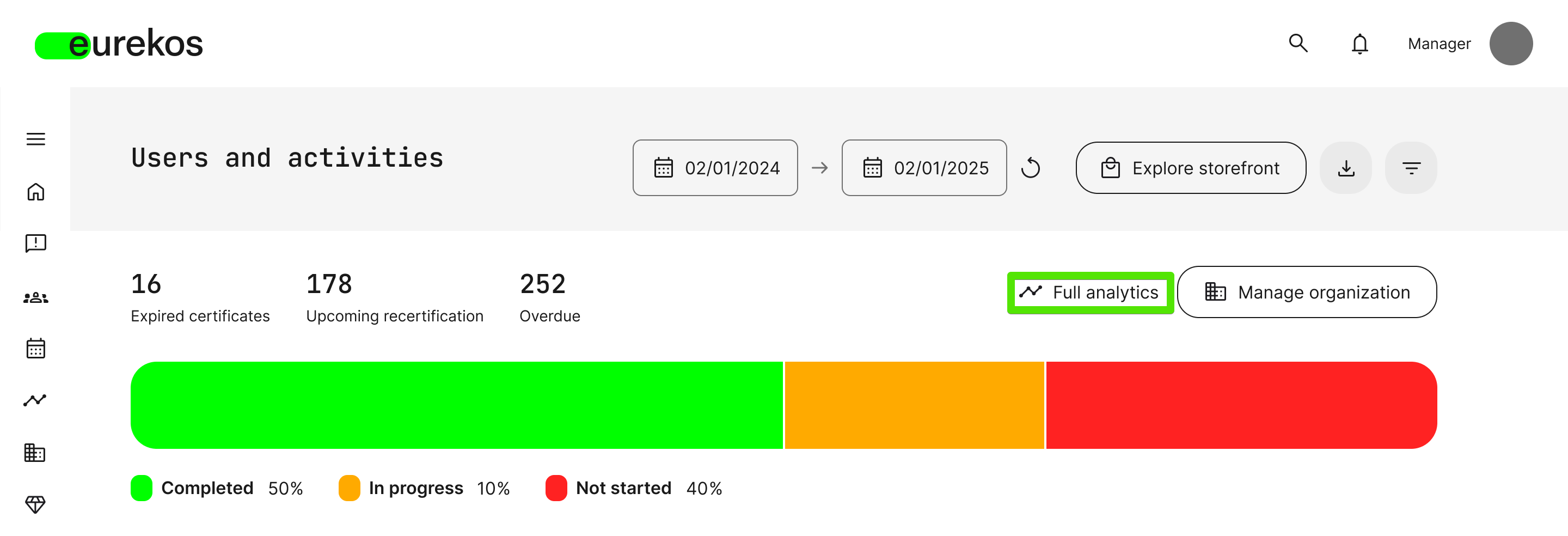
For Managers, the main feature added to their role-specific Home Screen is the section on high-level analytics for these data types associated with the people they manage at a glance:
- Total number of trainings that are completed, in progress, and not started
- Expired certificates, upcoming recertification, and overdue
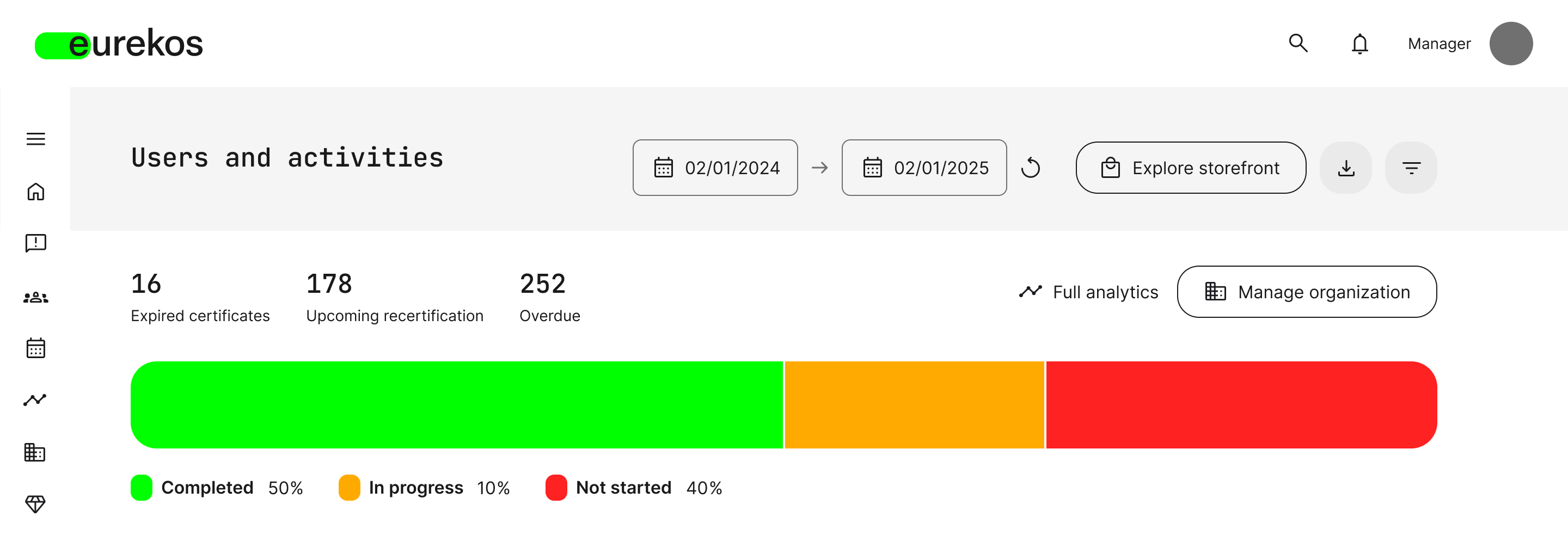
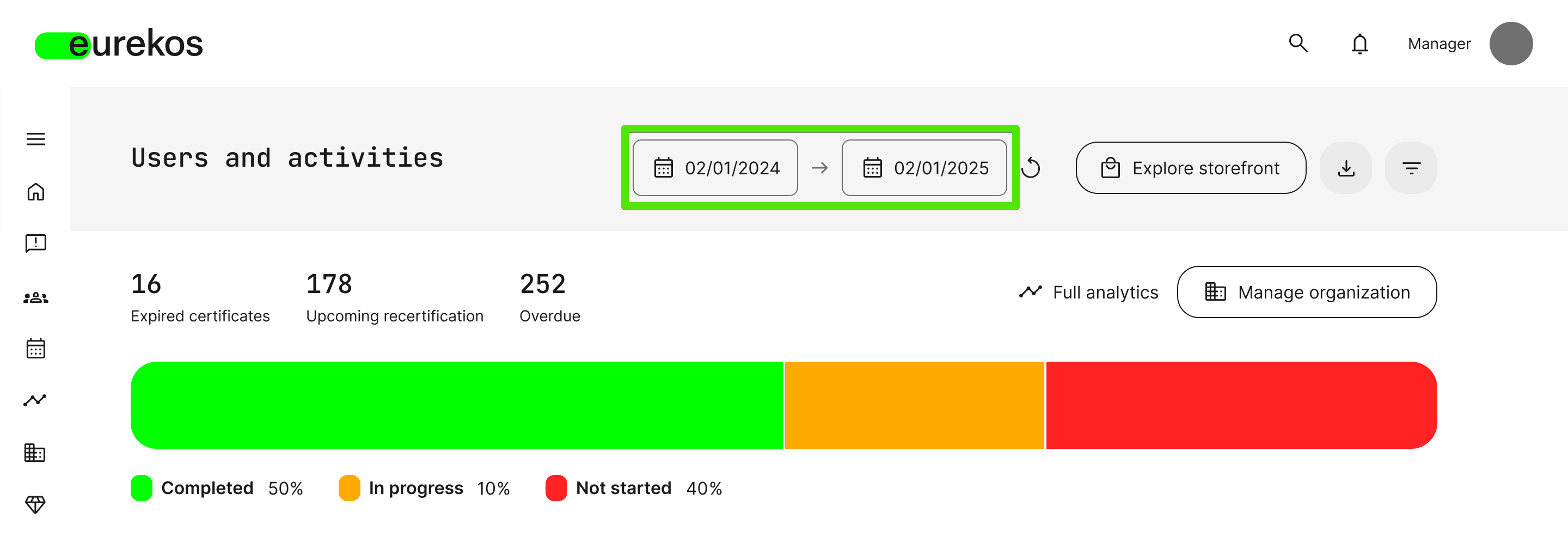
This overview is meant to provide at starting point for the Manager, but it is by no means a static info screen. Using the Date Selector, for instance, the figures and graphics in this section can be updated to reflect data from a specific time period:
Should the Manager wish to visit the Storefront in order to book trainings for themselves or the people they manage, the [Explore Storefront] button is conveniently located next to the date selector:
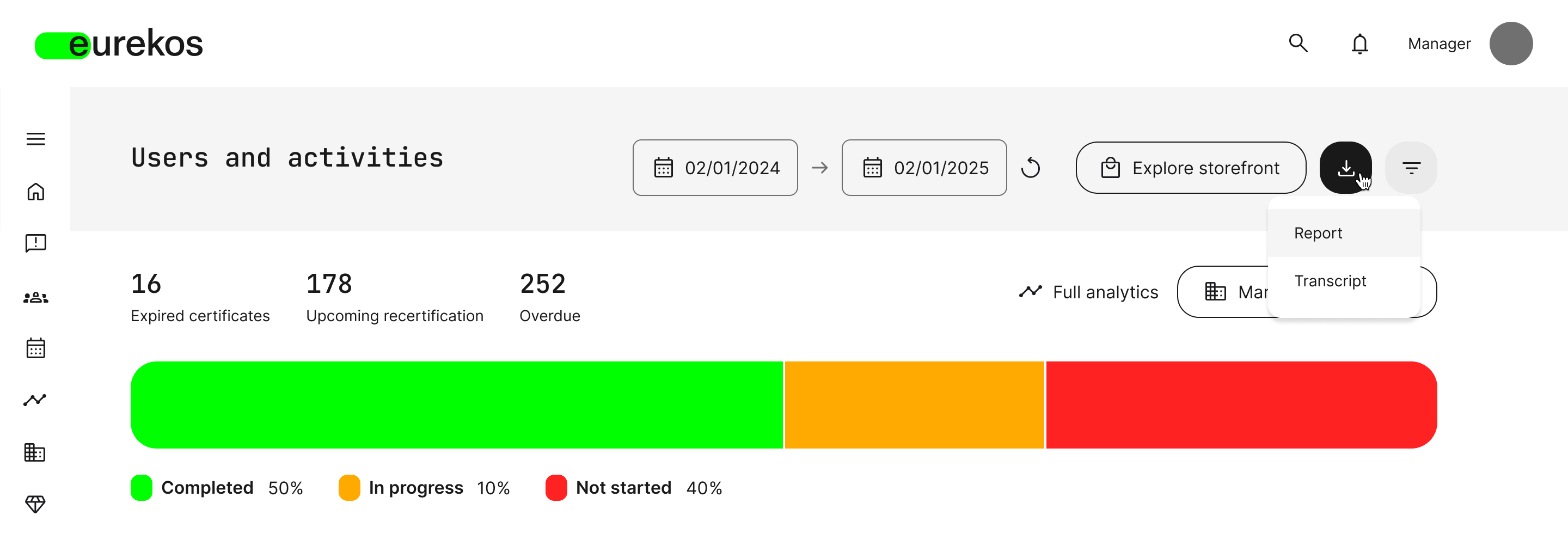
The [Download] button - stylized as a downward facing arrow icon – allows the Manager to select either a Report with overall training progress over a defined period or a Transcript with a participant’s training record, documenting their learning history on the platform:
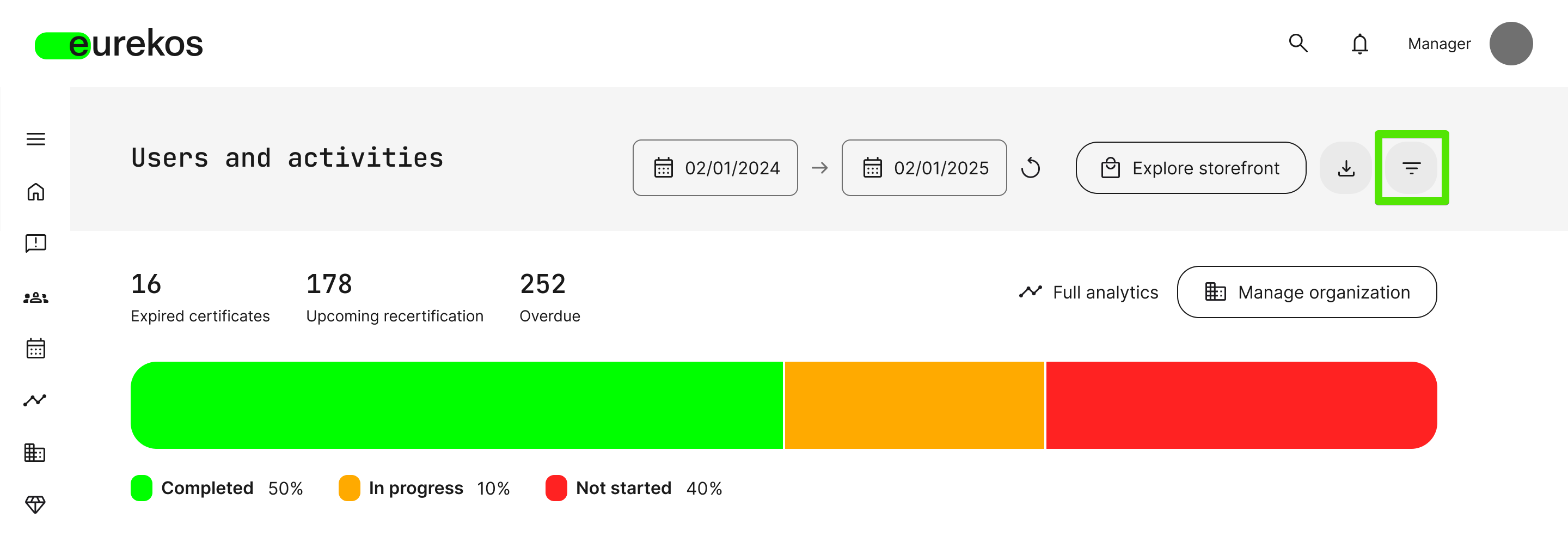
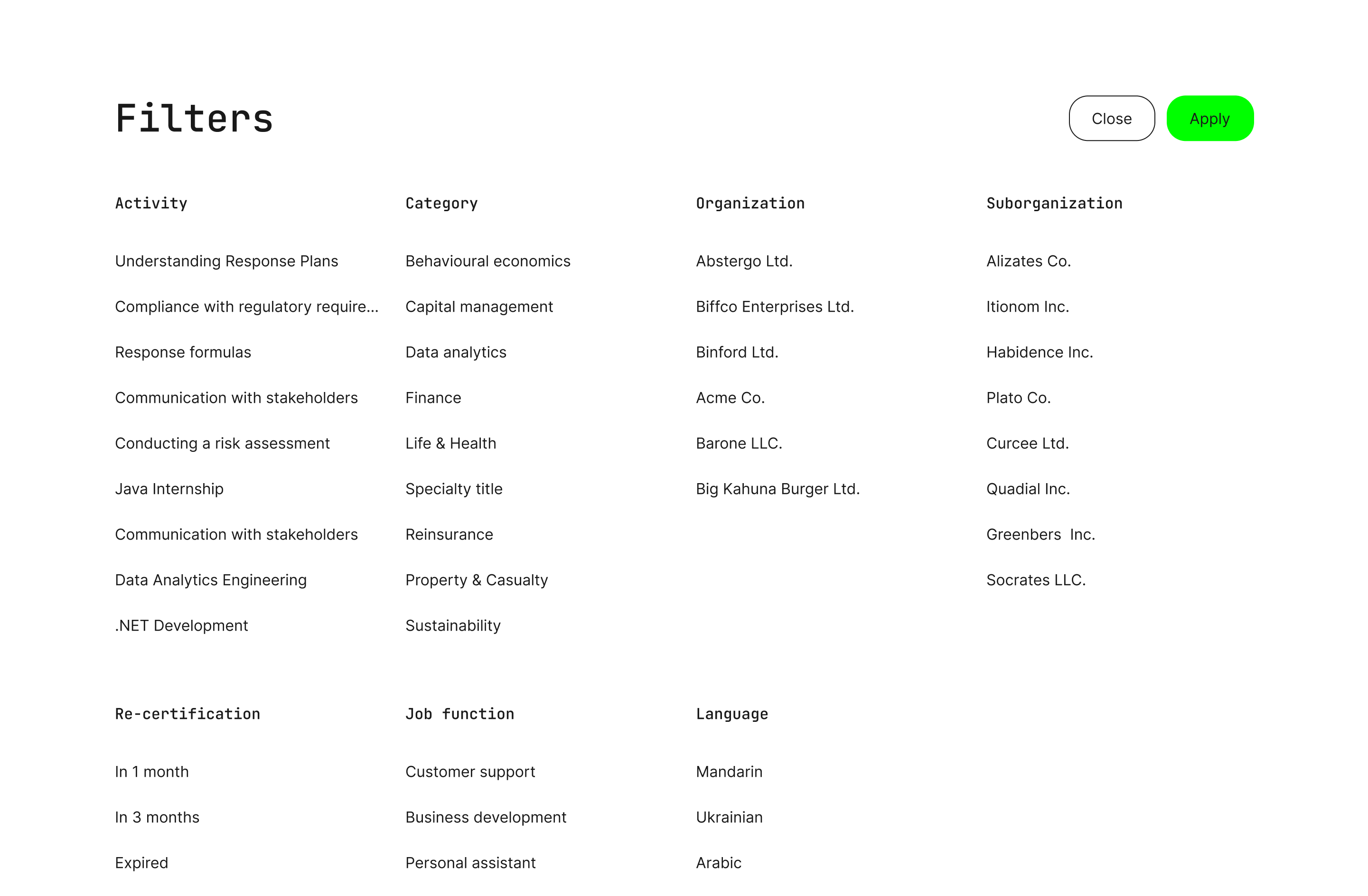
For deeper data dives, the [Filters] button – stylized as a funnel icon – allows the Manager to obtain more granular views of training-related data, offering filters pertaining to:
- Activity: Filter by the name of a training activity
- Category: Filter by preset training categories
- Organization: Filter by overall organization
- Suborganization: Filter by suborganization (if one or more has been set up)
- Re-Certification: Filter by re-certification status (1 month, 3 months, Expired)
- Job Function: Filter by the job title- or department tags assigned to trainings
- Language: Filter by language tags assigned to trainings
For Managers wanting to see more in-depth data on individual participant training performance, clicking the [Full Analytics] button will allow them to explore analytics they have been permitted to access by a Platform Administrator (Settings → Analytics permissions):
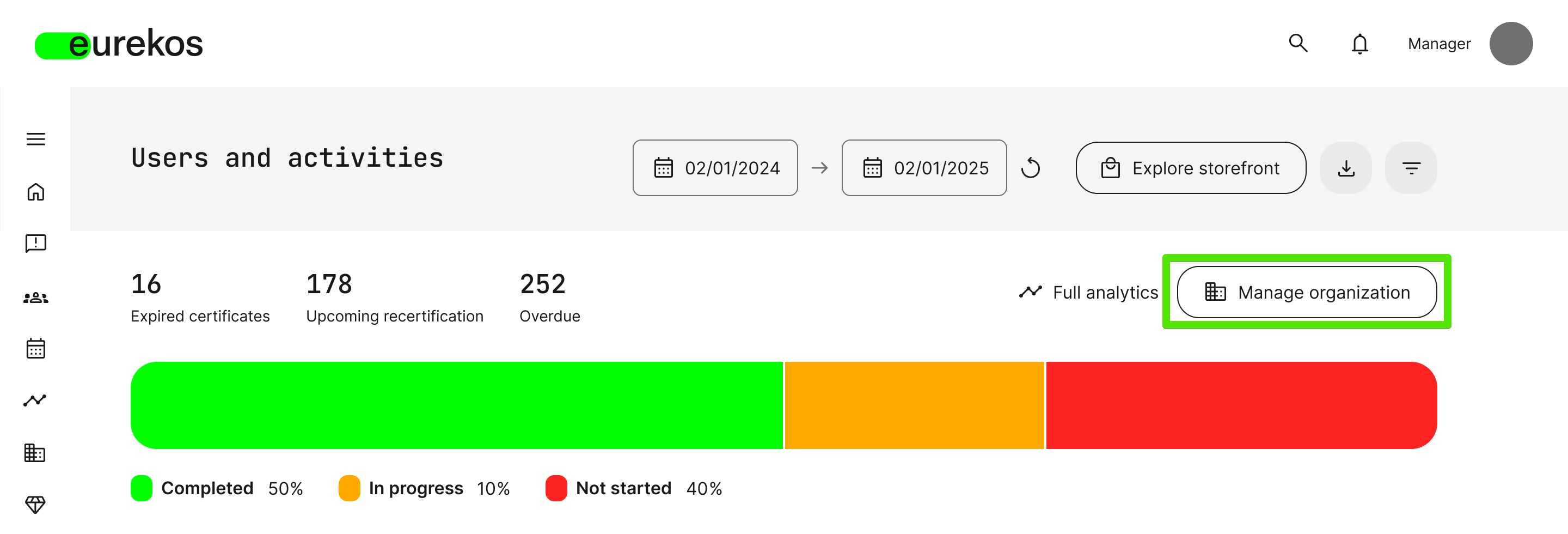
Finally, clicking the [Manage Organization] button will take the Manager to their own Organizations page, where further standard viewing and editing options are available:
- Create and manage suborganizations and invite new members
- Remove members of an organization