Adobe Connect - Article
Summary
Integrate Adobe Connect with Eurekos to create and manage virtual training sessions directly from activities and calendar events, while synchronizing attendance, time tracking, and webinar data automatically.
In this article you will learn:
- How Adobe Connect integrates with Eurekos activities and events
- How webinar sessions are created and managed from within Eurekos
- How attendance and time tracking are synchronized
- How to configure the integration step by step
Business Context
The Adobe Connect integration enables Eurekos to act as the operational layer for planning and managing virtual training, while Adobe Connect delivers the live session experience.
This means that administrators and course managers do not need to manage webinars separately in Adobe Connect. Instead, sessions are created, scheduled, and managed directly within Eurekos, while Adobe Connect handles the delivery.
From a business perspective, this creates a unified workflow where:
- Training activities, participants, and scheduling are managed in Eurekos
- Virtual sessions are hosted in Adobe Connect
- Attendance and participation data flow back into Eurekos automatically
This ensures that learning activities, reporting, and user progress remain centralized, even when delivery happens in an external system.
Feature Overview
Once configured, the integration enables Eurekos to communicate directly with Adobe Connect and manage webinar sessions as part of standard learning activities. It supports both ad hoc calendar events created by instructors or course administrators and activity-level sessions defined within structured learning paths.
Beyond session delivery, the integration plays a critical role in tracking participation and supporting assessment workflows.
What The Integration Enables
- Create Adobe Connect webinars from:
- Calendar events (ad hoc)
- Activity events (e.g. learning paths, modules)
- Automatically generate webinar links for participants effortlessly by administrators and instructors
- Track participant behavior, including:
- Time spent in session
- Reconnection handling (aggregated participation time)
- Synchronize attendance data from Adobe Connect to Eurekos
- Automatically suggest attendance status based on participation
- Map attendance to:
- Event attendance marking
- Activity-level progress
- Practical assessment and certification decisions
This effectively turns Adobe Connect into a fully integrated delivery and tracking component within Eurekos, where participation data directly supports learning validation and certification workflows.
Attendance and Assessment Behavior
Attendance in Adobe Connect is not simply a binary status, but is calculated based on time spent in the session relative to total duration.
Attendance Calculation
- Participation time is tracked per user
- If a user reconnects, time is accumulated across sessions
- Attendance is expressed as a percentage of total session duration
Default Attendance Logic
Based on standard configuration:
- 100% attendance → Attended – Passed
- 70–100% attendance → Partially attended – Passed
- 0–70% attendance → Partially attended – Did not pass
- 0% attendance → Did not attend
💡 The 70% threshold is the default benchmark for “sufficient participation,” but this can be adjusted upon request via Eurekos Service Desk.
Automatic Suggestion And Instructor Control
In a typical virtual training session—especially in smaller groups or facilitated workshops—attendance alone is not always a sufficient indicator of participation. While Adobe Connect provides precise data on time spent in the session, instructors may also consider factors such as engagement, interaction, or completion of exercises when validating attendance.
To support this, Eurekos uses Adobe Connect data to assist—not replace—pedagogical judgment.
Attendance status is:
- Automatically calculated and suggested based on participation data (e.g. time spent in session)
- Displayed in the event attendance form according to the configured thresholds
However, attendance is not finalized automatically:
- The instructor must review and approve attendance suggestions proposed
- Suggested statuses can be adjusted before confirmation
- This ensures flexibility in cases where participation extends beyond measurable time (e.g. active discussion, group work, or partial attendance with valid justification)
Practical assessment integration
In structured learning programs, attendance is often one of several criteria used to determine whether a learner has successfully completed an activity or is eligible for certification.
Eurekos supports this by aggregating attendance across all relevant sessions and presenting it in a format that supports instructor-led evaluation.
- All events within an activity are represented in the practical assessment form
- Each user’s attendance status across events is displayed in context
- Attendance contributes to the overall evaluation of the learner
Instructors use this information to determine:
- Whether a learner meets participation requirements
- Whether a certificate or completion status should be issued
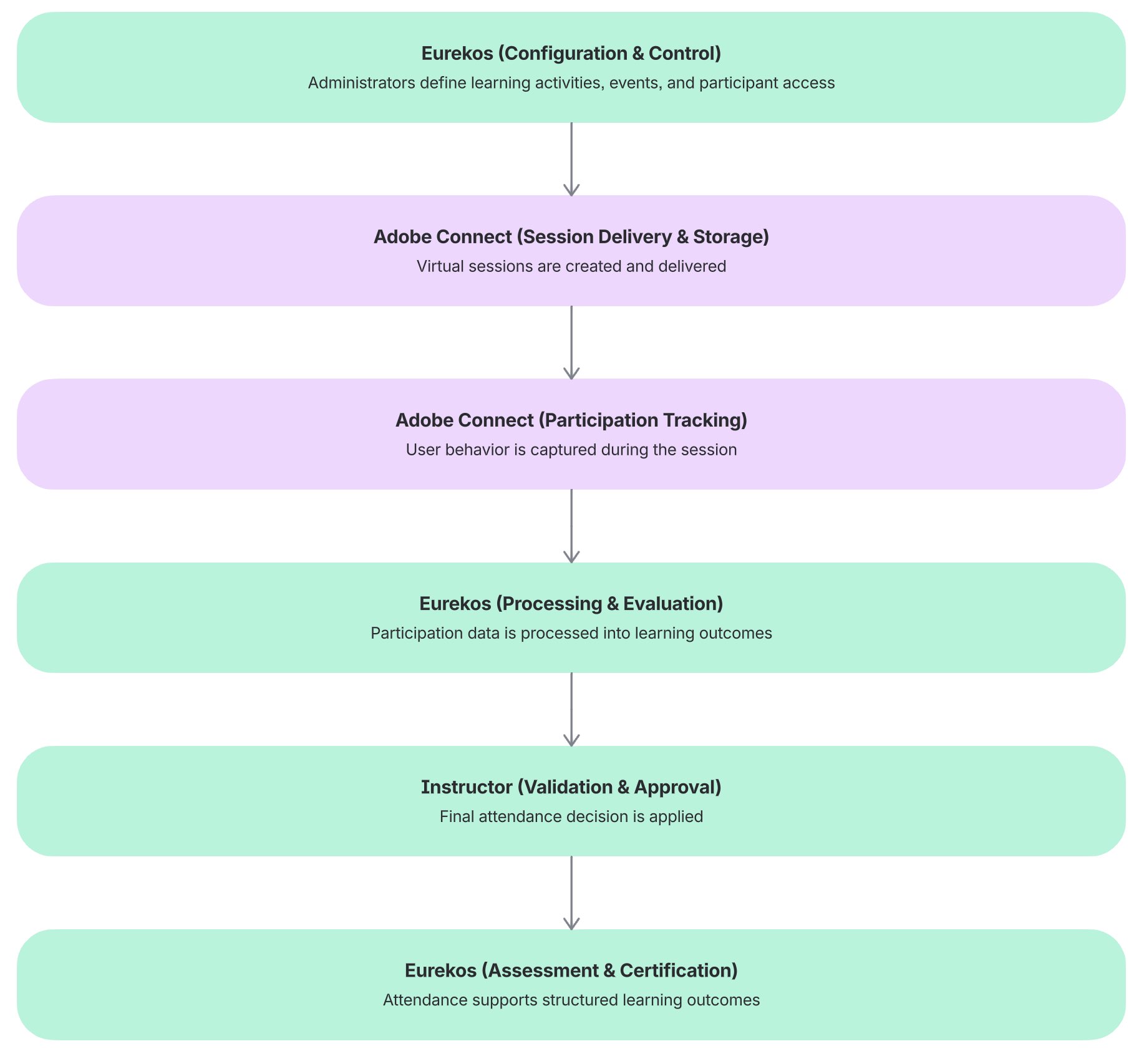
This creates a structured workflow where:
- Adobe Connect → Provides participation and time-based data
- Eurekos → Aggregates, calculates, and presents attendance insights
- Instructor → Reviews, validates, and makes the final assessment decision
Data Flow and System Behavior
Understanding how data flows between Eurekos and Adobe Connect is critical for correct configuration, expected behavior, and interpretation of attendance and assessment data.
| Direction | System Role | What Happens |
|---|---|---|
| Eurekos → Adobe Connect | Session management (control layer) |
|
| Adobe Connect → Eurekos | Participation tracking (delivery layer) |
|
| Processing in Eurekos | Evaluation and application (learning layer) |
|
Session Storage and Folder Structure
Adobe Connect organizes meetings and recordings within a structured folder system, which is referenced during integration using the Folder ID (sco-id).
- Each webinar session is created inside a specific folder
- This folder acts as the storage location for both sessions and their recordings
- By default, meetings are stored in folders such as “My Meetings” or “User Meetings”
How Recordings Are Handled
- Recordings are stored server-side within the meeting room
- Each meeting contains a dedicated Recordings section
- Recordings can be:
- Viewed
- Moved to other folders (e.g. content library for sharing within Eurekos)
- Shared or permission-controlled
Why Folder ID matters In Eurekos
The Folder ID configured in Eurekos determines:
- Where webinar sessions are created
- Where recordings are stored
- How content is organized in Adobe Connect
This allows organizations to potentially separate activity-based sessions from ad-hoc calendar events.
Configuration
The integration is configured in Settings → Third party integrations → Adobe Connect.
The setup consists of connecting your Adobe Connect account using four required inputs.
Step 1: Obtain Adobe Connect Credentials
You will need the following from your Adobe Connect account:
| Field | Description |
|---|---|
| Account URL | Link to your Adobe Connect environment |
| Username | Adobe Connect login |
| Password | Adobe Connect password |
| Folder ID | Target folder where webinars are created |
The first three values are provided in your Adobe Connect welcome email.
Step 2: Locate The Folder ID
The Folder ID determines where Eurekos creates webinar sessions in Adobe Connect.
To locate it:
- Open your Account URL
- Log into Adobe Connect
- Navigate to: Meetings → User Meetings
- Open your personal meeting folder
- Look at the URL in your browser
- Copy the “sco-id” (a numeric ID in the URL)
This value must be entered into Eurekos as the Folder ID
💡It is possible to configure separate Adobe Connect setups for activity-based events and calendar events, allowing you to align session management with your preference. Alternatively, you can use a single centralized folder and identical configuration for both Activity and Event, ensuring that recordings and webinars are stored and managed in one consistent location.
Step 3: Input Authentication Details
Input the details to the configuration screen in Eurekos.
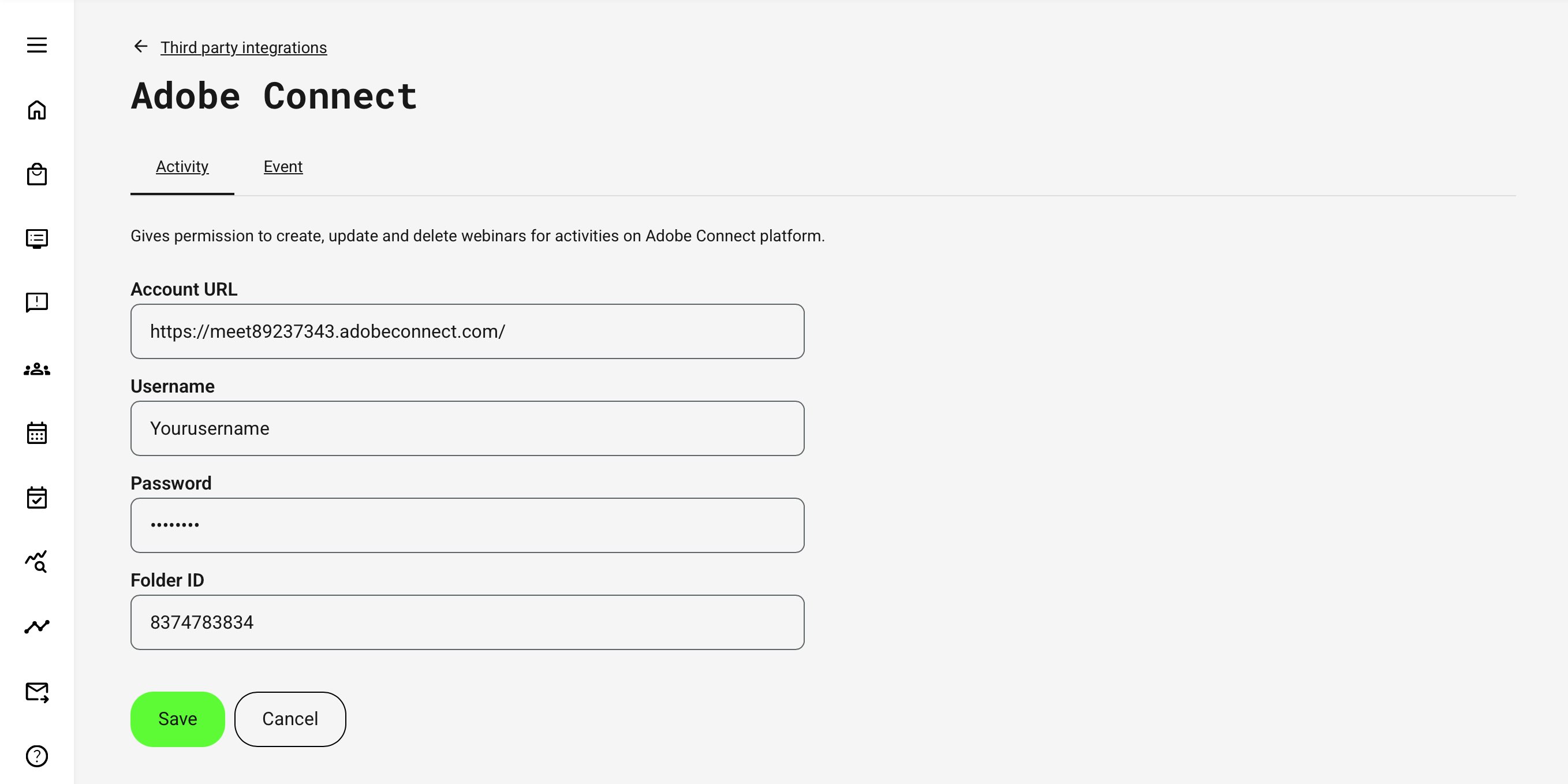
Once all four fields are completed:
- Click Save
- Eurekos validates the connection
After successful validation, the integration becomes available immediately.
Using the Integration
Once configured, Adobe Connect becomes available as a video conferencing option within Eurekos.
In Calendar Events
When creating a calendar event:
- Select Create Event
- Choose Video Conference
- Select Adobe Connect
This will:
- Automatically create a webinar session in Adobe Connect
- Generate a meeting link
- Attach it to the event in Eurekos
In Activities
Within an activity:
- Open the activity event
- Go to Module Features
- Enable Video Conference
- Select Adobe Connect
This allows the activity to include a fully integrated webinar session.
Roles And Access Considerations
- Administrators must have an Adobe Connect account to create sessions
- Participants can join:
- As registered users
- As guests (if enabled in Adobe Connect)
This allows flexibility depending on your setup (open vs controlled environments).
Governance And Best Practices
- Design your webinar structure in Adobe Connect first → Ensure folders and permissions are correctly structured before integrating.
- Use consistent Folder IDs → Keep sessions organized by using dedicated folders per use case
- Test before going live → Always create and run a test session to verify:
- Link generation
- Access
- Attendance tracking
- Align attendance thresholds with business logic → Ensure Adobe Connect attendance scoring aligns with your expectations
- Use activities as the control layer → Always create sessions through Eurekos to maintain:
- Reporting consistency
- Centralized management
- Data integrity