Google - Article
Summary
Connect Eurekos with Google services to automate scheduling, location visibility, and content integration through Google Calendar, Google Maps, and Google Drive—supporting efficient and scalable learning operations.
In this article you will learn:
- How Google services integrate with Eurekos across scheduling, location, and content
- How Google Calendar enables event synchronization and scheduling workflows
- How Google Maps supports location-based experiences
- How Google Drive enables dynamic content integration
- How to configure and activate the integration in Google Cloud and Eurekos
Business Context
The Google integration connects Eurekos with widely adopted Google services, extending the platform into a broader ecosystem for scheduling, location management, and content delivery. Rather than representing a single feature, the integration enables multiple functional areas that support both user experience and operational workflows.
At its core, the integration supports three key domains:
- Scheduling and coordination (Google Calendar)
- Location and physical experience (Google Maps)
- Content and collaboration (Google Drive)
This makes the integration particularly valuable for organizations that:
- Deliver instructor-led or blended learning
- Operate across physical locations
- Use Google Workspace as part of their ecosystem
- Require alignment between learning activities and external tools
In particular, Google Calendar plays a central role by enabling organizations to manage scheduled sessions—including virtual meetings—directly within Eurekos, while maintaining synchronization with external calendars.
A key distinction compared to some integrations is that Google functionality is partially user-driven. While administrators configure the integration centrally, several features require users to connect their Google account manually and explicitly grant permission—ensuring controlled and consent-based data sharing and enabling the benefit of the integration.
Feature Overview
The Google integration enables multiple services within Eurekos, each serving a distinct purpose while sharing a common configuration.
| Service | Function |
|---|---|
| Google Calendar | Creates and synchronizes scheduled events as Google Calendar invitations (RSVP) for users with connected Google accounts, supporting reliable scheduling and attendance |
| Google Maps | Enables location visualization, address lookup, and embedded map links for training locations, helping administrators define venues and participants navigate to sessions |
| Google Drive | Allows course authors to access and embed files directly within course content, supporting dynamic content updates and centralized file management |
These services are configured centrally by administrators but may require user-level connection to function fully, depending on the specific feature and use case.
How the Integration Works
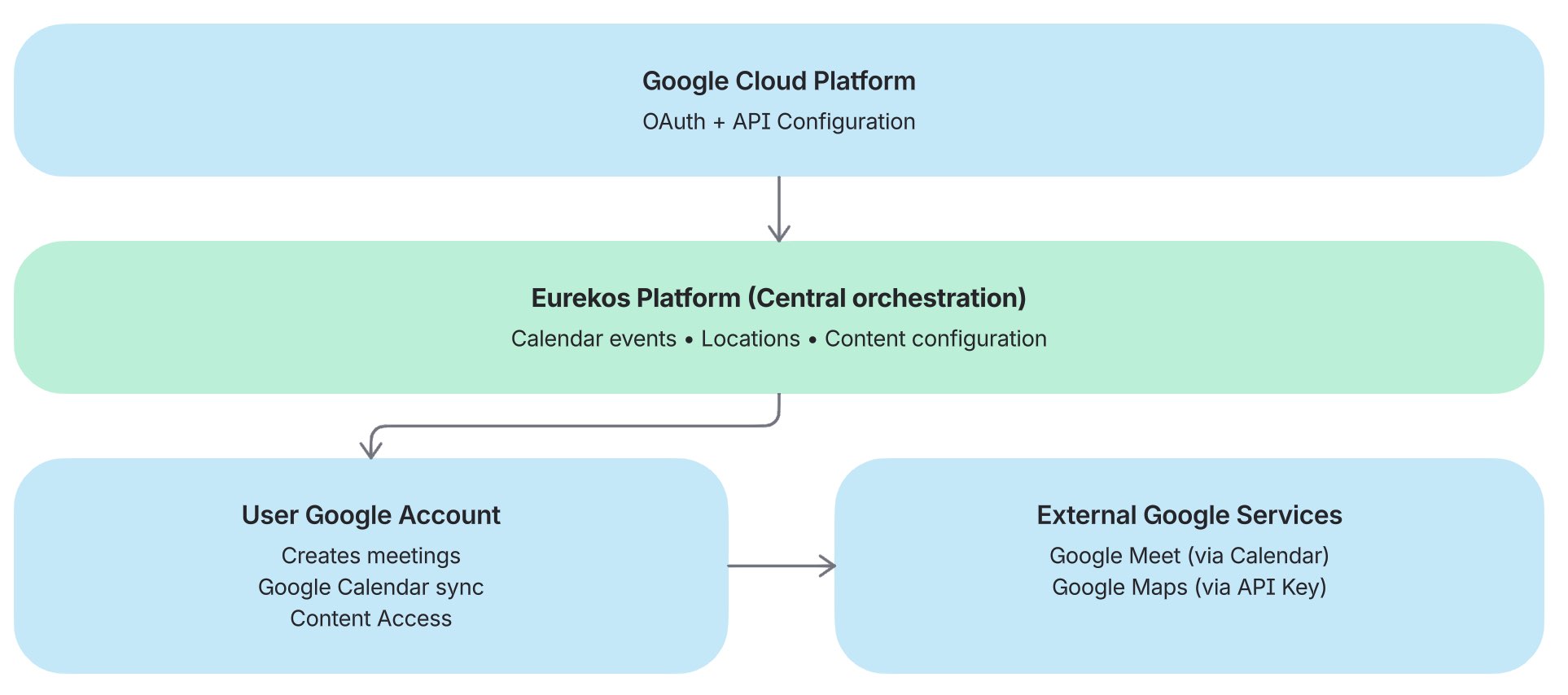
The Google integration operates across two coordinated layers:
1. Platform Configuration → Administrators configure:
- Google Cloud project
- OAuth credentials (Client ID & Secret)
- API key (for Maps and services)
- Enabled APIs (Calendar, Drive, Maps)
This layer defines what is technically possible within the platform.
2. User Interaction → Users activate functionality by:
- Connecting their Google account via their profile
- Granting consent through Google OAuth
- Enabling features such as calendar synchronization
This ensures:
- Controlled data sharing
- User consent and compliance
- Flexibility across different audiences
Google Calendar
Google Calendar integration synchronizes Eurekos events directly into a user’s personal Google Calendar, ensuring that learning activities become part of their daily planning and scheduling.
Beyond end-user convenience, this integration plays a critical operational role for administrators and instructors. It enables the creation and management of scheduled sessions—particularly virtual events using Google Meet—directly within Eurekos. When configured with a Google Workspace account, valid meeting links can be generated automatically as part of event creation, eliminating the need to manually create meetings in external tools and paste links into the platform.
This creates a unified workflow where:
- Events are created once in Eurekos
- Meeting links are generated automatically via Google
- Calendar entries are synchronized
- Schedule changes are reflected across all contexts
The value of this integration extends beyond users connecting their personal accounts. In many scenarios—especially with external audiences or mixed ecosystems—participants may not connect their calendars. Even so, the integration provides strong value by:
- Supporting centralized scheduling for administrators and instructors
- Aligning with internal calendars
- Preventing conflicts and double bookings
- Ensuring consistency across events and communications
When users do connect their accounts, events are also synchronized to their personal calendars, improving visibility and attendance while maintaining a centralized and efficient scheduling workflow.
How It Works
Google Calendar synchronization is a user-driven feature that connects platform events with the user’s personal Google Calendar. While administrators enable the integration globally, the actual synchronization is activated individually by each user through their profile.
The process unfolds across three stages:
- Integration is enabled by the administrator → The Google integration must be configured in Eurekos with valid credentials (Client ID, Client Secret, and API key), making Google services available on the platform
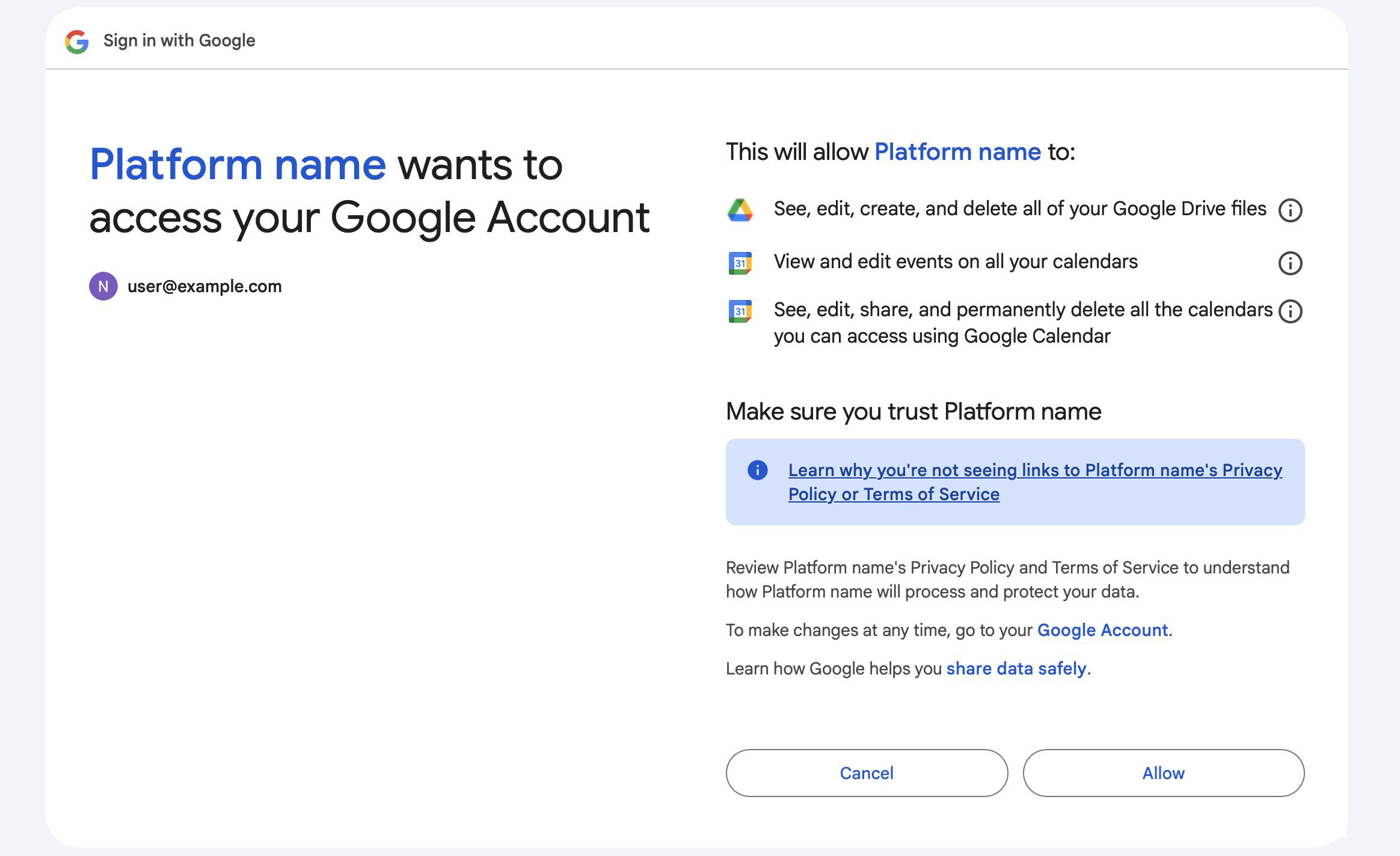
- The user connects their Google account → From their profile, the user initiates the connection to Google. During this process, they are redirected to Google and asked to approve access permissions. This includes accepting Google’s terms and privacy conditions and explicitly granting Eurekos permission to access relevant services such as calendar data
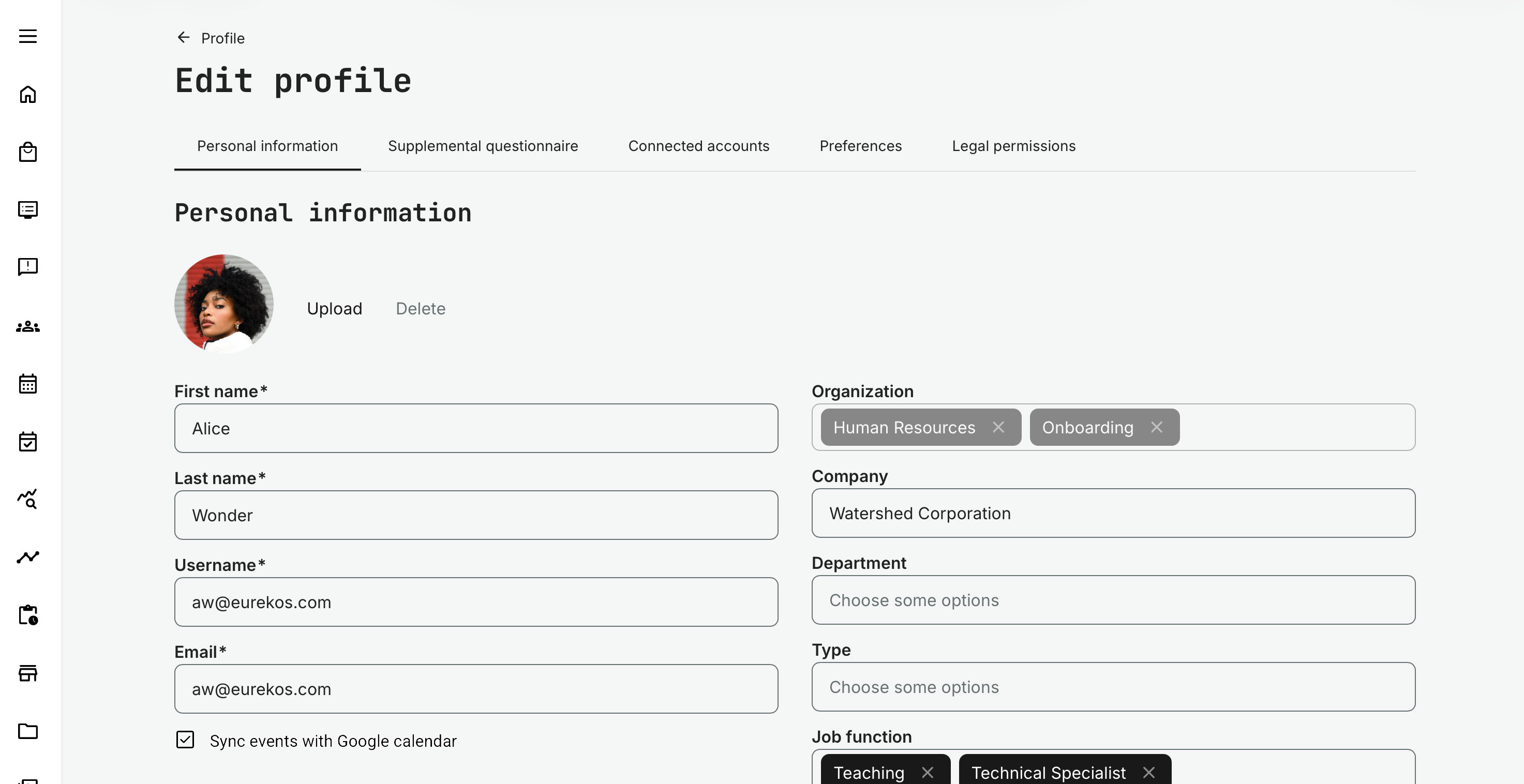
- User enables synchronization → Once connected, the user can activate the “Sync events with Google Calendar” option in their profile. When enabled, relevant platform events are automatically synchronized with their Google Calendar
Notification and Delivery Behavior
The integration supports both standard system communication and Google Calendar synchronization, depending on whether the user has connected their Google account.
- Users with a connected Google account and synchronization enabled receive:
- Google Calendar events with full synchronization
- Automatic updates reflected in their calendar
- Standard system emails related to scheduled events (as configured in Settings → Email Sending → Events)
- Users without a connected Google account receive:
- Standard system emails related to scheduled events
- Access to event details within Eurekos, including options to view and export calendar events (e.g. downloading events individually or in bulk for use in external calendar applications)
This ensures that all users receive event information, while connected users benefit from a more integrated and continuously updated calendar experience.
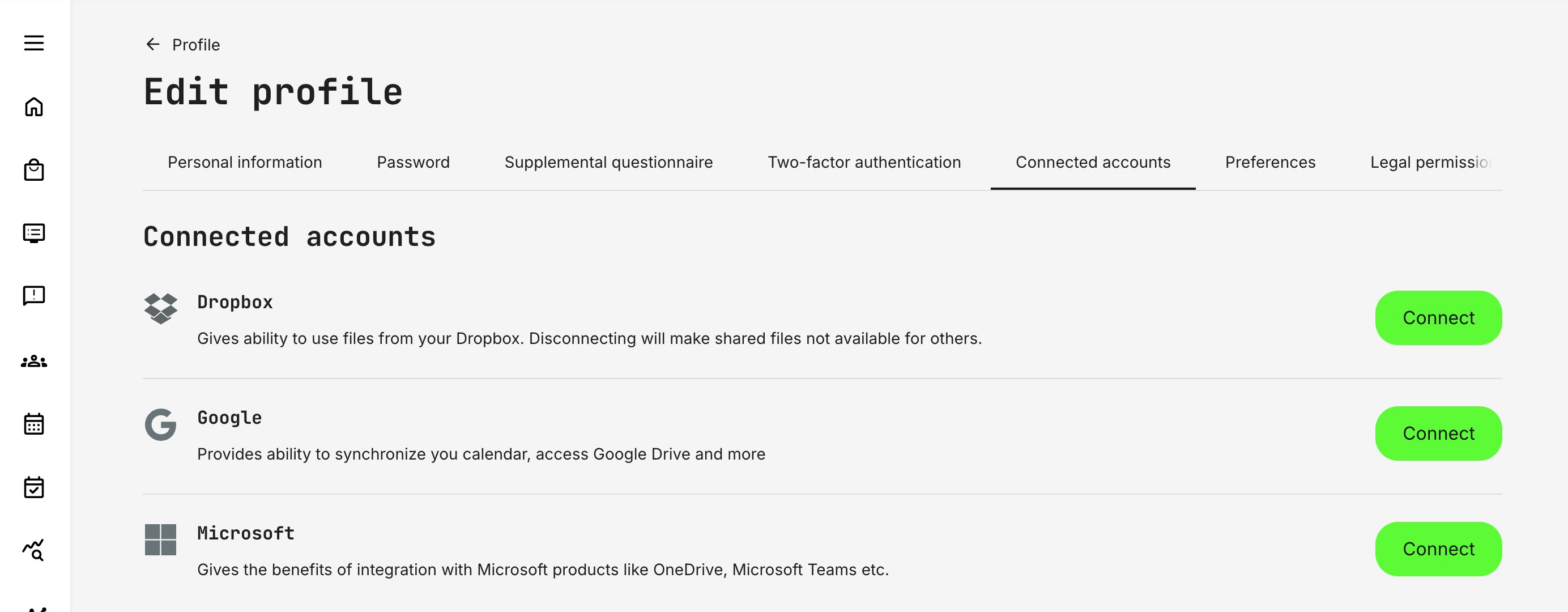
This ensures that:
- Users maintain full control over their data and connections
- Data sharing only occurs with explicit user consent
- Calendar synchronization is optional and can be enabled or disabled at any time
⚠️ Even after connecting their account, no synchronization occurs until the user actively enables Sync events with Google Calendar in their profile (tab: Personal information). This is a deliberate, user-controlled action that ensures full consent and control over data sharing.
Synchronization Behavior
Once enabled:
- All future events are synchronized
- Past events with an end date within 24 hours are included
- New events are automatically added
- Existing events are updated when changed
Important Behavior
- Disabling synchronization does not remove existing events from Google Calendar
- Synchronization is handled asynchronously via system queues
- Updates are continuously maintained after initial sync
Google Maps
Google Maps integration enhances location-based functionality across Eurekos by enabling address validation, map visualization, and geographic context for activities and locations. This is particularly valuable for instructor-led training and organizations operating across physical or multiple sites, where clear location information is essential for both administrators and participants.
By enriching location data with visual maps and navigation support, the integration helps ensure accurate setup of training venues and improves the overall user experience when attending in-person sessions.
How It Works
Once the API key is configured:
- Locations entered in Eurekos are enriched with map data
- Users can view locations visually across the platform
- Address input is assisted through Google lookup
Where It Appears
Google Maps functionality is embedded across multiple areas of the platform where location data is used, enriching standard text-based locations with interactive map visualization and directions. Without the integration, locations are displayed as plain text.
When a location includes a URL (e.g. a Google Maps link), it is presented as a clickable reference across relevant interfaces, allowing users to easily access maps and directions directly.
- Locations administration → Enables administrators to define and manage physical locations, including address data and optional URLs. When a URL is provided, it becomes the reference point for external location access (e.g. Google Maps directions)
- Activity locations → Displays the assigned location for training activities across activity and module contexts. If a URL is defined, it is shown as a clickable link, allowing participants to access directions or detailed location views. This information is also included in enrollment and confirmation emails
- User-facing activity and enrollment experiences → Location details appear across activity description pages, enrollment flows, and checkout experiences. When a URL is present, it ensures consistent access to navigation and external location context throughout the decision and registration process
- Calendar and email communication → Location details are included in calendar synchronization (e.g. Google Calendar) and system emails. If a URL is defined, it is embedded as part of the event details, ensuring users can access directions directly from their calendar or confirmation messages. This includes scheduled events from Communities
💡 When using Google Maps through the Google Maps Platform (API-based integration), usage is typically billed based on volume and requires an active billing account. You should review Google’s pricing model and terms of service to ensure compliance with licensing requirements.
Google Drive
Google Drive integration enables content creators to use externally managed files directly within Eurekos course content. For many organizations, it is preferable to maintain documents centrally in Google Drive—ensuring they are always up to date—while exposing them seamlessly within courses using Eurekos’ native authoring capabilities.
This allows administrators and content creators to reference live documents rather than uploading static files. As a result, content remains consistent across systems and reduces the need for manual updates when files change.
How It Works
When the integration is enabled, Google Drive becomes available directly within the course editing interface, allowing content creators to embed and reference files from their connected Google account.
- Access Google Drive in the editor → Browse and select files or folders directly from Google Drive
- Select and link a folder or file → Insert a specific file or folder into the course page
- Display dynamic content in courses → Embedded content reflects updates made in Google Drive in real time
This creates a workflow where content is managed centrally in Google Drive while being presented dynamically within Eurekos.
The Google Drive integration primarily supports two key use cases:
- Content authoring → Course authors can create dynamic content by linking to Google Drive files or folders. Any updates made in Drive are immediately reflected in Eurekos, ensuring a single source of truth without re-uploading content
- Content distribution and governance → Organizations can manage documents centrally in Google Drive while controlling how they are exposed across courses. This supports consistent content delivery and aligns with external governance and permission structures
Access to Google Drive content is governed entirely by Google’s permission model, not Eurekos. This means that users may need to connect their Google account to view or interact with embedded files, depending on how content is shared. While updates to content made in Google Drive are reflected automatically within Eurekos, access restrictions defined in Google will still apply, ensuring that only authorized users can view or edit the content.
For more detailed guidance on how to use these features, refer to the related articles on content creation.
Configuration
To connect Eurekos with Google services, you must create and configure a Google application in the Google Cloud Console. This setup defines authentication, API access, and which integration features (Calendar, Maps, Drive) are available within the platform.
The configuration consists of three key elements:
- OAuth credentials (Client ID & Secret) → Required for Google Calendar and Google Drive (user-based services)
- API key → Required for Google Maps (API-based service)
- Enabled APIs and scopes → Define what functionality is available
Step 1: Create or Select a Google Cloud Project
Go to: https://console.developers.google.com.
- Select an existing project or create a new one
- The project acts as the container for APIs, credentials, and configuration
Step 2: Configure OAuth Consent Screen
Before creating credentials, configure the OAuth consent screen.
Navigate to: APIs & Services → OAuth consent screen.
Configure:
| Field | Description |
|---|---|
| Application name | Name shown to users during authentication |
| Support email | Contact email for the application |
| Authorized domains | Your base domain (e.g. eurekos.com or example.com) |
| Scopes | Define what data Eurekos can access |
Important considerations
- The authorized domain must match your platform domain (root domain)
- APIs must be enabled before adding scopes
- Adding certain scopes (e.g. Google Drive) may require Google app verification
⚠️ If your application uses sensitive scopes, Google may require verification before it can be used in production environments.
Step 3: Enable Required APIs
Navigate to: APIs & Services → Library.
Enable the APIs relevant to your use case:
| API | Purpose |
|---|---|
| Google Calendar API | Required for calendar synchronization and meeting link creation |
| Google Drive API | Required for content integration and file access |
| Google Maps APIs (Maps JavaScript, Geocoding, Places) | Required for location services and map rendering |
These APIs define what functionality Eurekos can access.
Step 4: Create OAuth Client (Web Application)
Navigate to: APIs & Services → Credentials.
- Click Create Credentials → OAuth client ID
- Select Web application
| Field | Description |
|---|---|
| Name | Your application name |
| Authorized JavaScript origins | Your Eurekos domain (e.g. https://yourdomain.com) |
| Authorized redirect URIs | Found in Eurekos under Settings → Third party integrations → Google |
⚠️ The redirect URI must match exactly, including protocol (https), domain, and path. Example: https://yourdomain.com/mtx/google/connect
Click Create.
Step 5: Retrieve OAuth Credentials
After creation, copy:
- Client ID
- Client Secret
These will be used in Eurekos to enable authentication.
Step 6: Create API Key (Google Maps)
Navigate to: Credentials → Create Credentials → API key.
- Copy the generated API key
Optional (recommended):
- Restrict by domain (HTTP referrers)
- Restrict to specific APIs (e.g. Maps JavaScript API)
Step 7: Enable Billing (Required for Maps)
For Google Maps functionality:
- Link a billing account to your project
Google provides a free usage tier, but:
- A valid billing setup is required
- Without billing, Maps services will not function
Step 8: Configure Eurekos Integration
Navigate to: Settings → Third party integrations → Google.
Enter:
| Field | Description |
|---|---|
| Client ID | Google OAuth client identifier |
| Client Secret | OAuth authentication credential |
| API Key | Used for Google Maps and related services |
Save the configuration.
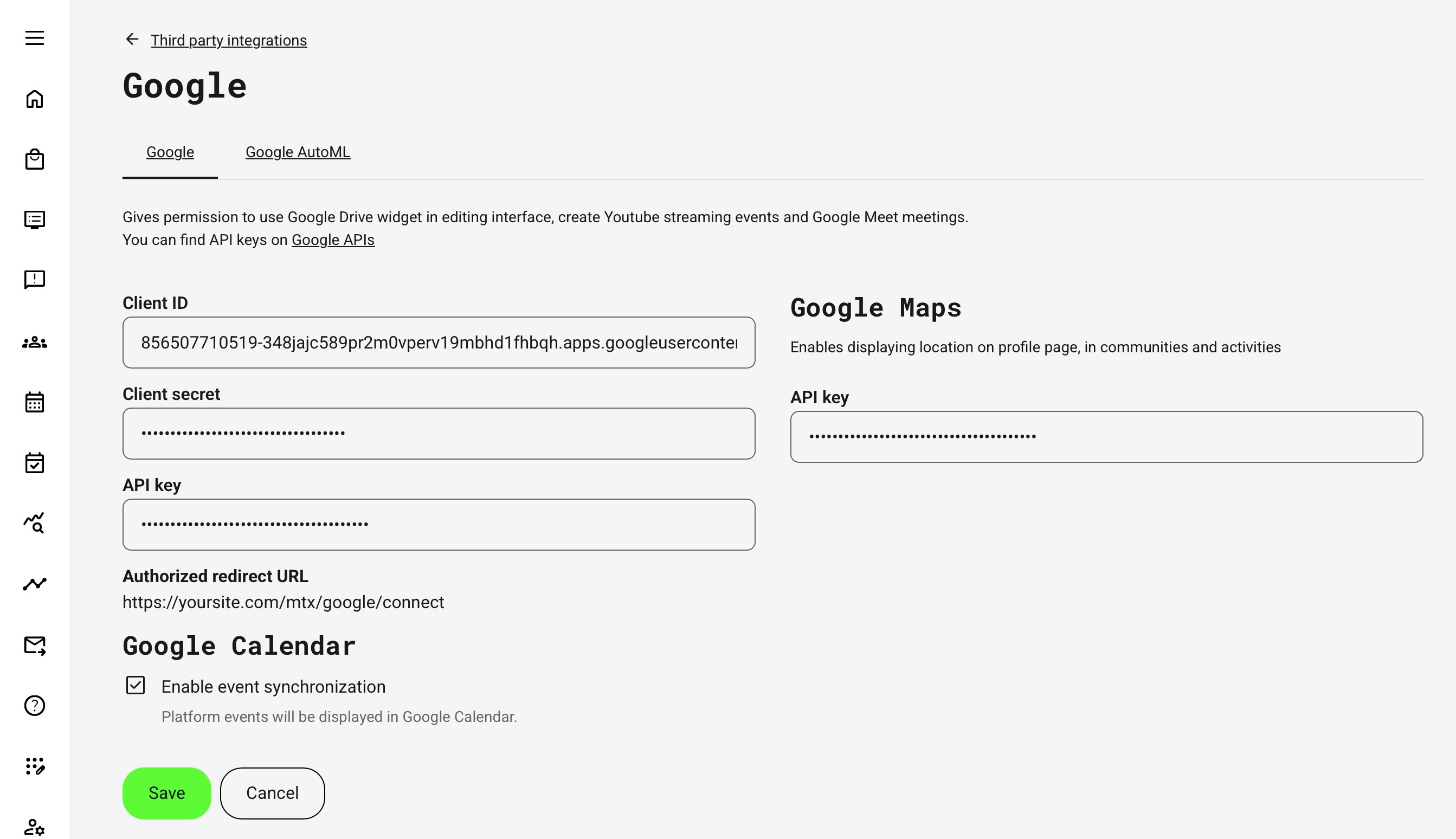
Step 9: Enable Event Synchronization
Ensure that event synchronization is enabled as part of your configuration.
This allows users to synchronize events to Google Calendar after they have connected their Google account and enabled synchronization in their profile.
How the Configuration Maps to Features
Understanding how each configuration element enables functionality:
| Feature | Requirement |
|---|---|
| Google Calendar sync | OAuth + Calendar API + user connection |
| Google Meet link creation | OAuth + Calendar API + Google Workspace setup |
| Google Drive content | OAuth + Drive API + user permissions |
| Google Maps | API key + Maps APIs + billing |
Important Considerations:
- Google Calendar and Google Drive are user-driven features and require users to connect their Google account
- Google Maps is API-based and works without user connection
- Eurekos does not override Google permissions—access to files and services is controlled entirely by Google
- Incorrect domain, redirect URI, or missing API enablement are the most common causes of configuration issues
Result and Validation
After completing the Google integration setup, it is recommended to validate each enabled capability to ensure correct behavior across Google Calendar, Google Maps, and Google Drive.
Validation should be carried out using realistic test scenarios that reflect how the integration will be used in practice.
1. Validate Google Calendar Synchronization
Test scenario: Event scheduling and calendar synchronization
- Create a new activity or calendar event with a defined schedule
- Ensure the test user has connected their Google account
- Ensure the user has actively enabled “Sync events with Google Calendar” in their profile
Verify:
- The event appears in the user’s Google Calendar
- The event includes the correct details (time, title, date and time, etc.)
Test updates:
- Modify the event in Eurekos
- Confirm the changes are reflected in Google Calendar
Test user control:
- Disable synchronization in the user profile
- Confirm that no new events are added after opt-out
- Note that previously synchronized events remain in Google Calendar
2. Validate Google Meet and Event Creation
Test scenario: Virtual session scheduling
- Create a new scheduled event in Eurekos
- Enable Google-based meeting functionality as part of the event setup
Verify:
- A valid Google meeting link is generated
- The link appears in the relevant event context
- The link is included in synchronized calendar entries where applicable
Test updates:
- Change the event schedule or details in Eurekos
- Confirm the changes are reflected consistently across the event and calendar context
3. Validate Google Maps Integration
Test scenario: Location setup and display
- Create or edit a location in Eurekos
- Enter address data and, where relevant, a Google Maps URL
Verify:
- Address lookup and validation work correctly
- The map is rendered where expected
- Location links are clickable in relevant contexts
- The location appears correctly in:
- Activity pages
- Enrollment flows
- Emails
- Calendar entries (where applicable)
Test location guidance:
- Confirm that clicking the map link opens the correct external location reference
4. Validate Google Drive Integration
Test scenario: Content authoring
- Connect a Google account
- Open the course editing interface
- Insert a Google Drive file or folder into a course page
Verify:
- Files or folders can be selected successfully
- Content appears correctly on the course page
- Clicking the linked content opens the correct Google Drive location
Test dynamic update behavior:
- Update the linked file or folder contents in Google Drive
- Confirm that the changes are reflected automatically in Eurekos without re-uploading content
5. Validate User-Level Behavior
Test different user scenarios to confirm expected behavior:
| Scenario | Expected Behavior |
|---|---|
| User with connected Google account and sync enabled | Full Calendar and Drive functionality |
| User with connected Google account but sync disabled | No calendar synchronization |
| User without connected Google account | Receives system emails and can access/export events, but no direct Google Calendar synchronization |
| User accessing Maps-based content | Map and location behavior works without account connection where applicable |
6. Validate Permissions and Governance
Confirm that the external Google configuration supports the intended use case:
- OAuth credentials are valid
- Authorized domains and redirect URIs match the Eurekos environment
- Required APIs are enabled
- Billing is enabled if Google Maps is part of the setup
- Google Drive sharing permissions align with the intended user audience
This is particularly important for organizations using Google Drive or Google Maps in production environments, where external permission settings directly affect what users can see and access.
Recommended Approach
For a reliable implementation:
- Start with a test project and test users
- Enable and validate each service individually (Calendar, Maps, Drive)
- Confirm OAuth flow, permissions, and user connection behavior
- Validate real-world scenarios (event updates, file access, map rendering) before full rollout
FAQ
-
Do users need to connect their Google account for the integration to work?
Yes, for full functionality.
- Google Calendar synchronization and Google Drive access require users to connect their Google account
- However, all users will still receive standard system emails and access to event export options, even without connection
-
What happens if users do not connect their Google account?
Users without a connected account will:
- Receive standard system emails for events
- Be able to view and export calendar events from Eurekos
They will not receive automatic synchronization to Google Calendar
-
Why are some users seeing events in Google Calendar while others are not?
This depends on two conditions:
- The user must have connected their Google account
- The user must have enabled “Sync events with Google Calendar” in their profile
If either step is missing, synchronization will not occur
-
Does connecting a Google account automatically enable calendar synchronization?
No.
Even after connecting their account, users must explicitly enable synchronization in their profile.
This ensures full user control and consent over data sharing
-
Are Google Calendar updates synchronized automatically?
Yes, once synchronization is enabled:
- New events are added automatically
- Changes to events are updated
- Recent past events (scheduled to end within 24 hours) are included
Synchronization is handled in the background
-
Does Eurekos sync changes from Google Calendar back into the platform?
No.
The integration is one-way (Eurekos → Google Calendar):
- Changes in Google Calendar are not sent back to Eurekos
- Eurekos remains the source of truth for scheduling
-
Why are Google Meet links not generated for my events?
Possible reasons:
- Google Calendar API is not enabled
- Google Workspace is not properly configured
- Required permissions or scopes are missing
Meeting link generation depends on correct API configuration and Google Workspace setup
-
Why is Google Maps not working or showing correctly?
Common causes:
- Missing or invalid API key
- Billing not enabled in Google Cloud
- API restrictions not configured correctly
Google Maps requires both API enablement and billing setup
-
Why can’t users access Google Drive files in courses?
Access is controlled by Google, not Eurekos:
- Users must have permission to the file in Google Drive
- Users may need to connect their Google account
- File sharing settings must allow access
-
Do I need to enable all Google services to use the integration?
No.
The integration is modular — you can enable only what you need:
- Google Calendar → Scheduling
- Google Maps → Locations
- Google Drive → Content
This allows alignment with your organization’s governance and use cases