Zoom - Article
Summary
Connect Eurekos with Zoom to automate meetings and webinars, synchronize participants, and support scalable virtual training delivery through centralized activity-based configuration.
In this article you will learn:
- How Zoom integrates with Eurekos for virtual delivery
- How meetings and webinars are created and managed
- How participants are synchronized to Zoom events
- What behaviors and limitations apply to Zoom integration
- How to configure Zoom and Eurekos for full integration
Business Context
The Zoom integration connects Eurekos with Zoom’s conferencing platform, enabling organizations to manage virtual training sessions directly within Eurekos while using Zoom as the delivery layer.
Rather than creating and managing meetings manually in Zoom, administrators and instructors can define scheduled events directly within Eurekos. The platform then handles the creation of Zoom meetings or webinars, participant registration, and ongoing synchronization.
This creates a centralized workflow where:
- Events are created once in Eurekos
- Zoom sessions are generated automatically
- Participants are registered without manual input
- Access is controlled through Eurekos enrollment and permissions
This is particularly valuable for organizations delivering instructor-led or virtual training at scale, where consistency, automation, and governance are critical.
Feature Overview
The Zoom integration enables Eurekos to orchestrate Zoom-based virtual delivery across activities.
| Service | Function |
|---|---|
| Zoom Meetings | Create and manage interactive sessions |
| Zoom Webinars | Support structured broadcast-style sessions (license required) |
| Participant synchronization | Automatically register users to Zoom events |
| Join experience | Provide direct access via Eurekos |
These capabilities are configured centrally but depend on Zoom account setup, licensing, and permissions.
How the Integration Works
The Zoom integration is built around a coordinated model where Eurekos controls scheduling and participant management, while Zoom handles session delivery.
1. Platform Configuration (Administrator) → Administrators configure the integration by:
- Setting up a Zoom application (Server-to-server OAuth)
- Providing API credentials in Eurekos
- Defining optional behaviors such as access validation
This layer defines what Eurekos is allowed to do in Zoom, such as creating meetings, managing registrants, and updating sessions.
2. System Execution (Eurekos ↔ Zoom API) → Once configured, Eurekos communicates with Zoom through API calls.
When an event is created or updated in Eurekos:
- A corresponding Zoom meeting or webinar is created
- A unique join link is generated
- The responsible course administrator becomes the host
When users are enrolled:
- They are automatically registered as participants in Zoom
- Their access is managed through Eurekos
This ensures that Zoom reflects the structure defined in Eurekos, without requiring manual coordination.
3. User Interaction → From a user perspective, the experience is simplified:
- Users access sessions via the Join button in Eurekos
- They may receive Zoom emails depending on configuration
- They are registered automatically without needing to sign up manually
It is important to note that:
- Users typically need a Zoom account to join sessions properly
- Real email addresses must be used to ensure correct registration behavior
Zoom Meetings and Webinars
The integration supports both Zoom Meetings and Zoom Webinars, depending on the organization’s Zoom licensing and use case.
Zoom Meetings
Zoom Meetings are used for standard interactive sessions.
They are best suited for:
- Virtual instructor-led training
- Workshops and collaborative sessions
- Smaller or interactive groups
When a meeting is created:
- The responsible course administrator becomes the host
- Participants are registered automatically
- The meeting is visible in the host’s Zoom account
Zoom Webinars
Zoom Webinars are designed for more structured delivery.
They require a Zoom Business or Enterprise plan with webinar functionality enabled
They are typically used for:
- Large-scale sessions
- Broadcast-style delivery
- Controlled participant interaction
Additional behavior:
- Instructors may be added as panelists
- Participants join without full meeting privileges
- Webinar licenses may limit how many hosts can be assigned
Important Distinction
While both meetings and webinars are created automatically from Eurekos, their behavior in Zoom depends on:
- Zoom licensing
- Assigned host account
- Webinar capacity and configuration
Participant Synchronization
Participant synchronization is a core capability of the Zoom integration and is tightly linked to Eurekos enrollment and access control.
When a user is enrolled in an activity with a Zoom event:
- Eurekos registers the user to the Zoom meeting or webinar
- No manual registration in Zoom is required
How Synchronization Works
Synchronization is not a single action but a continuous process that ensures alignment between Eurekos and Zoom.
It occurs:
- When a user interacts with the Join link
- When a user logs into the platform
- Through scheduled background jobs
- Shortly before the event begins (configurable timing)
This ensures that:
- Users added late are still registered
- Access changes are respected
- Zoom participant lists remain aligned with Eurekos
Access Validation (Optional)
Access validation introduces an additional control layer between Eurekos enrollment and Zoom participant registration. When enabled, users are only synchronized to Zoom if they meet the defined access requirements for the activity or event.
This ensures that participation in Zoom sessions is aligned with Eurekos governance rules, such as enrollment status, prerequisites, or other access conditions.
If access validation is enabled:
- Users are only registered to the Zoom meeting or webinar once they meet all required conditions
- Users who do not meet access requirements are not synchronized to Zoom, even if they are aware of the event
In practice, this means:
- Users may see a “See requirements” message instead of a Join button in Eurekos
- The Join option only becomes available once all requirements have been fulfilled
- Synchronization to Zoom is triggered after access is granted, either through user interaction, login, or scheduled background processes
This behavior is particularly important in controlled training environments where:
- Access must be restricted to approved participants
- Prerequisites or enrollment conditions must be enforced
- External users should not gain early or unintended access to sessions
Administrators can also configure pre-event validation timing, ensuring that users who meet requirements closer to the event start are still registered in Zoom before the session begins.
Management considerations:
- Users added directly in Zoom are not added to Eurekos
- Users removed in Zoom are not removed from Eurekos
- Eurekos remains the source of truth for participation
Important Behavior
The Zoom integration operates across two systems with different responsibilities—Eurekos as the orchestration layer and Zoom as the delivery layer. Because of this separation, certain behaviors and limitations must be clearly understood to ensure correct expectations, avoid misinterpretation, and support reliable operations.
The table below outlines the most important operational behaviors and their practical impact.
| Behavior | Description | Practical Impact |
|---|---|---|
| One-way synchronization | Data flows from Eurekos to Zoom only. Changes made directly in Zoom (e.g. cancellations or manual participant changes) are not sent back to Eurekos. | Eurekos remains the source of truth. All scheduling and participant management must be handled within Eurekos to ensure consistency. |
| Email behavior | Zoom may send its own emails (e.g. registration confirmations, updates) independently of Eurekos. This can be configured or disabled in Zoom settings. | Users may receive both Eurekos emails and Zoom emails. Administrators should align email strategy to avoid confusion or duplicate communication. |
| Join link behavior | Zoom join links are generated after event creation and may take a few minutes to become available. Links are accessible to both hosts and participants and remain available even after course completion. | Administrators should not expect immediate link availability. Users should primarily access sessions via the Join button in Eurekos rather than relying on Zoom emails alone. |
| Rate limits | Zoom enforces API request limits. Creating or updating many events or participants within a short timeframe may trigger rate limiting and result in errors. | Bulk scheduling or large updates should be planned carefully. If limits are exceeded, synchronization delays or failures may occur. |
| Email and identity requirements | Zoom relies on valid email addresses for participant registration and communication. Test, duplicate, or invalid email addresses may not behave correctly. | Always use real, unique email addresses for users. Incorrect email data can lead to failed registrations or missing access to sessions. |
| Zoom-side visibility | Hosts typically see scheduled sessions in their Zoom account. Participants, however, may not see events listed as “upcoming” in Zoom. | Users should rely on Eurekos as the primary interface for accessing sessions. Lack of visibility in Zoom does not mean the user is not registered. |
💡 Key takeaway
Eurekos controls who, when, and how sessions are scheduled and accessed, while Zoom handles how sessions are delivered. Understanding this separation is essential for correct configuration, communication, and user expectations.
Configuration
Zoom integration requires configuration in both Zoom and Eurekos.
Key components:
- Server-to-server OAuth application
- API scopes and permissions
- Optional SSO configuration
- Webhook endpoints
Step 1: Zoom Account Requirements
Before configuring the Zoom integration, ensure that your Zoom environment meets the following requirements:
- Zoom Business or Enterprise plan → Required to support advanced functionality such as webinars and API-based integrations
- Administrator access to the Zoom account → Needed to create and configure applications, assign permissions, and manage account-level settings
- Access to Zoom Marketplace (Developer access) → Required to create and manage the Server-to-Server OAuth application used for integration
These prerequisites ensure that the necessary permissions, licensing, and configuration capabilities are available before proceeding with the integration setup.
Step 2: Create Server-to-Server OAuth Application
To enable the Zoom integration, you must create a Server-to-Server OAuth application in the Zoom Marketplace. This application allows Eurekos to securely communicate with Zoom and manage meetings, webinars, participants, and related synchronization on behalf of your organization.
Navigate to: Zoom Marketplace → Develop → Build App → Server-to-Server OAuth
When creating the application:
- Select Server-to-Server OAuth as the application type
- Provide a meaningful name for the application to reflect its use with Eurekos
- Ensure the application is configured at the account level, allowing it to operate across users within your Zoom environment
⚠️ Zoom previously supported JWT-based applications, but this method is now deprecated and should not be used for new integrations. Always use Server-to-Server OAuth.
Once the application is created, proceed to configure the required scopes to enable full integration functionality.
Required Scopes
The Zoom integration depends on a broad set of API scopes. These scopes define exactly what Eurekos is allowed to read, create, update, and delete within Zoom.
Because the integration supports:
- Meetings
- Webinars
- Participant synchronization
- Host and assistant handling
- Event status updates
- Reporting and attendance-related data
the scope configuration must be complete. Missing scopes may result in partially working behavior, such as meetings being created but participants not being synchronized, or webinars being visible but not fully manageable.
Full Scope List Required for Integration
| Scope | Functional Area | Purpose |
|---|---|---|
| billing:read:plan_usage:admin | Billing / plan validation | Read Zoom plan usage and licensing context |
| meeting:read:past_meeting:admin | Meetings | Read past meeting information |
| meeting:read:meeting:admin | Meetings | Read meeting details |
| meeting:read:list_meetings:admin | Meetings | List meetings |
| meeting:read:registrant:admin | Meetings | Read meeting registrant details |
| meeting:read:list_registrants:admin | Meetings | List meeting registrants |
| meeting:read:participant:admin | Meetings | Read meeting participant data |
| meeting:write:registrant:admin | Meetings | Add meeting registrants |
| meeting:update:status:admin | Meetings | Update meeting status |
| meeting:update:registrant_status:admin | Meetings | Update registrant approval/denial status |
| meeting:update:meeting:admin | Meetings | Update meeting configuration |
| meeting:delete:meeting:admin | Meetings | Delete meetings |
| meeting:write:meeting:admin | Meetings | Create meetings |
| meeting:write:invite_links:admin | Meetings | Generate and manage invite links |
| meeting:delete:registrant:admin | Meetings | Remove meeting registrants |
| meeting:write:batch_registrants:admin | Meetings | Add registrants in batches |
| report:read:list_meeting_participants:admin | Reporting | Read meeting participant reports |
| report:read:list_webinar_participants:admin | Reporting | Read webinar participant reports |
| user:read:settings:admin | Users | Read user settings |
| user:read:user:admin | Users | Read user details |
| user:read:email:admin | Users | Read user email information |
| user:read:list_assistants:admin | Users / assistants | List assistants |
| user:update:settings:admin | Users | Update user settings |
| user:write:user:admin | Users | Create or manage users where required |
| user:delete:assistant:admin | Users / assistants | Remove assistants |
| user:write:assistant:admin | Users / assistants | Add assistants |
| user:update:user:admin | Users | Update user details |
| webinar:read:list_webinars:admin | Webinars | List webinars |
| webinar:read:list_panelists:admin | Webinars | Read webinar panelists |
| webinar:read:webinar:admin | Webinars | Read webinar details |
| webinar:read:list_past_participants:admin | Webinars | Read past webinar participants |
| webinar:read:participant:admin | Webinars | Read webinar participant data |
| webinar:read:registrant:admin | Webinars | Read webinar registrant details |
| webinar:read:list_registrants:admin | Webinars | List webinar registrants |
| webinar:write:batch_registrants:admin | Webinars | Add webinar registrants in batches |
| webinar:delete:registrant:admin | Webinars | Remove webinar registrants |
| webinar:update:status:admin | Webinars | Update webinar status |
| webinar:update:webinar:admin | Webinars | Update webinar configuration |
| webinar:write:invite_links:admin | Webinars | Generate and manage webinar invite links |
| webinar:delete:webinar:admin | Webinars | Delete webinars |
| webinar:write:panelist:admin | Webinars | Add panelists |
| webinar:write:webinar:admin | Webinars | Create webinars |
| webinar:delete:panelist:admin | Webinars | Remove panelists |
| webinar:update:registrant_status:admin | Webinars | Update webinar registrant status |
| webinar:write:registrant:admin | Webinars | Add webinar registrants |
What These Scopes Enable in Practice
Taken together, these scopes allow Eurekos to:
- Create, update, and delete Zoom meetings
- Create, update, and delete Zoom webinars
- Register and unregister participants
- Manage approval and registrant status
- Generate invite links
- Handle webinar panelists
- Read participant and attendance-related reporting data
- Read and update user and assistant information where required for host-related behavior
Important Considerations
- Missing scopes may not always break the integration completely, but can cause partial failures that are harder to diagnose
- Meeting-related scopes and webinar-related scopes are both required if your organization intends to support both delivery types
- Reporting scopes are important where attendance-related validation or post-session analysis is expected
- User and assistant scopes support the host and alternative-host related behaviors in Zoom
Step 3: Configure Webhooks
To support synchronization and event updates between Zoom and Eurekos, webhook endpoints must be configured in your Zoom application.
Webhooks allow Zoom to notify Eurekos of relevant changes, such as updates to meetings, webinars, or participant status, ensuring that both systems remain aligned throughout the event lifecycle.
Add the following webhook endpoints:
- https://[platform-domain]/webhook/zoom-meeting
- https://[platform-domain]/webhook/zoom-webinar
Configure event subscriptions
Within your Zoom application:
- Enable webhook functionality
- Subscribe to the relevant meeting and webinar events
- Ensure events are sent to the corresponding endpoints
Webhook validation
Zoom may require validation of webhook endpoints during setup. Ensure that:
- The endpoints are publicly accessible
- The validation process completes successfully
- The webhook secret token (configured in Zoom) matches the value entered in Eurekos
Once configured, webhooks ensure that Eurekos stays up to date with relevant changes occurring in Zoom without requiring manual intervention.
Important considerations
- Ensure that the webhook URLs are entered exactly as specified and are accessible from external services
- Configure the relevant event subscriptions within the Zoom application so that updates are sent to these endpoints
- If webhooks are not configured correctly, certain updates (such as status changes or participant handling) may not be reflected consistently
Proper webhook configuration ensures more reliable synchronization and helps keep Zoom and Eurekos aligned during event lifecycle changes.
Step 4: Configure Eurekos Integration
Once the Zoom application has been created and configured in Zoom Marketplace, the corresponding credentials must be entered in Eurekos to establish the connection.
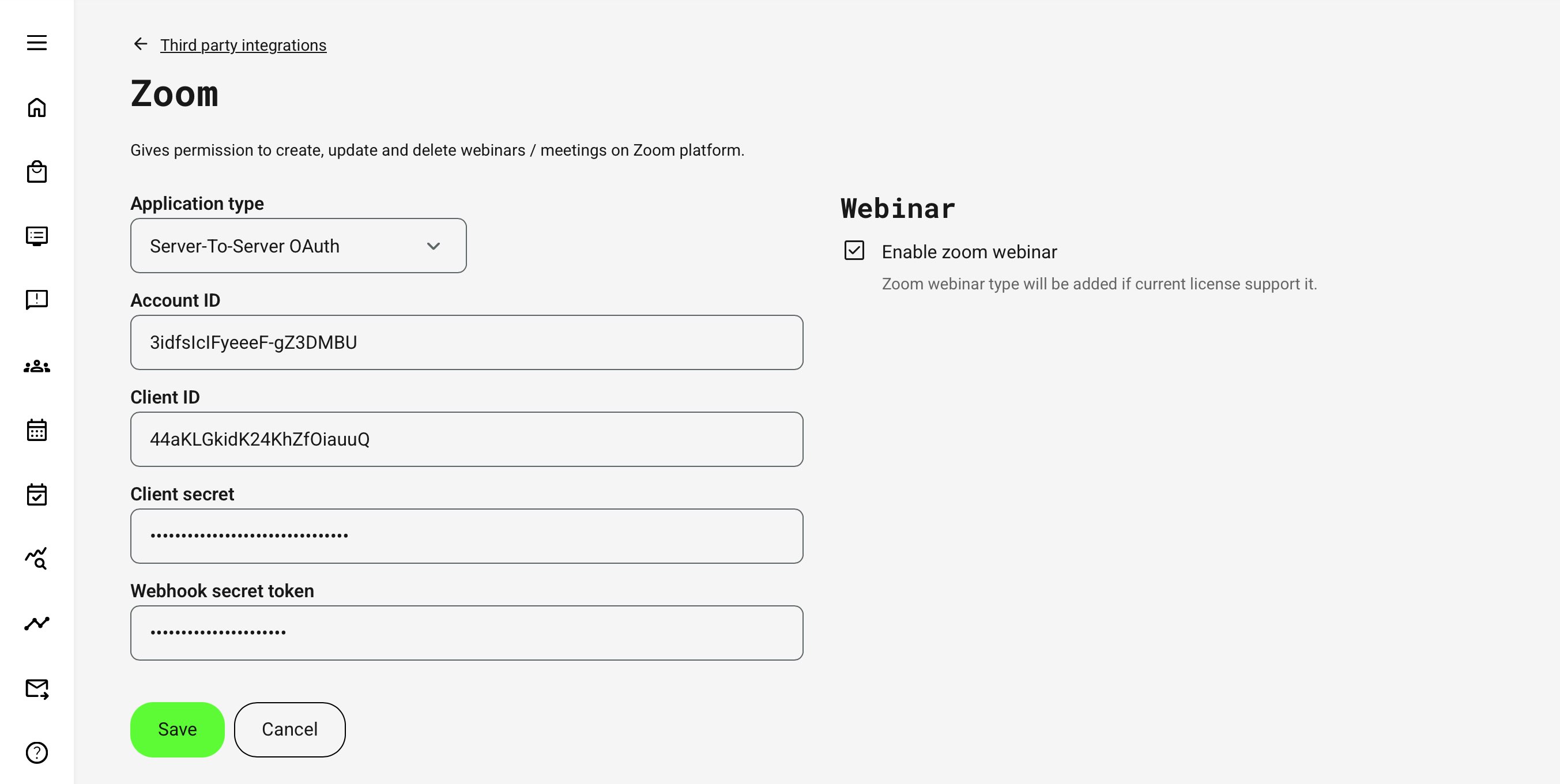
Navigate to: Settings → Third party integrations → Zoom.
- Select application type → In the Application type field, choose: Server-to-Server OAuth
- Enter the required credentials → Provide the following values from your Zoom Server-to-Server OAuth application:
| Field | Description |
|---|---|
| Account ID | Zoom account identifier used for Server-to-Server OAuth authentication |
| Client ID | Zoom application identifier |
| Client Secret | Authentication credential used to authorize API communication |
| Webhook secret token | Secret used to validate incoming webhook events from Zoom |
- Enable available Zoom features → After entering the credentials, enable the relevant options:
- Zoom meetings is default → Activates Zoom functionality in Eurekos
- Enable Zoom webinar (optional) → Makes Zoom webinar available as a video conference type, if the connected Zoom license supports webinar functionality
Click Save to store the integration settings.
Step 5: Configure Activity Usage
Once the integration is configured, Zoom can be selected as the video conference type when creating scheduled events.
To create a Zoom session:
- Create or edit an activity
- Assign a responsible Course Administrator
- Add a scheduled module or event
- Select Zoom as the video conference type
- Save the activity
Step 6: Optional Configuration
In addition to the core setup, Zoom integration in Eurekos provides optional configuration settings that influence how participants are synchronized and how communication is handled.
These settings allow administrators to align the integration with organizational policies for access control, user experience, and communication.
Access Validation
Determine if you need advanced Access validation to ensure that only users who meet defined access requirements are registered to Zoom sessions. Access restrictions can be configured for scheduled virtual events using the feature Adaptive module and Access restrictions on module level. Imagine a learning path with prerequisites to access the Zoom session.
When enabled:
- Users are only synchronized to Zoom after meeting all access conditions
- Users without access are not registered in Zoom, even if they are aware of the event
- The Join option in Eurekos is only available once requirements are fulfilled
This ensures that participation in Zoom sessions is governed by Eurekos access rules, such as enrollment status, prerequisites, or other restrictions.
This is particularly relevant in scenarios where:
- Access must be limited to approved participants
- Prerequisites must be completed before joining
- External audiences require controlled access to sessions
⚠️ Access validation requires configuration by Eurekos and must be enabled upon request. If you want to use this feature, contact Eurekos Service Desk to have it configured for your environment.
Email notifications
Zoom may send its own system emails (such as registration confirmations, reminders, or updates) independently of Eurekos.
Administrators can choose to:
- Enable Zoom emails → Users receive Zoom-native communication in addition to Eurekos emails
- Disable Zoom emails → Communication is handled solely through Eurekos
Relevant considerations
- These settings do not affect how meetings or webinars are created, but they influence how users are synchronized and notified
- Access validation directly impacts when users are added to Zoom and when they can join
- Email configuration should be aligned with your organization’s communication strategy to avoid duplicate or conflicting messages
Result and Validation
After completing the configuration, it is important to validate that the Zoom integration behaves as expected across meeting creation, participant synchronization, and user access.
Validation should be performed using realistic scenarios to ensure the integration is functioning correctly.
1. Validate meeting or webinar creation
Create a new activity with a scheduled Zoom event.
Verify:
- A Zoom meeting or webinar is created automatically
- The assigned Course Administrator is set as the host
- A valid Zoom join link is generated
- The link is visible within Eurekos
💡 The join link may take a few minutes to appear after saving.
2. Validate participant synchronization
Enroll users into the activity.
Verify:
- Participants are registered automatically in Zoom
- No manual registration is required
- Users appear in Zoom as registrants
Test behavior:
- Add users after event creation → confirm they are synchronized
- Remove access → confirm behavior aligns with access validation settings
3. Validate Join experience
Verify that:
- Users can access the session via the Join button in Eurekos
- The link directs users to the correct Zoom session
- Access works as expected for both host and participants
Important:
- Users should access sessions via Eurekos to ensure correct registration
- Participants may not see the session in their Zoom “upcoming meetings” list
4. Validate event updates
Modify the scheduled event in Eurekos.
Verify:
- Changes (time, details) are reflected in Zoom
- Join links remain consistent
⚠️ Changes made directly in Zoom are not reflected back to Eurekos.
5. Validate host configuration
Verify that the responsible Course Administrator:
- Exists in the connected Zoom account
- Has the required license (especially for webinars)
- Is correctly assigned as the host in Zoom
If not:
- Meeting or webinar creation may fail
- Webinar options may not be available
6. Validate access control (if enabled)
If access validation is configured:
- Verify that only eligible users are registered in Zoom
- Confirm that users without access:
- Are not added to Zoom
- See “See requirements” in Eurekos
Test:
- Grant access → confirm user is added
- Remove access → confirm behavior
7. Validate webhook behavior
Trigger updates such as:
- Event changes
- Participant updates
Verify:
- Changes are reflected without manual refresh
- Synchronization behaves consistently
8. Validate email behavior
Verify:
- Eurekos sends expected event emails
- Zoom emails (if enabled) are received correctly
Ensure communication aligns with your organization’s email strategy.
9. Validate system limitations
Test edge cases:
- Create multiple events rapidly → check for rate limit issues
- Use test or invalid emails → confirm registration behavior
Recommended validation approach
- Start with a small test group
- Validate meetings and webinars separately
- Confirm host, participant, and access scenarios
- Test updates and synchronization behavior before full rollout
FAQ
-
Do users need a Zoom account to join sessions?
In most cases, yes. Users must have a valid email address and may need a Zoom account depending on your Zoom configuration. Eurekos handles registration, but Zoom controls session access and identity.
-
Are Zoom meetings created automatically in Eurekos?
Yes. When Zoom is selected as the video conference type in a scheduled event, Eurekos automatically creates the corresponding Zoom meeting or webinar, including host assignment and join link generation.
-
Why can’t I see the Zoom meeting immediately after creating the event?
Zoom meetings are created asynchronously. It may take a few minutes for the meeting and join link to become available after saving the event.
-
Why are participants not appearing in Zoom?
Participants are synchronized based on Eurekos enrollment and system processes. If users are not appearing:
- They may not meet access requirements (if access validation is enabled)
- Synchronization may not have run yet
- Email or user data may be invalid
-
Can I manage meetings directly in Zoom?
No. Eurekos is the source of truth. Changes made directly in Zoom (e.g. editing or deleting meetings) are not synchronized back and may cause inconsistencies.
-
Why don’t participants see the session in their Zoom “upcoming meetings”?
This is expected behavior. Participants are registered via Eurekos but may not see the event in Zoom. They should always access sessions via the Join button in Eurekos.
-
Can I control whether Zoom sends emails to participants?
Yes. Zoom can send its own emails (e.g. confirmations and reminders), but this can be configured in Zoom settings. Eurekos also sends its own notifications, so communication should be aligned to avoid duplication.
-
What happens if the responsible Course Administrator is not a Zoom user?
The meeting or webinar may fail to be created. The responsible user must:
- Exist in the connected Zoom account
- Have the appropriate license (especially for webinars)
-
Does the integration support webinars as well as meetings?
Yes. However, webinar functionality depends on your Zoom license. If your Zoom account does not support webinars, the option will not be available in Eurekos.
-
Why are some users unable to join a session?
This is often related to access validation or user configuration:
- The user may not meet access requirements
- Their account may not be properly synchronized
- Their email may not match or be valid in Zoom
If access validation is enabled, users must fulfill all requirements before they are registered and able to join.
-
Why do I get errors when creating many events at once?
Zoom enforces API rate limits.
If many meetings or updates are created in a short time:
- Requests may fail or be delayed
- Some meetings may not be created immediately
To avoid this:
- Spread bulk operations over time
- Validate after creation
- Retry failed operations if needed
-
Why are some users not being registered in Zoom?
Common causes include:
- Access validation preventing synchronization
- Invalid or duplicate email addresses
- Synchronization delay (background processing)
Also ensure that users are properly enrolled in the activity in Eurekos.
-
Why are updates in Eurekos not reflected in Zoom?
Updates may not appear due to:
- Missing or incorrect webhook configuration
- Synchronization delays
- Changes made directly in Zoom instead of Eurekos
Ensure webhooks are configured correctly and always manage events from Eurekos.
-
Why is the Join button missing for users?
This is usually related to access validation or event configuration.
Check:
- Whether access validation is enabled
- Whether the user meets all access requirements
- Whether the event is properly scheduled
Users who do not meet requirements will see “See requirements” instead of a Join button.