Manage Organization Content and Learning Visibility - Article
Summary
Use organization relationships to keep learning content and administration aligned with the right business populations. Distinguish the organization associated with a content item from the audience allowed to discover its training offer and the participants actually enrolled.
This article helps you:
- Understand the different organization-related controls.
- Review and maintain content relationships through the Content tab where available.
- Connect organizational membership to relevant learning without confusing visibility with enrollment.
- Investigate missing or unexpectedly accessible content.
One learning item can have several relationships
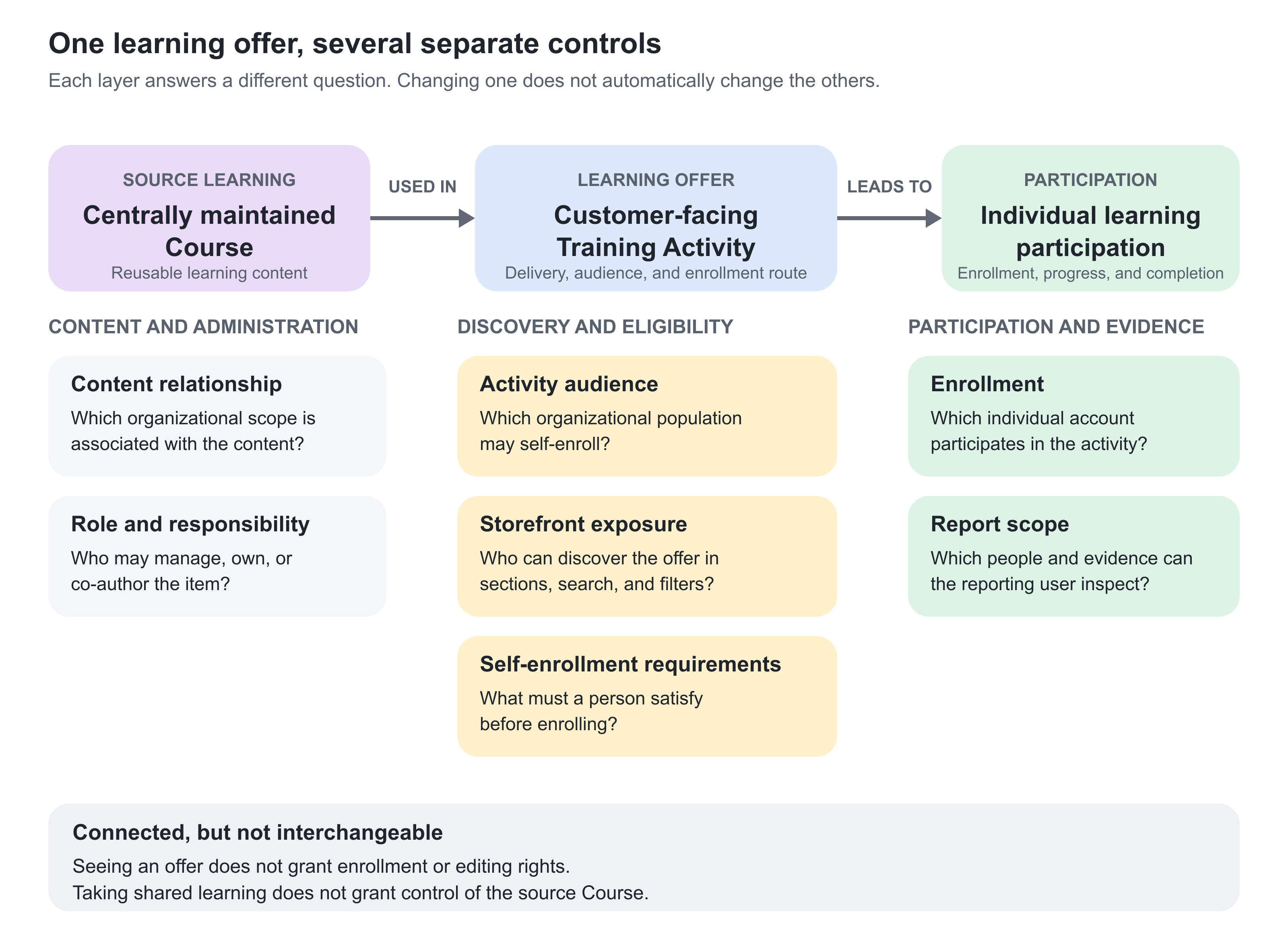
A central academy may create a Course, use it in a customer-facing Training Activity, make that offer visible to selected organizations, and enroll individual participants. These are related decisions, but they are not the same decision.
| Relationship | The question it answers | What it does not automatically grant |
|---|---|---|
| Content's organization relationship | Which organization is this item associated with for the relevant organizational scope? | Every member the right to edit it. |
| Role and explicit responsibility | Who may administer, own, co-author, or otherwise manage the item? | Unrestricted access to all other content from the same provider. |
| Activity organization audience | Which organization population should see or self-enroll in this training offer under its configured rules? | Ownership of the source Course or authority to edit the activity. |
| Enrollment | Which individual accounts participate in the activity? | Membership of every organization associated with the activity. |
| Report scope | Which people and learning evidence can the reporting user inspect? | The same view in every report and administration list. |
| Storefront section targeting | Which audience can see a Storefront section and discover the activities exposed through it? | Permission to enroll merely because an offer is visible. Discovery and direct-link enrollment can have different controls. |
| Self-enrollment requirements | What must this person satisfy before enrolling in a visible offer? | Enrollment or completion of the requirements simply from seeing the activity. |
This distinction matters when sharing a standard program across customers. You may want customer members to take the training without letting customer administrators change the centrally maintained learning.
Content relationships and the Organization filter
Organization filtering supports a light model and an advanced configuration. The light model already supports relevant organizational audiences and permitted management responsibilities. The advanced configuration extends restrictions across content, activities, archives, assets, and other administrative areas, with additional controls for managing their organizational relationships.
Only Eurekos support enables the advanced configuration. Its controls are not initially visible to a Platform Administrator; a designated administrator is elevated to Global Administrator as part of setup. Content created within an organizational context can carry that context into its subsequent visibility and administration, so agree who creates shared resources and which branches should manage them. Do not assume that the author shown on an item is its only access control. Check the stored organization relationship and any explicit responsibilities. Course ownership, co-authoring, or activity responsibility can affect what a user can do.
Likewise, content without an organization relationship is not automatically public or universally shared. The platform's treatment of unassigned content and other feature rules still apply.
See Design Your Organization Hierarchy and Access Model for the broader access model.
Review the Content tab
With advanced organizational filtering configured and the appropriate Global Administrator access, Organizations → Content provides a central view of supported content relationships. This is an advanced administrative capability, not a requirement for ordinary organization-based Storefront audiences or member management.
The available types depend on configuration. The Content tab is not a complete inventory of every platform record. An item missing from this list may belong to a type that is excluded or managed elsewhere.
Do not use the Content tab as a replacement for the relevant feature's own configuration page.
Change a content relationship deliberately
- Identify the exact item, including its type and existing organization relationship.
- Confirm who should administer it and which audience should use it.
- Open Organizations → Content with the appropriate permission and select the relevant content type.
- Use the available relationship action to select the intended organization or suborganization, then save.
- Check the item in its own feature area and verify representative administrative and learner access.
Removing an organization relationship removes that association; it is not the same as deleting the content. It can nevertheless change who can find or administer the item. Do not remove a relationship merely because doing so appears to solve one user's access problem.
For shared content, agree the intended arrangement with the central content owner. A centrally maintained Course reused in several deliveries should not be reassigned to one customer without considering the others.
Review an activity’s creation-time restriction
With organizational filtering enabled, an activity can receive an organization restriction from its creator’s context. Where that restriction exists and the action is available, the activity’s More (…) menu provides Remove organization restrictions.
Use this only when the activity is intentionally meant to serve a wider audience, such as a public offer created by a local administrator. Review the intended audience and confirm the change, then check the activity’s other visibility and enrollment settings. This action concerns the activity’s restriction; it does not turn off organizational filtering for the platform, grant access to every connected resource, or replace a deliberate sharing design.
Configure the activity audience separately
The Organization or suborganization feature on a Training Activity controls its organizational audience in the Storefront and self-enrollment context. It is not the same as the content relationship shown in the Content tab.
At a high level, the standard audience behavior is:
| Audience selected on the activity | Standard visibility pattern | Important qualification |
|---|---|---|
| A parent organization | Members of that organization and its subordinate branches are included. | The option to restrict Storefront access for suborganization members can narrow this. |
| A specific suborganization | Members of that branch and its nested branches are included. | Members of the parent or sibling branches are not included merely because they share the wider organization. Additional restriction settings can narrow the audience. |
| An unrelated organization | Its members are outside the selected audience. | Role exceptions, Organization filter, and the actual entry route must be considered when testing. |
The organization audience feature applies to self-enrollment. Authorized manual or API enrollment and supported activity QR enrollment can follow different rules. Do not treat a Storefront audience rule as a universal prohibition on all enrollment routes.
For full configuration, direct-link behavior, and restrictions, see Organization Visibility and Audience Targeting.
An organization QR invitation joins an organization; an activity QR enrollment link concerns participation in training. They are different tools despite both using a QR code.
Separate discovery from permission to enroll
Storefront section targeting controls who sees a row, carousel, banner, or other section. Organization targeting can include nested branches dynamically—including branches created later—or exclude a selected population. This is useful when a partner network grows: you can maintain one audience rule instead of adding every new branch individually.
Section exposure also affects activity discovery through Storefront search and filters, Global search, and the Catalog API. An activity that is not exposed through a section visible to the user can therefore be missing from search even when its activity-level audience appears correct. Existing enrolled users and platforms using the supported alternative search configuration can have different results.
Self-enrollment requirements answer a different question. An activity can remain visible while enrollment requires a particular Organization, Job function, or other configured evidence. The participant sees See requirements until the conditions are met. Use this when learners should understand the opportunity and what qualifies them, rather than hiding the offer entirely.
Direct enrollment links are not automatically blocked merely because the activity is absent from the user’s visible Storefront sections. Eurekos support can enable a separate setting that extends that visibility restriction to direct enrollment. Other activity eligibility rules still apply. Test discovery, the distributed link, and access for an already-enrolled participant separately.
For the section-level configuration, see Target Audience Controls.
Assign training automatically where configured
An optional Activities field in organization or suborganization settings can connect selected Training Activities to membership. The configured background process adds members when relevant membership or organization changes occur.
This supports straightforward assignments such as a standard partner orientation. It does not mean every visible activity should be added to this field. A broad catalog is an offer; an automatic assignment is an action taken for the person.
Before connecting an activity, review the population, completion expectations, deadlines, communications, and any operational consequences of enrollment. Allow for background processing rather than promising immediate enrollment. Do not assume that removing the activity from the setting reverses existing enrollments or learning history.
For rule-based onboarding scenarios, use Onboarding Rules. Keep one clear explanation of which process is responsible for each automatic assignment.
Govern organization-specific keywords where available
Some platforms support a Managed keyword list for an organization or suborganization. When enabled, members select from the predefined list in the relevant Course and activity keyword fields instead of creating their own keywords.
This can help a provider maintain a consistent vocabulary across delegated content creation. For example, regional teams can use approved product families and service categories rather than several spellings for the same concept.
The keyword list is configured independently for each organization or suborganization; it is not inherited automatically from the parent. If a user belongs to several organizations with managed lists, the applicable lists can be combined, and an enabled managed list restricts creation of custom keywords. The setting governs authoring choices, not whether an activity's existing keywords are displayed in the Storefront.
Practical content patterns
| Requirement | Recommended design | Outcome |
|---|---|---|
| One standard Course supports several customers | Retain deliberate central content responsibility and configure the customer-facing activities and audiences separately. | Shared learning remains maintainable without granting unnecessary editing rights. |
| A customer creates local supplementary learning | Use the appropriate organization relationship, local role, and activity audience. | Local material is managed in the intended customer context. |
| Every new partner needs orientation | Use the approved organization-activity assignment or onboarding design. | Membership leads to the intended training, rather than only making a catalog item visible. |
| Regional authors need consistent classifications | Enable and maintain managed keywords where the feature is available. | Local content creation uses a common vocabulary. |
Verify the setup
| Scenario or check | Expected result or evidence |
|---|---|
| Administrative responsibility Open the item as the intended content administrator. | The correct role can maintain it. |
| Intended audience Test participants from the selected parent, branch, and an unrelated organization. | Discovery and self-enrollment match the configured audience. |
| Enrolled learning Open the training as a representative enrolled participant. | Participation provides the intended learning access. |
| Reporting Inspect the relevant report using the local and central roles. | Required evidence is available within the report's actual scope. |
Troubleshooting
| What you observe | What to check |
|---|---|
| The Content tab is missing | Check whether advanced organizational filtering has been enabled through Eurekos support and whether you are using the designated Global Administrator role. Ordinary organization membership does not expose these controls. |
| An item is absent from the Content tab | Check the selected type, configured exclusions, and whether the item is managed through another feature. |
| A customer sees training but cannot edit it | Compare audience access with role permissions and the content relationship. This can be the intended design. |
| A parent member cannot see a branch-specific offer | Check whether the audience is the specific suborganization rather than its parent. Storefront audience rules are not a simple upward-inheritance model. |
| Removing an organization relationship did not make the item available | Check the treatment of unassigned content and all other applicable access rules. |
| Automatic enrollment is absent | Check whether Activities or onboarding is configured, the selected population and activity, and background processing. |
| An author cannot create a new keyword | Check managed keyword lists across all of the author's organization memberships. |
| An activity is visible but shows See requirements | Review its self-enrollment requirements, including Organization or Job function where configured. Visibility of the offer does not mean the current account meets its enrollment conditions. |
| An activity is missing from search despite an apparently correct activity audience | Check whether the activity is exposed through a Storefront section visible to that user. Review section targeting, the user’s complete memberships, existing enrollment, and any supported alternative search configuration. Test the direct link separately. |
FAQ
-
Does making training visible to a customer give that customer’s administrators editing rights?
No. Audience visibility and administrative authority are separate. Editing depends on role, content relationships, explicit responsibilities, and the configured organizational model. A customer can be allowed to take centrally maintained training without being allowed to change its source content.
-
Why is Organizations → Content unavailable to me?
This is an advanced administrative capability. Check whether advanced organizational filtering has been enabled through Eurekos support and whether you are using the designated Global Administrator role. The light model can support organizational audiences and member management without exposing these controls.
-
Why can I not find a content item in Organizations → Content?
Check the selected content type and whether that type is supported or excluded from the list. The Content tab is not an inventory of every platform record. An item may need to be managed through its own feature area.
-
Does removing a content item’s organization relationship make it available to everyone?
No. Visibility of content without an organization relationship depends on platform configuration and other applicable access rules. Removing the relationship is not the same as deleting the content, but it can change who can find or administer it.
-
Are managed keyword lists inherited by suborganizations?
No. Each organization or suborganization has its own setting. A user belonging to several organizations can be affected by their combined managed lists. These controls govern authoring choices, not whether existing activity keywords are displayed in the Storefront.
-
Why can a participant see a Training Activity but not enroll in it?
Discovery and enrollment eligibility are separate. Storefront targeting and activity audience settings can make an offer visible, while self-enrollment requirements still require an Organization, Job function, or other configured evidence. The participant may see See requirements until those conditions are met. Also check registration dates, capacity, and other applicable enrollment controls.