Organization Visibility and Audience Targeting - Article
Summary
Organization visibility determines which parts of an organizational hierarchy can discover a Training Activity through the Storefront. It allows training to be offered across an entire group or limited to a particular company, country, department, or customer audience without presenting it to unrelated users. This keeps the training catalog relevant, but it controls discovery and self-enrollment rather than acting as a universal barrier against every administrative or automated enrollment route.
In this article you will learn:
- When the Organization feature is available
- How parent, child, and nested suborganizations inherit visibility
- How to include or exclude levels of the hierarchy
- How the Organization layer changes administrator and direct-link behavior
- Which users can see organization-targeted activities
- What Organization visibility does—and does not—control
- How the setting affects Existing Training choices
- How to design, test, and troubleshoot organization-specific offers
What organization visibility helps you achieve
Organizations in Eurekos can represent customers, business units, subsidiaries, departments, associations, franchises, or other audience groups. Adding the Organization feature to a Training Activity uses that structure to decide who receives the activity as a Storefront offer.
Typical uses include:
- Showing customer-specific onboarding only to that customer's people.
- Making a corporate program available to every subsidiary beneath a parent organization.
- Offering local training to one country or branch and its departments.
- Keeping a negotiated course, date, or price out of the general catalog.
- Providing an activity to the members of one association chapter.
Organization visibility is especially useful on a shared platform where several audiences use the same Storefront but should not receive identical offerings.
Understand the boundary of the feature
The Organization feature is an activity-level Storefront and self-enrollment control. It is not a universal prohibition on participation.
When an organization is selected, the activity is normally not visible in the Storefront to:
- Users without an organization in their profile
- Users connected only to other organizations
- Anonymous visitors
However, users can still be enrolled outside the organization through supported administrative or integration routes. Manual administrator enrollment, API enrollment, and QR-code enrollment are not blocked by this feature.
Use a different or additional control when the real requirement is:
| Business requirement | Appropriate control |
|---|---|
| Limit who receives the Storefront offer | Organization visibility |
| Require organization membership before self-enrollment | Self-enrollment eligibility – Organization criterion |
| Require a person to approve the enrollment | Participation Approval |
| Lock an enrolled participant out of training | Access Restrictions |
| Give each organization a fixed seat allocation | Limit seats per organization |
| Restrict what an administrator may manage or report on | Organization layer, roles, and permissions |
| Hide an external product from the public Storefront | Storefront audience and external Storefront settings |
Do not treat a hidden Storefront card as a security boundary. Decide whether manual, API, QR, and direct-link paths are intended, then configure and test the complete enrollment design.
Confirm that the feature is available
Configuration path: Course Administration → Activities → edit the activity → Features → Organization or suborganization.
The Organization feature is not available when Storefront is disabled in the platform's General settings. This reflects its purpose: it determines who receives the activity as a Storefront offering.
Before configuring, confirm that:
- Storefront is enabled.
- The organization hierarchy is current.
- Intended users have the correct organization relationships in their profiles.
- The activity's other Storefront settings allow it to appear.
- Your direct-link and enrollment-block policy is understood.
Select the organization
- Open the Training Activity for editing.
- At activity level, add or enable Organization or suborganization.
- Select the highest organization or the specific suborganization that represents the audience.
- If you select a parent organization, decide whether its descendants should inherit visibility.
- If descendants are allowed, use the suborganization selection and Access restriction level where the audience begins or ends deeper in the hierarchy.
- Save the activity.
- Test the Storefront and direct link with representative users at every relevant level.
Choose the lowest stable point in the hierarchy that expresses the business requirement. Selecting a very broad parent and then adding several restrictions can be harder to operate than selecting the intended branch directly.
Parent organization visibility
When the activity is assigned to a parent organization, it is visible in the Storefront to users belonging to that organization and, by default, users belonging to its suborganizations.
For example:
- Watershed Corp
- Watershed Corp Denmark
- Sales
- Operations
- Watershed Corp Sweden
- Watershed Corp Denmark
If Watershed Corp is selected and descendant access is not restricted, members of Watershed Corp, Denmark, Sweden, Sales, and Operations can receive the activity.
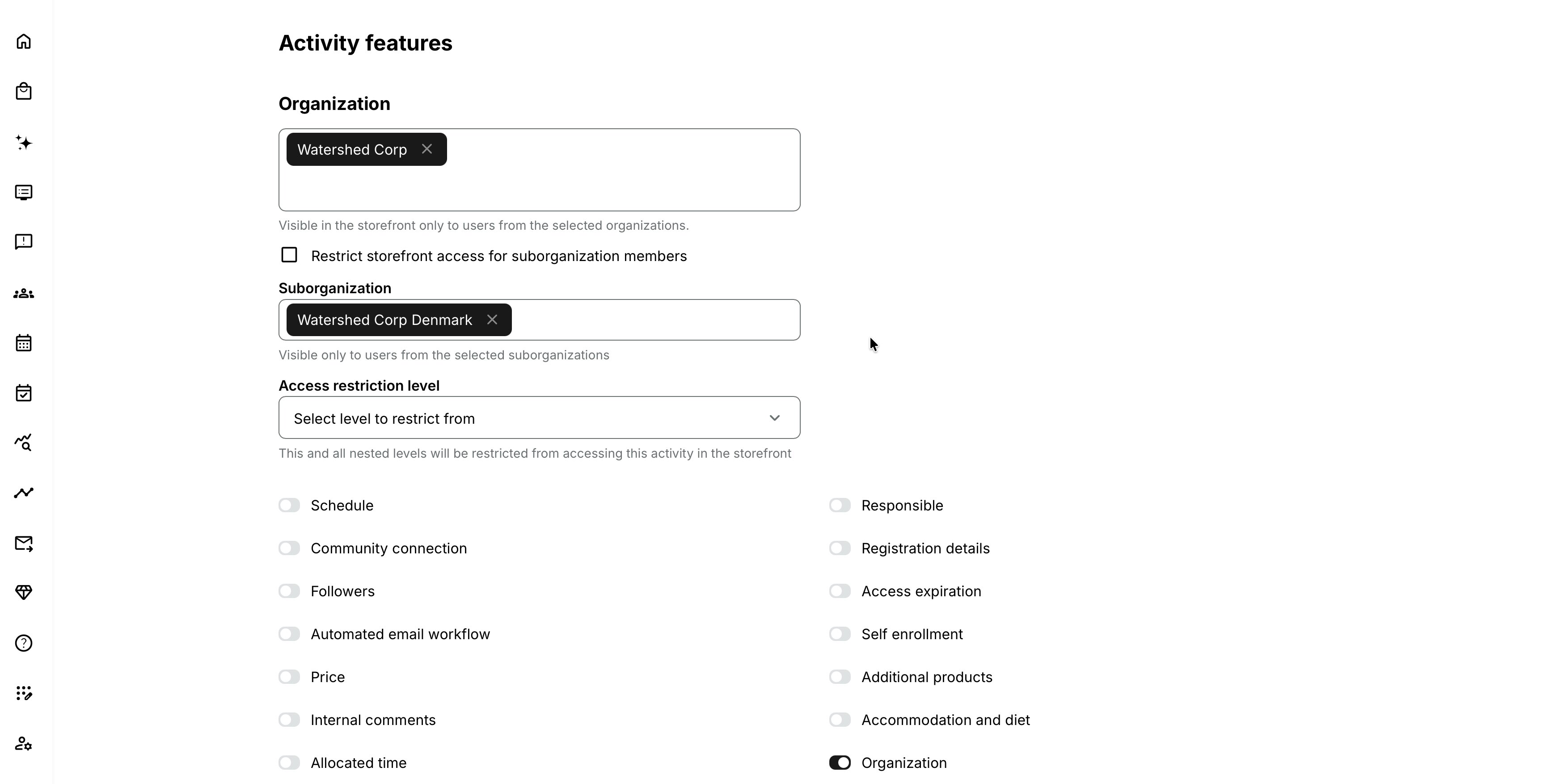
Use this inheritance for a group-wide program. It avoids maintaining the same activity against every child organization separately.
Restrict visibility to the selected parent only
Enable Restrict Storefront access to activity for suborganization members when the activity should be visible to members of the selected organization but not to any organization below it.
In the example above, selecting Watershed Corp with this restriction means:
- Watershed Corp members can see the activity.
- Denmark, Sweden, Sales, and Operations members cannot see it through inherited organization visibility.
Use this for parent-company leadership, central administrators, holding-company staff, or another audience stored at the parent level.
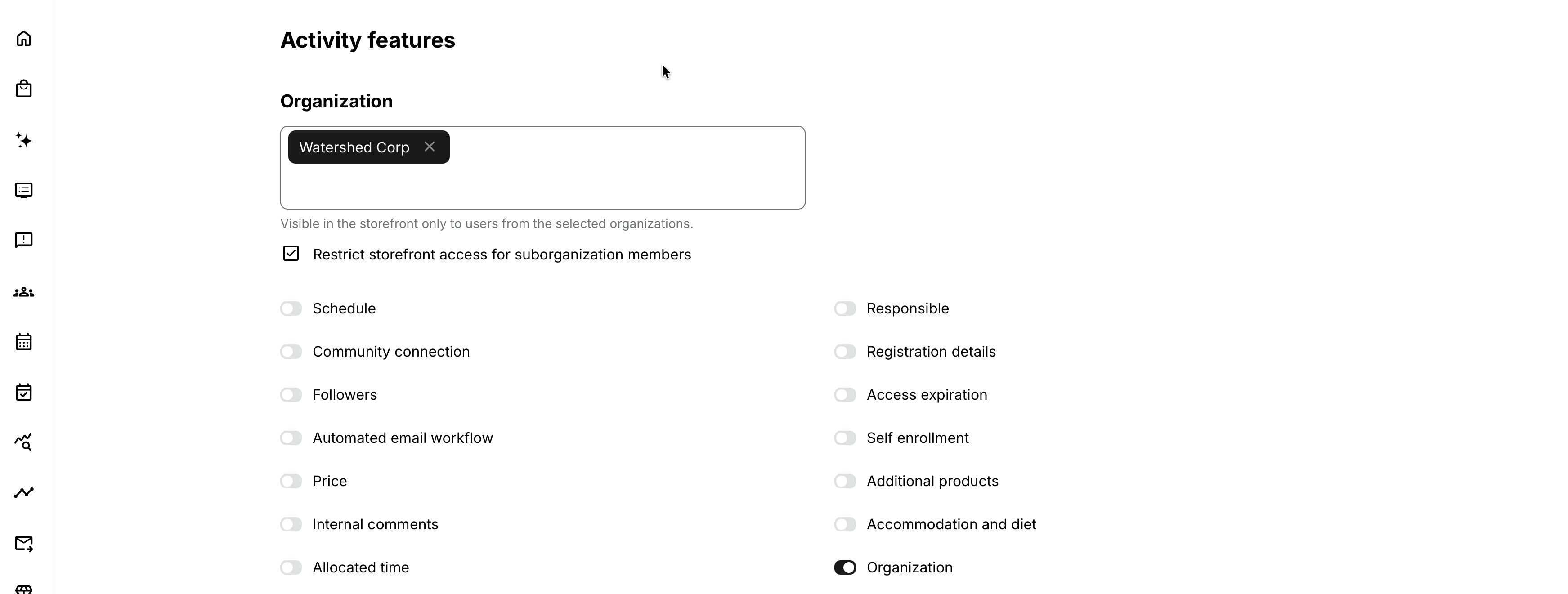
When this checkbox is selected, descendant selection is no longer needed because all suborganization levels are excluded.
Suborganization visibility
When a specific suborganization is selected, the activity is visible to:
- Users in that suborganization
- Users in any nested suborganizations below it, unless a deeper restriction is configured
It is not inherited upward. Users who belong only to the parent organization do not see an activity assigned to a child.
For example, selecting Watershed Corp Denmark makes the activity available to Denmark, Sales, and Operations. A user connected only to Watershed Corp or Watershed Corp Sweden does not receive it.
This downward—but not upward—inheritance is important when testing. A parent administrator's own participant profile does not automatically behave like a member of every child organization.
Select a deeper suborganization branch
If descendant access remains enabled, the Suborganization selector lets you choose a particular branch or nested level. A number shown beside a suborganization indicates how many nested suborganizations are included beneath it.
Selecting a suborganization includes that selected node and the nodes nested under it. It does not include:
- Sibling suborganizations on the same level
- The selected suborganization's parent
- Other branches elsewhere in the hierarchy
This lets one activity target, for example, the Operations branch without also targeting Sales.
Use Access restriction level
The Access restriction level selection refines how deeply visibility should continue below the selected suborganization. Use it when the chosen branch is correct but members beyond a particular nested level should be excluded.
Think of the two selections as a boundary:
- Organization/Suborganization establishes where the eligible branch begins.
- Access restriction level determines which deeper nested levels are no longer included.
Because organization structures differ, always validate the result with actual test users at the selected node, its parent, its siblings, and every affected child level. A hierarchy diagram and a short audience statement are useful acceptance criteria.
Example business statement:
Make the program visible to Watershed Corp Denmark and its direct departments, but not to teams nested below those departments.
Understand the Organization layer
The platform-level Organization layer applies organization-based filtering more broadly. It changes which privileged roles can bypass normal organization visibility.
When the Organization layer is off:
- Users with the permission Allow to see all courses and filter users by organizations can see activities limited by organization.
- This commonly includes Administrator, Global Administrator, Platform Administrator, Affiliate Administrator, Course Administrator, Support, and Assistant roles, depending on the platform's permission setup.
When the Organization layer is on:
- Administrator and Global Administrator can see all activities in the Storefront regardless of organization assignment.
- Other roles follow the normal organization-based visibility rules.
- A user outside the assigned organization cannot see the activity and cannot normally open it as an available offer by direct link.
Roles and permissions may be customized. Test the roles used on your platform instead of relying only on their names.
The activity setting and the Organization layer solve different problems
The activity feature declares the intended organization audience. The Organization layer controls broader content segregation and which administrative roles are subject to that audience filtering.
Storefront search and direct links
Storefront search results follow what the user is allowed to see. An organization-targeted activity that is outside the user's audience should not appear as a normal search result.
Direct-link behavior depends on the broader Storefront and Organization-layer configuration. Where direct-link access is enforced, a user outside the organization receives an Unavailable to your organization message instead of an Enroll button.
An anonymous visitor normally cannot see an organization-targeted activity because Eurekos has no authenticated organization relationship to evaluate. A Custom URL used as an organization alias can provide organization context and may make the targeted offer visible through that route.
Test all intended entry points:
- Normal Storefront browsing
- Storefront search
- The Activity Description URL
- Organization-specific Custom URL
- Links in email or another portal
- Manager and administrator enrollment routes
- API and QR enrollment, when used
Users with several organization relationships
Where a participant is connected to several organizations, a matching eligible relationship can make the activity visible. Verify actual profile relationships and the hierarchy beneath each one.
Do not infer organization from email domain, job title, manager, or an external CRM label unless an integration explicitly maintains the Eurekos profile relation. Organization visibility evaluates the stored organization structure.
Interaction with other activity settings
Organization targeting is one condition in a larger availability decision. A correctly matched user may still not see or enter the activity because of:
- Activity status or publication state
- Storefront section, category, or other audience targeting
- Available from and Schedule dates
- Latest registration
- Language or portal context
- No available seats when waiting list is disabled
- External Storefront hiding
- Self-enrollment requirements
- Participation Approval
- Price and checkout conditions
- Linked/repeated activity option filtering
Conversely, an administrator may be able to see the activity because of elevated permissions even though a normal participant in the same organization cannot.
Existing Training modules
An Existing Training module can present one or several previously created activities as enrollment choices. The choices are filtered by the participant's organization visibility.
If a candidate activity uses the Organization feature, users outside the selected organization or suborganization should not receive it as a selectable option. The filter also needs to be considered alongside available seats, dates, linked-activity rules, and other Storefront conditions.
This matters when a parent program is visible broadly but its delivery options are targeted locally. Test both layers:
- Can the user see and enroll in the parent activity?
- Does the Existing Training selector show only the delivery options that user may choose?
For more detail, see Existing Training (nesting).
Organization visibility and repeat or clone workflows
Treat organization assignment as business-sensitive data when cloning or repeating an activity. Before publishing the new activity, verify:
- The selected organization and suborganization
- Descendant restrictions
- Access restriction level
- Storefront section and Custom URL context
- Prices, seat allocations, and approvers that may be customer-specific
- Administrators, instructors, and email recipients
Do not assume that every related setting is copied or synchronized. Review the new activity as if it were a new offer, especially when it is created for a different customer or business unit.
Realistic use cases
| Scenario and objective | Recommended configuration | Result and considerations |
|---|---|---|
| Group-wide compliance training Make the same required training available throughout a corporate group. | Select the corporate parent organization and allow suborganization inheritance. Combine this with self-enrollment or automatic enrollment according to the compliance process. | Users in the parent and its subsidiaries can discover the same activity. Confirm that the enrollment method, deadlines, reminders, and reporting support every included organization. |
| Country-specific classroom delivery Offer an in-person delivery to one country and its local departments. | Select the country suborganization. Add the appropriate Location, Schedule, capacity, and organization seat allocations. | Users in the selected country and its suborganizations can see the activity. Users assigned only to the group parent or sibling countries do not receive it. |
| Leadership program for parent-company staff Limit an offer to users assigned directly to the parent organization. | Select the parent organization and enable Restrict Storefront access to activity for suborganization members. | Only profiles connected at the selected parent level receive the offer. Users belonging through a suborganization are excluded. |
| Customer-specific commercial training Provide a private, priced offer to one customer organization. | Target the customer organization, configure the agreed price and payment process, and use the customer’s Custom URL where appropriate. | The offer is presented within the intended customer context. Test anonymous and authenticated access and explain whether users must sign in or create an account before they can see it. |
| Local options inside a global program Give everyone a common program while limiting delivery choices by country. | Make the parent Training Activity available to the complete group. Add Existing Trainingoptions targeted to the relevant country organizations. | Participants receive the shared program but can choose only a delivery for which their organization makes them eligible. Test representative users from each country and organization branch. |
Verify the configuration
Use representative accounts and the routes enabled for your delivery. Check the relevant outcomes before launch and after a material change; an administrator preview alone does not verify the participant experience.
| Scenario or check | Expected result or evidence |
|---|---|
| Organization boundary | Test a member of the selected node, a direct and deeper child, its parent and sibling, a user without an organization, and a user with several relationships. The result matches the intended inheritance and restriction level. |
| Discovery and links | Test Storefront browse and search, direct links, organization-specific URLs, and embedded routes. Language, status, dates, section, and capacity support the intended offer. |
| Enrollment routes | Verify the self-enrollment, approval, manual, API, or QR routes actually used. Do not treat Storefront visibility as a universal enrollment or post-enrollment access restriction. |
| Roles and nested options | Check normal participants and relevant administrator scopes. Existing Training shows only the intended child options, with coherent customer-specific price, approver, and communication settings. |
| Audience changes | Handle existing signups intentionally and retest saved links and new participants. Support and customer administrators understand the effective audience boundary. |
Troubleshooting
| Problem | What to check |
|---|---|
| The Organization feature is missing | Confirm Storefront is enabled in General settings and that you are editing activity-level features with the required permission. |
| A member of the selected organization cannot see the activity | Check the exact organization relationship in the user's profile, activity publication and Storefront placement, dates, seats, language, Custom URL context, and other audience conditions. |
| A suborganization member cannot see a parent-targeted activity | Confirm descendant access was not restricted and inspect the Suborganization and Access restriction level selections. Verify the actual hierarchy. |
| A parent-organization member cannot see a child-targeted activity | This is expected. Child visibility is not inherited upward. Target the parent or create an appropriate separate offer if the parent must be included. |
| A sibling organization can see the activity | Check whether a common parent was selected too broadly, whether the user has several organization relationships, and whether an administrative role is bypassing participant filtering. |
| An administrator sees everything | Inspect Organization layer status, the user's role, and Allow to see all courses and filter users by organizations. Test with a normal participant profile. |
| A Course Administrator outside the organization sees nothing | With Organization layer enabled, roles other than Administrator and Global Administrator follow normal organization filtering. Confirm this is the intended content-segregation design. |
| A direct link still opens the activity | Review Organization layer and Storefront enrollment-block settings. Decide whether the link is meant only to display information or also to permit enrollment. |
| The direct link shows Unavailable to your organization | The authenticated profile does not match the enforced organization audience. Correct the profile or targeting; do not manually enroll unless that exception is approved. |
| An anonymous visitor sees the activity unexpectedly | Check whether the visitor entered through a Custom URL acting as an organization alias and review public Storefront configuration. |
| A user without the organization is already enrolled | The user may have been added manually, by API, by QR code, or before the targeting changed. Organization visibility does not retroactively remove signups. |
| The wrong local delivery appears in Existing Training | Verify the organization's branch, each option's targeting, dates, seats, and linked-activity configuration. Test the parent and option separately. |
| No activities appear as Existing Training options | Check whether all candidate activities are filtered out by organization, availability, capacity, dates, completion, or other option rules. |
| The organization count or hierarchy looks wrong | Correct the underlying organization structure and profile relationships before changing activity logic. Consider integration synchronization and cached identity data. |
| A user moved organization but sees the old audience | Verify the profile update completed, review multiple organization relations, sign out and back in if identity context is cached, and retest search plus direct link. |
| Support needs evidence for a visibility issue | Record activity ID, user ID, role, organization relations, hierarchy path, Organization layer state, activity targeting, entry URL, timestamp, and expected versus actual result. Do not include unnecessary personal data. |
FAQ
-
Does Organization visibility stop an administrator from enrolling someone outside the organization?
No. The feature is applied to Storefront visibility and self-enrollment. Manual administrator, API, and QR-code enrollment can bypass it. Apply appropriate process, role, and integration controls if those routes must also be governed.
-
Does selecting a parent include its suborganizations?
Yes, by default. Enable Restrict Storefront access to activity for suborganization members when only members of the selected parent should see it.
-
Does selecting a child include its parent or siblings?
No. Visibility flows down the selected branch, not upward or sideways.
-
Why can an administrator see an activity that a participant cannot?
Elevated visibility permissions can bypass organization filtering when the Organization layer is off. When it is on, Administrator and Global Administrator retain broad visibility while other roles follow the hierarchy rules.
-
Can an anonymous visitor see an organization-targeted activity?
Normally no, because the visitor has no authenticated organization relation. An organization alias provided through a Custom URL can supply the required context.
-
Is the Organization criterion under self-enrollment requirements the same setting?
No. Organization visibility determines whether the activity is offered to the audience. The criterion explicitly requires a matching organization before self-enrollment. They can reinforce one another, but duplicating the rule is not always necessary.
-
Does this limit seats by organization?
No. Use Limit seats per organization in Registration Details for allocated capacity.
-
What happens to people who are already enrolled if I change the organization?
Changing Storefront visibility does not itself remove their signup. Review existing participants separately and use an intentional cancellation or access process if required.
-
Can one activity target unrelated organizations?
Use the configuration supported by your platform and hierarchy. If the interface allows only one branch for the feature, use a suitable common parent, separate repeated activities, or another Storefront audience design. Do not restructure production organizations only to solve one temporary campaign without considering reporting and permissions.
-
Why is an activity missing from an Existing Training selector?
Organization visibility is one filter. Also check Storefront availability, activity status, dates, seats, repeated/linked rules, and the Existing Training configuration.