Onboarding Rules - Article
Summary
Onboarding Rules help people receive the training, Community membership, and introductory content relevant to their role, organization, location, or other profile information. They create a consistent starting experience for new users and can respond automatically at first login, after supported profile updates, at a hire-date milestone, immediately when an account is created, or when an administrator applies a rule to existing matching users. Onboarding Rules add outcomes when a person qualifies; they do not remove previous registrations, Community memberships, completions, or accreditations when the person later stops matching.
In this article you will learn:
- What an Onboarding Rule is and where it fits in the enrollment model
- When to use a rule instead of manual enrollment, import, self-enrollment, or an integration
- Which events can trigger a published rule
- How Apply upon user creation differs from first-login processing
- How Apply rule immediately can process existing matching users
- How drafts, publishing, unpublishing, cloning, and deletion affect a rule
- How profile fields, vocabularies, roles, organizations, suborganizations, and hire dates shape the audience
- How to combine audience conditions with AND, OR, and exclusion options
- How to assign Training Activities and Communities
- How to present Questionnaires, videos/playlists, interactive content, text, and documents after login
- How repeated presentation and Users cannot skip and must complete to continue behave
- How activity capacity, waiting lists, nesting, Communities, email automation, certificates, and commerce affect the result
- How to test and govern rules without unexpectedly assigning live users
- How to troubleshoot missing, unexpected, duplicate, or incomplete outcomes
What an Onboarding Rule is
An Onboarding Rule connects information about a user with an automatic action.
For example:
- Enroll every newly provisioned service technician in the current safety program.
- Assign a country-specific compliance activity only to employees hired after a defined date.
- Add distributors from selected organizations to a product Community.
- Ask users in one role to complete a profile-enrichment Questionnaire after login.
- Present a mandatory policy document to a defined audience.
- Show an incentive-program explainer video again at a chosen interval.
Each rule has three conceptual parts:
| Part | Question it answers | Example |
|---|---|---|
| Trigger | When should Eurekos evaluate the user? | At first login, after a supported profile update, through hire-date processing, upon account creation when enabled, or through immediate application |
| Audience | Which users qualify at that moment? | Job function is Technician AND Country is Denmark, excluding contractors |
| Action or content | What should happen for a matching user? | Enroll in Field Safety 2026 or present a mandatory Questionnaire at login |
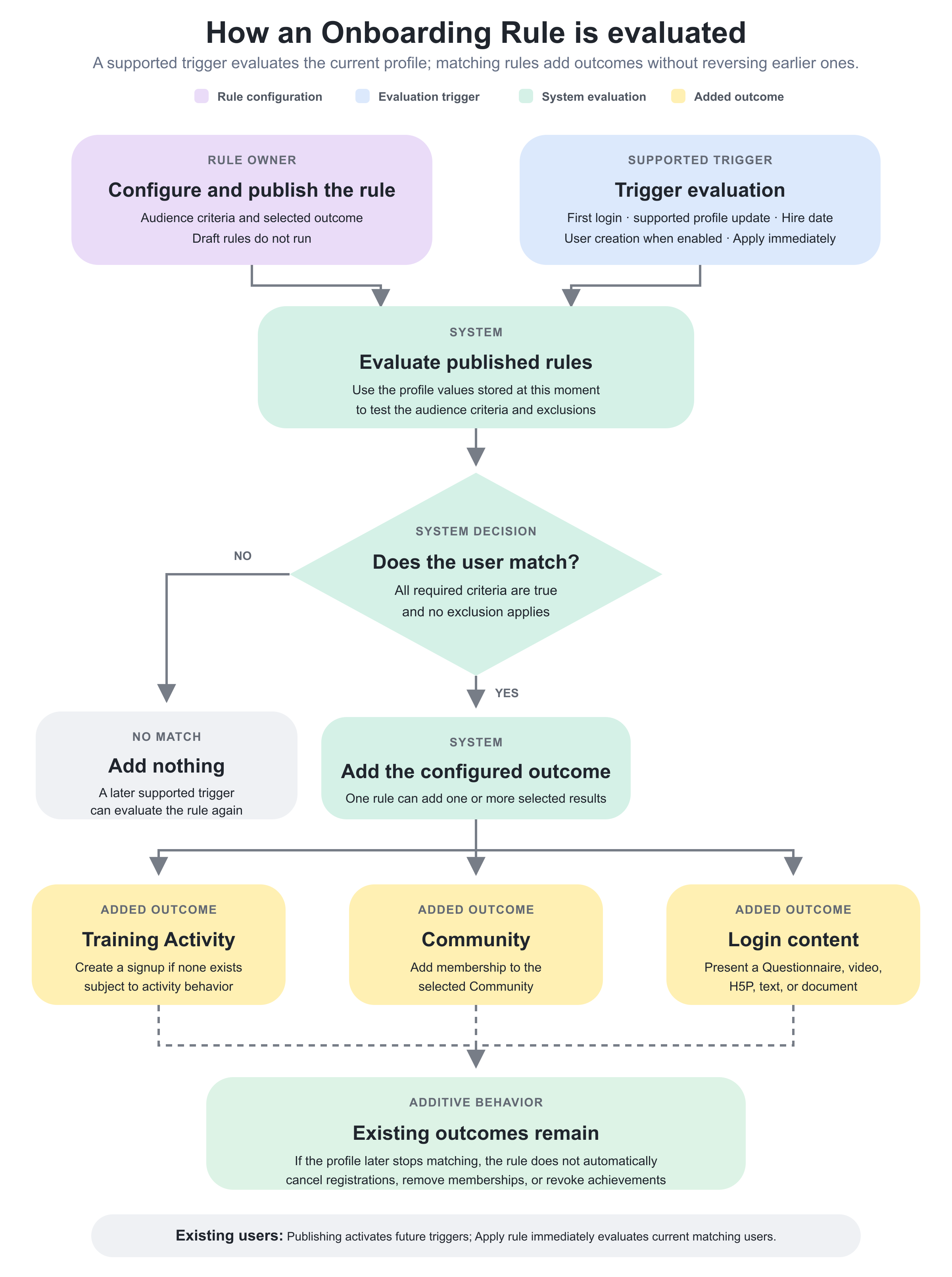
The rule does not continuously scan every user. A published rule is evaluated when one of its supported triggers occurs. Hire-date rules can also use daily processing, and Apply rule immediately can deliberately evaluate existing users when the rule is published or updated.
The essential behavior
Onboarding Rules add outcomes. They do not later reverse those outcomes. If a user is enrolled while matching a rule and then changes job function, Eurekos does not automatically cancel the enrollment. If the user earned a certificate, a later profile change does not revoke it.
Where Onboarding Rules are configured
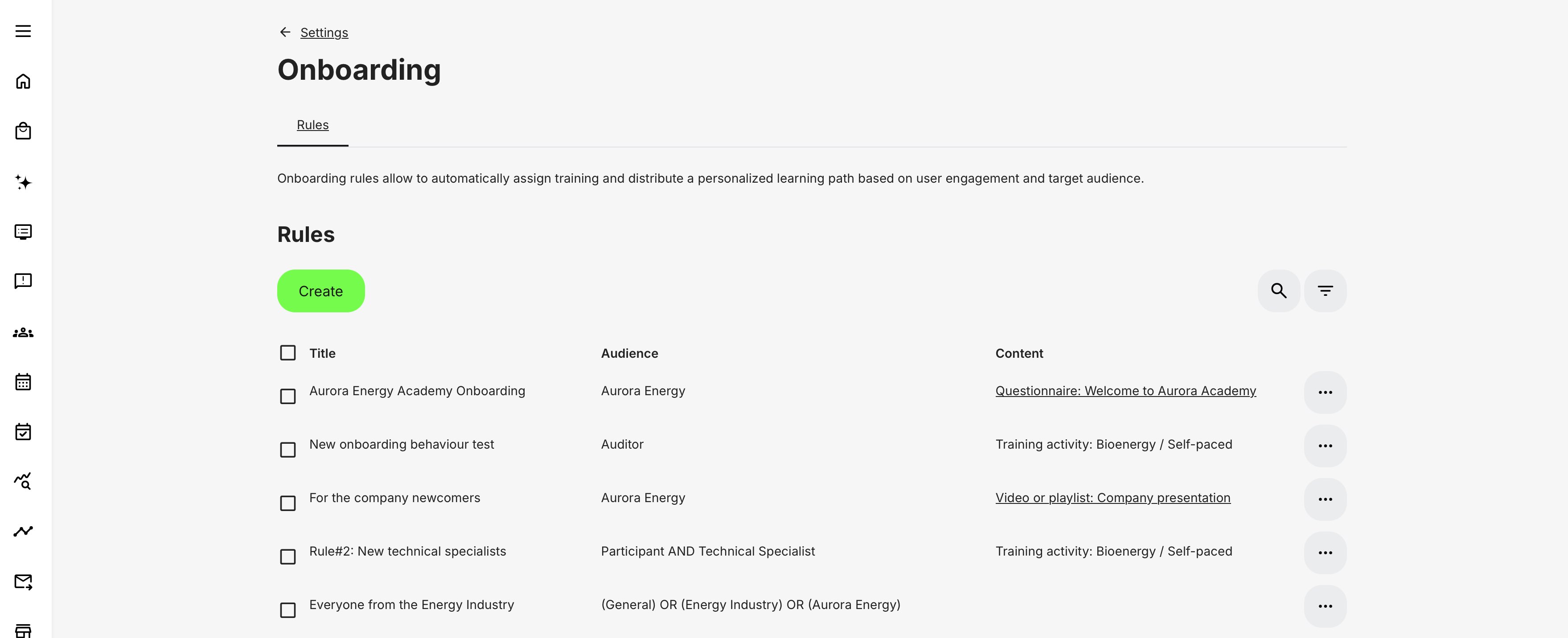
Open Settings → Onboarding to manage the rules.
Onboarding is documented with Course Administration because Training Activity assignment is one of its most important uses. Its current configuration entry point remains in Settings because the same rule can also assign Communities and present platform-level content at login.
Access depends on the user's administrative role, permissions, organization scope, and platform configuration. Platform and Global Administrators normally control Settings.
When to use Onboarding Rules
Use a rule when all three of these statements are true:
- The audience can be identified reliably from structured profile information.
- The same action should happen whenever a user enters that audience.
- The action should occur without an administrator or participant making an individual selection.
Good uses include:
- Role-based induction
- Country, state, language, or organization-specific compliance
- Product training for partner or distributor segments
- Training assigned relative to hire date
- Community membership based on a stable business attribute
- Profile enrichment or acknowledgement at login
- Mandatory platform guidance for a defined population
Use another enrollment route when it better matches the process
| Requirement | Better route | Why |
|---|---|---|
| Add one person or a small exception group now | Manual enrollment from the activity or Users list | The administrator intentionally selects the people and can review the result immediately |
| Add a known cohort from a prepared file | User import with activity assignment | The file is the controlled source of the population and can create or update users in bulk |
| Let people choose, request approval, select a date, or pay | Self-enrollment, participation approval, Storefront, invitation, promotion, or manager enrollment | These routes provide participant or manager interaction that onboarding does not |
| Enroll from a source system using explicit event and error handling | API or identity/CRM integration | The source system can own orchestration, retries, reconciliation, and external identifiers |
| Reserve places before participant identities are known | Reservations | Onboarding requires a real user whose profile can be evaluated |
| Apply a new rule to an existing matching population | Apply rule immediately, or a staged bulk/import/API process when greater operational control is required | The administrator deliberately decides whether and how the established population is processed |
| Remove training when eligibility ends | Managed cancellation/unenrollment process or integration | Onboarding is additive and does not provide automatic removal |
Onboarding can coexist with these routes. A user may be created by SSO, updated by an import, automatically assigned one activity, and later self-enroll in another. Define which process owns each outcome so administrators can explain how every participant arrived.
For more detail, see Enroll and register participants.
Understand what triggers evaluation
An Onboarding Rule runs only when it is published and a supported trigger occurs. The available trigger paths serve different purposes.
| Trigger | When evaluation occurs | Main use |
|---|---|---|
| First login | A user logs in normally for the first time, including through SSO, with profile values that match the rule. | Assign or present onboarding after the account has been established and the person enters the platform. |
| Apply upon user creation | A matching user account is created while this option is enabled. Login or a later profile update is not required. | Assign content immediately when account creation already supplies reliable audience data. |
| Profile update | A supported onboarding-related field is updated manually, by import, API, or another connected process. | Respond when a person's role, organization, language, location, or another supported attribute changes. |
| Hire date | Before/after-date criteria are evaluated through the normal profile triggers; a configured number of days after hire is processed through daily hire-date evaluation. | Stage induction or development according to employment timing. |
| Apply rule immediately | After a rule is published or updated, an administrator chooses to evaluate all existing users against it. | Deliberately introduce a new or changed rule to an established population. |
The profile values stored at evaluation time determine whether the user matches. The route that created or updated those values can be signup, administration, import, API, SSO, or another integration.
First login
At first login, Eurekos evaluates published rules against the user's available onboarding profile values. This includes an SSO-created or SSO-updated account when the identity provider has supplied the required values.
Test the normal user login rather than masquerading as the user. A preview or administrator masquerade does not reproduce the complete trigger behavior.
Apply upon user creation
Enable Apply upon user creation when a rule should run immediately after a matching account is created. User login and later profile updates are not required for this trigger.
Use it only when all required audience values are reliably available at account creation. If an integration creates the account first and supplies important attributes later, the creation-time evaluation can occur before the profile is ready; the later supported update can then provide another evaluation opportunity.
Profile updates
By default, a profile update can trigger onboarding when one of the supported onboarding-related fields is updated. The current supported set includes the standard options and vocabularies that might have been named differently by an Administrator of the platform:
- Job function
- Department
- Workplace
- Category
- Unit
- Location code
- Type
- Role
- Language
- Organization
- Active
- Employment type
- User type
- Country
- State
This includes updates made through user import. Blocking a user changes the active profile state and is treated as a profile update.
The changed field does not have to be a criterion in one particular rule. When a supported profile update triggers evaluation, published rules whose audiences match the user's resulting profile can run. This is the current behavior; the older design in which only a changed criterion field triggered its corresponding rule is outdated.
Some platforms can be configured to evaluate rules after any profile update or even a re-save. If results suggest this broader behavior, confirm the platform-specific onboarding configuration with the Platform Administrator or Eurekos support.
Do not assume that an activity edit, certificate change, progress update, or another non-profile action re-runs onboarding.
Apply a published rule to existing users
A draft rule does not run. Publishing activates the rule for its normal triggers. When a new or updated rule is published, Apply rule immediately can be offered so the administrator can evaluate all existing users and assign the configured outcome to those who currently match.
Choose deliberately:
- Select Proceed when the validated rule should be applied to the existing matching population now.
- Decline when the rule should apply only as its standard triggers occur, such as first login or a later supported profile update.
Immediate application is an operational action, not a preview. It can affect a large population and can apply onboarding content again. Content-specific duplicate checks still determine the exact result—for example, Training Activity assignment skips a user who already has a signup in that activity.
Before proceeding, confirm the expected audience count, selected content, notification behavior, activity capacity, financial effects, and overlap with other published rules.
Hire-date evaluation
Hire date can target:
- Users hired before a specified date
- Users hired after a specified date
- Users a specified number of days after hire
Before/after-date criteria can be evaluated when the Hire date is supplied or updated and through the other applicable user triggers. Rules based on a specific number of days after hire use daily processing so the milestone can be reached without another manual profile change.
Test the stored date, boundary day, platform time zone, and what should happen when a Hire date is added or corrected after the intended milestone.
Build a reliable audience from profile data
An Onboarding Rule is only as reliable as the data it evaluates. Typical audience criteria include:
- Country
- State/Region
- Language
- Organization
- Suborganization
- Job function
- Department
- Workplace or Product-related workplace tags
- Category
- Unit
- Location code
- Type
- System Role
- Active status
- Employment type
- User type
- Hire date
- Other enabled, onboarding-capable user-profile attributes available on the platform
The exact fields available reflect the platform's User Profile and Forms configuration. Fields such as Active, Employment type, and User type are available to the rule builder only when enabled on an applicable Profile, Create user, or Signup form. A field that is disabled, hidden from every relevant process, or never populated cannot segment users reliably.
Prefer structured values
Use vocabulary-backed or otherwise controlled values for automation wherever possible. Structured values prevent variations such as:
- Sales Manager
- Sales manager
- Sales Mgr.
- Manager – Sales
Those labels may appear equivalent to a person but behave as different data if they are stored as separate values. Controlled vocabularies also improve imports, API mapping, filtering, and reporting.
Before using a field in a live rule, confirm:
- Who owns the value
- Which system is authoritative
- Whether users may edit it themselves
- Whether an SSO, HR, CRM, or API sync can overwrite it
- Which values are allowed
- How blank or unknown values are handled
- Whether historical users have populated values
- Whether the field is included consistently in every creation and update route
For more detail, see Tags, User Profile, Forms.
Role is data as well as permission
A user's Role can identify an onboarding audience, but Role also controls what the user can do. Do not change Roles merely to make an onboarding rule match. Assign the correct security role first, then use it as a criterion only when the learning requirement genuinely follows that role.
A user can also have more than one relevant relationship or role in a complex platform. Test representative combinations rather than assuming every user has one simple label.
Language and localized training
Language is useful for assigning the correct language-specific Training Activity or presenting localized content. The activity translations or language-related versions remain separate records and can retain independent schedules, prices, participants, and configuration.
Create mutually clear rules—for example, one for Danish and one for English—and define what happens when the preferred language is blank or unsupported. A fallback rule can be appropriate, but its criteria must not overlap unintentionally with the localized rules.
Language targeting is available when the platform has at least two languages. A rule using the platform's default language can still match that default even when the Language field is not exposed on the user's profile. Test this behavior before creating a separate fallback that could overlap.
Country and State/Region
Country and State/Region can support legal, regulatory, tax, or regional-program differences. Use stable profile values and confirm the source system supplies them in the expected format.
Do not infer a compliance requirement from a postal address alone without validating the business rule. Country of residence, work location, legal employing entity, and organization can describe different things.
When Country and State are combined:
- A rule with Country only can match a user in that Country whether or not the user also has a State.
- A rule with Country and State requires the user to have the selected State.
- A user with the correct Country but no State does not match a rule that specifies State.
State must be enabled in the User Profile configuration before it can be selected for onboarding. For SSO, confirm that country codes are transferred in the supported format and mapped to the expected country value.
Organization and suborganization hierarchy
Organization criteria are especially useful in extended-enterprise platforms with customers, distributors, departments, regions, or legal entities.
When Organization is added as an audience attribute, the rule can select from the organizations available on the platform. If a selected Organization has suborganizations, a Suborganizations field also becomes available.
When two or more organizations or suborganizations are selected:
- Enable Any of the organization when membership in at least one selected Organization or Suborganization is sufficient.
- Leave it disabled when the user must belong to all selected organizations or suborganizations.
Use Exclude organization to remove users belonging to the selected Organization or Suborganization from the audience. For example, selecting a parent Organization and one Suborganization and then excluding the Suborganization prevents that local branch from receiving the assignment while users attached only to the parent can still qualify.
Select the intended organizations and suborganizations explicitly and retest the rule when the hierarchy changes. Do not assume that a newly created branch is included unless the saved audience selection and tested platform behavior establish that result.
Organization hierarchy can also affect Storefront visibility, administrative scope, seat allocations, reporting, and manager relationships. Those are separate controls. Matching an onboarding audience does not automatically make every other organization-dependent configuration correct.
Hire date and relative onboarding
Hire date supports audience logic such as:
- People hired before a defined date
- People hired after a defined date
- People at a defined number of days since hire
Use it for staged induction, probation checkpoints, or different legacy/current curricula. Confirm whether the business requirement means calendar days, employment days, or another interpretation, and test around date boundaries and time zones.
A rule based on a specified number of days after hire is evaluated through daily hire-date processing. Before/after-date rules can be evaluated when the Hire date is created or updated and through other applicable user triggers.
Product-based targeting
Where enabled, onboarding can use the Products associated with a user's Organization or Suborganization. The platform must have the organization Product field and the applicable workplace or Product tags configured.
When a user's Organization relationship is created or updated, a published rule can match the Products attached to that Organization according to the rule's trigger configuration. Confirm ownership of the Organization-to-Product mapping before using it for automatic training assignment.
Combine criteria with AND, OR, and exclusions
Logical operators let one rule describe a precise audience.
| Operator | Meaning | Example |
|---|---|---|
| AND | Every connected audience attribute must match the user's profile. | Country is Denmark AND Job function is Technician |
| OR | A match on any connected audience attribute is sufficient. | Role is Instructor OR Job function is Facilitator |
| Exclude | A user matching the selected value is removed from the audience. | Organization is Partner Group, excluding Suborganization Internal Test Lab |
Understand multiple values inside one attribute
Many audience attributes can contain several selected values. Their internal behavior is separate from the AND or OR connection between different attributes.
- When Any of the... is enabled for a multi-value attribute, the user needs at least one of the selected values.
- When Any of the... is not enabled, the user must have all selected values for that attribute.
- Organization and Suborganization selections use the comparable Any of the organization behavior.
- An Exclude checkbox applies to the selected values for that attribute.
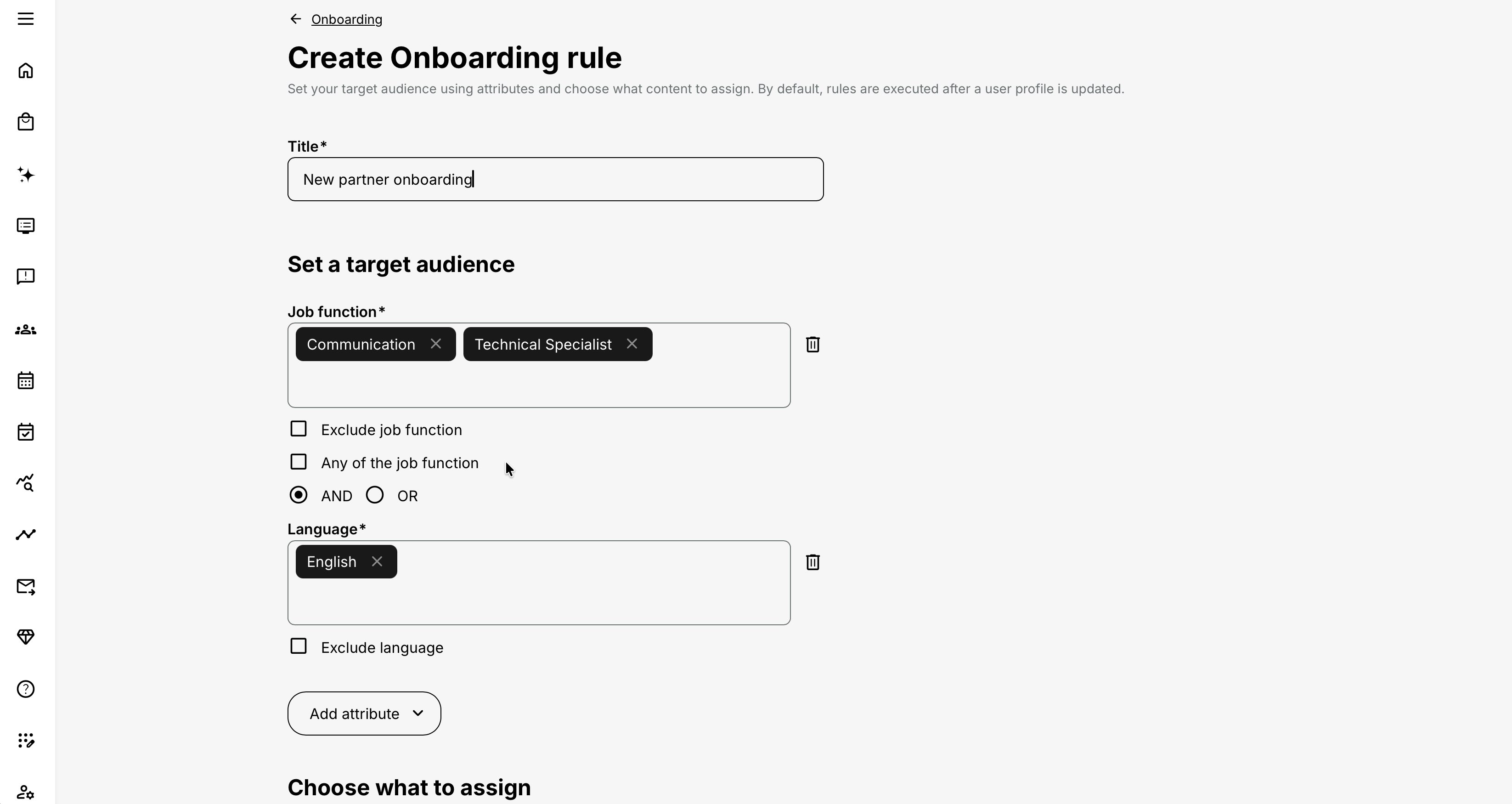
Write the audience in plain language before reproducing it in the rule. For example:
Assign users who are Participants AND Technical Specialists, excluding the Internal Test organization.
Use the available attribute connectors and per-field selection options to reproduce that policy. Do not assume that visually adjacent values create parentheses or another advanced expression that the interface does not explicitly show.
Use a test matrix
For every rule, list representative users before activation.
| Test person | Expected result | Reason |
|---|---|---|
| Denmark technician, employee | Included | Meets profession and country; no exclusion |
| Sweden technician, contractor | Excluded | Meets inclusion but matches an exclusion |
| Denmark sales user | Excluded | Wrong job function |
| Technician with blank Country | Excluded or fallback, according to design | Missing required value |
| Technician in a newly added Suborganization | Included only if that Suborganization is selected by the saved rule | Tests organization maintenance |
Test boundary conditions and missing data, not only the ideal matching record.
Choose what the rule should do
Onboarding supports two broad kinds of outcomes:
- Persistent assignment—enroll in Training Activities or become a member of Communities.
- Login-presented content—show a Questionnaire, video/playlist, interactive content, text, or document when the user enters the platform.
These outcomes serve different purposes and have different completion, communication, and governance requirements.
Video/Playlist, Interactive content, Text and documents, and Questionnaire are exclusive login-content selections: once one of these content types is selected, other content is not available for that rule. Create separate rules when the same audience needs several independent login-presented items.
Assign Training Activities
Select Training Activity when matching users should become participants in one or more activities.
What happens:
- Eurekos attempts to create the applicable activity enrollment for the matching user.
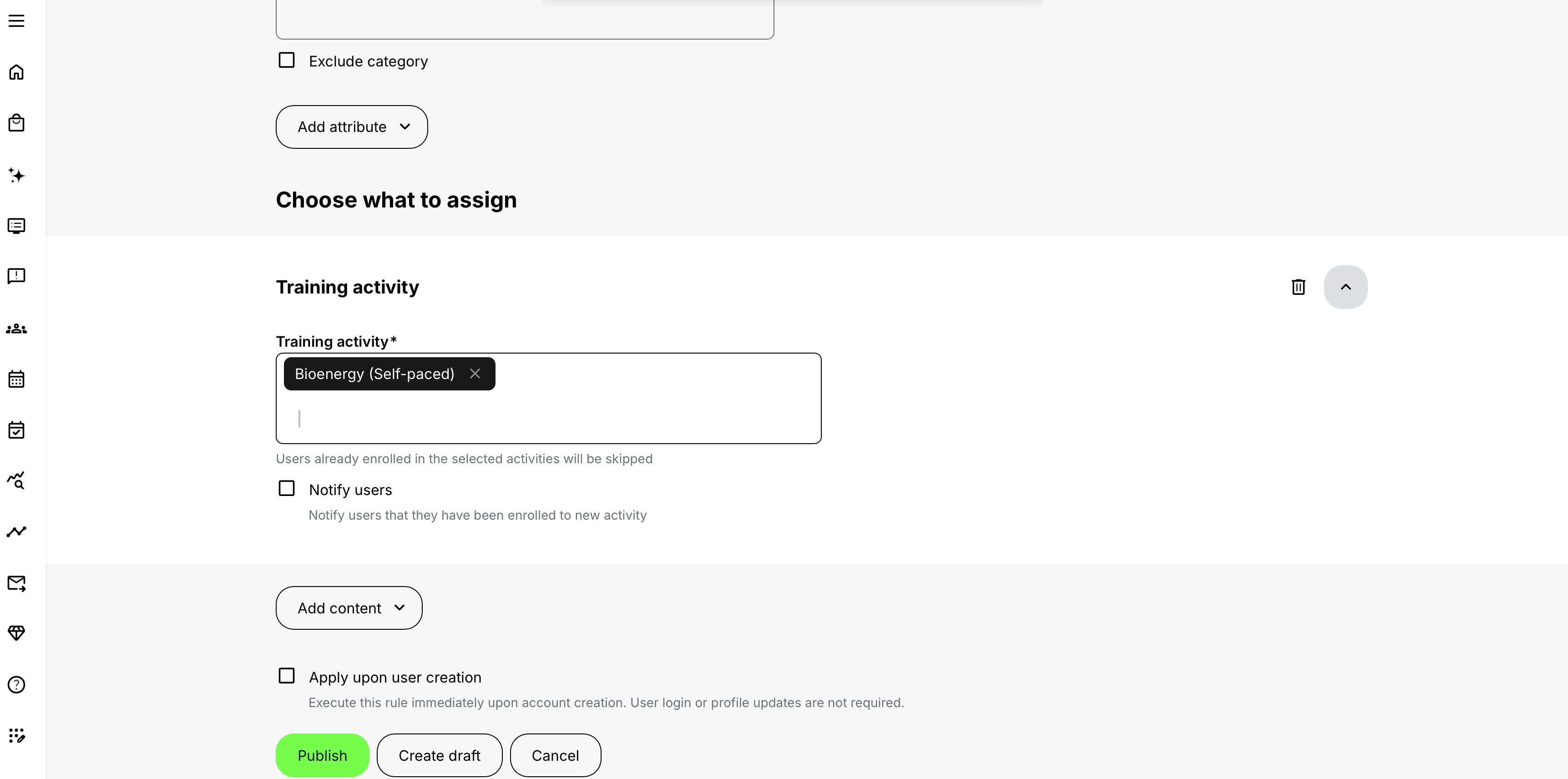
- A user who already has a signup in the selected activity is skipped, regardless of whether that signup is Registered, Reserved, Cancelled, Expired, or Waiting list.
- Registered activities become available in the participant's learning experience, including the Home screen where applicable.
- The activity's own learning structure, availability, access, schedule, Mandatory deadline, completion, feedback, certificate, and email configuration continue to govern the participant journey.
- The action happens in the background without a participant checkout.
- Notify users can send a direct notification that the user has been enrolled in a new activity.
- Automated Email Workflows remain available for a fuller sequence of welcome, reminder, event, completion, and follow-up communication.
The existing-signup check is important when a former participant has a Cancelled or Expired record. Onboarding does not create a new attempt merely because the old signup is no longer active. Use the appropriate participant reactivation, re-enrollment, or new-attempt process when another participation record is required.
Choose activities that are ready to receive automatic enrollments
Before adding an activity to a rule, confirm:
- The activity is the correct production record, not a template, clone, draft test, old year, or translated sibling.
- Modules, schedules, dates, time zones, instructors, locations, and capacity are ready.
- The activity status and participant availability support the intended experience.
- The Activity Description and title make sense when the assignment appears to the learner.
- Mandatory deadlines are correct for users who may be enrolled at different times.
- Notify users and Automated Email Workflows are configured according to the intended communication journey.
- Certificate, Training Feedback, completion, and re-certification logic are tested.
- Prices and financial follow-up are appropriate for a non-checkout enrollment route.
The onboarding rule does not replace activity configuration
The rule determines who is assigned. The Training Activity determines what the assigned journey does.
For example, enrolling a person through onboarding does not create an Event schedule, reserve an instructor, set a Mandatory deadline, send joining instructions, issue a certificate, or make incomplete modules available. Configure those behaviors on the activity and its modules.
For more detail, see Creating a Training Activity, Automated Email Workflows.
Assign Community membership
Select Communities when matching users should become members of one or more defined Communities.
The Community assignment option is available only when Communities are enabled in Settings → General.
This is useful for:
- A role-based Community of practice
- A customer or distributor support Community
- A regional knowledge-sharing group
- A cohort Community that exists independently of one Training Activity
Community notifications are sent by default unless that behavior is changed. Review the Community's membership and notification configuration before a large profile import or synchronization.
Direct Community assignment versus an activity-connected Community
These are separate designs:
- An Onboarding Rule with Communities adds every matching user directly to the selected Community.
- A Training Activity connected to a Community can add the activity's participants and responsible users through the activity connection.
If the rule enrolls a user in an activity and separately adds the same user to that activity's connected Community, the two paths overlap. Decide which relationship should own membership so that access, notifications, and later administration remain understandable.
For more detail, see Community Connection, Communities.
Present content after login
Use login-presented onboarding content when the user should see or complete information in the platform rather than simply receive a learning-path assignment.
Supported content can include:
| Content type | Configuration in the rule | Participant behavior and considerations |
|---|---|---|
| Questionnaire | Select the Questionnaire, add an optional Description, optionally override its participant-facing title, and decide whether it opens on a separate page. | The Questionnaire is shown during onboarding. It can be optional, repeated with a Retake option, or required before the user can continue. Apply questionnaire privacy, reporting, and response-action rules. |
| Video or playlist | Select an existing video or playlist, add a Description and required Overlay title, then configure repetition and mandatory behavior where needed. | Presented as a popup. Optional content can be skipped. With mandatory behavior, the user cannot continue normally and the Skip action becomes available only after the video has been watched. Video onboarding is not included in standard training statistics. |
| Interactive content | Select an available H5P object, add a Description and required Overlay title, then configure repetition and mandatory behavior. | Presented as a popup and follows the same optional or blocking model as video. Confirm that the selected H5P type records completion reliably. Interactive onboarding content is not included in standard training statistics. |
| Text and documents | Add formatted text, upload or select a file, and enter the required Overlay title. Configure repetition and mandatory behavior where required. | Presented as a popup with text and downloadable material. Decide whether displaying or downloading the material provides sufficient evidence for the business requirement. |
Use the preview control on a configured content block to review its presentation. Preview validates the selected material and overlay, but it does not test publication state, audience matching, triggers, recurrence, profile updates, or blocking behavior. Complete an end-to-end test with a matching user through the normal authentication route.
Once Video or playlist, Interactive content, Text and documents, or Questionnaire is selected, another content type is not available in that rule. Use separate rules when the audience needs several independent onboarding popups.
Questionnaires and profile enrichment
A Questionnaire can collect information not supplied by HR, CRM, signup, or authentication. Where its response actions update authenticated user-profile fields, those new values can influence later targeting and workflows.
Design this as a deliberate sequence:
- The first rule identifies users whose profile needs enrichment.
- The Questionnaire asks for controlled information.
- Approved response mappings update the intended user-profile fields.
- The profile update can make the user match another Onboarding Rule.
- The second rule assigns the appropriate training or Community.
Test for loops. A repeatedly presented Questionnaire that continually rewrites a triggering field can cause confusing re-evaluation, even when duplicate assignments themselves are prevented.
Treat sensitive answers according to privacy, retention, consent, access, and reporting policies. Do not collect information merely because it could improve targeting.
For more detail, see Introduction to Questionnaires and Common Use Cases, User Profile.
Configure repeated and mandatory presentation
Login-presented content can support two additional behaviors.
Show repeatedly
Use Show repeatedly when the content should return according to a defined frequency. Supported frequencies can include:
- Daily
- Weekly
- Bi-weekly
- Every 6 months
- Every 12 months
- A configured number of days after registration
Appropriate uses include:
- A periodic safety reminder
- A staged onboarding prompt
- A recurring request to confirm information
- Reinforcement of an incentive or product-adoption program
Avoid repeating long or unchanged content unnecessarily. Define the business reason, end condition, and owner before enabling recurrence. Test whether completion suppresses or changes later presentation for the selected content type and configuration.
Users cannot skip and must complete to continue
Enable Users cannot skip and must complete to continue when the selected login content must block further use of the platform until completed. For mandatory video, the Skip action becomes available only after the required viewing has completed; attempting to use another direct page does not bypass the restriction.
Use this sparingly. A configuration, content, accessibility, or integration problem can prevent the complete target audience from proceeding.
Before enabling it:
- Test every required question and validation rule.
- Confirm the content can record completion reliably.
- Verify keyboard, screen-reader, mobile, browser, and language behavior.
- Provide a support route for users who cannot complete it.
- Decide how exemptions and exceptional completion will be handled.
- Confirm the audience does not unintentionally include administrators or service accounts.
- Test login through every relevant identity provider.
Do not confuse two kinds of mandatory behavior
Users cannot skip and must complete to continue applies to content presented through the Onboarding Rule at login. The Training Activity Mandatory feature defines a participant deadline and overdue state for an activity. One does not automatically configure the other.
Manage the rule lifecycle
The Rules tab under Settings → Onboarding lists each rule's Title, Audience, and assigned Content. Use search and filtering when the list becomes difficult to review.
A rule can be:
- Saved as a draft—the rule appears inactive or greyed in the list and is not applied to anyone.
- Published—the rule can run when one of its configured triggers occurs.
- Unpublished—future evaluation is paused without reversing outcomes already added.
- Cloned—a copy provides a starting point for another audience or outcome; review every copied setting before publishing it.
- Deleted—the rule is removed, but registrations, Community memberships, completions, Transactions, and other historical outcomes remain.
Use the rule's More menu to edit, publish or unpublish, clone, or delete it. Publishing a new or updated rule can also offer Apply rule immediately for existing matching users.
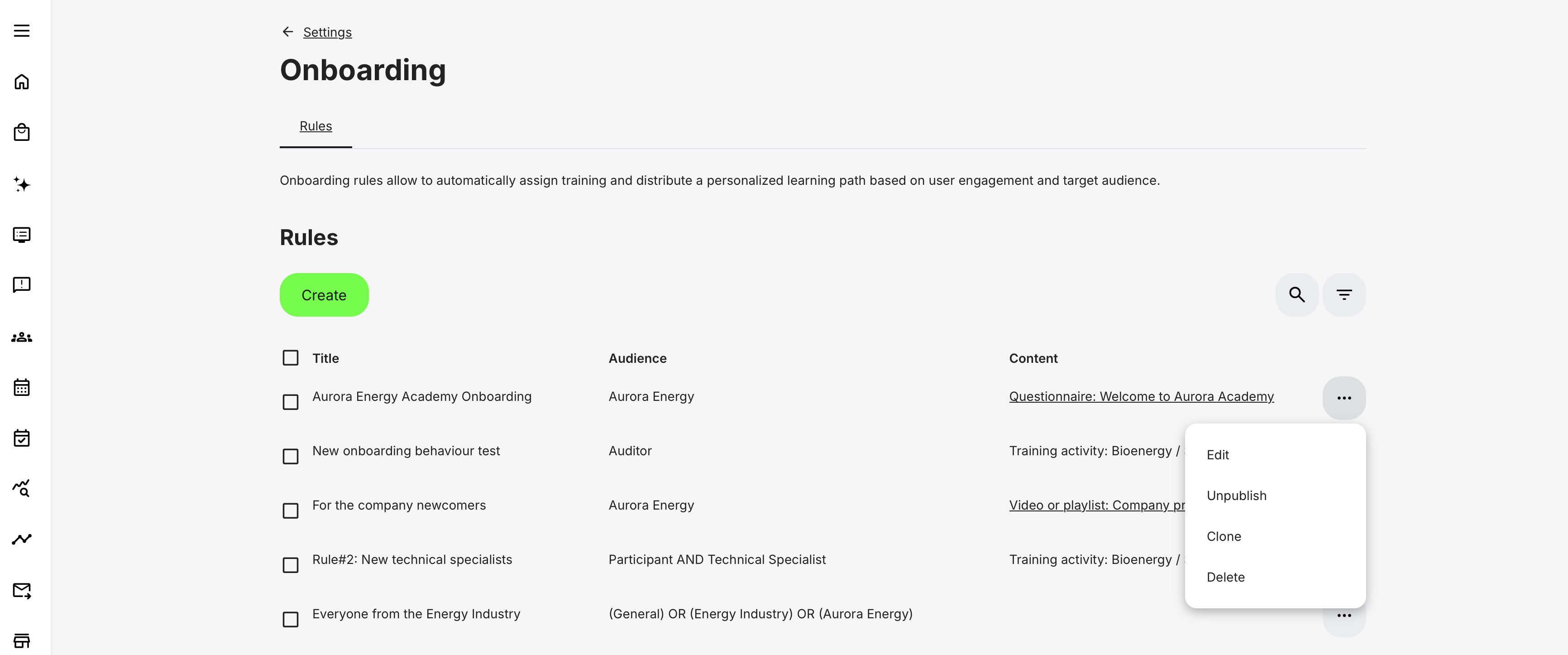
Create an Onboarding Rule
- Open Settings → Onboarding.
- Create a new rule.
- Enter a name that identifies the audience and purpose.
- Define the target audience from available user-profile criteria.
- Combine attributes with AND or OR, configure Any of the... behavior where available, and apply the relevant Exclude options.
- Select what matching users should receive: Training Activity, Community, Questionnaire, Video or playlist, Interactive content, or Text and documents.
- Select the exact activities, Communities, or content records.
- For Training Activity assignment, decide whether Notify users should send a direct enrollment notification.
- For login-presented content, add its description or Overlay title and configure recurrence and mandatory behavior as applicable.
- Preview selected login content where the preview control is available.
- Enable Apply upon user creation only when the rule should run immediately as matching accounts are created.
- Recheck the audience, exclusions, selected records, notification behavior, and downstream dependencies.
- Select Save draft when further review is required, or Publish to activate the rule.
- If publishing offers Apply rule immediately, choose whether existing matching users should be processed now.
- Test the applicable first-login, account-creation, profile-update, hire-date, or immediate-application route with controlled users.
- Verify the actual enrollment, Community membership, or login presentation.
Names should remain understandable outside the editor. For example:
- Employees – Denmark technicians – Safety 2026
- Distributors – Product A – Community access
- New hires – Day 0 – Mandatory profile questionnaire
- Managers – Monthly – Incentive explainer
Avoid names such as Rule 4, New onboarding, or Test final, which do not communicate scope or ownership.
Verify the configuration
Use controlled test accounts to check both who matches and what the rule actually does. Include overlapping rules; a profile update may trigger more than one.
| Scenario or check | Expected result or evidence |
|---|---|
| Audience and logic | Use the representative audience matrix above, then test each AND/OR branch, exclusion, blank or overwritten value, organization branch, and relevant language, country, role, Job function, or Hire-date boundary. |
| Evaluation trigger | Test the intended first login, user creation, profile update, Hire date, or immediate application route. Existing users and newly created users receive only the approved outcomes. |
| Activity signup | Verify the exact activity, language, year, status, participant access, and existing-signup handling. Capacity, organization allocations, Waiting list, and nested enrollment produce the intended result. |
| Learning and financial consequences | Check signup deadlines, expiration, completion and certificate dependencies, and the recorded Transaction. A priced activity has an approved non-checkout financial process. |
| Community assignment | The expected membership, access, role, and notifications appear, with one clear governing assignment route. |
| Login content | Audience, recurrence, localization, accessibility, completion, questionnaire mappings, and the next login work as intended. Test mandatory blocking on each supported login route and provide an exception owner. |
| Communication | Review Notify users, workflows, nested and Community notifications together. No order-confirmation email is assumed; expected message volume fits the approved sending capacity. |
| Evidence and retirement | Reconcile the first real import, synchronization, and profile update against participant, Community, content, email, and Transaction records. Stopping a rule prevents future evaluations but is not assumed to reverse existing outcomes. |
Roll out in controlled stages
When a rule can affect many users:
- Test in a non-production environment if available.
- Use a narrowly controlled audience on the live platform.
- Verify every downstream effect.
- Expand the audience deliberately.
- Monitor the first real identity synchronization or import.
- Keep an owner available to stop future evaluations and correct outcomes.
Because assignments are not automatically reversed, preventing a wrong match is safer than relying on cleanup.
Understand downstream Training Activity behavior
Capacity and waiting lists
Onboarding is subject to applicable seat behavior. If the activity or the user's organization has no available allocation and waiting-list behavior applies, the user can be added to the Waiting list instead of becoming Registered.
That means a successful rule evaluation does not always mean immediate training access. Check the participant status:
- Registered—the user has the active signup and applicable access.
- Waiting list—interest is recorded, but the user is not yet registered and does not receive registered access.
Configure waiting-list communication separately and avoid telling all matched users that a place is confirmed.
For more detail, see Registration Details and Capacity, Waiting list.
Nested Training Activities
If onboarding enrolls a user in a parent Training Activity that contains an Existing Training module with automatic enrollment enabled, the parent enrollment can cause a second enrollment into the nested activity.
The nested activity remains independent. It can have its own:
- Capacity and Waiting list
- Schedule and time zone
- Availability and access expiration
- Participants and communication
- Completion, feedback, certificate, and price
Automatic nested enrollment applies to new qualifying parent enrollments according to the nested configuration. Test the complete chain; seeing the parent assignment does not guarantee that the child produced the same status.
For more detail, see Existing Training (nesting).
Automated Email Workflows
When a rule assigns a Training Activity, select Notify users if the participant should receive the direct enrollment notification. Leave it cleared when communication will be handled another way.
Use Automated Email Workflows on the assigned activity when the participant needs a broader communication journey, such as a welcome message, preparation instructions, Event reminders, deadline notices, completion messages, or follow-up. The direct notification and the activity workflows are separate, so review them together rather than assuming that one replaces the other.
Consider:
- One user may receive several activities from one or more rules.
- Each activity can have several workflow rules.
- A nested child activity can have its own workflow.
- Calendar Events, Assignments, approvals, feedback, and certificates can generate additional communication.
- Community assignment and login-presented content have their own participant experience.
- An order-confirmation email is not sent for a Training Activity assigned through onboarding.
Review the complete journey to avoid sending a burst of messages after a large user import or identity synchronization. Confirm platform and mail-provider sending capacity for the maximum population.
For more detail, see Automated Email Workflows, Email Sending.
Participation approval and self-enrollment restrictions
Onboarding is an administrator-designed assignment route. It is not the same as a participant browsing the Storefront, requesting a place, satisfying self-enrollment criteria, or completing checkout.
Do not assume that a configuration intended specifically for self-enrollment will turn the onboarding assignment into a request or participant choice. Conversely, activity-level availability and access controls can still shape what an enrolled participant can open and when. Test the exact restriction type with the onboarding route.
Use participation approval when a person should actively request training and an approver should decide. Use onboarding when a matching profile should result in an automatic assignment.
Mandatory deadlines, access expiration, and completion
If the selected activity has Mandatory enabled, its deadline is calculated from the activity's configured method. A deadline relative to enrollment can therefore differ for each onboarding participant.
Access expiration and completion behavior remain activity-level concerns. Verify that a person is not assigned after the useful access window, given an impossible deadline, or enrolled in a delivery that has already ended.
Certificates and re-certification
Onboarding enrollment does not issue a certificate by itself. The selected activity's certificate criteria determine issuance after the required outcomes are achieved.
If the activity supports re-certification, automatic onboarding into the activity and the certificate's renewal attempt logic are separate automation systems. Design them together so a user is not given a confusing duplicate path or an inappropriate new initial enrollment.
For more detail, see Re-certification, Certificates.
Understand commerce and Transaction behavior
An Onboarding Rule does not present checkout. The user is assigned in the background and cannot select a payment method, enter a Coupon, approve a price, or pay during that action.
If the selected Training Activity has a standard price:
- The applicable amount can appear on the participant/signup record.
- Enrollment-related Transaction evidence can be created according to the platform's transaction model.
- No interactive payment has been collected through onboarding.
- No order-confirmation email is sent for the onboarding assignment.
- Invoicing, reconciliation, or settlement must be handled as a separate approved process, such as an export, API, ERP, organization agreement, or manual financial workflow.
Do not use onboarding for a commercial offer that requires the participant to choose, accept terms, apply a discount, buy an Additional Product, select a payment method, or complete payment. Use a Storefront, invitation, promotion, manager, or other guided enrollment route appropriate to the process.
Before assigning a priced activity automatically, document:
- Who is contractually responsible for payment
- Whether the amount is informational, internally allocated, invoiced, or covered by an agreement
- Which organization and cost center should be used
- How finance distinguishes paid, free, allocated, and unsettled records
- How exceptions and cancellations are corrected
For more detail, see Enroll and register participants, Price Manager, Transactions.
Multiple rules, overlapping audiences, and idempotency
A user can match several Onboarding Rules. This may be intentional—for example, one rule assigns general employee induction and another assigns country-specific compliance.
Problems arise when two rules represent the same business requirement or assign overlapping outcomes. For Training Activities, a user is skipped when any signup for the selected activity already exists, including a Registered, Reserved, Cancelled, Expired, or Waiting-list signup. The rule does not create a new participation merely because the existing record is inactive.
Other onboarding content has its own repeat and duplicate behavior. In particular, Apply rule immediately can present applicable onboarding content again, so use it only after checking the selected content and the affected population.
Overlapping design can still create:
- Unclear ownership
- Repeated evaluation
- Duplicate or clustered communication
- Redundant Community-assignment paths
- Confusing audits and troubleshooting
- Unintended combinations of mandatory login content
Maintain a rule inventory showing audiences and outcomes. Before creating a rule, search for every activity, Community, field, and population it will use.
Do not rely on rule order to resolve conflicts unless the interface and tested behavior explicitly define an order. Design rules so the audience logic is correct independently.
Change, unpublish, clone, or retire a rule
Treat a rule change like a change to live automation.
Before changing audience logic or selected content:
- Identify which profile updates and imports are scheduled.
- Estimate how many users could match.
- Identify overlapping rules.
- Review activity capacity, dates, communication, and financial impact.
- Test both newly created and existing-updated users.
- Record the change, owner, reason, and approval.
Use the rule's More menu to manage its lifecycle:
- Edit changes the audience, content, or options. Treat a published-rule change as a change to live automation.
- Unpublish pauses the rule. It no longer applies while unpublished, but it remains available for review and later editing.
- Clone creates a separate starting copy. Review its title, audience, content, and trigger options before publishing it.
- Delete removes the rule. Confirm the target carefully and preserve any evidence required for governance or support.
Saving a rule as a draft does not activate it. A draft appears inactive and applies to nobody until it is published.
Unpublishing or deleting a rule prevents future outcomes from that rule; it does not undo outcomes already added. Previously enrolled participants, Community memberships, completions, certificates, Transactions, and collected responses require their own governed correction where appropriate.
Likewise, making an audience narrower does not remove users who qualified under the former logic. If removal is a business requirement, plan it as a separate operation with audit evidence and appropriate participant communication.
Realistic use cases
| Use case | Configuration | What to check |
|---|---|---|
| New employee induction by country and role | Create one rule that assigns Global Induction when Employment type is Employee. Create a second rule that assigns Denmark Technician Safety when Employment type is Employee AND Job function is Technician AND Country is Denmark. Enable Apply upon user creation when assignment must happen immediately after account creation. Use enrollment-relative deadlines when each person’s completion period should begin from assignment. | Test employees, contractors, users with a blank Country, other job functions, and an existing employee whose Job function later changes. Review Notify users and the welcome workflows on both activities to prevent duplicate first-day messages. |
| Partner enablement across an organization hierarchy | Select every approved Organization and Suborganization explicitly. Enable Any of the organization when membership in any selected branch is sufficient. Assign the product Training Activity, exclude internal test organizations, and decide whether Community membership should come directly from the rule or through the activity’s Community connection. | Review capacity and financial agreements before a large partner import. Add newly created branches only after they are approved for the same outcome. Test users belonging to one or several selected organizations. |
| Localized learning journey | Create a clearly named rule for each supported Language and select the corresponding language-specific Training Activity. Add an approved fallback for blank or unsupported languages if required. | Test the complete participant experience—including titles, descriptions, emails, Events, Questionnaires, and certificates—not only the activity’s Language setting. Confirm that any fallback rule does not overlap with the language-specific rules. |
| Profile enrichment followed by personalized training | Present a Questionnaire after login to the defined partner audience. Map approved answers to a controlled profile field, then let the profile update trigger a second rule that assigns the appropriate product pathway. | Avoid unrestricted free text for governed categories. Test when the Questionnaire is considered complete, whether it repeats, whether the profile value updates correctly, and whether the two rules could create a loop. |
| Mandatory policy acknowledgement | Target only the governed role and jurisdiction. Present accessible text, a version-controlled PDF, or a Questionnaire with the required acknowledgement. Enable Users cannot skip and must complete to continue only after end-to-end testing. | Define support, exceptions, reporting, policy replacement, and retention. Opening or downloading a PDF is not necessarily evidence of agreement; use an auditable response mechanism when explicit consent is required. |
| Existing population migration | Create and test the Onboarding Rule for future triggers. When publishing, use Apply rule immediately only after validating the complete existing population and expected outcomes. If the operation is too large or requires staged control, process the approved historical population through a controlled bulk, import, or API operation instead. | Saving a draft does not run the migration. Publishing activates the rule, while Apply rule immediately determines whether existing matching users are evaluated at that point. Stage large operations around capacity, communication volume, deadlines, and financial records, then reconcile participant counts, exclusions, and errors after each batch. |
Troubleshooting
| Problem | What to check or do |
|---|---|
| The rule was saved but nobody was assigned | Check whether the rule was saved as a draft or published. Draft rules are inactive. Publishing activates the rule for supported triggers; select Apply rule immediately only when existing matching users should also be evaluated at publication. |
| New users are not being assigned | Check that the rule is published and the account has reached an intended trigger. Enable Apply upon user creation when assignment must happen immediately after account creation; otherwise confirm a real first login or later supported profile update. Verify that the creation route supplies all required values before evaluation. Compare a failed user with a successful test user and inspect blanks, vocabulary IDs, Organization and Suborganization selection, Role, Language, Country, State/Region, and Hire date. |
| Users created through SSO do not match | Inspect the attributes delivered by the identity provider and their mappings to Eurekos profile fields. A claim can be absent, mapped to the wrong field, received after the relevant evaluation point, or overwritten by a later synchronization. Test first login and subsequent profile updates separately. |
| Users imported from a spreadsheet do not match | Download a current example import file, preserve its headers and column order, and validate the exact controlled values. Confirm that the import changed at least one supported onboarding field rather than merely re-uploading identical values, then inspect the onboarding log for the affected user. |
| An existing user who already matches was not assigned | This is expected when the rule was created after the user’s last supported trigger and Apply rule immediately was not used. Apply the validated rule immediately to the full matching population, use a staged historical-population process, or make a legitimate supported profile update. First confirm that no signup for the selected activity already exists. |
| Updating the activity did not re-run the rule | Onboarding does not react to ordinary changes in activity content or configuration. It evaluates through first login, Apply upon user creation, supported profile updates, Hire-date processing, or Apply rule immediately. Use an approved immediate or staged process when a changed activity must be assigned to an existing population. |
| A profile update assigned more content than expected | The user may match several published rules. Changing any supported onboarding field can evaluate all rules the user now matches; the changed field does not need to be part of each rule. Review the complete rule inventory, the user’s stored values, and the onboarding log rather than only the rule the administrator intended to test. |
| The wrong users were assigned | Unpublish the rule if future evaluations must stop, preserve evidence, and compare the intended expression with the configured AND, OR, multi-value Any of, and exclusion options. Check explicit Organization and Suborganization selections, blank values, changed vocabulary labels, and data supplied by external systems. Correct existing outcomes separately; narrowing the rule does not remove them. |
| An exclusion did not remove the expected user | Confirm that the relevant Exclude option is enabled and that the user’s stored value matches the selected exclusion value. Check multiple Organization or Suborganization memberships and other profile relationships where relevant. |
| A user in a nested organization was unexpectedly included | Review every selected Organization and Suborganization and the Any of the organization setting. If membership in the selected parent is itself sufficient, that can explain the match. Select only the intended branches or add an explicit Organization exclusion where appropriate. |
| A newly created Suborganization did not receive assignments | Add the new Suborganization to the rule when it should qualify, decide whether Any of the organization should apply, publish the change, and decide whether existing matching users should be processed immediately. New branches do not replace an approved saved audience selection. |
| A user with a visually identical Job function did not match | The stored values may be different records or text variants. Check the vocabulary value or identifier, not only the displayed label. Consolidate data through an approved vocabulary and source-system mapping process. |
| Hire-date targeting happened at the wrong time | Check the stored Hire date, before/after boundary, configured number of days, and the trigger. A defined number of days after Hire date is evaluated through the daily scheduled process rather than requiring a profile edit or login. Test the exact boundary day with a controlled user. |
| The correct activity was not assigned | Check for similarly titled templates, clones, recurring instances, years, language versions, and nested activities. Record and compare the selected activity ID, not only its title. |
| The user appears on the Waiting list instead of as Registered | Review total Seats, organization seat allocation, current Registered and Reserved places, and Waiting-list configuration. A rule can successfully create the signup while capacity determines a Waiting-list status. |
| The user was enrolled in the parent but not the nested activity | Check the Existing Training module’s enrollment mode, whether automatic enrollment applies to new parent enrollments, the child’s capacity and Waiting list, organization restrictions, schedule, and the user’s participant status in both activities. |
| The user can see the assignment but cannot open content | Inspect the Training Activity’s availability dates, Access expiration, access restrictions, adaptive module criteria, schedule, completion dependencies, activity status, and module configuration. Onboarding assigns the user; it does not override every content-access rule. |
| The user was enrolled but received no email | Check whether Notify users was selected in the rule. If a broader journey is expected, inspect the activity-level and module-level Automated Email Workflows, notification timeline, Email Sending logs, user email, and mail-provider delivery. An order-confirmation email is not sent for an onboarding assignment. |
| Users received too many emails after an import | Count every activity and rule assigned by all matching Onboarding Rules, nested activities, Community notifications, System Emails, calendar invitations, and feature-specific reminders. Pause or narrow future rollout, correct overlapping communication, and monitor sending quotas. |
| The participant received duplicate onboarding messages | Check Notify users, every Automated Email Workflow on the assigned activity, nested-activity workflows, Community communication, and any additional System Emails. The direct enrollment notification and activity workflows are separate and can both apply. |
| The user was added to a Community twice through the design | Check whether one rule directly assigns the Community while an assigned Training Activity also connects participants to it. Choose one governing path and document the membership lifecycle. |
| The login content does not appear | Confirm the user’s profile event and audience match, selected content, publication state, recurrence timing, prior completion, and whether another mandatory popup is taking precedence. Test with a clean representative user through the normal login route. |
| The content appears at every login unexpectedly | Review Show repeatedly, its selected frequency, whether completion is recorded, and any second rule presenting the same content. Also check whether Apply rule immediately was used after the user had already seen the content. Test logout/login and the next scheduled interval separately. |
| Mandatory content prevents users from entering the platform | Treat this as a high-priority access issue. Confirm that the content loads, required controls are usable, completion can be recorded, and the affected audience is correct. Provide the approved exception or support path, stop future exposure if necessary, and retain evidence before changing the rule. |
| A Questionnaire completes but no training is assigned | Verify that the responses update the intended authenticated user’s onboarding-capable profile field, that the stored controlled value matches the second rule, and that the update triggers evaluation. Questionnaire completion alone does not mean that a separate Training Activity action has been configured. |
| A Questionnaire keeps reappearing or seems to create a loop | Review recurrence, completion, profile-update actions, and every rule that uses the changed field. Ensure that the Questionnaire’s output does not continually recreate the condition that presents it without a valid end state. |
| A priced activity was assigned but no payment was collected | This is expected because onboarding has no checkout. Review the participant price and Transaction evidence, then use the approved invoicing, allocation, API, export, or ERP process. Use a participant-driven enrollment route when payment must precede access. |
| Changing the rule did not remove earlier assignments | This is expected because Onboarding Rules only add outcomes. Use the relevant participant cancellation, Community membership, certificate, or data-correction process and preserve the audit reason. |
| Unpublishing or deleting the rule did not clean up users | This is expected. Unpublishing or deleting the rule stops future outcomes but does not reverse historical ones. Identify affected users from Onboarding Logs and participant, Community, response, and Transaction evidence before applying any approved correction. |
| Support needs evidence for one failed user | Provide the rule name and ID, user ID or email, current and previous relevant profile values, source or update route, exact update timestamp and time zone, onboarding-log entry and trigger, expected action, selected activity, Community, or content ID, observed status, screenshots where appropriate, and related import, API, or authentication evidence. Remove unnecessary sensitive data. |
FAQ
-
Who can manage Onboarding Rules?
Access depends on platform configuration, role, permission, and organization scope. Platform and Global Administrators normally control Settings.
-
Does a newly saved rule affect all existing users who match?
Not when it is saved as a draft. A draft is inactive. When a new or updated rule is published, Apply rule immediately can be used to evaluate all existing matching users. If that operation is not selected, existing users are evaluated only when a normal trigger occurs later.
-
What events trigger an Onboarding Rule?
The supported triggers are first login, account creation when Apply upon user creation is enabled, supported profile updates, Hire-date processing, and Apply rule immediately. Profile changes can arrive through administration, import, API, signup, authentication, or another integration.
-
Does every user-profile edit trigger onboarding?
By default, onboarding evaluates supported fields such as Job function, Department, Workplace, Category, Unit, Location code, Type, Role, Language, Organization, Active, Employment type, User type, Country, and State. Changing any supported onboarding field can evaluate every matching published rule; the changed field does not need to be used by that particular rule. Some platform configurations can evaluate after a broader profile update, so test the exact behavior used in production.
-
What happens if a user stops matching the rule?
Nothing is removed automatically. Existing activity registrations, Community memberships, completions, and accreditations remain until handled through their own administrative processes.
-
Can a rule cancel an enrollment or revoke a certificate?
No. Onboarding is additive. Use the activity's participant administration and certificate lifecycle controls for governed cancellation or revocation.
-
Can one rule enroll users in several Training Activities?
Yes. Select the required activities, then test their combined capacity, schedules, deadlines, communication, nesting, certificates, and prices. A technically valid set can still overwhelm a new user.
-
How are users notified about an onboarding assignment?
For a Training Activity, select Notify users in the rule when a direct enrollment notification is required. Use the activity’s Automated Email Workflows for a fuller communication journey. Review both to avoid duplicate messages. An order-confirmation email is not sent for an onboarding assignment.
-
Can users pay during onboarding assignment?
No. Onboarding provides no checkout interaction. If a priced activity is assigned, handle any invoice, internal allocation, or settlement through a separate approved process.
-
Does a participation-approval requirement ask the onboarding user to request a place?
Do not use onboarding when the intended process is participant request and approval. Onboarding is an automatic assignment route; participation approval is designed for a guided enrollment request. Test any activity restriction whose scope is broader than self-enrollment.
-
What happens when the activity is full?
Applicable capacity and Waiting-list behavior can place the user on the Waiting list rather than register them. Verify signup status before promising access.
-
What happens when the organization's seat allocation is full?
The onboarding user can be placed on the Waiting list when the organization limit is exceeded and waiting-list behavior applies. Another organization may still have capacity.
-
Can onboarding enroll a user in nested training?
It enrolls the selected parent activity. If an Existing Training module is configured to enroll new parent participants automatically, that can produce a separate child-activity enrollment, subject to the child's own behavior.
-
Can onboarding add users to Communities?
Yes, when Communities are enabled in Settings → General. A rule can directly assign membership in one or more selected Communities. Decide whether the Onboarding Rule or an activity’s Community connection should own the relationship so the same membership is not governed through two unexplained paths.
-
Which content can be shown after login?
A rule can present a Questionnaire, Video or playlist, Interactive content such as H5P, or Text and documents. These login-content types are exclusive within one rule: after one type is selected, another type is not available in that rule. Create separate rules when the same audience needs several independent onboarding items.
-
What does Show repeatedly do?
It makes applicable login-presented content return at the selected frequency. Current options include Daily, Weekly, Bi-weekly, Every 6 months, Every 12 months, and a defined number of days after registration. Validate the completion and end behavior for the selected content.
-
What does Users cannot skip and must complete to continue do?
It prevents the matching user from continuing normally in the platform until the presented onboarding content is completed. For a mandatory video, the Skip action becomes available only after the required viewing has finished. This setting applies to login-presented onboarding content and is separate from a Training Activity’s Mandatory deadline.
-
Can Questionnaire answers trigger another assignment?
They can when the Questionnaire is configured to update onboarding-relevant user-profile data. The resulting profile update may make the user match another rule. Test the complete sequence and prevent loops.
-
Does Include all nested include future suborganizations?
Enable Any of the organization when membership in any one of the selected Organizations or Suborganizations is sufficient. Leave it disabled when the user must belong to all selected entries. Use Exclude organization to remove selected branches from the audience. Add future branches deliberately rather than assuming that a parent selection dynamically includes them.
-
Are Onboarding Rules evaluated in list order?
Do not design business logic around an assumed list order. Make each rule's audience and outcome independently correct unless your platform's tested interface explicitly defines another behavior.
-
Can two rules target the same user?
Yes. A user can legitimately receive multiple outcomes. Review overlaps so the user is not assigned redundant content or flooded with notifications.
-
How do I assign a new rule to all historical users?
Publish the validated rule and use Apply rule immediately when the complete matching population can be processed safely. For a large or operationally sensitive migration, use a staged bulk, import, update, or API process instead. Remember that a supported profile update can evaluate every applicable published rule.
-
Does unpublishing or deleting a rule remove what it previously assigned?
No. Unpublishing or deleting the rule stops future application but does not cancel registrations, remove Community membership, revoke completion or certificates, or erase responses and Transactions.