Manage the Course Library, Ownership, and Settings - Article
Summary
The Course library is the maintained collection of learning content, not a list of participant enrollments. Use it to find the correct Course, identify its owner, and keep the settings that support authoring, reuse, and delivery consistent.
Clear names, identifiers, and responsibilities make a growing library manageable. Before changing a shared Course, establish where it is used and who is responsible for its live deliveries.
Use this article to:
- Find and organize Courses in the Course library;
- Assign appropriate ownership, authors, and co-authors;
- Govern Course settings, cloning, and reusable Page templates deliberately;
- Verify visibility, governance, and long-term maintenance responsibility.
Find the correct Course
Open Courses and use the available search, filters, and sorting to narrow the list. Check the Course identity and version rather than relying on the title alone: translations, clones, and major versions may have similar names.
The list reflects your permissions and organizational scope. Not seeing a Course does not necessarily mean it has been deleted. An authoring library also differs from the Storefront: a Course in the library is not automatically visible or available for enrollment to participants.

Create a practical working view
A large Course library does not have to be reorganized every time an author begins work. Search, filters and personal focus controls let each author create a useful working view without changing the library for anyone else.
Use Search to find a Course by its title or Course code. A distinctive part of either value is normally more useful than a broad subject word, particularly when the library contains translations, clones or several versions of related content.
Open Filters to combine the classifications and states relevant to the task. Depending on the platform configuration, filters can include Job function, Category, Importance, Language and Course-specific choices such as:
- My to show Courses for which you are an author or co-author
- Focused to show Courses you have personally placed at the top of your working list
- Available in the shop or Not available in the shop to distinguish Courses by their current delivery use
- In review when the Course review capability is enabled
The exact vocabulary filters depend on the tags configured for Courses on the platform.
When you hover over a Course card, select Focus to keep that Course at the beginning of your personal Course list. This is useful for Courses currently being created, reviewed or maintained. Select Remove focus when the Course no longer needs that prominence.
Course focus is a personal working convenience. It does not focus a Training Activity in the Storefront, change the Course’s status, alter participant access or move the Course to the top of another author’s list.
The current search and filter selection is remembered when you open a Course and return to the library. This allows authors to work through a selected group without recreating the same view after every Course. If an expected Course appears to be missing, clear the search and active filters before investigating permissions or deletion.
| Information or action | What it helps you establish |
|---|---|
| Title and Course code | Which learning resource you are maintaining. Use a recognizable title and a stable, unique administrative code. |
| Author and co-authors | Who owns the Course and who may collaborate on it. |
| Language and organizational relationship | Which audience and administrative scope the Course belongs to. |
| Version and update information | Whether this is the intended edition and whether a recent change needs review. |
| Available Course actions | The operations permitted for this Course and your role, such as editing, cloning, translation, review, or version management. |
The Course list gives you the first indicators of identity, ownership and scope. Read these details together before opening the Course. A familiar title alone is not enough when translated Courses, clones and major versions may have similar names.
Open Course Settings
Open the Course and select Settings. The available configuration is divided into two areas:
- General controls identity, organizational relationship, responsibility, language and cloning
- Tags controls classification and the terms that support searching and administration
These settings belong to the reusable Course itself. They are different from the settings applied to an individual Course page, a Training Activity or the platform as a whole.
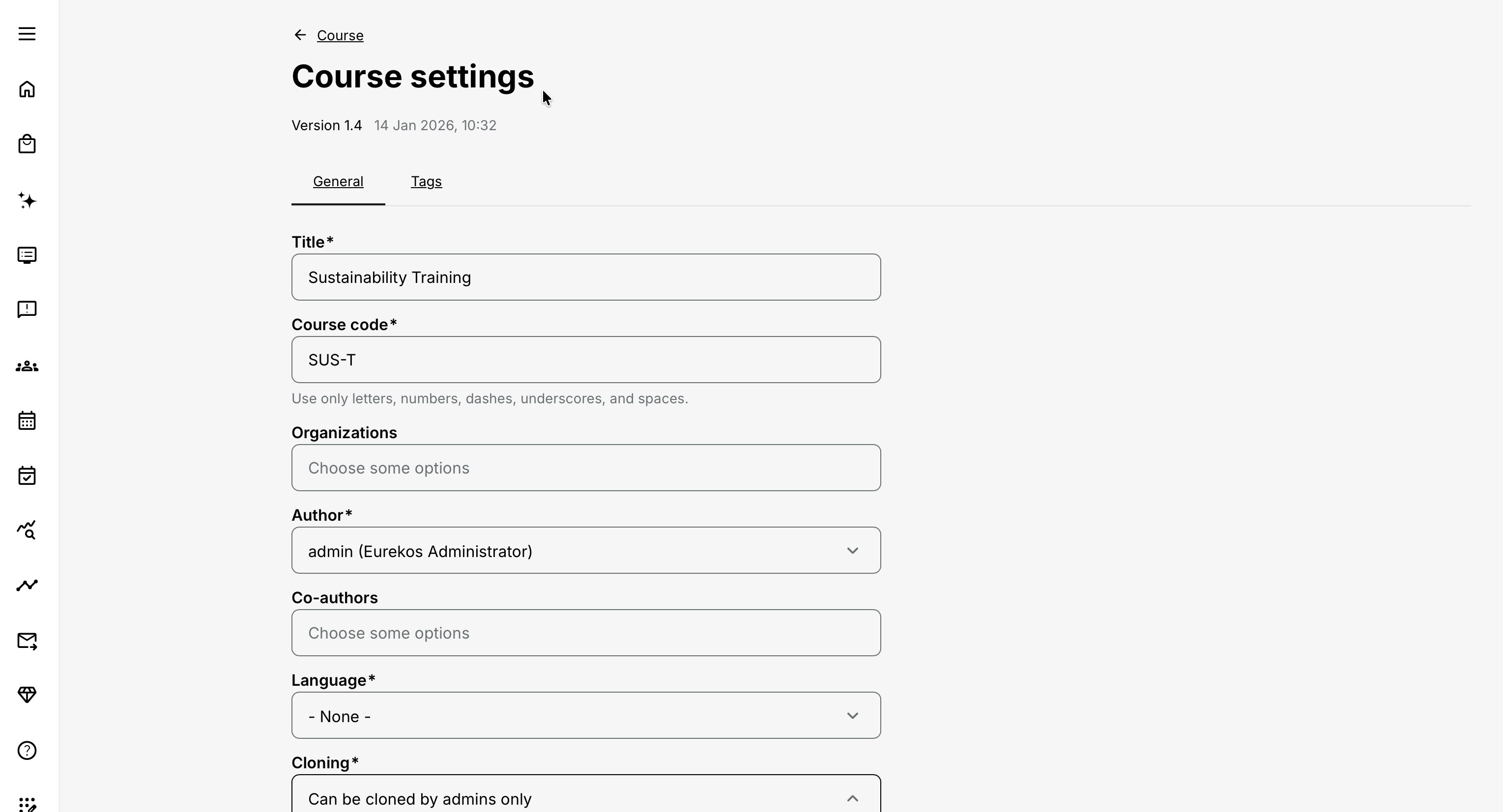
For example, page restrictions and prerequisites are covered in Control Course Page Access and Prerequisites, while schedules, enrollment, availability and delivery belong to the relevant Training Activity. Changing Course Settings can affect every context in which the Course is reused.
Establish a durable Course identity and ownership model
The General tab establishes how the Course is recognized, maintained and shared. Decide these values deliberately when the Course is created rather than treating them as administrative details to complete later.
| Setting | What it governs | Practical use |
|---|---|---|
| Title | Human-readable identity of the Course | Describe the subject or intended learning outcome |
| Course code | Stable identifier and default shared-folder name | Follow a short organizational naming convention |
| Organizations | Organizational relationship and administrative scope | Align the Course with the intended content-governance model |
| Author | Primary responsibility for maintaining the Course | Use an active account with clear ownership |
| Co-authors | Collaborative editing and access to shared Course materials | Add only people who should maintain the same Course |
| Language | Language of the Course content | Select the actual content language rather than the author’s interface language |
| Cloning | Whether eligible non-administrative authors can clone the Course | Match the choice to the organization’s reuse and governance model |
Together, these settings form the operating identity of the Course. They help authors locate the correct material, determine who is responsible for it and understand whether it belongs to their administrative scope.
Design a meaningful Course code
When a Course is created, its Course code becomes the default name of the automatically created shared Course folder. This folder is an essential working area for files and other materials that the Course author and co-authors need to maintain together.
Co-authorship therefore provides more than permission to edit pages. It also gives the Course team access to the shared resources connected with that Course. The code becomes a visible link between the Course and its supporting material. See Manage Files, Archives, and Downloadable Resources for the complete resource-management model.
Establish a Course-code convention before many authors begin creating Courses. A useful code should be:
- Short enough to recognize at a glance
- Meaningful within the organization
- Consistent with related Courses
- Easy to enter and locate in search
- Distinct from other languages, levels or editions where those differences matter
- Free from personal, confidential or temporary information
A convention might combine a product or business area, subject, level and language—for example, ENV-CAL-L2-EN. This is only an example: use the dimensions that genuinely help your organization distinguish and manage its Courses.
Avoid making the code a compressed description of everything in the Course. Long codes become difficult to recognize, search and maintain. Equally, codes such as COURSE01 provide little context once the Course library and shared folders grow.
The interface supports letters, numbers, spaces, hyphens and underscores. Choose the code carefully when the Course is created and avoid repurposing an established code for unrelated content.
Assign authorship and shared access
The Author identifies the person with primary responsibility for the Course. Use an active, maintained account and review ownership when roles or employment change.
Add Co-authors when several people must maintain the same Course and work with its shared resources. Co-authors must have the relevant Course-authoring permission and be available within the applicable organizational scope.
Co-authorship is appropriate when people are maintaining one authoritative Course together. It is different from cloning: a clone becomes another Course that can develop independently and requires its own identity, ownership and maintenance decisions.
Apply the organizational relationship deliberately
The Organizations field connects the Course with the platform’s organizational administration and, where the relevant segregation capabilities are enabled, can influence which administrators and authors can locate or work with it.
Use the organization model agreed for the platform. Removing an organizational relationship does not automatically make a Course universally available, and assigning an organization does not by itself enroll participants or publish the Course in the Storefront.
When a Course must support several companies, regions or business units, decide whether they should collaborate on one governed Course, use controlled clones or maintain separate versions. The correct choice depends on ownership, required variation and whether future changes should remain shared.
Set the content language
Select the language in which the Course is written. This helps distinguish Courses in multilingual libraries and supports the appropriate authoring and localization workflow.
Changing the Language setting does not translate the Course. A translated or separately localized Course still requires its content, assets, assessments and supporting resources to be reviewed in the target language.
Control who may clone the Course
The Cloning setting provides two choices:
- Can be cloned by non-admins
- Can be cloned by admins only
Allow eligible non-administrative authors to clone a Course when controlled local adaptation is part of the operating model. Restrict cloning to administrators when the Course is an approved master, uncontrolled variants would create governance problems, or every new edition requires central oversight.
This setting does not grant Course-authoring rights to someone who otherwise lacks them. It controls the available cloning route for users who already have the necessary access.
A clone is an independent Course, not another view of the original. Its title, code, authorship, shared resources, and future maintenance must therefore be governed as a separate learning asset.
Cloning can also support a governed library of complete starting Courses. An organization can maintain source Courses for particular Course types, audiences, brands, business units, or combinations of these needs. Name each source clearly—for example, Template – Partner product certification—and assign its ownership, organizational scope, language, and cloning permissions deliberately.
Authors should clone the source Course and work in the resulting independent Course rather than changing or delivering the maintained source Course. See Create and Structure a Native Course for the complete starting procedure.
Classify the Course with tags and keywords
Open the Tags tab to classify the Course and improve how administrators and authors find related content. The available fields depend on the vocabularies enabled for Courses on the platform. They may include classifications such as Category, Job function and Importance.
Controlled tags make it possible to use the same terminology across Courses, filters and reports. Select values that express a real organizational relationship rather than applying broad tags merely to make the Course appear in more searches.
Use Keywords for relevant terms that people may search for but that do not belong in a controlled vocabulary. Useful keywords can include an acronym, an alternative product name, an established technical term or a former Course name that people still recognize.
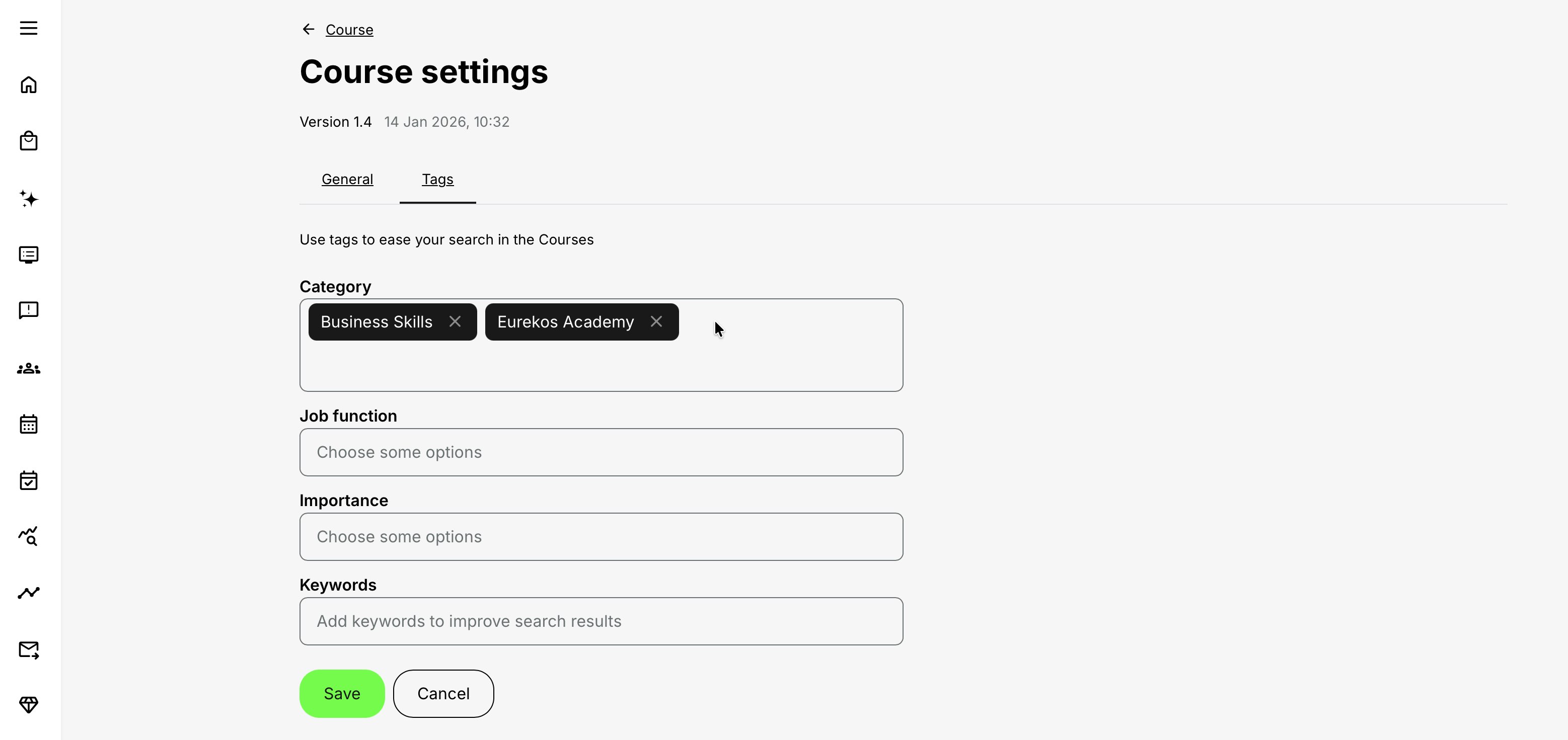
Course tags support content administration and discovery, but they do not automatically make a Training Activity visible in the Storefront. Training Activities have their own classification, audience and availability settings.
If a required tag field or value is unavailable, it must be maintained through the platform’s central tag configuration. It cannot be created from Course Settings.
Save and verify the settings
After saving, return to the Course library and verify the complete result rather than checking only that the form was accepted:
- Search for the Course by both title and Course code
- Confirm that the intended author and co-authors can find and edit it
- Confirm that co-authors can access the shared Course materials they are expected to maintain
- Check the organizational relationship using a representative administrative role
- Confirm that the language and tags distinguish the Course from related editions
- Review whether the cloning choice supports the intended reuse model
Some platforms expose additional fields when related capabilities are enabled. Optional settings such as Course readiness, statistics scope or duration should be explained as separate decisions and verified in the actual delivery context rather than treated as universal Course fields.
Decide how statistics should be considered
Where the Course exposes a statistics setting, distinguish the current delivery from results across assigned activities.
| Scope | When it may be appropriate | What to verify |
|---|---|---|
| Current activity | Each delivery should be considered in its own context. | Results are interpreted within the intended Training Activity and attempt. |
| All assigned activities | The design considers the Course across activities in which the learner is enrolled and which are not yet completed. | Whether previous activity context changes the experience or evidence in the new delivery. Do not assume it is a fresh attempt. |
This is a learning-design decision, not simply a reporting preference. Coordinate it with completion, prerequisites, and re-certification requirements. Test the same Course in two activities before relying on cross-delivery behavior for a regulated or high-consequence program.
Use collaboration and reuse deliberately
Co-authors maintain the same Course. A clone creates another Course that can be developed separately. A new major version provides a distinct edition with version lineage. Choose according to the maintenance outcome, not whichever action is easiest to find.
For example, a product team can co-author one approved foundation Course used across regional activities. A customer-specific adaptation may justify a clone. A materially revised certification syllabus may justify a new major version and a controlled delivery transition.
Course ownership and asset ownership are related but not identical. A Course may include a video or H5P item reused elsewhere. Confirm the asset's usage and maintenance responsibility before replacing it.
Readiness is separate from delivery
Where Course moderation is enabled, readiness states such as work in progress and ready for enrollment help govern which content can be selected for new delivery. This capability may require configuration through Eurekos support.
Do not treat a readiness change as a universal way to withdraw existing participant access. Existing Training Activities and enrollments must be managed through their own delivery controls.
Maintain Page templates
Every Course page uses a Page template. Administrators are therefore maintaining the starting point for every newly created page, even when the selected template is intentionally minimal.
Users with the required administrative permission manage these templates in Settings → Page templates. The available templates can provide standard layouts, colors, guidance, reusable objects, or other content for particular page types. They remain page-level starting points: they do not create or control the complete Course hierarchy.
A Page template can also originate from a page developed in an ordinary Course. This allows a Course author or instructional designer to prepare and test the page without needing permission to maintain the platform templates.
To reuse a completed Course page:
- Open the source Course and navigate to the relevant page.
- Open More and select Copy.
- Open Settings → Page templates and open the appropriate Page template.
- Select Paste at the intended position from More at the destination page.
- Review the complete copied page before making it an organizational standard.
A page copy can also be pasted into other valid destinations; this workflow uses it to create a reusable Page template. The copy includes everything on the source page, so check for audience-specific wording, links, media, branding, restrictions, and examples that should not become part of the standard template.
Use a prepared source Course rather than a Page template when authors should inherit several pages, a complete instructional hierarchy, defined objectives, targeted guidance, or a starting design for a particular audience, brand, or purpose. Authors can clone that Course from the Course library and adapt the independent copy.
See Build Course Pages with Layouts, Text, Images, and Buttons for page authoring and Create and Structure a Native Course for using prepared source Courses.
Troubleshooting
| Situation | What to check |
|---|---|
| A colleague cannot find the Course. | Confirm their role, organizational scope, ownership or co-author relationship, and active list filters. |
| A co-author cannot be selected. | Confirm the account has the required Course-creation permission and is available within the relevant scope. |
| The desired language is missing. | Check enabled content languages. Interface-language availability is a separate configuration. |
| Similar Courses appear in the list. | Compare code, language, version, ownership, and intended delivery before editing. |
| A Course cannot be selected for a new activity. | Check permissions, organizational relationships, and any enabled readiness or moderation requirement. |
| Previous learning appears to influence a new delivery. | Review statistics scope together with the activity attempt, retained progress, and completion configuration. |
FAQ
-
Why can an author not see or edit a Course in the library?
Check the person's role, Course ownership or co-authorship, and applicable organizational scope. Being able to deliver a Course does not necessarily grant permission to edit its source content. Verify access using the intended author's account and responsibilities.
-
Does changing a Course language translate its content?
No. Language identifies the content's language; it does not translate author-written text, media, or interactions. Use the available translation workflow and review the related assets for the target audience.
-
Why should I check where a Course is used before editing it?
The same Course can support several activities. An apparently local correction can therefore affect other deliveries. Review its usage, shared assets, and current learners, then choose an in-place correction, clone, or new version according to the intended scope.
-
Does a Course statistics setting replace activity completion rules?
No. The statistics setting determines the relevant Course result scope where available. Activity attempts, retained progress, and completion or certification criteria remain separate controls. Test their combined behavior when previous learning may influence a new delivery.