Introduction to Learn Mode and the Learning Experience - Article
Summary
A clear learning experience helps participants understand where to go, what to do and when their work has been recorded. Eurekos brings the relevant content, navigation and requirements together so a simple activity stays simple and a larger program remains manageable.
Learn mode is the participant-facing working environment inside an enrolled Training Activity. It brings together the configured learning structure, content, access rules, progress, completion conditions, and available participant actions. The experience can remain simple for a single Course or expand automatically for a Learning Path with several module types.
Use this article to:
- Distinguish My Overview, the Activity Description, and Learn mode
- Understand single-module and Learning Path experiences
- Recognize why two participants can see different routes
- Understand how learning evidence becomes progress and completion
- Choose the detailed article that answers the participant’s question
What Learn mode is
Learn mode is the product term for the experience participants use after they open training in which they have an active learning relationship. It is not a separate type of Course or Training Activity. It is the participant view of the structure and rules already configured by authors and administrators.
The wider learning experience begins before Learn mode. A participant may discover or resume training from My Overview, the Activity Description, a notification, a calendar entry, My Progress, or another permitted route. Learn mode begins when the participant enters the training itself.
| Surface | Primary purpose | What it does not prove |
|---|---|---|
| My Overview | Prioritizes enrolled training, deadlines, recertification, recommendations, and quick return routes. | A recommendation does not by itself mean the user is enrolled or has access. |
| Activity Description | Explains the offering and presents the applicable enrollment, approval, purchase, or opening action. | Viewing the description does not complete enrollment or learning. |
| Learning Path overview | Shows the modules, progress, dates, statuses, and actions within a multi-module activity. | A visible module is not necessarily available yet; restrictions and schedules still apply. |
| Learn mode | Presents the current module or Course page and records the configured learning evidence. | Opening a page is not always sufficient for module or activity completion. |
One experience that expands with the training
A single-module activity can open directly into its Course, Event, Assignment, SCORM package, or other configured module. A multi-module Learning Path normally provides an overview from which the participant opens and resumes individual modules.
The interface expands only when the activity requires it. A Course with a few open pages can be navigated with a sidebar and previous or next controls. A longer Learning Path can add search, filters, module statuses, schedules, progress, feedback actions, and calendar export. Optional capabilities such as Saga appear only when enabled and available to that participant.
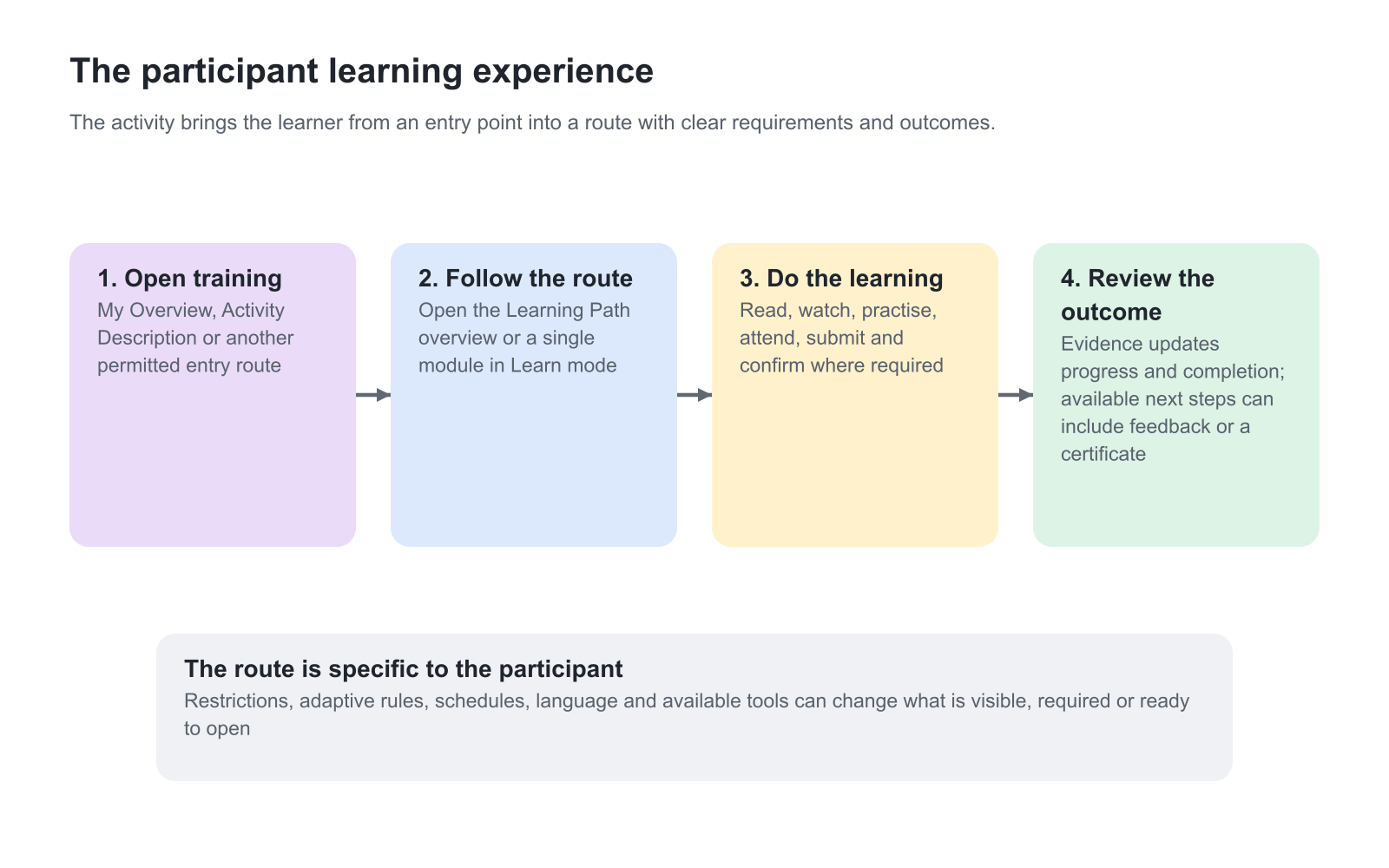
The participant-specific route
Participants enrolled in the same activity can legitimately see different routes. The platform evaluates the signed-in user’s relationship to the activity rather than showing one static preview to everyone.
- Access Restrictions can keep a later page or module unavailable until another condition is satisfied.
- Adaptive Modules can reveal supplemental learning or make a required module optional after criteria are met.
- Schedules and dates can control when a module opens, when an Event occurs, or when an Assignment is due.
- Role and organization permissions can affect tools, content access, Storefront availability, and connected communities.
- Language can determine which linked language version the participant uses.
- Progress and prior evidence can determine what is complete, what remains, and where Continue leads.
For this reason, administrative visibility is not proof of the participant experience. Verify the route from the intended participant relationship whenever restrictions, adaptive logic, language alternatives, or role-specific content are important.
From learning evidence to recorded outcome
Learn mode records the evidence defined by each learning object and module. Examples include visiting required Course pages, reaching the configured threshold in a native video, passing a test, completing a SCORM package, being marked Attended for an Event, receiving a Passed Assignment assessment, or selecting a required Complete button.
The platform uses that evidence to recalculate page, module, and activity status. A certificate can add a further layer of criteria. A participant can therefore have finished the visible content while still waiting for attendance, assessment, confirmation, feedback, or another configured condition.
Recognize three common learning journeys
A self-paced Course with a deliberate finish
The participant opens one module, works through its available pages and checks progress for remaining video or test requirements. A short activity may open directly without a separate program overview. The important question is what the configured learning requires, not how many navigation screens the participant has visited.
If participant confirmation is required, finishing the content makes Complete available rather than completing the module immediately. Tell the participant to select that action to record their acknowledgement. If no confirmation is required, do not introduce an extra manual step merely because another activity uses one. Check the recorded module and activity outcome before assuming that a final-page visit or a celebration proves every certificate condition is satisfied.
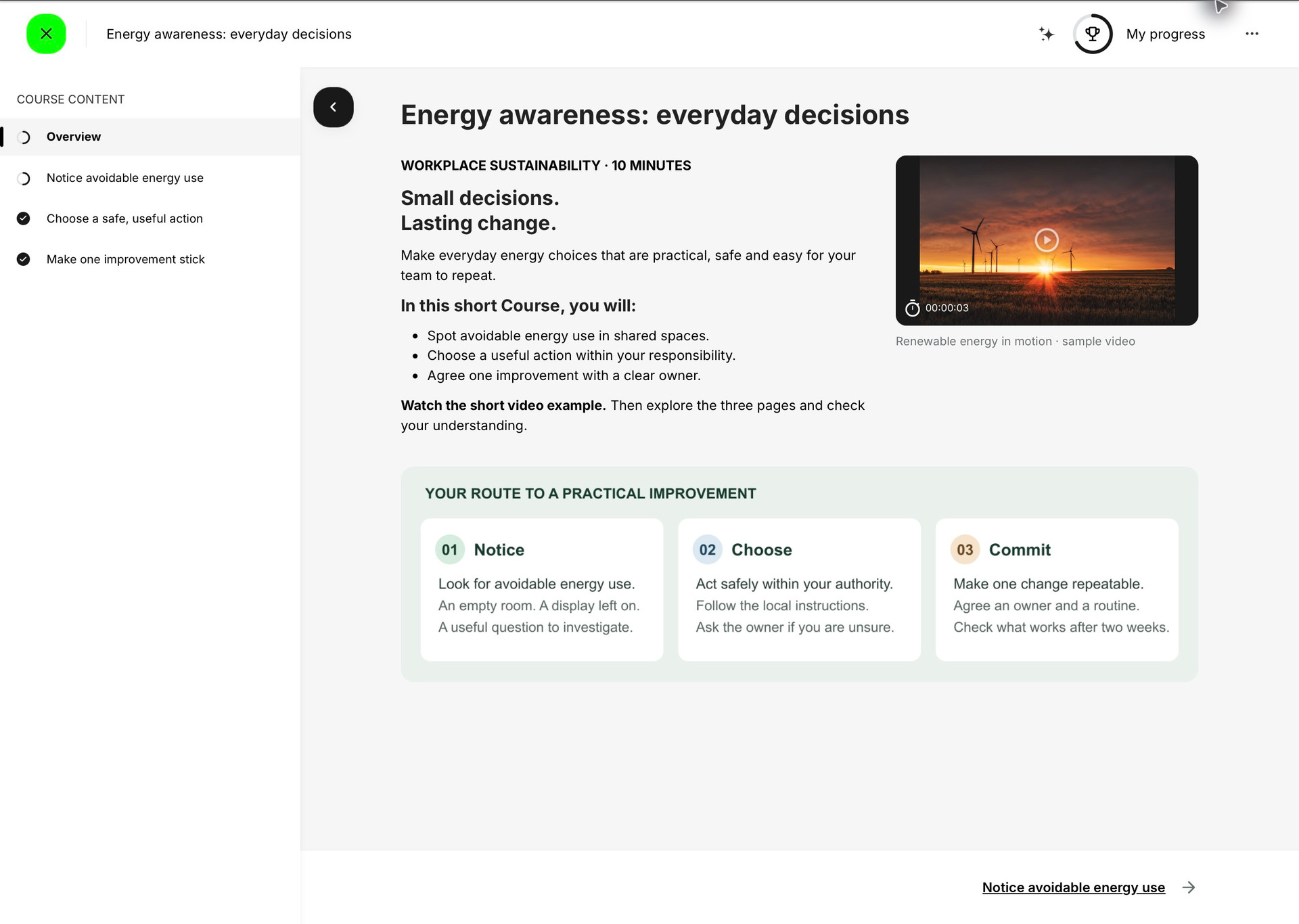
The example below shows a single Course with an introductory overview and three unit pages. The participant stays in one learning environment: the outline provides orientation, the content explains the task and the bottom navigation leads to the next page. A larger Learning Path adds another level of navigation between modules; it does not turn every Course page into a separate activity.
A blended program with shared responsibilities
The participant prepares online, attends an Event and submits an Assignment. The Learning Path overview brings these tasks together, but each has its own evidence. Reading the final Course page does not record attendance, and submitting work does not record a Passed assessment when that decision is required.
This creates legitimate waiting periods. A participant who has submitted the Assignment may need an assessor’s decision, not another attempt at the online material. Use progress details to identify what remains and explain which action belongs to the participant and which belongs to the facilitator. Plan the program dates so both can do their part before the applicable completion Deadline.
A program containing other training
An Existing Training module can offer a choice of a linked activity. The participant may need to select and enroll in that training before its internal modules and tracked progress are available. Enrollment in the parent program should not be mistaken for enrollment in every alternative offered by the connection.
The parent program remains the overall context, while the selected activity has its own schedule, enrollment and completion requirements. With the supported progress tracking enabled, its required modules can be reflected in the Learning Path’s detailed progress. Use that breakdown to understand the workload, and check the selected delivery when a participant reports that a linked task is missing or unavailable.
Use the right detailed article
| Question | Continue with |
|---|---|
| Where are the controls and how does previous or next navigation behave? | Navigate Training in Learn Mode |
| What do the module cards, filters, dates, statuses, and Continue action mean? | Use the Learning Path Overview |
| Why is the percentage not changing, or what remains to be completed? | Understand Progress During Training |
| Why did a completion message appear, and what happens next? | Understand Completion Messages and Next Steps |
| Can the participant change language, dates, training, or leave the activity? | Change or Leave Training |
| Where are feedback, Saga, H5P reset, calendar, and other contextual tools? | Use Tools and Actions During Training |
Verify the experience before launch
Test the participant journey from the same starting point the intended audience will use. Open the activity as an enrolled participant, not only as an author or administrator. Confirm the first available action, the route through required pages and modules, progress changes, restricted states, completion messages, feedback, and certificate behavior.
Repeat the check for materially different audiences—for example, customers and partners with different content access, a learner with additional management responsibilities, or a participant who already holds qualifying evidence. The goal is not for every participant to see the same route; it is for every intended route to remain understandable and achievable.
Troubleshooting
| Problem | What to check |
|---|---|
| The participant opens a different screen than expected | Confirm whether the activity contains one module or a Learning Path. Check the entry point, the participant’s signup status, and whether an overview or direct module route is configured. |
| An administrator can see content that a participant cannot | Verify the experience from an enrolled participant relationship. Administrative and responsible-user visibility can be broader than participant access. |
| Two participants see different modules | Check adaptive criteria, restrictions, schedule, organization, language, role, prior completion, and linked activity enrollment. |
| The visible content appears complete but the activity is not | Open progress details and check attendance, assessment, confirmation, feedback, certificate, and activity-level conditions. |
| A tool described in this topic is missing | Confirm that the capability is enabled for the platform, activity, module, organization, and participant. Optional tools do not appear when they are not applicable. |
FAQ
-
Is Learn mode a separate type of Course?
No. Learn mode is the participant-facing working environment for an enrolled Training Activity. It presents the Course, Learning Path, module, rules, progress, and actions already configured elsewhere.
-
Why do two participants see different routes through the same activity?
Adaptive criteria, Access Restrictions, schedules, language, organization, roles, prior evidence, and current progress can change what is visible, required, optional, or available for each participant.
-
Does opening training mean the participant has completed anything?
Not necessarily. Opening Learn mode establishes the current learning context. Completion depends on the evidence configured for its pages, modules, activity, and any certificate criteria.
-
Where does the learning experience begin?
A participant can enter from My Overview, an Activity Description, a notification, a calendar entry, My Progress, or another permitted route. Learn mode begins when the participant opens the training itself.
-
Should administrators test only from author preview?
No. Preview is useful for content review, but participant-specific restrictions, adaptive logic, enrollment, and operational actions should also be verified from an enrolled participant relationship.