Use Tools and Actions During Training - Article
Summary
Learning often needs supporting actions as well as content: asking a question, planning an Event, giving feedback or checking progress. Learn mode makes applicable tools available in the current training context.
Learn mode can expose contextual tools without taking the participant away from the current learning task. Progress, feedback, Saga, calendar export, language, and commercial actions appear only when the related capability is enabled and applicable.
Use this article to:
- Understand where contextual tools can appear
- Use progress, feedback, and Saga without losing the learning context
- Understand calendar export and the difference between saved interaction state and assessment retries
- Distinguish optional tools from required learning actions
- Troubleshoot a tool that is missing or unavailable
Tools follow the participant context
Contextual actions can appear in the Learn mode header, Learning Path overview, module card, More menu, or a sidebar. The location reflects the level at which the action applies. An activity-level feedback action belongs to the complete Learning Path, while a module-level action belongs to one module.
| Tool or action | Participant purpose | Availability depends on |
|---|---|---|
| Progress | See the recorded percentage and the requirements that remain. | Progress display enabled and evidence available at the current level. |
| Provide feedback | Open the configured feedback or questionnaire at the applicable level. | Feedback timing, module or activity connection, and whether it was already submitted. |
| Saga | Ask questions about accessible training content without leaving Learn mode. | AI add-on, organization availability, content indexing, and permissions. |
| Download all my events | Export future and ongoing Events as one calendar file. | A Learning Path with applicable future or ongoing Events. |
| Language or training changes | Move to an available alternative version or delivery. | Linked alternatives and participant change permissions. |
| Additional products | Purchase a configured product offered in the training context. | Commerce and product configuration, audience, and availability. |
Use Saga inside training
When enabled, select Saga in the training header to open the assistant beside the learning content. The content remains usable rather than being covered by a chat overlay. On narrower screens, the interface can show one sidebar at a time, so opening the assistant can replace the expanded Course outline.
A training-specific conversation is created when the participant sends the first message, with one dedicated chat for that Training Activity. Returning to the activity can therefore continue the relevant conversation rather than starting an unrelated general chat. Saga uses the current training context and can link a source to its module. Depending on configuration, it can use native Course content, H5P, SCORM and Resource Library material, while respecting content access and organization rules. It does not unlock restricted learning.
Assessment integrity remains an administrative responsibility. H5P and SCORM objects used for graded assessments can be excluded from AI context so participants cannot ask Saga for answers contained in the assessment.
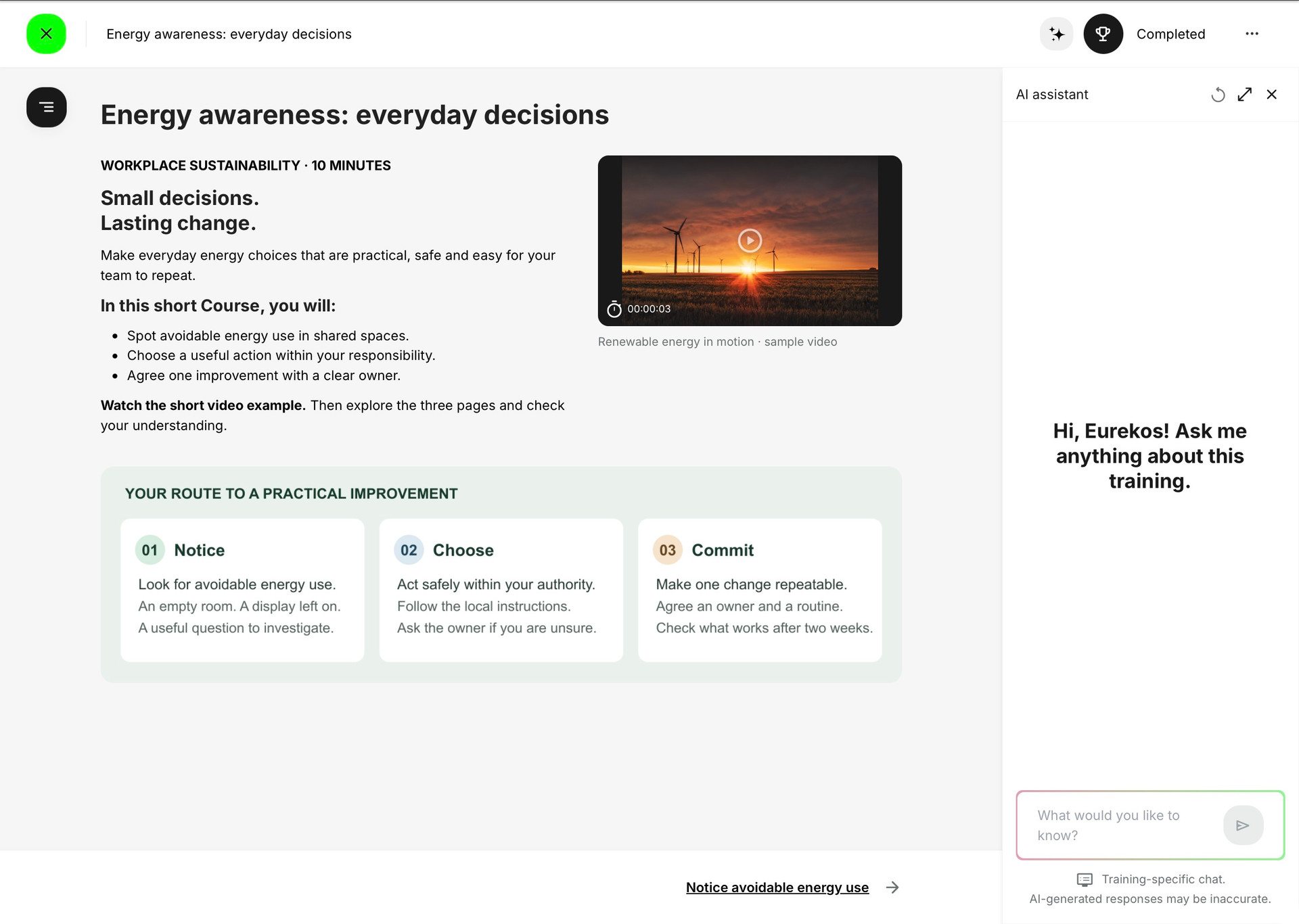
Close the sidebar with its close control or select Saga again when you want the space back. Open full chat provides the larger conversation view where available. Clear chat is different: it resets that training conversation after confirmation and cannot be undone. It does not clear H5P interaction state or create a new training attempt.
The assistant can also support review when it remains available in completed training. Asking a question does not reverse completion or supply new assessment evidence. For an important answer, follow the source and verify it against the training and your organization’s procedure.
Provide feedback
Feedback can be available at any time, after completion, or according to another configured relationship. In a Learning Path, activity-level feedback can appear in the overview header and module-level feedback beside the module. In a single-module activity, module-level feedback can appear in the Learn mode header.
The action is removed after the applicable feedback is submitted. Where certificate issuance depends on feedback, the participant can complete the learning, submit the required feedback, and then satisfy the remaining certificate criterion.
Saved H5P state and assessment retries
Where saved-state functionality is enabled, supported H5P interactions can resume where the participant left off. This saved interaction state is separate from recorded assessment results and the Training Activity attempt.
If an interaction needs to be restarted or an assessment attempt is exhausted, follow the training’s retry instructions or contact the training administrator. A saved-state reset does not erase previous assessment results and is not a substitute for granting another permitted assessment attempt.
Download Events to a calendar
On a Learning Path overview, Download all my events can create one .ics file containing the participant’s future and ongoing activity calendar events and Event modules. Past Events are excluded. Import behavior and reminders then depend on the participant’s calendar application.
Additional products and commercial actions
Where commerce is configured, the learning experience can offer an additional product in context—for example, related material or an optional service. The product action remains governed by its availability, audience, price, checkout, and payment rules. It is not automatically part of the training completion requirement merely because it appears inside training.
Use supporting tools for a specific purpose
Ask and verify with Saga: ask a focused question such as where the current training explains a procedure, then open the cited module and check the source in context. A training-specific chat helps keep the conversation relevant. The assistant can suggest follow-up questions, but its response is not attendance, an assessment decision or another completion record.
Plan an Event: an individual Event can provide Add to calendar, while a Learning Path can provide Download all my events for applicable future and ongoing Events. A downloaded .ics file is a calendar export; do not assume it creates a live subscription that will keep every later schedule change synchronized. Check the current Event in Eurekos when arrangements change.
Give feedback at the correct level: use the activity-level action for the program as a whole and the module-level action for that particular experience. If a module-level feedback action is not yet available on the overview, open the module first where the configured relationship requires it. Submission removes the applicable feedback action.
Required versus optional actions
The interface can contain both learning requirements and conveniences. Progress details, access explanations, and Course instructions should make the distinction clear.
- A required feedback questionnaire can be a certificate criterion; an available feedback button is not automatically required.
- Saga supports learning but does not itself complete the Course.
- Calendar export helps planning but does not register attendance.
- An additional product can be purchased without becoming a training module.
- Changing language or delivery changes the learning relationship and should not be treated as a cosmetic preference.
Troubleshooting
| Problem | What to check |
|---|---|
| Saga is missing in Learn mode | Confirm the add-on is enabled for the platform and participant’s organization and that the current context supports the sidebar. |
| Saga cannot answer from one object | Check permissions and whether the H5P, SCORM, or other content was excluded from AI context. |
| Provide feedback is missing | Check feedback level and timing, whether the participant opened the module where required, and whether feedback was already submitted. |
| An H5P interaction cannot be continued or reattempted | Follow the retry instructions in the training. If no permitted retry is available, contact the training administrator; saved interaction state and allowed assessment attempts are different. |
| Calendar export is missing | Confirm the activity has an applicable future or ongoing Event and that this is an actual participant relationship. |
| A tool appears for one participant but not another | Compare organization availability, role, permissions, enrollment, module state, configuration, and whether the action is still applicable. |
FAQ
-
Why is Saga available in one training but not another?
Availability can differ by organization and platform configuration. Individual H5P and SCORM objects can also be included in or excluded from Saga’s context.
-
Can Saga see restricted content?
No. Saga works within existing permissions, organization rules, and content access. Participants receive answers only from material available to them and included in AI context.
-
How do I get another H5P assessment attempt?
Follow the retry instructions in the training. If the assessment has an attempt limit and no permitted retry remains, contact the training administrator. Resetting saved interaction state is not a substitute for permission to try again and does not erase previous assessment results.
-
Why is Provide feedback missing?
Check the configured level and timing, whether the module must be opened first, and whether the participant already submitted the feedback.
-
Does downloading Events register attendance?
No. Calendar export only creates a calendar file for planning. Attendance is recorded separately according to the Event completion process.
-
Does buying an additional product affect training completion?
Not unless the learning and commerce configuration explicitly creates such a requirement. A product offered in context is not automatically a module or certificate condition.