Use the Learning Path Overview - Article
Summary
A program can combine self-paced study, scheduled delivery and assessed work. The Learning Path overview gives participants a usable map of that program, with the timing, status and actions needed to plan and resume their learning.
The Learning Path overview is the participant’s map of a multi-module Training Activity. It combines the available modules with schedule, status, progress, feedback, and the actions needed to continue. Longer paths add search, filters, and progressive loading without making shorter paths unnecessarily complex.
Use this article to:
- Interpret module cards, dates, statuses, and actions
- Use Continue, search, filters, and Load more
- Understand Event, Assignment, Course, and Existing Training modules
- Recognize adaptive and restricted module behavior
- Download the available training calendar and provide feedback
What the overview provides
The overview represents the activity from the participant’s current relationship and progress. It is not a static copy of the administrative module list. The cards and actions are recalculated from enrollment, module availability, schedule, adaptive criteria, and completion.
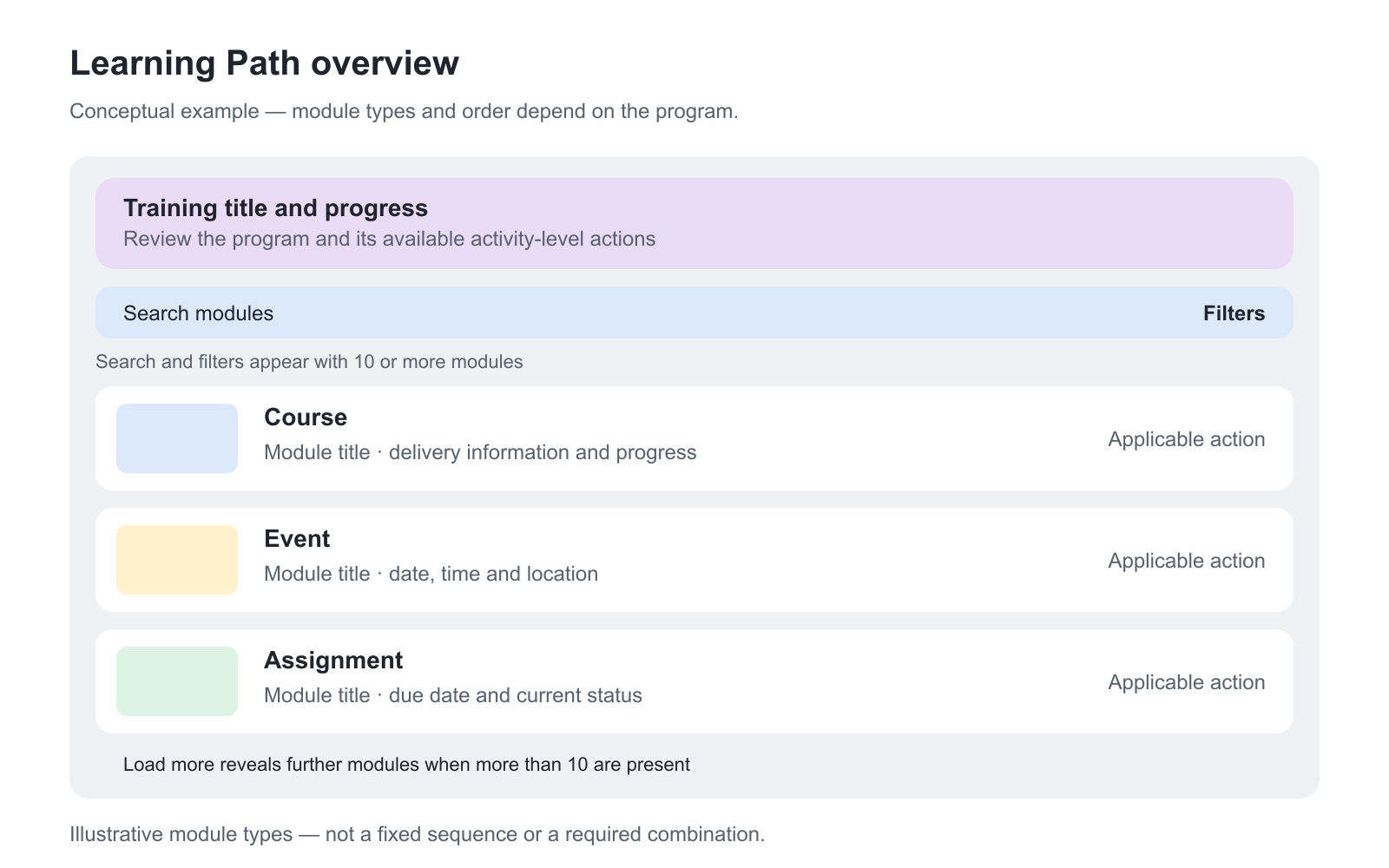
Read a module card
| Card information | What it communicates | What to verify |
|---|---|---|
| Module type and title | Whether the participant is opening a Course, Event, Assignment, or Existing Training module. | Use participant-facing titles that distinguish the task and purpose. |
| Status | Whether the module is Not started, In progress, or Completed where status is available. | Status depends on the module’s own completion behavior. |
| Date or schedule | Self-paced status, Course schedule, Event date and time, Assignment due date, or linked activity schedule. | Dates are shown in the participant’s applicable time context and do not replace deadline communication. |
| Progress or module count | How much of the available module structure has been completed where tracking is enabled. | Nested Existing Training progress can depend on its tracking configuration. |
| Action | Open, Start, Resume, provide feedback, or another applicable next action. | A card can remain visible while its opening action is restricted. |

Continue from the relevant point
Continue provides a quick route back into the activity. It considers the participant’s current progress and available learning route. It is particularly useful when the path contains several modules and the participant returns from My Overview or another context.
If the last visited Course page has become unavailable—for example, because a restriction or adaptive condition changed—Continue does not send the participant into an inaccessible destination. The route can return to an available point such as the Course start or another applicable module.
Search and filter a longer path
Search and filters appear when the Learning Path contains at least ten modules. This keeps short paths uncluttered while making large programs easier to scan.
- Search matches module titles. For an Existing Training module, it can match the module title and linked activity titles.
- Module type filters can focus on Course, Event, Assignment, or Existing Training modules.
- Status filters can focus on Not started, In progress, or Completed where supported.
- Load more reveals further cards when the path contains more than the initial set.
Select one module type and one status at a time. Status filtering currently applies to Course modules; do not expect the same status filter to represent Event attendance or Assignment assessment. Clear the search or filters to return to the wider list.
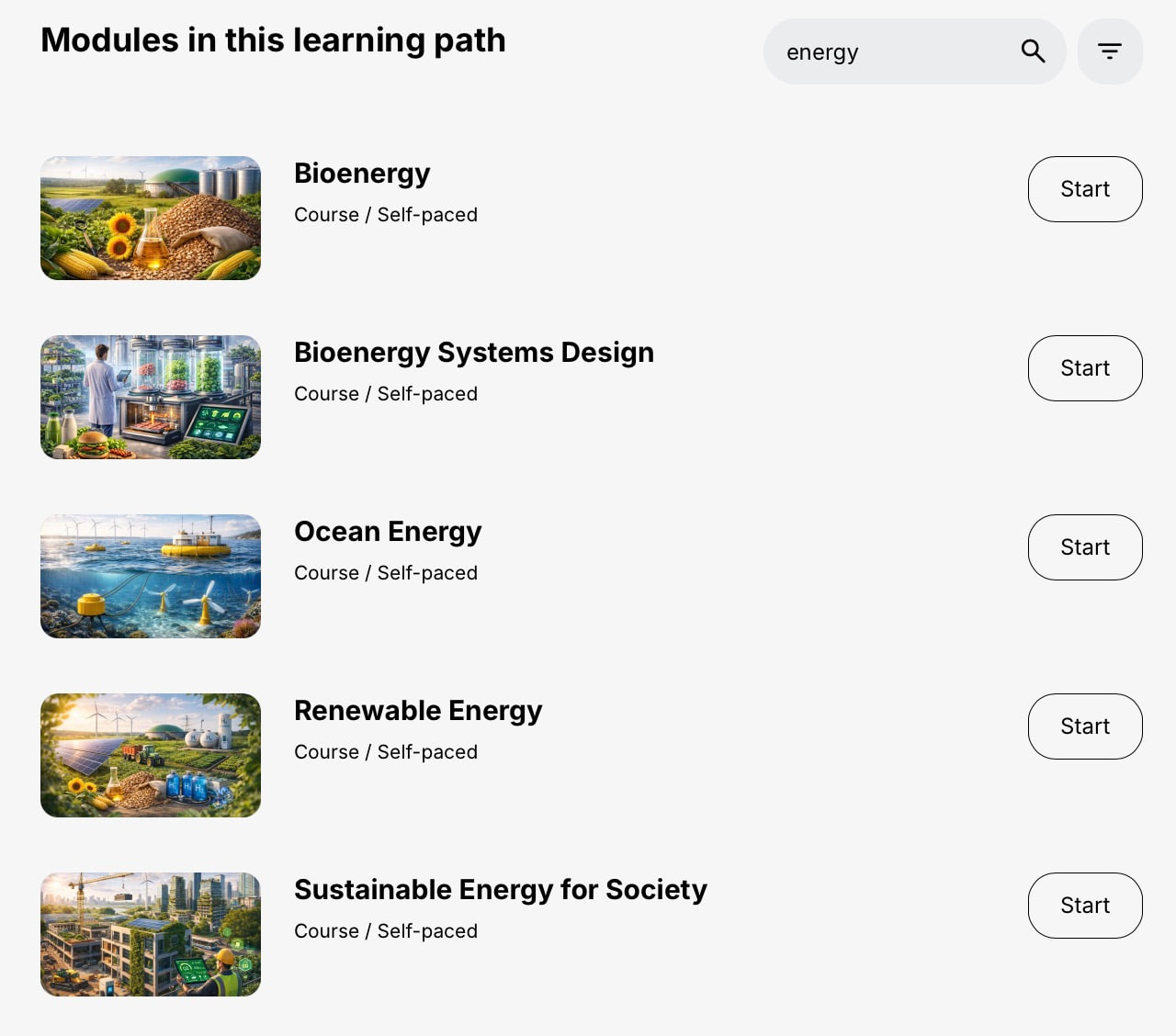
Searching changes the modules displayed, not the learning requirements or the overall progress calculation. In this example, searching for “energy” finds matching Course titles inside a ten-module Learning Path. It does not turn the results into a new, shorter required path.
Understand each module type
| Module type | Participant-facing information | Completion basis |
|---|---|---|
| Course | Self-paced or scheduled information, progress, and the applicable Start or Resume action. | Configured Course pages, learning objects, assessments, and completion behavior. |
| Event | Start and end date, time, location, Open, completion status, and feedback where available. | Attendance and any additional configured conditions. |
| Assignment | Due date when configured, submission route, status, and assessment outcome. | Submission plus the configured assessment or pass requirement. |
| Existing Training | A linked Training Activity that can expose its schedule, thumbnail, modules, and progress after enrollment. | The linked activity’s own completion and tracking configuration. |
Existing Training and nested activities
An Existing Training module connects one Training Activity inside another Learning Path. When the participant is enrolled in the linked activity, the overview can expand the module to show its internal workload. Current versions can show nested modules so the participant’s view reflects the real training structure rather than presenting the link as one opaque step.
The linked activity can have its own schedule, completion, feedback, and module progress. A module count appears only when the participant is enrolled and progress tracking is enabled for the connection. Treat the parent activity’s progress and the linked activity’s detailed progress as related but separately configured calculations.
Understand a nested program’s real workload
When Enable tracking progress is enabled and the participant is enrolled in the selected nested activity, the Learning Path’s My progress panel can break that activity down into its required modules. Completing a module inside the nested training then contributes to the parent progress rather than waiting for the entire nested activity to finish.
For example, three tracked nested activities containing four required Courses each represent 12 Courses of work in this Learning Path view. The participant can see progress across those required modules rather than only three undifferentiated training items. Optional modules, including ones made optional by adaptive rules, are excluded from the required count at each nesting level.
Before a participant selects and enrolls in the nested activity, an Existing Training item can still count as one training. When tracking is disabled, the nested activity is not included in the parent’s tracked progress breakdown. These Learning Path details do not redefine the module count shown on My Overview or change existing progress analytics.
Use the module card’s current action. Select training identifies a choice that still needs to be made; it is not evidence that the participant is already enrolled in every offered alternative. In a preview, inspect the choices without treating the preview as the participant’s recorded selection.
Adaptive and restricted modules
Adaptive modules follow the participant-specific rules configured for the activity. Supplemental modules remain absent until their criteria reveal them. Optional adaptive modules can remain visible but leave the required route after qualification. Restrictions can keep a visible card unavailable until a date, completion, attendance, assessment, certificate, skill, or other prerequisite is satisfied.
The overview should help the participant understand both what exists and what to do next. If a visible locked card does not provide a useful explanation, review the restriction text and the feasibility of the route.
Example: plan preparation, an Event and assessed work
A participant joins a program containing a preparation Course, a live Event and a practical Assignment. The overview helps them distinguish work they can complete now from delivery dates and results that depend on another person. If the Event is restricted until preparation is complete, the participant must finish that prerequisite rather than expect Continue to bypass it.
After the Event, an incomplete card can mean attendance has not yet been recorded. After the participant submits the Assignment, completion can still depend on the required assessment outcome. Repeating the preparation Course does not provide attendance or a Passed assessment. Open the relevant module and progress details, then contact the facilitator if the participant has done their part and the expected result is still pending.
Use the Event date to plan attendance and the Assignment due date to plan submission. A separate Mandatory Deadline can govern completion of the whole activity, so allow time for assessment as well as the participant’s work. Calendar export supports planning; it is not attendance evidence. This makes the overview a working map of responsibilities and timing, not simply a list of content to open.
Download future Events
When the activity contains an available future or ongoing Event, Download all my events can export the participant’s relevant activity events and Event modules as one .ics calendar file. Past Events are not included.
The action does not appear when no future or ongoing Event exists or in a one-module activity where the overview is not used. In participant preview, the calendar action can be visible but disabled: preview does not provide the actual participant relationship used for the export.
Provide feedback from the overview
Feedback configured for any time can appear at the activity level in the overview header. Module-level feedback can appear beside the relevant module. The module-level action can require the participant to open the feedback-enabled module before it becomes available on the overview. After feedback is submitted, the action is no longer shown for that feedback relationship.
Troubleshooting
| Problem | What to check |
|---|---|
| Search or filters are missing | Confirm the Learning Path has at least ten modules. Shorter paths intentionally omit these controls. |
| A search does not find an Existing Training activity | Search the Existing Training module title and the linked activity title. Confirm the participant is enrolled where linked details require enrollment. |
| Continue opens the Course start instead of the last page | Check whether the previous page became restricted, hidden, or unavailable. Continue falls back to an available destination. |
| Download all my events is missing | Confirm at least one future or ongoing applicable Event exists and that this is an actual participant view, not preview. |
| An Existing Training module shows no module count | Confirm enrollment in the linked activity and that progress tracking is enabled for the Existing Training connection. |
| Feedback is missing from a module card | Confirm feedback is available at that level and time, that the participant opened the module where required, and that feedback has not already been submitted. |
FAQ
-
Why are search and filters missing from a Learning Path?
They appear for Learning Paths with at least ten modules. Shorter paths intentionally omit them to keep the overview simple.
-
What does Continue open?
Continue resumes a relevant available point based on the participant’s progress. If the last visited page is no longer accessible, it can fall back to an available starting point.
-
Why is an Existing Training module not showing its module count?
The participant must be enrolled in the linked activity and progress tracking must be enabled for the Existing Training connection.
-
When can a participant download all Events?
Download all my events appears when the Learning Path contains an applicable future or ongoing Event. It exports those items as one .ics file and excludes past Events.
-
Why did a module-level feedback action disappear?
The participant may already have submitted that feedback, the configured availability may have ended, or the module may need to be opened before its feedback action appears on the overview.
-
Can a visible module still be unavailable?
Yes. A card can remain visible to explain the journey while an Access Restriction, schedule, adaptive state, or other condition prevents opening it.